

The sudo: command not found error occurs on Linux systems when the ‘sudo’ command is either not installed or improperly configured. This command is crucial for executing commands with elevated privileges, and without it, performing administrative tasks can become challenging.
The sudo command, short for “superuser do,” allows users to run programs with the security privileges of another user, typically the superuser. It’s a fundamental component in most Linux distributions, enabling safe and controlled execution of commands that require higher privileges.
Why are you getting the sudo: command not found error?
This error generally appears for two main reasons: the sudo package is not installed on your system, or the system’s PATH environment variable does not include the directory where the sudo command resides.
While many Linux distributions come with sudo pre-installed, some, like Arch, Fedora, CentOS, RHEL 8 or later, and Debian 10 or later, might not include it by default. Without the sudo package, the system doesn’t recognize the command, leading to the error.
Alternatively, if the sudo command is installed but its directory is missing from the PATH variable, the system won’t be able to locate it. The PATH variable tells the shell which directories to search for executable files when a command is entered without a full path.
To resolve this issue, you can install the sudo package or add its directory to the PATH variable.
Install the sudo package
To install sudo, you’ll need root access. If you cannot use sudo to gain root privileges, you can switch to the root user using the su command.

su - and pressing the Enter key. You’ll be prompted to enter the root password.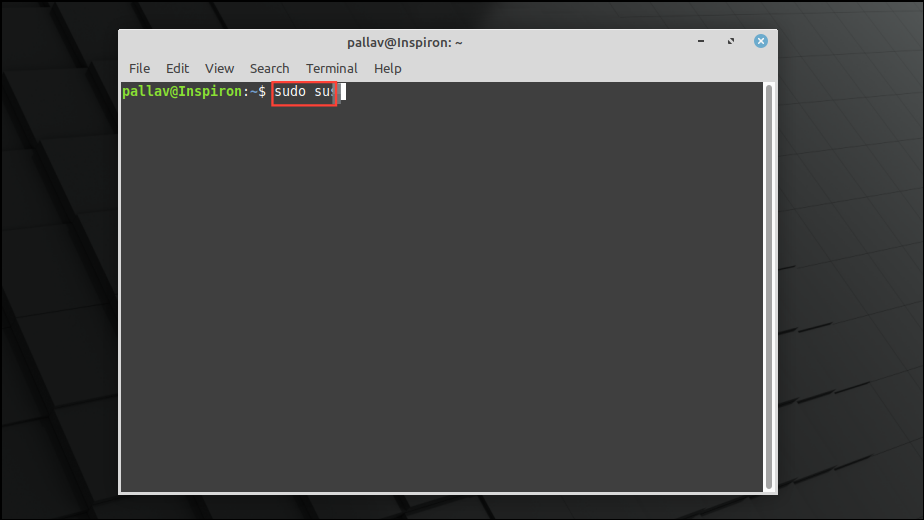
sudo package using the appropriate command for your distribution:For Debian-based distributions (like Ubuntu or Mint):
apt install sudoFor Arch Linux:
pacman -S sudoFor RHEL-based distributions (like Fedora and CentOS):
yum install sudoFor Gentoo:
emerge --ask app-admin/sudo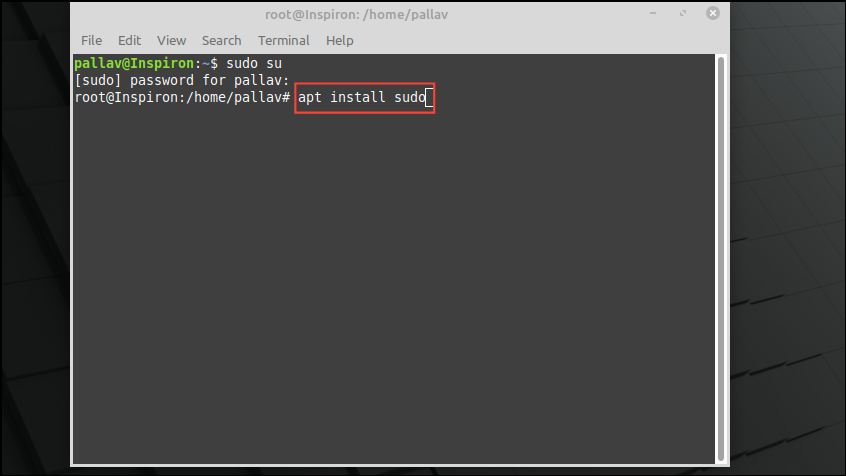
sudo package is already installed, the system will notify you. Otherwise, proceed with the installation. After installing, add your user account to the sudo or wheel group to grant sudo privileges. Replace username with your actual username in the following commands:For Debian-based systems:
usermod -aG sudo usernameFor Arch, Fedora, and RHEL-based systems:
usermod -aG wheel username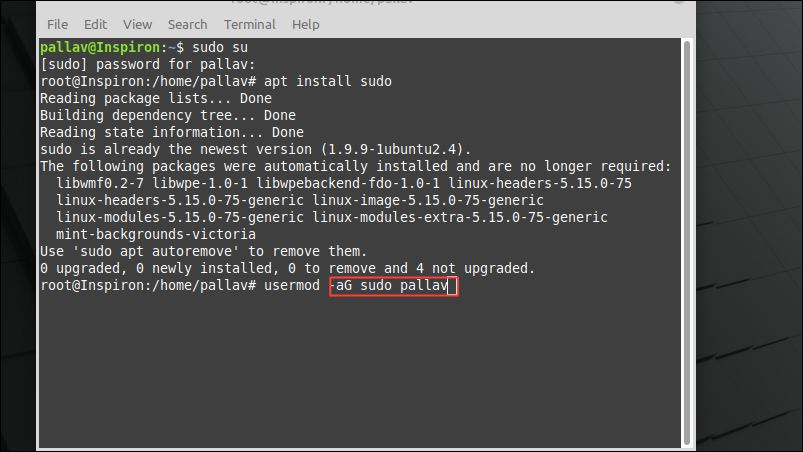
sudo command.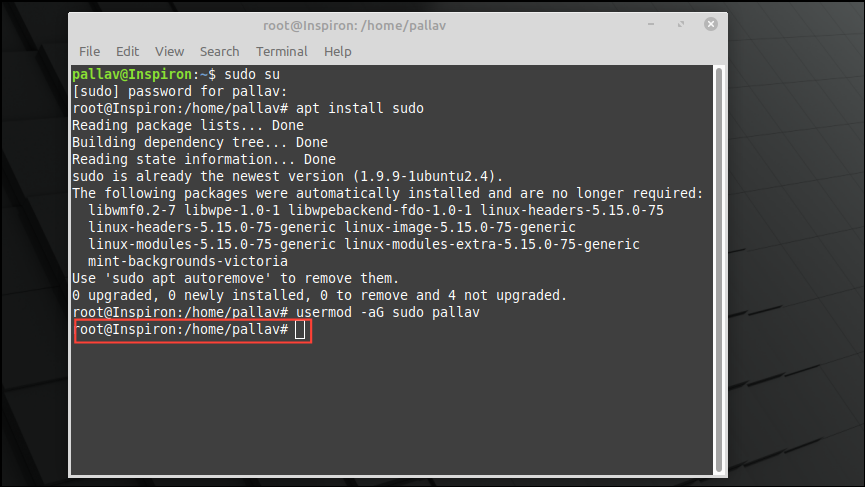
exit and pressing the Enter key. This will return you to your regular user account.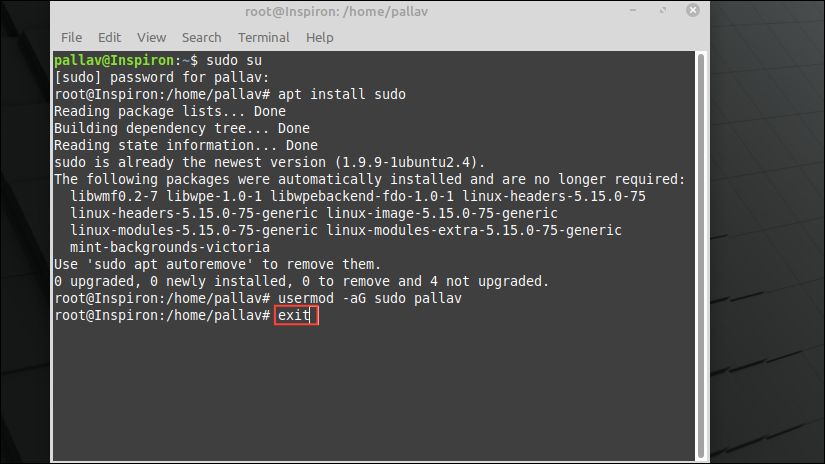
You should now be able to use sudo commands without encountering the error.
Add sudo to the PATH variable
If the sudo package is installed but you’re still facing the error, it’s possible that the system’s PATH variable doesn’t include the directory where sudo resides. Here’s how to add it:
which sudo, then press the Enter key. This command reveals the path to the sudo executable.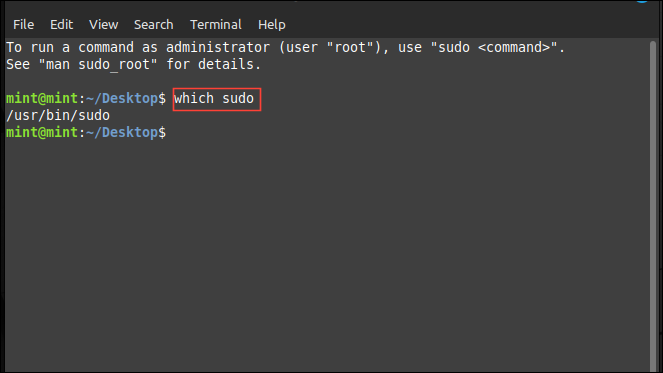
echo $PATH and pressing Enter. This displays all directories the system searches for executable files.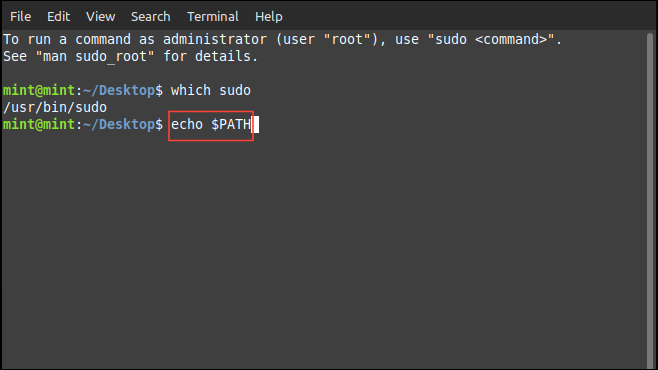
sudo directory to the PATH variable by typing export PATH=$PATH:/usr/bin and pressing Enter. This modification will last only for the current terminal session.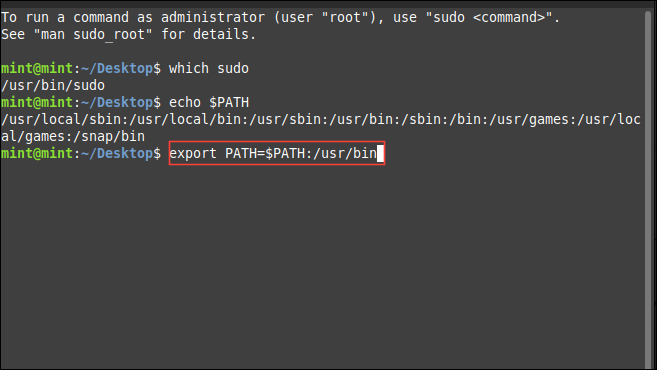
Open your file browser to your home directory. Press Ctrl + H to display hidden files and locate the .bashrc file.


export PATH=$PATH:/usr/binSave the file by pressing Ctrl + O and exit the editor.
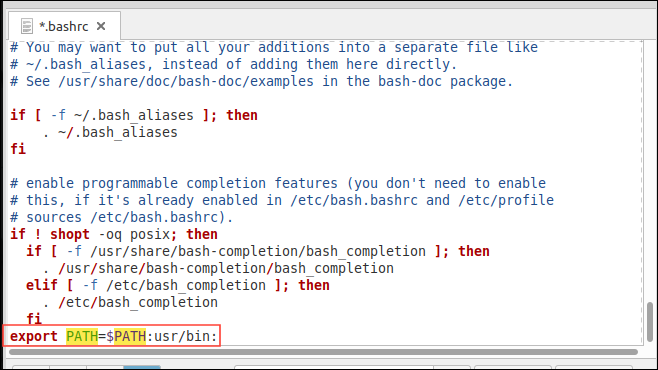
By adding /usr/bin to your PATH variable, you ensure the system can locate the sudo command. The change will persist across all future terminal sessions.
Following these steps should resolve the sudo: command not found error on your Linux system. Remember to exercise caution when operating as the root user, as improper commands can affect the entire system. Always return to your regular user account after performing administrative tasks to maintain system security.





