Palworld throws a handful of error codes and bugs at players, ranging from multiplayer session failures to crashes, stalled base tasks, and a stubborn autosave problem on Xbox and PC Game Pass. Most of these have a known cause and a working fix, while a few are cosmetic annoyances that resolve themselves once you know what to do.

Multiplayer session error codes
Three related error codes appear when Palworld’s login servers get overwhelmed or when a world’s multiplayer setting doesn’t match what a player expects. They look different depending on platform, but the underlying cause and fix are the same.
| Error | Platform | Fix |
|---|---|---|
| Not Found Session 91 | PC and Xbox | Join a different server, or confirm with the host that Multiplayer is turned on for that world |
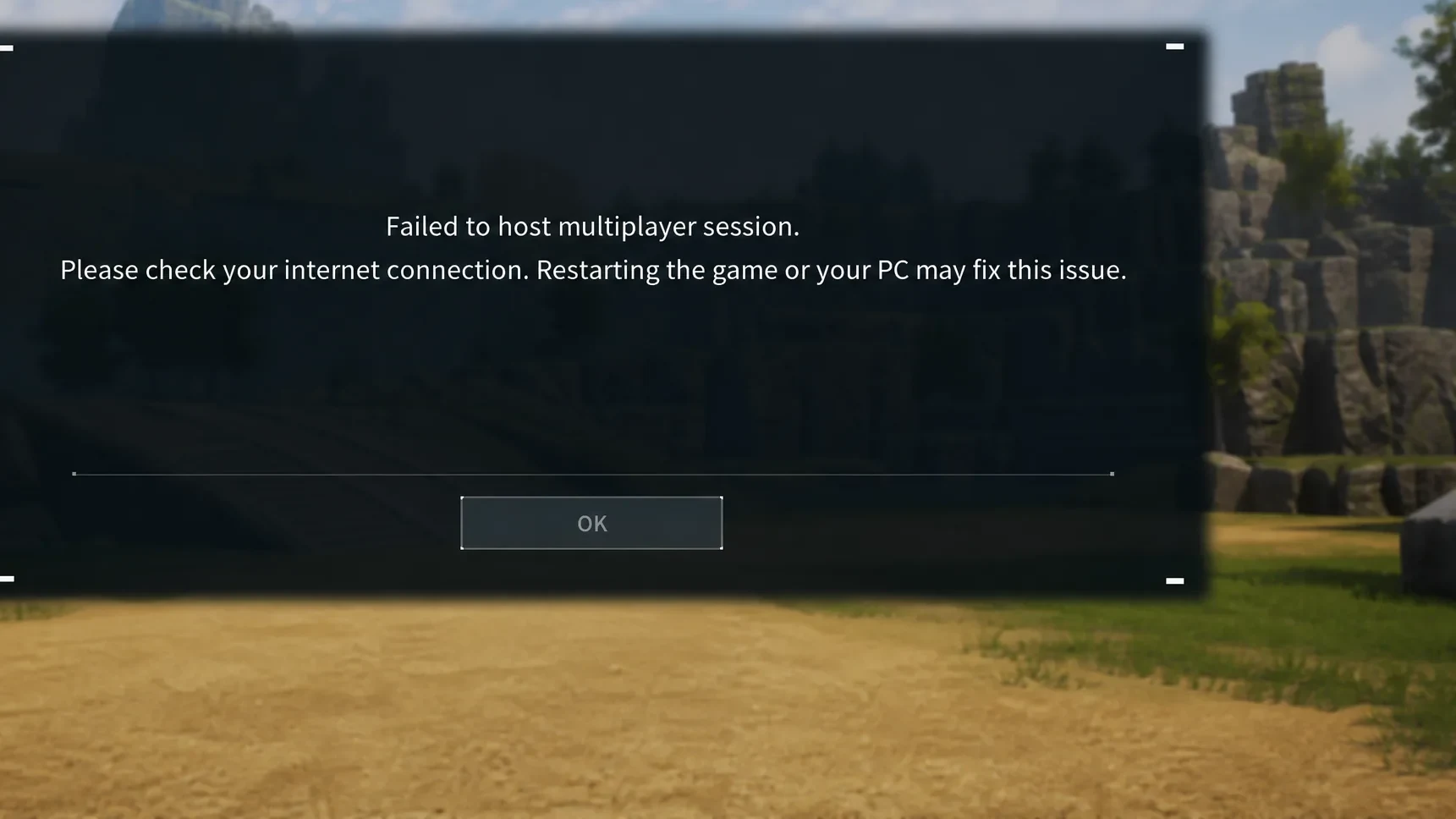
| Failed to Host Multiplayer Session | Xbox | Turn the world’s Multiplayer setting Off, then back On |
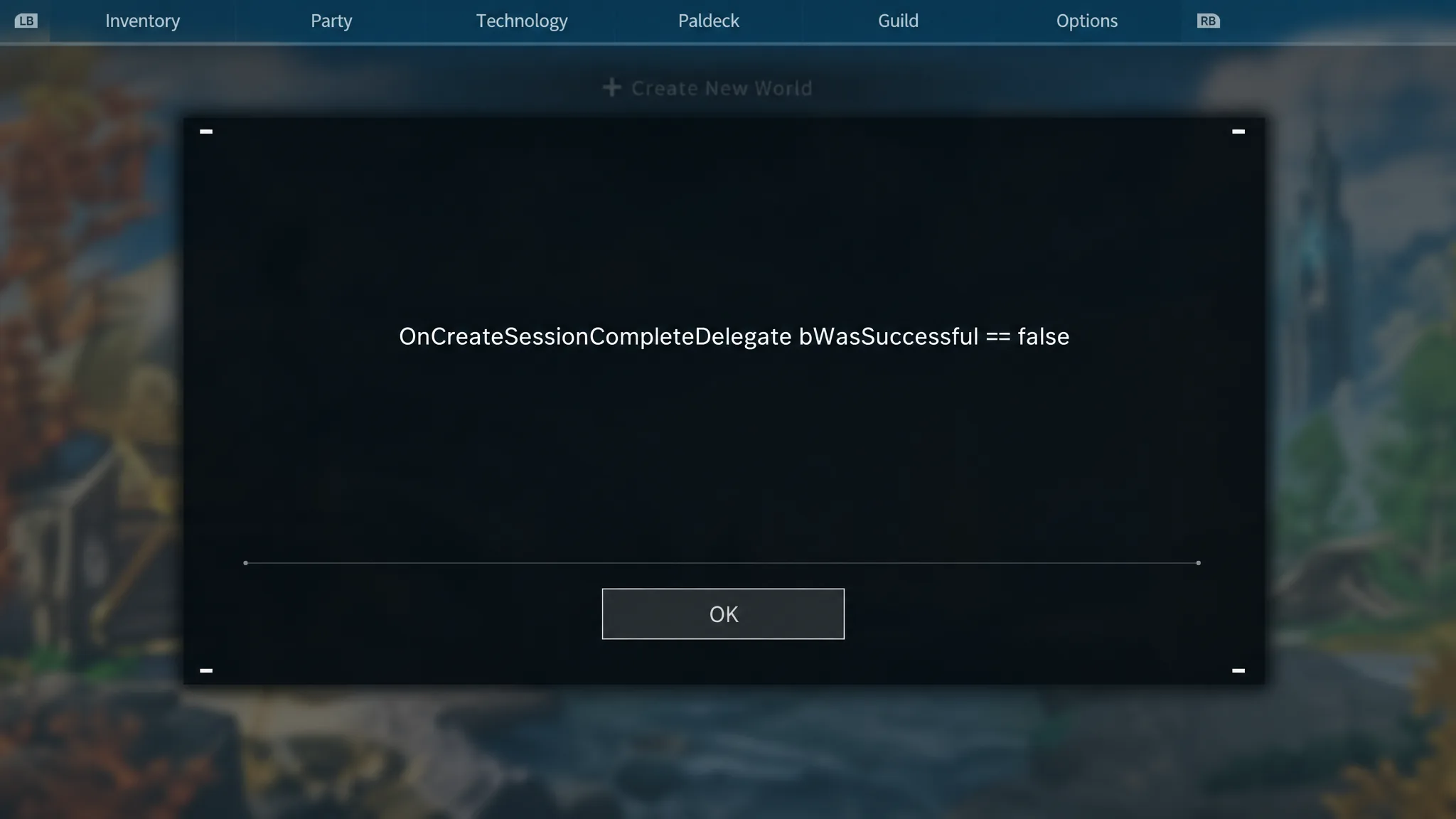
| OnCreateSessionComplete Delegate bWasSuccessful == false | PC | Turn the world’s Multiplayer setting Off, then back On |
Failed to Host Multiplayer Session shows up for Xbox players rejoining a world they’ve already created. It’s caused by login servers being overloaded rather than anything wrong with the save itself, so toggling Multiplayer off and back on for that world clears it in most cases.
OnCreateSessionComplete Delegate bWasSuccessful == false is the PC equivalent of the same problem, appearing when trying to rejoin a previously created world. The same overloaded-server cause applies, and the same Multiplayer toggle fix works.
Launch and crash failures
A black screen on launch leaves the game appearing frozen right after starting it. The game doesn’t actually hang, it goes idle during a slow load, so waiting at least 10 minutes before force-closing usually lets it finish loading normally.
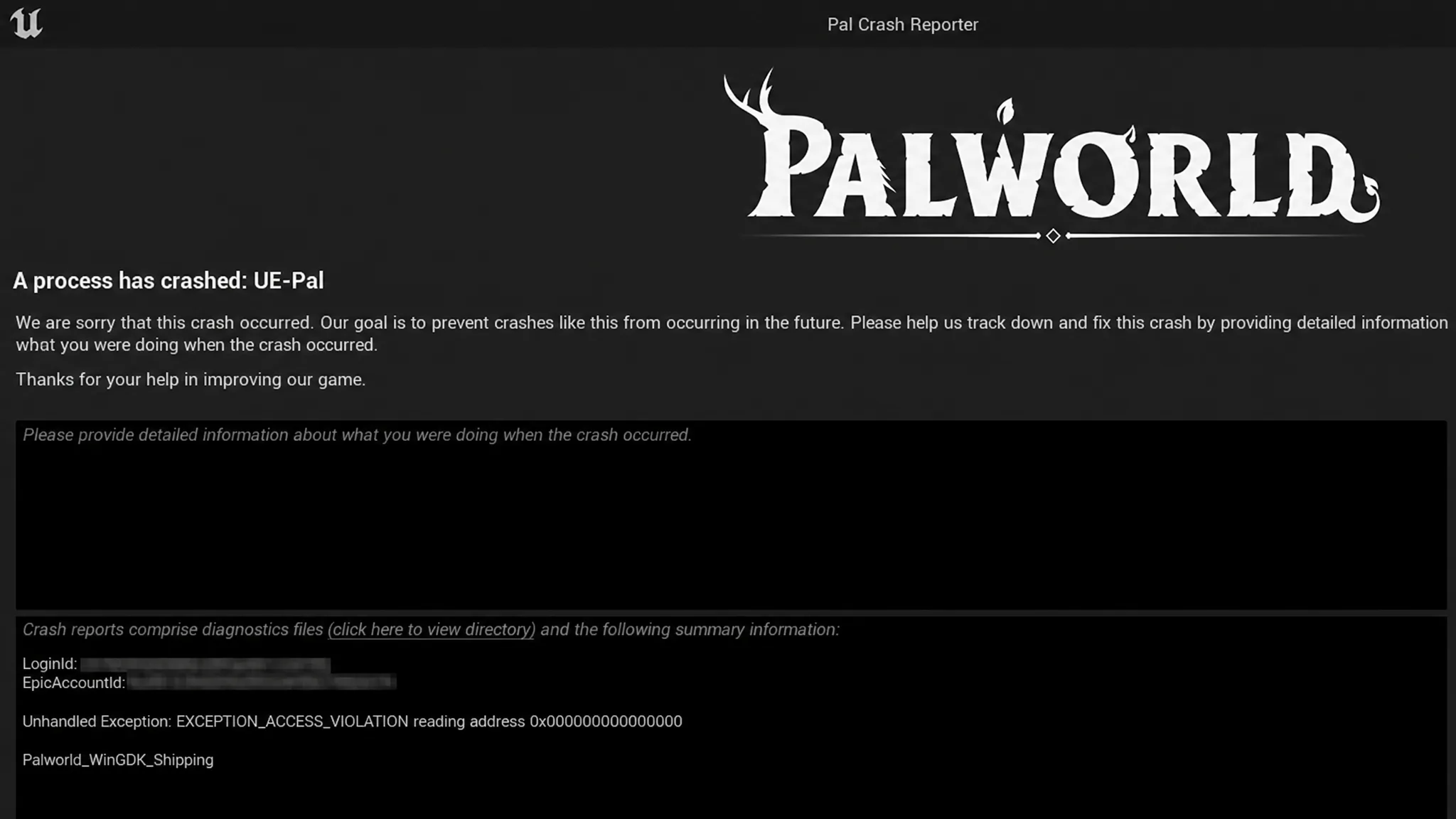
Some PC players hit a crash to desktop labeled UE Pal Crashed – Exception Access Violation. There’s no dedicated patch for this crash, but verifying the integrity of the game’s files through Steam, or through Manage > Files > Verify and Repair on the Xbox App for Game Pass, resolves it for most players.
Bugs affecting the current 1.0 build
Since the version 1.0 update, a separate set of issues has surfaced on dedicated servers and in single-player, most of them tied to performance and stability rather than a specific error code.
| Issue | Fix |
|---|---|
| Dedicated server disconnects or crashes every 15–30 minutes | Add NetServerMaxTickRate=120 and LanServerMaxTickRate=120 to the server’s engine.ini file, then restart the server. Also keep active Pals to roughly 15 per player and bases to about 3 per guild. |
| Terrain clipping near waterfalls or walls | Avoid rolling into waterfall entrances; if you clip through the terrain, follow the left-hand wall until you find the opening and glide back out. |
| Save corrupted or removed with a “path too long” message | Free up space on the drive holding your saves and shorten the save folder’s file path, then relaunch the game. |
| Crashes, freezing, and FPS drops after updating | Verify game file integrity through Steam, update GPU drivers, lower View Distance and Shadows, and try adding -dx11 to the game’s launch options to force DirectX 11. |
| Textures appear low-resolution or blurry despite high settings | Clear the GPU’s shader cache through the graphics driver control panel, restart the PC, and relaunch the game. |
| Pals stop attacking or working in multiplayer sessions | Restart the server or session, reduce the number of deployed Pals, and clear leftover debris around bases. |
| Game reports mods installed even after removing mod files, causing crashes or missing progress | Remove all mod files and loaders, verify game files, and start a clean world. |
World Save autosave failure on Xbox and PC Game Pass
Players on Xbox and PC Game Pass sometimes see a red message reading World Data autosave failed. When it triggers, character progress such as technology unlocks and Lifmunk Effigy catch-rate boosts still saves, but Pals, inventory, and base structures do not.
There’s no officially confirmed fix for this one, but a few community workarounds have reduced how often it happens.
- Return all deployed Pals to the Palbox and pick up loose items scattered around your bases, since too many dropped items on the ground may be triggering the failure.
- In the World Settings menu, set Maximum number of dropped items to 0, restart the game to clear existing loose items, then revert the setting once saving works again.
- Quit the game the moment the save prompt appears in the upper-right corner of the screen.
- Destroy structures built outside your base perimeter.
Results with these workarounds vary between players, since the exact cause of the autosave failure hasn’t been pinned down.
Older bugs already resolved in past updates
A handful of bugs that circulated earlier in Palworld’s life cycle have since been patched out and shouldn’t reappear on a current install.
| Bug | What it did | Fixed in |
|---|---|---|
| Guild Save File Deletion Bug | Made a dedicated or guild server inaccessible | Version 0.1.4.1 |
| Lifmunk Effigy Bug | Made capturing Pals harder instead of easier after offering effigies to a Statue of Power | Version 0.1.4.1 |
| Pals Logging Trees Bug | Pals assigned to chop trees produced no wood and got stuck on the task | Version 0.1.4.1 |
| Key Guide Display Not Working | The on-screen key guide failed to display correctly on PC | Version 0.1.4.0 |
PC-specific quirks
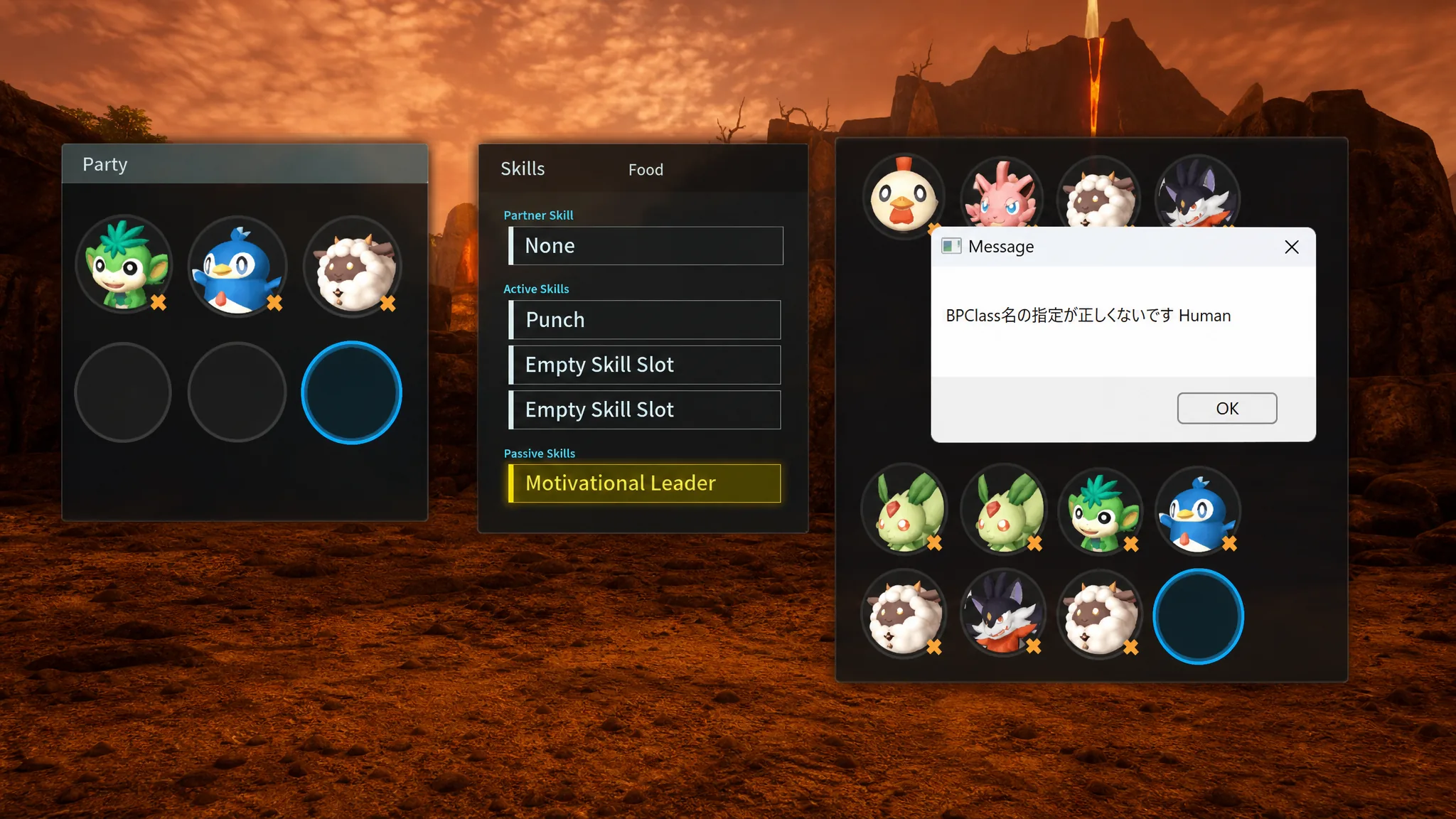
Catching a Syndicate Thug and selecting View Details on it triggers a BPClass Human error pop-up. Selecting OK dismisses it without further issue, though the captured Thug will display with a missing model afterward.
A controller that plugs in but isn’t recognized on PC usually responds to switching the connection type, from USB to Bluetooth or vice versa. Xbox and PlayStation controllers tend to work more reliably on PC than generic pads.
The PC version also lacks a visible exit or quit button in-game. Closing Palworld from Steam, the Xbox App, or Task Manager works, but be sure to save your progress first since none of those methods trigger an autosave.
Dedicated server requirements
Connection failures on a self-hosted dedicated server often trace back to the machine not meeting the baseline specs needed to run it.
| Requirement | Minimum |
|---|---|
| CPU | 4 cores (recommended) |
| RAM | 8 GB or more |
| Network | UDP port 8211 (default), with port forwarding configured |
The official Palworld dedicated server guide covers the full setup process, including port forwarding, for players hosting their own world.
A stable, wired internet connection avoids most connectivity errors when joining official or dedicated worlds, and verifying game files through Steam or the Xbox App is worth trying first whenever a new error appears right after an update.