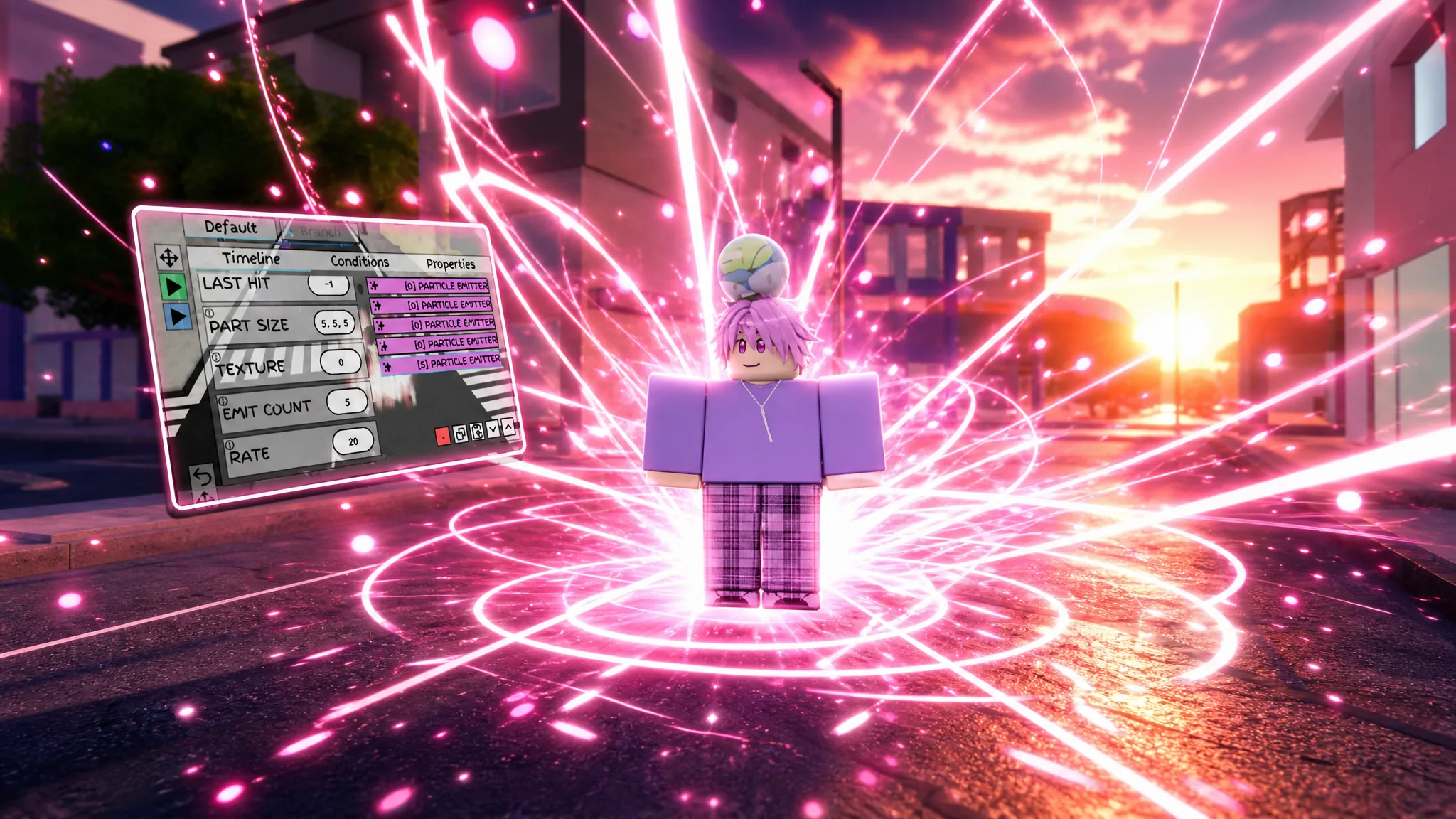
The Particle Emitter node in the Jujutsu Shenanigans (JJS) skill builder turns your custom moves into real visual effects. It spawns flat 2D images into the world and lets you control how they look, how they move, and how long they stick around. Every field in the panel maps to a specific behavior, and once you know what each one does, building your own VFX becomes a matter of dialing in numbers.
Quick answer: Spawn a Part, click Configure, open the Timeline tab, and add a PARTICLE EMITTER node. To see anything, press the green Play button on the left of the panel rather than pressing Enter.
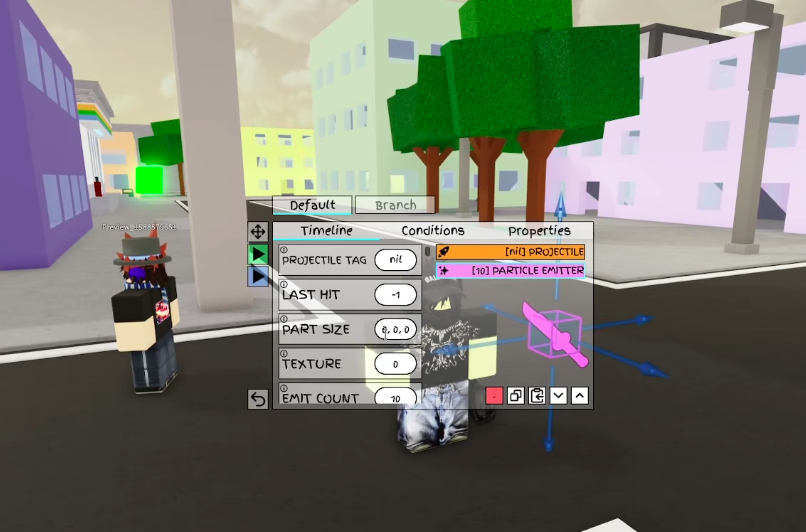
Open the Particle Emitter node in the skill builder
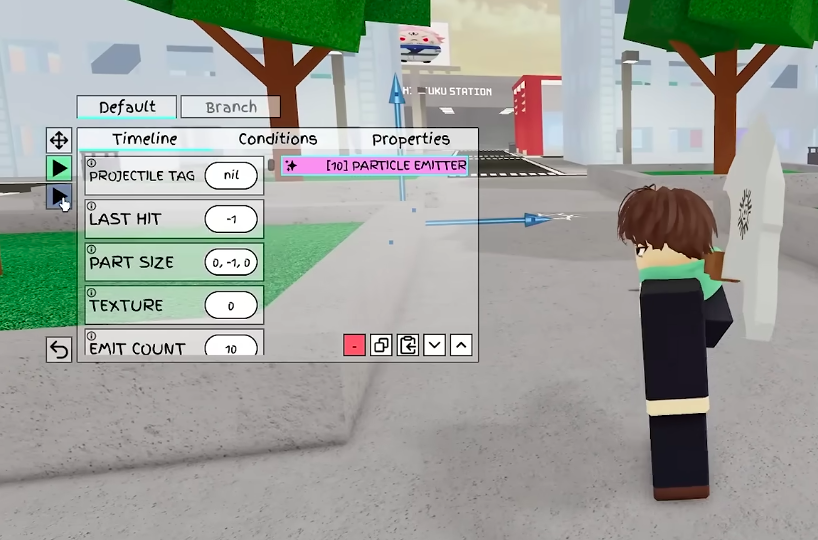
Spawn area and emission: Part Size, Texture, Emit Count, Rate, and Duration
These fields decide where particles appear, what image they use, and how many come out. The most important rule is the relationship between Emit Count, Rate, and Duration. When Duration is 0, the emitter fires a one-time burst using Emit Count. When Duration is greater than 0, the emitter streams particles per second based on Rate and ignores Emit Count.
| Setting | What it controls |
|---|---|
| PART SIZE (X, Y, Z) | Keep at 0, 0, 0 to use attachments and spawn from a single point. Any larger value creates a box of that size and scatters particles randomly inside it. Setting it to 5, 5, 5 spreads particles across a 5x5x5 area around the character. |
| TEXTURE | Paste a texture asset ID from the Roblox Marketplace to change the particle image. Default is a plain particle. |
| EMIT COUNT | Number of particles spawned at once. Only used when DURATION is 0. Setting it to 200 fires a large burst; setting it to 1 fires a single particle. |
| RATE | Particles per second. Only active when DURATION is greater than 0. |
| DURATION | Seconds the emitter stays enabled. 0 means it uses EMIT COUNT for a single burst. |
Note: To emit continuously, set Duration to something like 5 and Rate to 20, then set Emit Count to 0 so it does not interfere.
Appearance: Color, Size, Transparency, and Squash
These properties change how a particle looks across its lifetime rather than at a single moment. Color and Size both accept sequences, so the left value is the starting state and later values describe how it changes before the particle fades.
| Setting | Format and behavior |
|---|---|
| COLOR | A ColorSequence written as RGB values separated by spaces (r,g,b r,g,b). The left color is the start and the right color is the end. Entering 255,255,255 0,0,255 makes particles spawn white and fade into blue. |
| SIZE | A NumberSequence written as values separated by commas. Entering 1, 3, 0 starts particles at size 1, grows them to 3 midway, then shrinks them to 0 before they disappear. |
| TRANSPARENCY | A NumberSequence like Size. Entering 0, 1 spawns particles fully opaque and fades them to invisible; 1, 0 does the reverse. |
| SQUASH | A NumberSequence that stretches or squishes the texture. Positive values stretch, and something like 5, 0 stretches particles strongly before returning to normal. |
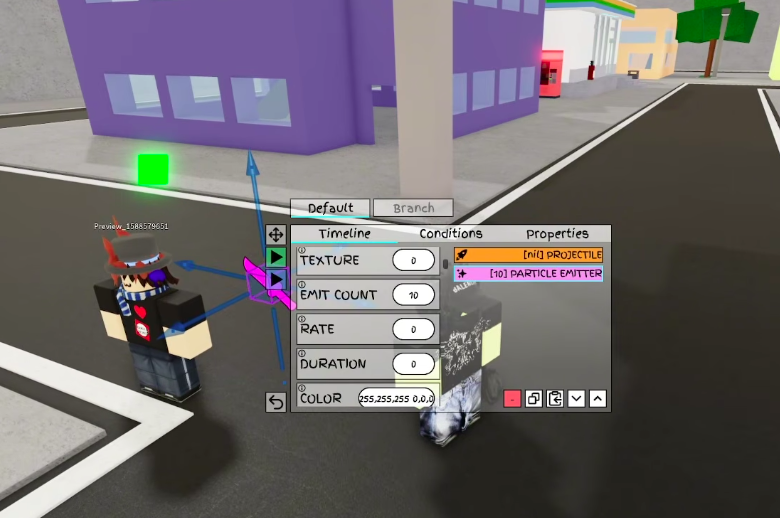
Lifetime and motion: Speed, Rotation, Rot Speed, Acceleration, and Drag
Several of these accept a minimum and maximum pair. When the two numbers differ, JJS randomizes the value per particle between them, which stops the effect from looking repetitive. When they match, every particle uses the same value.
| Setting | Behavior |
|---|---|
| LIFETIME (min, max) | How long each particle exists in seconds. 5, 5 makes every particle last exactly 5 seconds; 1, 5 randomizes between 1 and 5. |
| SPEED (min, max) | How fast particles travel outward. 50, 50 shoots them out at a constant speed; 10, 50 randomizes their speed. |
| ROTATION (min, max) | Starting rotation of the texture. 45, 45 spawns every particle at a fixed 45-degree angle. |
| ROT SPEED (min, max) | How fast particles spin during their life. Negative values reverse the spin direction. |
| ACCELERATION (X, Y, Z) | A constant force in world space, like gravity or wind, that pulls particles in a direction over time. |
| DRAG | Slows particles down over time through exponential decay. Pairing Acceleration of 0, 0, 5 with Drag of 5 lets you see the drag pull back the accelerated motion. |
Lighting: Light Emission and Light Influence
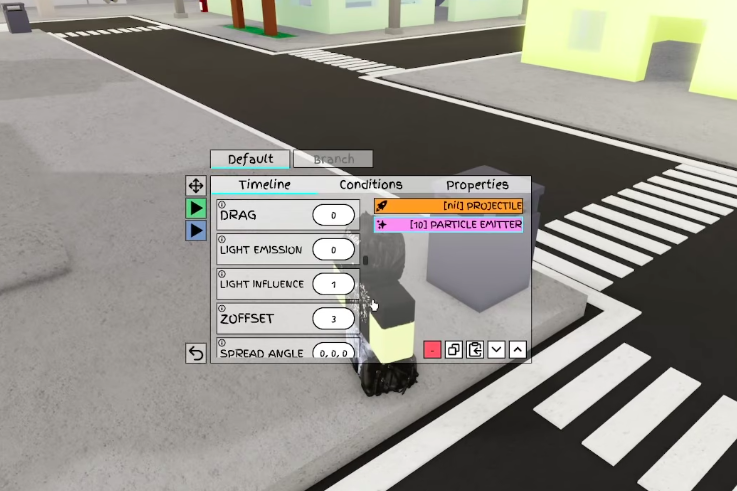
These two work together to control how bright particles look and whether the world’s lighting affects them. Raise Light Emission to make particles glow, and drop Light Influence to 0 if you want that glow to stay constant regardless of the environment.
- LIGHT EMISSION sets how much the particle glows. Setting it to 1 gives a clear glow; higher values push it to an intense, bright effect.
- LIGHT INFLUENCE sets how much scene lighting affects the particle. At 0, the environment’s lighting no longer dims or tints the particle’s brightness.
Placement and orientation: ZOffset, Spread Angle, Position, Lock to Part, and Orientation Type
This group decides where particles sit relative to the camera and the character, and how the flat textures face in 3D space.
| Setting | Behavior |
|---|---|
| ZOFFSET | Depth offset from the camera. A value like 2 renders particles slightly behind the character relative to the camera view. |
| SPREAD ANGLE | Widens the cone that particles emit into, so they fan out rather than firing straight. |
| POSITION | Offsets the spawn point from the character’s limbs. |
| LOCK TO PART / LIMB | Binds particles to a chosen limb such as Torso, Head, or HumanoidRootPart so they move with the player. |
| ORIENTATION TYPE | Controls how textures align. Options include FacingCamera, FacingCameraWorldUp, VelocityParallel, and VelocityPerpendicular for velocity-aligned effects. |
Flipbook settings for animated textures
Flipbook settings let a single texture play as a short animation by stepping through a grid of frames. Flipbook Size defines the grid, Flipbook Framerate sets the playback speed in frames per second, and Flipbook Mode chooses the playback style.
| Flipbook Mode | Playback style |
|---|---|
| Loop | Plays through all frames continuously, restarting after the last frame. |
| OneShot | Plays the animation once across the particle’s lifetime, with the framerate set by lifetime divided across the frames. |
| PingPong | Plays forward then backward through the frames. |
| Random | Plays frames in a randomized order. |
Emitter Shape and Run on Server vs Client Sided
Emitter Shape changes the volume particles spawn from, with choices such as Box, Cylinder, Disc, and Sphere. Shape Partial controls how much of that shape is used. The two visibility toggles decide who sees the effect.
- RUN ON SERVER replicates the effect to every player in the match.
- CLIENT SIDED renders the particles only for the local player, which helps performance when the effect does not need to be seen by others.
When a change is correct, pressing the green Play button shows the updated particles right away in the preview. If nothing appears, the two most common causes are a Duration of 0 with an Emit Count that never fires, or a Rate value that only works once Duration is set above 0. Once the preview matches what you want, the emitter carries the same behavior into your finished move.