The AFK Bloom Fishing V13-4 macro automates the full fishing loop in the Roblox game Fisch. Once configured, it handles casting, shaking, and the reel-in minigame on its own, which lets you farm fish, currency, and rods without manual input. It runs on Windows through AutoHotkey and depends on a small set of Roblox settings being matched to the macro.
Quick answer: Install AutoHotkey v1.1 (deprecated), extract the AFK Bloom Fishing V13-4 folder, set Roblox’s UI Navigation Toggle to #, run Fisch V13.4.ahk, set Navigation Key to # with Shake Mode on Navigation, then click Start and press the start hotkey in-game.
What you need before setup
The macro only works on Windows, and it will not launch on the wrong AutoHotkey version. Version 2.0 is not compatible with this script, so you must use the older 1.1 build. Confirm each requirement below before you start.
| Requirement | Detail |
|---|---|
| Operating system | Windows |
| AutoHotkey | Version 1.1 (deprecated); v2.0 will not run the script |
| Macro package | AFK Bloom Fishing V13-4 (AHK), containing Fisch V13.4.ahk and .ini rod profiles |
| Roblox setting | UI Navigation Toggle enabled and bound to a key such as # |
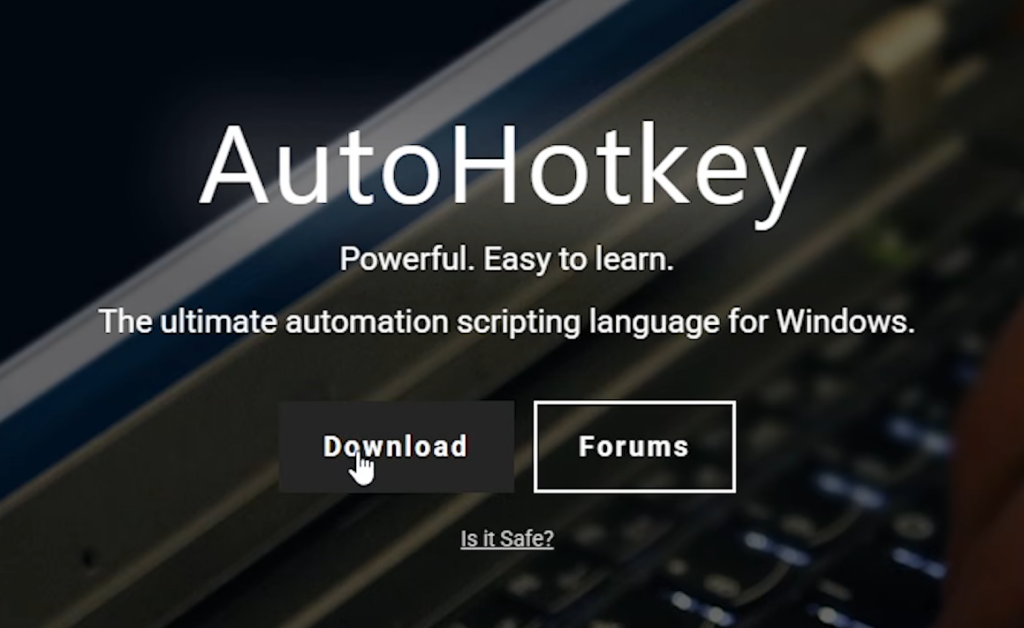
You can download AutoHotkey from the official AutoHotkey site. On the download page, choose Download v1.1 (deprecated) rather than v2.0.
Install and open the macro
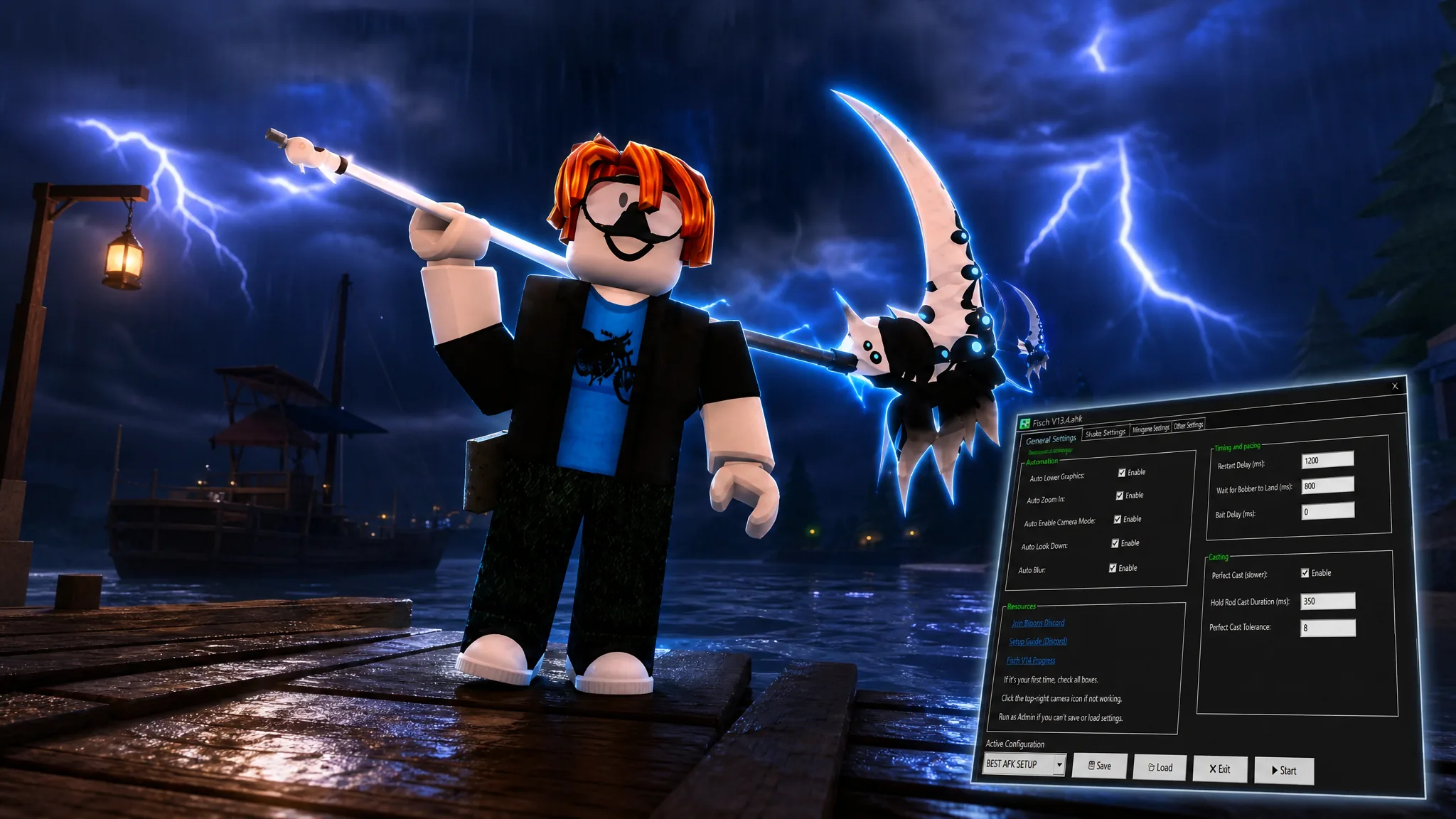
.rar file in your Downloads folder and choose Extract, then open the extracted folder.Fisch V13.4.ahk to launch the macro. The window opens with tabs for General Settings, Shake Settings, Minigame Settings, and Other Settings.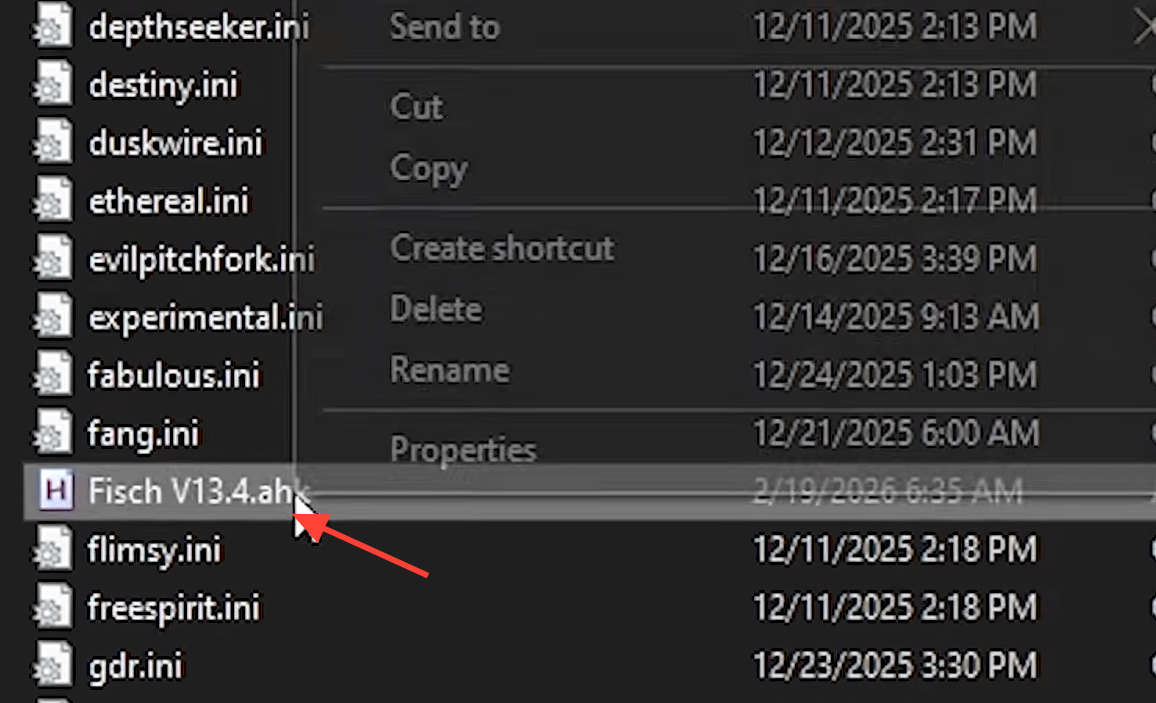
Match the navigation key in Roblox and the macro
The shake step relies on the game’s UI navigation key. The value you set inside Roblox must be identical to the one in the macro, or the shake action fails.
UI Navigation Toggle, and set it to a key such as #. Make sure the toggle is enabled.Navigation Key to the same key you used in Roblox (for example, #).Shake Mode to Navigation, then click Save at the bottom of the window to store the configuration.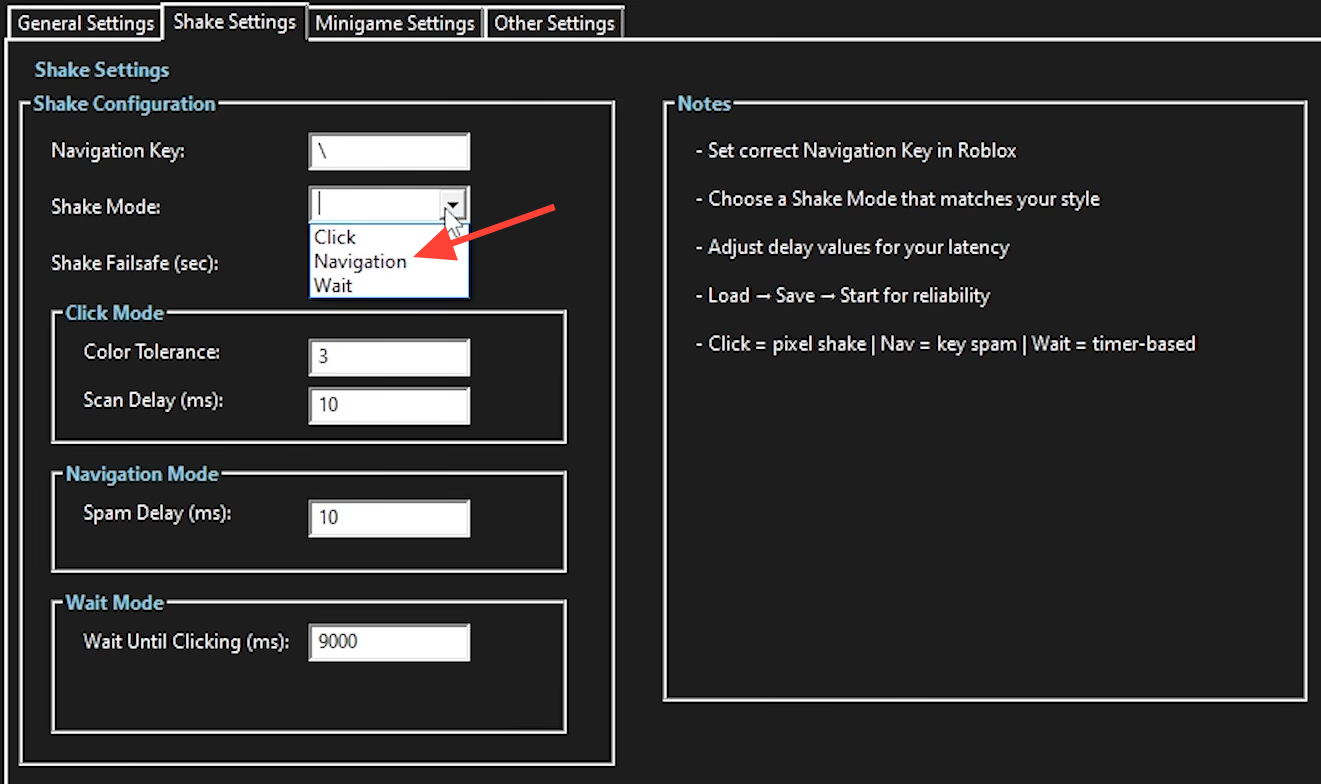
Turn on the automation options
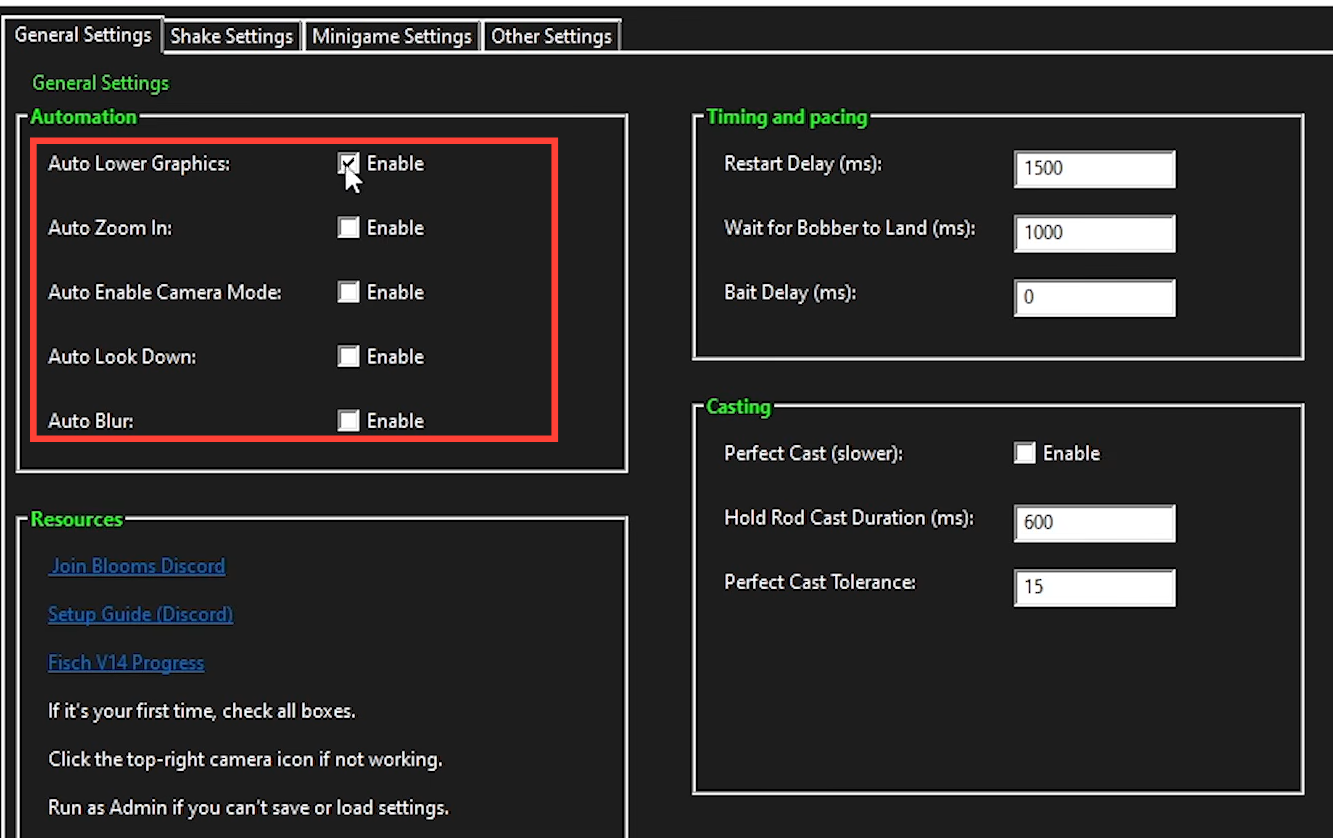
The General Settings tab controls camera and graphics handling. Enabling these boxes lets the macro position the camera, lower load on your system, and read the screen reliably during long sessions.
- Auto Lower Graphics
- Auto Zoom In
- Auto Enable Camera Mode
- Auto Look Down
- Auto Blur
Check all five, then move on to the rod configuration before you start.
Load a rod profile for the minigame
Different rods in Fisch use different minigame bars and colors, so a single generic setup will miss catches. The download folder includes preset .ini profiles named after specific rods, such as luminescent, carbon, trident, posidon, and champions.
Resilience and Control values under Control Stats, click Generate values, and Save.If the minigame bar appears but the fish escapes, the rod’s stats are not yet configured. Loading the correct profile or generating fresh values fixes it.
Start the macro and confirm it works
Stand your character next to the water so the bobber lands in a fishing spot. Click Start in the macro window, then press the start hotkey in-game to begin. Depending on the build, the start key is P or F10, with reload and exit keys shown in the overlay.
You know it is running when the camera zooms toward the water on its own, the line casts, and the on-screen prompts move through Waiting for Bobber, PERFECT!, and SHAKE without any input from you. A successful loop ends with a catch message such as a Crown Bass or Dumbo Octopus and an XP gain, after which the macro recasts automatically.
Common reasons it fails
| Problem | Fix |
|---|---|
| Script will not launch | You installed AutoHotkey v2.0; install v1.1 (deprecated) instead |
| Shake step does nothing | The Navigation Key does not match Roblox’s UI Navigation Toggle; set both to the same key |
| Fish escapes in the minigame | No rod profile loaded; load the matching .ini or generate values from the rod’s stats |
| Camera or casting off | Enable the five automation boxes in General Settings |
| Macro throws an error | Exit the macro, restart it, reconfigure, and start again |
Automation like this runs against Roblox’s rules, and no macro is guaranteed to be undetectable, so account penalties remain a possibility. Only download and run scripts you have verified yourself, and treat any file from an unofficial host with caution before executing it.