

When your iPhone sends messages as green bubbles instead of blue ones, it means iMessage isn’t working properly.
If you need to enable iMessage, refer to our guide below:
 Sakshi Garg
Restart iMessage
Sometimes, restarting iMessage can resolve issues where messages are sent as SMS instead of iMessage. This can happen due to corrupted files or settings glitches.
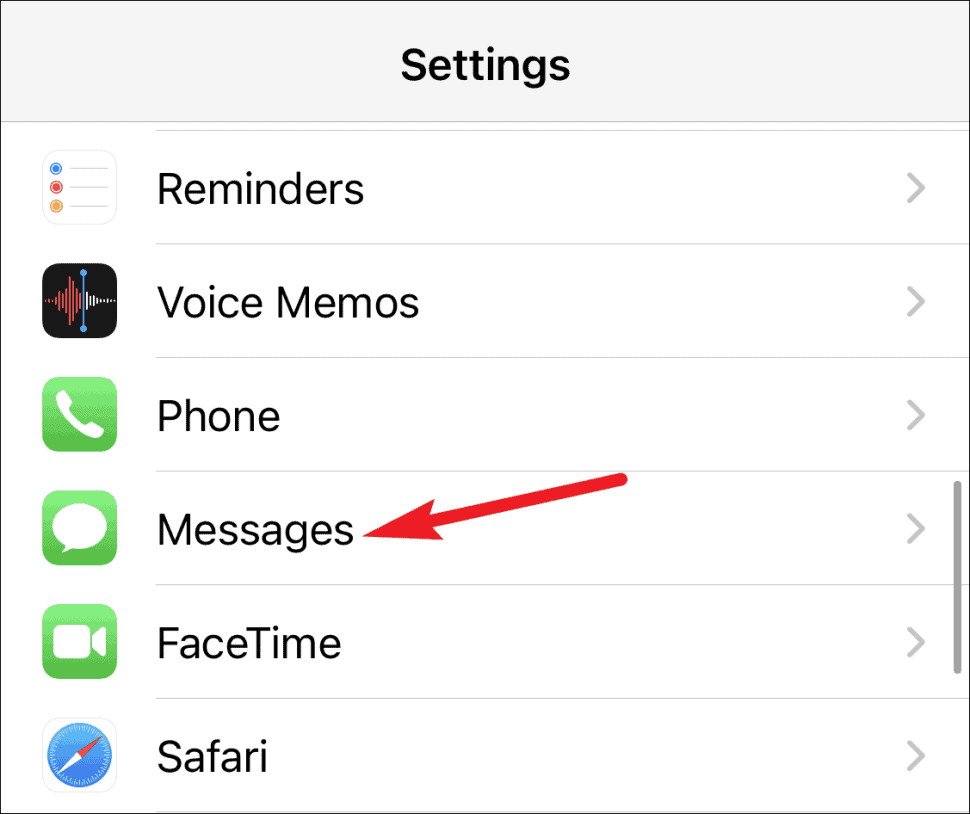
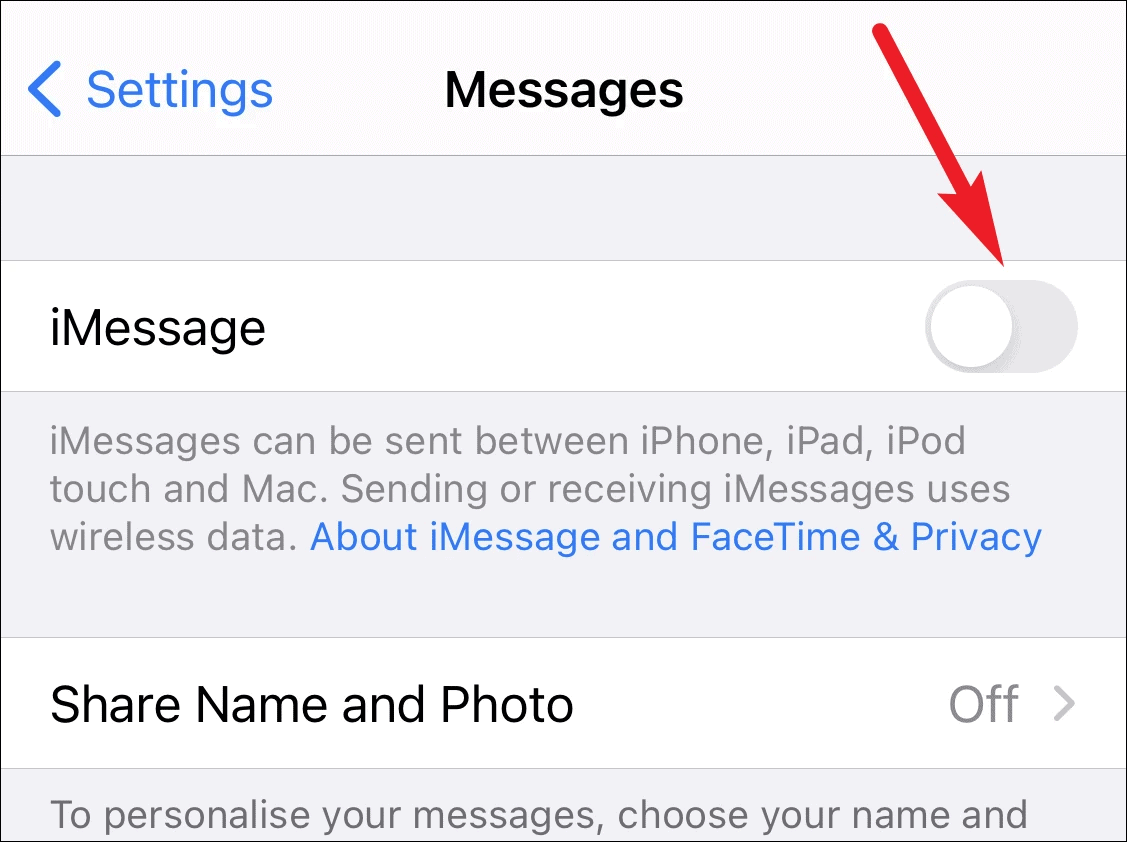
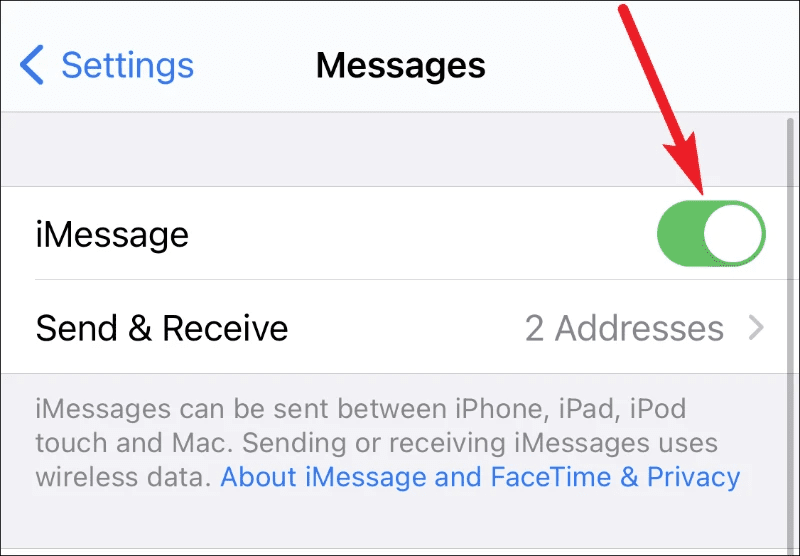
Ensure that your iPhone is connected to cellular data or Wi-Fi to activate iMessage. You may need to send an SMS to Apple’s servers, so make sure your plan supports SMS messaging.
New Message icon in the top-right corner.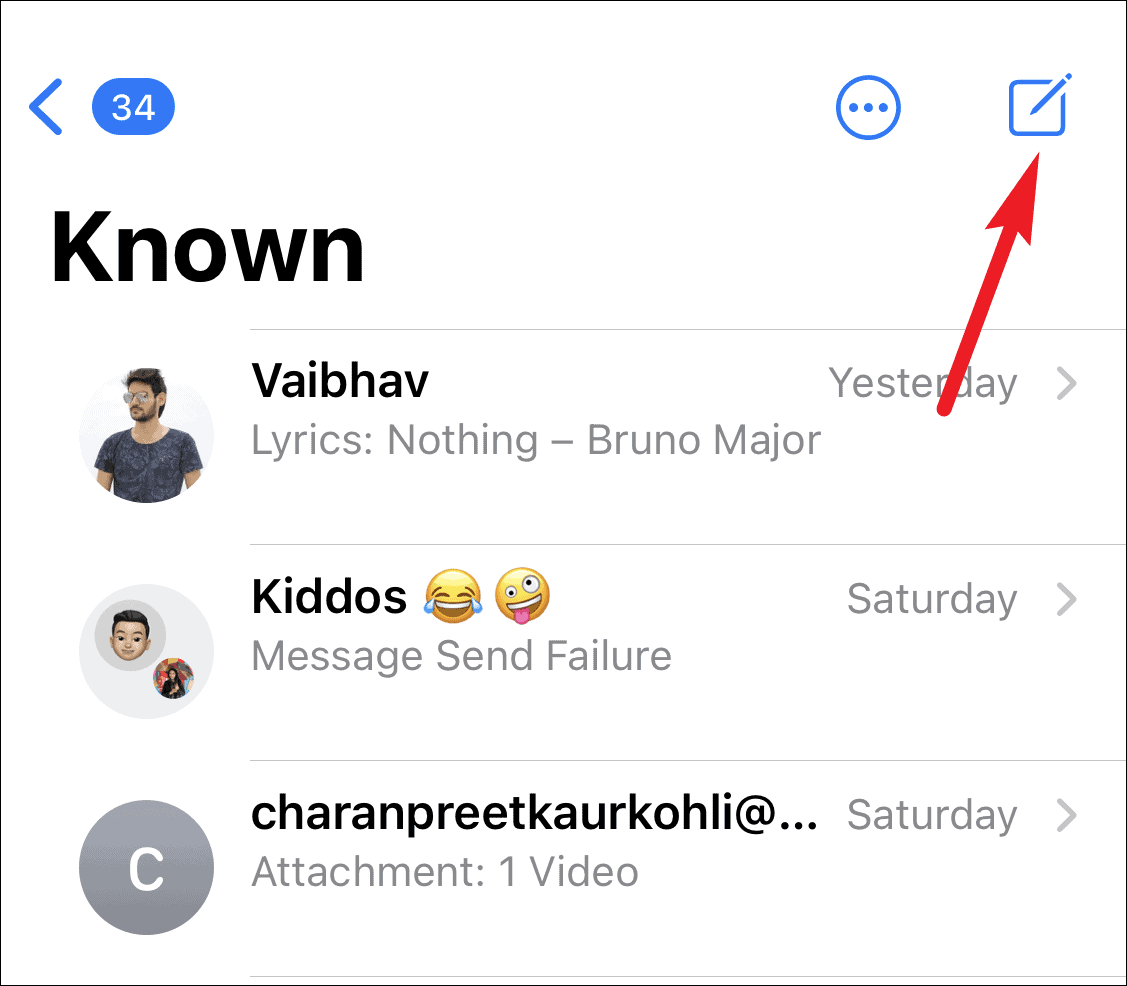
To: field and compose your message. The contact’s name should appear in blue, indicating that iMessage is active.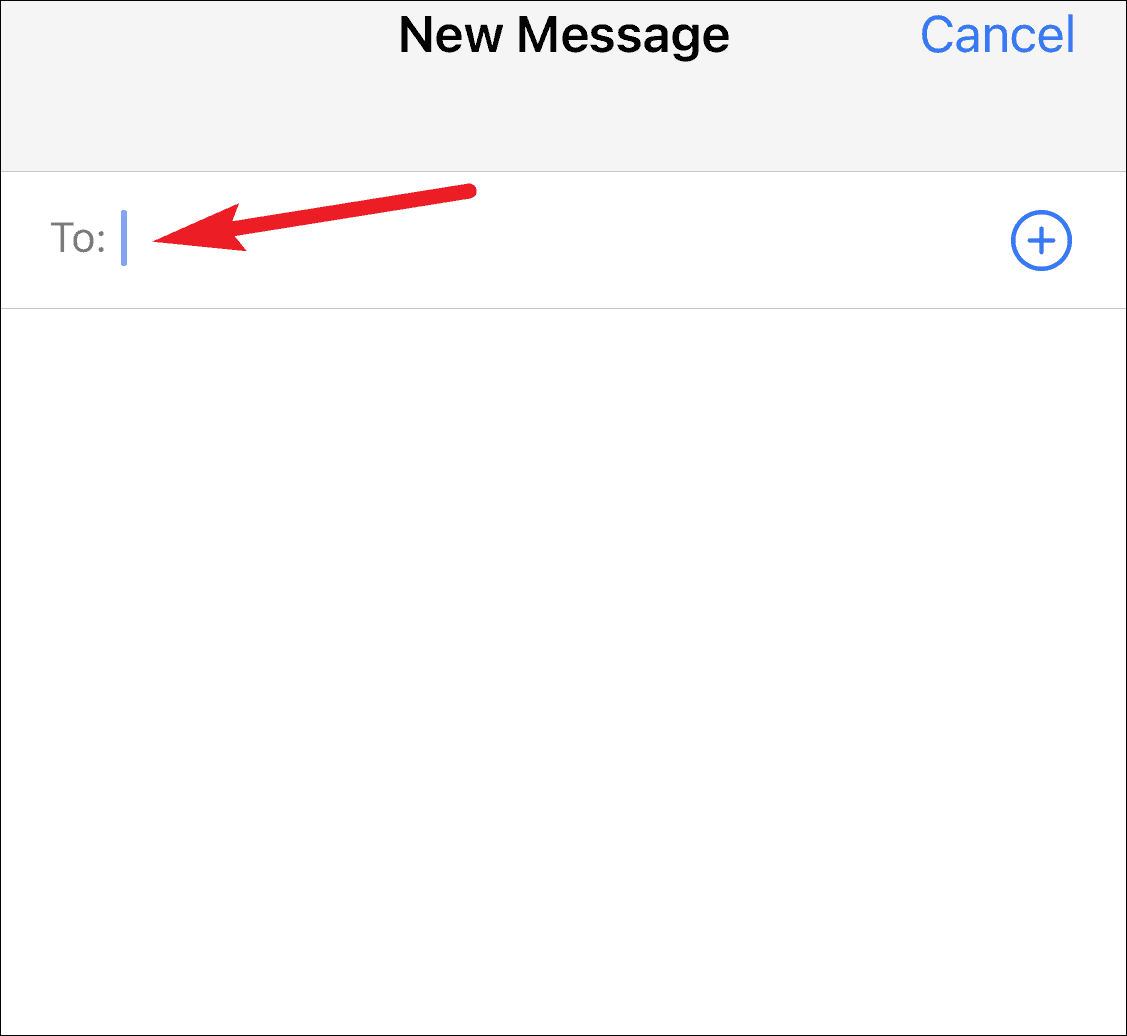
The message should send as an iMessage, appearing in a blue bubble.
Force Restart Your iPhone
If restarting iMessage doesn’t work, force restarting your iPhone might resolve the issue.
Volume Up button, then the Volume Down button. Press and hold the Side button until the Apple logo appears.Volume Down button and the Sleep/Wake button until the Apple logo appears.Home button and the Sleep/Wake button until the Apple logo appears.After your iPhone restarts, try sending an iMessage to one of your contacts by starting a new conversation.
Delete the Conversation Thread
If a specific conversation is still sending messages as SMS, deleting the conversation thread can help.
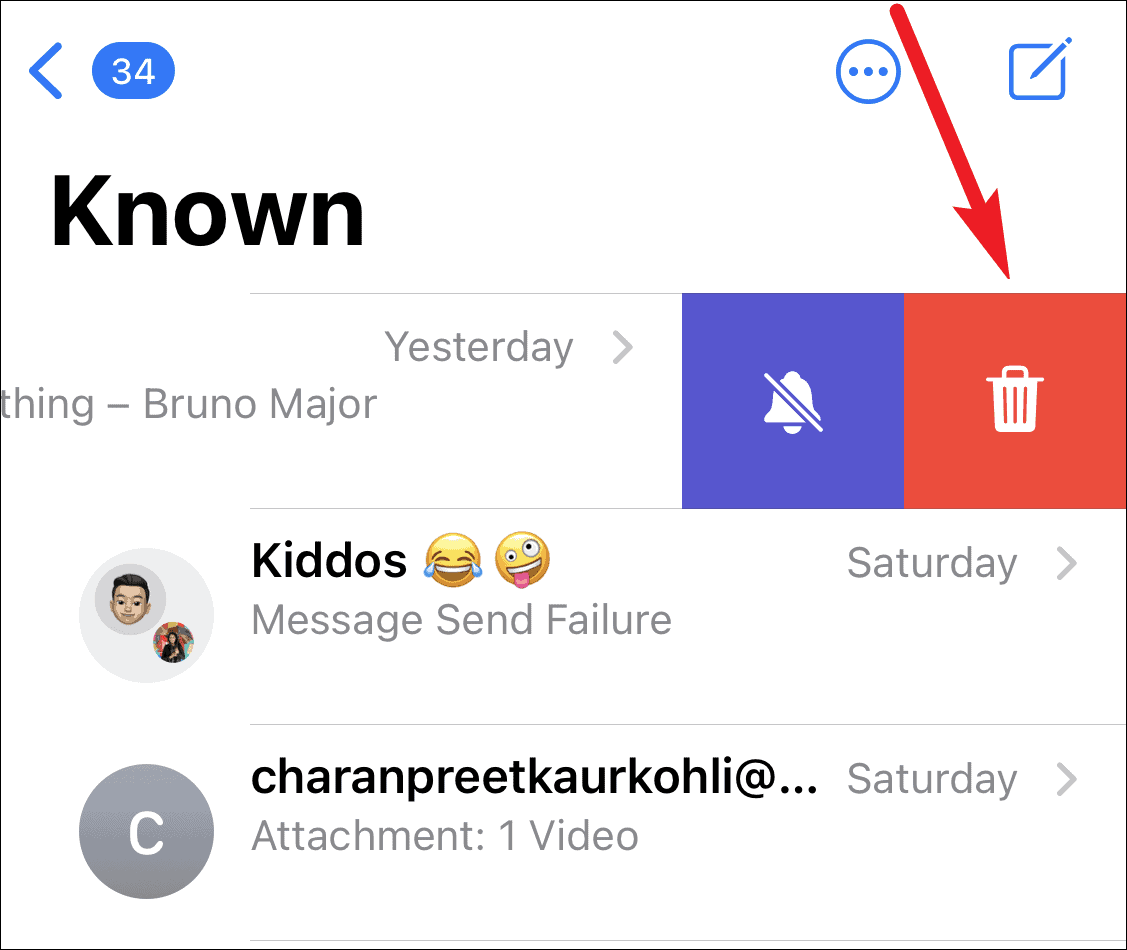
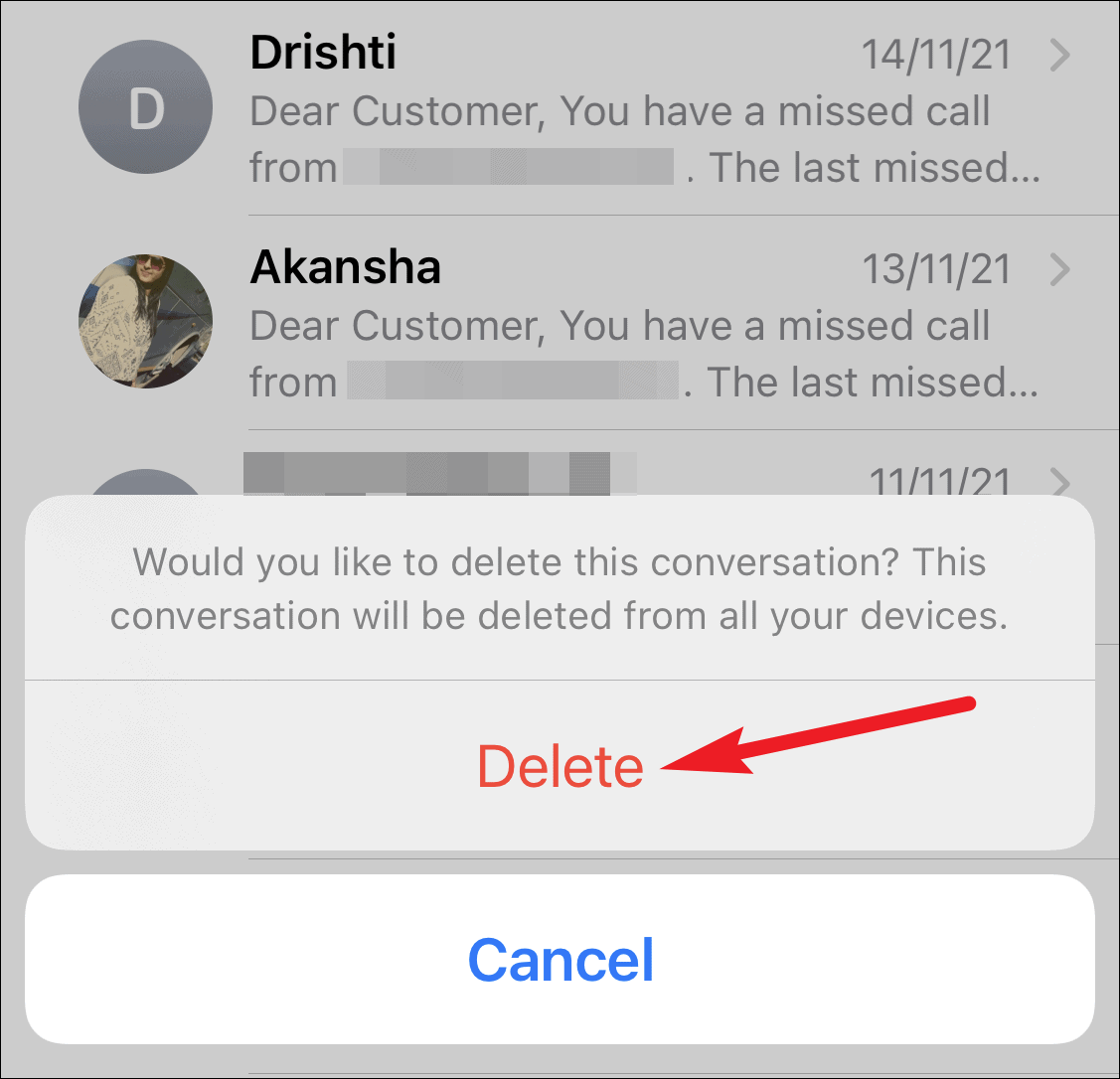
Before deleting the conversation, confirm that the contact has iMessage enabled. If they don’t, messages will continue to send as SMS.
Send a Photo or Attachment
Sending a photo or any other attachment can sometimes refresh iMessage and switch the conversation from SMS to iMessage.
If iMessage is still not working after trying these methods, consider contacting Apple Support for further assistance.





