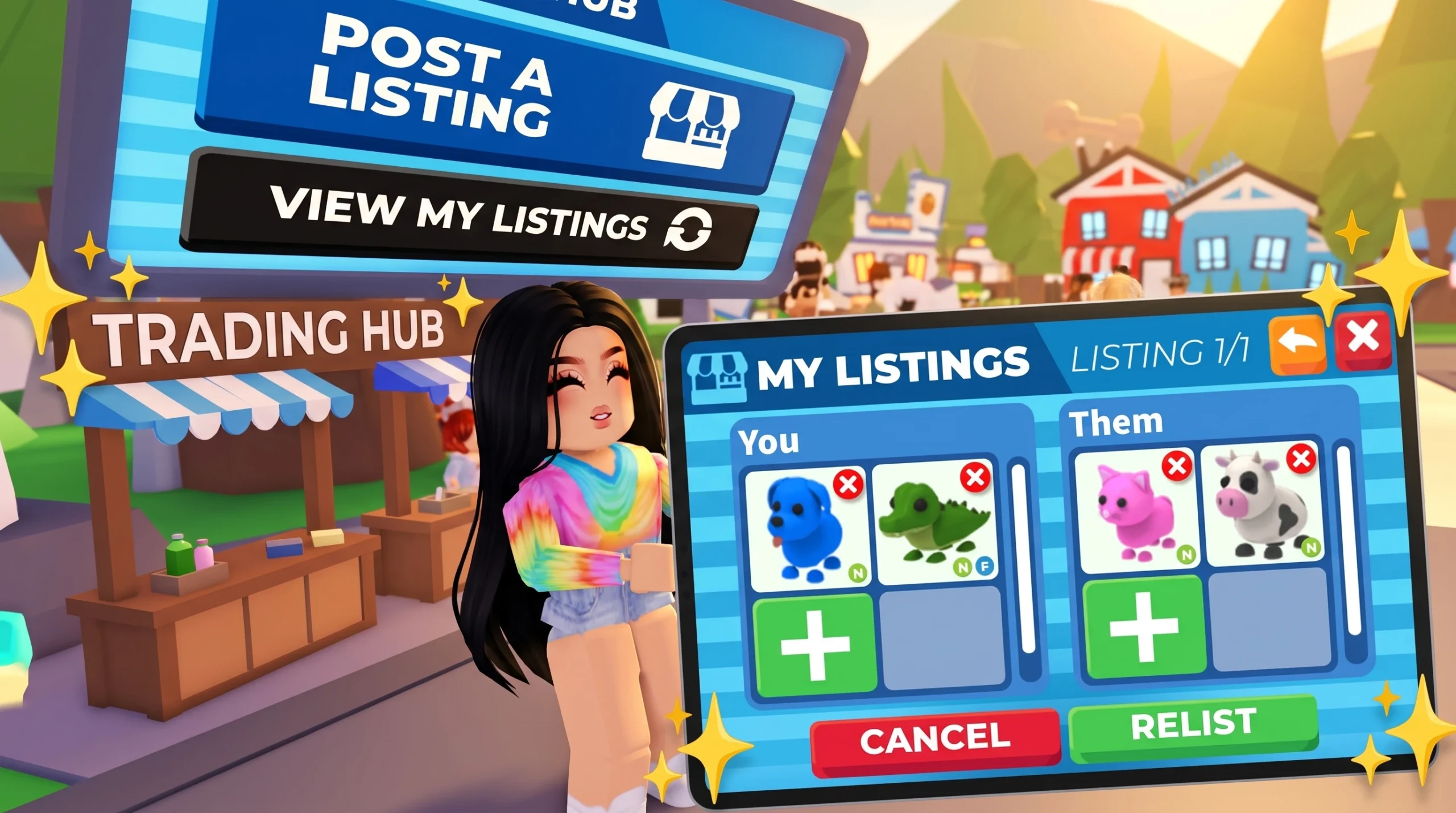
Trading in Adopt Me gained a set of communication and safety tools built directly into the trade window. The changes cover canned Quick Chat replies, a control for which messages you see, live indicators when a partner is typing or searching, the ability to watch other trades, and icons that flag verified people. Together they make each trade easier to read at a glance and harder to misread.
Quick answer: Open a trade, tap one of the Quick Chat icons to send a preset message, and use the new message setting to pick how much chat you see. Watch someone else’s trade by clicking a player in it and choosing “Spectate.”
Quick Chat replies in the trade window
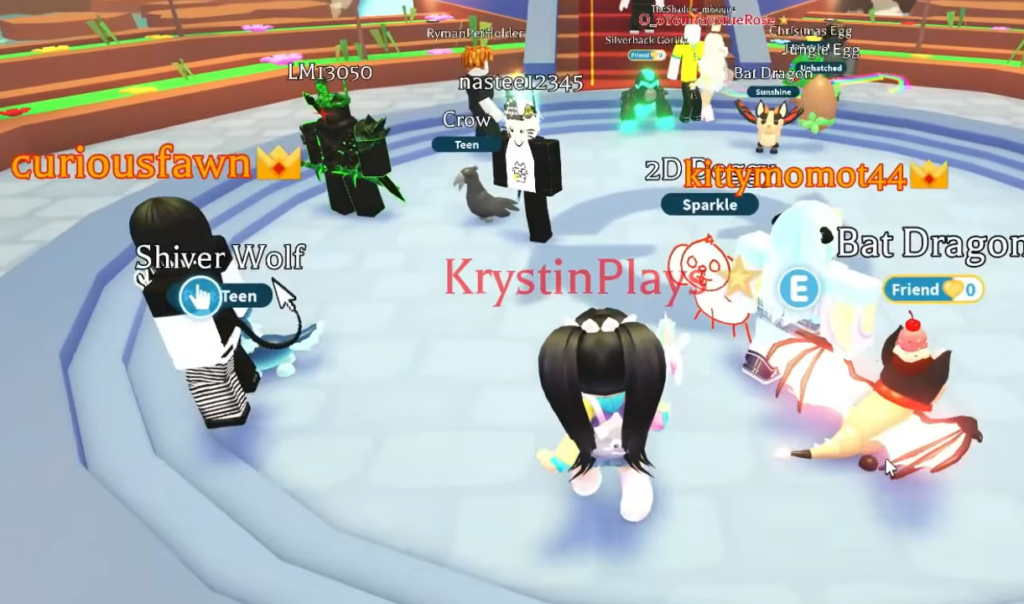
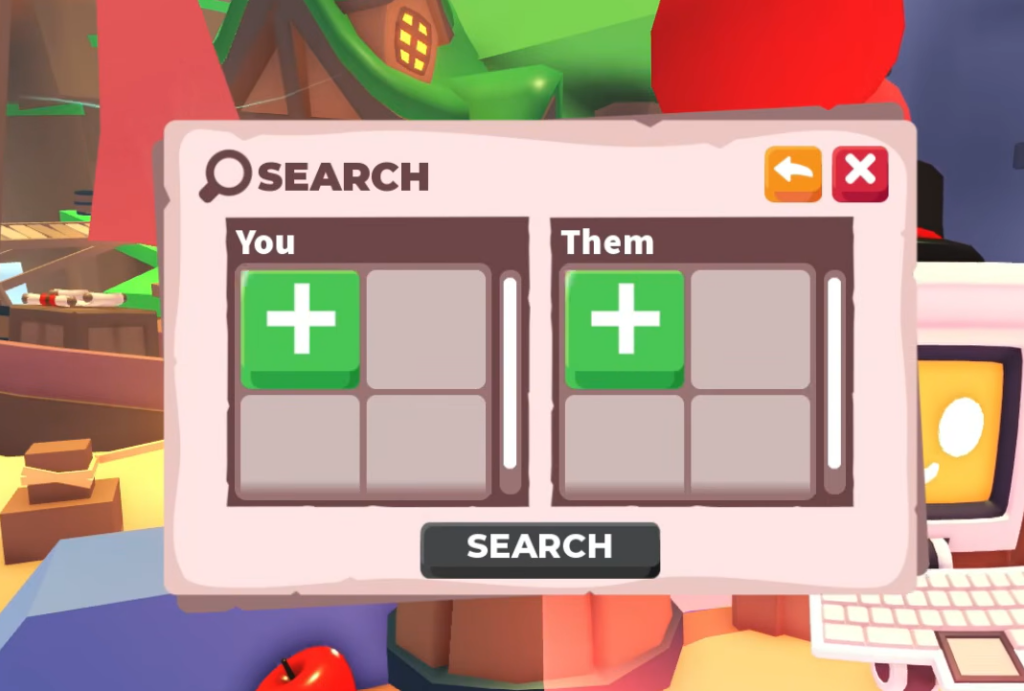
Quick Chat adds preset messages you can send by tapping an icon in the trading chat. It is aimed at players who keep chat turned off, since it lets you communicate without typing anything. Each icon sends a fixed phrase, so both sides always know what the message means.
| Icon | Message |
|---|---|
| 👋🏽 | Hi! |
| 🤔 | Please wait, I’m thinking about it. |
| 🤝🏼 | Thanks! Let’s do it. |
| ➕ | Please add more. |
| ➖ | Please remove some. |
| ❌ | No thanks. |
Control which trade messages you see
A Setting lets you filter the trading chat so you only see what you want. This is useful if a partner’s typed messages get distracting or if you only care about the automatic trade updates. Pick the option that matches how much information you want in the window.
| Setting | What it shows |
|---|---|
| All | Every message in the trading window, including all of the options below. |
| System only | Only automatic system messages, such as “Trade partner added Unicorn.” |
| Partner only | Only messages from your trading partner, including anything they type. |
| Quick Replies | Only the Quick Replies your partner sends. |
| None | No messages in the trading chat. |
Typing and backpack search indicators
A “…” indicator now appears when your trade partner is typing in the chat or searching through their backpack for an item. This removes the guesswork during quiet moments in a trade. If the other person is hunting for a specific pet to add, you will see the indicator instead of assuming they have stopped responding.
How Trade Spectate works
Trade Spectate lets you watch an active trade between other players. Click on one of the players in the trade and select “Spectate” to view it. While spectating, you can react to the trade with emojis.
Spectating works both ways, so other players can watch your trades as well. There is currently no option to turn spectating off for your own trades.
Trade verification icons: friend, influencer, and developer
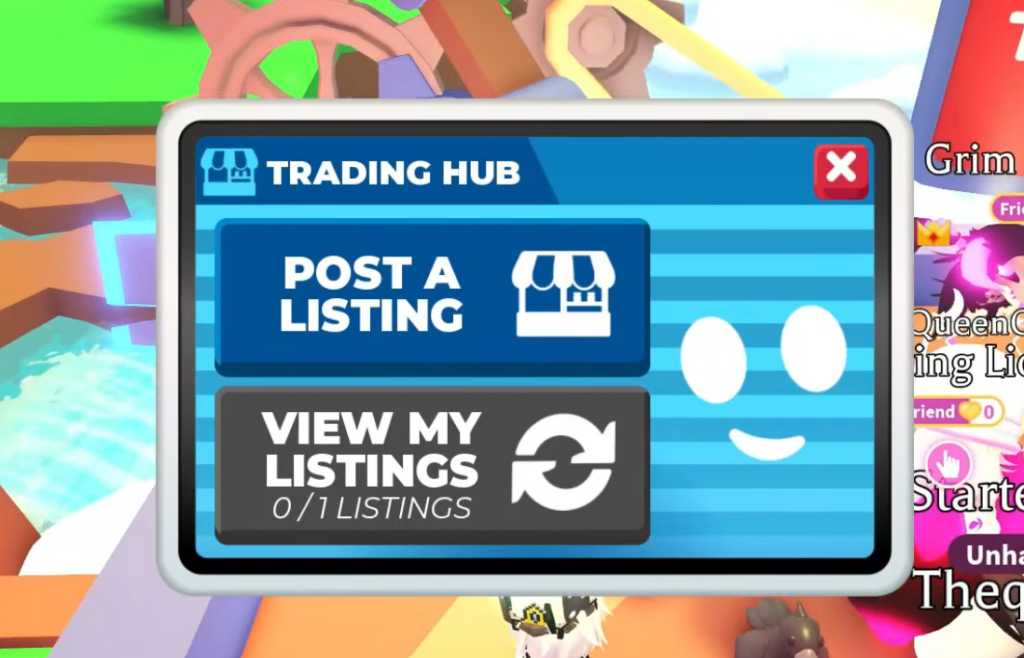
Icons in the trading window mark who your partner is. They confirm whether the person is a verified friend, an Uplift Games developer, or an Influencer, which helps you spot impersonators before you commit to a trade.
| Icon | Who it marks |
|---|---|
| Smiling face | A verified friend |
| Star | An Influencer |
| Butterfly | An Adopt Me developer |
What the update does not add
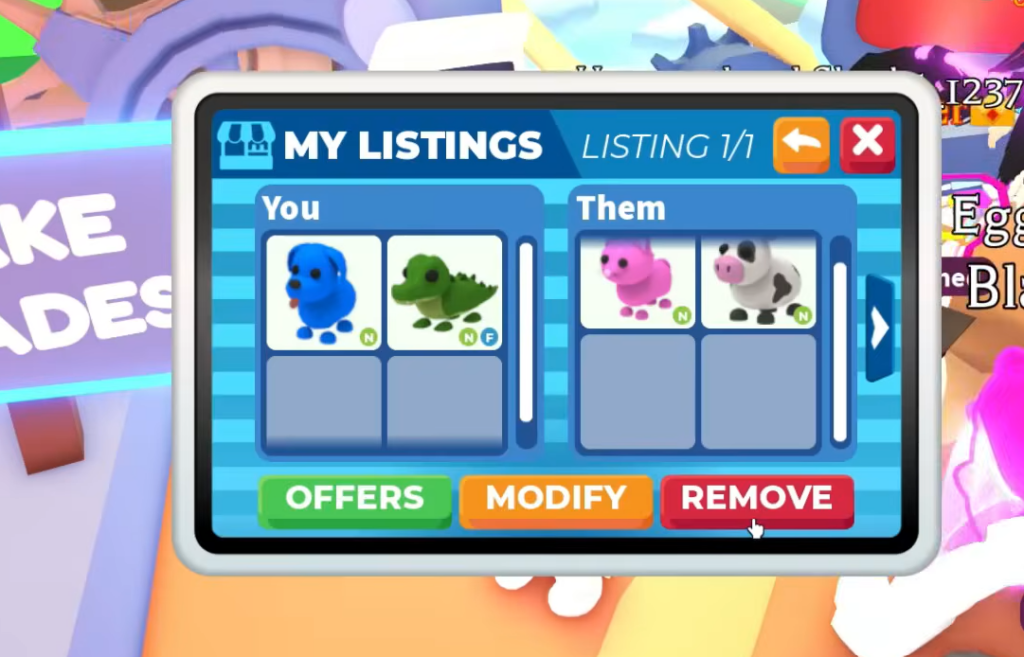
Trading Bucks directly is still not part of Adopt Me. The improvements focus on communication, visibility, and verification inside a trade rather than adding currency to the trade offer itself.
Pets released alongside the trading changes
The same update introduced two new pets you can add to your collection. The Eel is an Uncommon pet that costs 1,000 Bucks, and the Pelican is an Ultra Rare pet that costs 350 Robux. The Pelican also appears as part of the Jazwares Coffee Shop Playset.
Taken together, the trade window now tells you more before you agree to anything. You can send clear canned replies, filter the chat to your liking, see when a partner is busy searching, watch trades in progress, and confirm exactly who you are dealing with.