AION 2 puts every control on a rebindable list, split across four tabs inside the Key Settings menu. From there you can reassign movement, flight, interface toggles, skill slots, and target markers, and the game will swap the whole layout to controller buttons the moment it detects a gamepad.
Quick answer: Open the main menu, click the Settings cogwheel, then select the Key Settings tab and use its General, Menu, Quickslot, and Marker sub-tabs to rebind any action.
Open Key Settings in AION 2
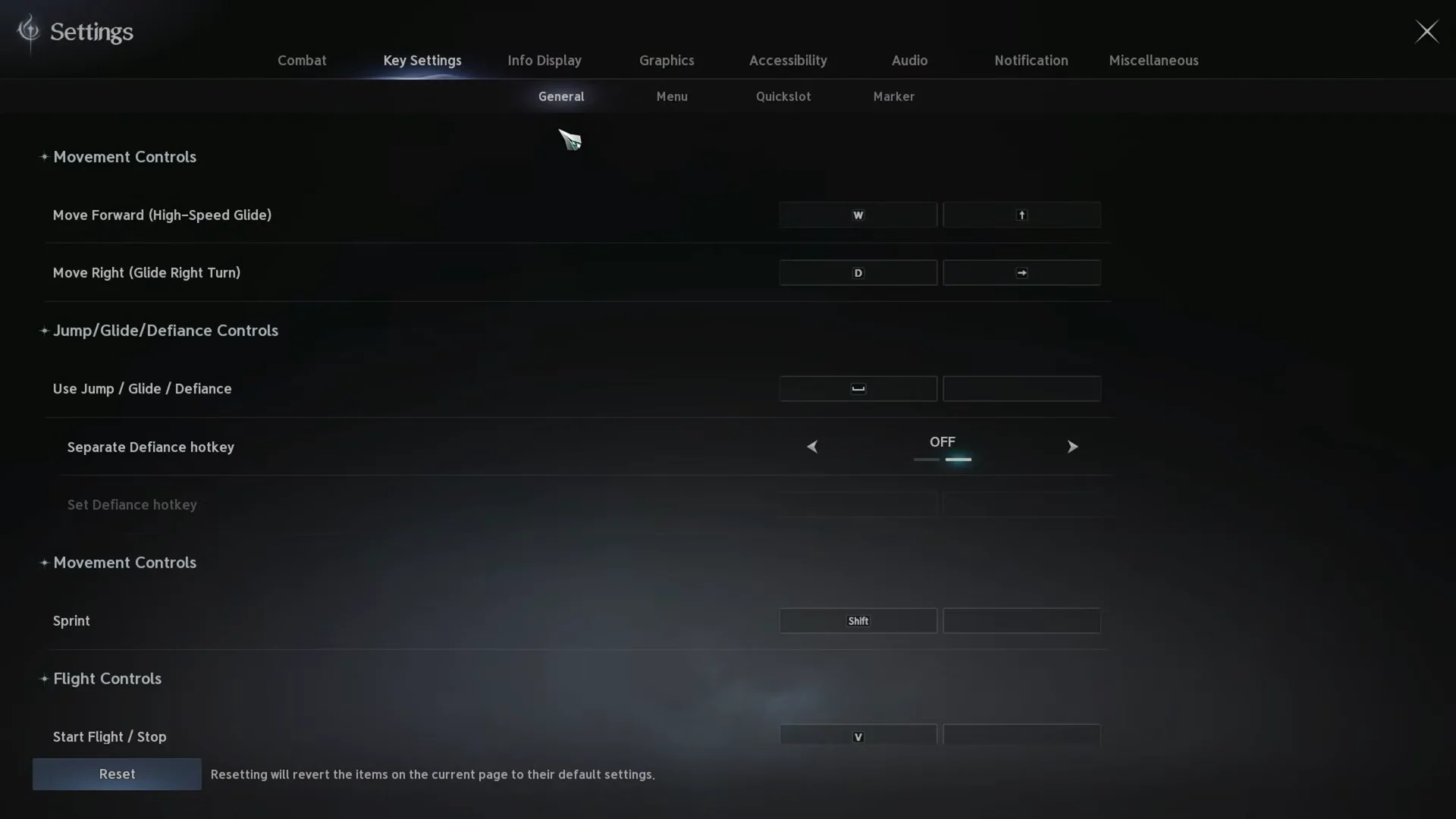
Each page has a Reset button that reverts only the current tab to its default bindings, so you can experiment on one tab without disturbing the others.
The four Key Settings sub-tabs
Key Settings is divided into four sub-tabs. Each one groups a different set of actions.
| Sub-tab | What it controls |
|---|---|
| General | Movement, sprint, auto-run, flight, jump/glide/defiance, mount, interaction, target switching |
| Menu | Interface toggles such as map, inventory, character stats, legion, and Hide UI |
| Quickslot | Skill slots 1–12, consumable slots, and transformation abilities |
| Marker | Target markers used to coordinate a party or group |
Rebind movement and gameplay actions (General tab)
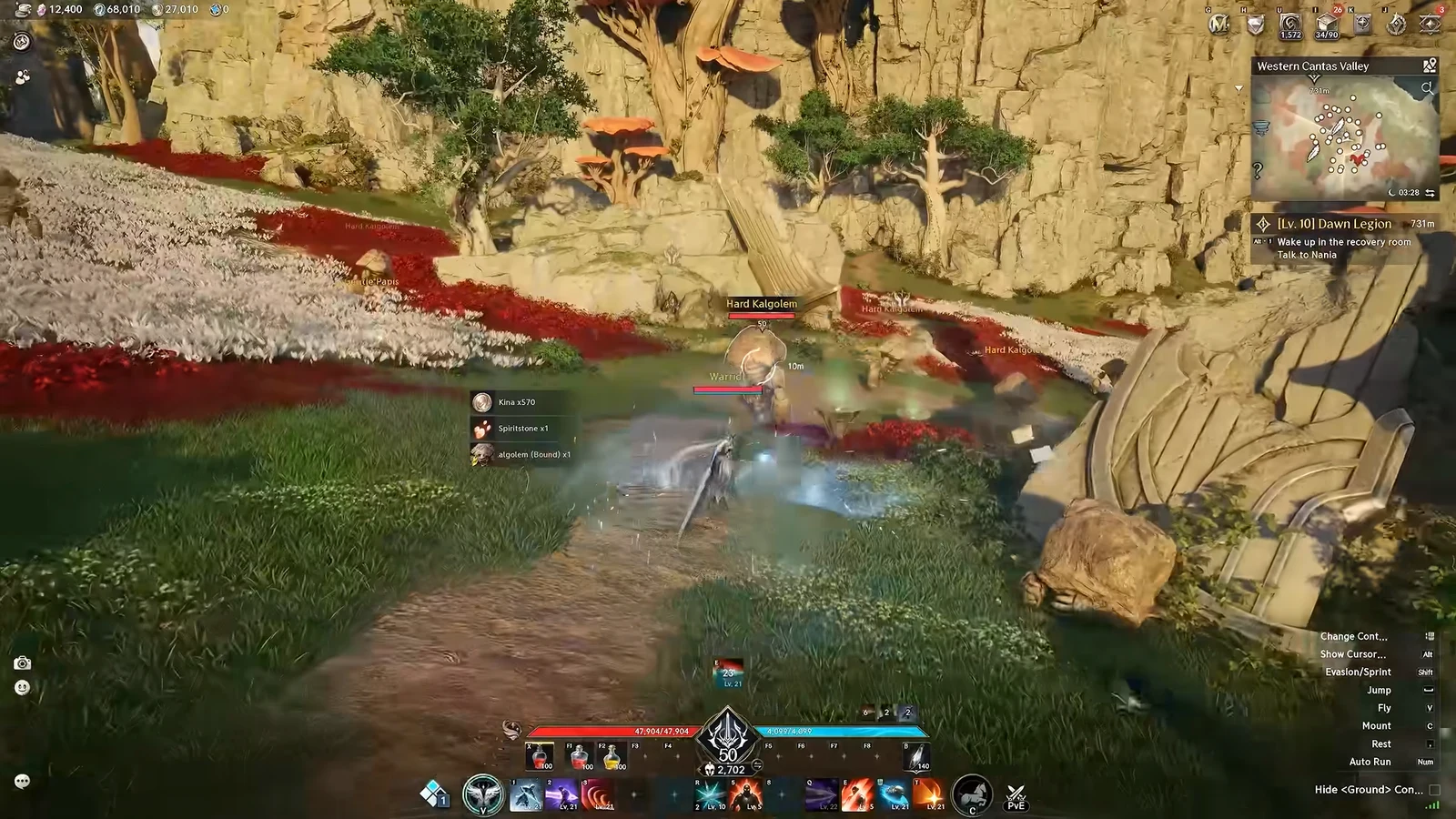
The General tab holds the controls you use every second of play, from walking to flying. Movement runs on WASD or the arrow keys, and vertical flight has its own ascent and descent keys so you can climb and drop during combat.
| Action | Default key |
|---|---|
| Move forward / back / left / right | W S A D or arrow keys |
| Sprint | Shift |
| Auto Move Forward | Num |
| Jump / Glide / Defiance | Space |
| Start Flight / Stop | V |
| Fly Up / Fly Down | Ctrl + W / Ctrl + S |
| Mount / Dismount | C |
| Interact | F |
| Activate/Deactivate Power Shard | R |
| Auto-use Potions | X |
| Change Target | Tab |
The General tab also includes a Separate Defiance hotkey toggle if you want defiance on its own key instead of sharing Space with jump and glide, plus a Switch Control Mode binding. Keeping ascend and descend within reach of your movement fingers matters here, since altitude changes are a normal part of fights.
Change interface hotkeys (Menu tab)
The Menu tab covers every window and interface toggle. These are the keys that open your map, inventory, skills, and other panels, and the toggle that hides the interface entirely.
| Window / toggle | Default key |
|---|---|
| Cancel | Esc |
| Display Cursor | Alt |
| Hide UI | F12 |
| Map | M |
| Cube (inventory) | I |
| Stat Info | P |
| Skills | K |
| Journal | J |
| Legion | L |
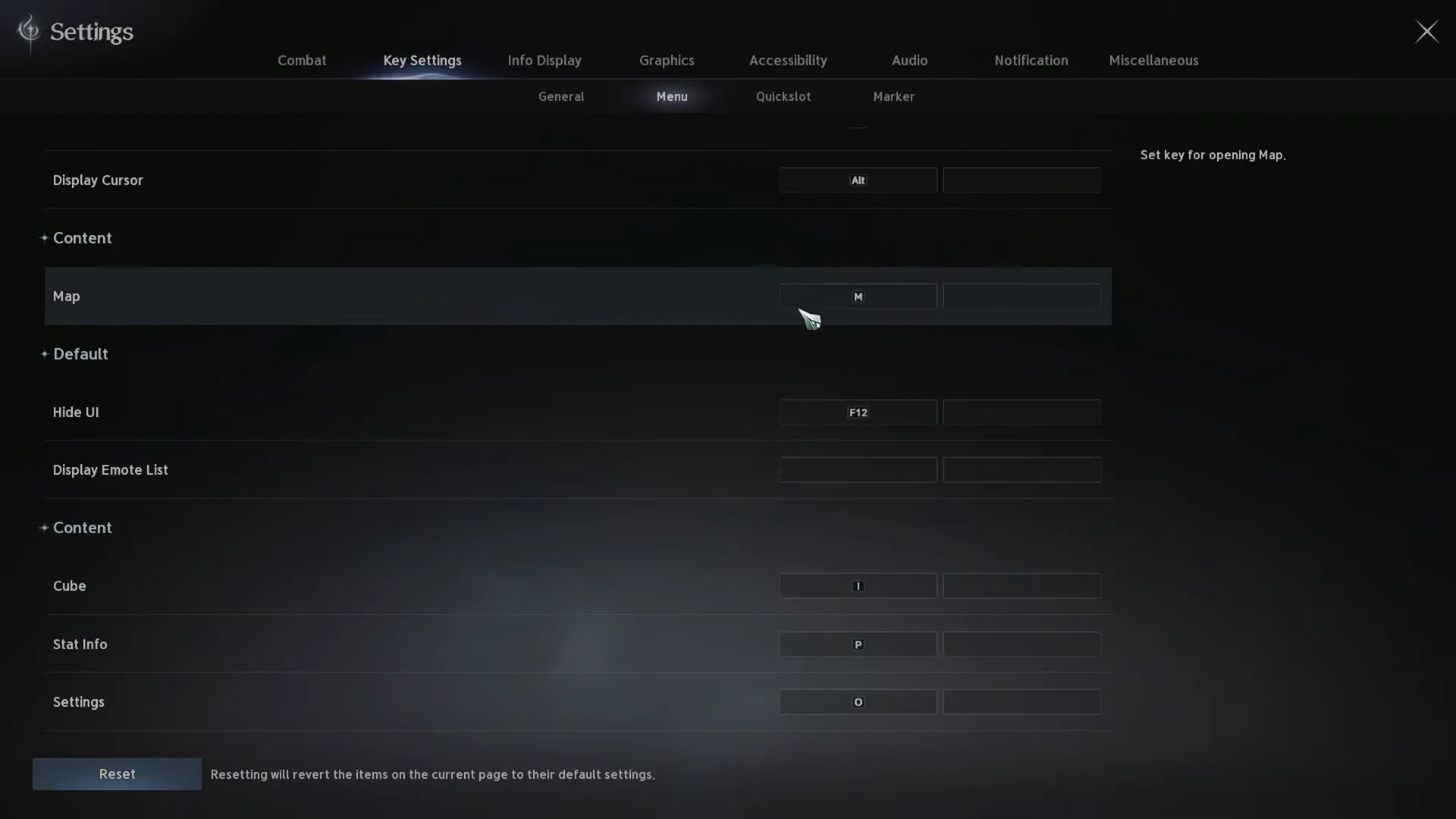
The Menu tab also lists content windows such as Closet, Pet, Wings, Enhancement, Crafting, Expedition, and the dungeon and trial screens, so any panel you open often can be moved to a key you prefer.
Set skill and consumable slots (Quickslot tab)
The Quickslot tab assigns the keys for your combat skills, consumables, and transformation abilities. Skill slots run from 1 to 12, consumables sit on F1 through F8 by default, and each unique transformation skill uses a Ctrl combination.
A common change is to pull the higher-numbered skill slots off the far number keys and onto letters within easy reach, such as Q, E, R, and T. This speeds up activation for anyone not using a multi-button gaming mouse.
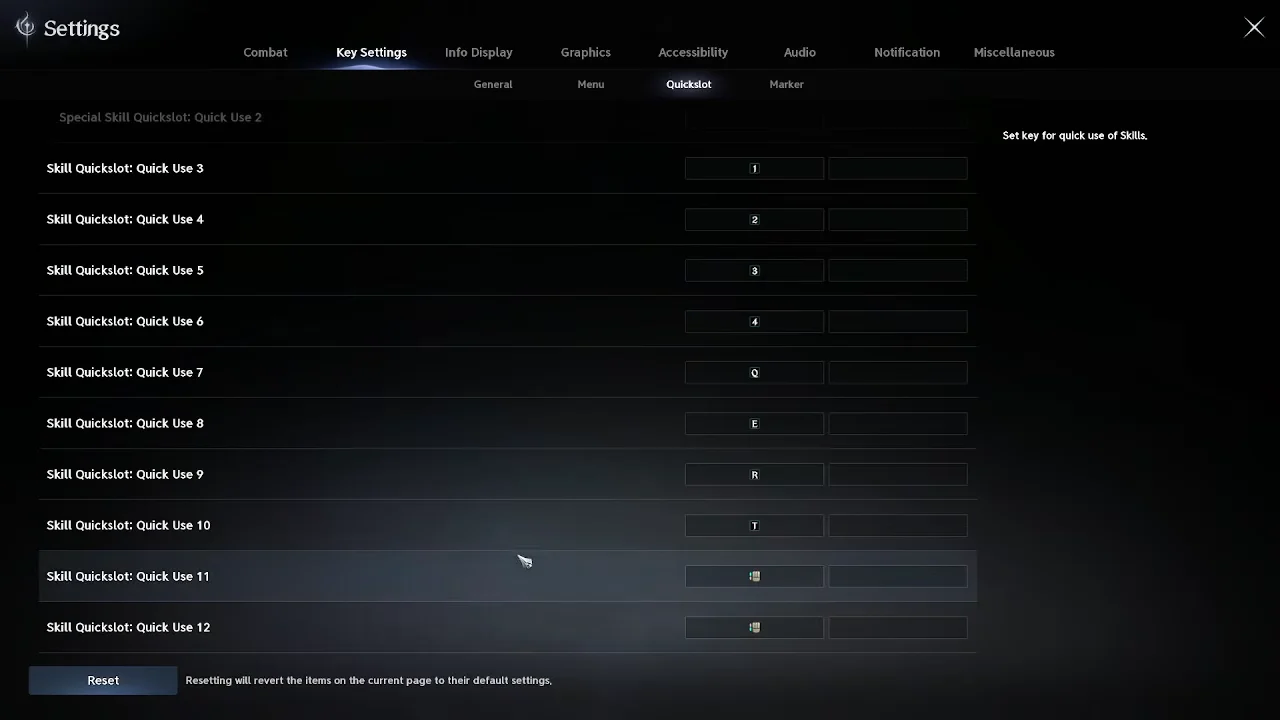
Consumables Quick Use 1 through 8 map to F1–F8, and Unique Transformation Skill 1 and 2 sit on Ctrl + 1 and Ctrl + 2. There is also a Separate Special Skill hotkey toggle if you want your special skill on its own binding.
Assign target markers (Marker tab)
The Marker tab sets the keys for placing target markers, which are used to call out kill order and roles in group content. Markers 1 through 9 default to N1–N9 and marker 0 to N0.
- Remove All Markers — Ctrl + `
- Select Marker Target — Ctrl + middle mouse button
- Apply named markers — Sleep, Stop, Skull, Star, and Moon
Controller auto-switching
You do not need to enable a controller layout manually. The moment AION 2 detects input from a connected gamepad, the interface switches its bindings from keyboard and mouse to controller buttons. Touching the keyboard again switches the display back.
Assign skills to the hotbar and switch presets
Build a skill macro
Macros let you queue a fixed sequence of skills behind a single key. Open the Macro section inside the Skill menu to build one.
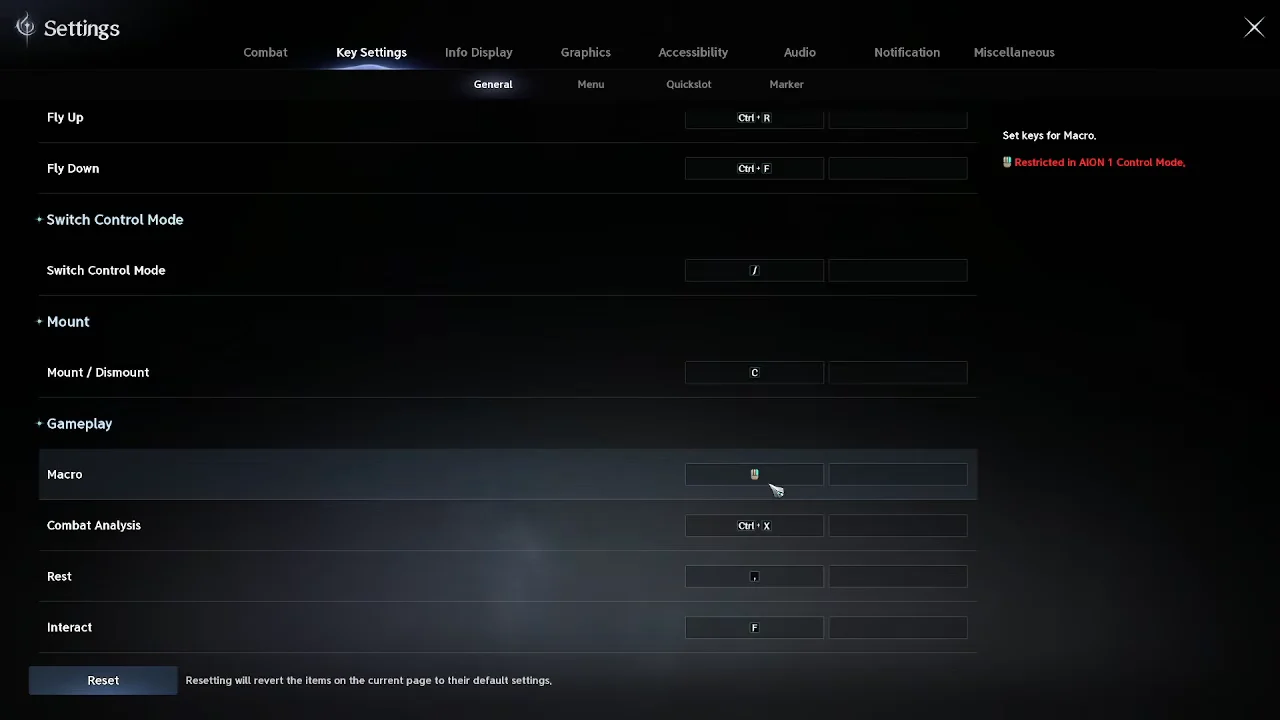
The macro does not fire the whole chain from one tap. Each press of the macro key advances the sequence by one step, so you press it repeatedly to move through the combo. Macros are most useful once Stigma skills unlock and enter your rotation, around level 27 to 30.
Confirm your changes took effect
Each binding updates in the list as soon as you assign it, showing the new key next to the action name. To verify a rebind in practice, close the menu and press the key. Movement, flight, a skill cast, or an opened window confirms the change is live. If you want to start over on any single page, the Reset button on that page restores its defaults without touching the other tabs.
What the Power Shard Bound to R Does
The Activate/Deactivate Power Shard binding on the General tab controls a Usable item called the Power Shard. Its in-game text reads: “A sharp fragment sealed with the power of Odyle. When activated, attacks deal 5% additional damage.” So pressing the key while a Power Shard is active or ready toggles a 5% damage bonus on your attacks.
Item details worth knowing before you rebind it:
| Property | Value |
|---|---|
| Grade | Common |
| Required level | 1 |
| Type | Usable |
| Tradable | Yes |
| Sell price | 1 kina |
Because the item has a level 1 requirement, the toggle is available from the start of the game. Place it on a key you can reach mid-combat without leaving your movement keys, since it is meant to be switched on and off during fights.