Catch enough creatures in Aniimo and your storage fills fast. Aniimo Management holds nine boxes of 24 slots each, and once they are full the game blocks new catches outright. The quickest way to clear space without deleting anything worth keeping is to filter by the Rating tiers, not by Rarity, and then release the low-value catches in a single batch.
Quick answer: Open storage with P, filter by the Common and Good tiers under Rating (not Rarity), then use Manage → Select all on this page → Release to clear them in bulk.
Filter by Rating, not Rarity
The filter panel separates two options that are easy to mix up: Rarity, which includes Common, Alpha, Umbral, Sparkling and Prismana, and Rating. Rating is the Potential grade given to each catch, and it shows which duplicates are safe to release.
Sorting by Rarity when you are cleaning house does not isolate weak creatures. Filtering by the bottom two Rating tiers does. Ticking Common and Good hides your blue and purple catches entirely, so anything left on screen is a candidate for release.
The four Rating tiers in Aniimo
Every catch rolls one of four ascending grades. Common is by far the most frequent roll and Perfect is the rarest, sitting near 0.8 percent on a plain wild catch. Each tier carries its own colored badge in the filter menu.
| Rating | Badge color | What to do |
|---|---|---|
| Common | Grey | Release duplicates |
| Good | Green | Release duplicates |
| Elite | Blue | Keep for roles you use |
| Perfect | Purple | Keep for long-term investment |
Before a big clear-out, mark or favorite any Common or Good copy you are still using on your team. Favorited Aniimo are refused by the Release button, so they cannot be swept up by accident.
Bulk-release low-rated Aniimos
P, or by clicking the Aniimo tab icon in the top-right corner of the HUD.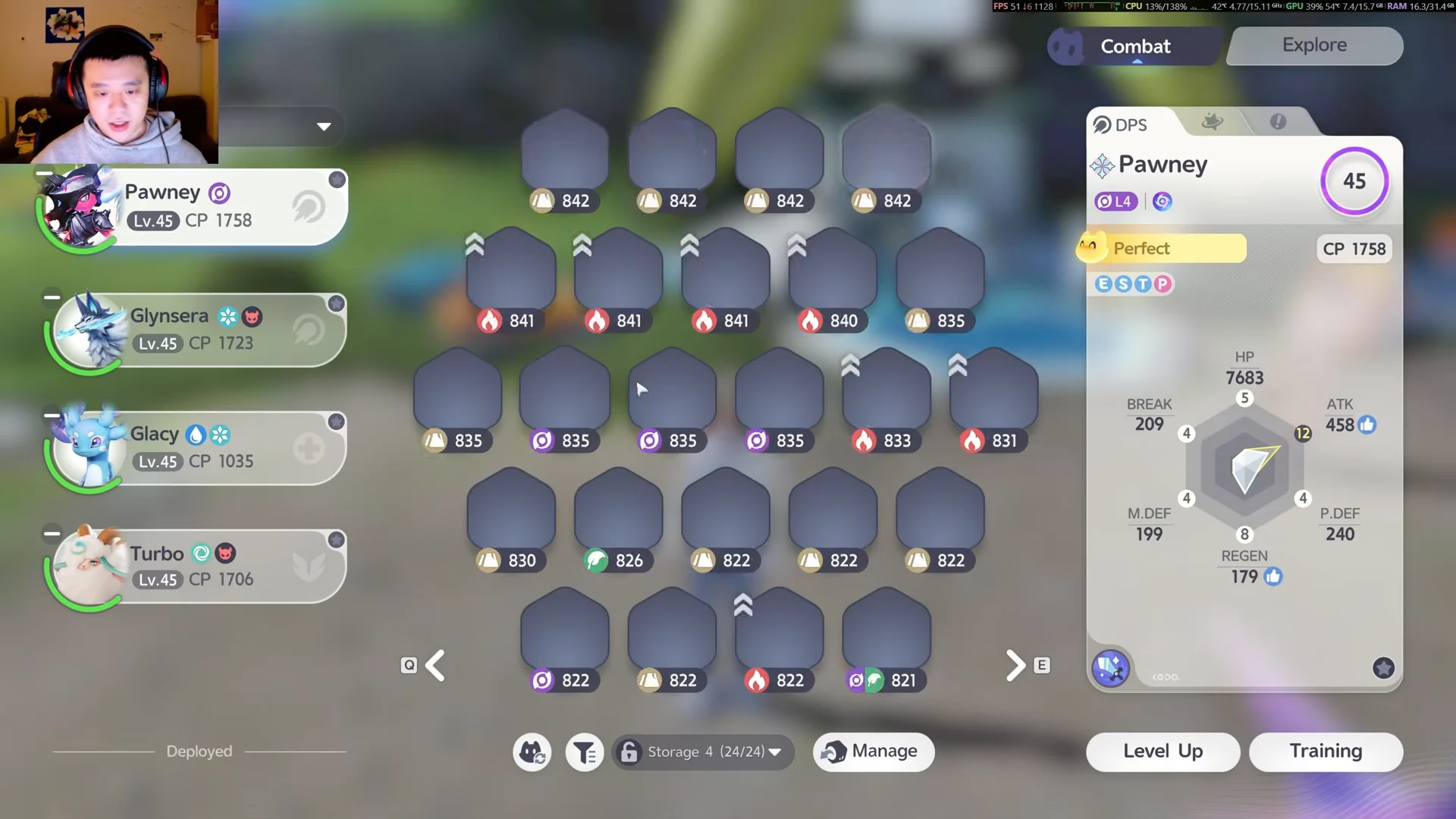
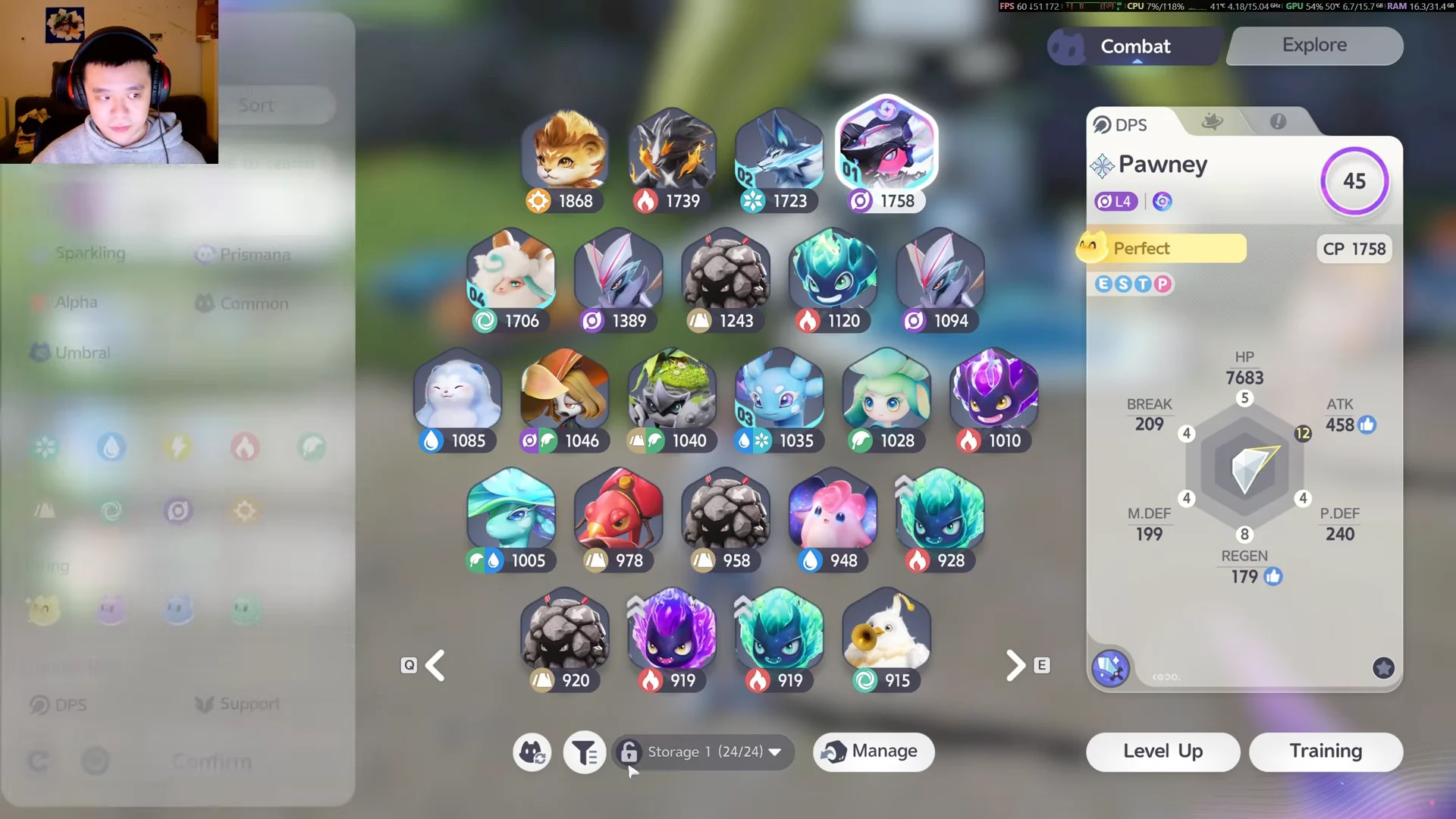
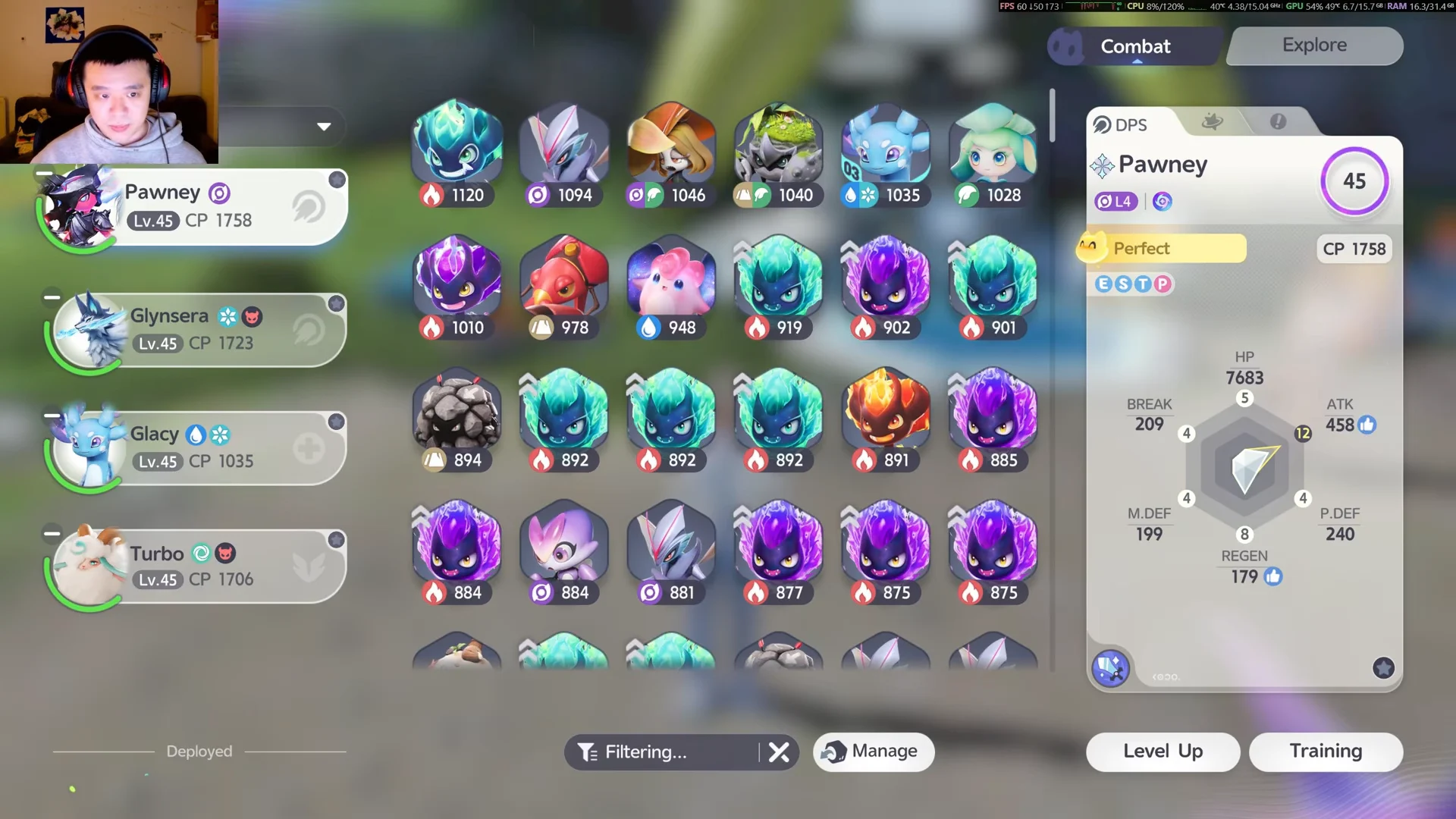
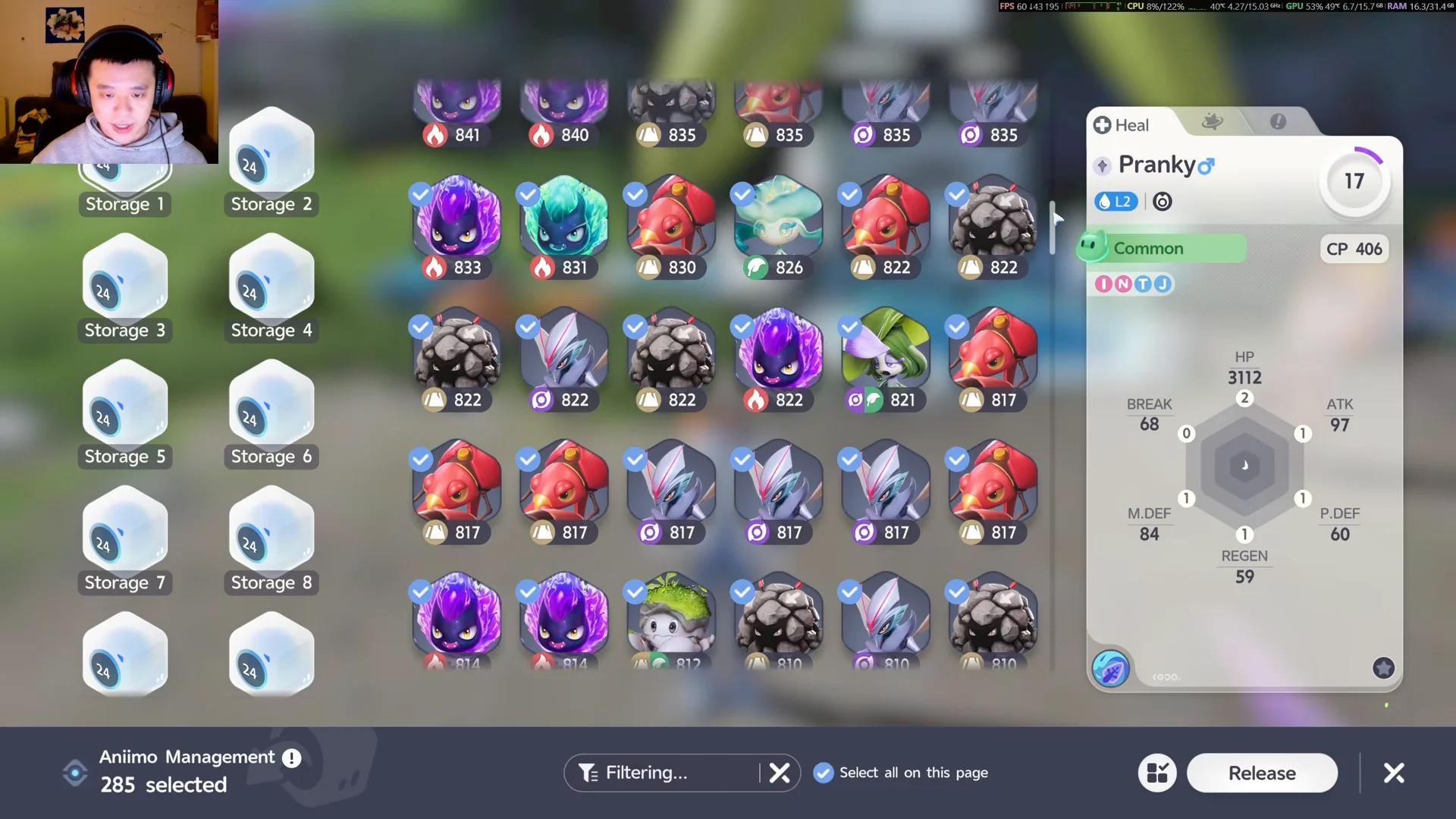
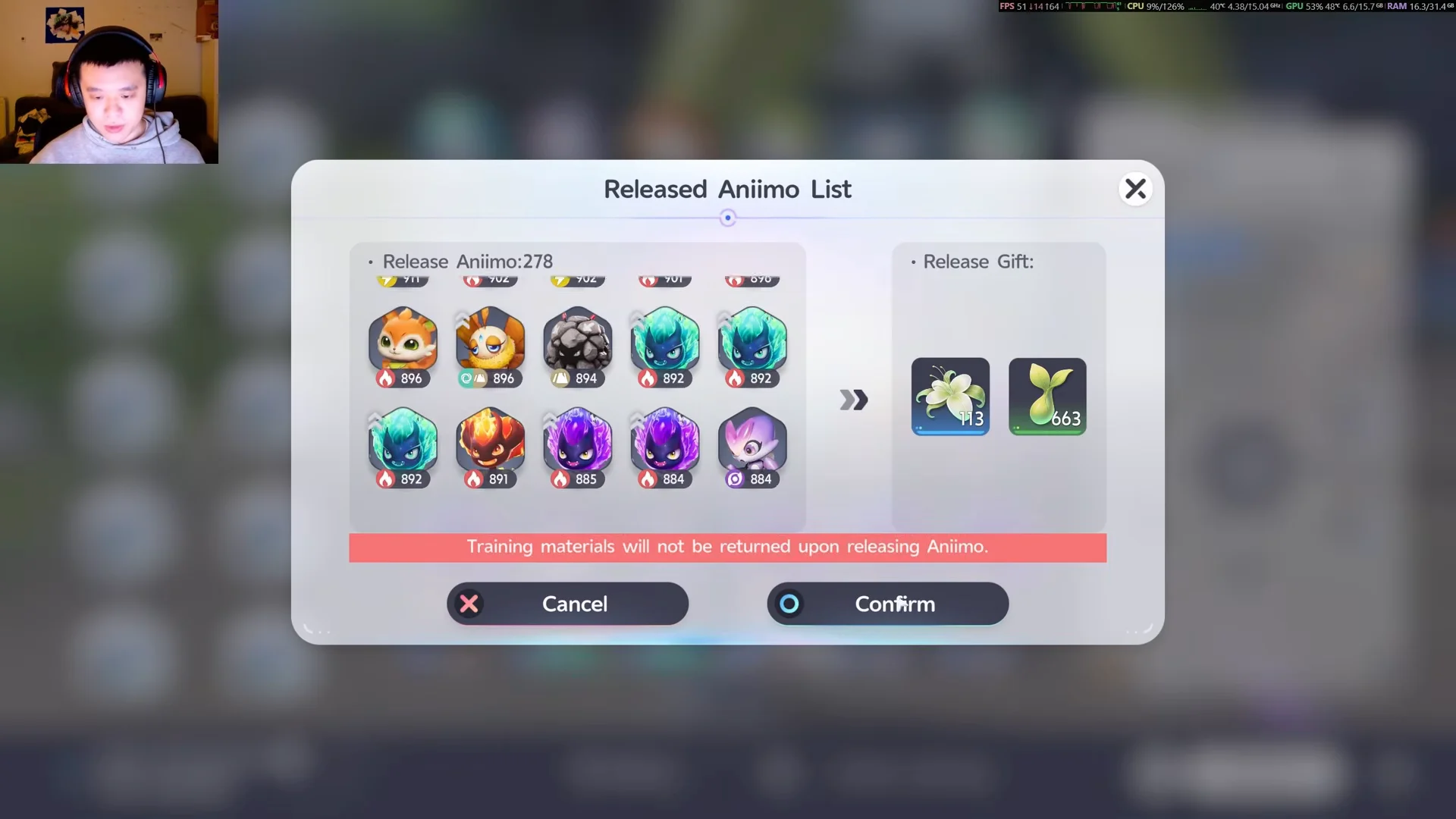
Training materials invested into a released creature are not returned. The red line on the confirmation screen states this directly, so double-check the list before you confirm.
Confirm the release worked
After you confirm, a Farewell Gift popup plays and the reward items drop into your bag. The message reads that the released Aniimo “reluctantly bid farewell, leaving a few items behind.” Back on the storage screen, the freed boxes now show open slots and your owned counter falls by the number you released.
Auto-release Common and Good catches at the Research Console
To keep the lowest grades out of storage, set up automatic release first. At any Outpost, open the Research Console report screen and use the Release row’s grade toggles. Turn on Common and Good before uploading a catch report; Aniimo of either grade are then released automatically for the same Farewell Gifts.
Between the Rating filter for manual clear-outs and auto-release for routine hand-ins, your storage only ever fills with the catches you actually intend to keep.