Apex Legends throws a wide variety of error codes, and each one points to a different underlying problem — network failures, corrupted files, account mismatches, anti-cheat issues, and more. The fastest path to a fix is identifying the exact code or message, then applying the right solution for that specific error.
Before diving into individual codes, three steps are worth trying first regardless of what you see on screen: check @PlayApex on X for any active outages, restart Apex Legends and your system, and verify or repair your game files through the EA app.
Temporary errors that restart usually clears
Some errors are short-lived and tied to server hiccups or account state rather than anything wrong with your installation. A game restart resolves most of them.
| Error | Cause | Fix |
|---|---|---|
| Error code 110 | General account issue, usually temporary | Restart Apex Legends; check server status if it persists |
| Error code 102122 | EA Account linking issue, usually temporary | Restart the game |
| Error code 429 | Server maintenance or downtime | Check server status and @PlayApex; restart when servers are back |
| This profile is already logged in on another device | Recent logout on another platform hasn’t cleared yet | Wait a few minutes; the error clears on its own |
| Error code [type=null] | Season changeover causing a crash | Wait for the game update to download and install |
| Club operation 19 failed | Resuming from console standby mode | Restart the game |
| Snake | Temporary penalty for leaving a match early | Wait until the penalty period ends before queuing again |
Network-related error codes: leaf, net, wheel, clock, shoe
A cluster of Apex Legends errors all trace back to the connection between your machine and EA’s servers. They look different on screen but share the same set of fixes.
Error code:leaf and error code:net
Both codes mean an EA server has stopped responding — either failing to connect you to a match (leaf) or dropping the connection mid-session (net). Try these in order:
- Restart your router and modem.
- Switch from Wi-Fi to a wired Ethernet connection.
- Reboot your PC or console.
- On PC, release your IP, reset Winsock, and flush your DNS cache.
If none of those steps stop the error, the problem is likely on EA’s end and you’ll need to wait for a server-side fix.
Error code:wheel (PlayStation 4)
Wheel behaves like leaf and net but appears specifically on PS4. Restart your router and switch to Ethernet. If it continues, a server-side fix is needed.
Unable to connect (code:clock)
The game’s servers stopped waiting for your connection to complete. Run an internet speed test to rule out local issues, then restart your router and platform. Changing your Data Center in the game settings can also help if a particular regional server is struggling.
Error code:shoe
Shoe signals a problem connecting the game client to EA servers. Restart your router. On PC, open Apex Legends, go to Settings, select the Video tab, and lower the Texture Streaming Budget. If the error persists, reinstalling the game is the next step.
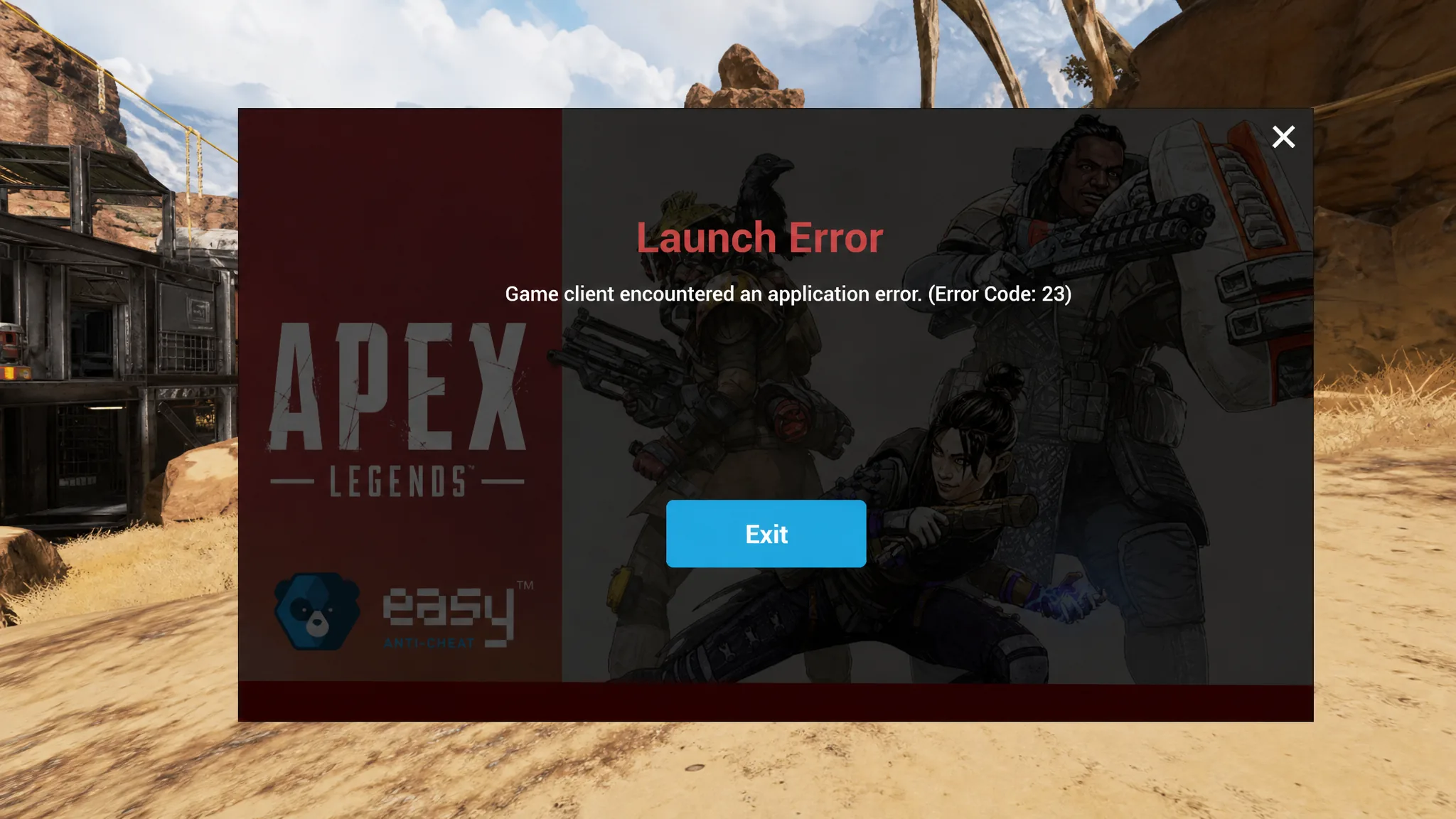
Error code 23 – graphics drivers and account settings
Error code 23 accompanies a “Game Client encountered an application error” message. Outdated graphics drivers and mismatched account settings are the two most common triggers.
appwiz.cpl, and press Enter. Find the latest Microsoft Visual C++ Redistributable entry, select it, click Change, then choose Repair.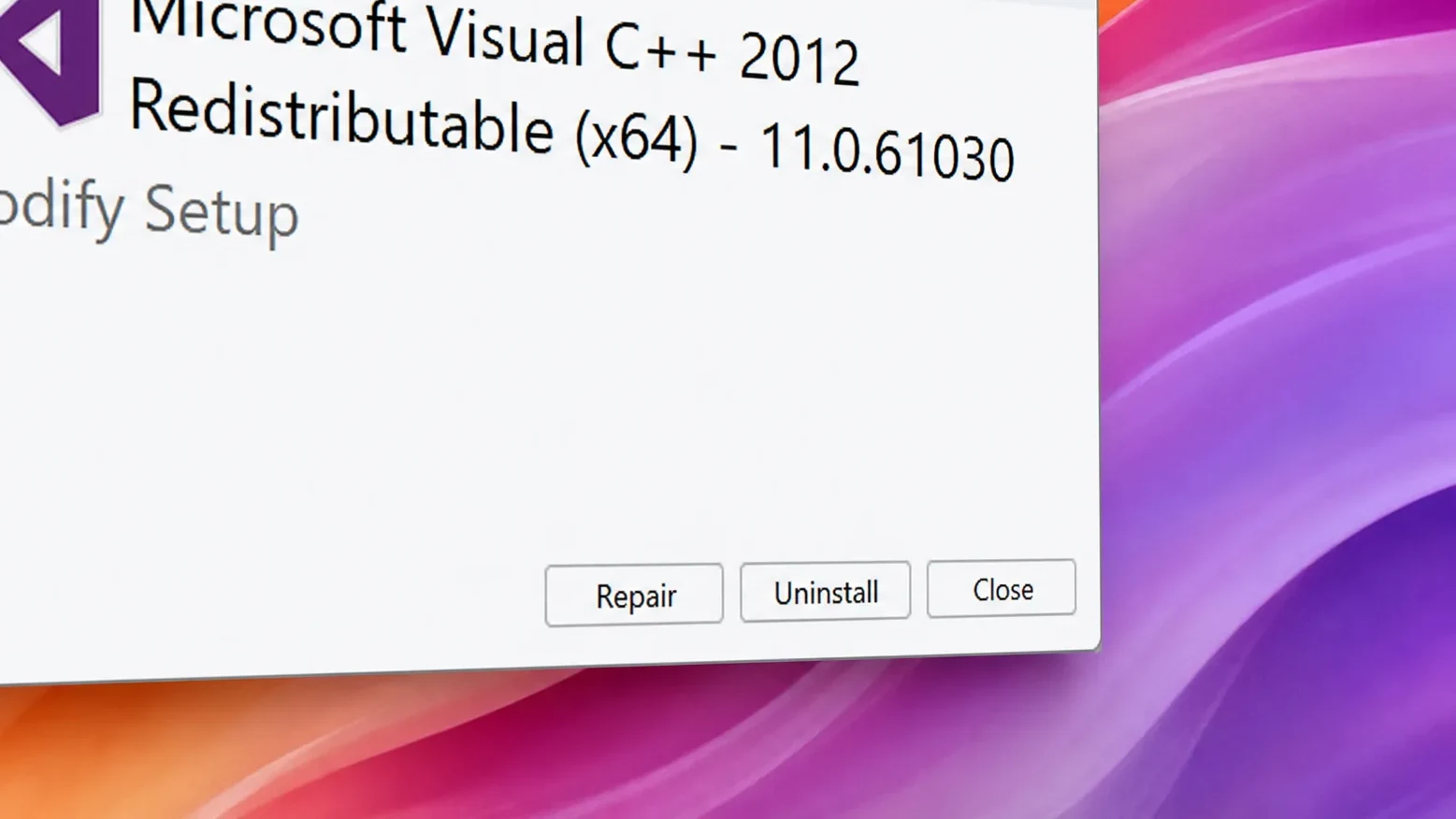
Error code 100 – account date and time zone mismatch
Error code 100 blocks sign-in when the time zone or date of birth on your EA Account doesn’t match what’s set on your platform account (PlayStation, Xbox, Steam, etc.). Log into your EA Account settings and make sure the time zone and date of birth are identical across both accounts. If the servers are down at the time you see this error, waiting for them to recover is the only option.
DirectX error 4294967287 – installation failure
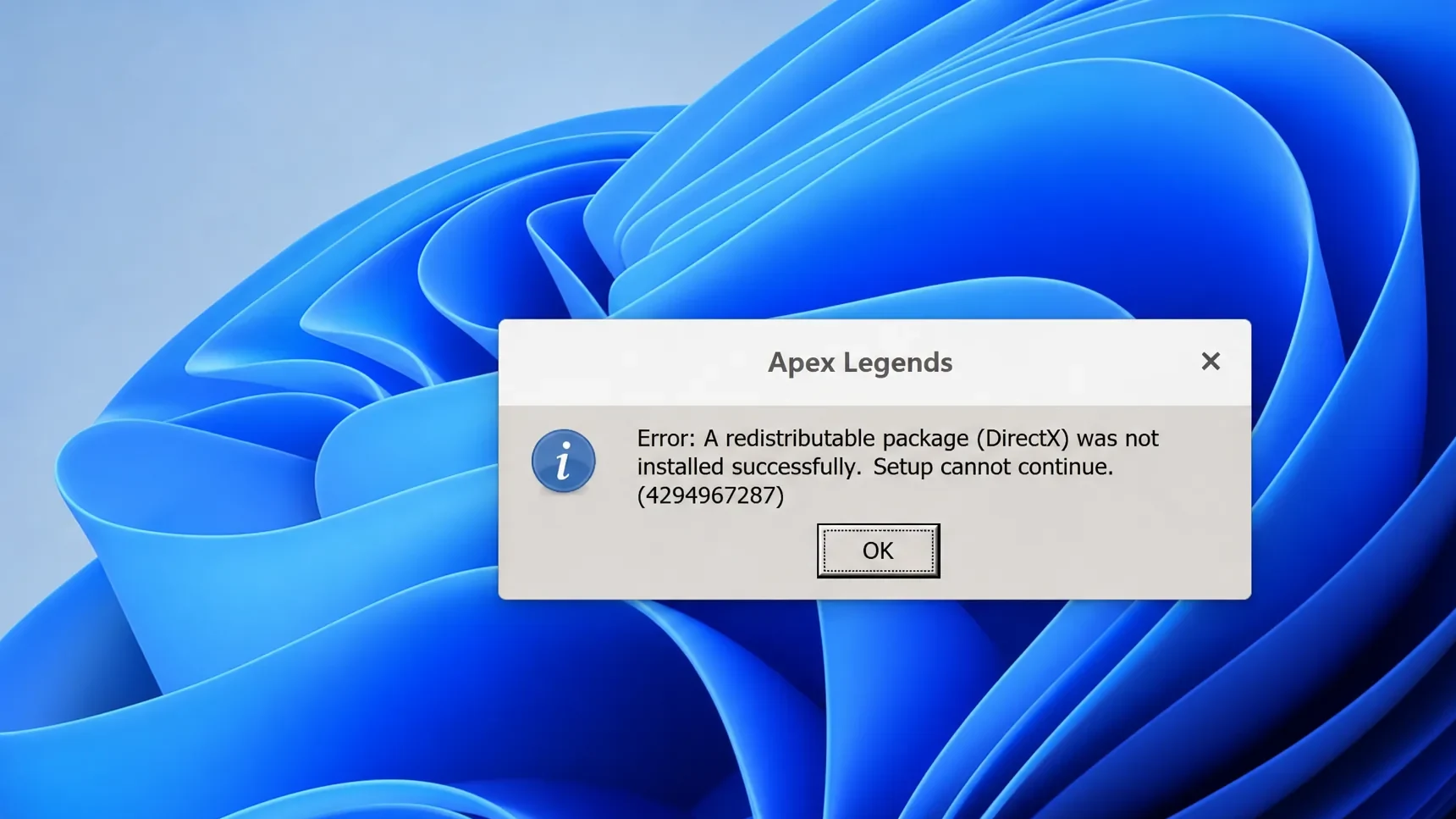
This error appears during installation and displays a message stating that a DirectX redistributable package failed to install. Despite the DirectX label, the root cause isn’t always DirectX itself.
- Download and install the latest version of DirectX from Microsoft.
- Perform a clean boot of Windows to isolate any third-party software interfering with the installer.
- Re-download the Apex Legends installation package and try again.
Note: EA does not recommend uninstalling antivirus software to fix this error. A clean boot is the safer way to rule out software conflicts.
DXGI_ERROR_DEVICE_HUNG – GPU and driver issue
This error means a background process or application has caused the GPU command queue to stall. The full message references “badly formed commands sent by the application.” A full system restart clears the hung state. If the error keeps returning, update both your dedicated GPU driver (NVIDIA or AMD) and your integrated graphics driver — either can be the source of the problem.
Crash errors: apex_crash.txt and r5apex.exe
When Apex Legends crashes and references apex_crash.txt or r5apex.exe, the game files are likely corrupted or inconsistent. Repairing them through the EA app resolves most cases.
r5apex.exe specifically, also check that your Windows installation is up to date, as outdated system files can contribute to this error.Out of sync with server
When the game displays “Out of sync with server,” the fix is straightforward. Go to Settings, open the Video tab, and set Texture Streaming Budget to None. If that doesn’t resolve it, restart your PC and relaunch the game.
Party Leader Quit and Party Not Ready
These messages indicate the game thinks something is wrong with your party’s state, even when nothing actually is. They’re glitches rather than genuine errors, so the fixes are simple resets.
- Leave the party and rejoin, or create a new party and have your friends join you.
- Select Return to Main Menu, then navigate back to the Lobby.
- Switch the game mode from Play Apex to Training, then switch back to Play Apex.
- Restart the game entirely if the above steps don’t clear it.
CE-34878-0 (PlayStation)
CE-34878-0 is a PlayStation system-level error that triggers when Apex Legends crashes on PS4 or PS5. Try restarting your console in Safe Mode as a first step. Clearing the console cache — by holding the power button for 20–30 seconds after it fully shuts down — can also help. If neither works, reinstalling the game or contacting PlayStation Support is the next course of action.
Anti-cheat errors: code 30005 and integrity check failure
The client failed Anti-Cheat runtime integrity check
A corrupted file is usually responsible. Open the EA app, go to your Library, select the Manage icon on Apex Legends, and choose Repair. If the error returns after repairing, a server-side fix may be required.
Error code 30005 – EasyAntiCheat failed to launch
This error means EasyAntiCheat couldn’t start. Two approaches work here. First, repair your game files through the EA app using the same Manage → Repair path. If that fails, navigate to C:\Program Files (x86)\EasyAntiCheat, delete the .sys file found there, and restart your PC. The file regenerates on next launch.
Invalid game executable – antivirus blocking the game
Some antivirus programs flag Apex Legends’ executable as suspicious and block it from running. Adding the game as an exception resolves this without needing to disable your antivirus entirely.
For Avast or AVG, open the application, go to Settings → General → Exclusions, and add the path C:\Program Files (x86)\Origin Games\Apex\r5apex.exe. After saving, repair Apex Legends through the EA app.
Other errors: account bans, version mismatches, and platform-specific issues
| Error | Cause | Fix |
|---|---|---|
| This account is not permitted to play online | Account ban or connection issue | Check your ban status through EA; if not banned, restart and check your connection |
| Game version does not match host | Running an outdated game patch | Update Apex Legends to the latest version on your platform |
| ui/userinfo.nut (PlayStation only) | Game processing error tied to system language | Go to Settings → System → Language → Console Language and select English (United Kingdom) |
If an error code you’re seeing isn’t covered here, the EA Forums at forums.ea.com/category/apex-legends-en are the best place to find community-reported fixes and official responses. The Apex Legends Trello board also tracks known issues as they’re identified and resolved.