
In Dice Hoarder, gather the loose dice and add them to your inventory. Then fit each die into its corresponding spot on a display; the goal is to finish every set. One control detail can catch beginners out: you must be carrying a die before the inventory key will work.
Quick answer: Use left-click to grab a die, tap F to put it in your inventory, then face a dice display and hit E to fit it into place. You need 7 dice for a full set.
Story Mode or Zen Mode
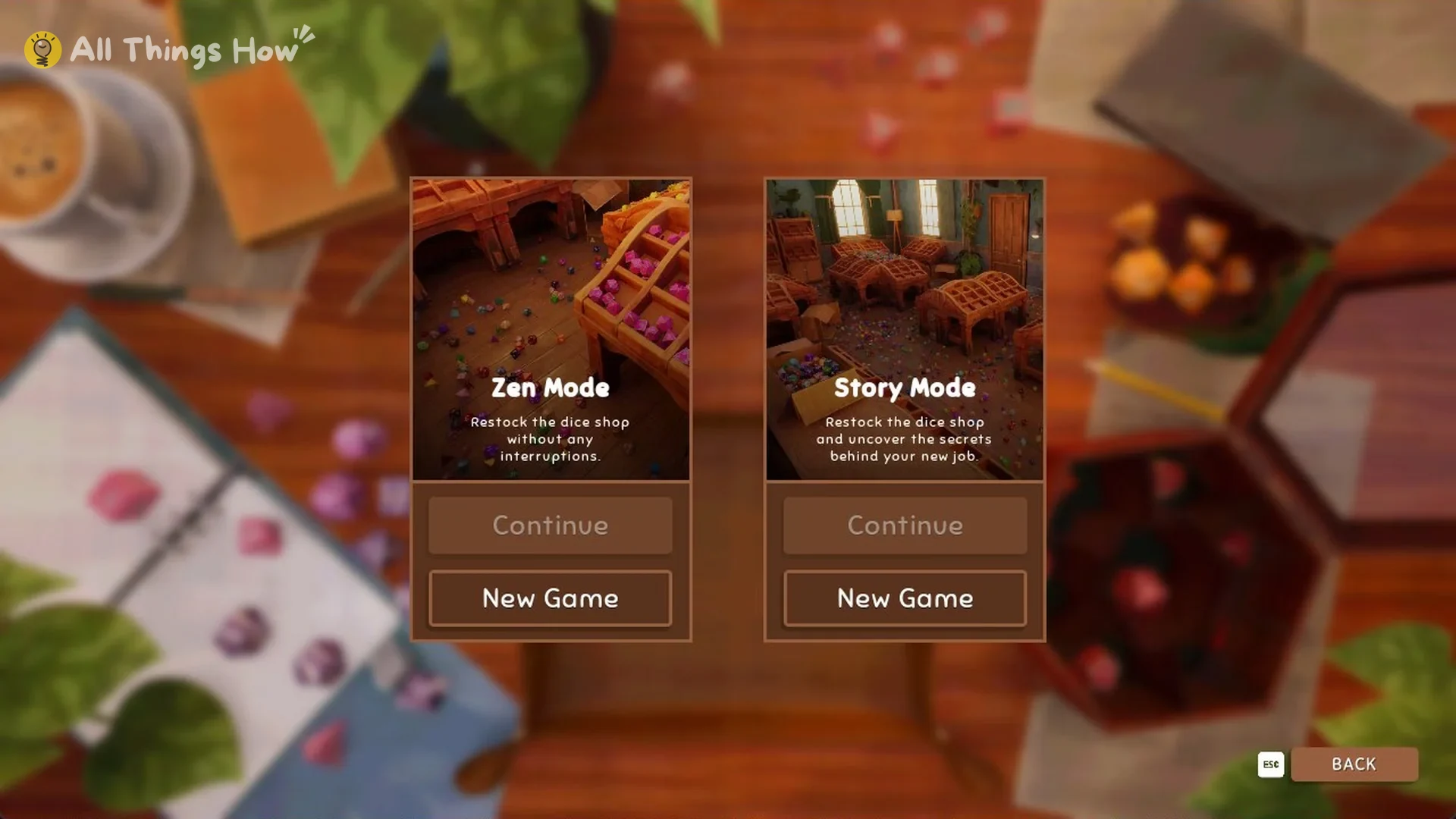
Choose Play on the title screen to see two modes, and each one has its own Continue and New Game options. Zen Mode is described as “Restock the dice shop without any interruptions”, while Story Mode reads “Restock the dice shop and uncover the secrets behind your new job”.
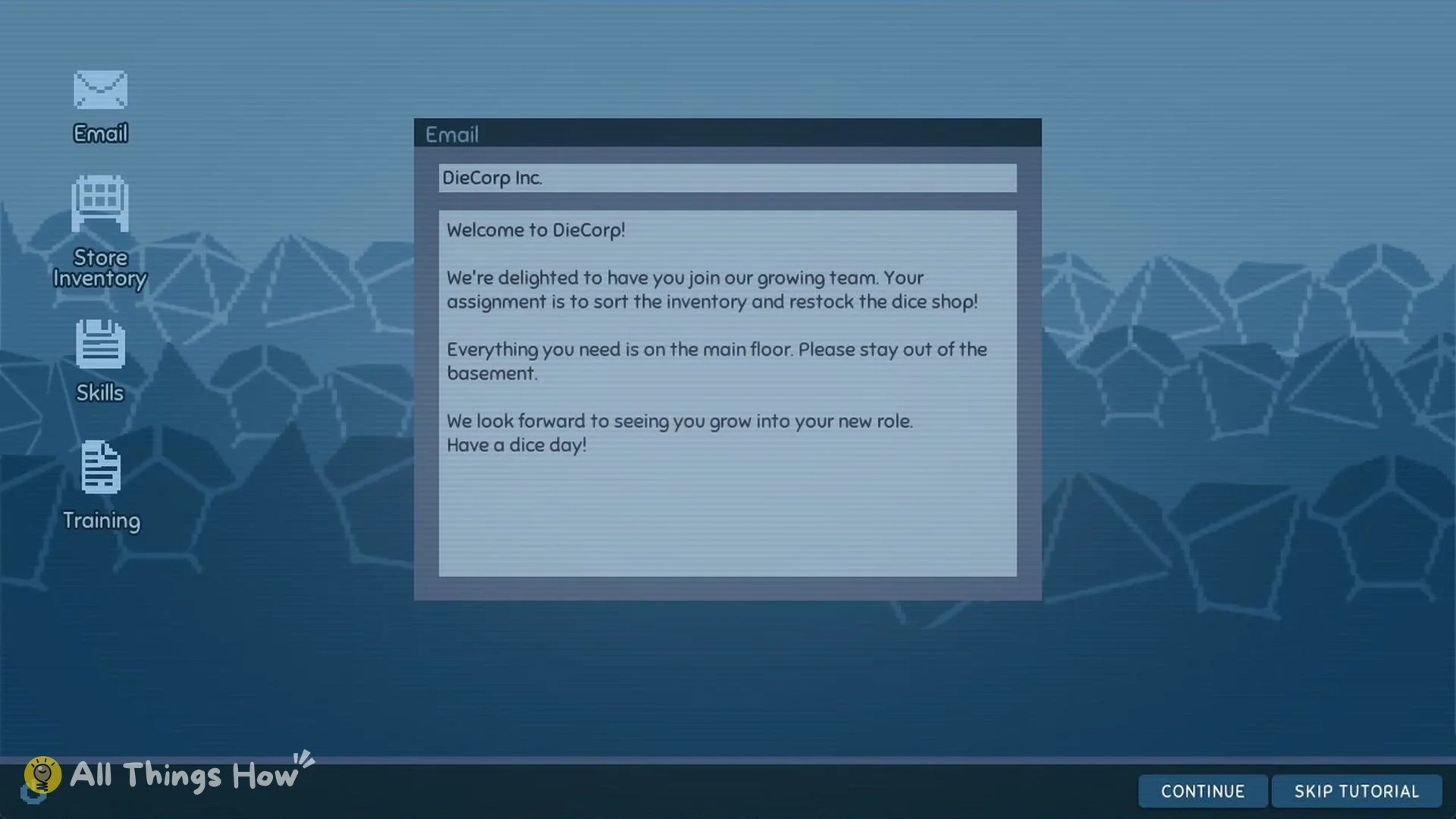
Story Mode begins at a computer desktop showing Email, Store Inventory, Skills and Training. The desktop also has a Skip Tutorial button.
DieCorp Inc. sends your welcome email and assigns you to organize the stock and replenish the dice shop. It points out that all the supplies are on the main floor, tells you not to enter the basement, and signs off with “Have a dice day!”
What a complete dice set is
On the computer, a pyramid-shaped die serves as a digital assistant and introduces the basics.
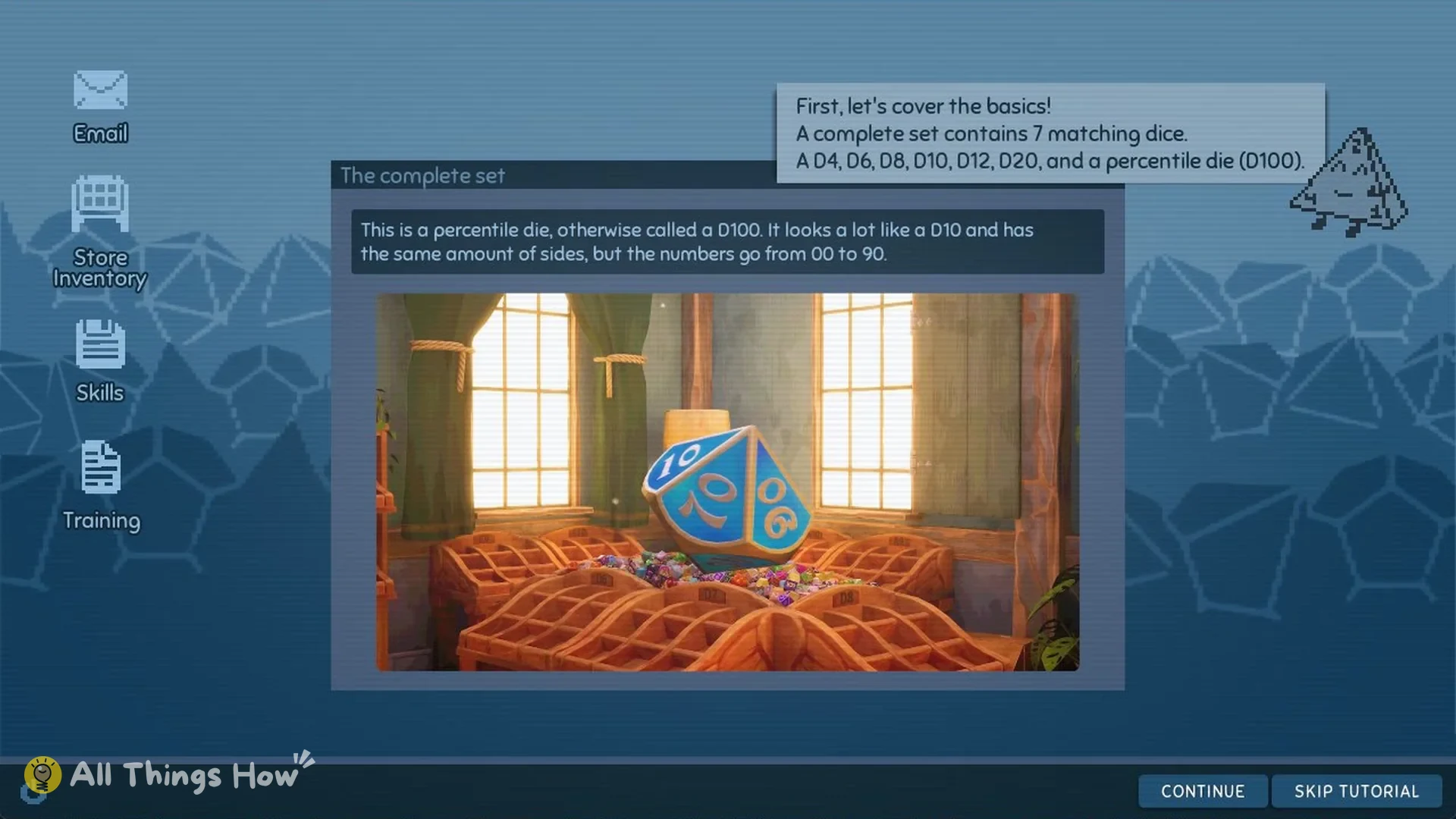
Every complete set holds 7 matching dice: a D4, D6, D8, D10, D12, D20 and a percentile die, the D100.
The assistant runs through each shape. The D4 is a four-sided pyramid (“Try to avoid stepping on it!”), and the D8 is two pyramids joined base to base. The D10 has ten sides numbered 0 to 9, and the D12 has twelve sides. The D20 is called “the star of the table”. The D100 looks a lot like a D10, but its numbers run from 00 to 90, so check the numbers before you place it.
How to pick up dice and add them to your inventory
Next, the assistant asks you to open the Training application on the computer. It drops you into a practice room.
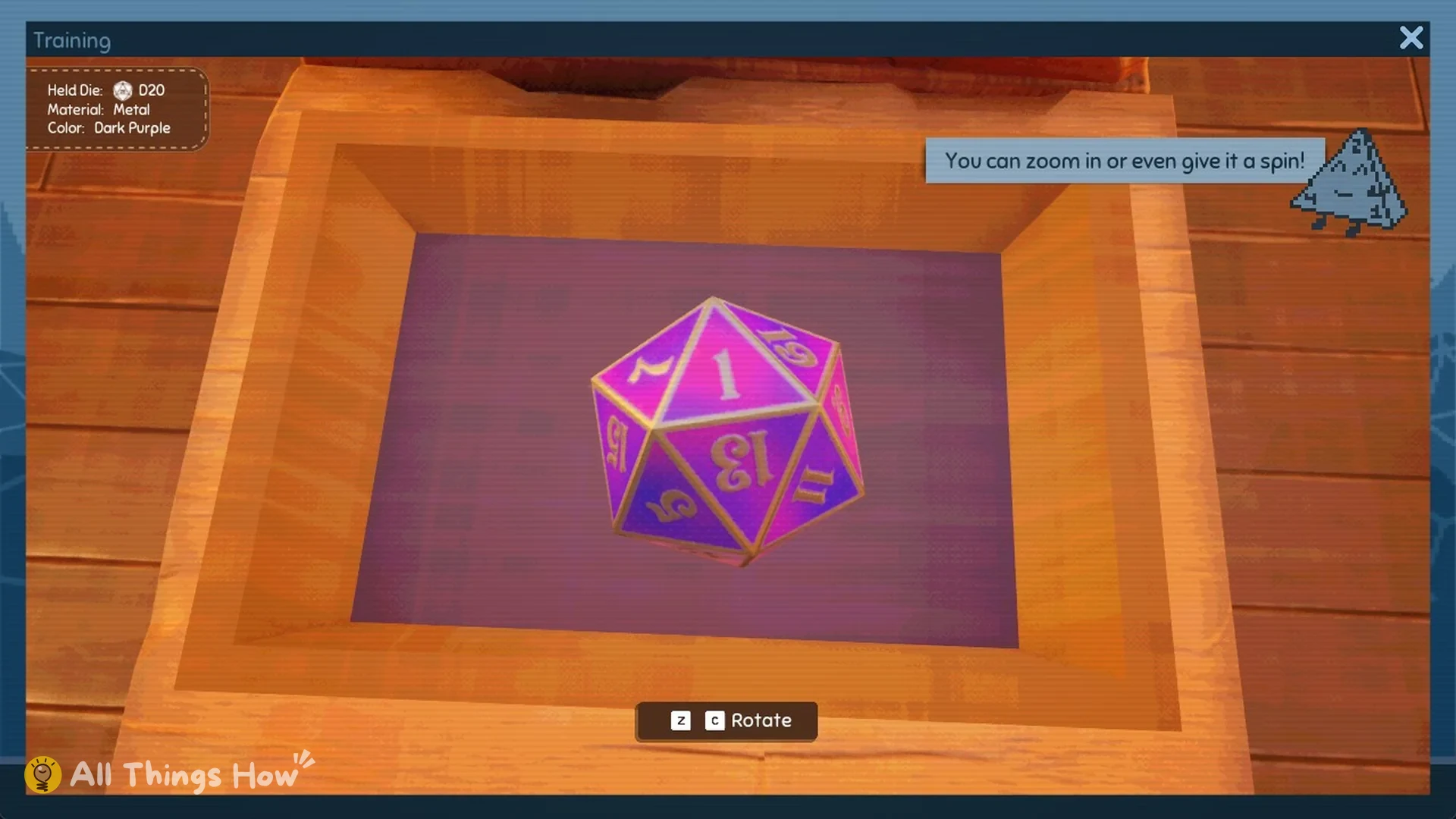
Aim at a die and use left mouse to grab it. At the top left, the Held Die panel displays its type, Material and Color. For the first exercise, the die is a D20 with Material Metal and Color Dark Purple.
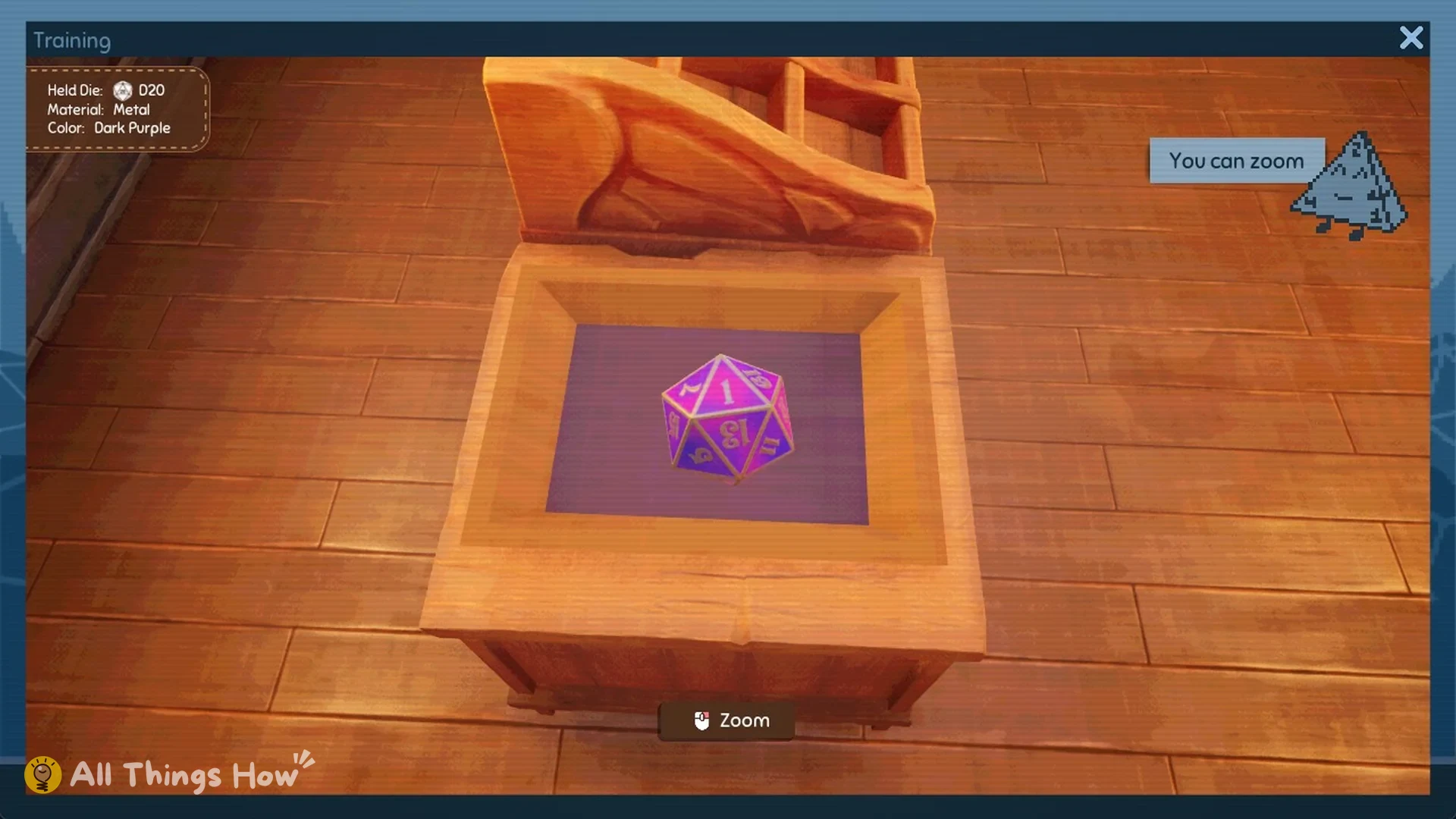
Use and hold right mouse to get a closer view of the die you’re carrying. Turn it with Z or C; Q lets it go.
A die must be in your hands before Add to Inventory (F) can put it away. Grab the die with left mouse, then press F. If you’re just aiming at a die on the floor, pressing F has no effect.
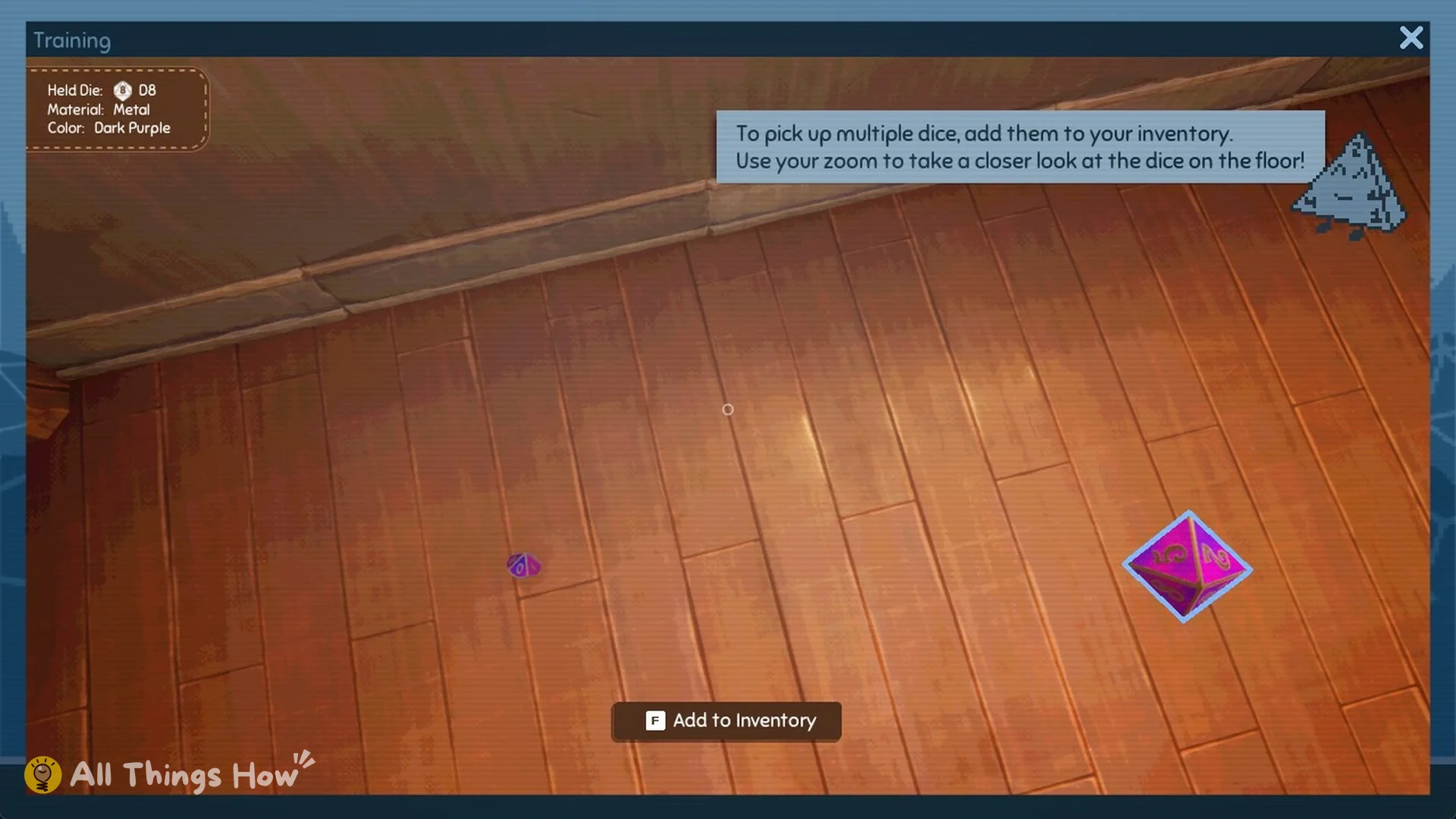
Your collected dice appear in a stack at the screen’s bottom right. Scroll the mouse wheel to move through the stack and bring a different die into focus.
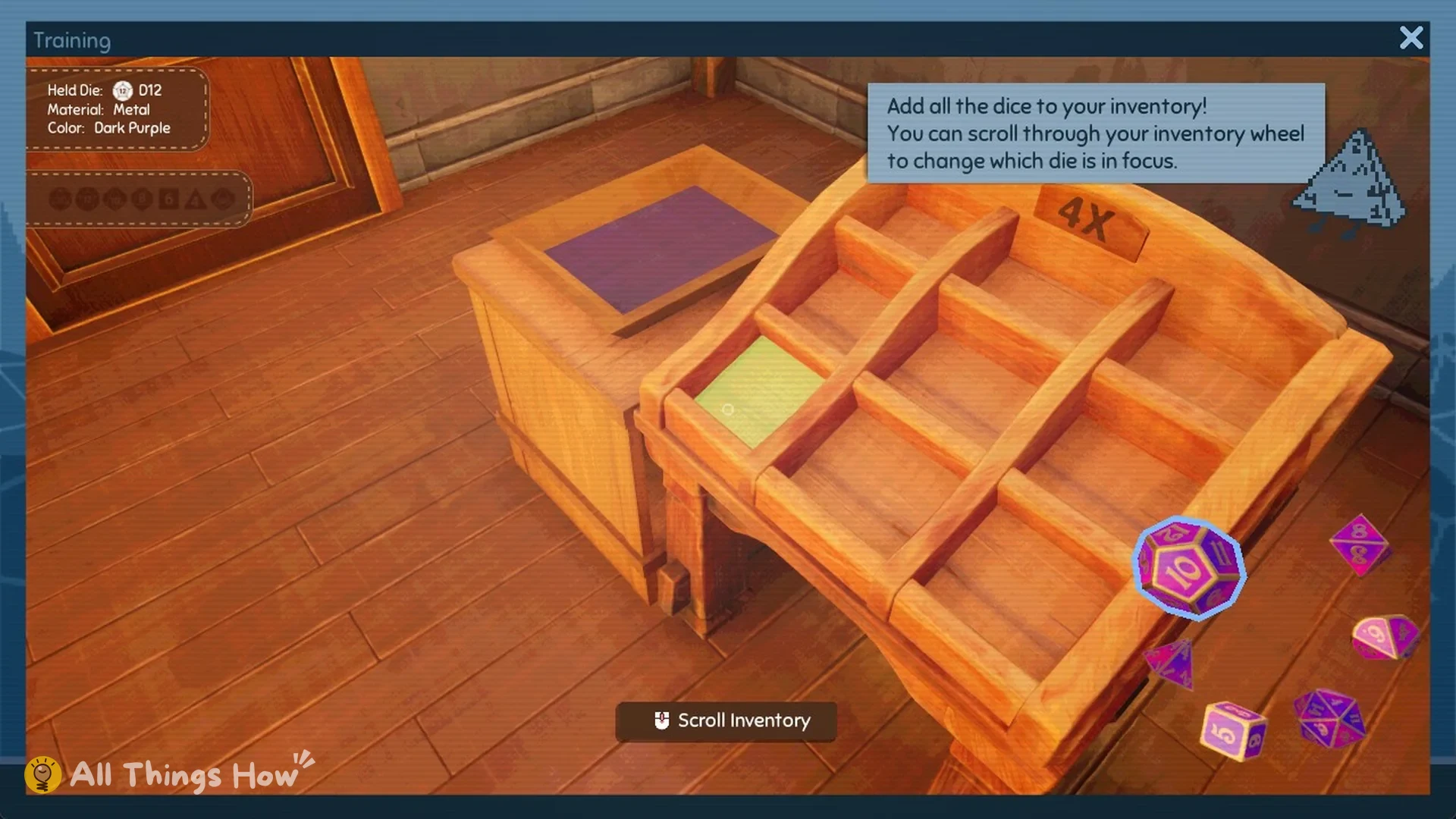
The training task “Add all the dice to your inventory!” spreads 7 dice around the room, and some are on the floor. The last one, a D100, is on the floor behind the purple rolling-tray box. If a die seems to be missing, look behind the furniture.
How to restock a dice display
Once the dice are collected, a new task appears: “Place your dice into the same slot on the dice display to restock a complete set!”
Select a die from your inventory so it’s in focus, then face the dice display. Its corresponding slot lights up green; press E to put the die there.
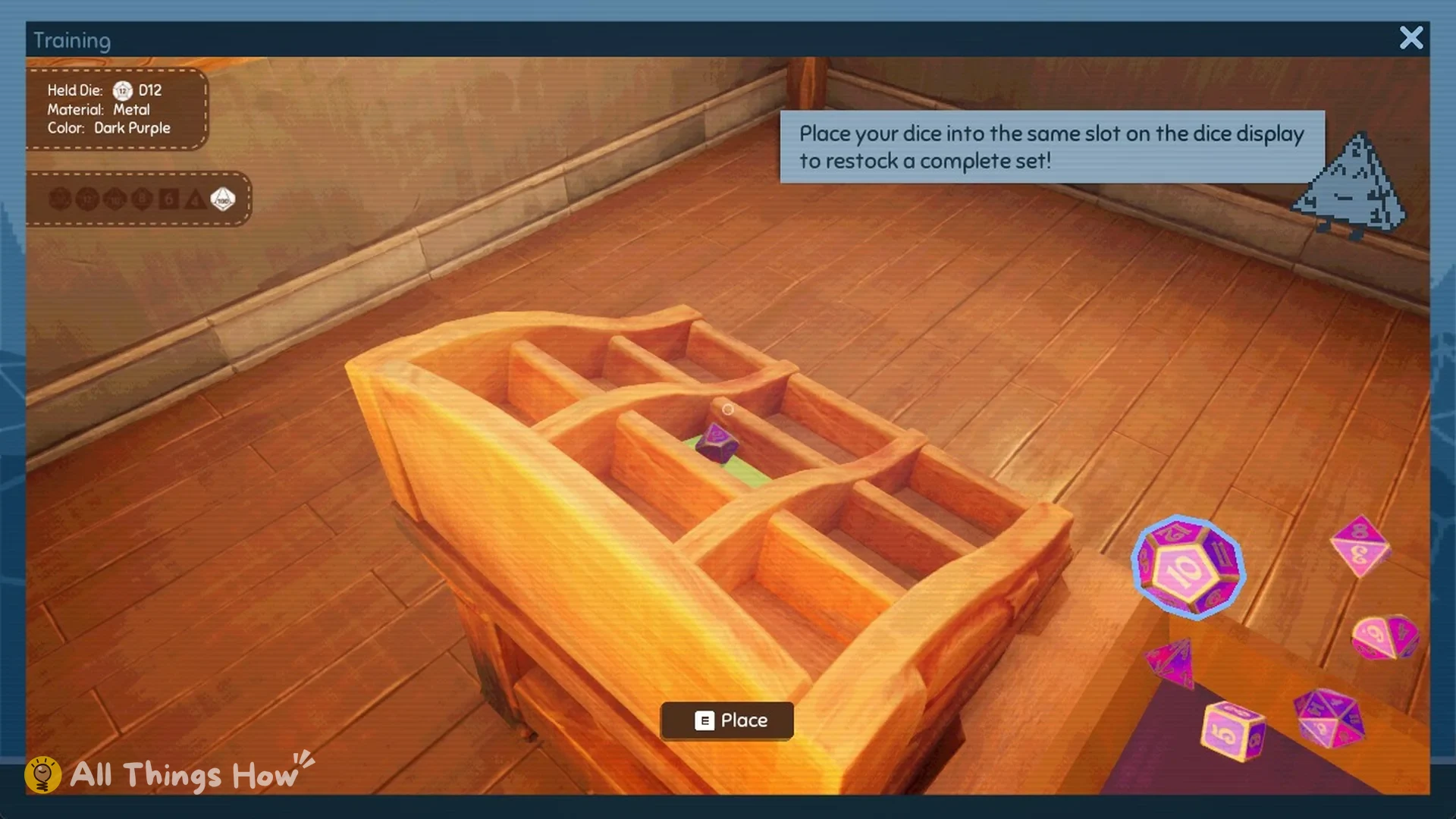
A row of 7 set icons at the top left fills in as each die goes in. When all 7 are placed, training ends with “Well done!”
How to find where a set belongs
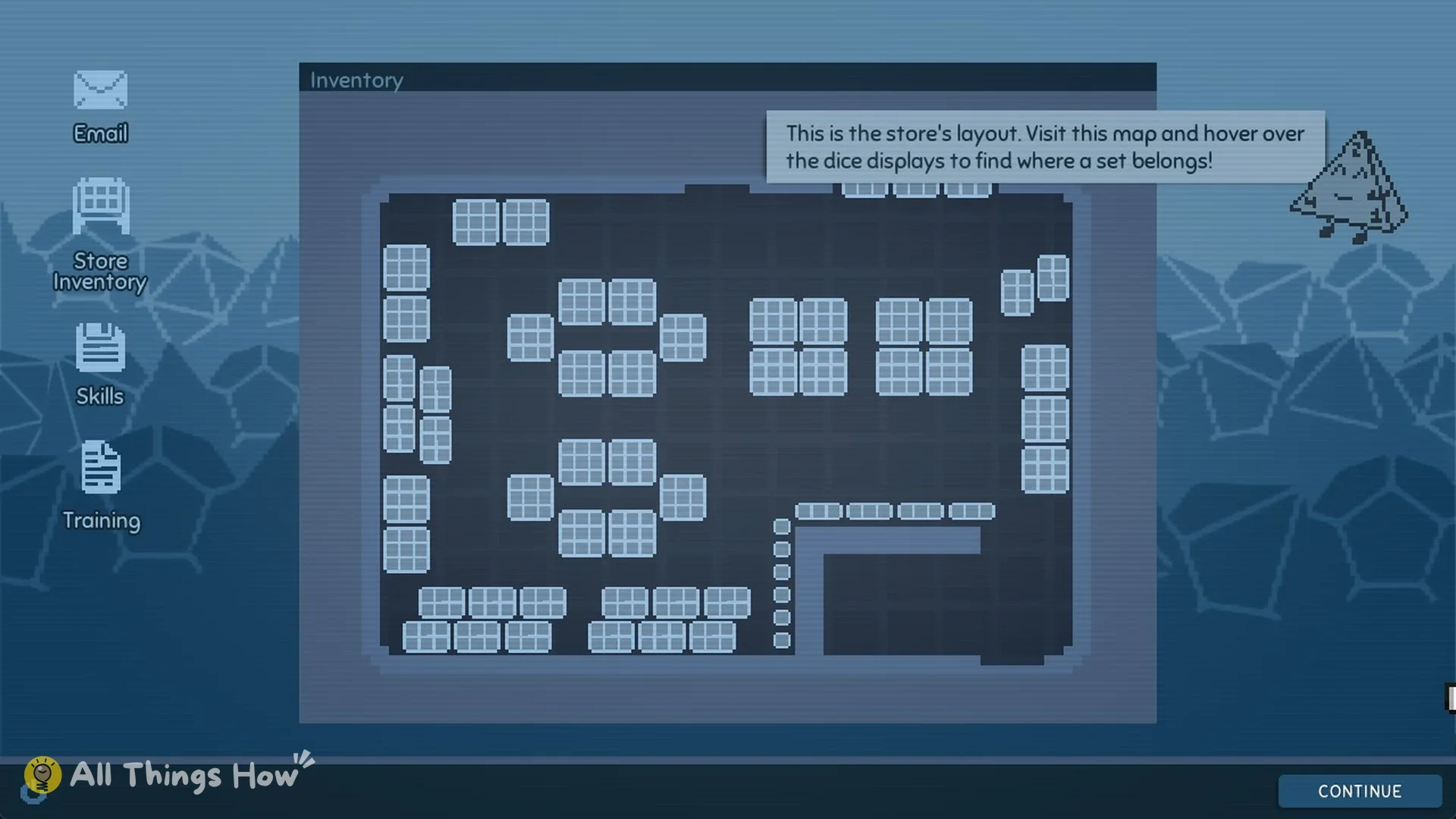
Return to the computer, where the assistant tells you that additional dice displays are in the store. It directs you to the Store Inventory icon.
Store Inventory shows the shop’s layout as a map of every dice display. The assistant’s advice: “Visit this map and hover over the dice displays to find where a set belongs!”
The tutorial closes with “You can view all keybinds again in the pause menu. If you ever need more information, just return to the training app on the PC!”
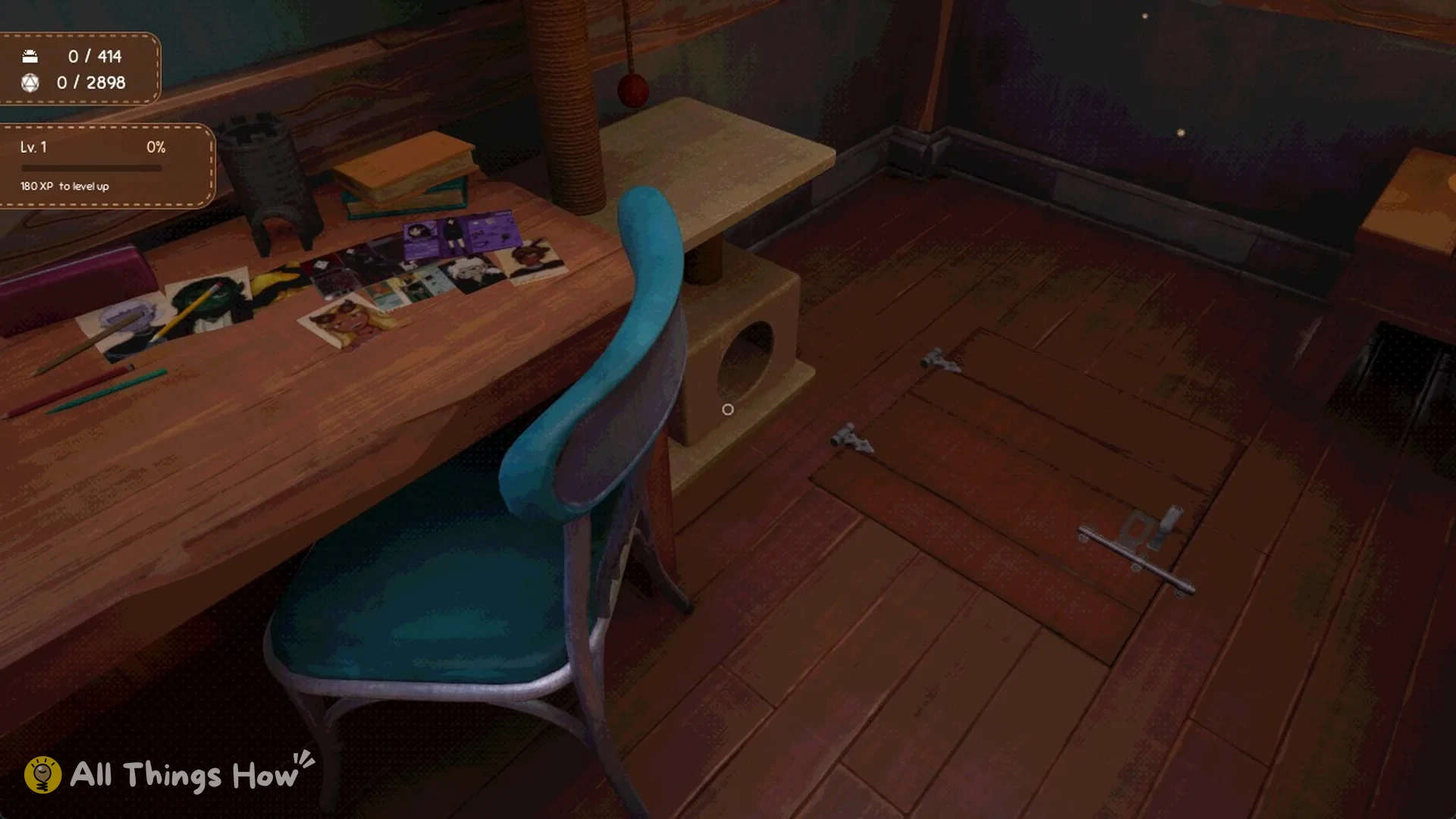
At the top left in the shop, the counters initially read 0 / 414 and 0 / 2898; below them is Lv. 1 0%. Since 414 groups of 7 make 2,898 dice, one counter records finished sets while the other records individual dice.
Dice Hoarder controls
These are the default keyboard and mouse controls from Options > Controls.
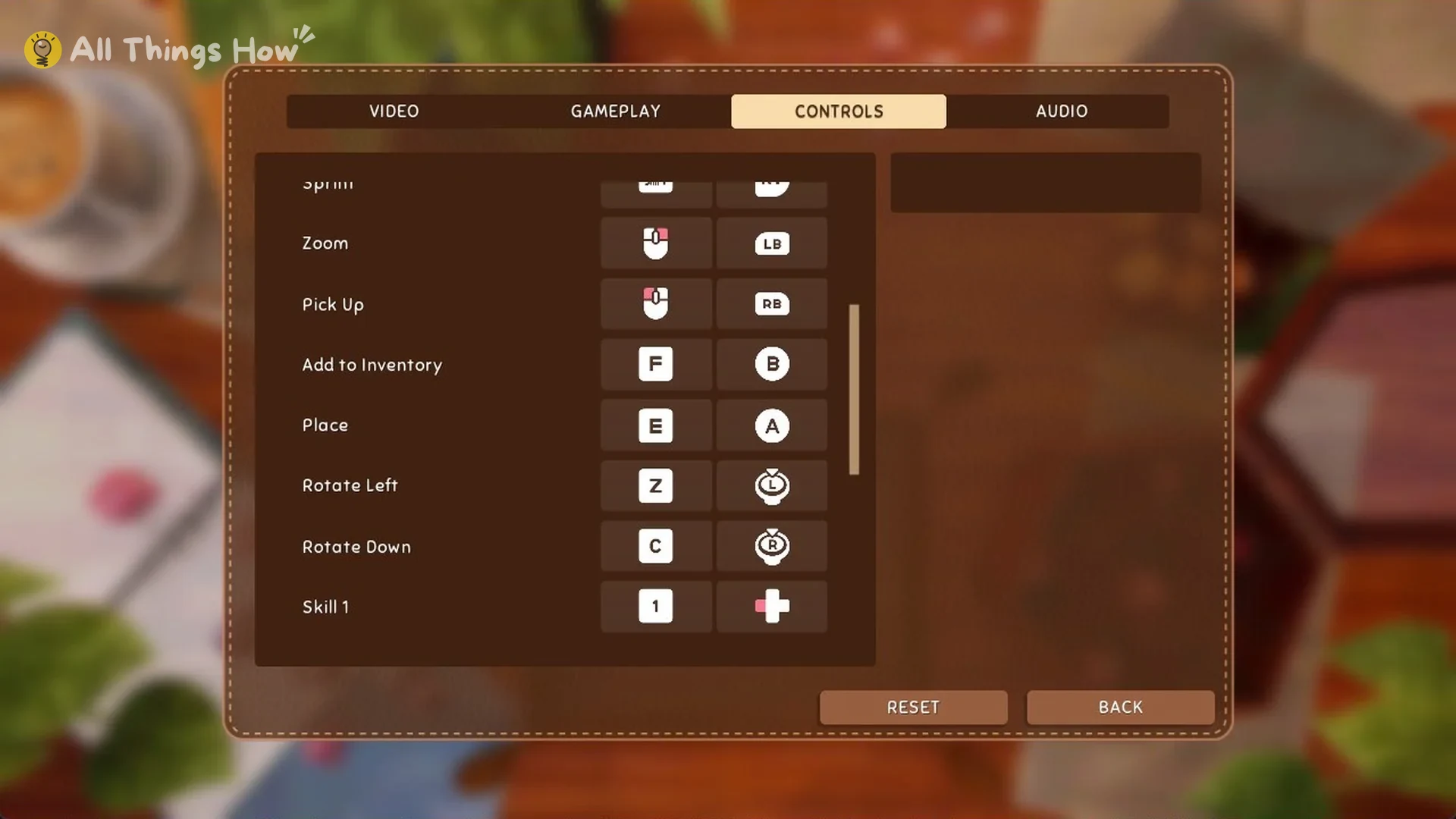
| Action | Key |
|---|---|
| Move | W, A, S, D |
| Sprint | Shift |
| Crouch | Ctrl |
| Zoom | Right mouse |
| Pick Up | Left mouse |
| Add to Inventory | F |
| Place | E |
| Rotate Left | Z |
| Rotate Down | C |
| Drop | Q |
| Skill 1 to Skill 4 | 1 to 4 |
| Scroll inventory | Mouse wheel |
| Map | Tab |
Gamepad controls appear on this screen too. In the pause menu, you can choose Continue, Options, Recover Dice, or Save and Quit; the listed prompts are Pick Up, Drop, Zoom, Place/Open, and Remove/Add to Inventory. Under Gameplay, you can adjust mouse and gamepad sensitivity, invert axes, set Camera FOV (100 by default), choose Color Correction Type, and configure Head Bob.