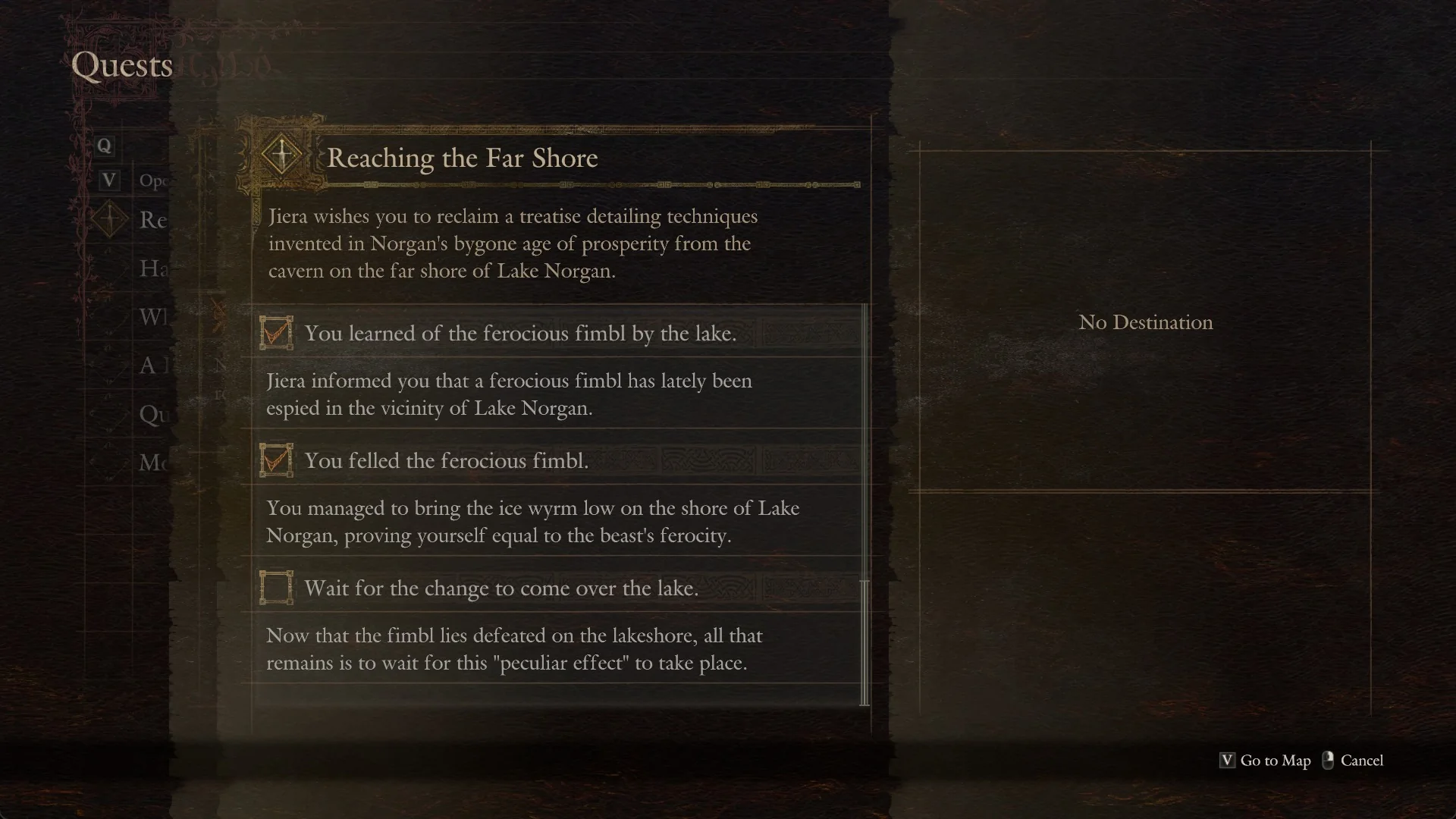
The Quests screen in Dragon’s Dogma 2: Dark Arisen lists what a quest asks of you and the task lines already done. Task lines show up in order, finished lines are ticked, and the open line is the one you still need to clear. Here is how to reach that record on a PC keyboard, using “Reaching the Far Shore” as the example.
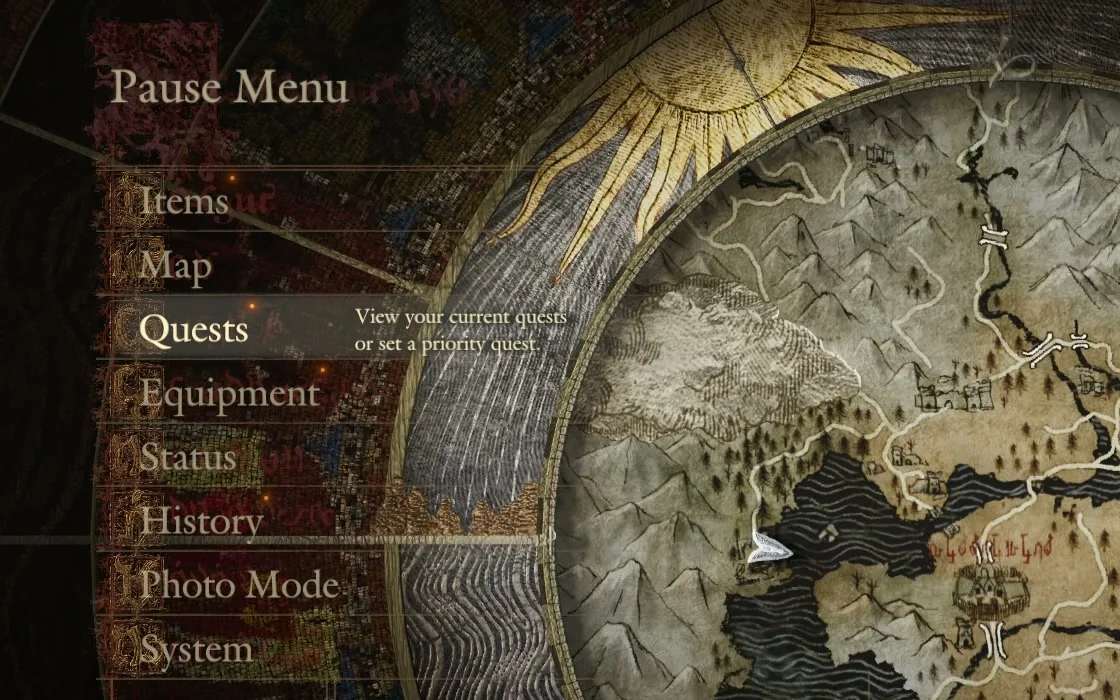
Quick answer: Open the Pause Menu, choose “Quests”, pick a quest, press F for “View Details”, then press F again to read the text under each task line.
Open the Quests screen
Open the Pause Menu and choose “Quests”. Its help text reads “View your current quests or set a priority quest.” You can also press G while the priority quest panel is on screen; that panel shows “G Quest Details” at the top right, and “G Go to Quest Menu” sits in the bottom hints.
Use Q and E to move between the “Current” and “Completed” tabs on the Quests screen, then highlight the quest you want. Quests are listed by name, with a diamond marking the priority one. On the right, you’ll find the selected quest’s active task and a small map picture.
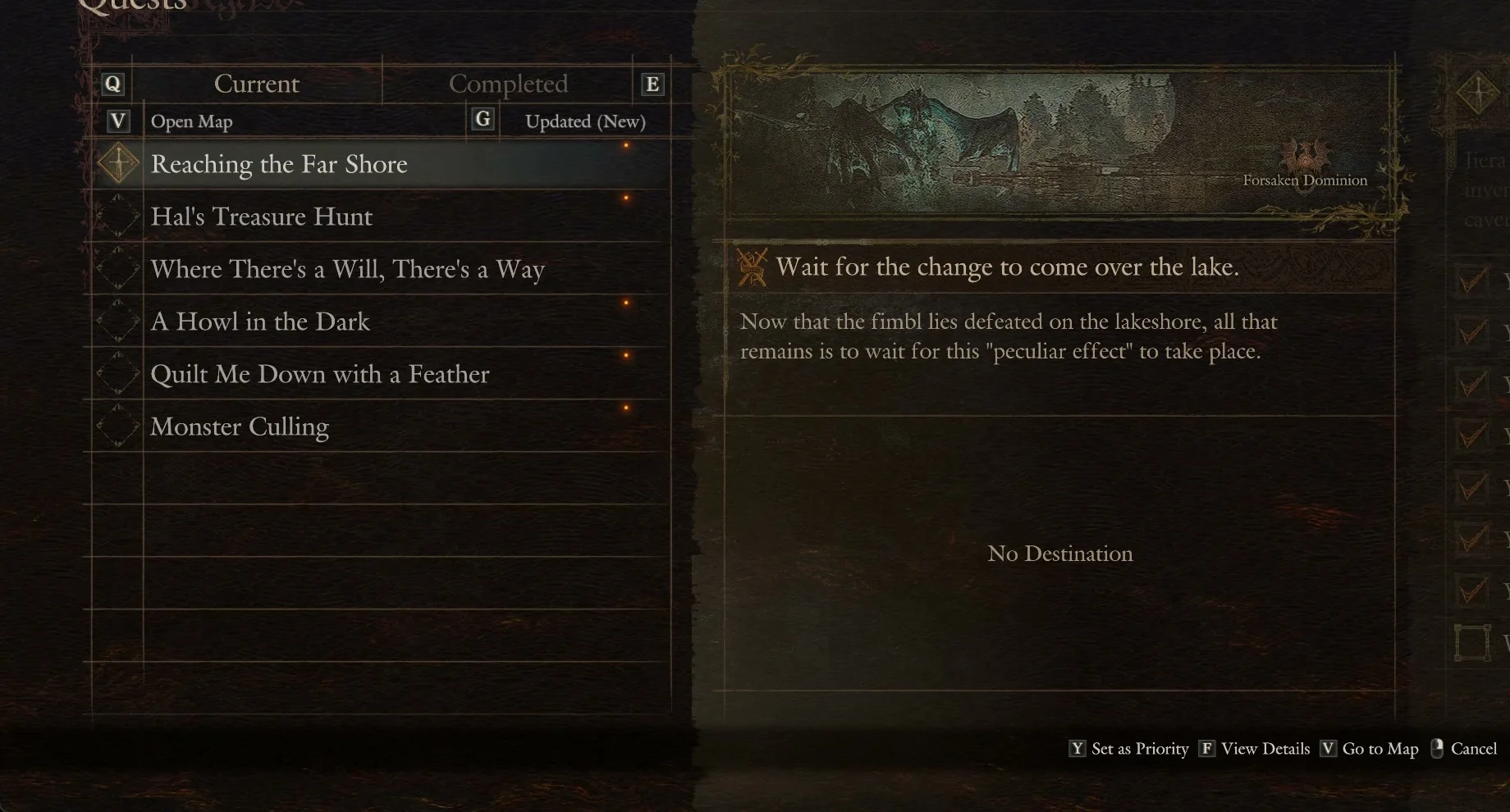
Above the list you will see “V Open Map” and “G Updated (New)”, which is the sort. The hints along the list are “Y Set as Priority”, “F View Details”, “V Go to Map”, and “Cancel” on the right mouse button.
Read the task lines and their text
For “Reaching the Far Shore”, the ticked lines read “You were tasked with retrieving a tome.”, “You sought Ryatt’s advice about crossing the lake.”, and “You felled the ferocious fimbl.” The open line is “Wait for the change to come over the lake.”
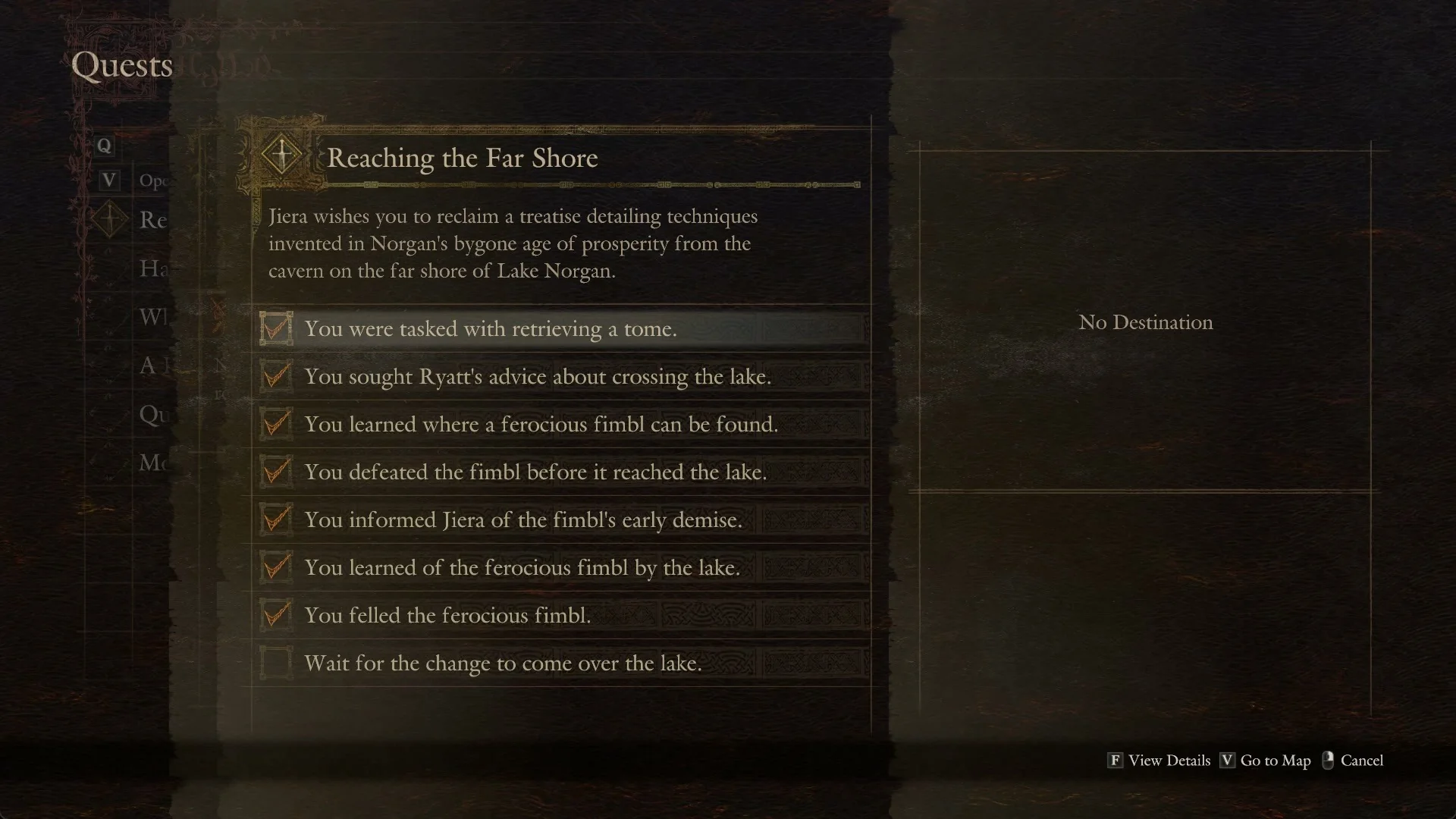
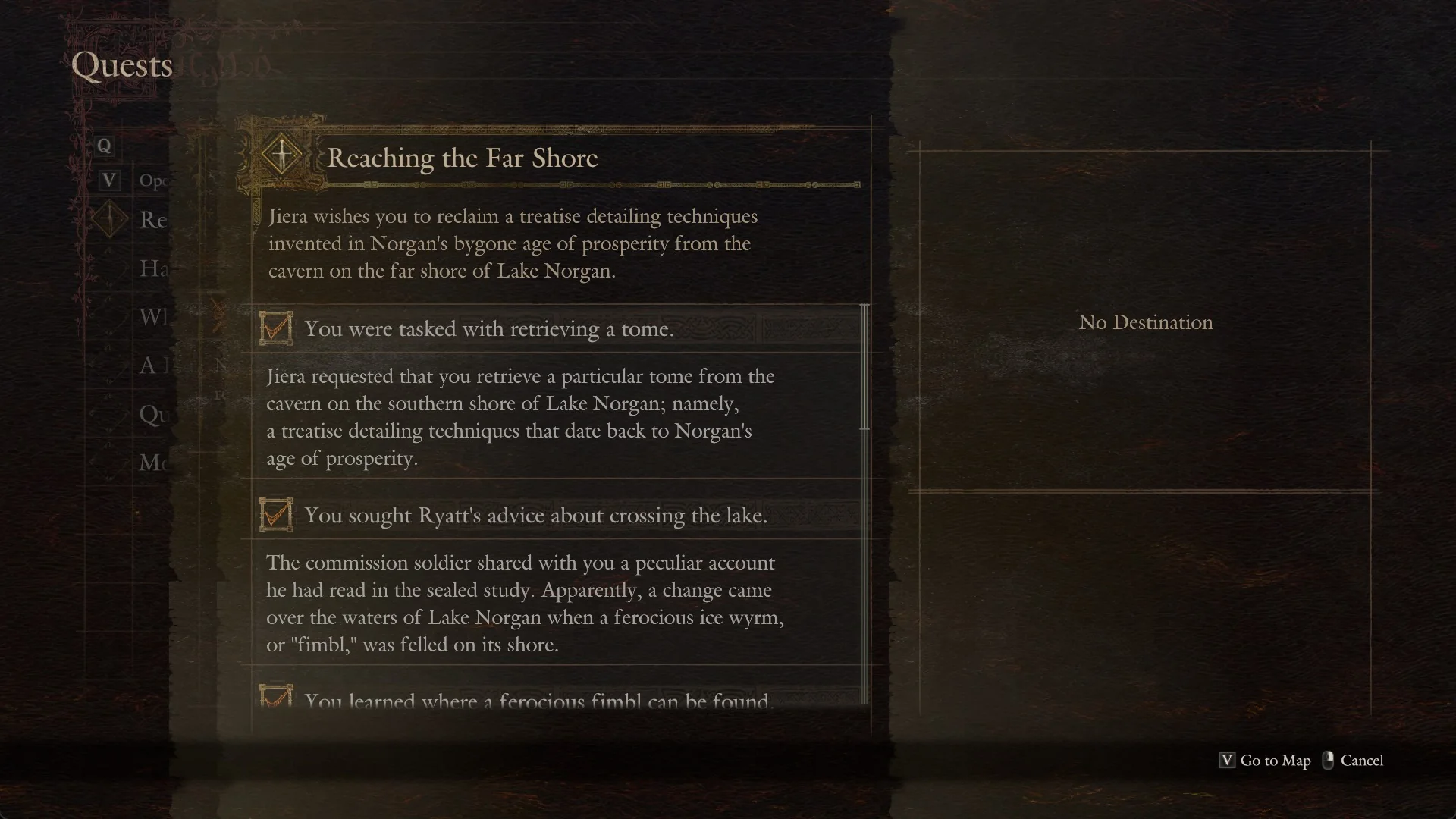
You will know you are reading the right record when each line carries its own tick or empty box and the text expands beneath every line after the second F press.