Lips in Facecard Makeup Showdown are painted by hand onto a 3D mannequin head, the same way as every other part of the face. The game splits lip products into three separate tools. Each one paints with whatever colour and brush settings you have active, so you build a lip look in layers.
Quick answer: At the makeup station, open MAKEUP > LIPS, pick Lipstick, choose a colour from the COLOUR palette, then click and drag across the mannequin’s lips. Add Lip Liner and Lip Gloss the same way.
Getting to the makeup station
You only get the painting tools once you are in a round. From the salon lobby, accept the “A ROUND IS ON!” prompt or press JOIN ROUND at the bottom of the screen. A title card then shows the round’s theme, such as Highlight Heaven, and the makeup station opens with a blank face model. You can play Facecard: Makeup Showdown on Roblox for free.
On your first visit, a short run of tutorial pop-ups covers YOUR TOOLS, SKIN TONE, MIRROR and KEEP FACECARD SAFE. Press UNDERSTAND to clear them and start painting.
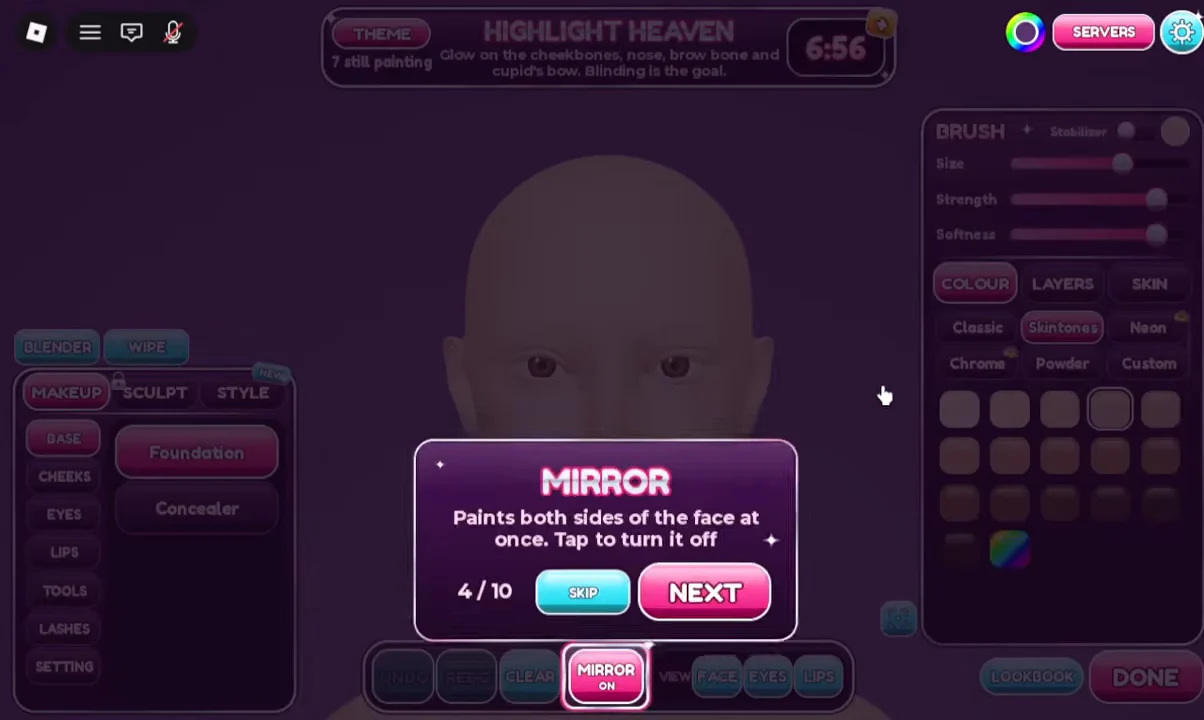
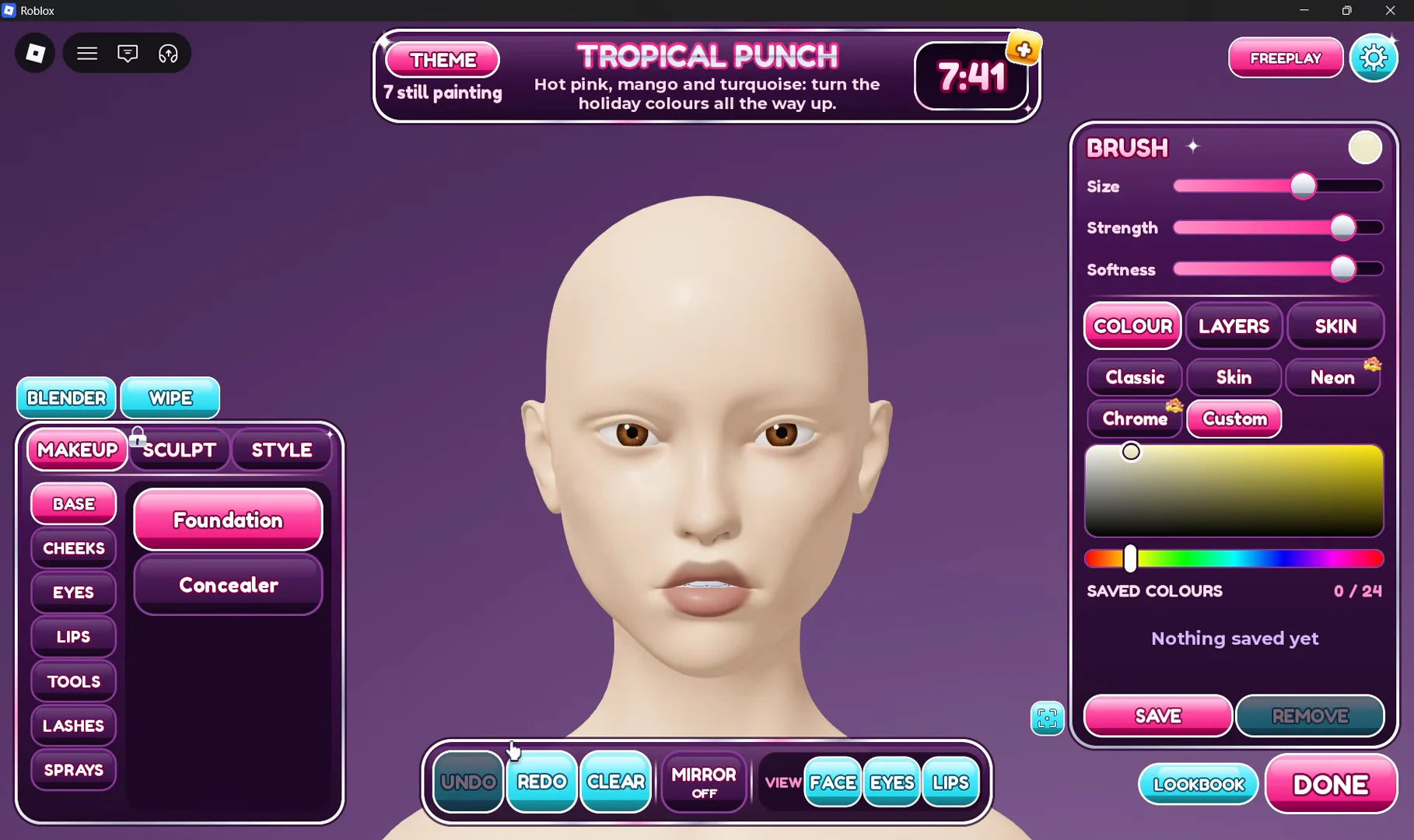
The left sidebar holds the main tabs: MAKEUP, SCULPT and STYLE. Under MAKEUP sit the sub-categories BASE, CHEEKS, EYES, LIPS, TOOLS and SETTING. The station may open on a different sub-category, such as Foundation under BASE or the Eyes tools, so you will usually need to switch over to LIPS yourself.
The three lip tools in Facecard Makeup Showdown
| Tool | What it paints | Typical order |
|---|---|---|
| Lipstick | Solid base colour | First |
| Lip Liner | Outline of the lip edges | Optional, after base |
| Lip Gloss | Shiny, reflective coat or tint | Last, over lipstick |
A purple outline marks whichever tab and tool is currently active. Use it to confirm you are on Lipstick, Lip Liner or Lip Gloss before you start a stroke.
How to apply lipstick, liner and gloss
Colour palettes and brush settings for lips
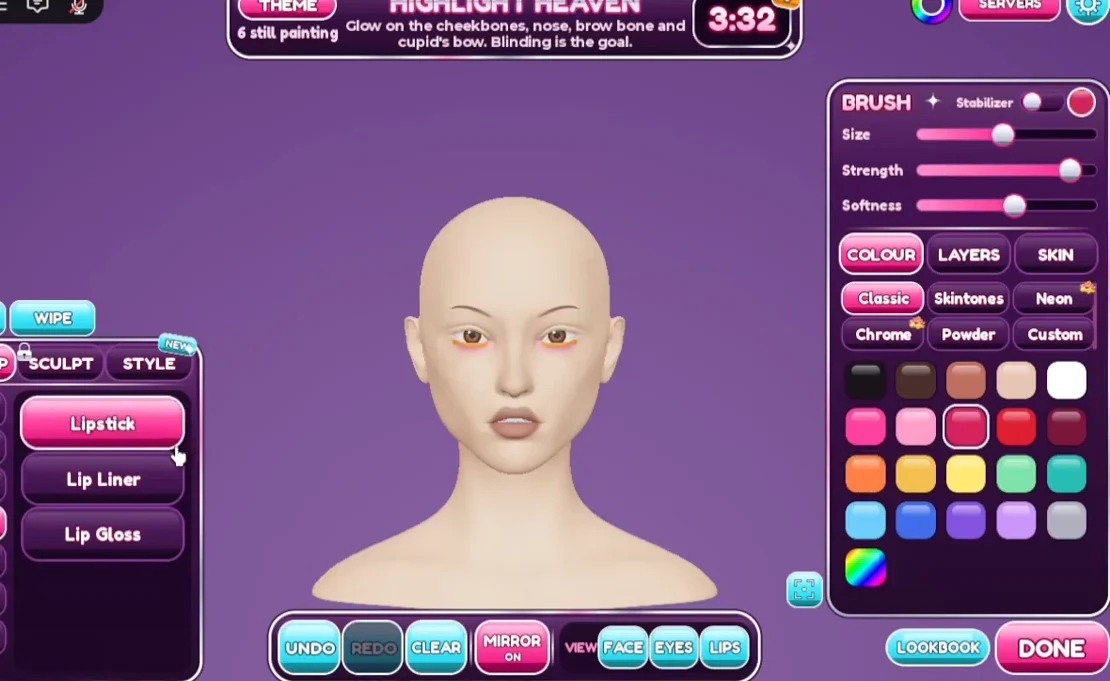
Every lip tool draws from the same COLOUR panel on the right sidebar. It offers six palettes:
- Classic
- Skintones
- Neon
- Chrome
- Powder
- Custom
The BRUSH panel in the top right controls how each stroke behaves. Size, Strength and Softness are sliders, and Stabilizer is a toggle. A smaller Size helps on narrow work like liner, while Strength and Softness change how solid and how feathered the paint looks. The same panel also holds a LAYERS section for organising your work.
Fixing a misplaced lip stroke
Liner in particular is easy to drag off the lip line. The bottom bar gives you three controls to recover:
- UNDO removes your last stroke.
- REDO puts back a stroke you just undid.
- CLEAR wipes the work so you can start again.
Reach for UNDO first. CLEAR is a much bigger reset than a single bad line needs.
Checking the finished lips before time runs out
The bottom bar has camera buttons for FACE, EYES and LIPS. Press LIPS to zoom in on the mouth. From there you can check that the lipstick colour covers the whole lip, the liner sits on the edge, and the gloss shows its sheen on top. Press FACE to see how the lips work with the rest of the look.
Painting runs on a round timer. When the “TIME’S UP! BRUSHES DOWN” screen appears, looks are collected and voting starts, with every entry rated from one to five stars. Whatever is on the lips at that moment is what other players see in your photoshoot. If you finish early, press DONE.