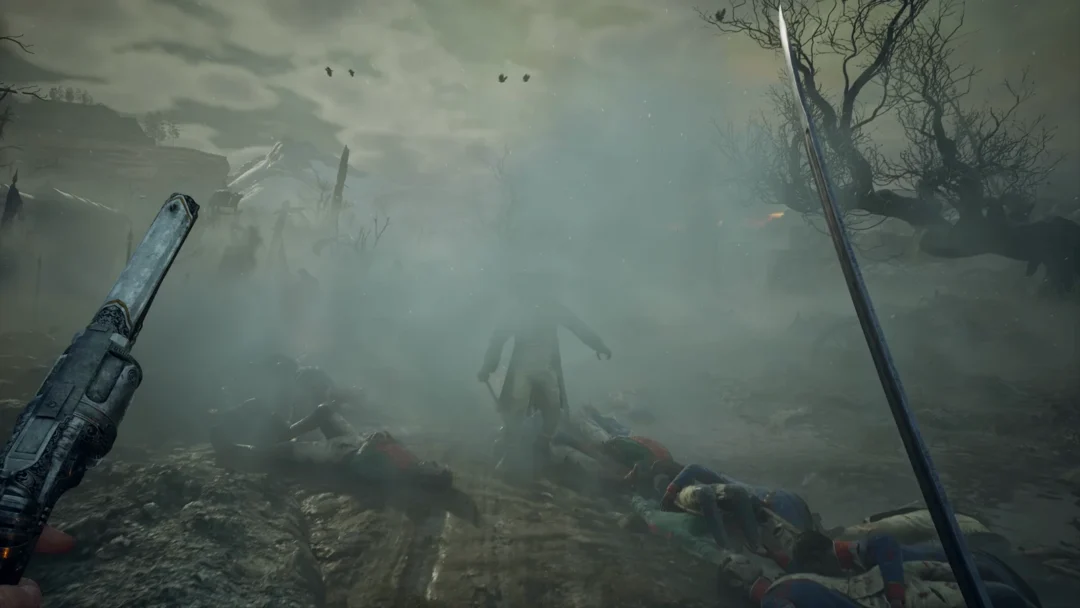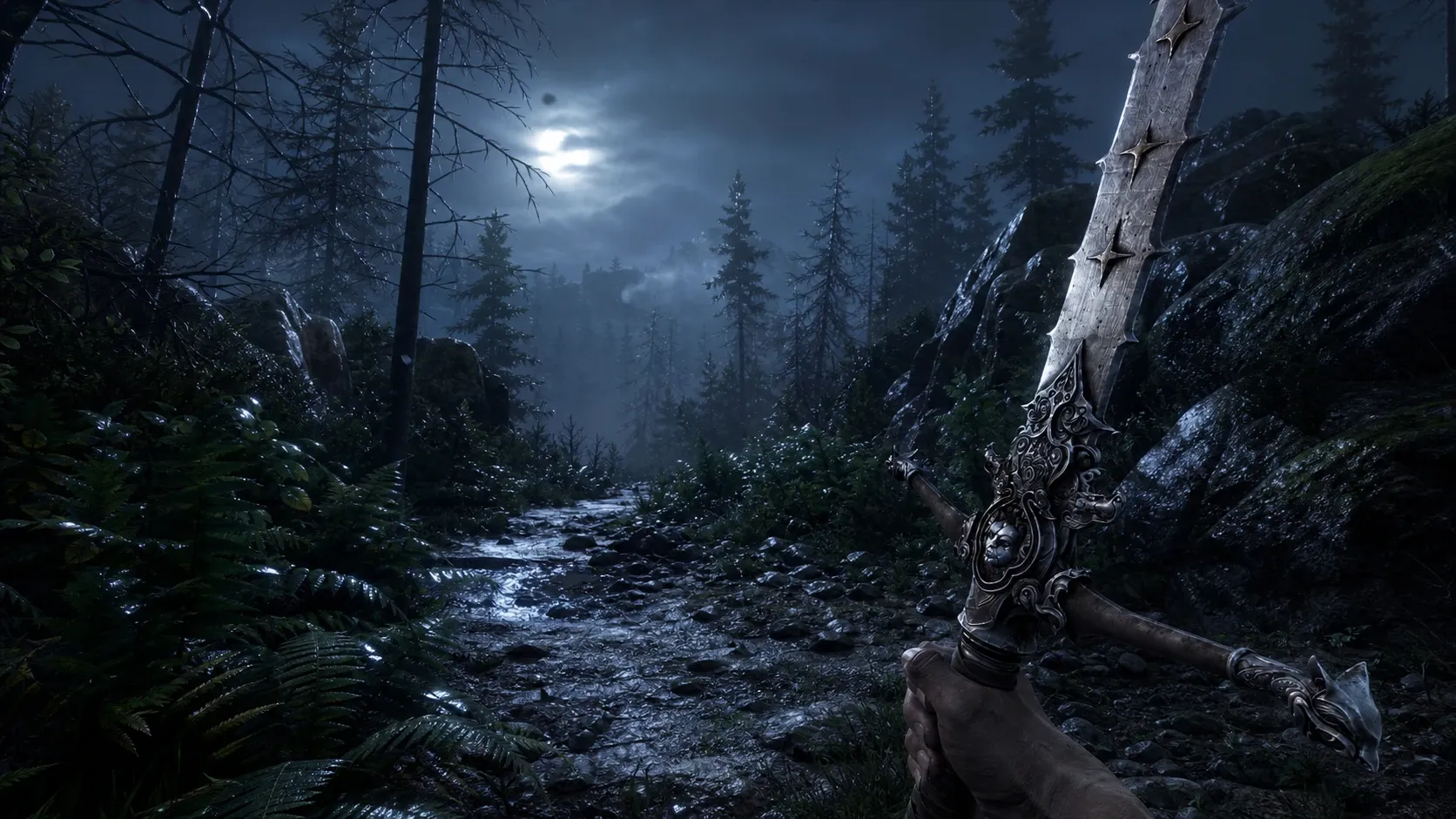
Fatekeeper, Paraglacial’s Early Access action RPG, runs on Unreal Engine 5 and ships without a full set of in-game graphics sliders in build 0.1.0. That gap is why budget machines like a GTX 1060 or RX 580 drop into the 35–40 FPS range during combat. The fastest fix is editing the engine’s hidden configuration files and adding a couple of Steam launch options, which together can lift average frame rates well past 55 FPS.
Edit the Fatekeeper Engine.ini config file for an FPS boost.
Because version 0.1.0 hides its heavy rendering options, the most effective gains come from manual file editing rather than the menus. Back up the files before you touch anything so you can restore the originals if the game refuses to launch.
%localappdata%, and press Enter. Open the folder \Fatekeeper\Saved\Config\WindowsNoEditor\, where you will find both Engine.ini and GameUserSettings.ini.On an RX 580, they cut GPU load by close to 40 percent on their own, and the dark fantasy look survives because the world leans on hard lighting contrast and deep purple tones rather than the fog layer. Always set Engine.ini to read-only after editing. An unprotected file gets reset to defaults on the next launch, wiping your custom settings.
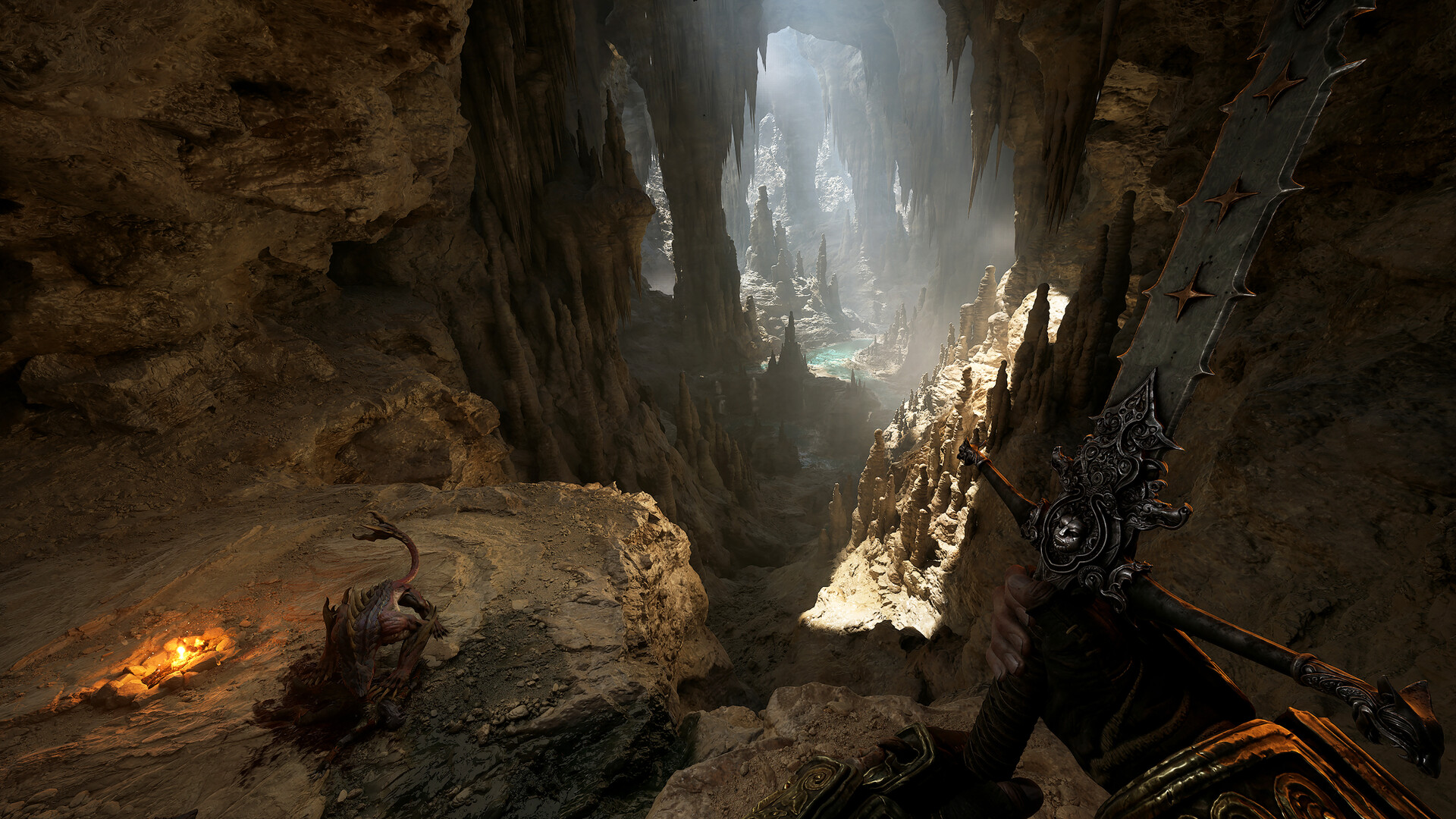
Steam launch options for older hardware
Beyond the config file, two launch commands ease the load on the CPU. In your Steam library, right-click Fatekeeper, choose Properties, and paste the following into the Launch Options box. -dx12 -USEALLAVAILABLECORES. The -dx12 flag forces the DirectX 12 API, which handles draw calls more efficiently and stabilizes frame times during heavy combat. -USEALLAVAILABLECORES spreads the work across every CPU thread, which prevents the bottlenecking that shows up in dense Underdwellers fights.
Best in-game graphics settings for Fatekeeper
The goal is to keep textures crisp while trimming the lighting and shadow math that punishes low-end GPUs. Set your resolution to your monitor’s native output, usually 1080p, and leave the built-in resolution scaler off, since it causes heavy blurring in build 0.1.0.
Keep Textures at Medium or High depending on your VRAM, and push the rest down. Global Illumination and Effects Quality control the magical particle bursts that fire during spellcasting, and those are the biggest frame killers on budget laptops. Dropping both to Low while holding Textures at Medium keeps character detail intact and shifts the strain off your VRAM.
Disabling volumetric fog remains the single largest visual win. In a side-by-side test in the Underdwellers starting zone on a GTX 1060, fog enabled held 35–40 FPS, while turning it off through Engine.ini raised the frame rate to a steady 55–60 FPS, roughly a 35 percent gain.
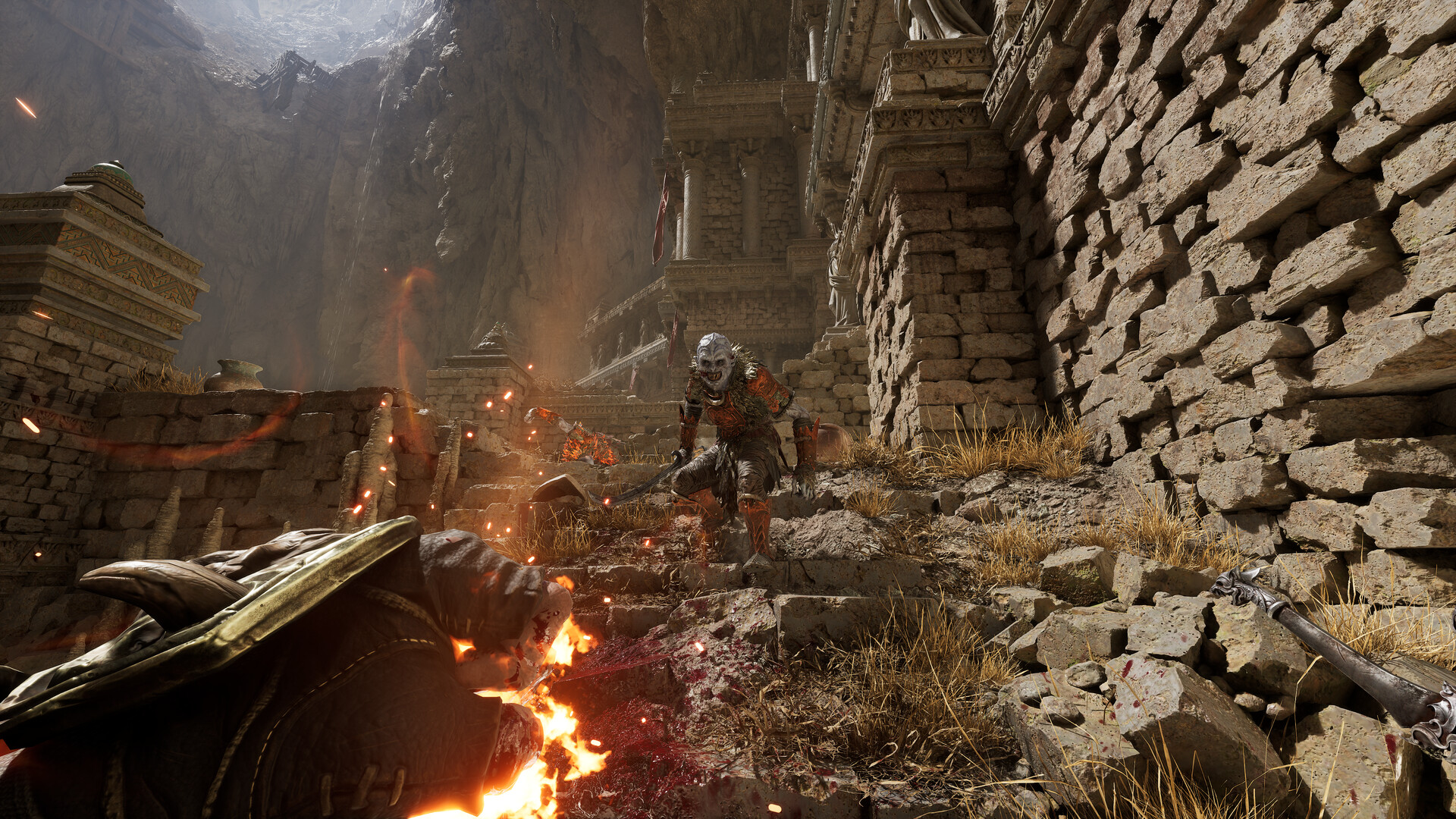
Fix Fatekeeper stuttering and lag in Early Access
Most micro-stutters come from shader compilation, which runs on the fly as you move into new areas. The freezes when casting spells or loading fresh enemies are this compile-time stutter rather than a hardware fault.
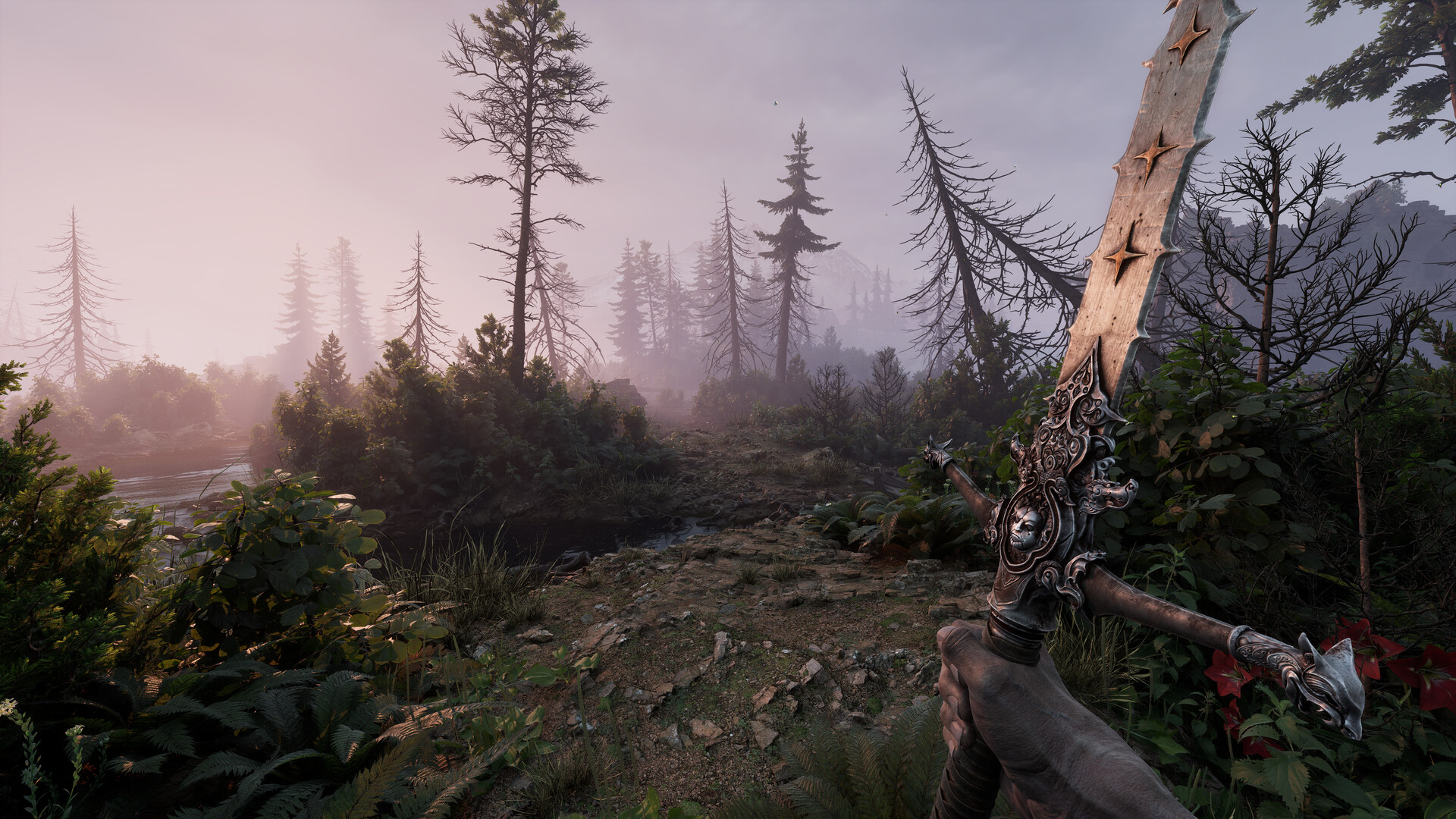
How to confirm the settings worked
You know the edits applied when the volumetric fog no longer fills the Underdwellers starting zone, and your frame counter climbs from the high 30s into the mid-50s or better. If your numbers stay low after a restart, the most common cause is that Engine.ini was not set to read-only, so the game reset your changes on launch. Reopen the file, confirm the [SystemSettings] block is still present, and re-check the read-only box. With the config edits, the launch options, and a Low graphics profile in place, a mid-range or older PC can hold a stable 60 FPS while the Early Access build continues to receive optimization patches.