Wear and Tear in Madden 27 tracks how much punishment your players absorb during games and practices, then ties that workload to rest, usage, and recovery across a season. Lean on the same starters too heavily and their performance drops as fatigue and lingering damage build up. If that management layer is getting in the way of how you want to play, you can switch it off entirely from the game’s settings.
Quick answer: Open the Options (Game Options) menu, go to the Gameplay Sliders area, find the Wear and Tear setting, and toggle it from On to Off. You can return to the same menu to turn it back on at any time.
Turn off Wear and Tear in Madden 27
The toggle lives in the game’s settings rather than inside any single mode, so the fastest route is through the main menu before you jump into a game.
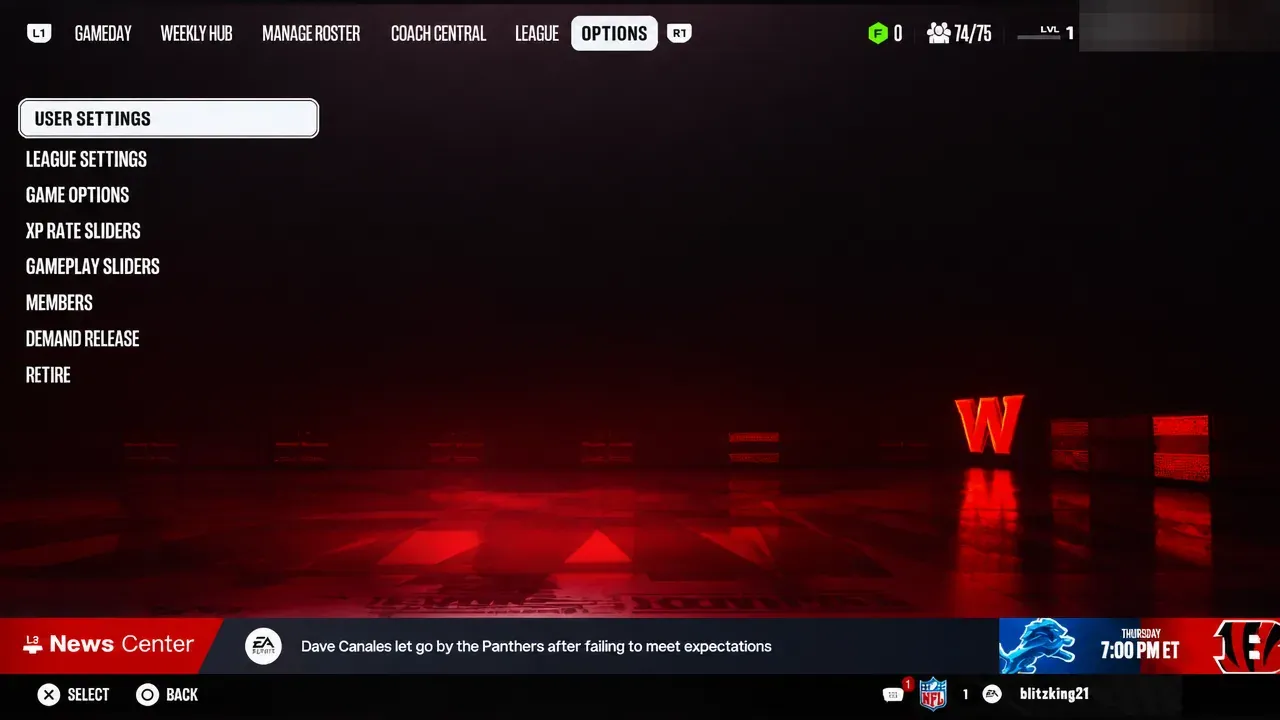
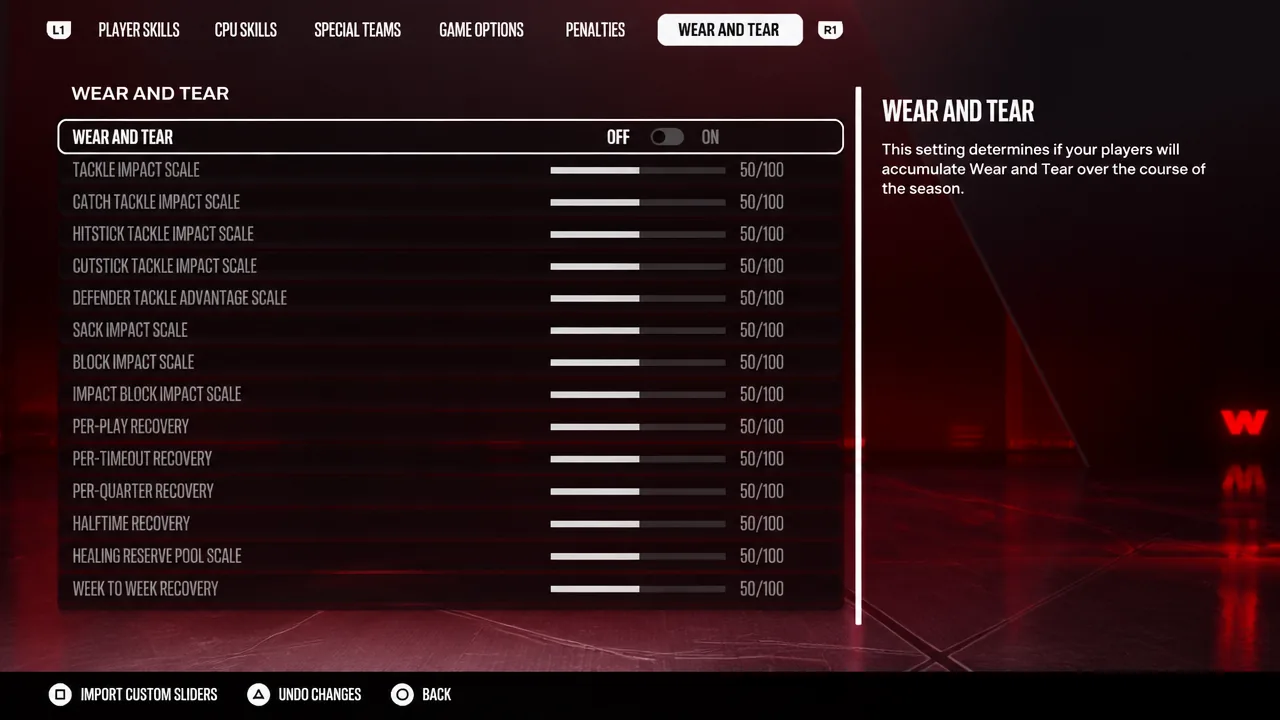
With the system disabled, accumulated fatigue stops driving stat penalties and forced substitutions, giving you a more traditional Madden feel. Note that this is separate from the standard Injury slider, so injuries and other fatigue-related mechanics can still occur depending on your other settings. Lower the Injury value on its own if you also want fewer injuries.
Turning it off inside an existing Franchise
Changing a global gameplay option does not always rewrite a Franchise that is already running. If you are inside a league, check the League Rules settings instead, since Wear and Tear can be governed there and, in online leagues, controlled by the commissioner.
The cleanest approach is to set this before you start a new Franchise so you are not several weeks in before noticing the system is still active. Some players also report that editing sliders from the main menu and importing them into an existing Franchise is the only reliable way to push changes through, because the sliders themselves are not always editable from inside Franchise.
Keep it on but reduce the impact with sliders
If you would rather keep some realism without players breaking down every season, adjust the sliders rather than switching the system off. Lowering the impact values and raising recovery makes wear build up more slowly and heal faster between weeks.
| Slider | Suggested direction | Effect |
|---|---|---|
| Impact | Lower (around 25, or lower) | Reduces how much wear each hit, tackle, and block adds |
| Recovery | Raise (around 70–75) | Restores more health between plays and weeks |
Players have found that pushing recovery up and impact down keeps starters on the field longer and makes movement feel less sluggish, though results can be inconsistent from game to game. Practicing in half pads also limits how much wear your roster picks up during the week, which helps a lot in the early season.
Superstar mode does not have the toggle
The off switch is a Franchise-style control. In Superstar, where you guide a single created player, Wear and Tear is built into the experience and cannot be fully disabled. You can still soften its effect by lowering game difficulty, easing off practice intensity, investing in recovery and rehab options, and playing smart to avoid unnecessary big hits.
Players still losing health after turning it off
A common complaint is that health still drains even with the setting flipped to Off, with rosters dropping 10–20 percent after a single practice. If that happens, a workaround that several players rely on is to leave Wear and Tear off, then after each practice turn it On, exit the Gameplay Sliders screen, go back in, and turn it Off again. Doing this clears the wear that just accumulated. It is clumsy, but it resets the damage.
Toggling the setting on and then off again before you start a Franchise can also help the menu register the change. There has been no confirmation that the mechanic is broken, and the stated developer intent is to make it smarter and more impactful rather than remove it.
Whether you disable it, dial in the sliders, or leave it running comes down to how much roster management you want. Turning it off gives you a simpler, classic Madden season with your starters available most weeks, while keeping it on rewards rotation and depth. One caveat worth weighing before you flip the switch: disabling the system can slow player progression, since it is tied to how much XP your players earn, so a lighter management burden may come at the cost of slower development.