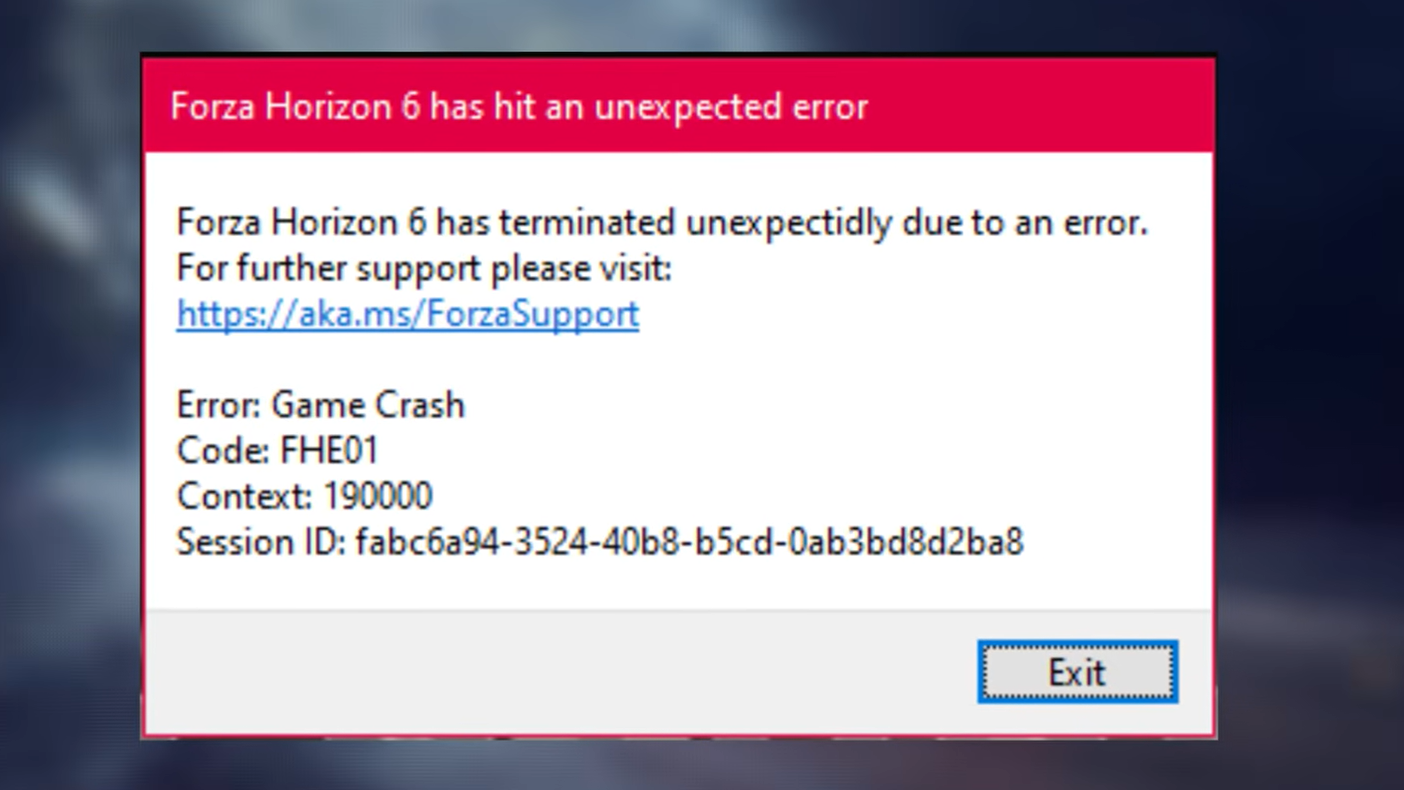
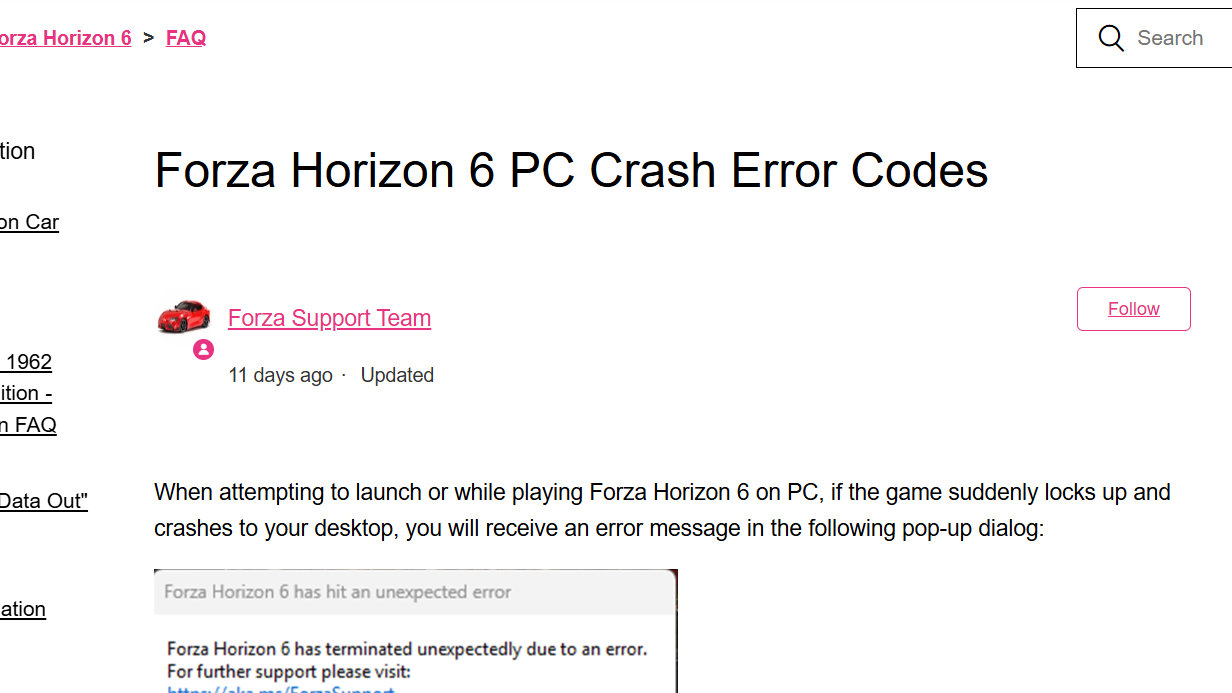
The FHE01 crash hits Forza Horizon 6 players on PC right as the game tries to start. You launch from Steam, the Xbox app, the Microsoft Store, or PC Game Pass, see a brief splash screen, and then the title closes with the message “Forza Horizon 6 has hit an unexpected error.” The code often appears with a context number, such as FHE01, Context: 190000.
This is a general game crash, not a server outage. The FHE prefix means the game itself stopped, and on PC, it is almost always triggered by something on your system interfering with startup, most often an input device or a background app.
What FHE01 means in Forza Horizon 6 error codes
Forza Horizon 6 crash codes use three letters followed by two digits, like FHE01. The three letters tell you which part of the system failed, which narrows the fix before you change anything.
| Code prefix | Meaning | Where to focus |
|---|---|---|
| FHC | Video card crash | Graphics drivers or GPU; clean install the latest driver, lower graphics settings |
| FHD | Out of video memory | VRAM; lower texture quality, ray tracing, and resolution scaling |
| FHE | Game crash | Game files or system conflict; verify files, remove conflicting apps/devices |
| FHF | Out of system memory | RAM; lower settings and resolution, close background apps |
FHE01 sits under the FHE group, so the working fixes target file integrity and the conflicts that block the game during initialization. You can read the full breakdown on the Forza Horizon 6 PC Crash Error Codes support page.
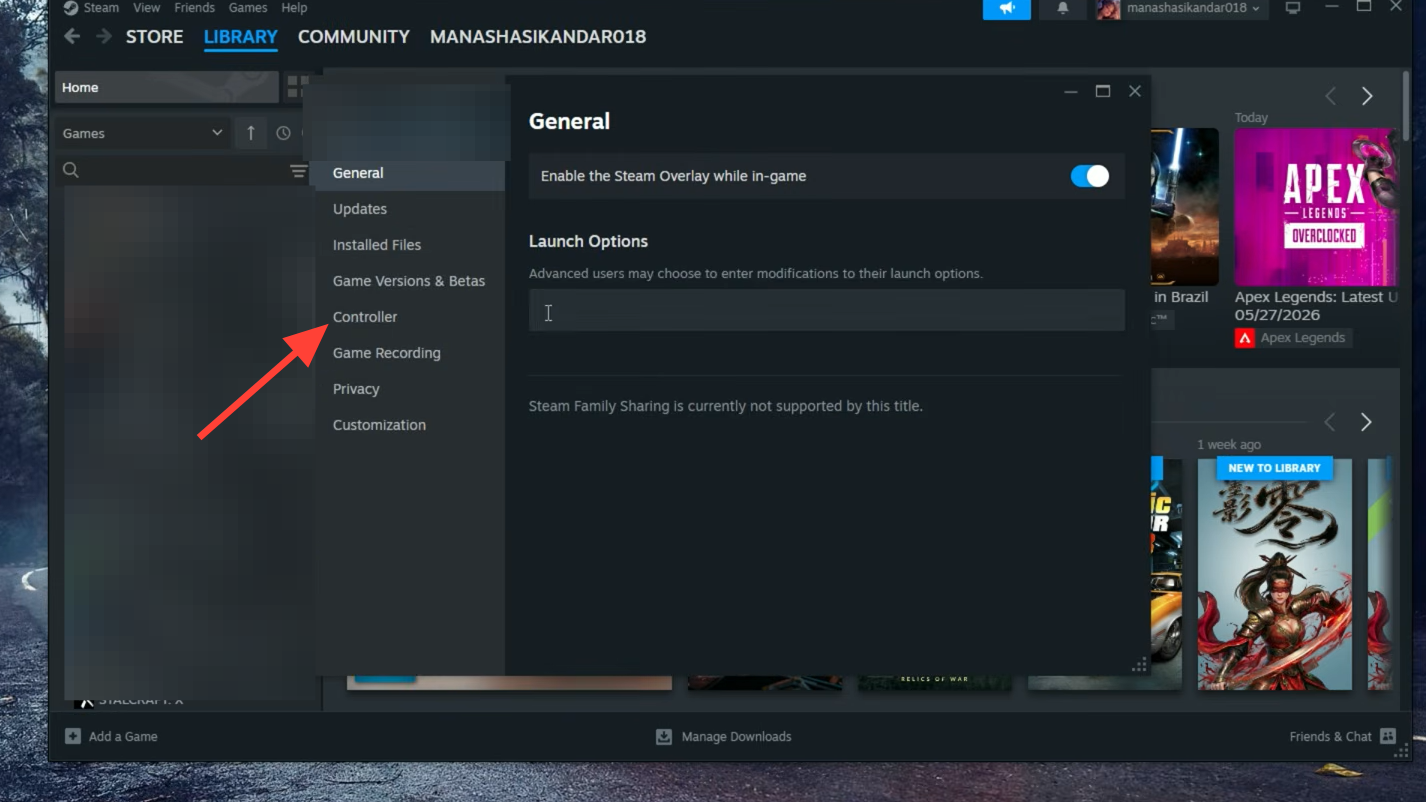
Fix the Steam Input conflict (most common FHE01 trigger)
The clearest pattern behind FHE01 is two pieces of software fighting over one controller. If you use a DualShock 4 with DS4Windows, or any third-party input remapper, both that tool and Steam Input can try to read the pad at once, and the game crashes on launch.
Disconnect controllers, wheels, and extra USB devices
When several input devices are plugged in, the game can fail during device initialization and throw FHE01. This affects racing wheels, pedals, shifters, and secondary controllers as much as it does pads.
Verify or repair Forza Horizon 6 game files
A single damaged or missing file can produce FHE01, especially after a first install, an interrupted download, or a previous crash. Repairing the install replaces the broken file without wiping your progress.
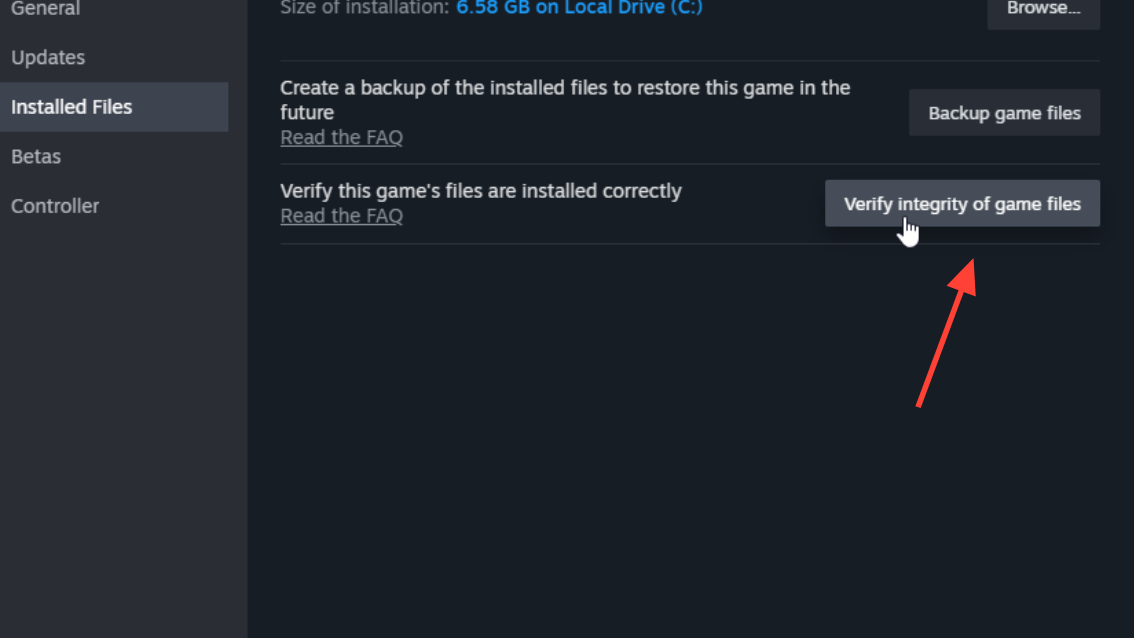
Step 1 (Steam): Right-click Forza Horizon 6, open Properties, and choose Installed Files.
Step 2 (Steam): Click Verify integrity of game files and wait for the scan to finish. If it finds and replaces a bad file, restart your PC and launch it again.
Step 1 (Xbox app / Microsoft Store / Game Pass): Find Forza Horizon 6 in your library, open the More options (…) menu next to Play, and select Manage.
Step 2 (Xbox app): Open Files, then choose Verify and repair. You can also open Windows Settings, go to Apps, find Forza Horizon 6, select Advanced options, and click Repair.
Remove Citrix Workspace and other background conflicts
Citrix Workspace is one of the most consistently reported FHE01 triggers. It uses kernel-level monitoring for security, and Forza’s anti-cheat treats that behavior as a threat, which blocks the game from starting.
msconfig in the Windows search bar, open System Configuration, go to the Services tab, and uncheck the Citrix AppProtection Service. Apply the change and restart.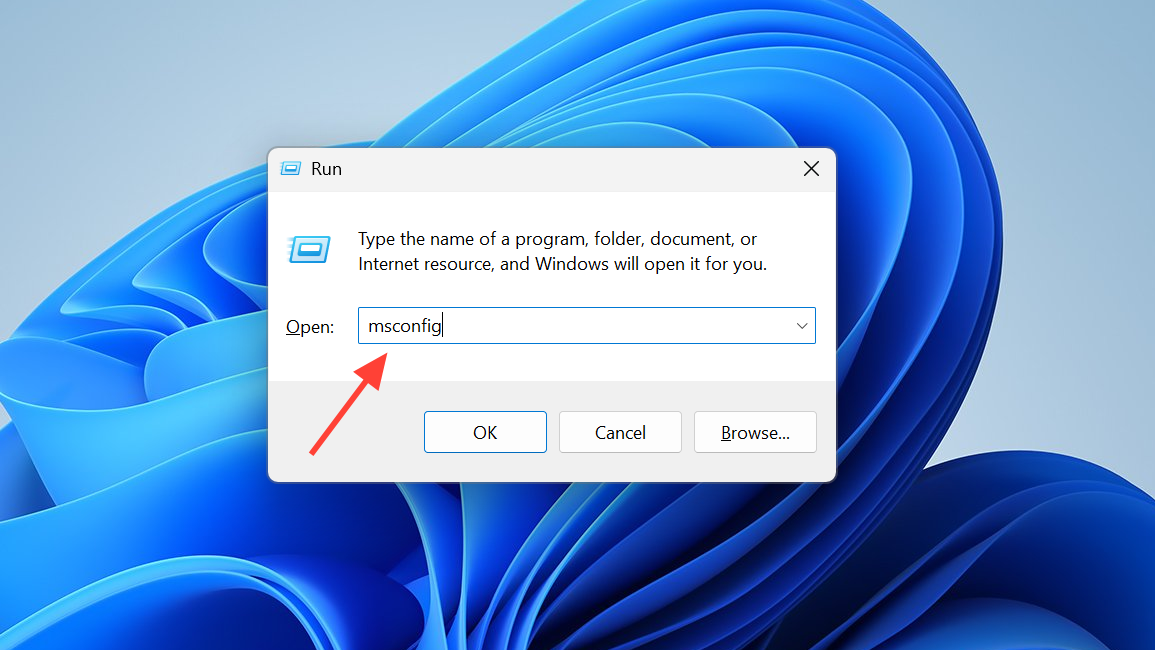
Overlay and monitoring tools cause the same kind of startup crash. Close Discord, GeForce Experience, MSI Afterburner, and RivaTuner Statistics Server (RTSS) before launching, since RTSS in particular is known to hook into DirectX games and break them on start.
Update graphics drivers and lower settings if the crash continues
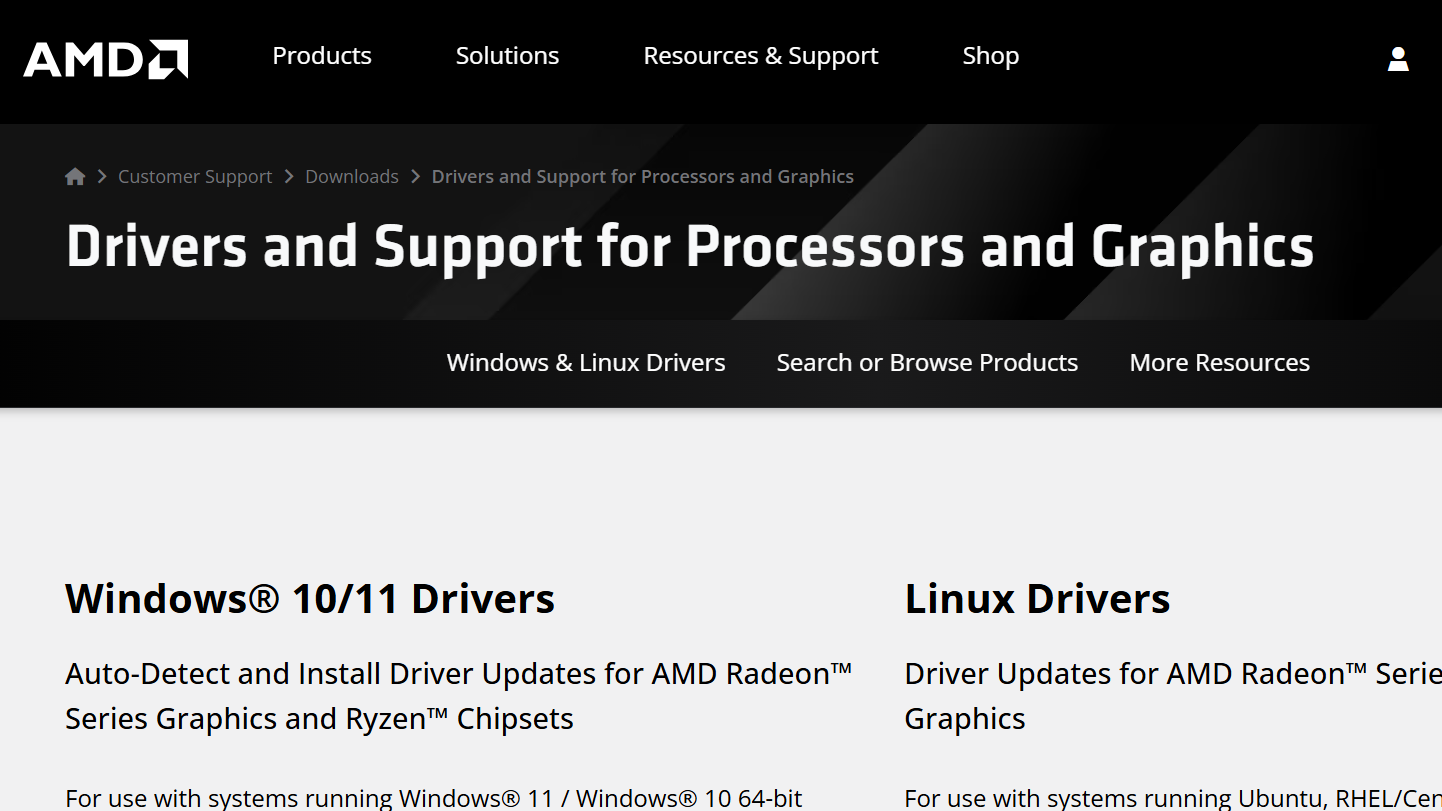
If FHE01 still appears, or you start seeing FHC or FHD codes, the graphics layer is the next place to look. Do a clean install of the latest NVIDIA Game Ready or AMD Adrenalin driver rather than installing over the old one.
What the May hotfixes addressed
Playground Games shipped Forza Horizon 6 Series 1 Hotfix 1 on May 18, 2026, version 360.259 across Xbox Series X|S, Windows PC via the Xbox app, and Steam. It included improvements aimed at Profile Loading errors on startup, a fix for the game closing when accepting an Xbox app invite, and a fix for a crash caused by Steam Controller input. A follow-up hotfix on May 27, 2026, added general performance and stability fixes.
The studio has said its investigation into the startup errors is ongoing. If FHE01 persists, the Gaming Services Repair Tool is worth running on PC, and you can submit details through the FH6 Gaming Services repair workflow and the Forza Feedback Portal.
Work through the input and background-app fixes first, since they resolve the largest share of FHE01 cases, and only move on to driver reinstalls or a full reinstall if the crash keeps returning. The “unexpected error” almost always traces back to a conflict on your own machine, not the game’s servers, so removing the conflicting layer is usually enough to get back on the road.