
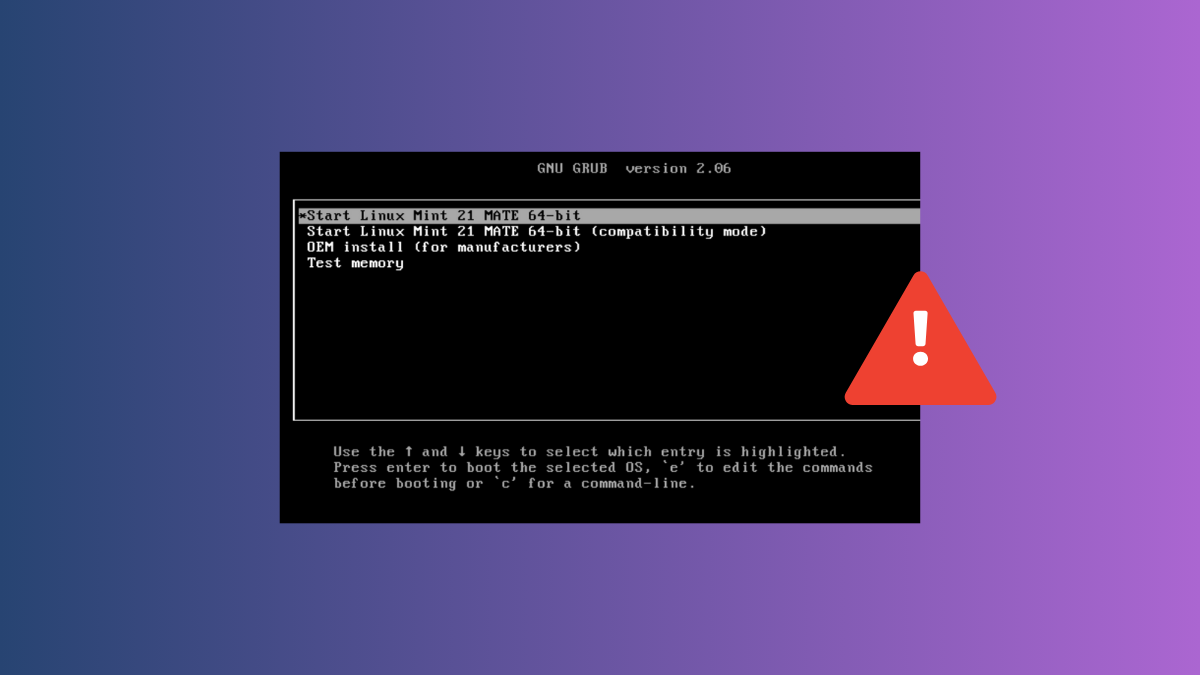
Linux systems that use GRUB as a bootloader rely on the update-grub command to detect installed kernels and generate the correct boot menu entries. When update-grub assigns the wrong root partition—especially after a second or subsequent execution—systems may fail to boot, or boot into the wrong drive or partition. This guide explains how to identify and permanently fix the root assignment problem in GRUB.
Correcting Kernel Root Assignment in GRUB
/boot/grub/grub.cfg. Look for lines beginning with linux and check the root= parameter. This should match the actual root partition of your Linux installation (for example, root=UUID=your-root-partition-uuid or root=/dev/sda1).lsblk -fThis command lists all available partitions along with their mount points and filesystem labels. Find the partition mounted at /—this is your Linux root partition. Make note of its device name (like /dev/sda1) or UUID.
sudo nano /etc/default/grubLook for the GRUB_CMDLINE_LINUX_DEFAULT or GRUB_CMDLINE_LINUX lines. If there is a root= parameter hardcoded here, ensure it matches the correct partition. If not, you can add or correct it as needed:
GRUB_CMDLINE_LINUX_DEFAULT="quiet splash root=UUID=your-root-partition-uuid"Replace your-root-partition-uuid with the actual UUID from Step 2.
sudo update-grubThis command scans your system for installed kernels and updates /boot/grub/grub.cfg accordingly. After running this, check the generated config again to confirm the root= parameter is now correct.
/etc/default/grub, check for custom scripts in /etc/grub.d/ that might override root assignments. Files in this directory are executed in numerical order when updating GRUB. Look for any script that modifies the linux lines or sets root= explicitly. Edit or remove problematic scripts as needed, then rerun sudo update-grub.Alternative: Manually Edit GRUB Boot Entries
e to edit.linux and adjust the root= parameter to match your correct root partition (as found in the earlier steps).Ctrl+X or F10 to boot with the modified configuration. This change is temporary and will not persist after reboot, but it allows you to access your system for further troubleshooting.Alternative: Reinstall GRUB Bootloader
sudo mount /dev/sda1 /mnt(Replace /dev/sda1 with your actual root partition.)
sudo mount --bind /dev /mnt/dev
sudo mount --bind /proc /mnt/proc
sudo mount --bind /sys /mnt/syssudo chroot /mntgrub-install /dev/sda(Again, replace /dev/sda with your actual boot device.)
update-grubexit
sudo rebootCareful adjustment of GRUB configuration files and bootloader settings restores correct kernel root assignments, ensuring reliable system boot every time you run update-grub. Remember to back up important configuration files before making changes for easier recovery.





