
Fortnite pools players from every platform into the same matches, which is why your friend on a Nintendo Switch can drop into a squad with someone on a high-end PC. That shared player base is controlled by a single setting called Allow Cross-Platform Play. It is on by default on every account, but a stray button press in the menu can switch it off and quietly break your matchmaking.
Quick answer: Open Settings, go to the Account and Privacy tab, scroll to Gameplay Privacy, and set Allow Cross-Platform Play to Yes, then save before exiting.
Turn on crossplay in Fortnite settings
The crossplay toggle lives in the same place on every platform that lets you change it. As of Chapter 7 Season 2, crossplay is enabled by default for all accounts to keep matchmaking fast, so most of the time you are just confirming it is still set correctly.

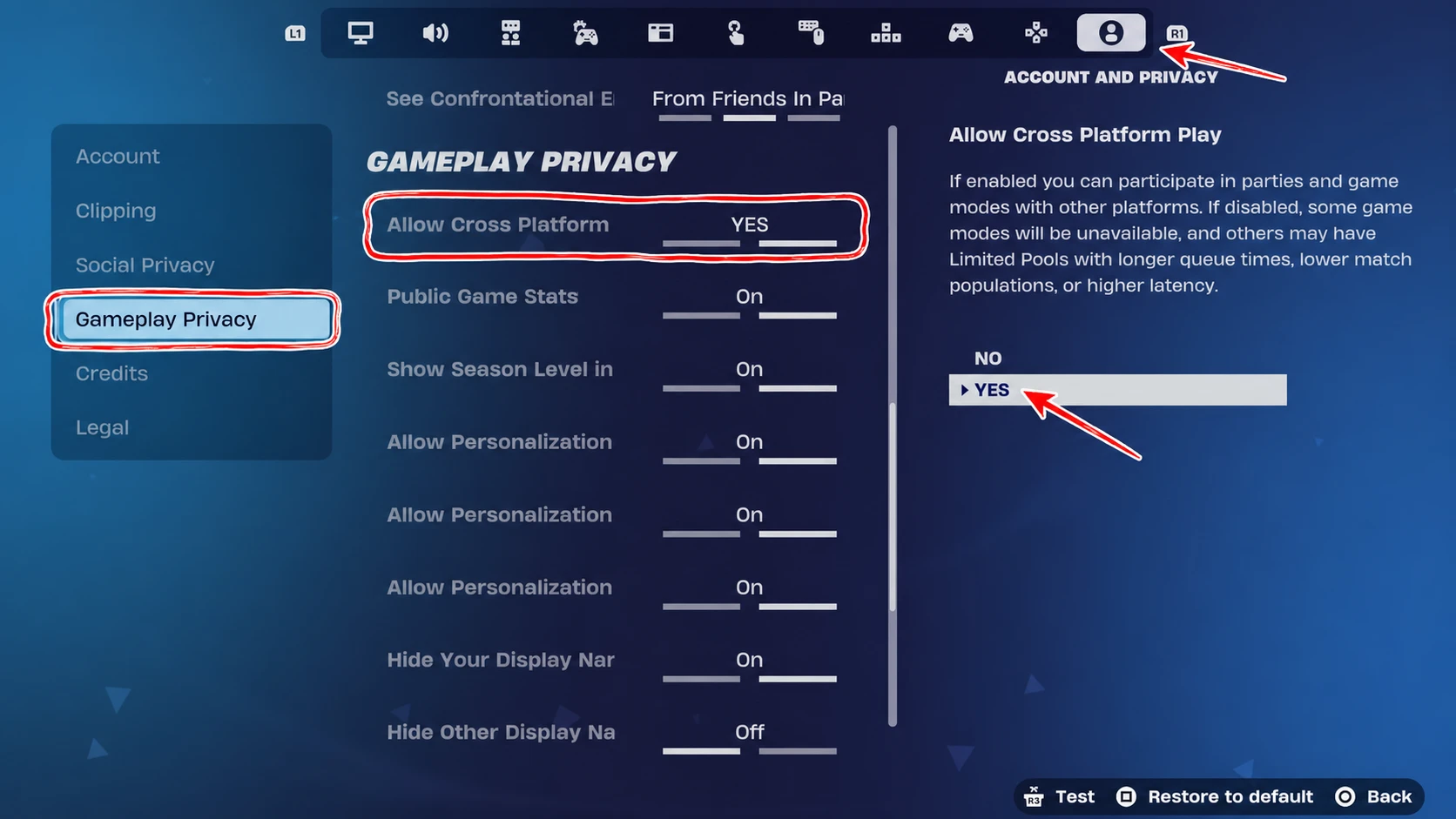
You will know it worked when the toggle reads Yes the next time you open the tab, and when friends on other platforms can join your party without an error.
Crossplay on PC and mobile is always on
On PC and mobile devices, crossplay is mandatory and cannot be turned off. There is no toggle to look for, because these platforms depend on the full, combined player pool to keep queue times short. The moment you log in with your Epic account, you are already part of global matchmaking.
That means the only thing standing between you and a cross-platform squad is adding the right people, which comes down to Epic Display Names rather than any privacy switch.
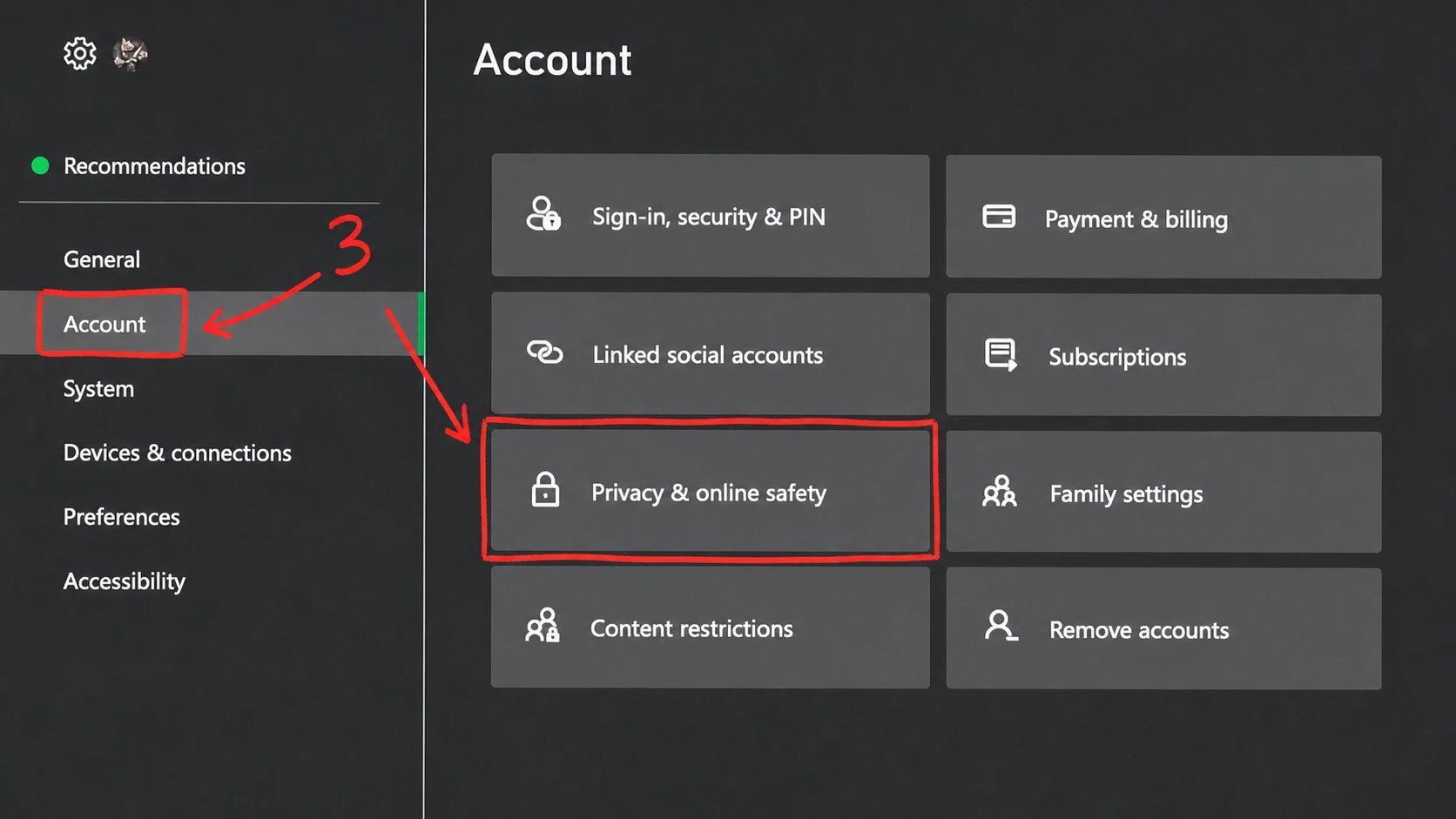
Fix crossplay on Xbox with Xbox Live privacy settings
Xbox adds a second layer on top of the in-game toggle. If you set Allow Cross-Platform Play to Yes and still cannot match with players on other systems, a console-level restriction is likely blocking it.
Link your Epic Games account for cross-progression
Crossplay connects matches, but linking your Epic account is what carries your skins, V-Bucks, and Battle Pass progress between devices. Players on PC, mobile, or Switch already have an Epic account from installing the game. Xbox and PlayStation users may need to create one and connect it.
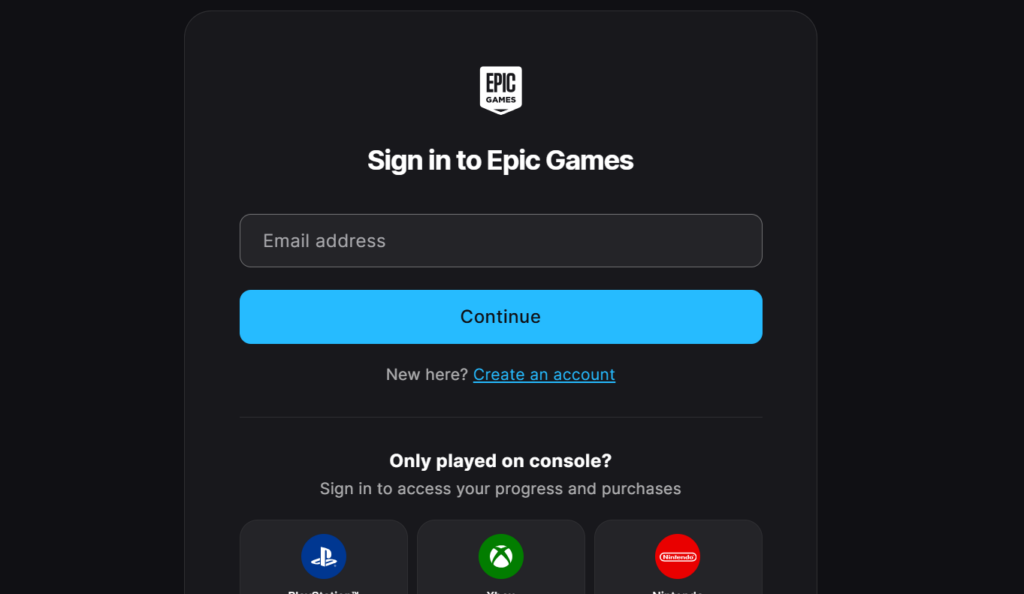
Once linked, a skin you buy on your phone is available on your PS5 right away, and one Epic ID tracks all your friends no matter where they play.
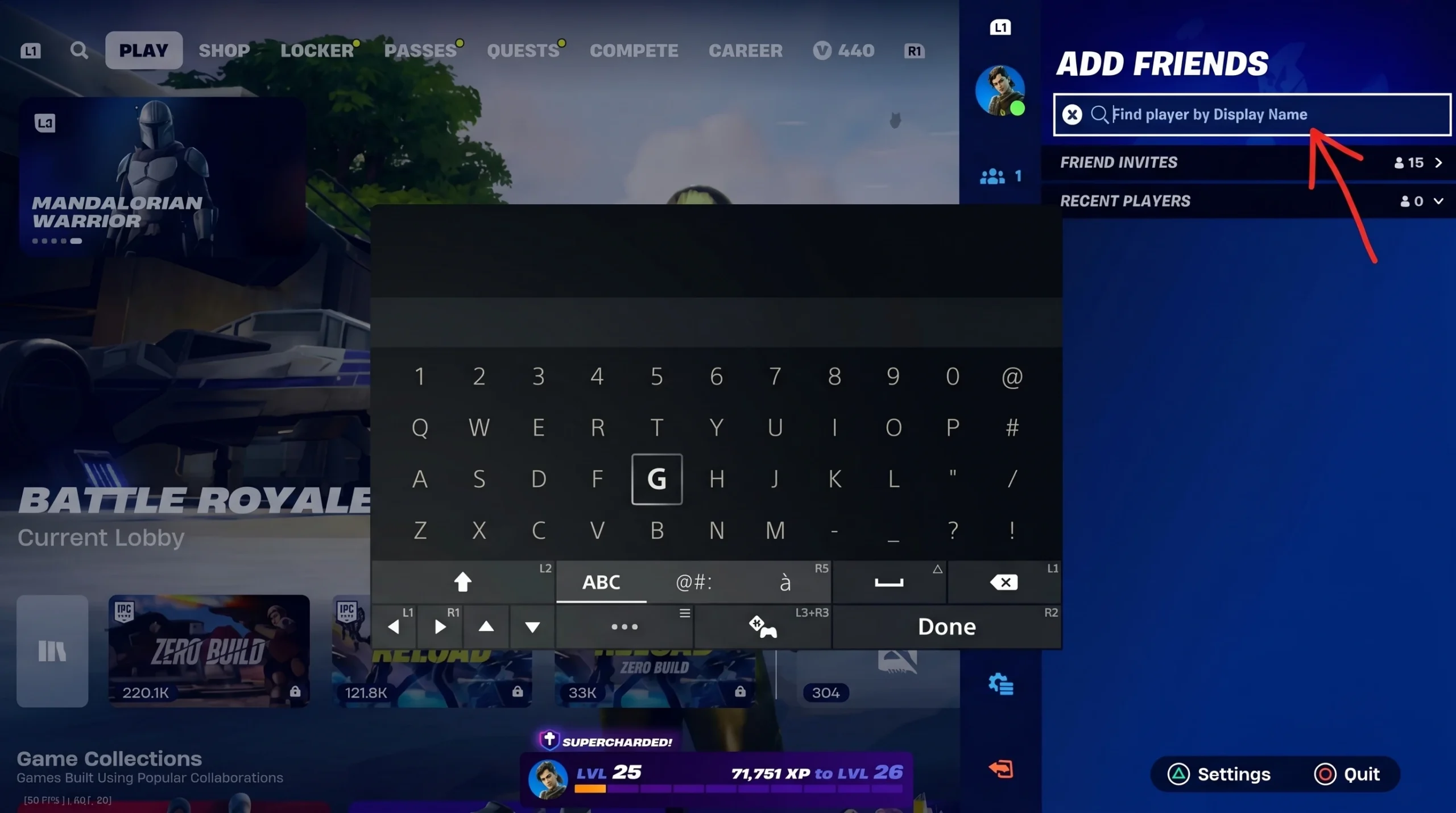
Add friends from other platforms by Epic Display Name
Cross-platform friends are added through Epic’s own system, not through PSN or Xbox Live lists. That is what lets a PlayStation player and an Xbox player end up in the same party.
How crossplay decides which lobby your squad enters
Fortnite uses a platform hierarchy. When a squad mixes platforms, everyone is placed into the lobby of the highest-performance device in the group. This keeps PC players from steamrolling lobbies full of handheld players, but it also means a console player joining a PC friend should expect faster, tougher matches.
| Squad mix | Lobby type |
|---|---|
| Three mobile players and one PC player | PC lobby |
| PlayStation players and Xbox players | Console lobby |
| Nintendo Switch player and PlayStation 5 player | Console lobby |
Why turning crossplay off hurts your matchmaking
You can disable crossplay on PlayStation and Xbox, but it rarely helps. With it off, the game has to find 99 other players on your exact platform who have also turned it off, which is a tiny pool. Expect much longer queues, sometimes 10 to 20 minutes, and lobbies that fill out with bots or fail to start at all.
Switching it off can also lock you out of modes like Ranked, Creative, and Limited Time Events. On older hardware such as PlayStation 4 and Xbox One, keeping crossplay on is effectively required to find full matches in a reasonable time.
For nearly everyone, the move is the same: leave Allow Cross-Platform Play set to Yes, link your Epic account, and add friends by their Epic Display Name. That combination keeps your queues short, your full feature set unlocked, and your squad together no matter what each person is playing on.