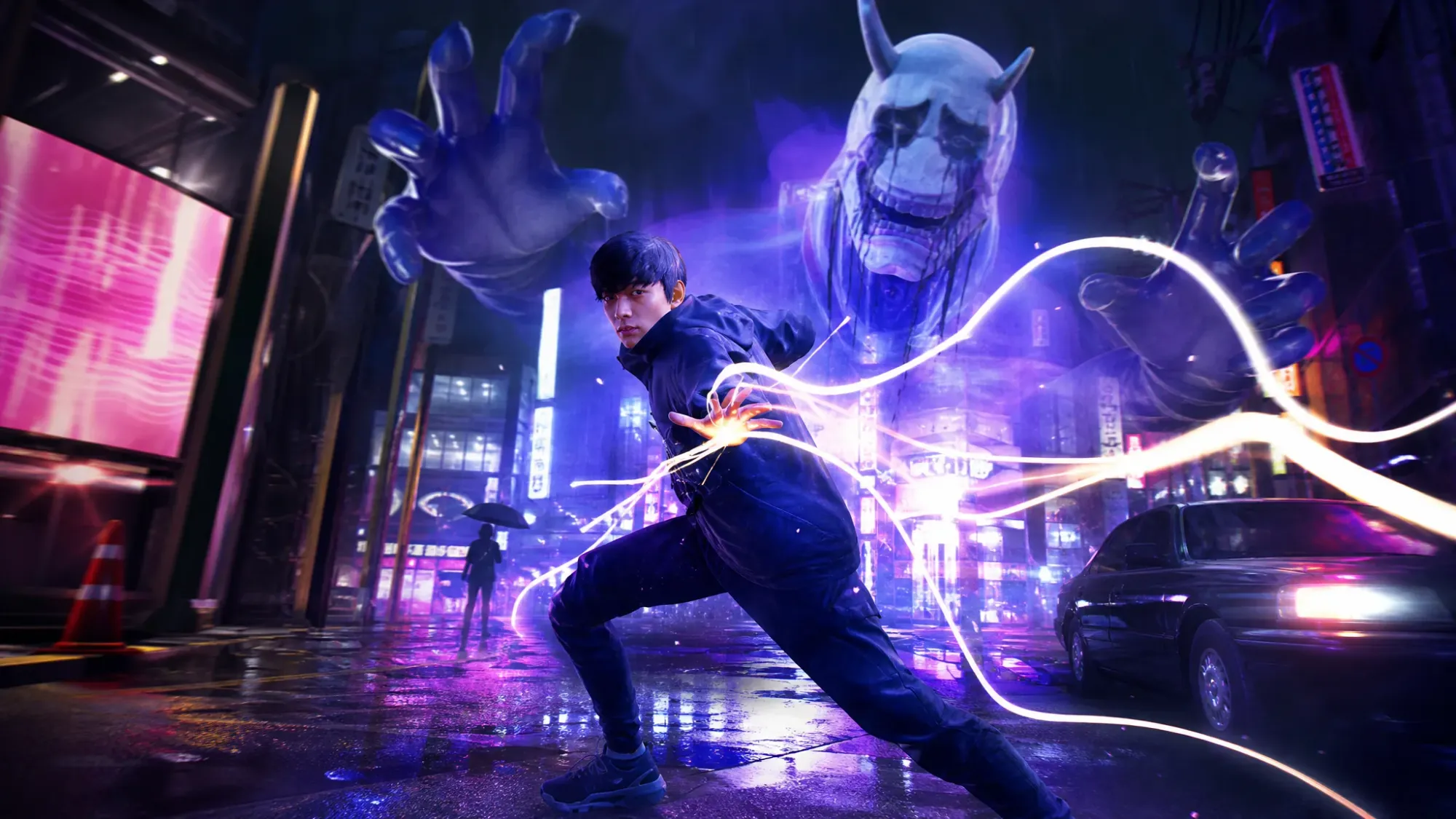
Ghostwire: Tokyo, the action game from Tango Gameworks, runs well on most Windows machines, but plenty of players hit crashes at launch, freezes during play, microstutter while moving through the city, or sudden frame drops. The causes are usually narrow: outdated graphics drivers, broken game files, a missing DirectX 12 runtime, overclocking, the Steam Overlay, or an overzealous antivirus. Working through the fixes below in order clears the most common cases.
Quick answer: Update your GPU driver, then verify the game files in Steam (right-click Ghostwire: Tokyo → Properties → Installed Files → Verify integrity). If stutter remains, add the -dx11 launch option, which has restored smooth performance for many players.
Why Ghostwire: Tokyo crashes, freezes, or stutters on PC
Most instability traces back to a small set of triggers. Faulty or outdated graphics drivers are the leading cause of both crashes and stutter. Corrupted or missing game files lead to crashes at startup and during cutscenes. A game running without the latest patch can carry unresolved stability bugs.
The game requires DirectX 12, so a missing or broken DirectX runtime causes launch failures. Overclocked CPUs and GPUs can introduce instability under load. The Steam Overlay and third-party antivirus tools sometimes interfere with the game process, producing crashes or freezes.
Update your graphics drivers
Begin with the GPU driver, since it resolves the widest range of crashes and stutter.
Verify the integrity of game files in Steam
Corrupted or missing files cause crashes at launch and during cutscenes. Steam can scan the installation and re-download anything broken.
Install the latest game patch and DirectX 12
Running an outdated build can keep known stability bugs in place. Steam detects new patches and installs them the next time you launch the client, so make sure the update has finished downloading before you start the game.
Ghostwire: Tokyo needs DirectX 12. If launch fails or the game crashes immediately, install the current runtime using the official Microsoft DirectX End-User Runtime Web Installer, run the installer, then reboot and try again.
Disable overclocking, Steam Overlay, and antivirus interference
If crashes or freezes continue after updating, rule out system-level interference one item at a time.
Fix stutter with the -dx11 launch option
When the framerate counter looks fine but movement still microstutters, switching the game to DirectX 11 often smooths it out. One player went from around 30 FPS on medium settings to nearly 100 FPS after this change.
Smooth the framerate and fix cutscene audio desync
Two in-game settings address the most common smoothness and audio complaints. For a visually smoother experience, set Graphics Mode to HFR Performance Mode (VSync), or HFR Performance Mode on its own. The difference between them is the refresh rate, and choosing 60fps or 120fps over 30fps gives noticeably better performance.
If audio drifts out of sync during cutscenes, set Movie Display Mode to Performance, which corrects the desync. For aiming that feels too fast or too slow, adjust the Camera Acceleration Speed and Deceleration Speed until the camera responds the way you want.
System requirements for Ghostwire: Tokyo on PC
If problems persist after every fix, confirm your hardware meets the requirements. The game runs on 64-bit Windows 10 (version 1909 or higher), needs DirectX 12, and is designed to install on SSD storage.
| Component | Minimum | Recommended |
|---|---|---|
| Processor | Core i7 4770K @3.5GHz / Ryzen 5 2600 | Core i7 6700 @3.4GHz / Ryzen 5 2600 |
| Memory | 12 GB RAM | 16 GB RAM |
| Graphics | GTX 1060 / RX 5500 XT / Arc A380 (6GB+ VRAM) | GTX 1080 / RX 5600 XT / Arc A750 (6GB+ VRAM) |
| DirectX | Version 12 | Version 12 |
| Storage | 26 GB available (SSD) | 26 GB available (SSD) |
Run these fixes in order and stop as soon as the game launches and plays without crashing, freezing, or hitching. Driver updates and a file verification clear most problems on their own, while the -dx11 launch option and the HFR Performance Mode setting handle the stutter that lingers after everything else checks out.