Steam games sometimes stop producing audio while other applications and even games from different launchers continue to work normally. This issue can occur after a Windows update, software installation, or changes to audio settings, leaving users unable to hear in-game sound even though their system audio works elsewhere. Addressing this problem involves checking Windows sound devices, resolving driver conflicts, and ensuring correct Steam and game settings.
Check and Set the Correct Playback Device
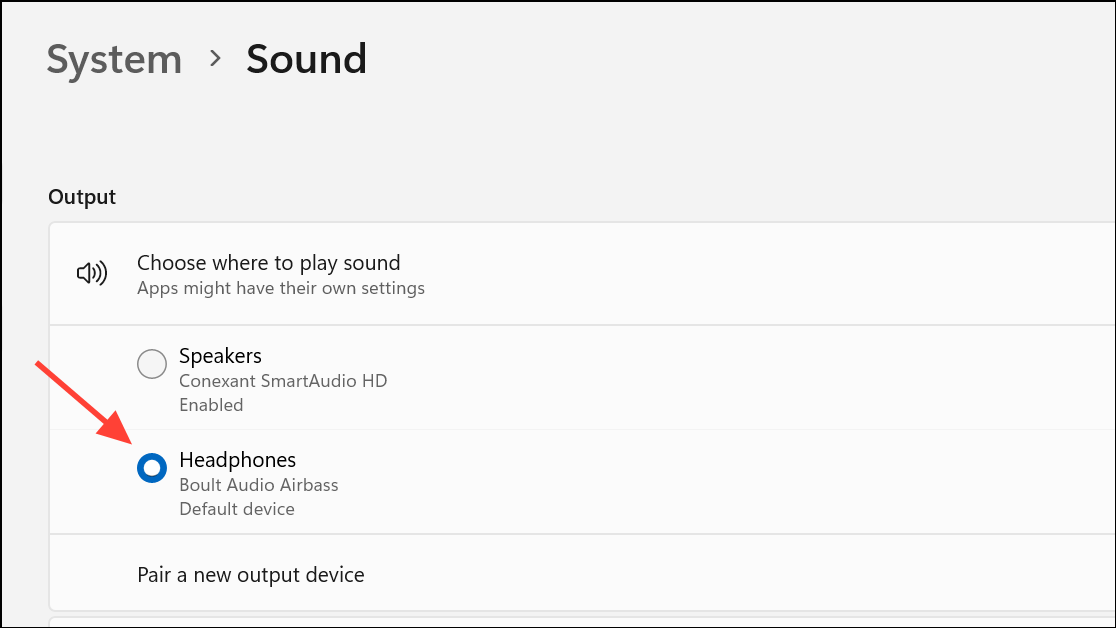
Open Sound settings.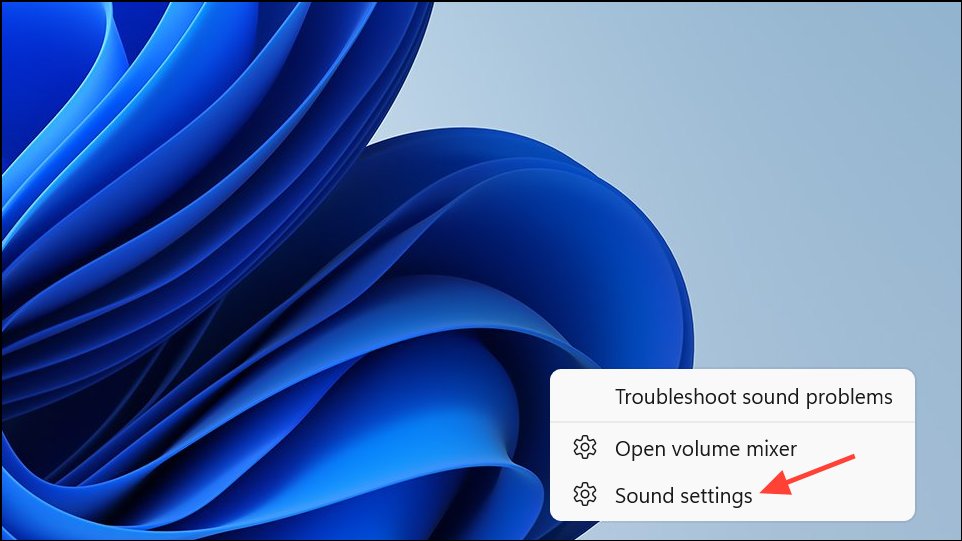
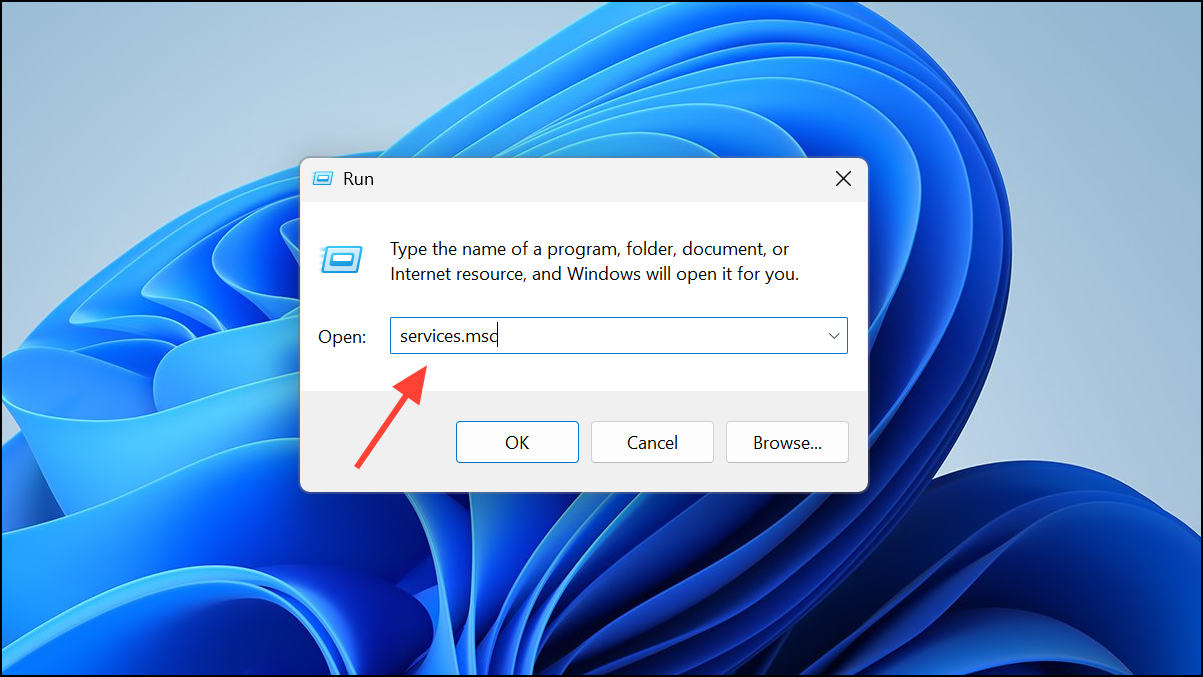
Windows + R to open the Run dialog, type mmsys.cpl, and press Enter.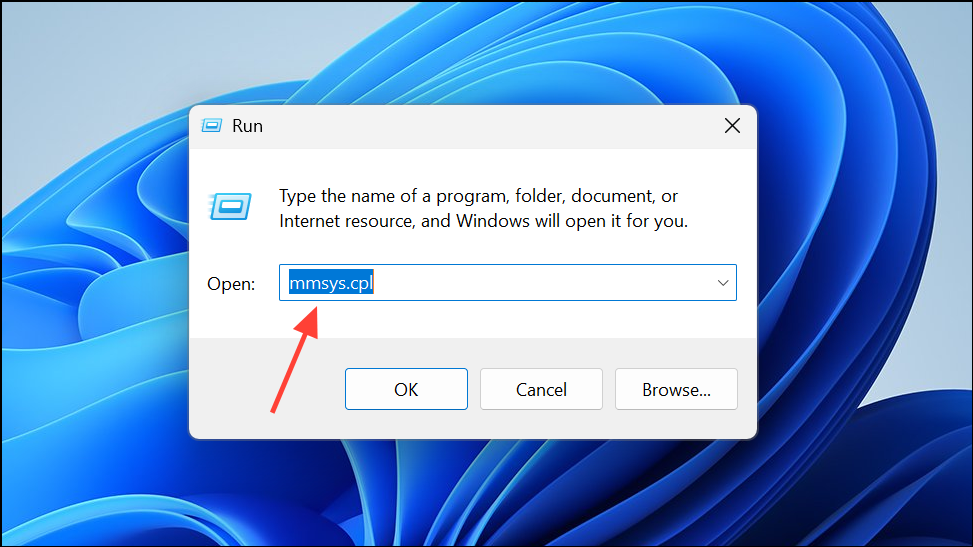
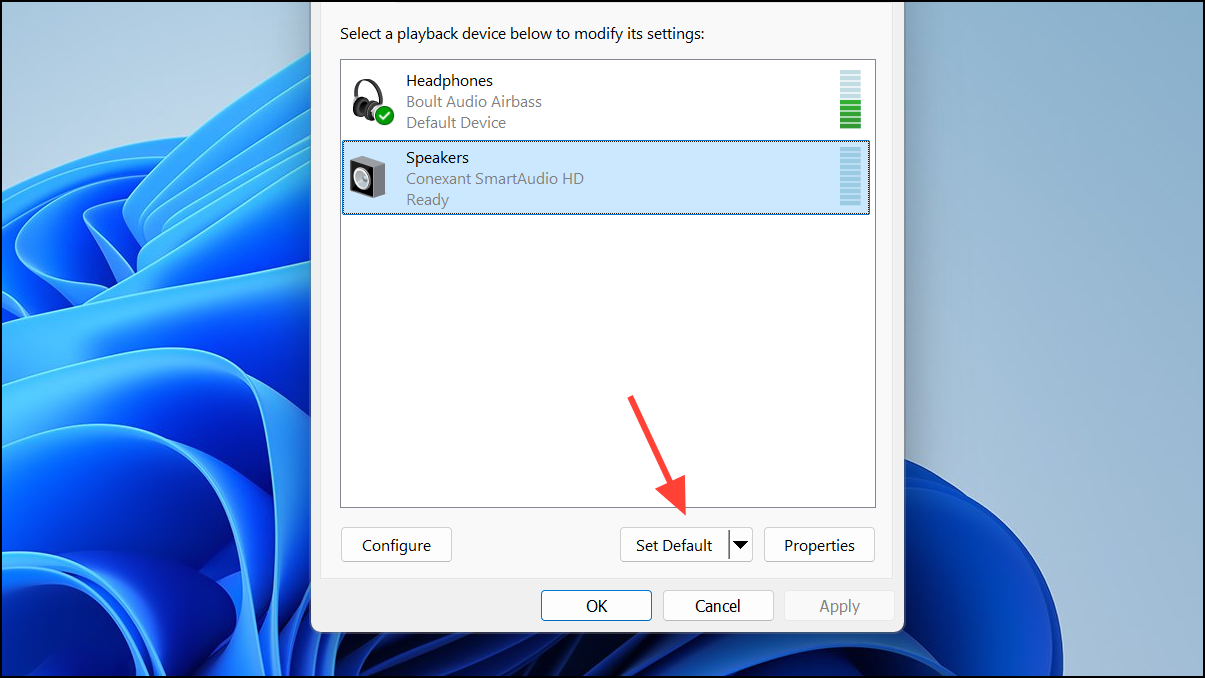
Ensuring the right device is set as default prevents Windows or Steam from sending audio to an inactive or disconnected device, which is a common cause of missing sound in games.
Review Volume Mixer and Unmute Applications
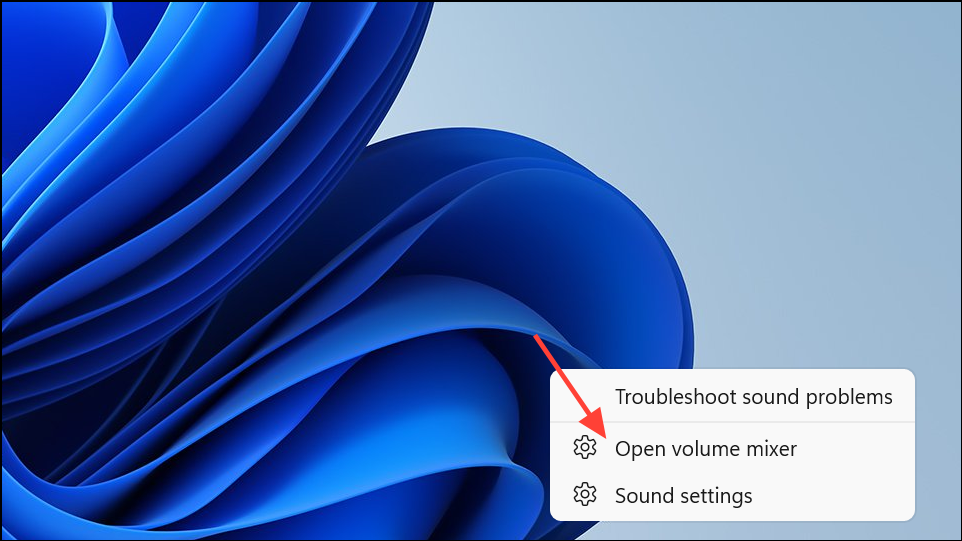
Adjusting the sliders or unmuting the application often restores sound instantly, especially if the issue appeared after plugging in new audio devices or switching user profiles.
Update or Reinstall Audio Drivers
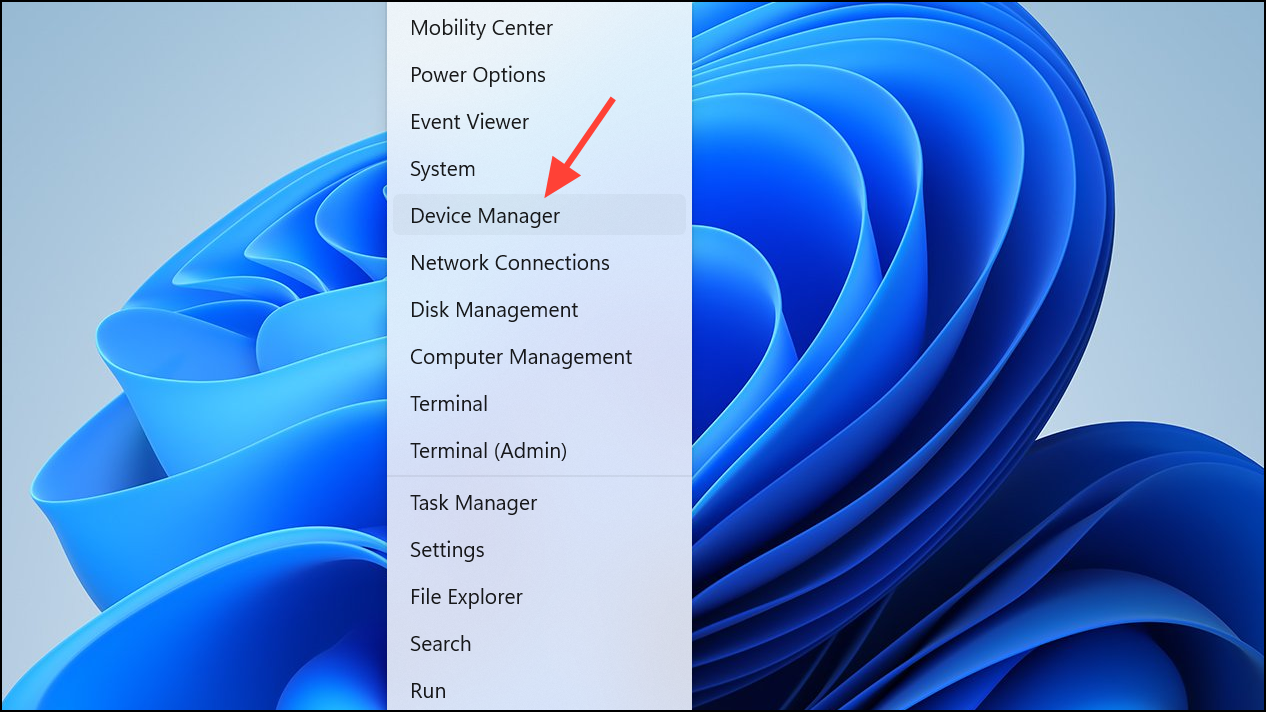
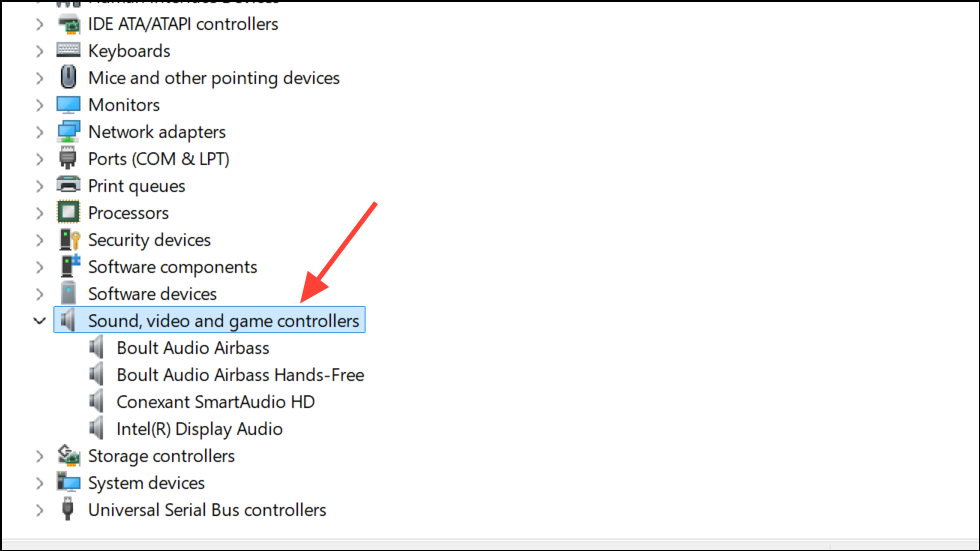
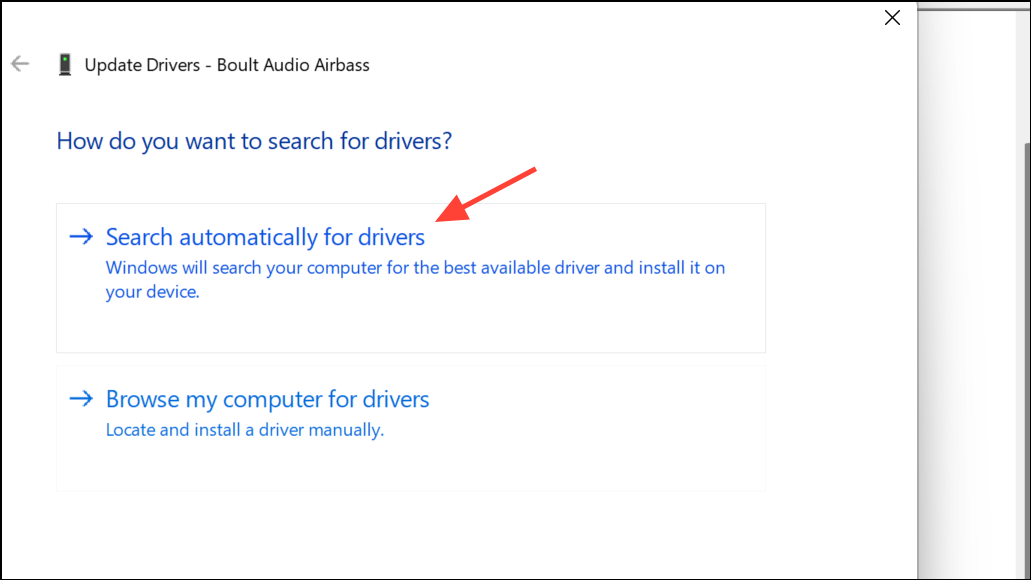
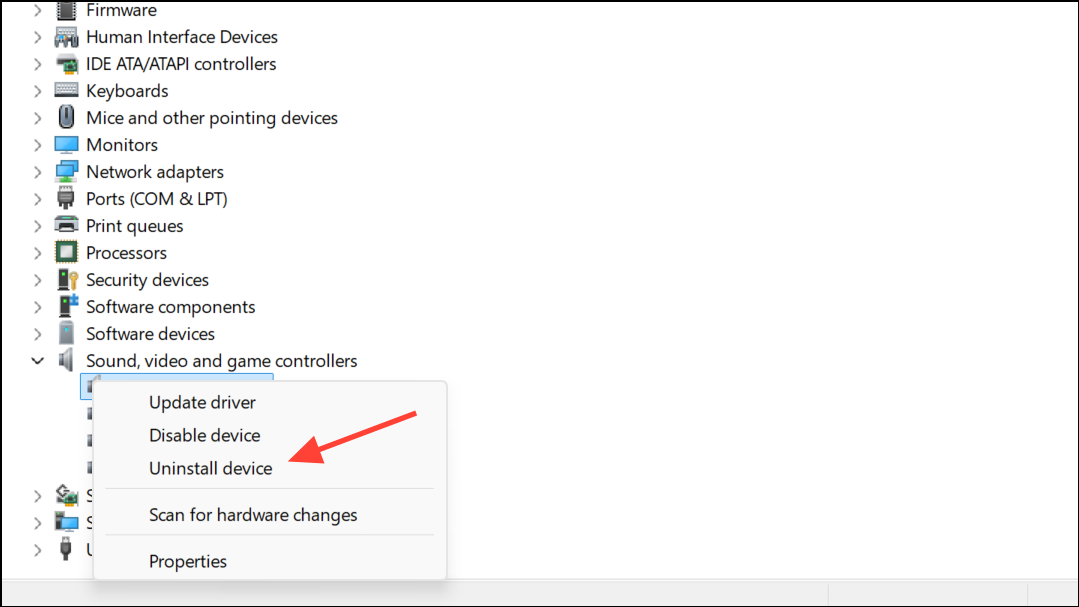
Outdated or corrupted drivers frequently cause sound problems in Steam games, especially after major Windows updates or hardware changes.
Disable Exclusive Mode for Audio Devices
Sound settings. Scroll down the page and select More sound settings.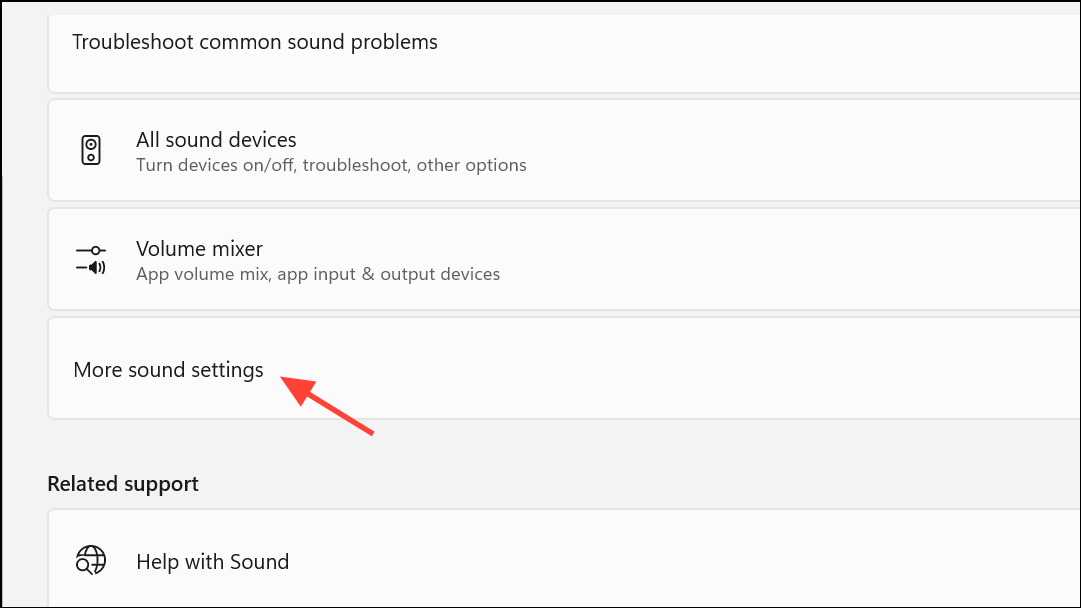
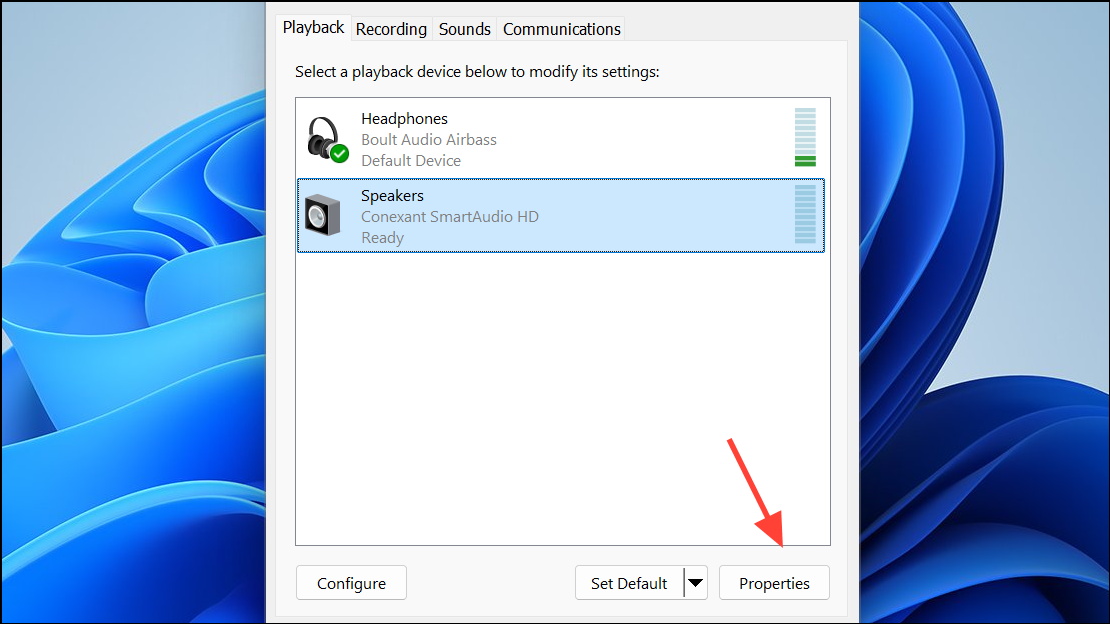
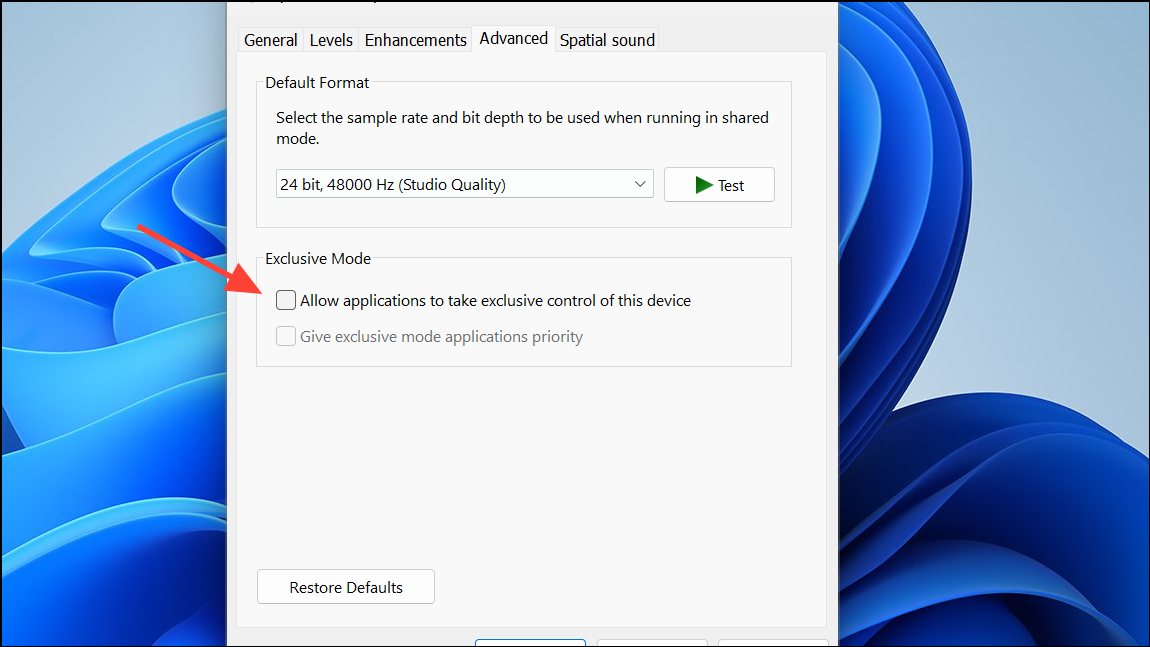
Disabling exclusive mode prevents a single application from blocking other programs (like Steam games) from accessing the audio device, which can restore missing sound.
Remove or Disable Conflicting Audio Software
Third-party audio management programs such as Sonic Studio, Alienware Sound Center, Dolby, or MSI Audio can conflict with Steam games and redirect or block audio output.
Windows + R, type appwiz.cpl, and press Enter. In the Programs and Features window, look for any audio-related utilities not required for basic sound functionality.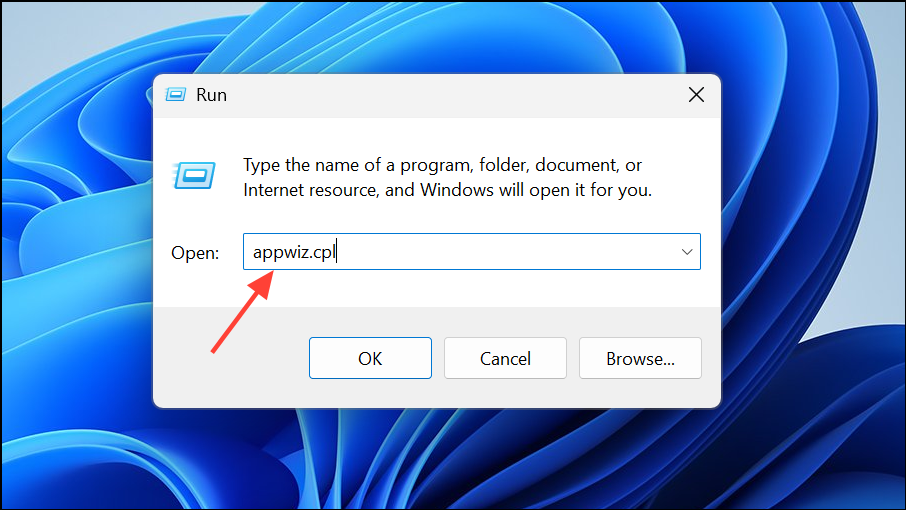
Removing these utilities often resolves conflicts where Steam games fail to produce sound, especially after system or driver updates.
Verify Integrity of Game Files in Steam
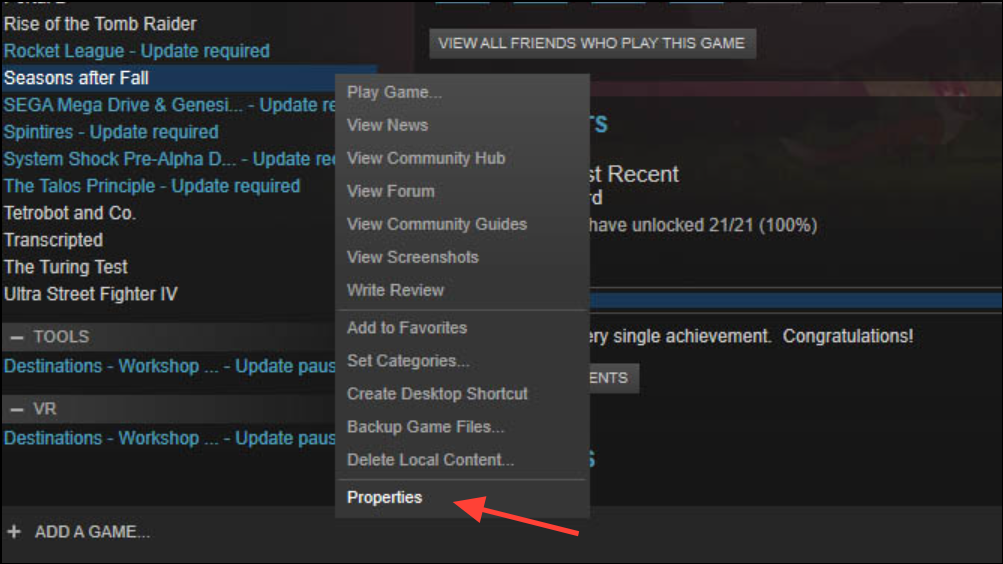
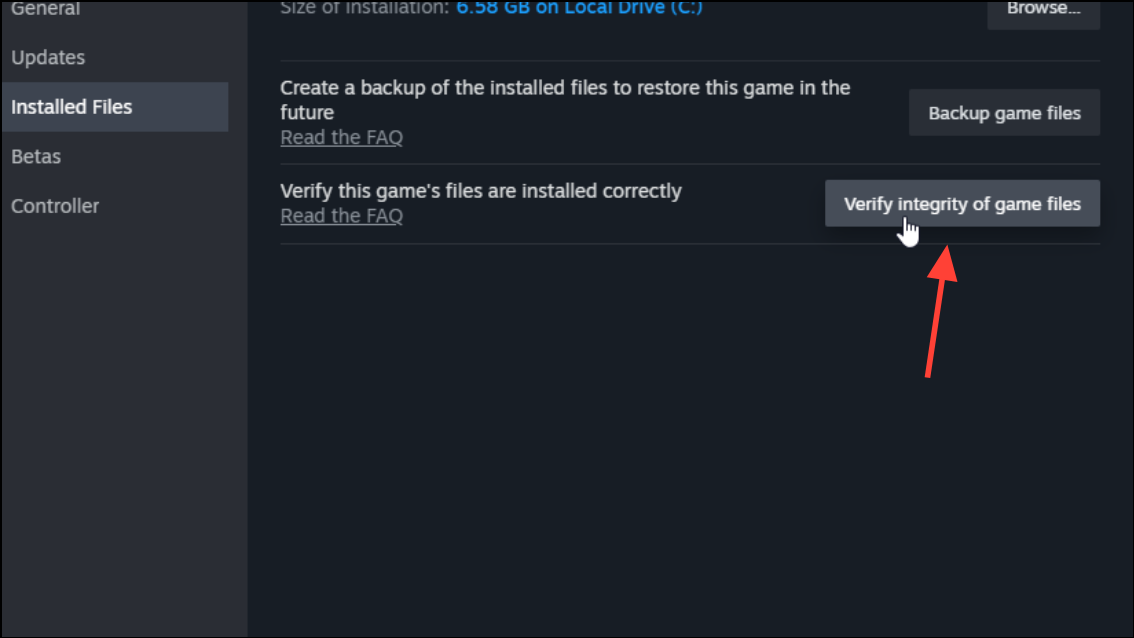
Corrupted game files can prevent audio from working correctly, and this process repairs or replaces them without affecting your game saves.
Run Steam and Games as Administrator
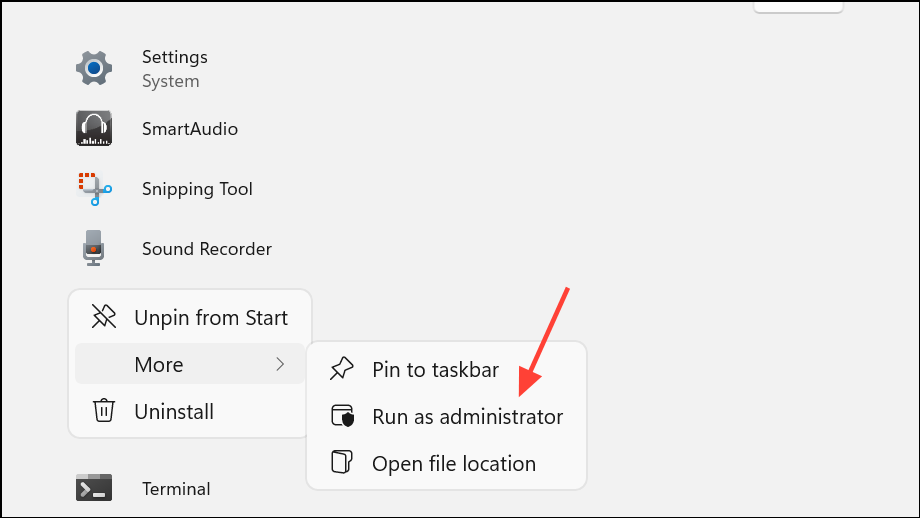
.exe) in its installation folder, select Properties, go to the Compatibility tab, and check Run this program as an administrator. Click Apply and OK.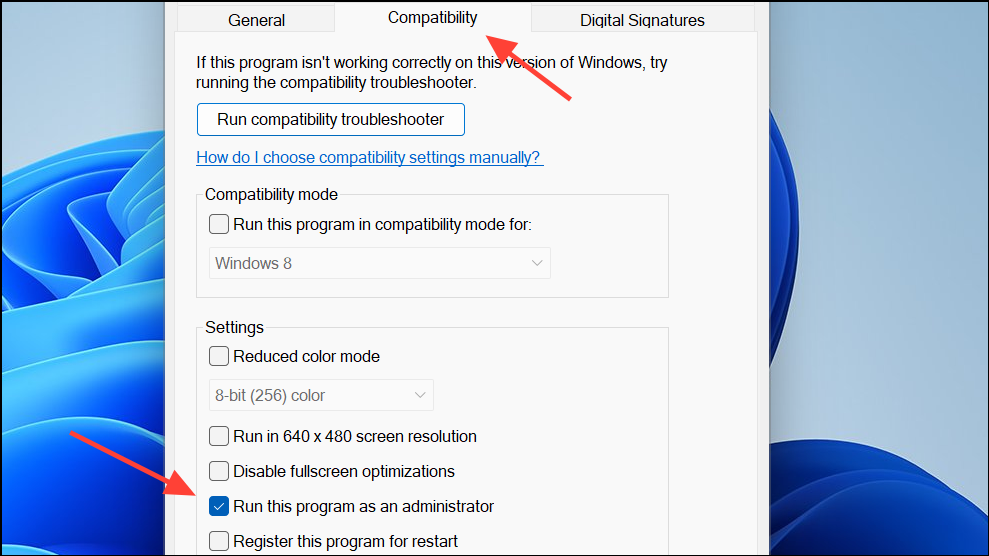
Running with administrator privileges resolves permission-related blocks that can prevent games from accessing audio hardware.
Address Controller and User Account Conflicts
Audio output may be redirected if you use software like DS4Windows for controllers or if multiple Windows user accounts are active.
Start > User Icon > Sign out, then log in with your main account and try running Steam games.Conflicting user sessions or controller drivers can cause Windows to misroute audio, especially after system updates or device changes.
Check for Windows Updates and Roll Back if Necessary
Some users report that audio issues in Steam games started after a Windows update. If this is the case, rolling back or uninstalling recent updates can resolve the problem.
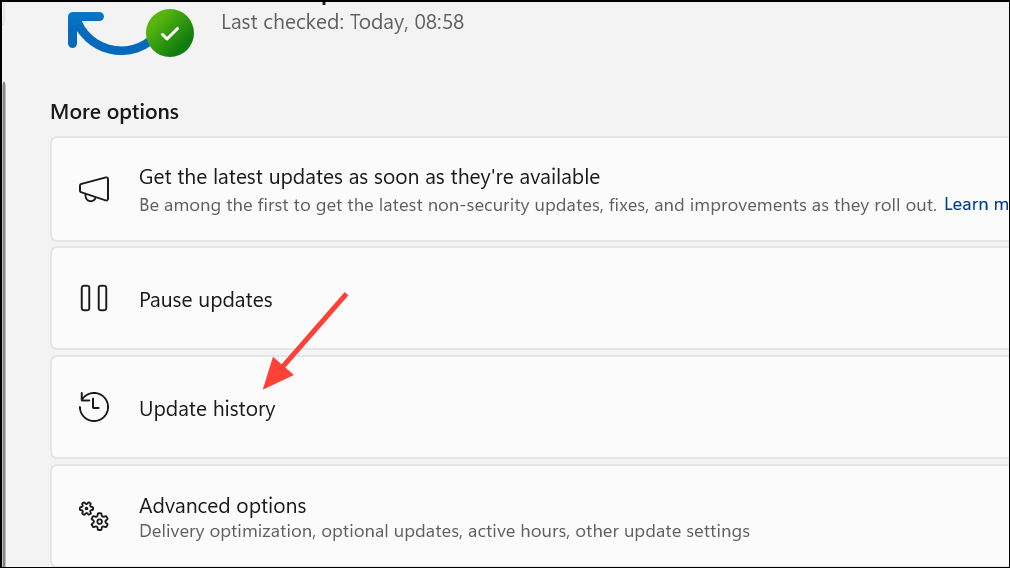
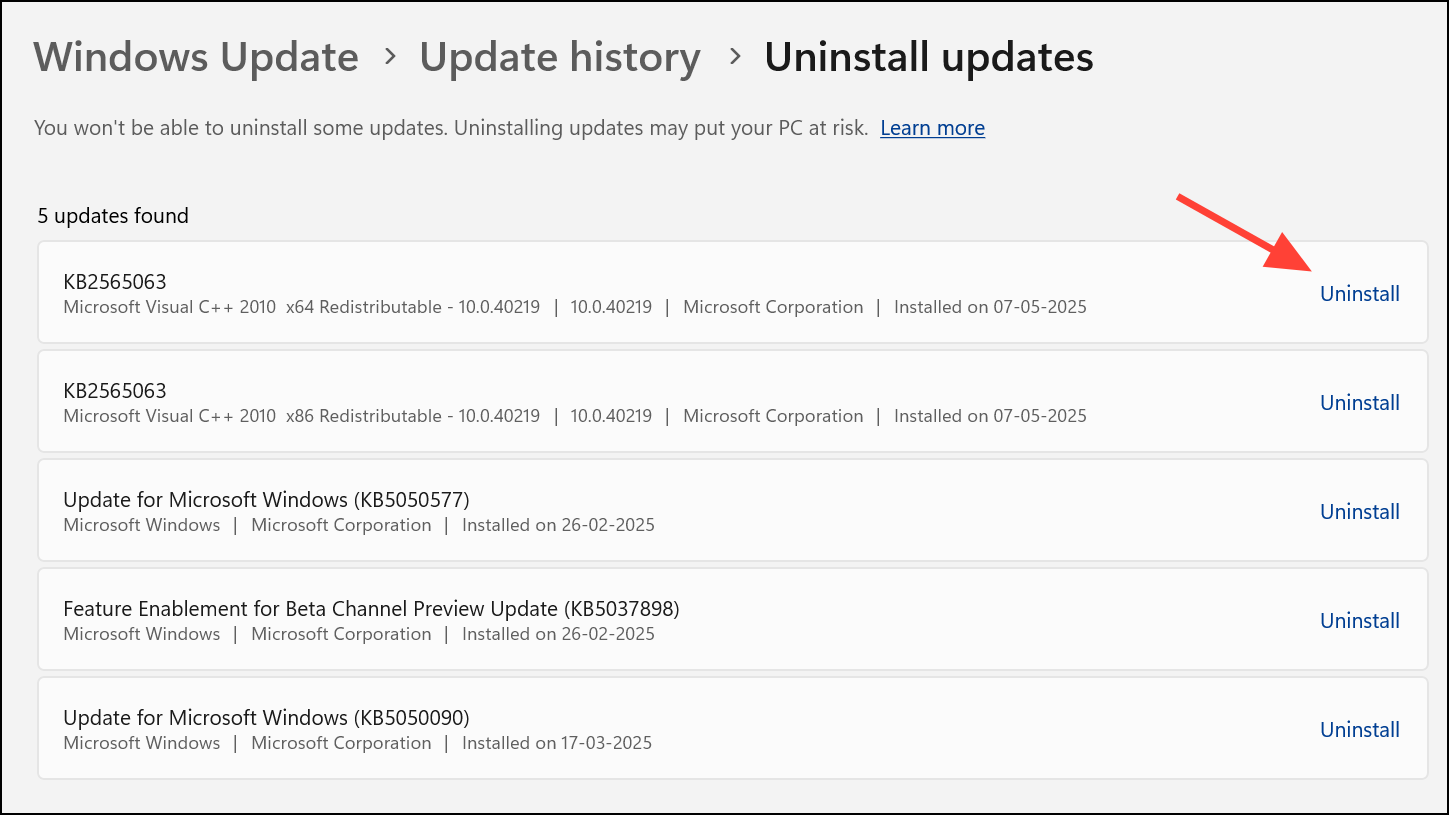
Rolling back problematic updates reverts your system to a state where audio worked as expected.
Reset Steam or Windows Audio Settings
If all else fails, resetting Steam or Windows audio settings can clear out persistent configuration problems.
-reset flag (for example, steam.exe -reset from a command prompt or shortcut). This refreshes Steam’s configuration files.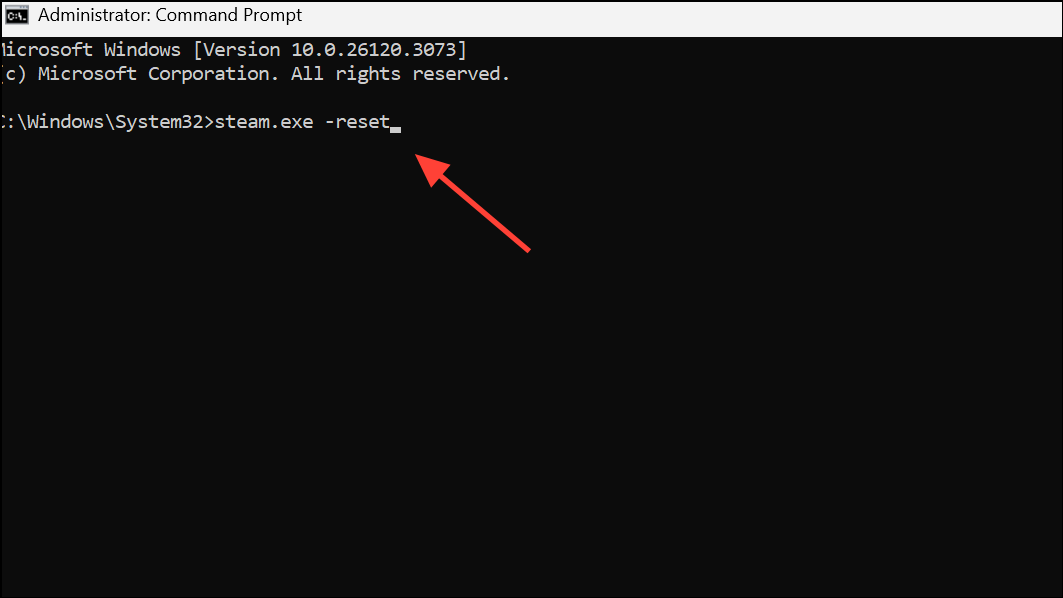
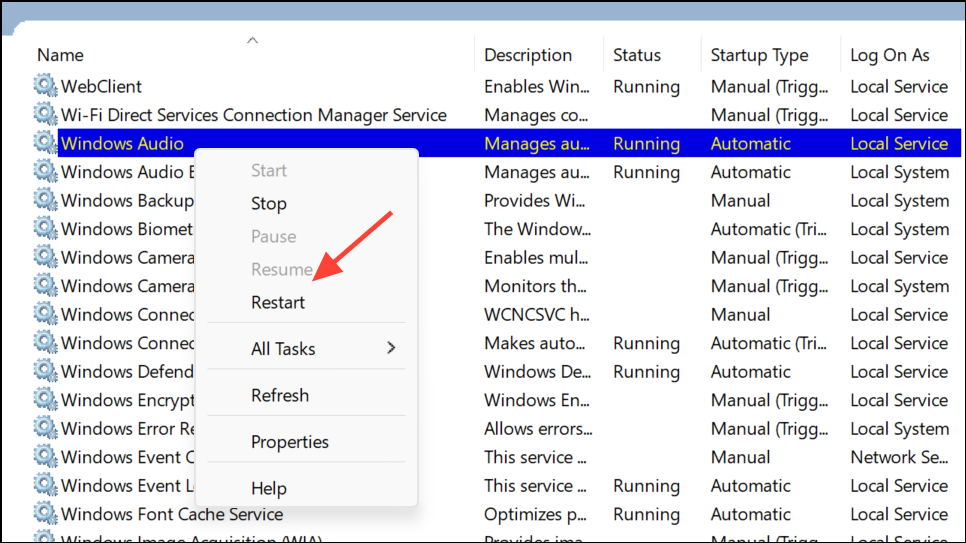
These resets can clear up obscure conflicts or settings that block game audio.
Working through these steps restores sound in Steam games for most users, allowing you to return to uninterrupted gameplay. If issues persist, consider reinstalling Steam or seeking help in official forums for more targeted troubleshooting.