
Windows 11 brings back widgets, offering quick access to information like weather forecasts, news updates, and more directly from your Lock Screen. While this feature enhances convenience for some, others might prefer a minimalistic Lock Screen without these additional elements. If you’re looking to disable Lock Screen widgets for a cleaner appearance, follow the steps below.
Windows + I on your keyboard. In the Settings window, navigate to the left-hand side menu and click on Personalization.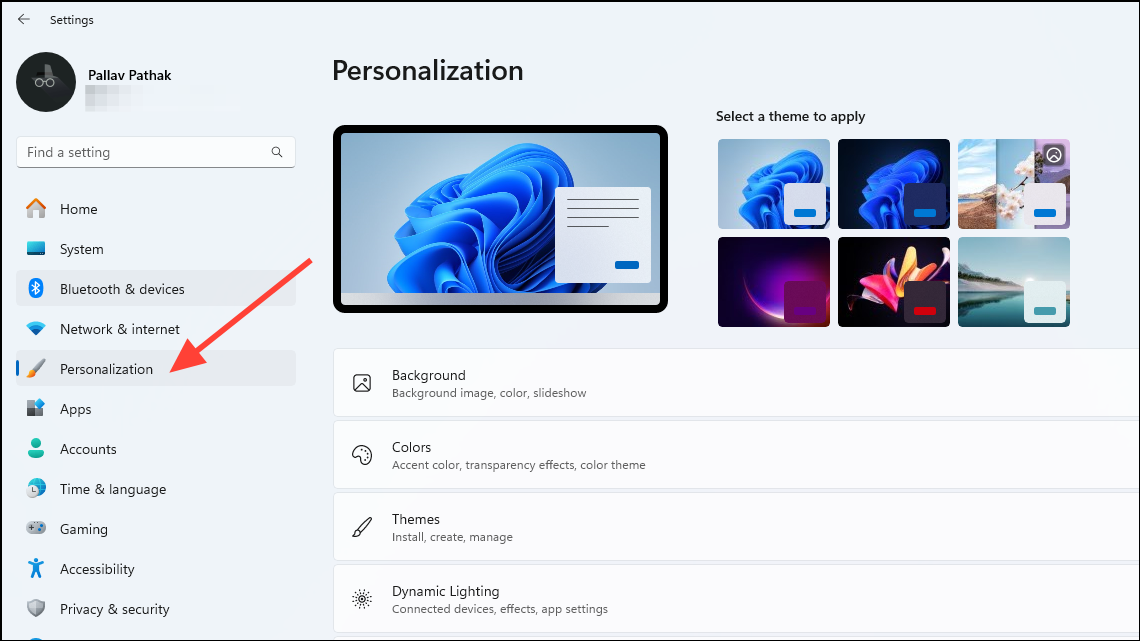
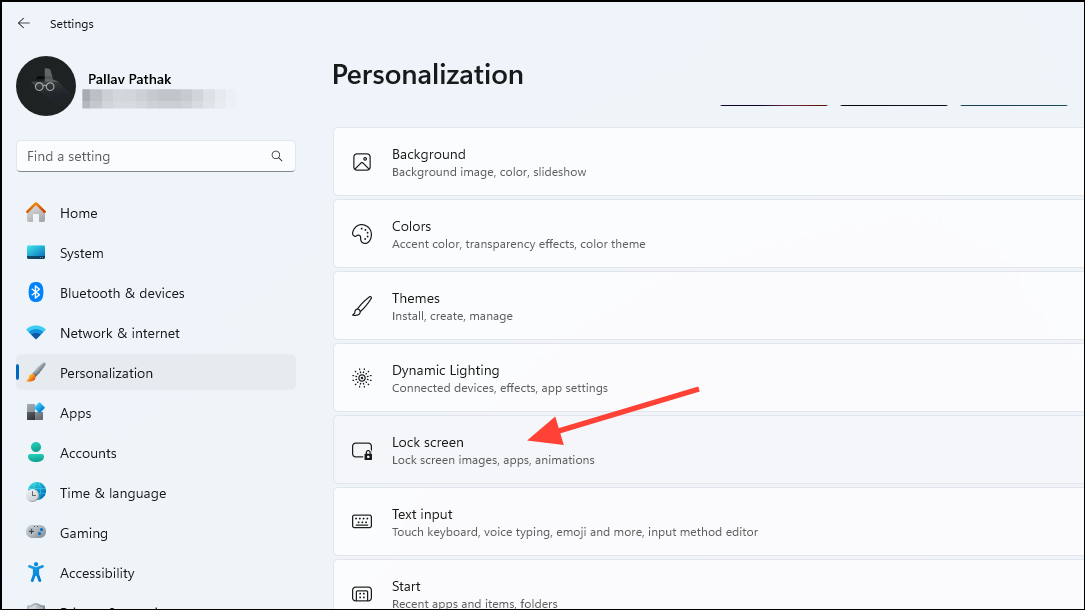
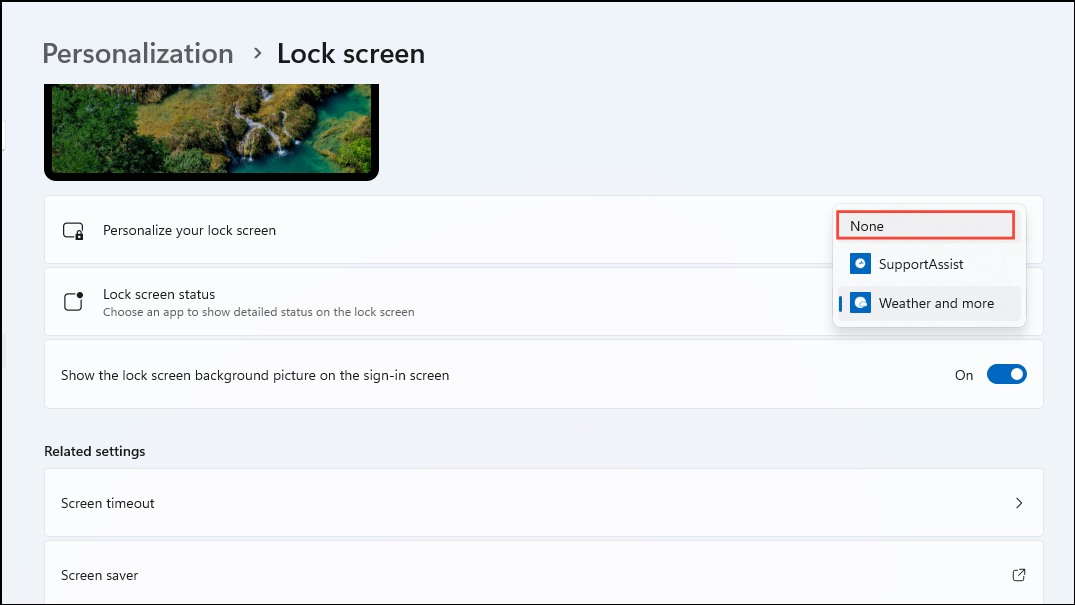
With these changes, your Lock Screen will no longer display widgets, providing a cleaner look every time you start your device. If you decide to re-enable the widgets in the future, simply return to the Lock Screen settings and select your preferred widget option from the Lock Screen status menu.
The inclusion of widgets on the Lock Screen in Windows 11 has been met with mixed reactions. While they offer quick access to useful information, not being able to customize which widgets appear can be frustrating for some users. By turning off the Lock Screen widgets, you can reduce distractions and personalize your Windows experience to better suit your preferences.



