Turn Off Telemetry and Tracking Features in Windows
Reduce data collection and tracking in Windows by adjusting system settings, using built-in tools, and applying advanced privacy controls.
Reduce data collection and tracking in Windows by adjusting system settings, using built-in tools, and applying advanced privacy controls.
by Pallav Pathak
Microsoft’s telemetry and tracking features in Windows collect diagnostic data, monitor device activity, and personalize your experience—often at the expense of user privacy. Disabling these features prevents unnecessary data transmission, cuts down on targeted advertising, and limits background system monitoring. The following instructions focus on the Copilot preview version installed on non-Copilot PCs, not on devices with Copilot system-wide integration.
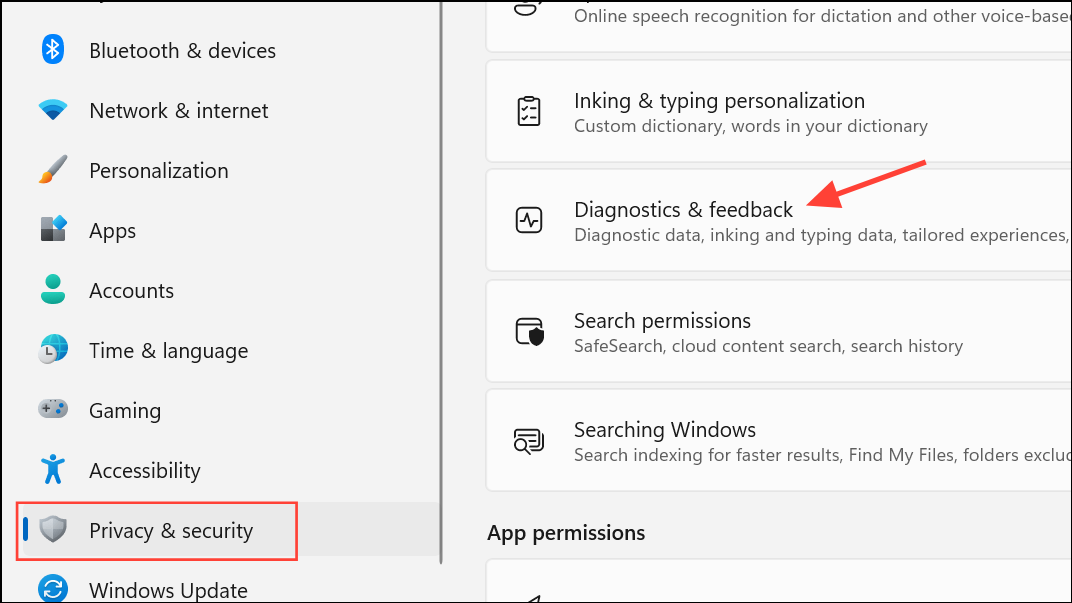
Disable Telemetry and Tracking Using Windows Settings
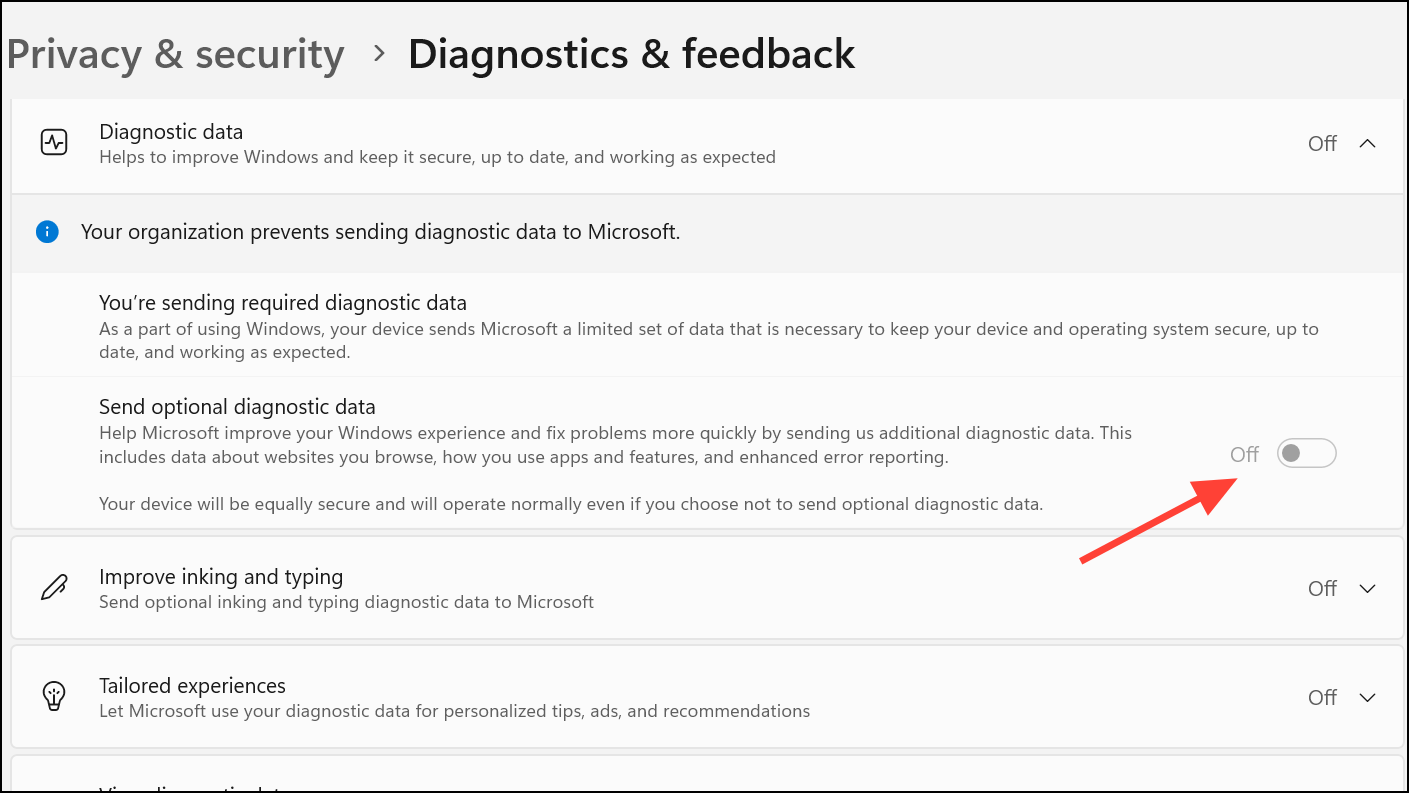
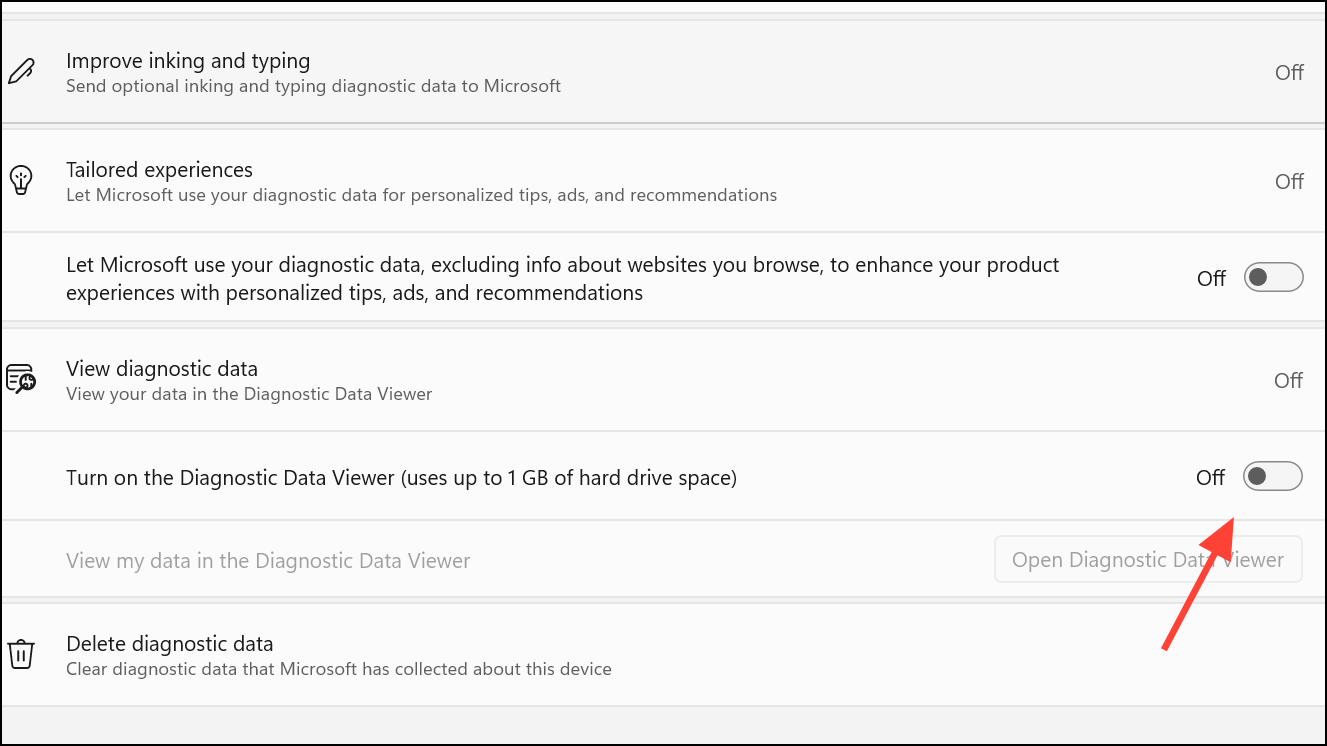
Toggle off Send optional diagnostic data to restrict Windows to only sending essential data required for system security and updates. This step prevents transmission of app usage, browsing history, and other non-essential diagnostic information.
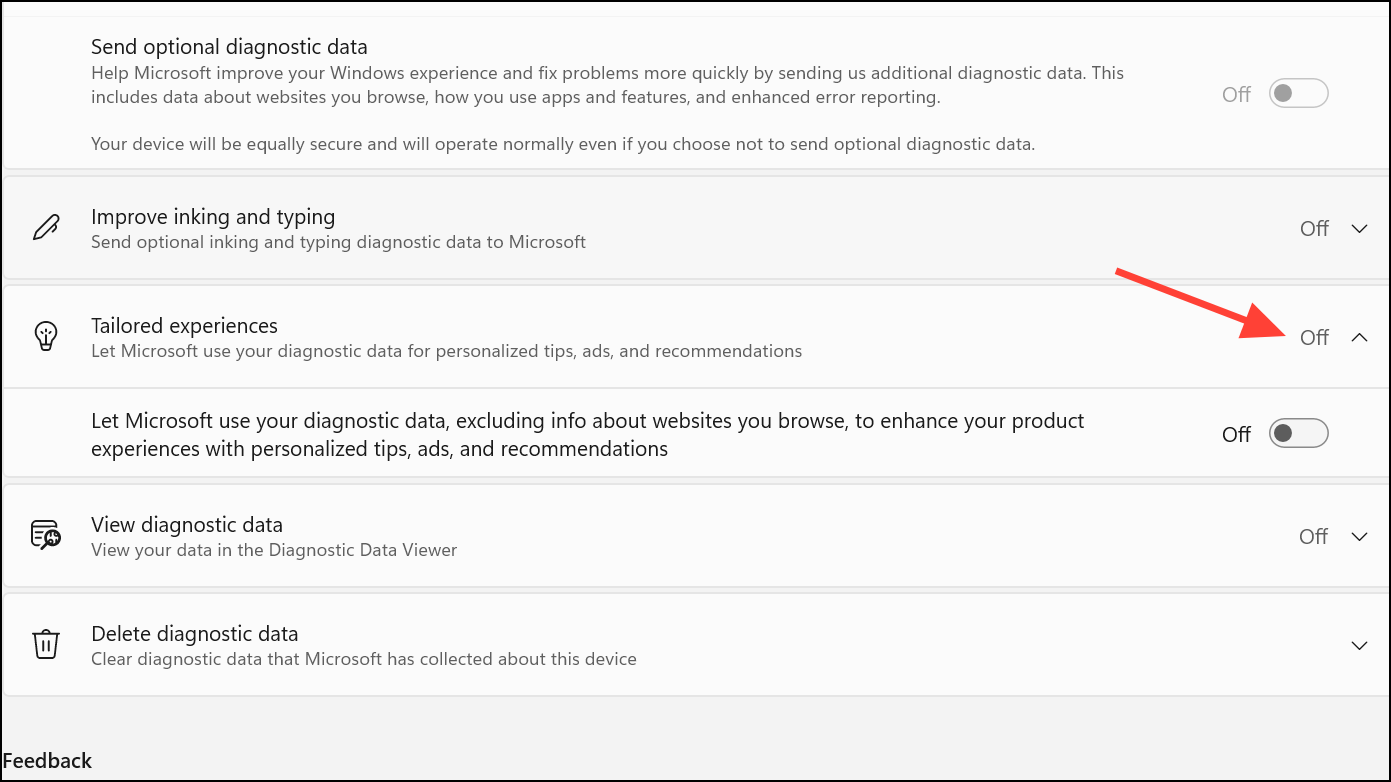
Disable Tailored experiences by toggling off Let Microsoft provide more tailored experiences. This setting stops Windows from using your diagnostic data to show personalized tips, ads, and recommendations.
Under the same section, toggle off View diagnostic data unless you want to review what data is being sent. For extra privacy, click Delete diagnostic data and confirm deletion to remove any previously collected data from Microsoft’s servers.
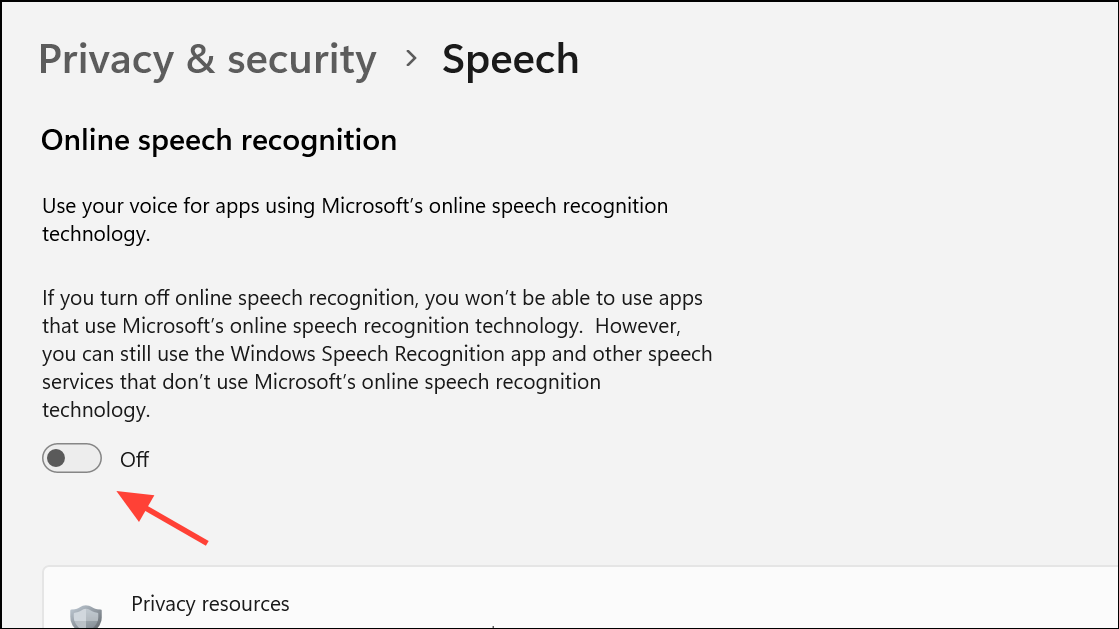
Return to Privacy & security and select Speech. Turn off Online speech recognition to prevent voice data from being sent to Microsoft’s cloud services.
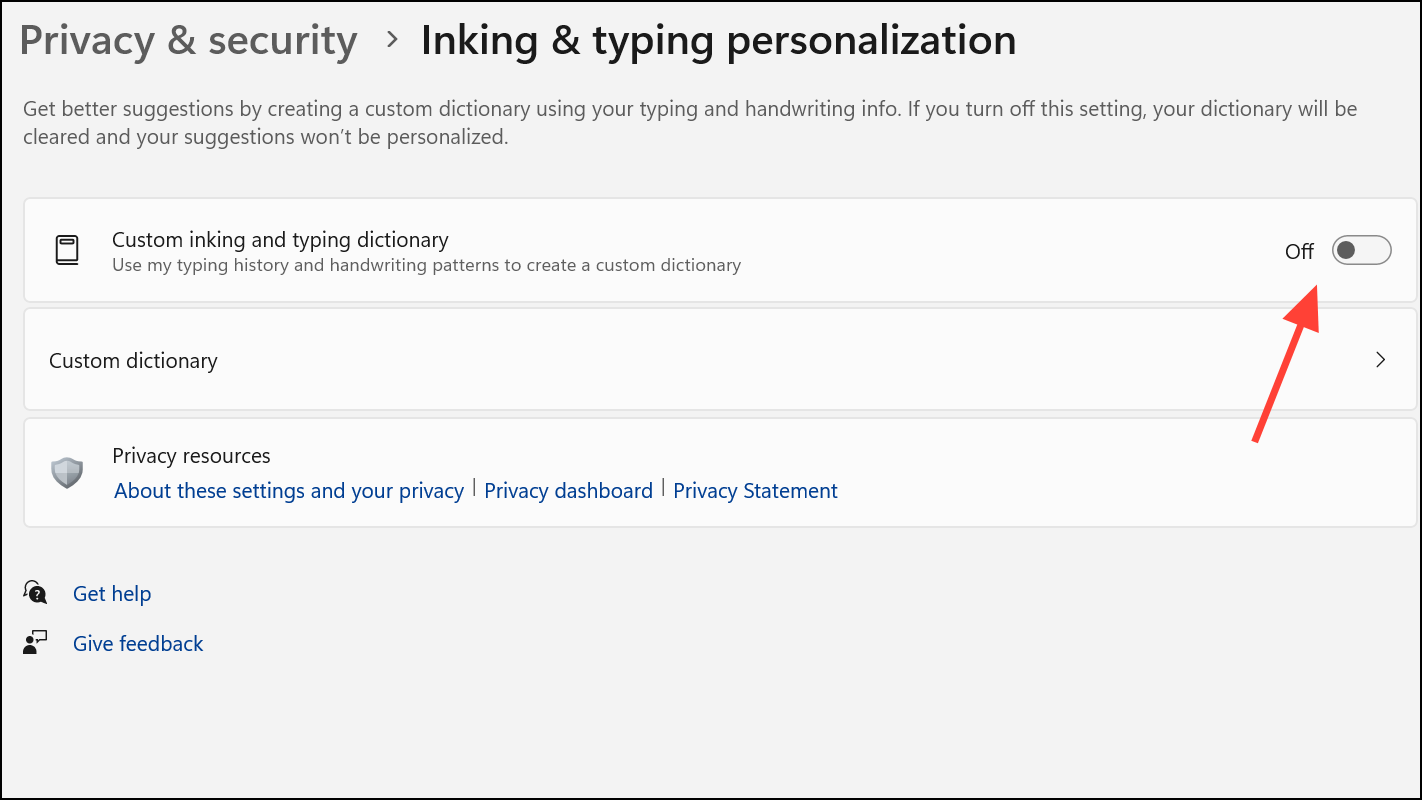
Go back, click Inking & typing personalization and disable Custom inking & typing dictionary. This stops Windows from collecting samples of your handwriting and typing patterns.
Again, go back, select Activity history, and toggle off Store my activity history on this device. For added privacy, use the Clear history button to remove any saved activity data.
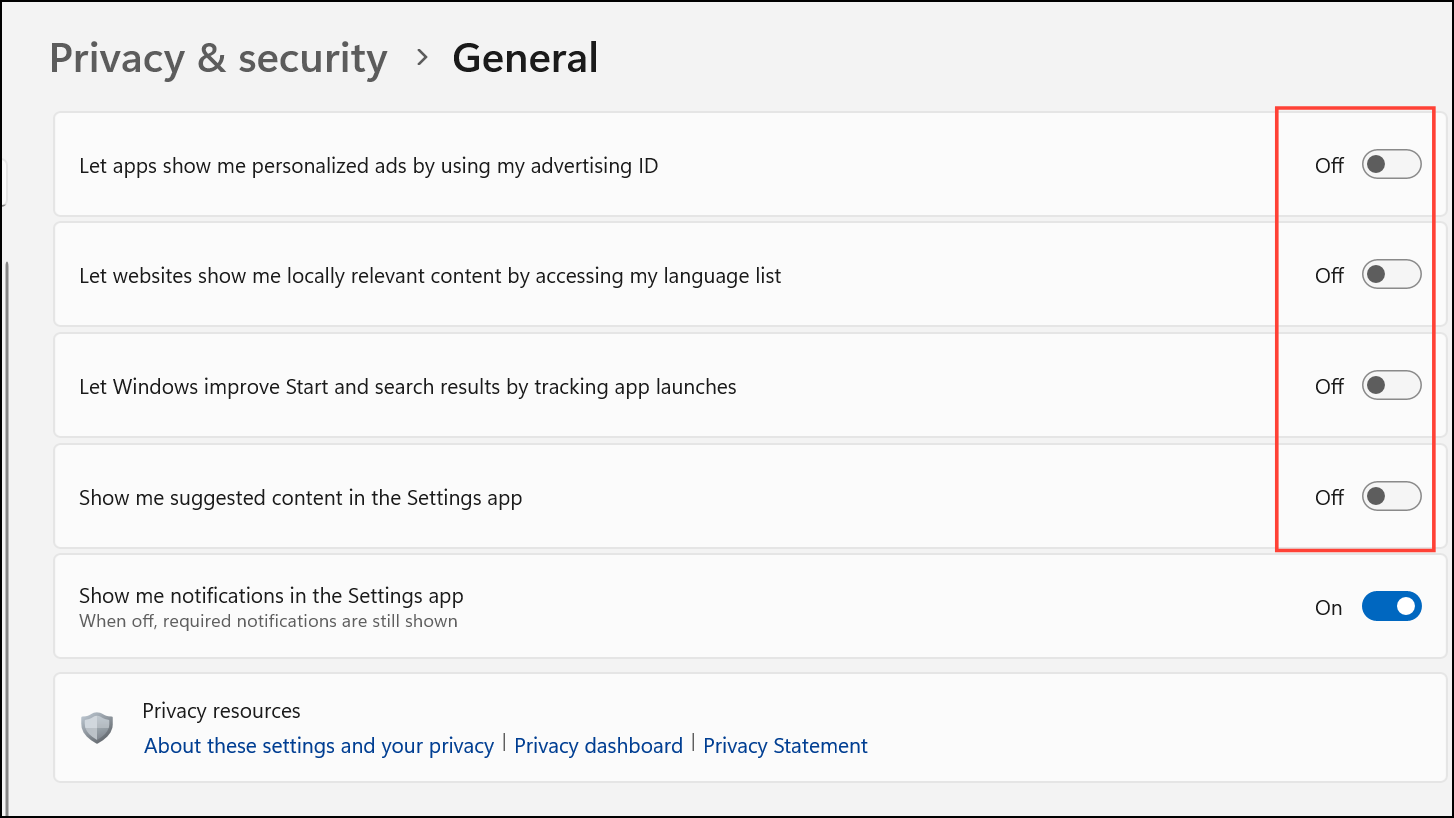
Go to General under Windows permissions. Turn off all options except Show me notifications in the settings app to disable advertising ID usage, app launch tracking, and personalized content suggestions.
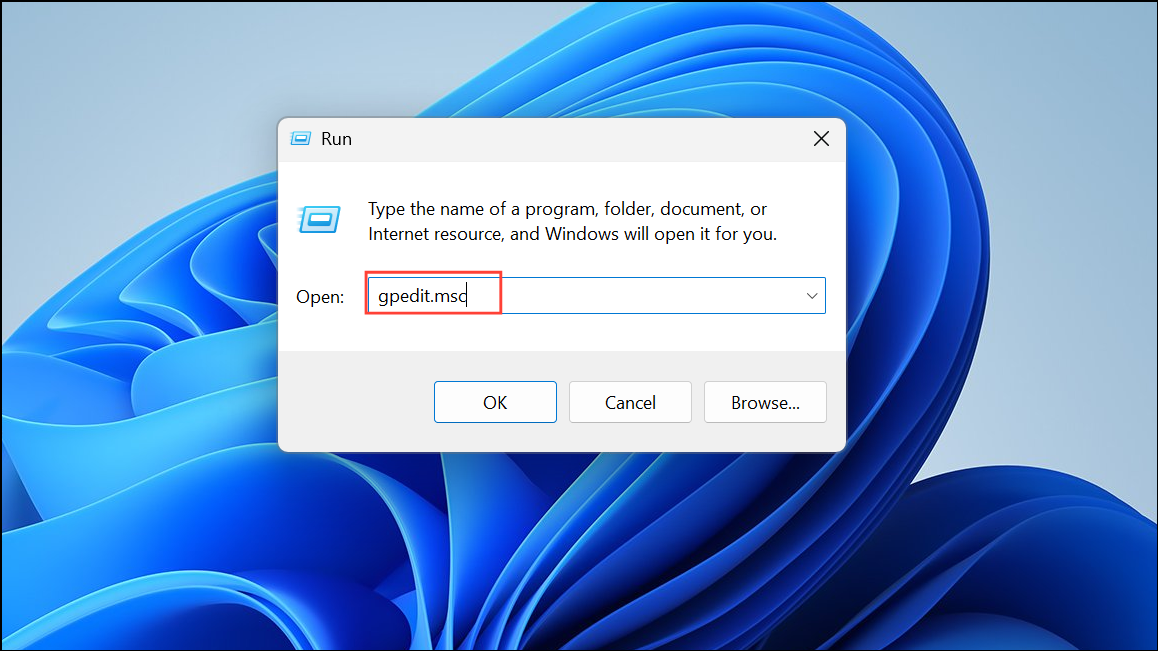
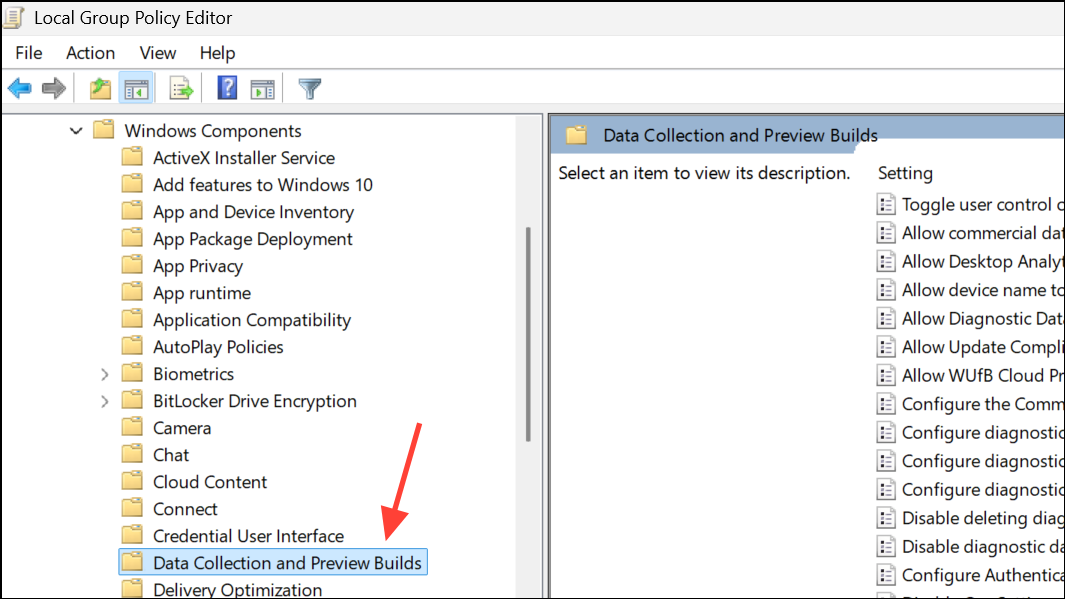
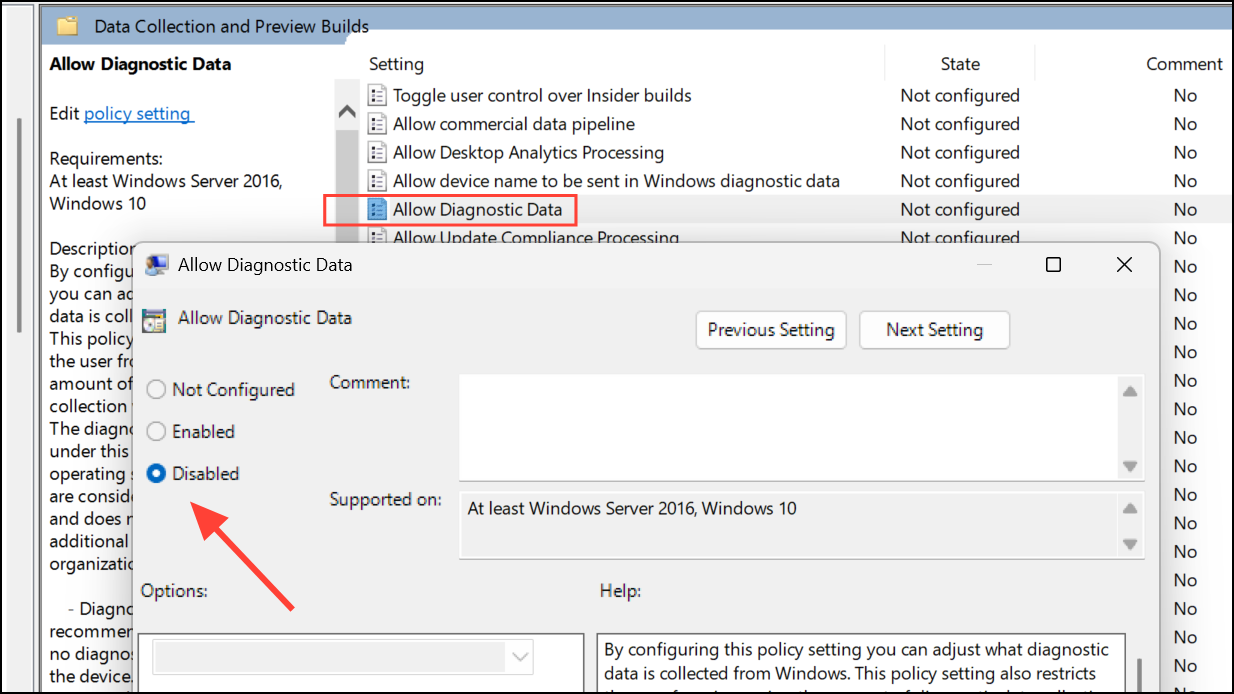
Double-click Allow Diagnostic Data (sometimes labeled Allow Telemetry). Set the policy to Disabled or 0 to block optional diagnostic data collection. Click Apply and OK.
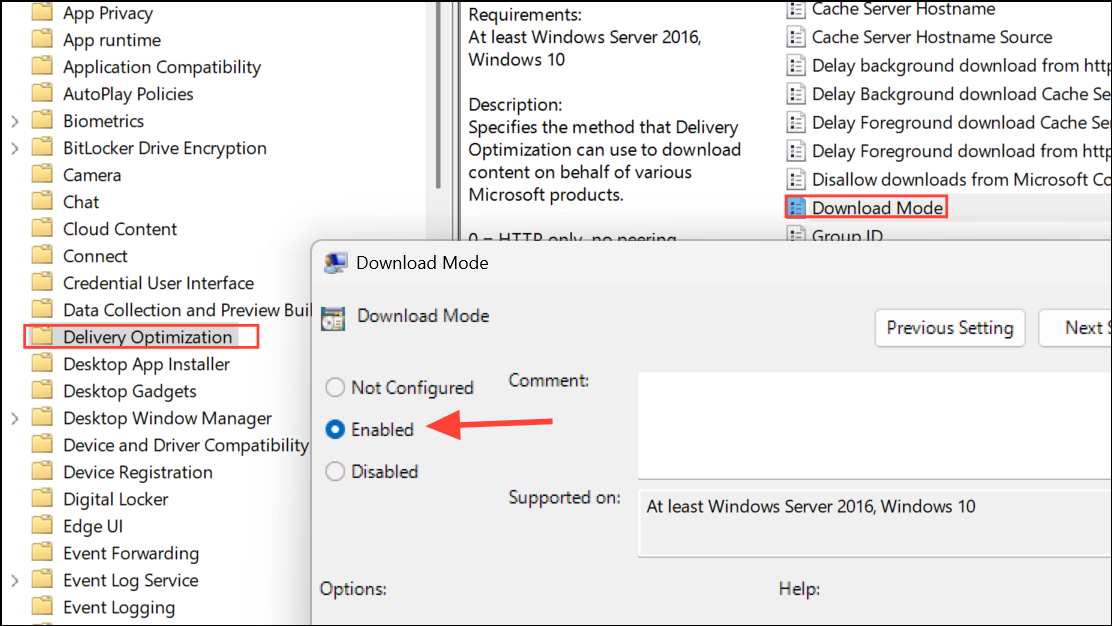
For further control, go to Delivery Optimization within the same section. Double-click Download Mode, set it to Enabled, and select Bypass to stop peer-to-peer update sharing.
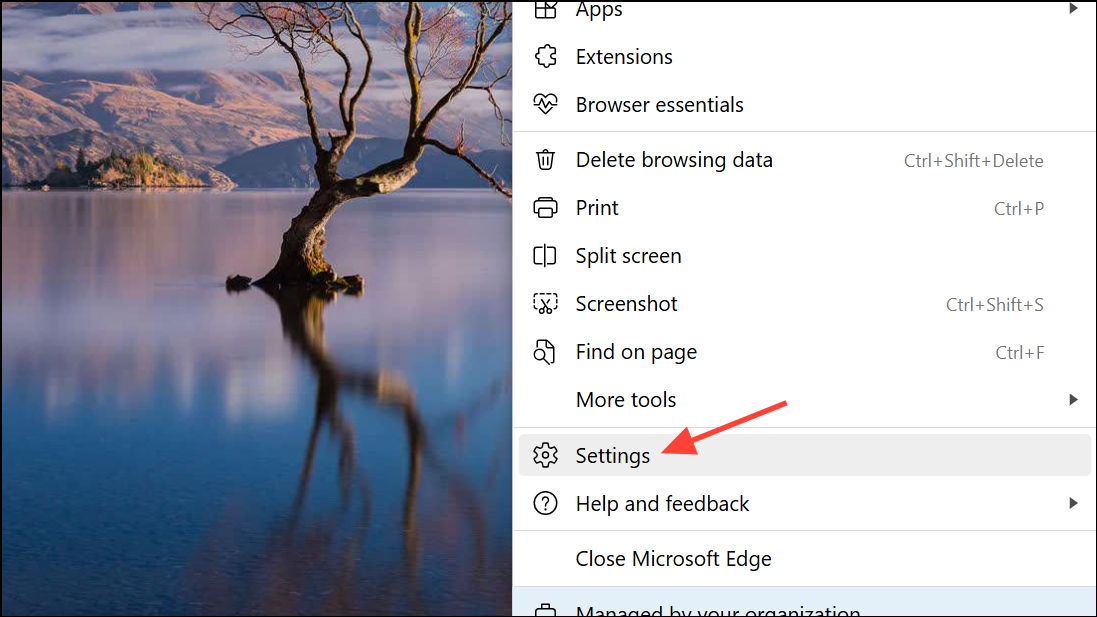
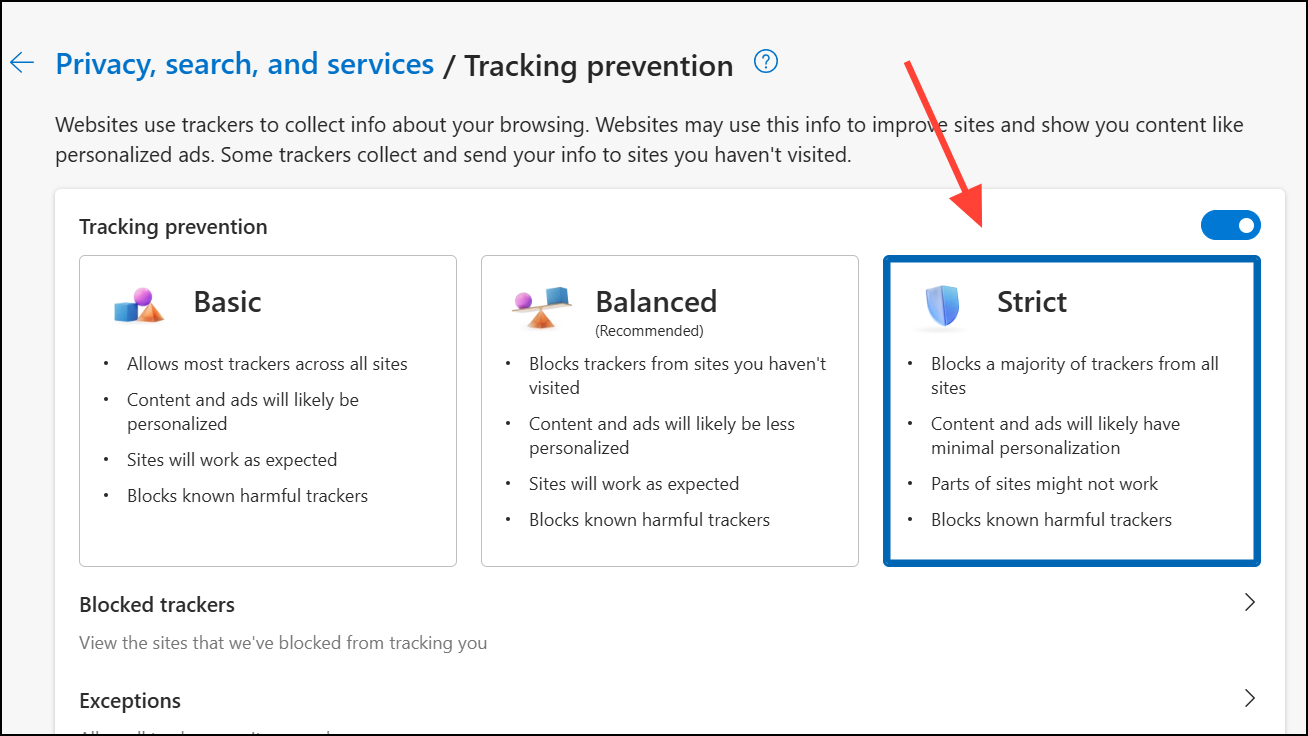
Go to Privacy, search, and services. Under Tracking prevention, set the level to Strict to block most trackers and limit data sent to Microsoft and third parties.
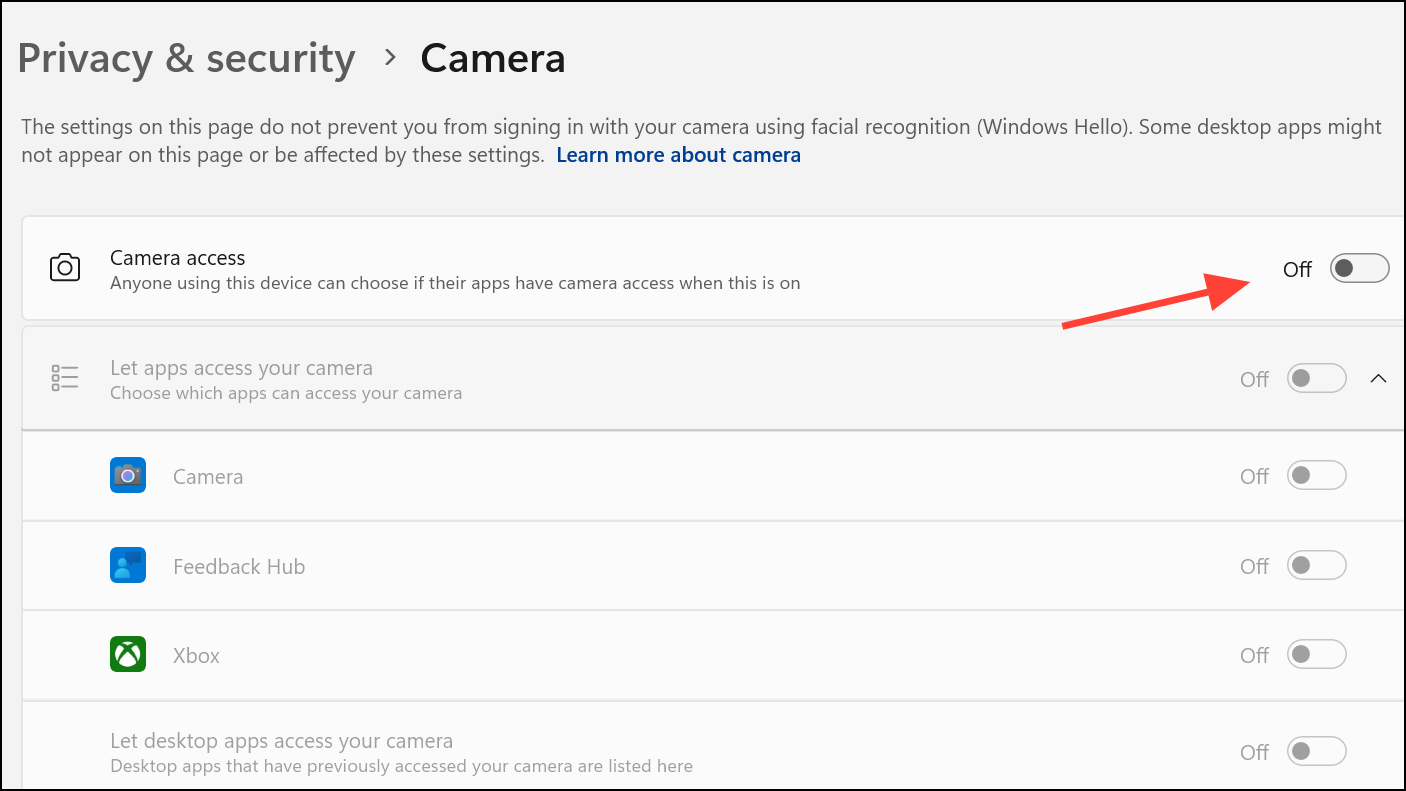
Go to Camera and Microphone sections. Toggle off Allow apps to access your camera and Allow apps to access your microphone if you do not need these features for daily use.
In Background apps, turn off Let apps run in the background to limit background processes that may collect or transmit data.
Use Third-Party Privacy Tools for Advanced Control
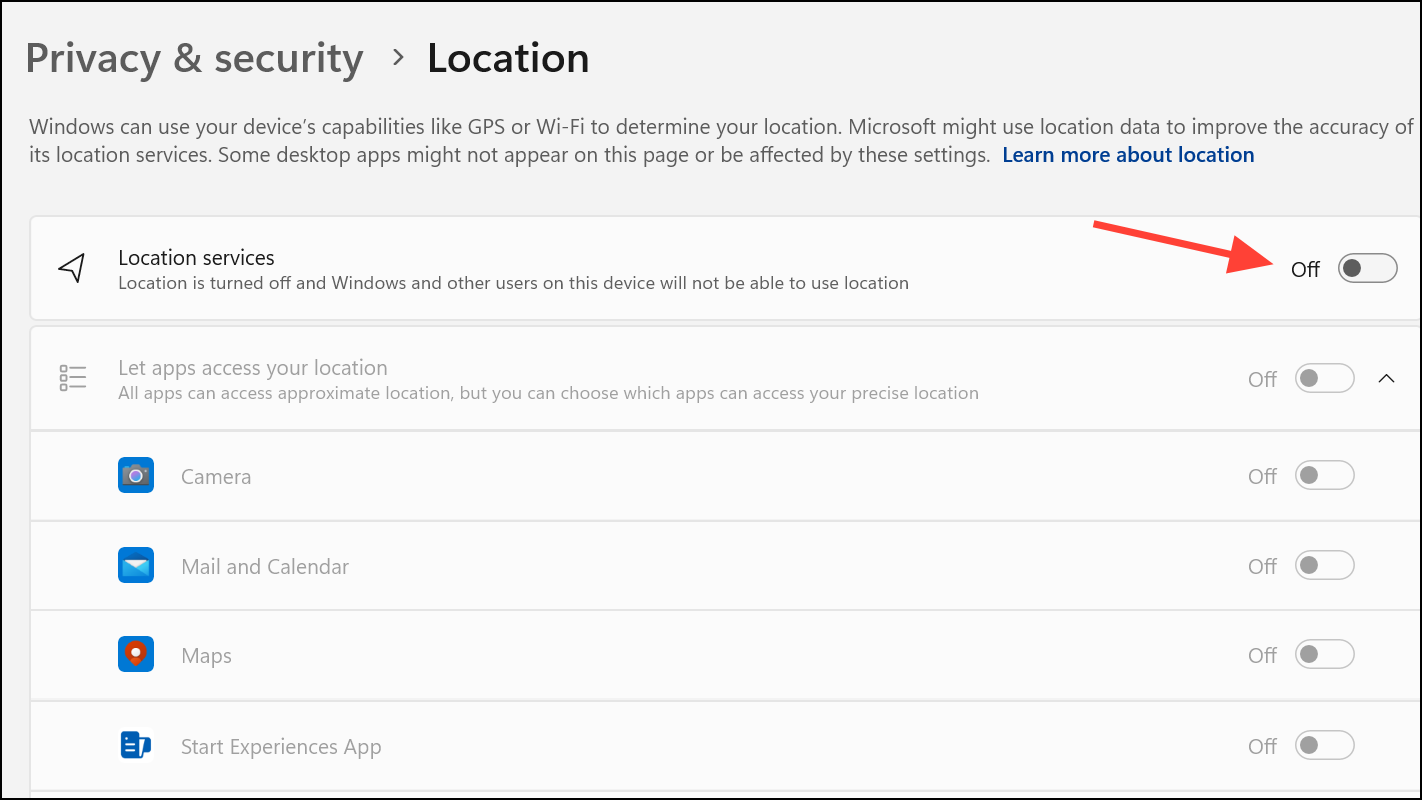
For users seeking more granular or automated privacy management, specialized utilities offer batch disabling of telemetry and tracking features. Before using any of these, create a system restore point to safeguard against unintended changes.
O&O ShutUp10++: This free tool provides a comprehensive interface for toggling Windows privacy settings, including telemetry, advertising ID, and location tracking. Download from the official O&O Software website, run as administrator, and apply recommended privacy settings. The tool allows you to revert changes if needed.
WPD (Windows Privacy Dashboard): Another free utility that can block telemetry, remove unwanted apps, and adjust privacy-related services. Download from getwpd.com and follow on-screen instructions to adjust privacy settings.
Destroy Windows Spying (DWS): This tool automates disabling of telemetry and blocking of tracking domains. Use with caution and always back up your system beforehand.
While these tools streamline privacy configuration, be cautious: aggressive settings may disrupt Windows Update, Microsoft Store, or essential system features. Always review each option and avoid disabling services critical to system stability unless you fully understand the consequences.
Disabling telemetry and tracking in Windows requires a combination of built-in settings adjustments and, for advanced users, policy or third-party tool changes. Regularly review privacy settings after major updates, as some may revert to defaults or introduce new tracking features.