
Background processes and hidden services can quietly drain CPU and memory resources, making Windows systems feel sluggish, especially on older hardware or machines with limited RAM. Disabling or managing these services can free up resources, speed up boot times, and make everyday tasks more responsive. Some services are essential for core Windows functionality, but many are not needed for most users and can be safely turned off or adjusted. The following methods outline the most effective ways to identify and shut down hidden Windows services that slow down your system.
Perform a Clean Boot to Disable Non-Essential Services
Launching Windows with only the minimum required services and startup programs—known as a “clean boot”—lets you pinpoint which background processes are using up resources. This method is widely recommended for troubleshooting and optimizing system performance.
Windows key + R, typing msconfig, and pressing Enter. This launches the configuration window where you can manage startup settings.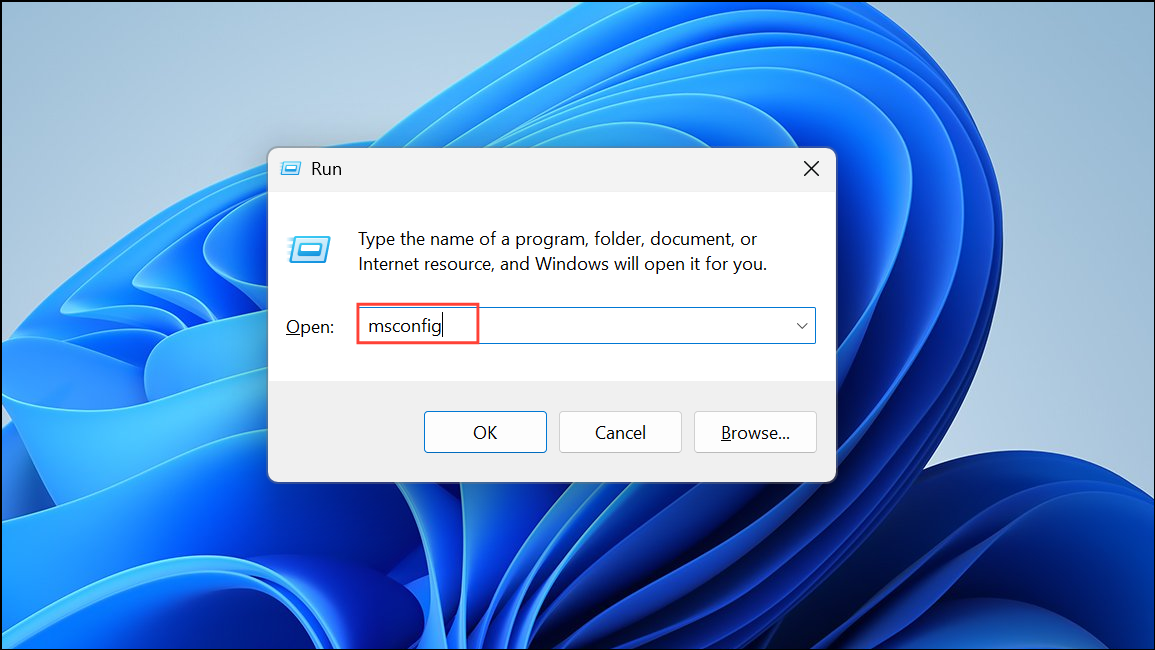
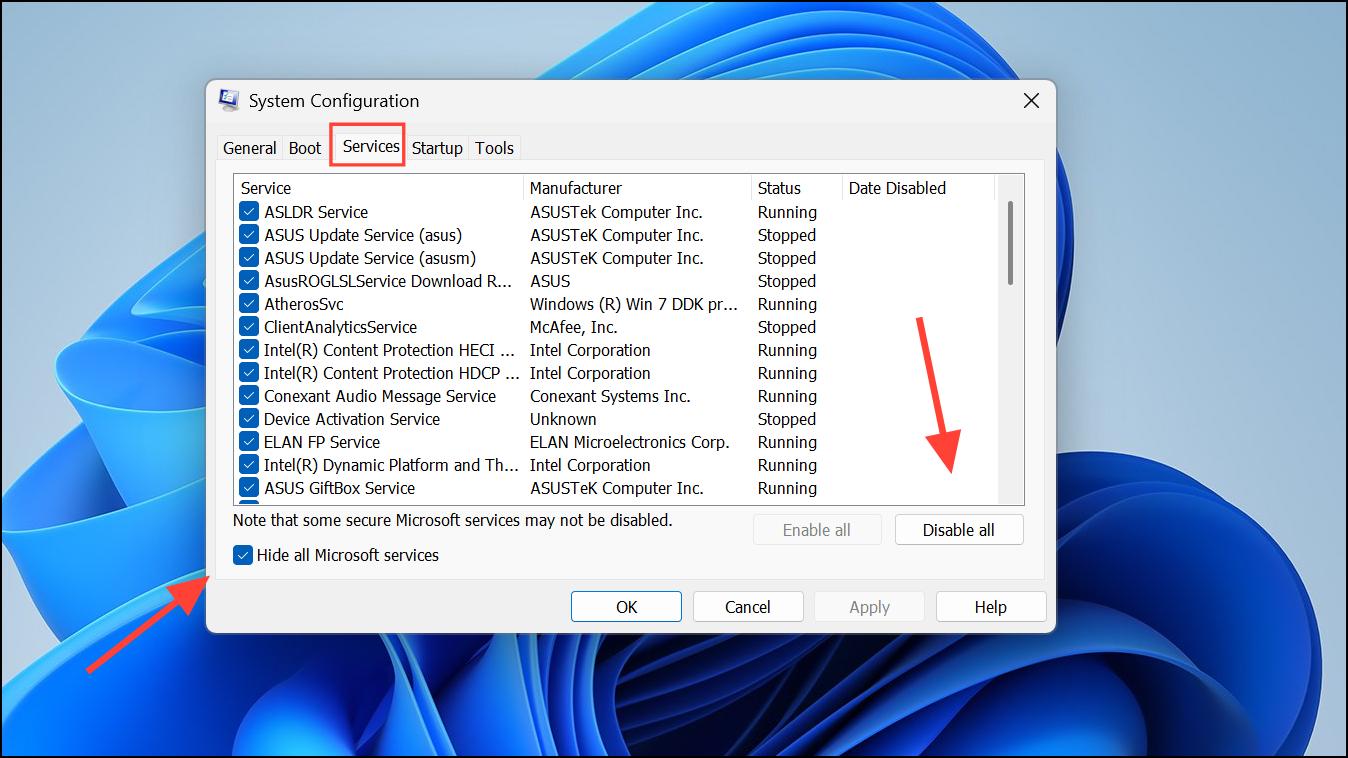
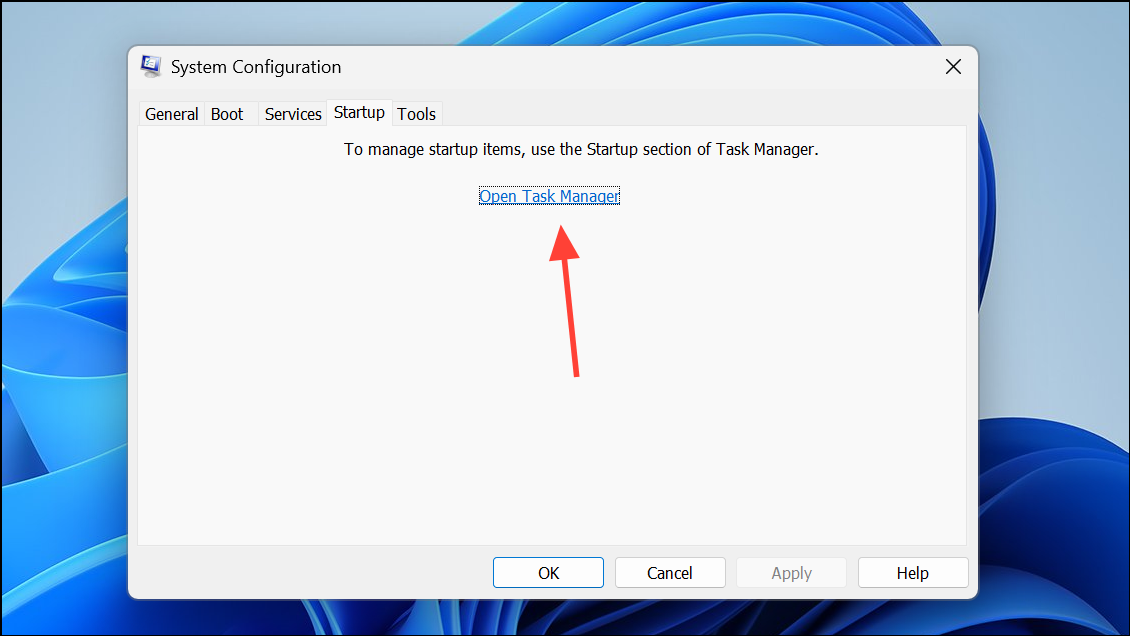
After confirming improved performance, you can selectively re-enable services and startup items as needed. This approach is safe, as it avoids disabling core Microsoft services.
Manually Disable Specific Hidden Windows Services
Some Windows services run in the background by default but are not needed for most users. Disabling these can further reduce resource consumption. Always research any service before disabling it to avoid breaking needed features.
Windows key + R, typing services.msc, and pressing Enter.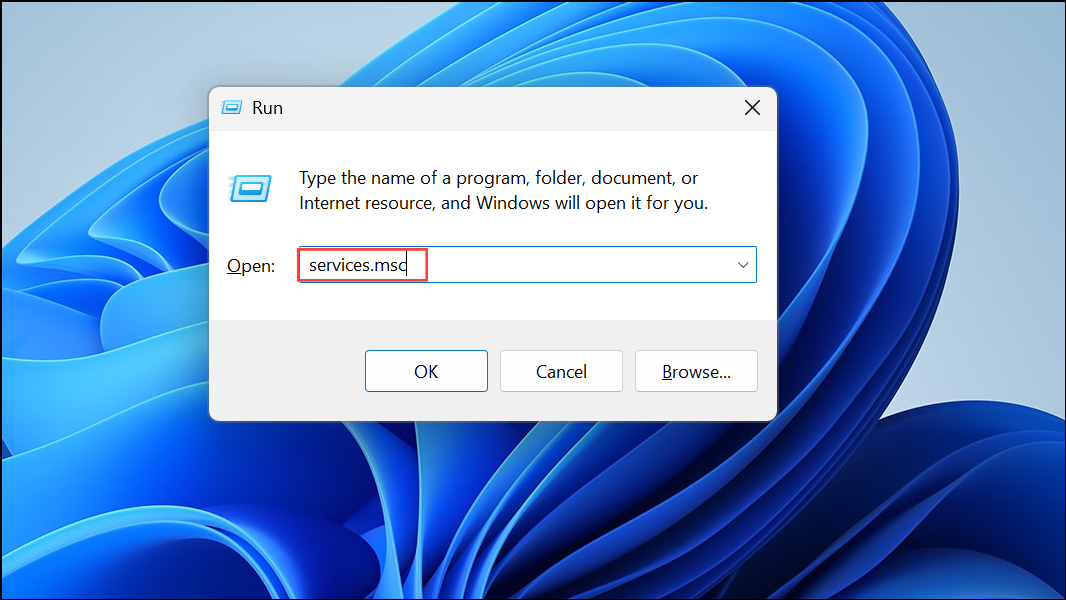
- Windows Search (or Indexing Service): Maintains a file index for faster searches but uses significant CPU and disk, especially on older drives. Disabling it slows down File Explorer search but frees up resources.
- Print Spooler: Needed only if you print documents. If you never print, stopping this service is safe.
- Bluetooth Support Service: Required for Bluetooth devices. If you never use Bluetooth, you can disable this.
- Fax: Used for sending/receiving faxes, which is rare on most modern PCs.
- Downloaded Maps Manager: Manages offline maps for Windows Maps app. Disable if unused.
- Remote Registry: Allows remote users to modify your registry. Disabling increases security for most home users.
- Windows Mobile Hotspot Service: Only needed if you use your PC as a Wi-Fi hotspot.
- Diagnostic Tracking Service and Connected User Experiences and Telemetry: Collects usage data for Microsoft. Disabling can improve privacy and reduce background activity.
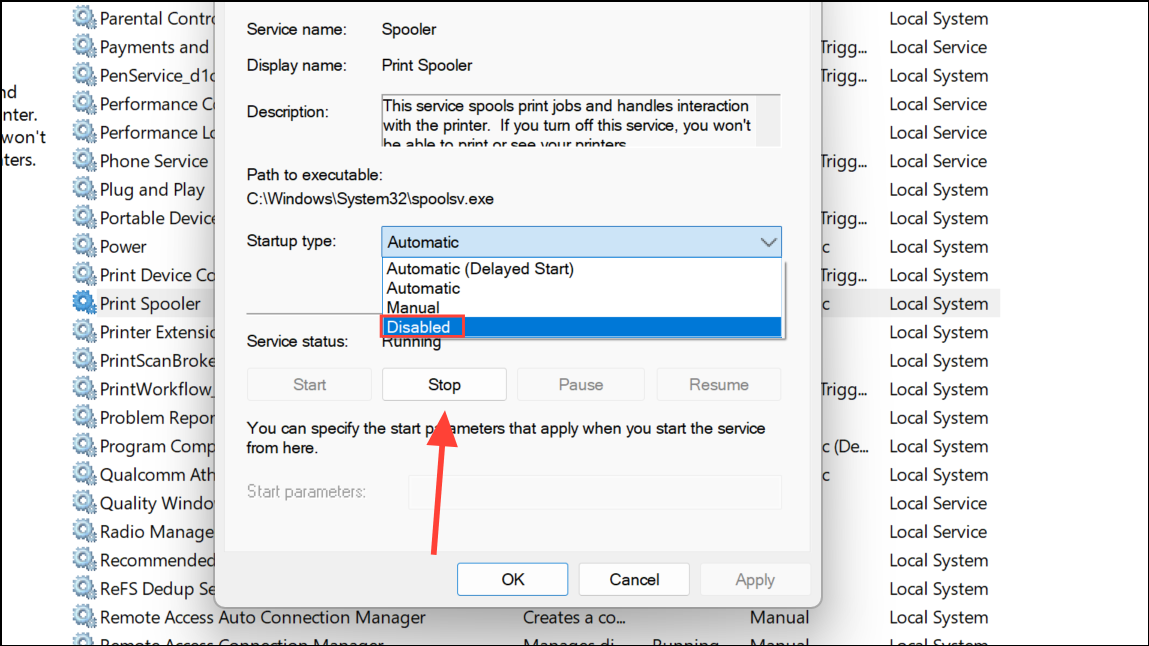
Disabling these services reduces background activity and can improve system responsiveness, especially on low-end hardware.
Turn Off Resource-Heavy Windows Services and Processes
Some specific Windows processes are known to cause high CPU or RAM usage, particularly on systems with limited resources. Disabling or adjusting these can quickly optimize performance.
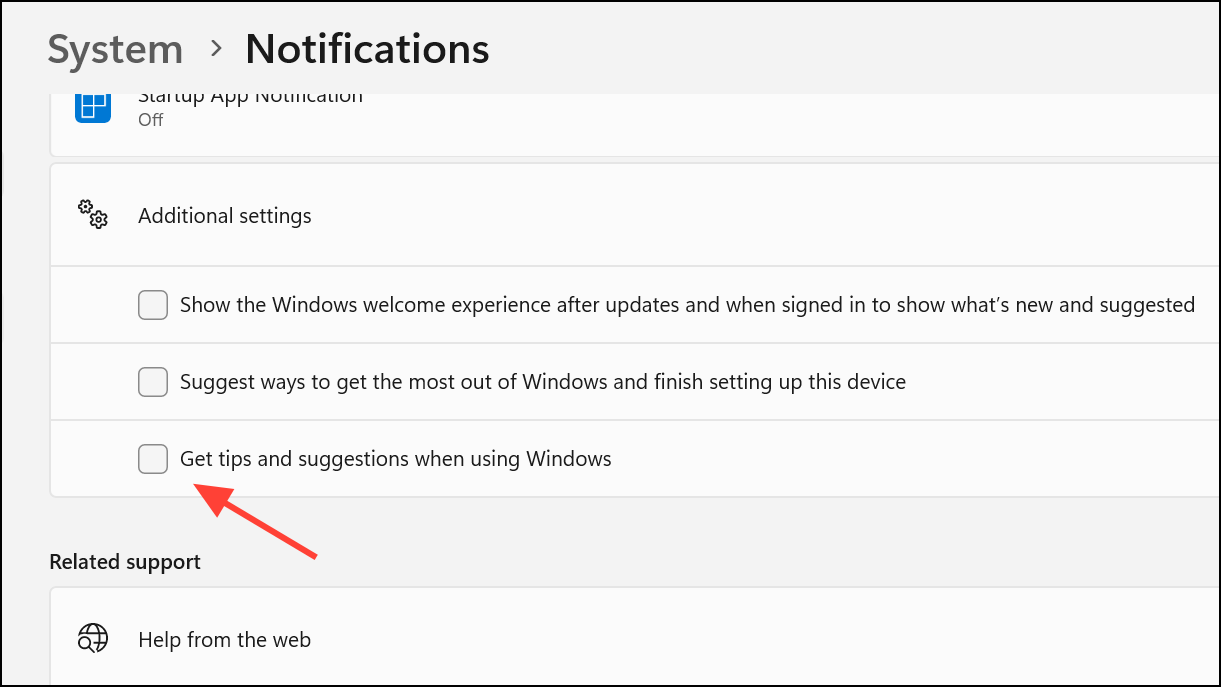
Runtime Broker: This process manages permissions for Microsoft Store apps and can spike CPU usage. If you do not use Store apps, you can end the process in Task Manager. For a more permanent solution, disable Windows tips and notifications, which frequently trigger Runtime Broker activity.
Antimalware Service Executable (MsMpEng.exe): This is Windows Security’s real-time protection. It can be CPU-intensive during scans. While disabling it is not recommended due to security risks, you can reduce its impact by scheduling scans for off-hours or switching to a lighter third-party antivirus.
CTF Loader (ctfmon.exe): Supports alternative input methods like handwriting and speech. If you don’t use these features, you can disable the Text Input Management Service in the Services console, but note that on-screen keyboards and stylus input may stop working.
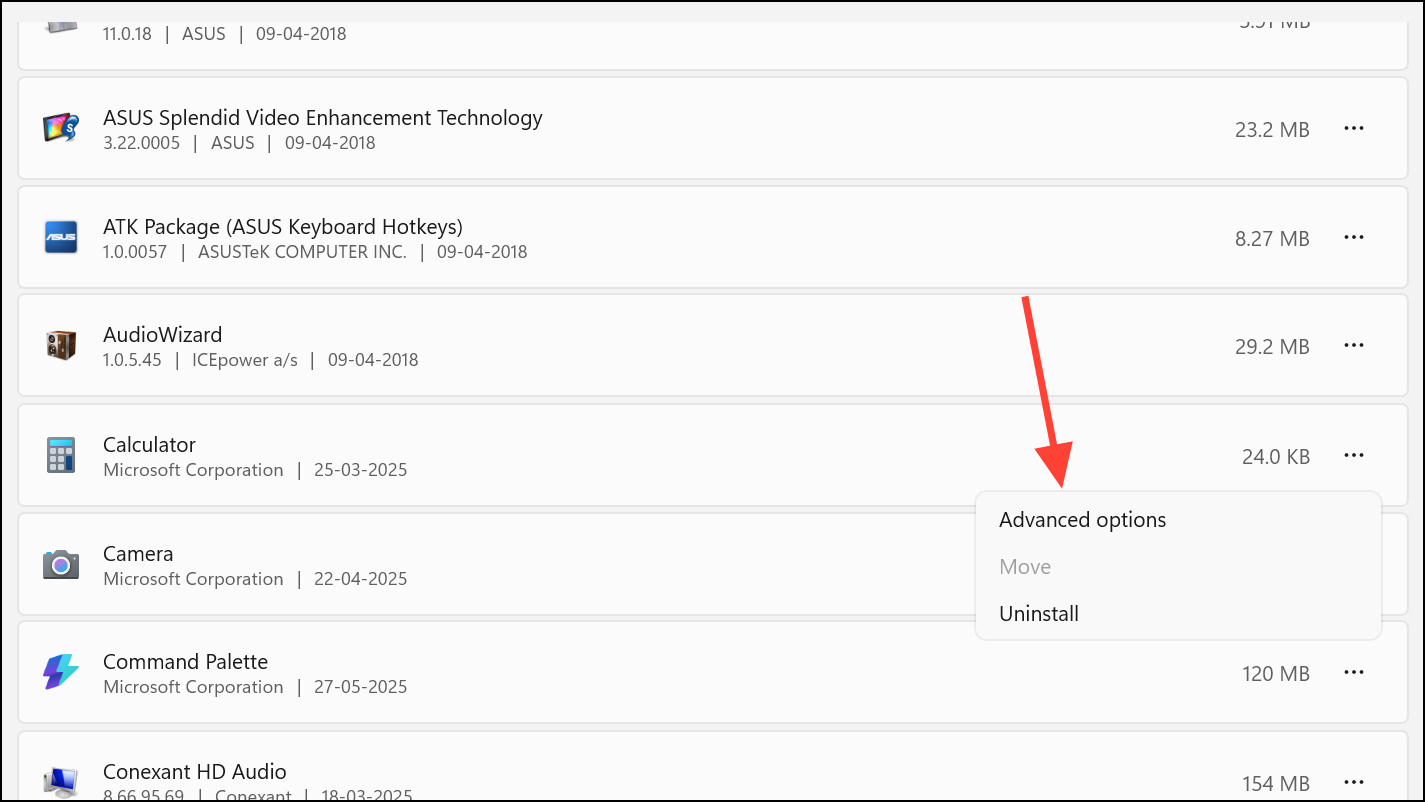
Microsoft Store Background Apps: Many Store apps run in the background by default. To stop them from consuming resources:
- Open Settings → Apps → Installed apps.
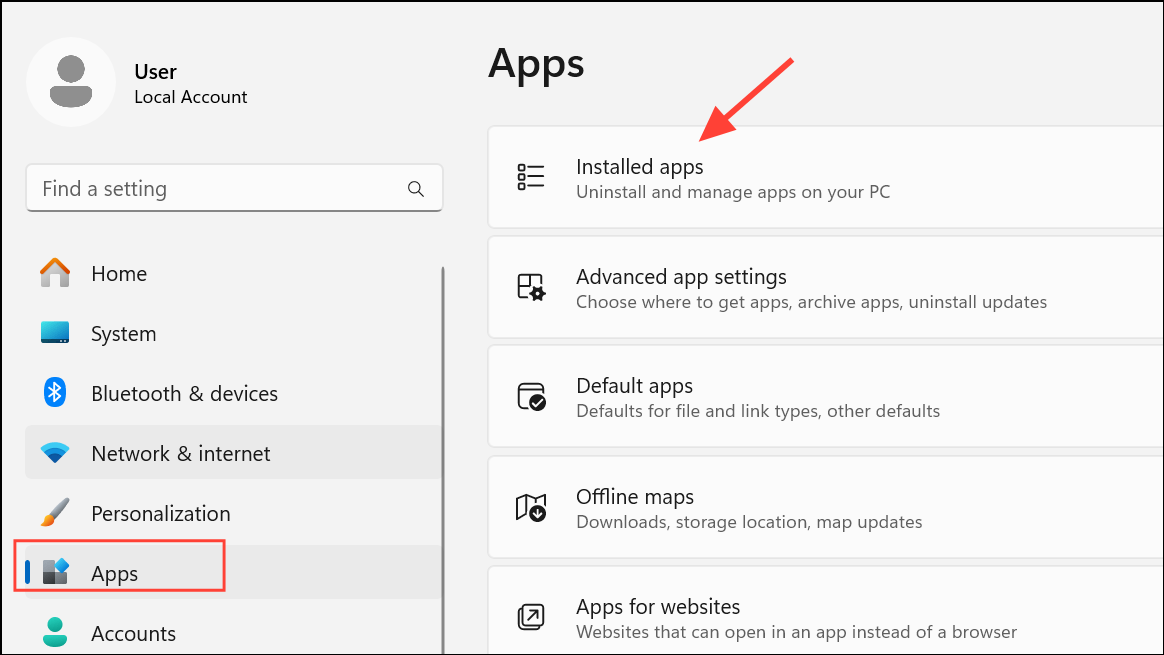
- Click the three dots next to any Store app and select Advanced options.
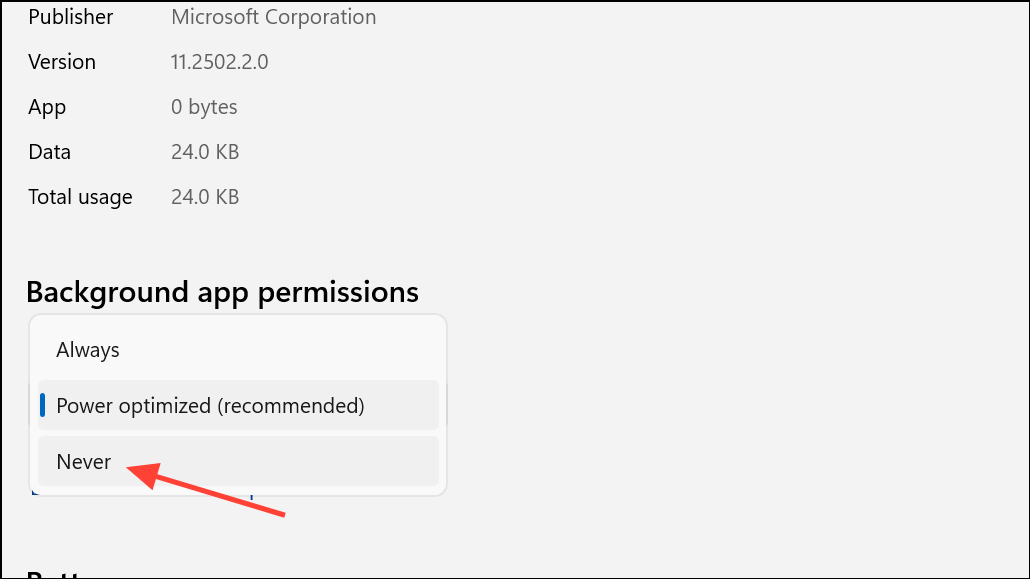
- Under Background app permissions, set the dropdown to Never.
Alternatively, use Task Manager’s Startup tab to prevent these apps from launching at boot.
Remove Bloatware and Unnecessary Startup Programs
Pre-installed apps and unnecessary startup programs can slow down system boot and consume resources even when not in use.
Ctrl + Shift + Esc), go to the Startup tab, and disable any non-essential programs. This reduces boot times and idle memory usage.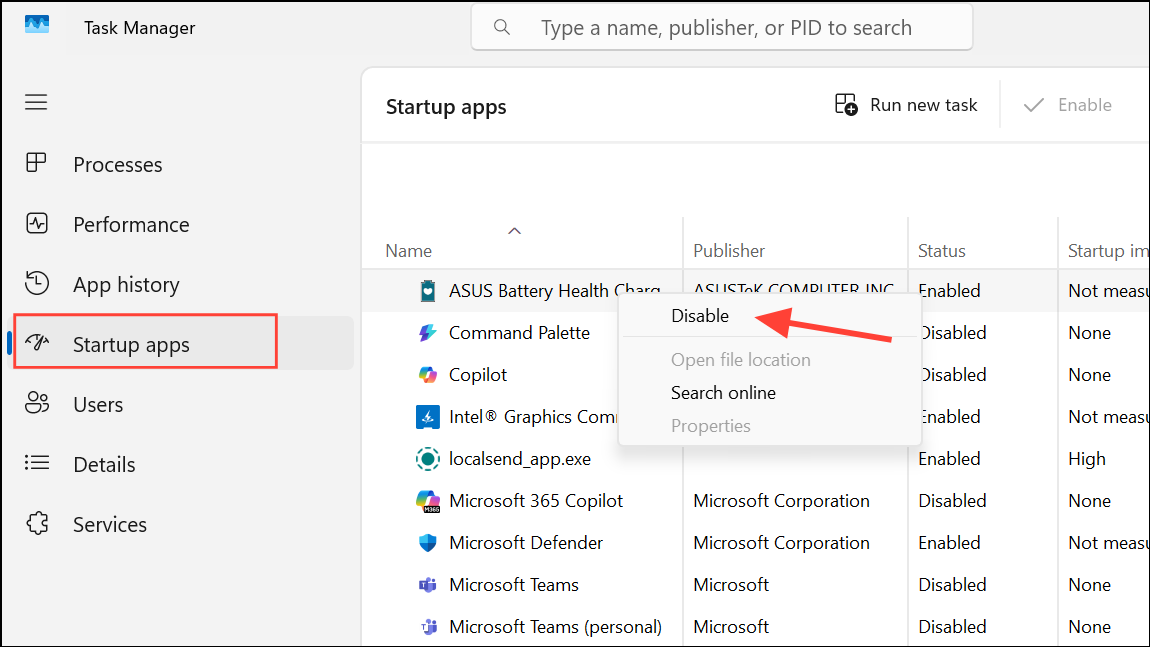
Removing bloatware and disabling unnecessary startup items makes your PC boot faster and reduces background clutter, leading to a more responsive experience.
Additional Tips for Sustained Performance
Beyond disabling services, several maintenance steps keep your system running smoothly:
- Defragment your hard drive regularly if you use a traditional HDD (skip this for SSDs).
- Use Disk Cleanup to remove temporary files and free up disk space.
- Consider upgrading to an SSD if you’re still using an HDD, as this provides a dramatic speed boost for all operations.
- Keep Windows and drivers updated to benefit from performance improvements and security patches.
Optimizing Windows by shutting down hidden services and managing startup programs can cut down on lag, lower idle resource usage, and make your PC feel fresh again. Regularly reviewing these settings ensures your system stays fast and responsive.





