
Microsoft Store apps may stop updating, installing, or launching correctly after a major Windows system upgrade, restore, or update. Users often see errors like 0x80073CF9, “Something happened on our end,” or find that apps are stuck in a pending state. These failures can disrupt workflows, prevent access to essential applications, and persist even after basic troubleshooting. Addressing these problems requires a structured approach ranging from targeted app repairs to broader system fixes.
Method 1: Repair Microsoft Windows App Runtime Singleton
Microsoft Windows App Runtime Singleton is a key dependency for many Store apps. When it fails, updates and installations can break across multiple apps. Addressing this specific component can restore normal app functionality.
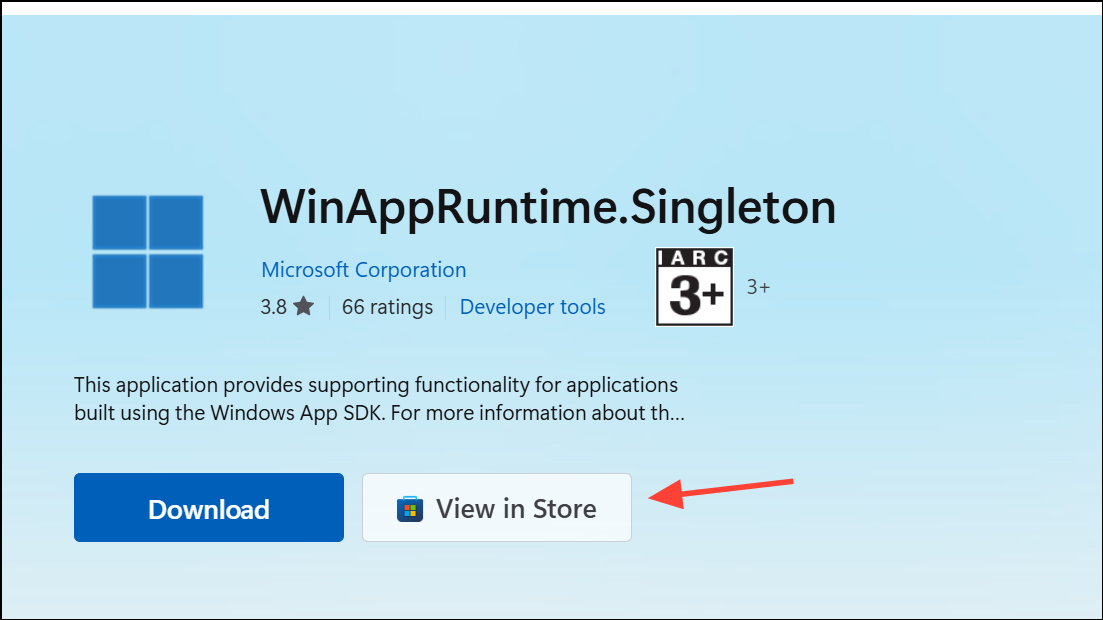
Method 2: Install the Latest Windows App SDK
Corrupted or outdated Windows App SDK components can prevent Store apps from updating or installing. Installing the latest SDK can restore essential files and dependencies.
Method 3: Repair System Files and Reset Microsoft Store
System file corruption can disrupt Microsoft Store operations. Running repair utilities and resetting the Store can resolve underlying system issues.
dism.exe /online /cleanup-image /restorehealth
dism.exe /online /cleanup-image /startcomponentcleanup
sfc /scannow
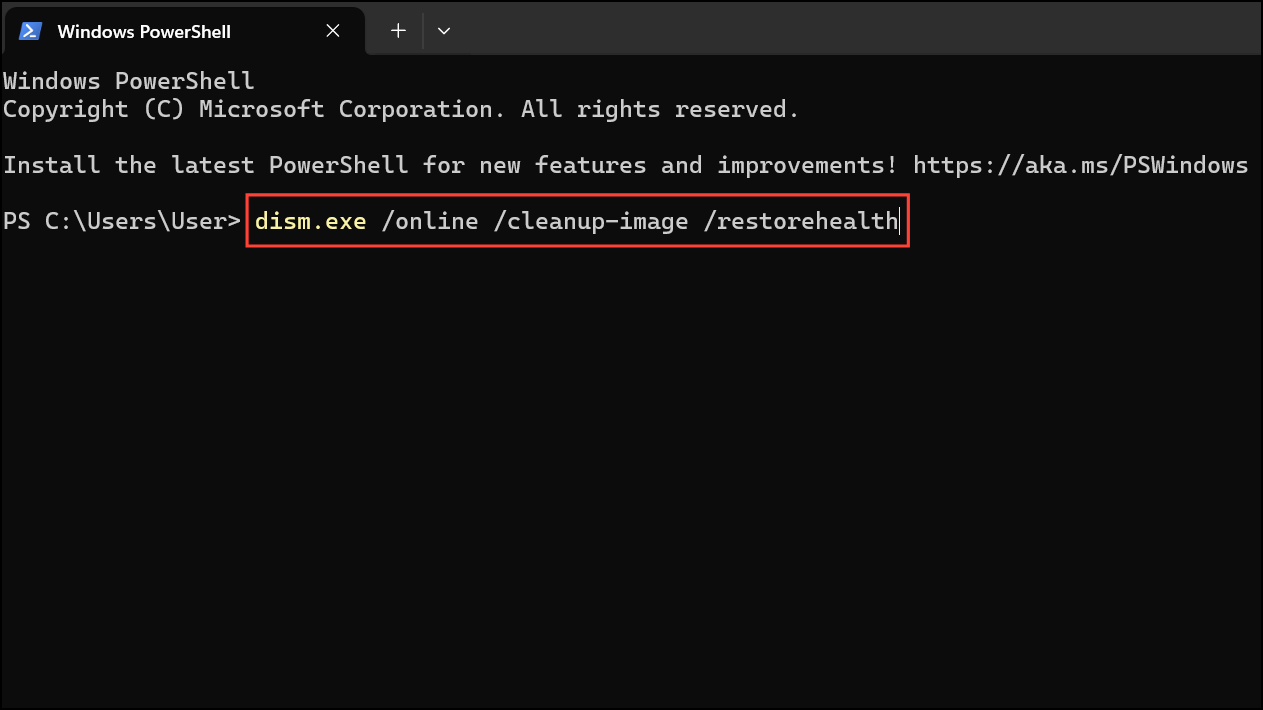
These commands scan for and repair corrupted Windows system files and servicing components.
Method 4: In-Place Upgrade (Repair Install) of Windows
When app and system repairs fail, performing an in-place upgrade reinstalls Windows system files while preserving your data and most installed applications. This process can resolve persistent or unfixable Store issues without a full reset.
- For Windows 10: Windows 10 Download Page.
- For Windows 11: Windows 11 Download Page.
Additional Troubleshooting Steps
For less severe or specific issues, consider these approaches:
- Reset or Repair Individual Apps: Go to Settings > Apps > Installed Apps. Select the problematic app, click Advanced options, then choose Repair or Reset.
- Clear Store Cache: Press
Win+R, typewsreset.exe, and press Enter. This clears the Store cache and may resolve minor glitches. - Check Network and DNS Settings: Change your DNS to Google’s (8.8.8.8 and 8.8.4.4) or Cloudflare’s (1.1.1.1) in network adapter settings. Some users report this resolves Store connectivity issues.
- Reset Network Settings: In Settings > Network & Internet > Advanced network settings, use Network reset to refresh all network adapters and settings.
- Reinstall Microsoft Store via Xbox App: If the Store is missing, installing the Xbox app from Microsoft’s website sometimes reinstalls the Microsoft Store as a dependency.
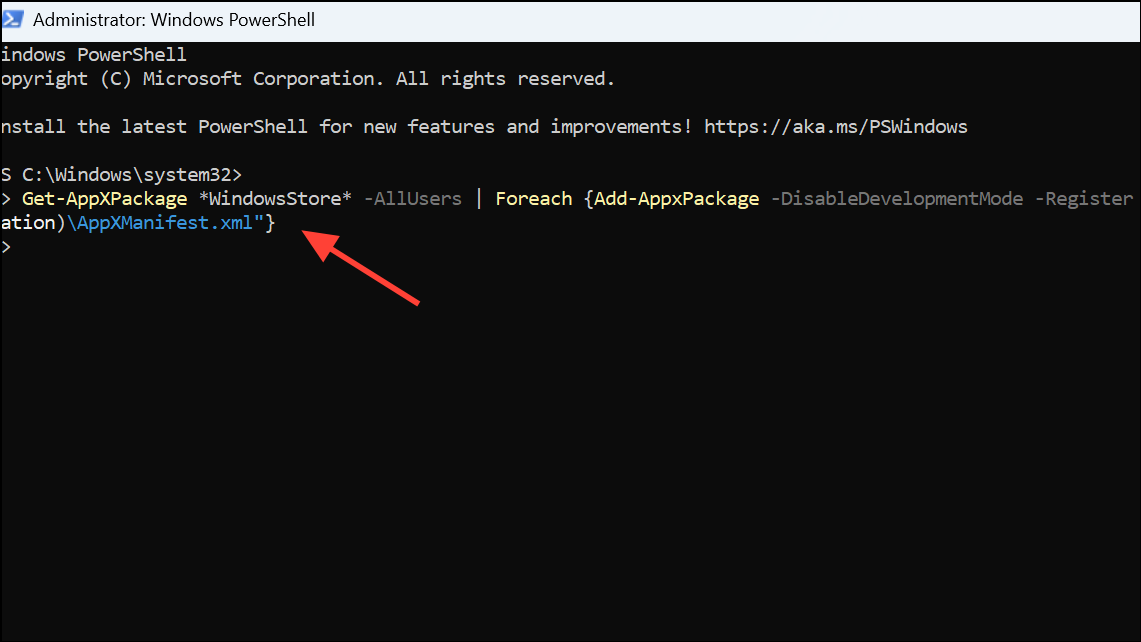
Re-register Microsoft Store: Open PowerShell as administrator and run:
Get-AppXPackage *WindowsStore* -AllUsers | Foreach {Add-AppxPackage -DisableDevelopmentMode -Register "$($_.InstallLocation)\AppXManifest.xml"}
Applying these targeted methods restores Microsoft Store app functionality after a system upgrade, letting you update, install, and launch apps without persistent errors. If problems continue, a repair install nearly always resolves even the most stubborn cases.





