
With the discontinuation of Internet Explorer on June 15, 2022, many organizations still rely on legacy websites and applications built specifically for IE. Microsoft Edge addresses this need by offering an Internet Explorer (IE) mode, allowing users to access these older sites without interruption.
Enabling IE Mode in Microsoft Edge
ALT + F on your keyboard to open the menu.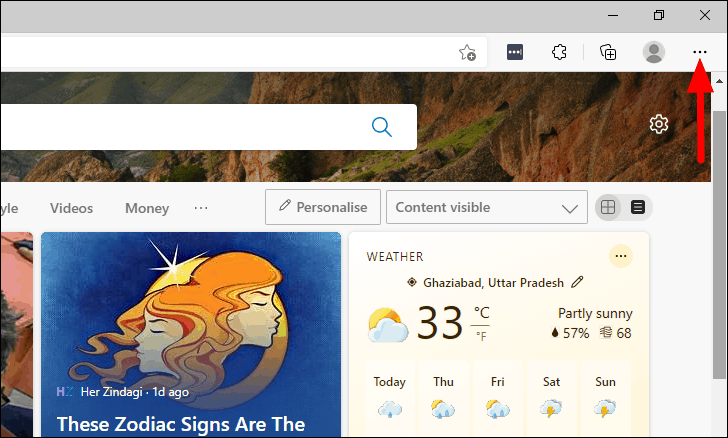
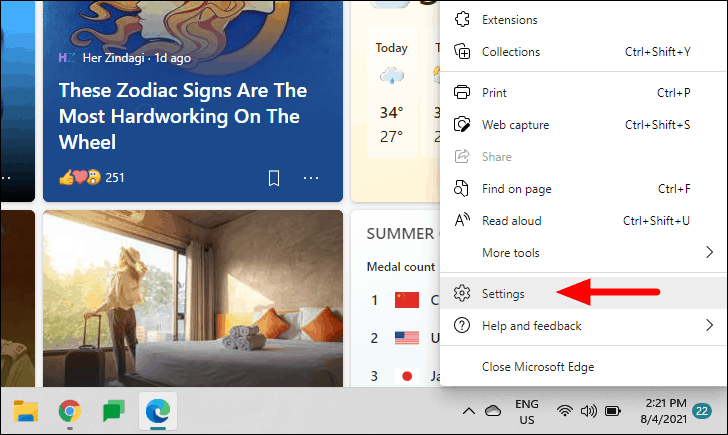
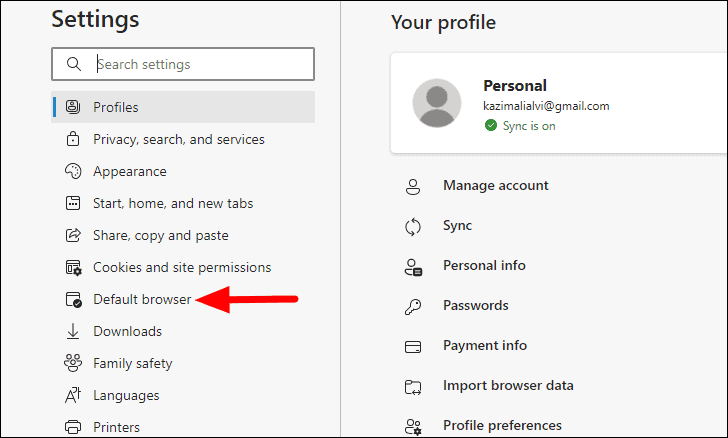
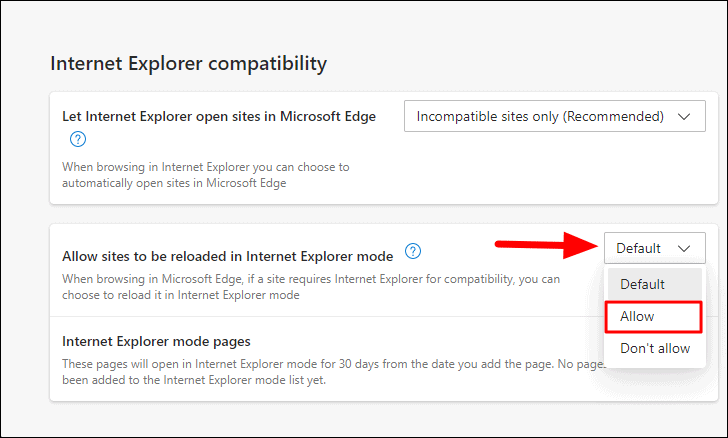
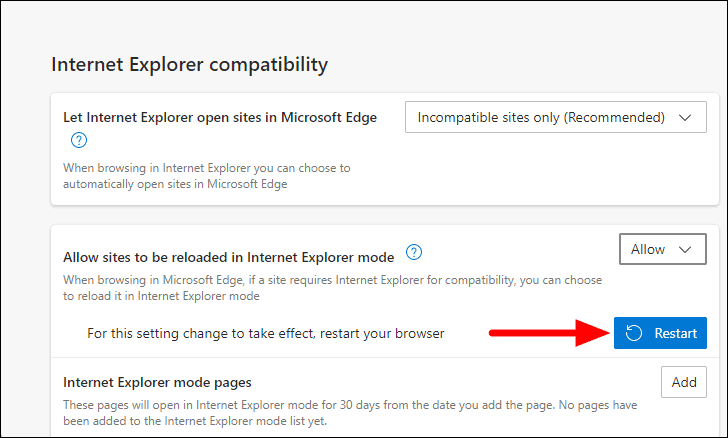
Loading a Website in IE Mode on Edge
After enabling IE mode, you can open websites that require Internet Explorer compatibility.
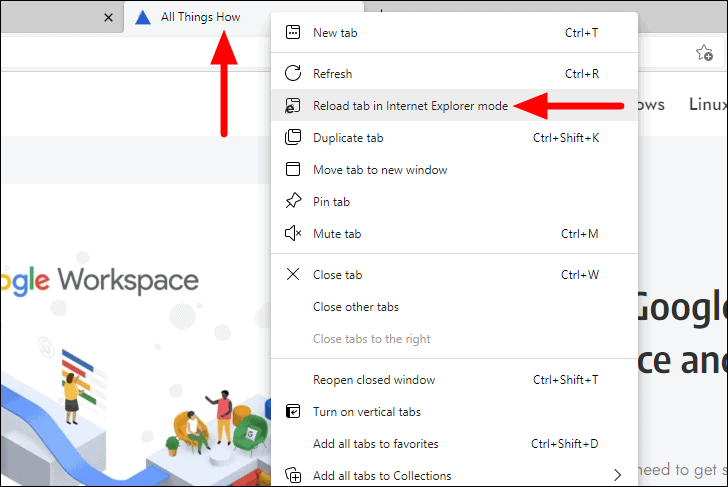
Once the page reloads, you’ll notice the Internet Explorer icon displayed on the left side of the address bar, indicating that the page is now in IE mode. A notification may appear; click ‘Done’ to dismiss it.
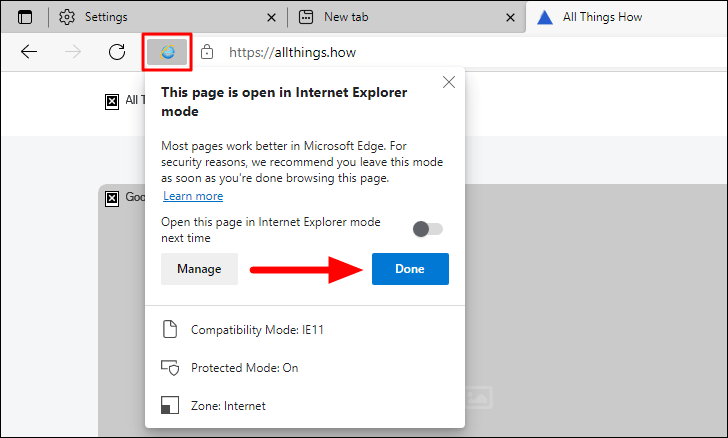
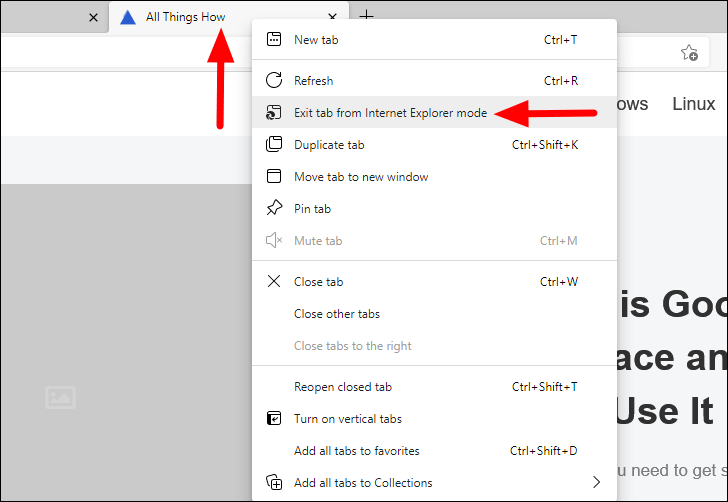
Exiting IE Mode: If you wish to exit IE mode for the website, right-click on the tab again and choose ‘Exit tab from Internet Explorer mode’ from the menu.
Setting a Website to Always Open in IE Mode
Switching to IE mode manually every time can be tedious, but you can configure Edge to always open specific websites in IE mode for a set period.
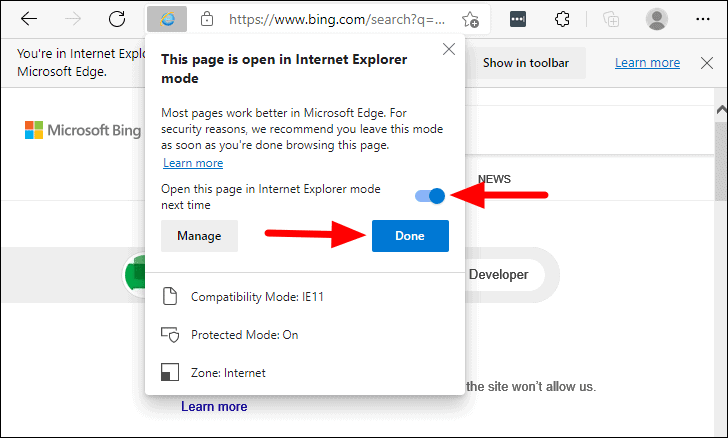
The website will now automatically open in IE mode for the next 30 days.
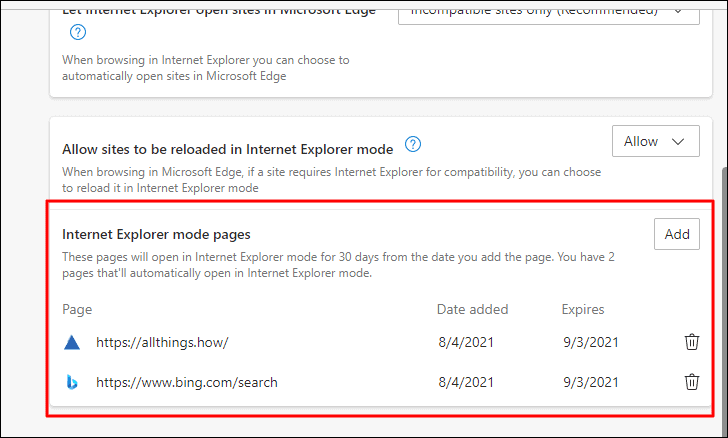
Managing IE Mode Pages: You can view and manage the list of websites set to open in IE mode by returning to the ‘Default browser’ settings. Under ‘Internet Explorer mode pages’, you’ll see the URLs along with the dates they were added and when they will expire.
By utilizing Microsoft Edge’s IE mode, organizations and users can seamlessly access legacy websites and applications without disruption, ensuring continued productivity even after the end of Internet Explorer.





