

Live Photos bring your memories to life by capturing the moments just before and after you snap a picture on your iPhone. While enjoying these dynamic images is effortless on an iPhone, viewing them on a Windows PC isn’t as straightforward due to compatibility issues. Fortunately, there are ways to access and enjoy your Live Photos on a Windows computer. This guide will walk you through the most effective methods to view and transfer Live Photos to your PC.
Use iCloud Photos to View Live Photos
One of the simplest ways to view your Live Photos on a Windows PC is by using iCloud Photos. If you have iCloud Photos enabled on your iPhone, your photos are automatically uploaded to iCloud, allowing you to access them from any device with an internet connection.
There are two ways to use iCloud Photos on your Windows PC: accessing them online through a web browser or by installing the iCloud for Windows app. Accessing them online is quick and easy, especially if you don’t plan on using iCloud Photos frequently on your PC.
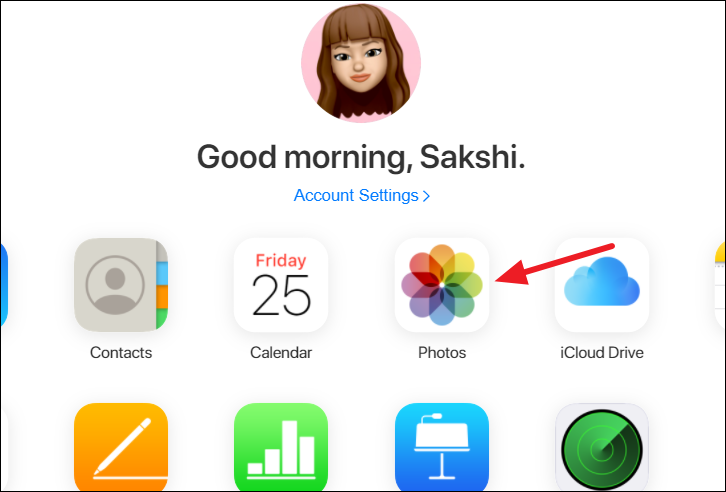
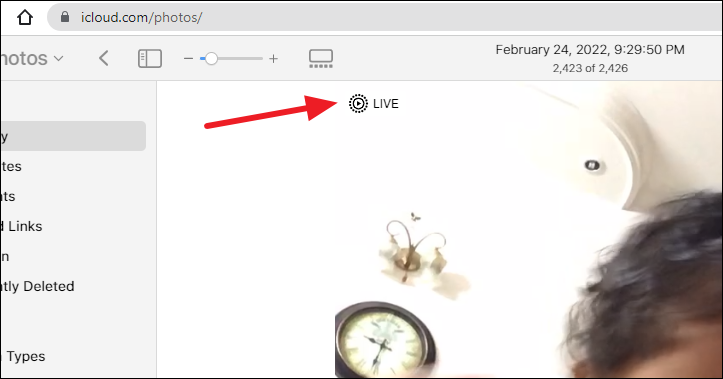
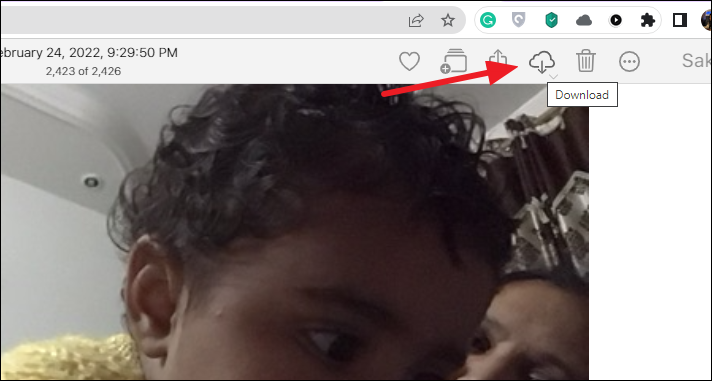
Using iCloud Photos online is beneficial because your photos appear in chronological order, making it easier to find specific images. If you need to access your iCloud Photos more frequently, consider installing the iCloud for Windows app, although it might not organize photos as conveniently.
Use USB Cable to Transfer Live Photos to a Windows PC
Another method to view your Live Photos on a Windows PC is by transferring them directly using a USB cable. When you capture a Live Photo on your iPhone, it saves two files: a JPEG image and a MOV video file. Here’s how you can transfer them:
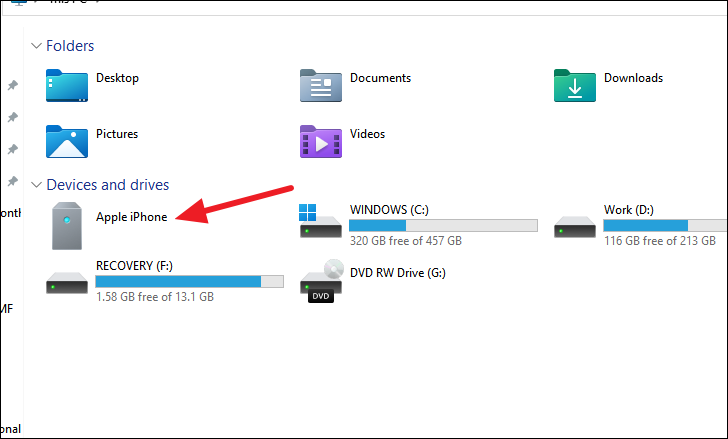


Note that this method might be less efficient if you have numerous photos, as locating specific Live Photos can be time-consuming due to the folder organization.
Convert Live Photos to GIF Files
Converting your Live Photos to GIFs allows you to view them on a Windows PC while preserving their animated quality. Here’s how you can do it:

Keep in mind that converting to GIF may reduce the image quality slightly, and the GIF won’t include audio. Additionally, some apps may add a watermark unless you upgrade to a premium version.
By utilizing these methods, you can effectively view and enjoy your iPhone Live Photos on a Windows PC. While the process isn’t always seamless due to platform differences, these solutions ensure you can keep your animated memories accessible across devices.



