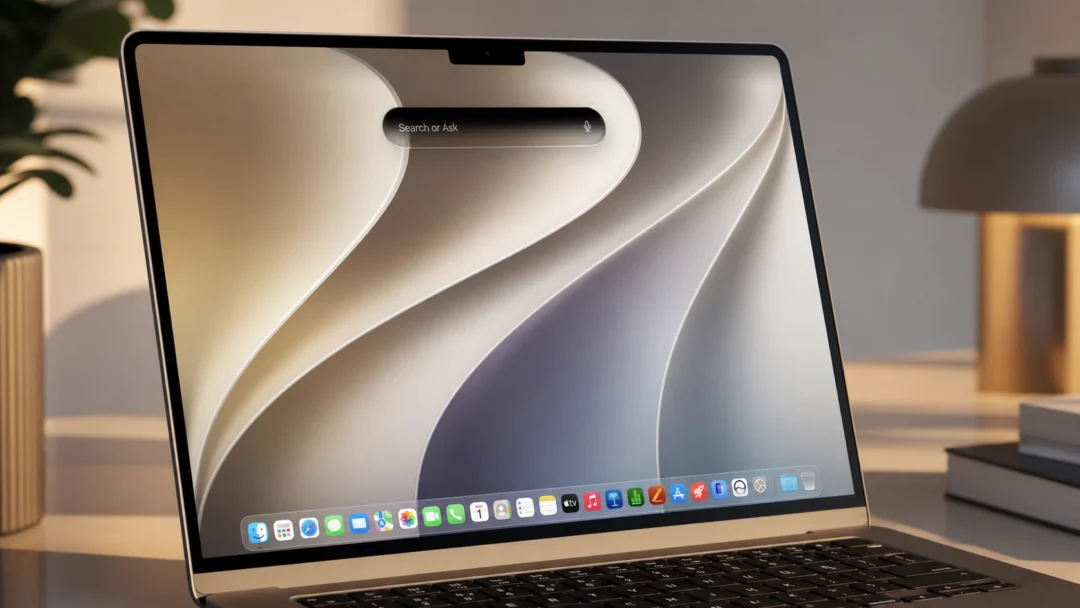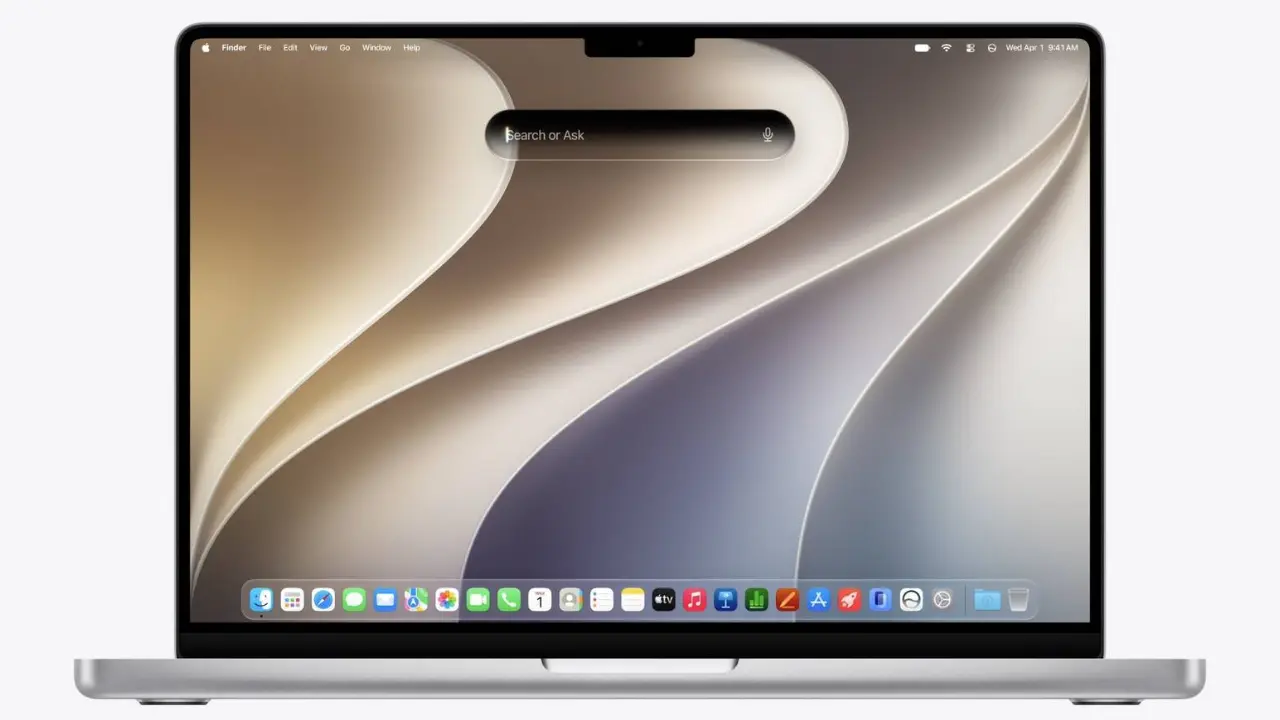
macOS 27 arrived at WWDC 2026 with a fresh default desktop background called Golden Gate, and it sets the visual tone for the whole release. The design leans on sweeping, overlapping curves and soft drop shadows that look like folded paper or layered flower petals, the same look carried across iOS 27. Across the wide canvas, the color shifts from warm, sandy gold and beige on the left into soft greys and deep indigo on the right.
Quick answer: Install the macOS 27 developer beta to get Golden Gate as your default wallpaper, or save the image file and set it manually through System Settings → Wallpaper → Add Photo.
Golden Gate wallpaper resolutions and variants
Golden Gate ships in two appearances that match macOS light and dark modes, plus two resolutions so the file fits both a Mac’s Retina display and standard external monitors. The native file is the sharpest option for built-in Mac screens, while the 4K version covers most regular displays without cropping.
| Version | Resolution | Best for |
|---|---|---|
| Golden Gate (Light), native | 4480 x 3088 | Retina Mac displays |
| Golden Gate (Light), 4K | 3840 x 2160 | External and standard monitors |
| Golden Gate (Dark) | 4480 x 3088 | Dark mode desktops |
The light and dark files are separate images. If you want the background to switch with system appearance automatically, add both to your wallpaper library and pick the dynamic option in settings.


Set the Golden Gate wallpaper on a Mac
You’ll know it worked when the desktop shows the new curved gradient and the thumbnail appears as the active selection at the top of the Wallpaper settings panel. For setups with more than one display, macOS 27 lets you assign a different wallpaper to each screen.
Use Golden Gate on other devices
The image isn’t locked to macOS 27. You can set it as a background on a Windows PC, an older Mac that can’t run the new release, or a tablet. On those devices, use the system’s own wallpaper settings and choose a “fill” or crop option so the wide 4480 x 3088 frame fits your screen’s shape.
Tip: On a phone or square display, the desktop crop will trim the sides. Picking “fill” keeps the central curves in frame instead of stretching the image.
Which Macs can run macOS 27
macOS 27 will be available this fall as a free software update for compatible Apple Silicon Mac models. If your Mac can install the update, Golden Gate comes built in as the default desktop background, so you don’t have to download anything separately to use it.
Until the public release lands, the wallpaper is available through the first developer beta. Saving the image file is the simplest route if you want the look now without moving your main machine onto beta software.