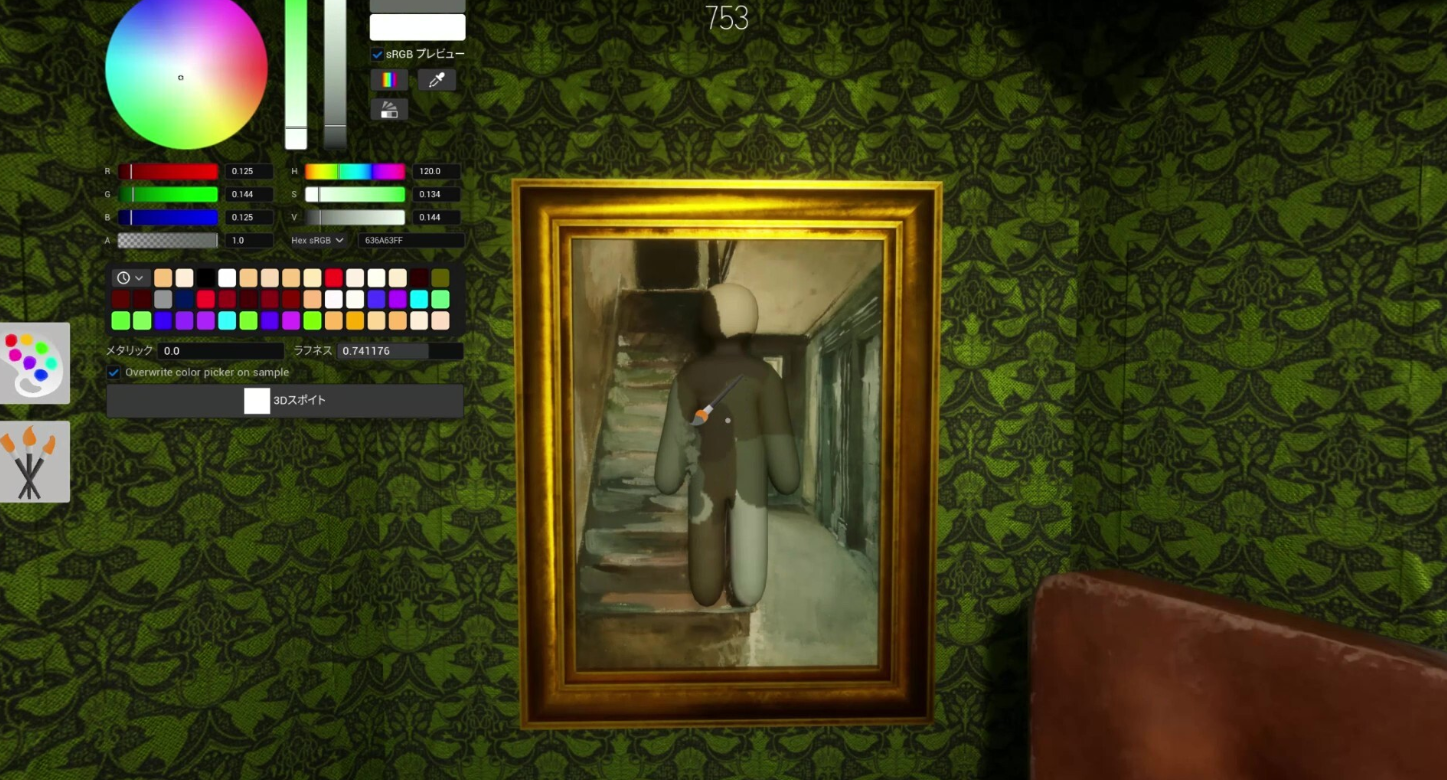
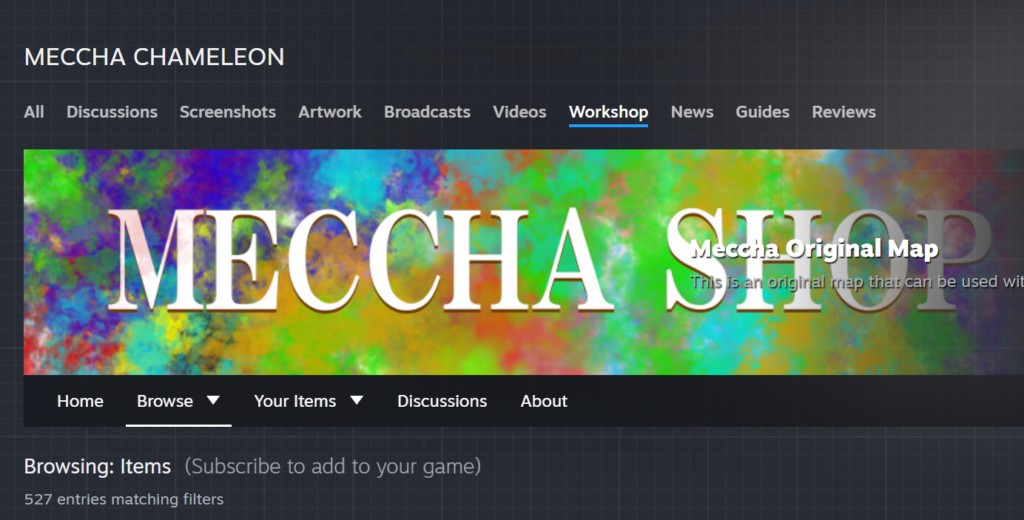
The red magnifying glass in Meccha Chameleon is a Steam Workshop shortcut. When you hover over a map thumbnail in the Workshop, a magnifying glass icon appears, and clicking it opens a small pop-up where you can subscribe to that map without leaving the page you are on.
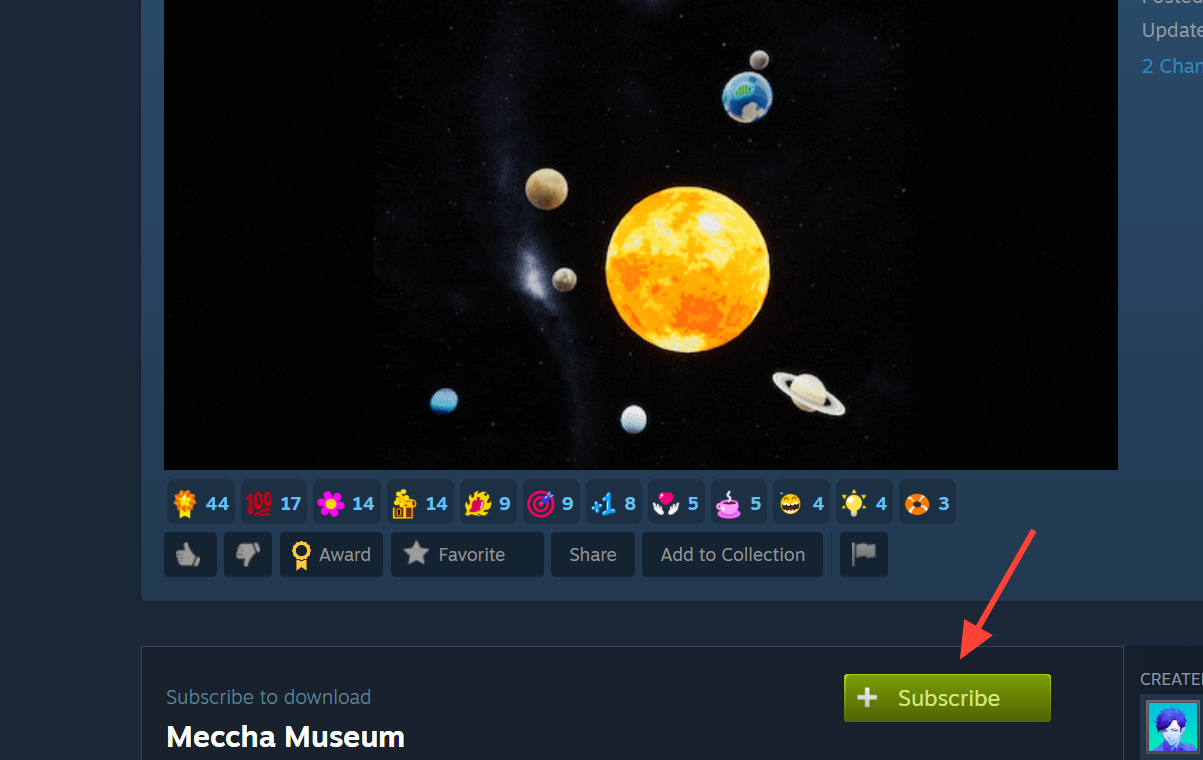
Quick answer: Hover over any Meccha Chameleon map in the Steam Workshop, click the magnifying glass icon, then hit Subscribe in the pop-up that appears. The map downloads and shows up in your custom map list.
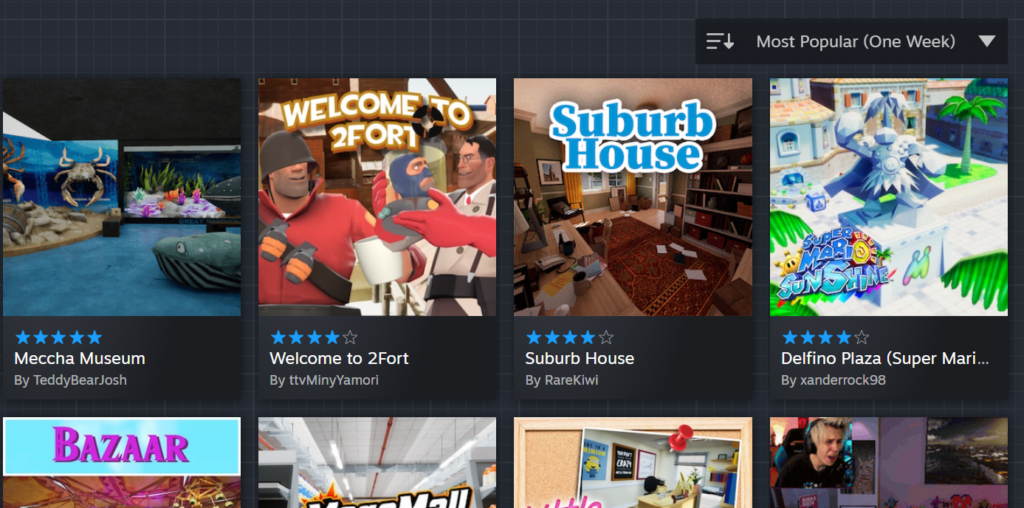
When you see the magnifying glass
The icon becomes useful when the normal way of adding a map fails. If Steam shows the message “You’ve made too many requests recently,” you can skip the standard flow and use the magnifying glass instead. It gives you the same subscribe option through a lightweight pop-up rather than loading a full page for the map.
This matters because custom maps in Meccha Chameleon are handled through the Steam Workshop. Subscribing to a map is what tells the game to download it and make it available when you host or join a match.
Subscribe to a custom map using the magnifying glass
How to confirm the map was added
Once you subscribe, the button in the pop-up switches to a subscribed state, and Steam begins downloading the map in the background. The map then appears in your custom map selection inside Meccha Chameleon, ready to load when you set up a match.
If a map does not show up in game, give Steam a moment to finish the download, then check that the subscription is still active in your Workshop items.
The request error and why the icon helps
The “You’ve made too many requests recently” message appears when Steam temporarily limits how often you can load Workshop pages. The magnifying glass pop-up avoids opening those full pages, so it acts as a workaround when the standard subscribe path is blocked.
| What you see | What it means |
|---|---|
| Red magnifying glass on hover | Quick subscribe pop-up for that map |
| “You’ve made too many requests recently” | Steam is rate-limiting page loads; use the magnifying glass instead |
| Subscribed state in pop-up | Map is queued and will download |
In short: , the red magnifying glass is not a special game mechanic or a hidden feature inside Meccha Chameleon itself. It is a Steam Workshop control that lets you add custom maps quickly, and it is the reliable way to keep subscribing when the request limit gets in your way.