The “Connection timed out: getsockopt” message shows up in Minecraft Java Edition when your game tries to reach a server or LAN world and the handshake never completes. It is a network problem, not a broken account, a corrupted world, or a missing mod. Your computer asks the operating system for the status of a socket connection, gets no valid reply in time, and the join attempt fails.
Quick answer: Allow the Minecraft Launcher, javaw.exe, and Java Platform SE binary through Windows Defender Firewall on both Private and Public networks, then rejoin. If it persists, flush your DNS and switch to Google DNS (8.8.8.8 / 8.8.4.4).
What triggers the getsockopt error
Minecraft Java Edition uses Java sockets to talk to multiplayer servers over TCP port 25565 by default. When that conversation is blocked, delayed, or sent to the wrong place, the connection is cut before it finishes and the error appears. A “Connection refused: getsockopt” variant means the target actively rejected the request. The common causes are consistent across setups.
| Cause | Typical sign |
|---|---|
| Firewall or antivirus blocking Java | Instant failure, often after a Java update |
| Wrong IP address or port | Fails on one saved server only |
| Stale DNS or network socket | Server worked before, now times out |
| ISP routing or NAT restrictions | Error on every server |
| VPN or proxy rerouting | Works only with the VPN off |
| Missing port forwarding | Only affects a self-hosted server |
Before changing anything, confirm the server is actually online and that your Wi-Fi is working. A quick router restart clears many temporary faults without touching a single setting.
Allow Minecraft and Java through Windows Firewall
Windows Defender Firewall or third-party antivirus software frequently blocks Java’s outgoing traffic, which is the most common reason for this error. Whitelisting the right executables usually restores the connection immediately.
javaw.exe or Java Platform SE binary, and tick both the Private and Public checkboxes. Many Java entries repeat, so check every one you find.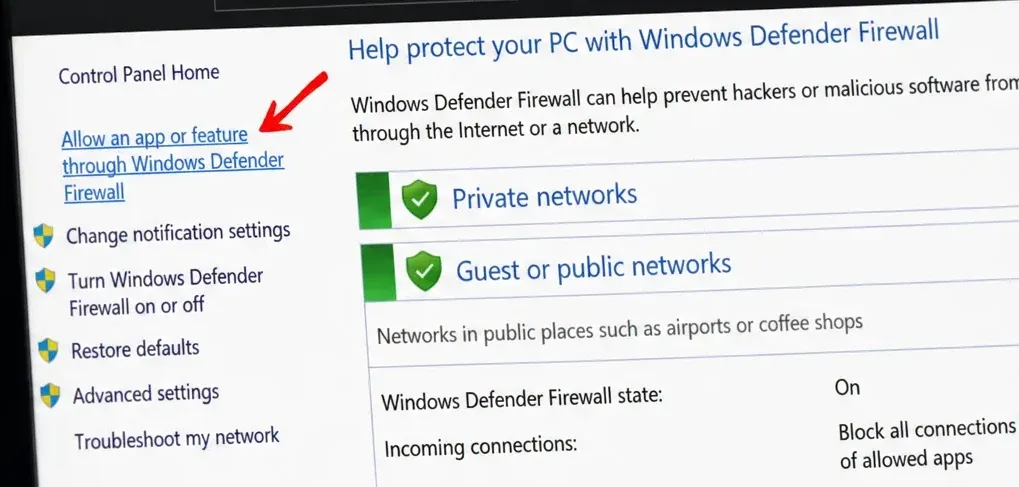
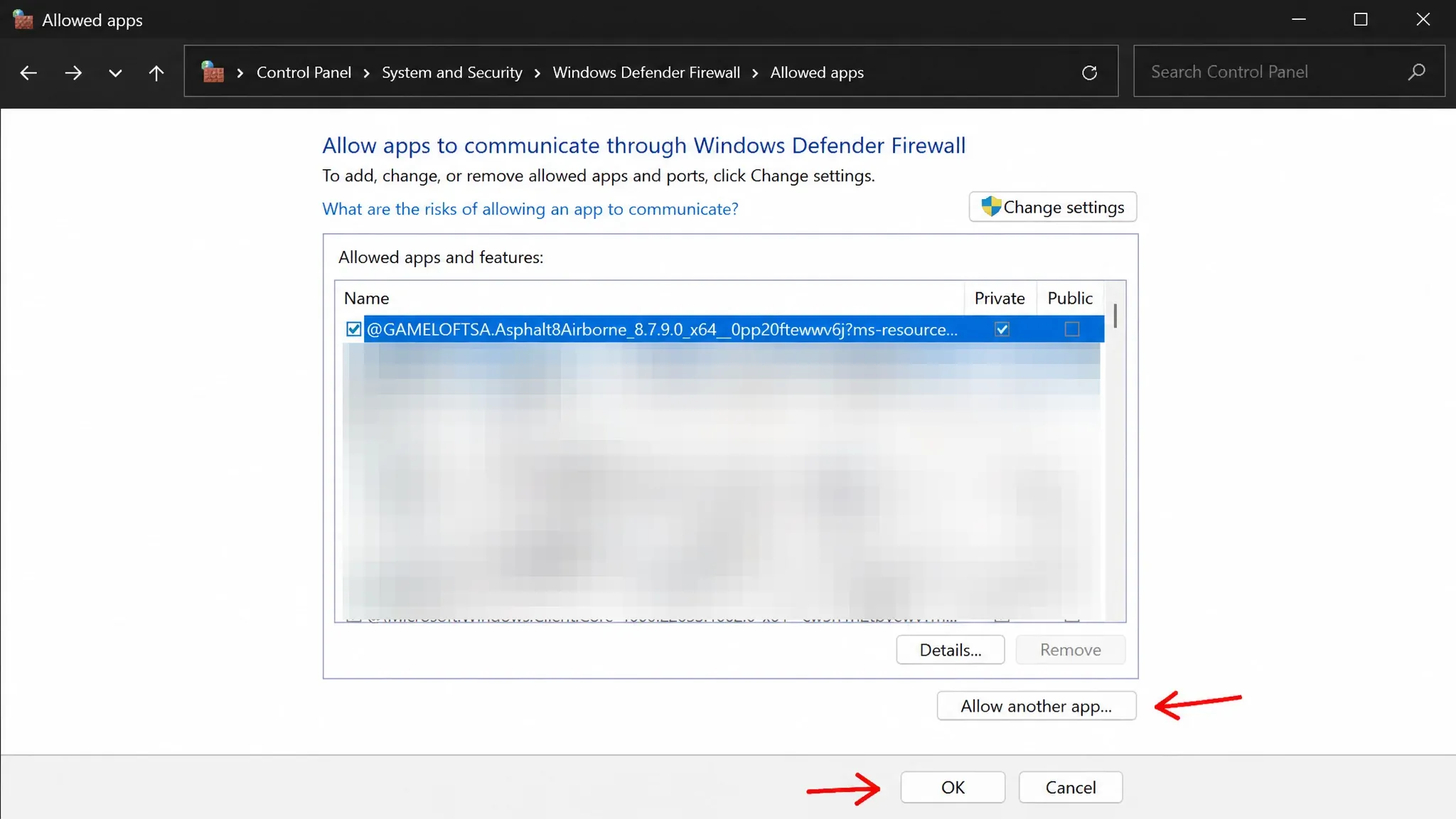
Save the changes and try to join again. You will know it worked when the world loads instead of returning the timeout message. If you must test whether security software is the culprit, you can temporarily turn the firewall off through Turn Windows Defender Firewall on or off, but switch it back on the moment you finish playing to keep your PC protected.
Double-check the server address and port
A single typo in the IP, subdomain, or port breaks the connection instantly. Copy the address again and remove any extra spaces. Java servers commonly use port 25565, but hosted servers often run on a custom port, so keep the full address including the colon and numbers, for example play.example.net:25570.
If a saved server entry keeps failing, use the Direct Connection button in the Multiplayer menu. This bypasses stale saved data and often connects when the server list does not. When joining a friend’s hosted world, make sure you are using their public IP rather than a local network address.
Refresh your network stack and adapter
Corrupted DNS records or a stuck socket can misdirect or delay your connection request. Resetting the local network configuration clears that state.
ipconfig /flushdns
netsh winsock reset
netsh int ip resetYou can also give the adapter itself a quick refresh. Press Win + R, type ncpa.cpl, and press Enter. Right-click your active adapter, choose Disable, then right-click again and choose Enable. This renews the connection to your router and often clears the error on its own.
Switch to Google DNS (8.8.8.8)
If your default DNS is slow or unreliable, pointing your adapter at Google’s public DNS can stabilize the connection to Minecraft servers.
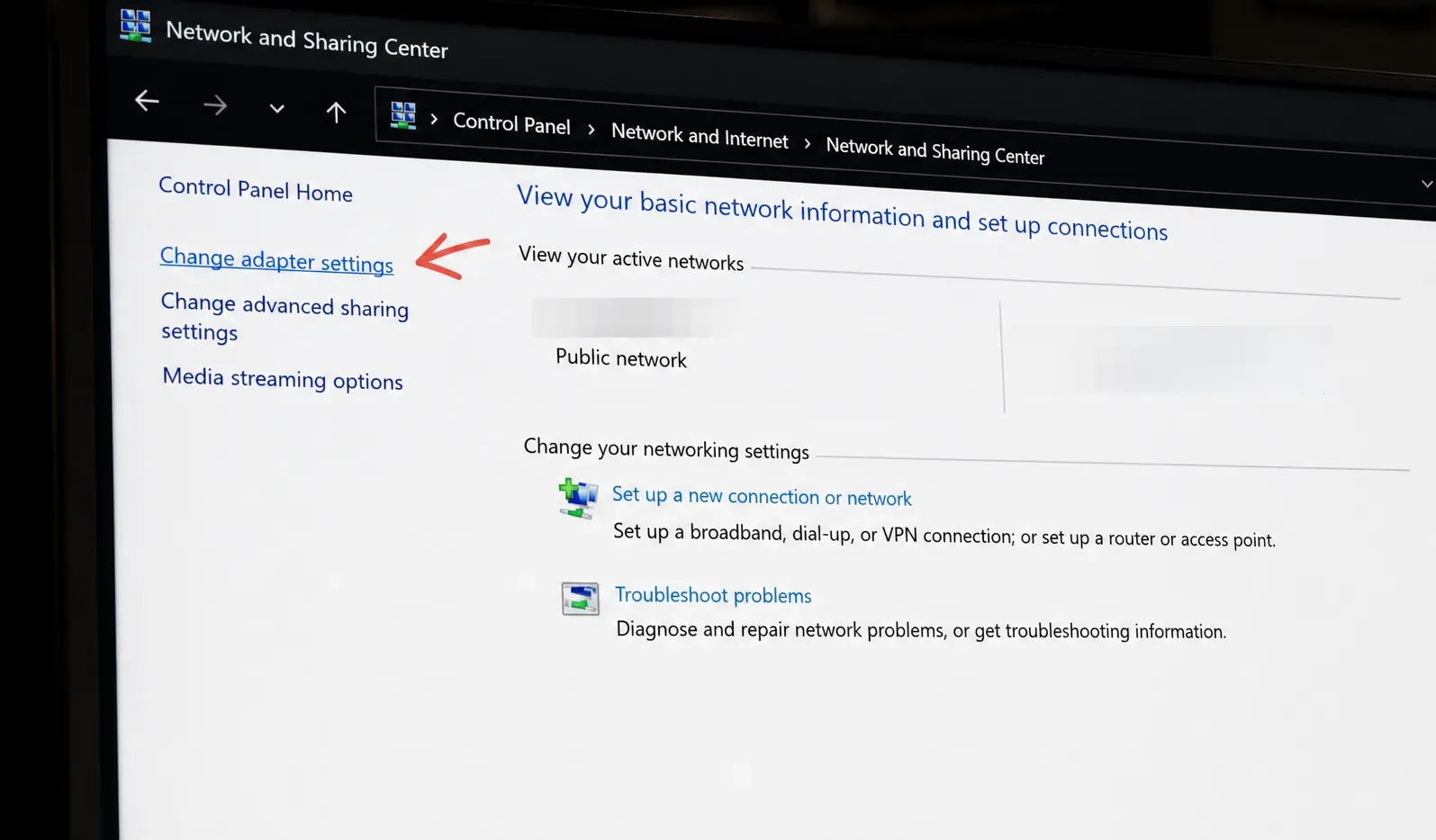
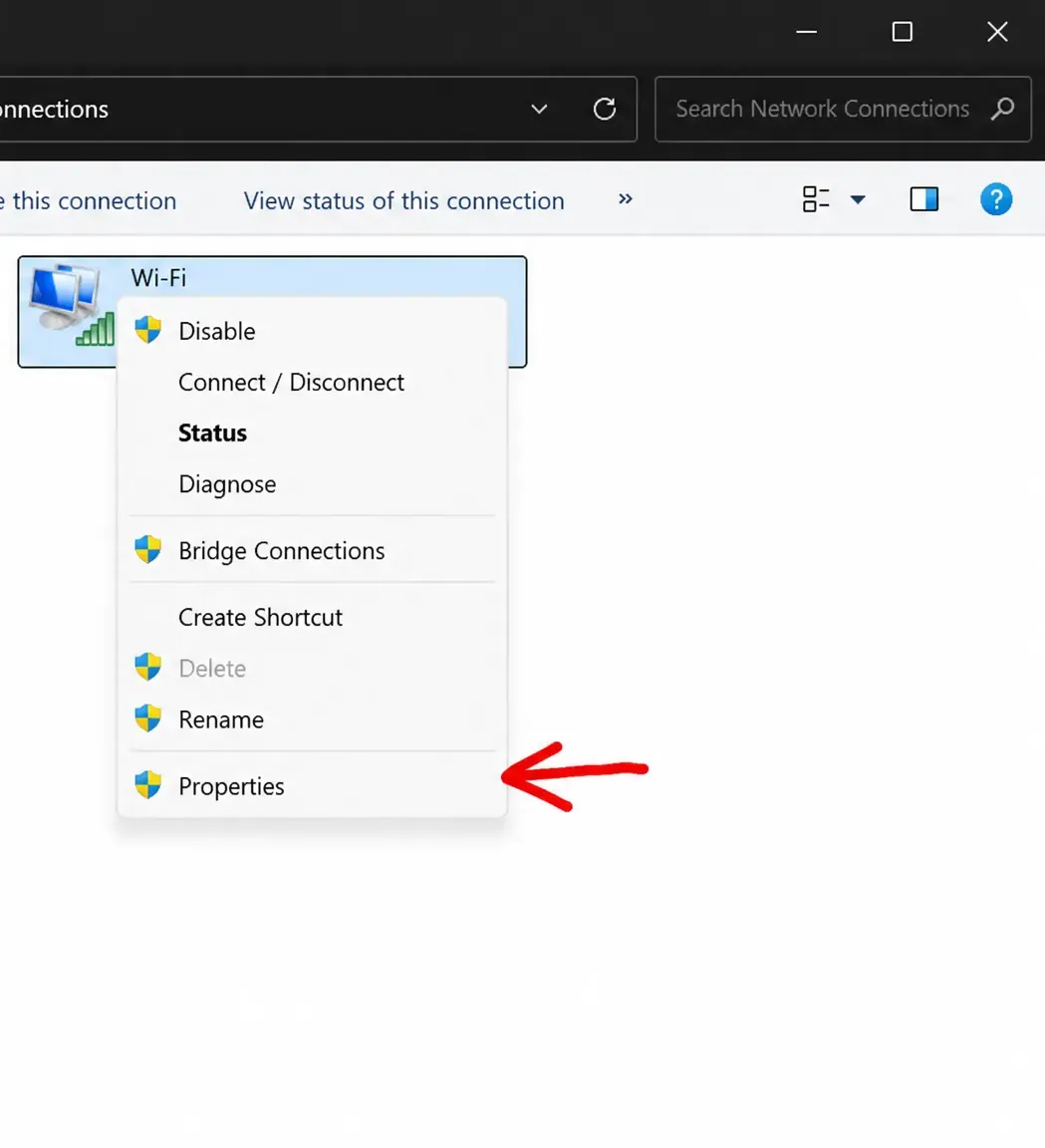
8.8.8.8 and the Alternate server to 8.8.4.4, then click OK and restart your PC.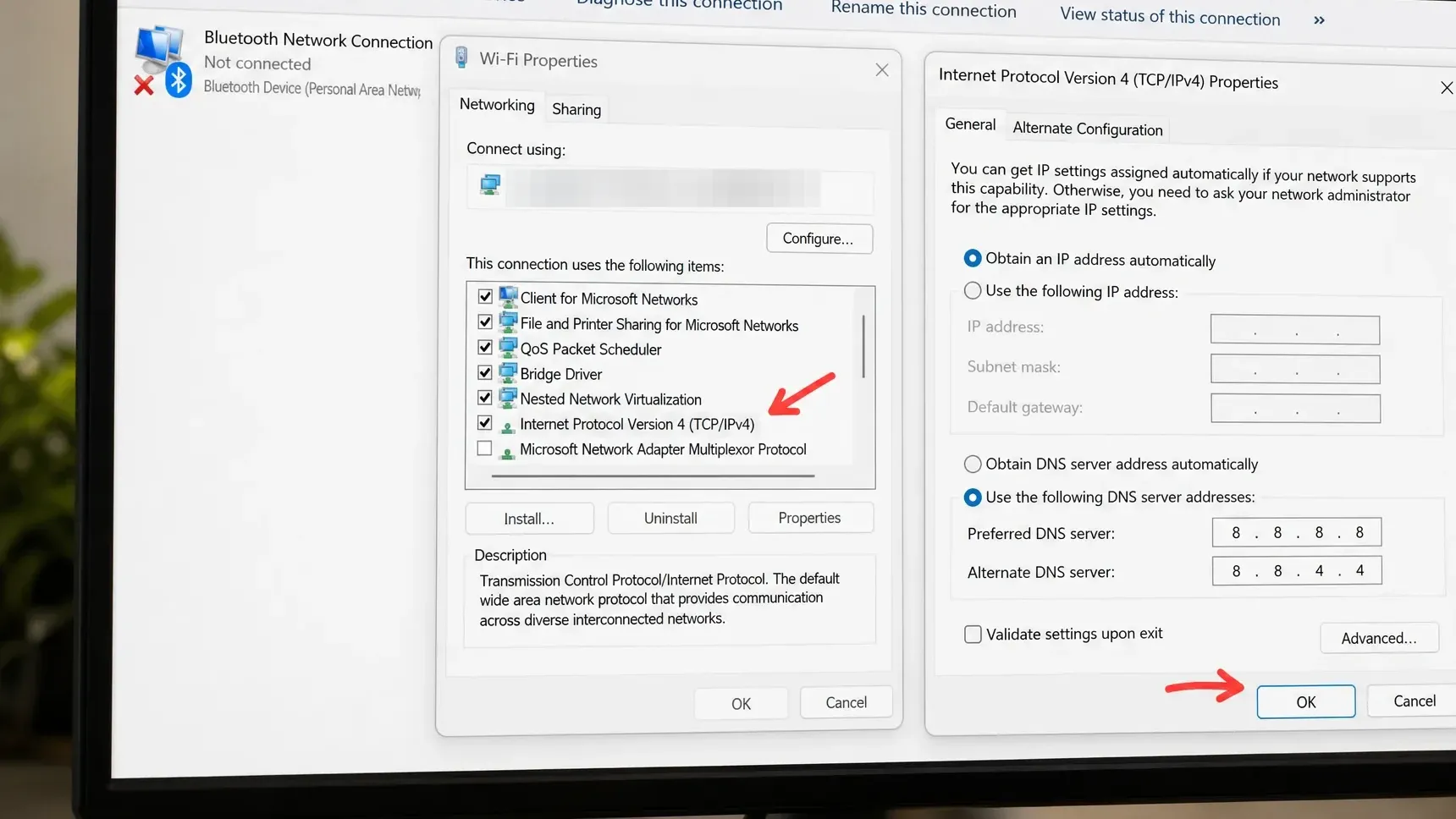
Fixing getsockopt on LAN worlds
LAN play depends on both computers reaching each other on the same local network, so a mismatch breaks the connection quickly. If one device is on a guest network or a different router, the join will fail. The host machine matters just as much as yours.
- Both devices are connected to the same network.
- The host PC allows Java through its firewall.
- The network profile is set to Private, not Public.
- Both players run the exact same Minecraft version.
- The host keeps the world open to LAN while the second player joins.
When joining, use the host’s IPv4 address and the five-digit port shown in their Minecraft chat after they click Open to LAN, for example 192.168.1.5:54321. If it still fails, restart both devices and reopen the world.
Test another network and disable VPNs
If the error appears on every server, the problem usually sits with your connection rather than the game. Try a mobile hotspot. When the server works on the hotspot but not on your home Wi-Fi, your router, ISP, or local network settings are the likely cause. School, work, hotel, and public networks often block Minecraft traffic outright.
VPNs and proxy services reroute your traffic and can break the handshake. Turn any VPN off and test again. If the server only connects with the VPN disabled, keep it off while you play.
Hosting a server: port forwarding and ISP checks
Port forwarding only matters when you host a server that players outside your local network need to reach. Inbound traffic on the Minecraft port must be forwarded to your device, otherwise external players cannot connect. If you already have a forwarding rule and still see the error, delete the old rule and recreate it to clear any stale socket data.
Some ISPs apply strict NAT policies or block ports, and CGNAT layers can prevent external connections to a home server entirely. If nothing else resolves it, contact your ISP, mention the getsockopt error by name, and ask them to check for blocked ports or network-level filters.
Reinstalling the game should be your last resort, since this error almost always comes from the network rather than the installation. If you have worked through the firewall, address, DNS, and network resets without success, back up your saves first, then file a report through Minecraft support so Mojang Studios can investigate. In most cases, though, allowing Java through the firewall or refreshing your DNS is enough to get you back into the world.