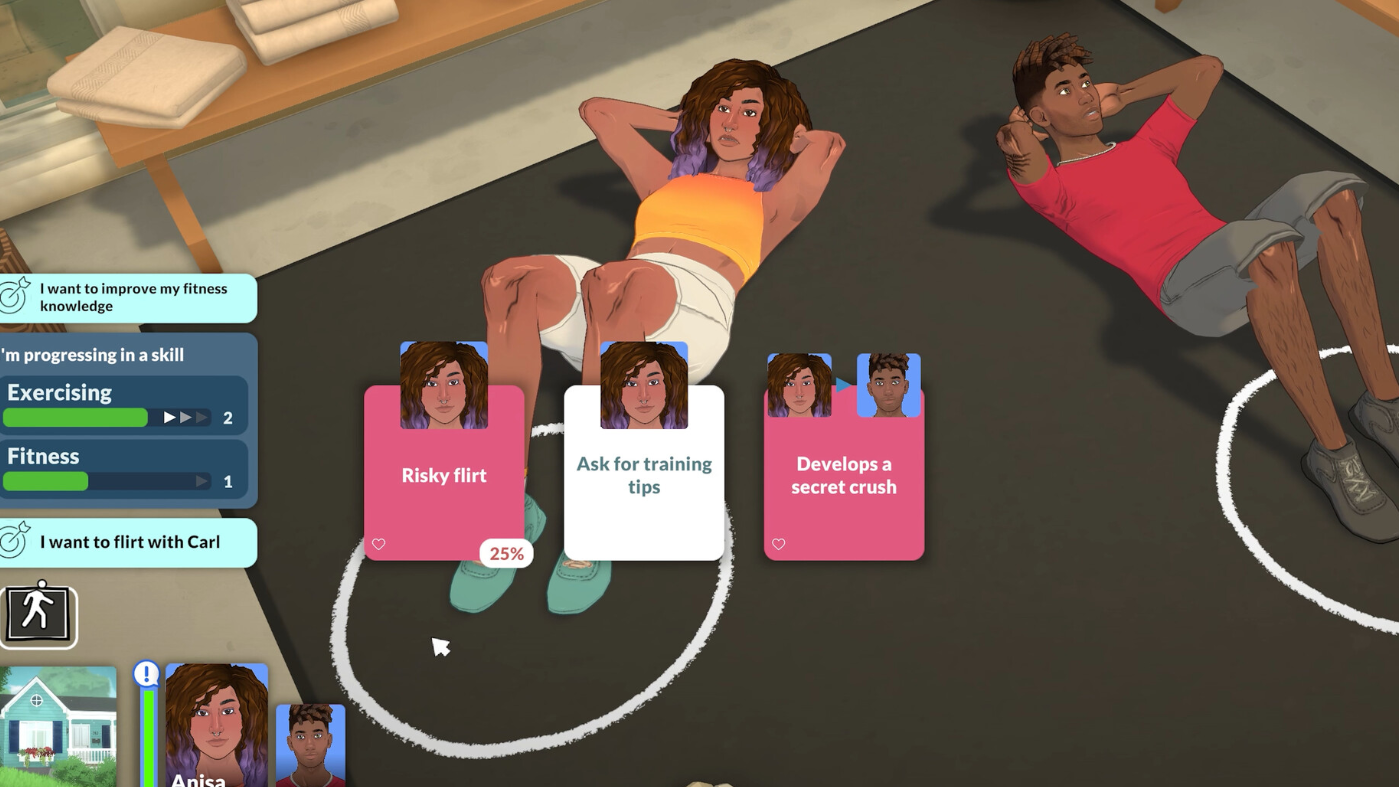
Paralives moves the camera with the keyboard and mouse, and the defaults follow the layout most life sim players already know. You pan with the movement keys, pivot with two side keys, and zoom with the scroll wheel. The controls feel rough out of the box for some players, but two settings fix most of the discomfort without any mods.
Paralives default camera controls (keyboard and mouse)
The camera shares space with build, live, and time controls, so it helps to know exactly which keys move the view versus the household. These are the default bindings on PC.
| Action | Default input |
|---|---|
| Move camera | W / A / S / D |
| Move camera (alternate) | Arrow keys |
| Pivot camera | Q / E |
| Zoom | Scroll wheel |
| Zoom (alternate) | – / = |
| Center camera on Para | F |
| Rotate the view with the mouse | Right mouse movement |
Right mouse movement rotates the camera, which is the smoothest way to swing the view around a lot while building. Pressing F snaps the camera onto the currently selected Para, which is the fastest way to recover when you have panned too far across town.
Fix fast or jittery camera panning (lower sensitivity)
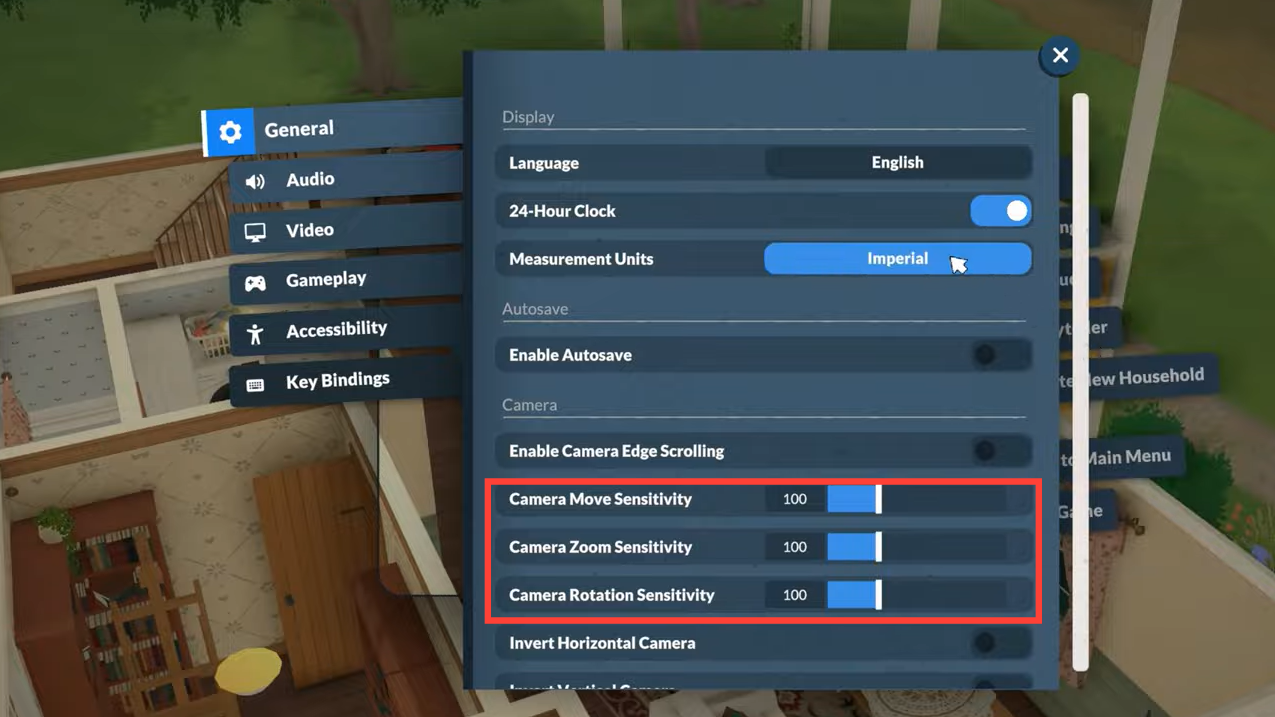
The most common complaint is that movement keys throw the camera too far, making it hard to frame a single room or apartment. Reducing the camera sensitivity value solves most of that. A setting near 50 keeps panning controlled while still letting you cross a lot quickly.
This does not change how the camera handles sloped terrain, which can still feel imprecise, but it removes the worst of the overshooting.
Mirror the camera to match the Sims
If the rotation direction feels backwards compared to what you are used to, Paralives includes a mirror camera option. Turning it on flips the camera behavior so it matches the direction the Sims uses, which makes the transition far less jarring for longtime players.
You will find the toggle in the Settings menu alongside the other camera options. After enabling it, rotating and panning will follow the orientation you expect rather than the Paralives default.
Turn on cursor edge scrolling
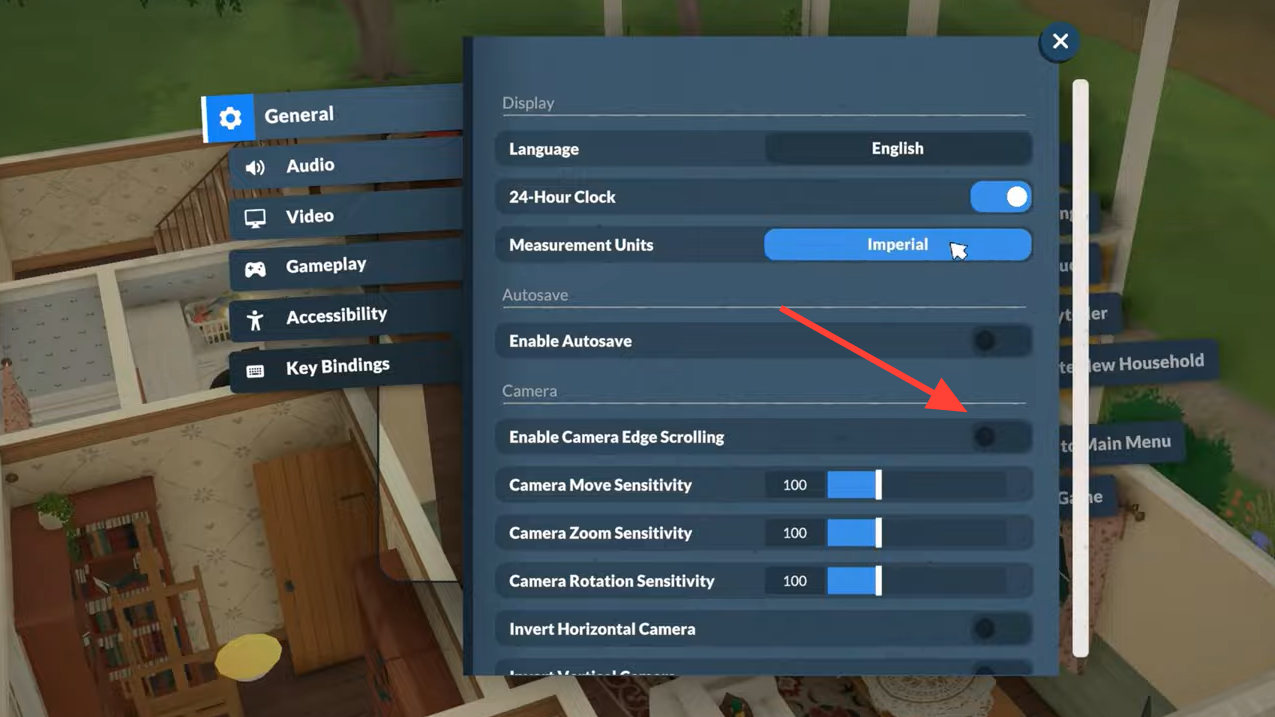
Players who prefer the classic life sim feel can enable cursor edge scrolling in Settings. With it on, moving the mouse pointer to the edge of the screen pushes the camera in that direction, so you can navigate without relying on the movement keys at all. It is optional and off by default.
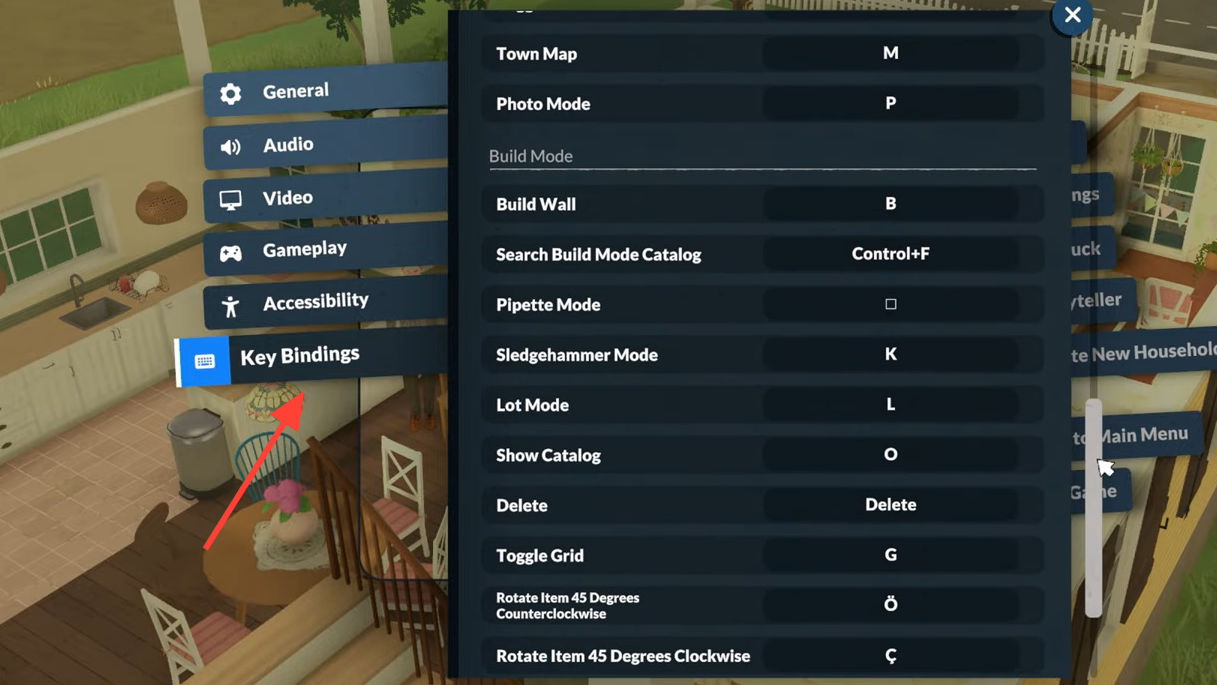
Rebind any camera key in Paralives
Every camera action can be remapped, so you are not stuck with the defaults if pivoting or panning feels wrong. Rebinding is handled entirely in the Settings menu.
Mac touchpad camera issues and the official fix status
Camera problems are more severe for Mac players using the trackpad. Reports describe the camera lagging badly, panning erratically, or failing to respond, and some players have not been able to build because the view will not settle. Lowering camera sensitivity helps in some cases, but it does not fully resolve the trackpad behavior.
The developers have confirmed they are aware of the touchpad issues on Mac and are investigating them. Fixes will be rolled out through game updates, and completed fixes will be called out in the patch notes as they ship. No specific date for a camera fix is currently confirmed, so the practical step right now is to watch for new patches.
A community camera mod exists, but results are inconsistent, and at least one player saw visual glitches while zooming after installing it on a Mac. On affected systems, lowering sensitivity and waiting for an official patch is the more reliable path than relying on a mod.
For most PC players, the camera is usable as soon as you drop the sensitivity and decide whether mirror mode matches your habits. Mac trackpad users have a rougher time until a patch lands, but a mouse, lower sensitivity, and edge scrolling together cover most situations the default setup struggles with.