The height slider is one of the Paramaker’s core body customization tools in Paralives, letting you set how tall or short each Para in your household stands. While you drag the slider, the character creator shows the height of other household members alongside the active Para so you can compare proportions in real time.
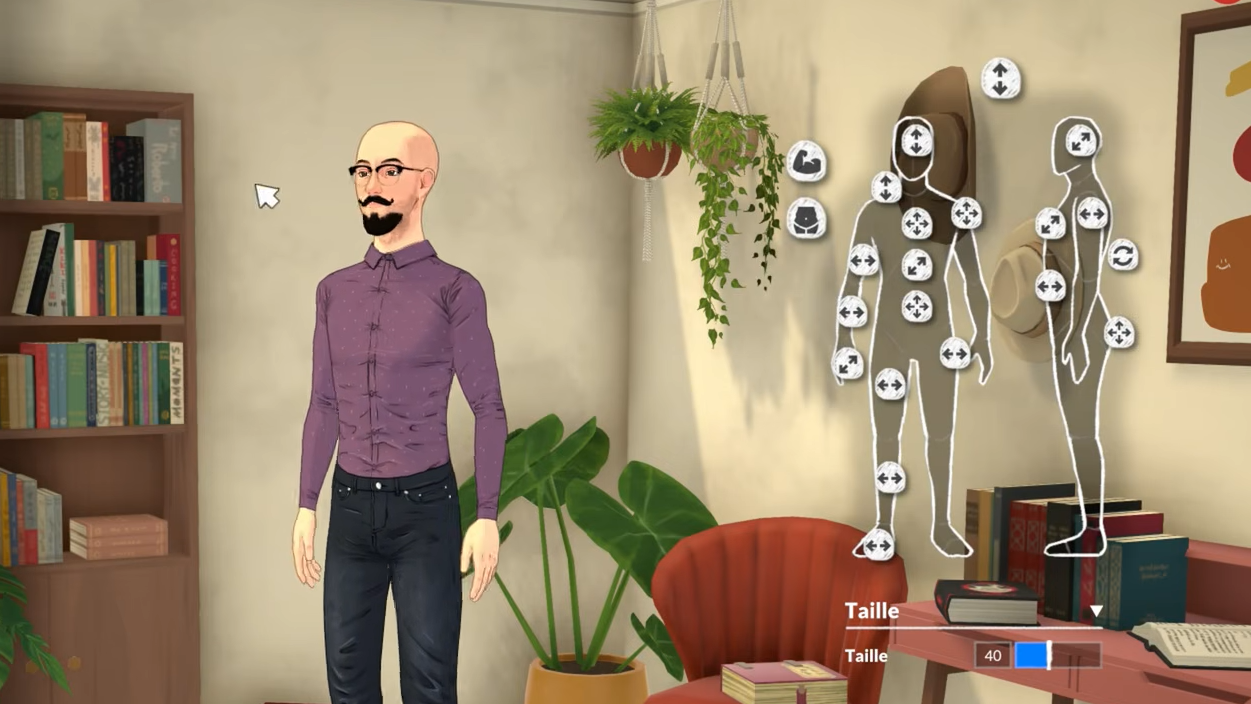
What the height slider does
In the Paramaker, the height slider adjusts the vertical scale of a Para’s body model. The change applies in both character creation and across live mode, so a Para built taller will visibly tower over shorter household members in gameplay, not just in the editor.
To make planning easier, the Paramaker displays small reference markers showing the heights of other Paras in the current household. That comparison view is the feature’s main usability hook, since it lets you build families with deliberate height differences instead of guessing by eye.
Which lifestages can use the height slider
Not every lifestage exposes the slider. Babies and Toddlers are excluded, since their proportions are fixed by the game. Every other lifestage in the Paramaker supports manual height adjustment.
| Lifestage | Height slider available |
|---|---|
| Baby | No |
| Toddler | No |
| Child | Yes |
| Preteen | Yes |
| Teenager | Yes |
| Young Adult | Yes |
| Adult | Yes |
| Elder | Yes |
Each lifestage also has its own baseline proportions. Aging applies height changes, facial development, and fat distribution automatically when a Para grows up, and growth spurts during Child, Preteen, and Teenager stages happen at fixed points within those lifestages. If aging is turned off, those growth spurts will not trigger.
Height range
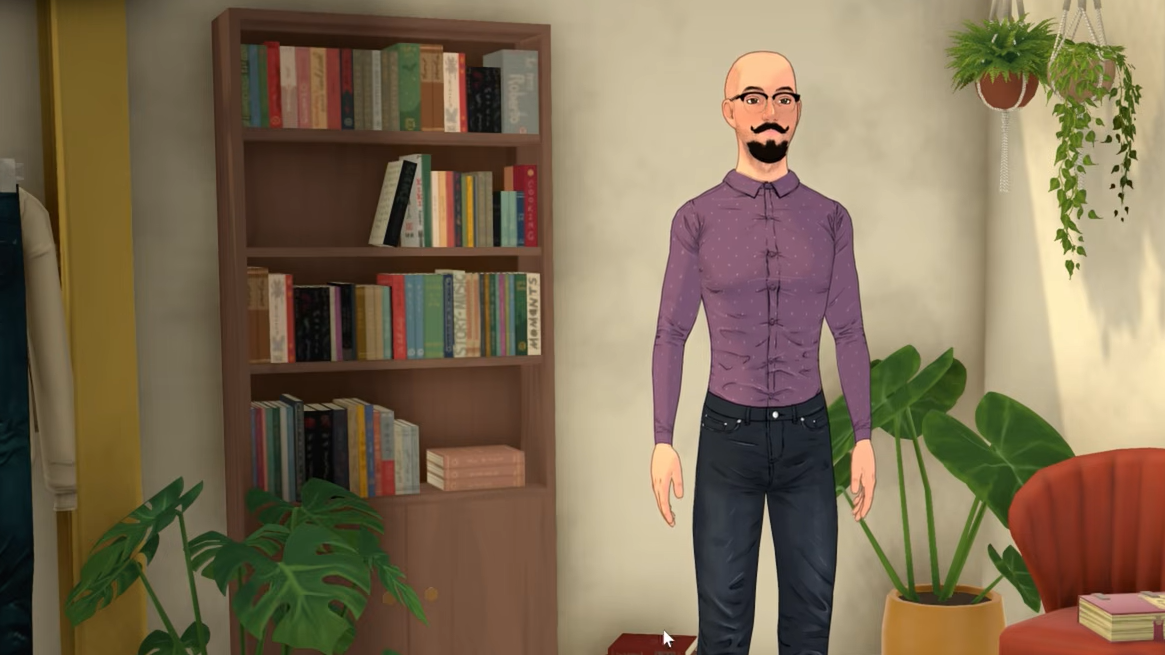
Demonstrations of the Paramaker have shown the adult height slider moving between roughly 1.48 m and around 2 m, with earlier showcases capping near 1.83 m before the range was expanded. The studio has not published a fixed numeric minimum and maximum as a hard specification, and the exact bounds may continue to shift across Early Access builds.
If you want heights beyond the in-game range, modding is the intended path. The game ships with modding tools, and Steam Workshop support is built in for sharing user-created content, including body deformations and related Paramaker assets.
How to adjust a Para’s height
Changes save with the rest of the Para’s appearance when you confirm the edit and return to the household setup or live mode.
What height affects in gameplay
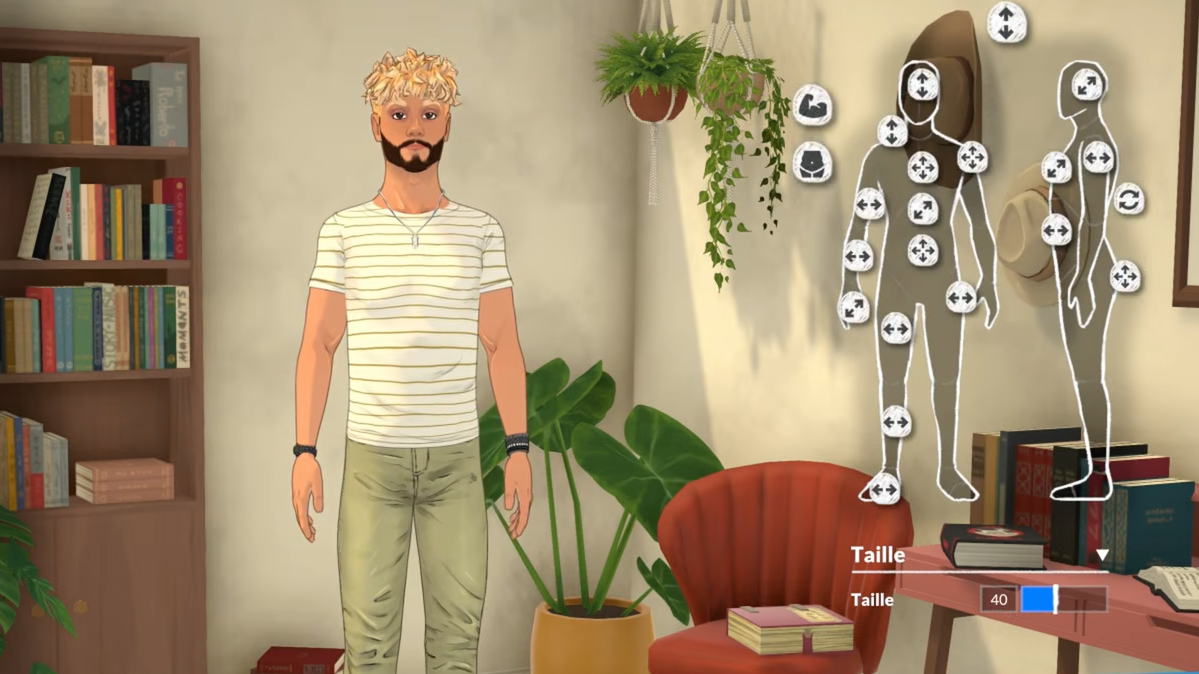
Height carries into live mode visuals, so taller and shorter Paras read as physically different in scene composition, conversations, and animations. The slider is purely a body-shape tool, not a personality or stat input, so it does not modify traits, skills, or relationships.
Because lifestage transitions apply their own height adjustments, a child resized to be very tall will still go through the standard child-to-preteen-to-teenager growth curve as they age. Manual edits to height during gameplay outside of Paramaker editing are not part of the base feature set.
Modding the height range
The Paramaker supports custom body deformations through the game’s modding tools, and lifestages themselves are moddable. That combination is what makes expanded height ranges, beyond the default slider limits, possible to add via community mods distributed through the Steam Workshop.
If the built-in range is too narrow for a specific character you have in mind, a Workshop mod that widens the slider, or a custom deformation that pushes scale further, is the supported workaround rather than a hidden in-game cheat.