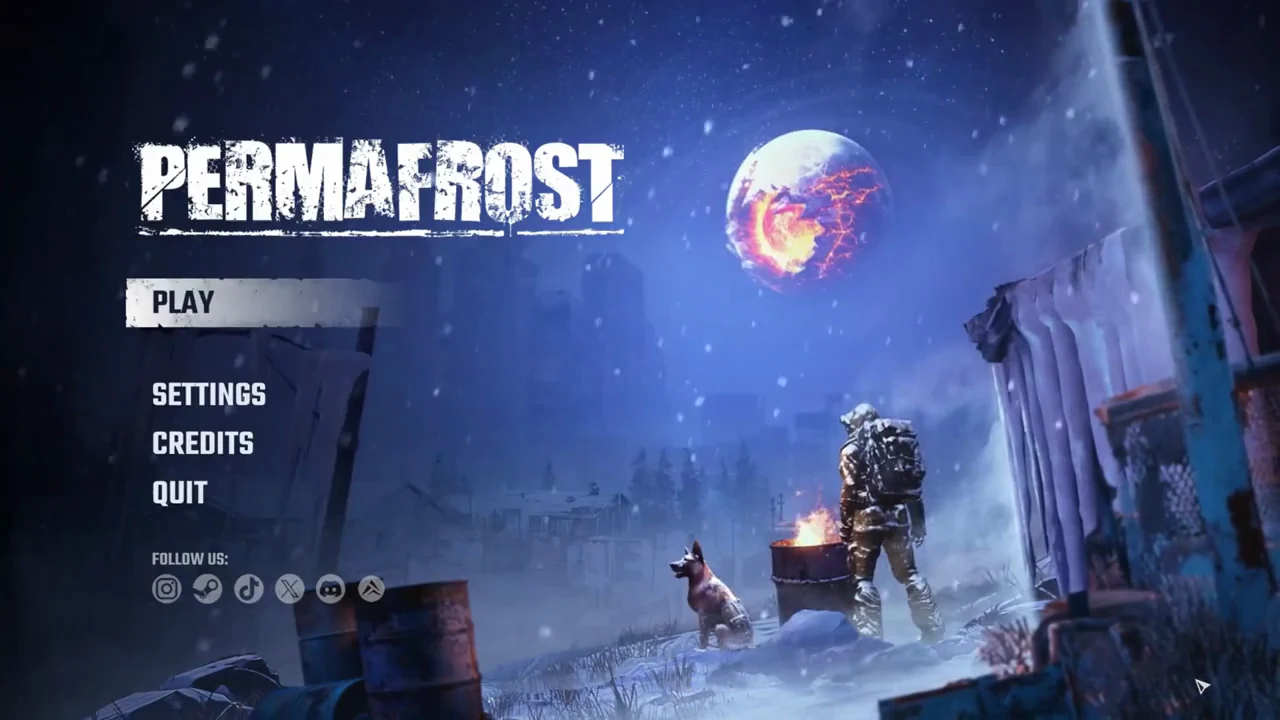
Permafrost drops you into a frozen, broken world and expects you to pick up, open, build and fight without much hand-holding, so knowing which key does what saves a lot of fumbling in the snow. The defaults are standard in places and surprising in others, and a few actions have no key at all until you assign one. Here is the default layout for keyboard and mouse, plus the controller buttons the list shows clearly, in the early access build (version 0.44.2), along with where to find and change it.
Quick answer: Open the controls list from Settings, then the Controls tab. Interaction is F, the inventory is Tab, and the build menu opens with the Building Tool (B) followed by the right mouse button.
Where to open the Permafrost controls list
The full binding list lives in the same place whether you are on the title screen or already playing. From the main menu, choose SETTINGS and move to the CONTROLS tab. While in a game, press Esc, open the SETTINGS tab, then the CONTROLS page.
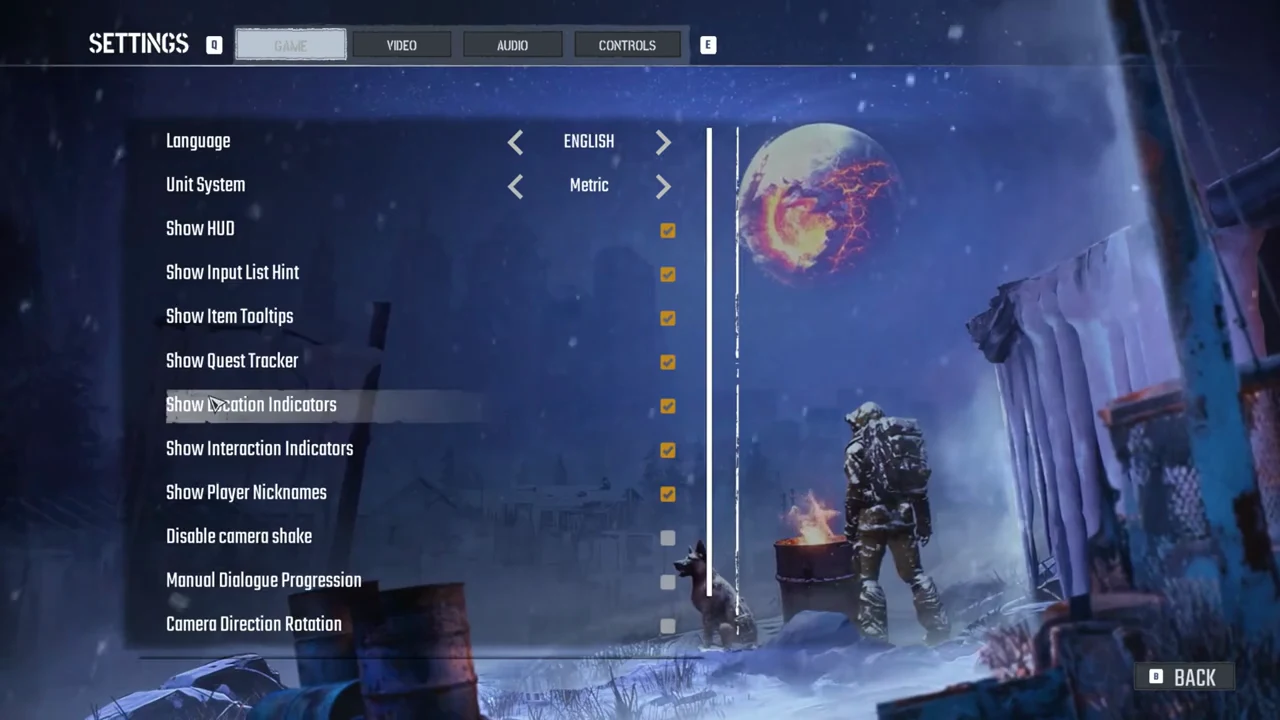
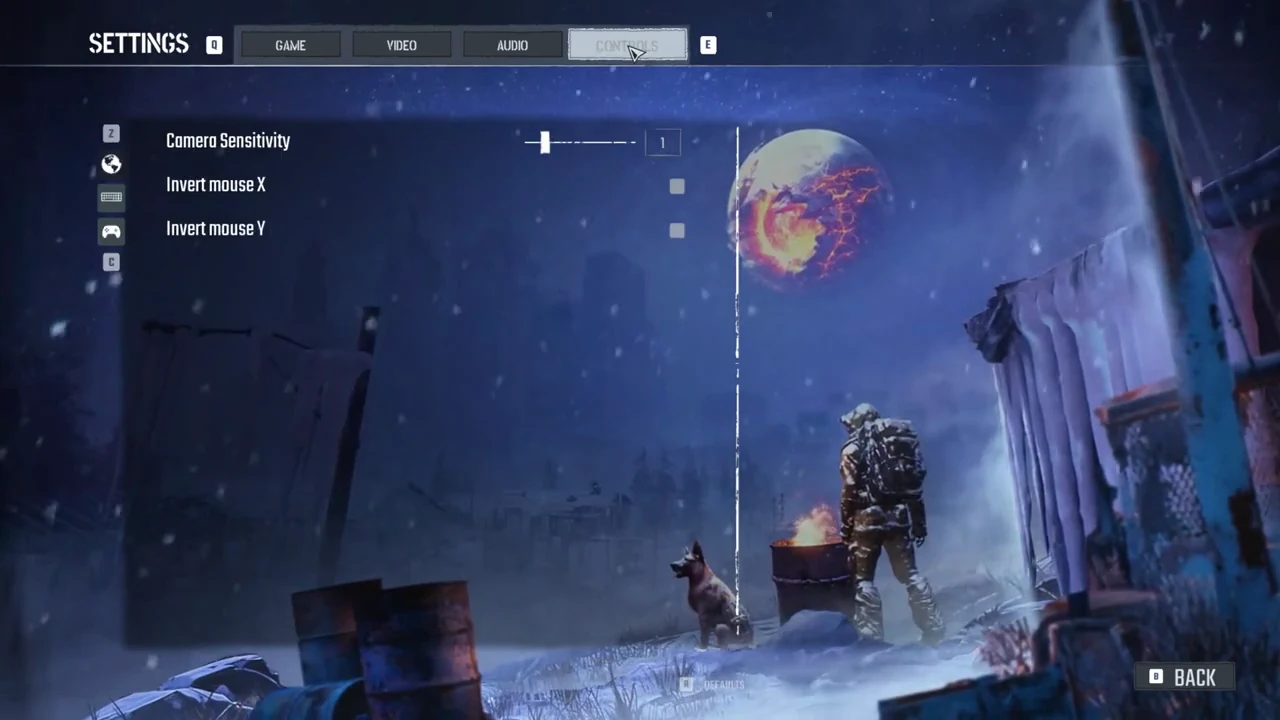
The Controls tab is split into three pages. Switch pages with the icons along the left edge or the Z and C keys: globe for camera, keyboard for keyboard and mouse, and gamepad for controller. Camera Sensitivity is set to 1 initially, and this page also contains the Invert mouse X and Invert mouse Y toggles.
Keyboard and mouse default bindings
The keyboard page groups the controls the same way the game does: General, Movement, Actions, Tools, UI and UI – Inventory. The General block covers the menus and screens you call up during play.
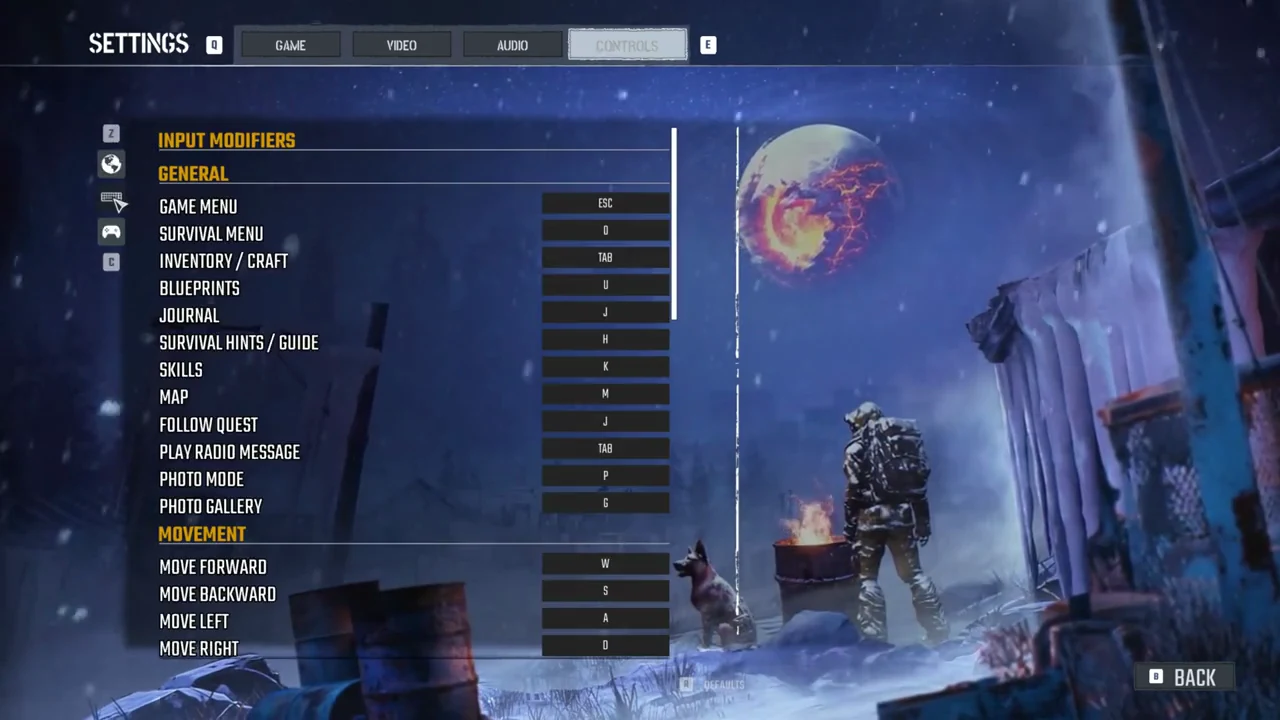
| General action | Key |
|---|---|
| Game menu | Esc |
| Inventory / Craft | Tab |
| Blueprints | U |
| Journal | J |
| Survival hints / Guide | H |
| Skills | K |
| Map | M |
| Follow quest | J |
| Play radio message | Tab |
| Photo mode | P |
| Photo gallery | G |
| Movement action | Key |
|---|---|
| Move forward | W |
| Move backward | S |
| Move left | A |
| Move right | D |
| Crouch | Left Ctrl |
| Jump | Space |
| Sprint | Left Shift |
| Walk | Left Alt |
| Camera shoulder | C |
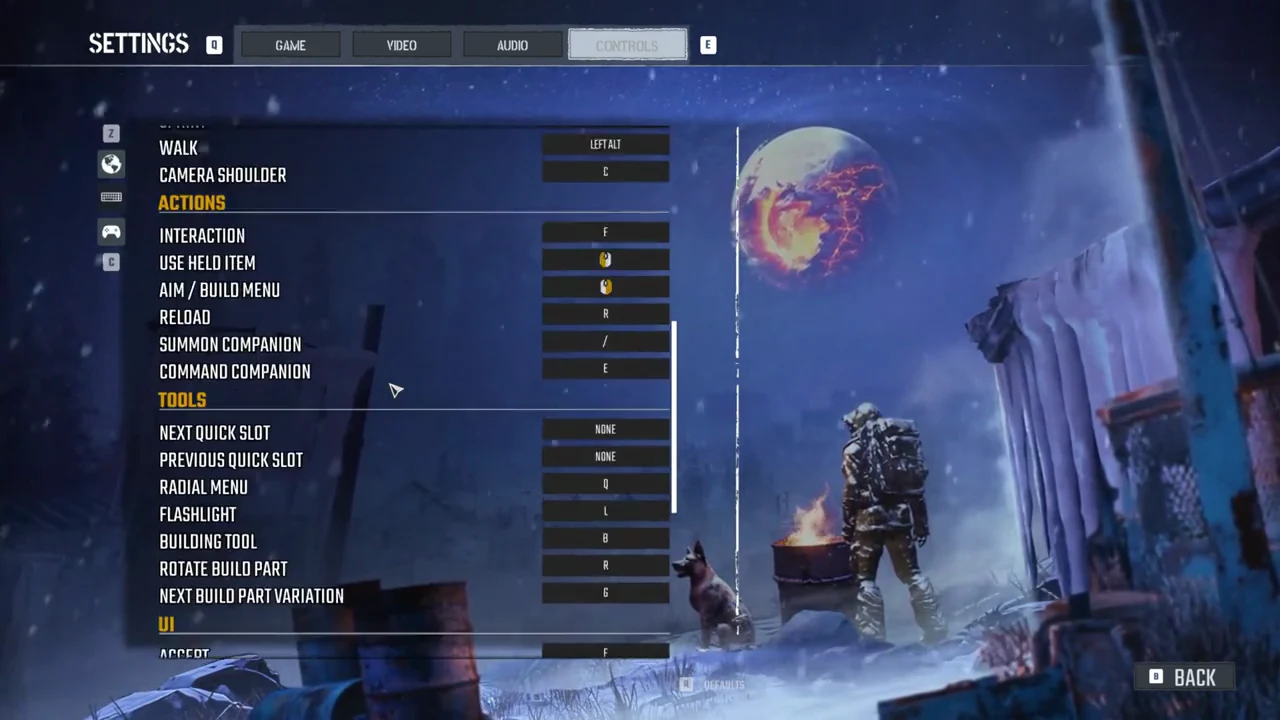
The Actions block is where the most important habit lives. Interaction is F, not E. The left mouse button uses whatever you are holding, the right mouse button aims or opens the build menu, and E commands your dog companion.
| Action | Key |
|---|---|
| Interaction | F |
| Use held item | Left mouse button |
| Aim / Build menu | Right mouse button |
| Reload | R |
| Summon companion | / |
| Command companion | E |
| Tools action | Key |
|---|---|
| Next quick slot | None |
| Previous quick slot | None |
| Radial menu | Q |
| Flashlight | L |
 Building tool Building tool | B |
| Rotate build part | R |
| Next build part variation | G |
Neither Next quick slot nor Previous quick slot has an assigned key initially. The HUD shows eight slots labeled 1 through 8, but those number keys are absent from the rebind list.
UI controls cover menu navigation and moving items around. Toggle HUD is misspelled as “TOOGLE HUD” in the list, though END still activates it.
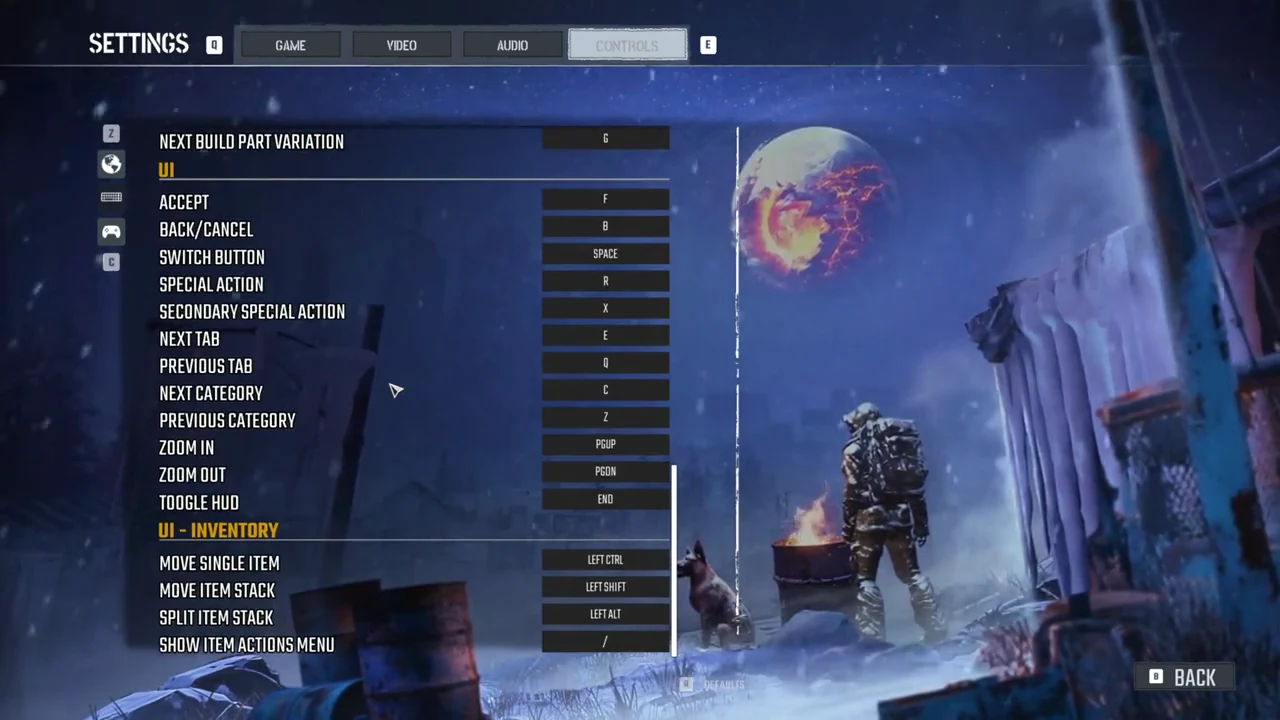
| UI action | Key |
|---|---|
| Accept | F |
| Back/Cancel | B |
| Switch button | Space |
| Special action | R |
| Secondary special action | X |
| Next tab | E |
| Previous tab | Q |
| Next category | C |
| Previous category | Z |
| Zoom in | PgUp |
| Zoom out | PgDn |
| Toggle HUD | End |
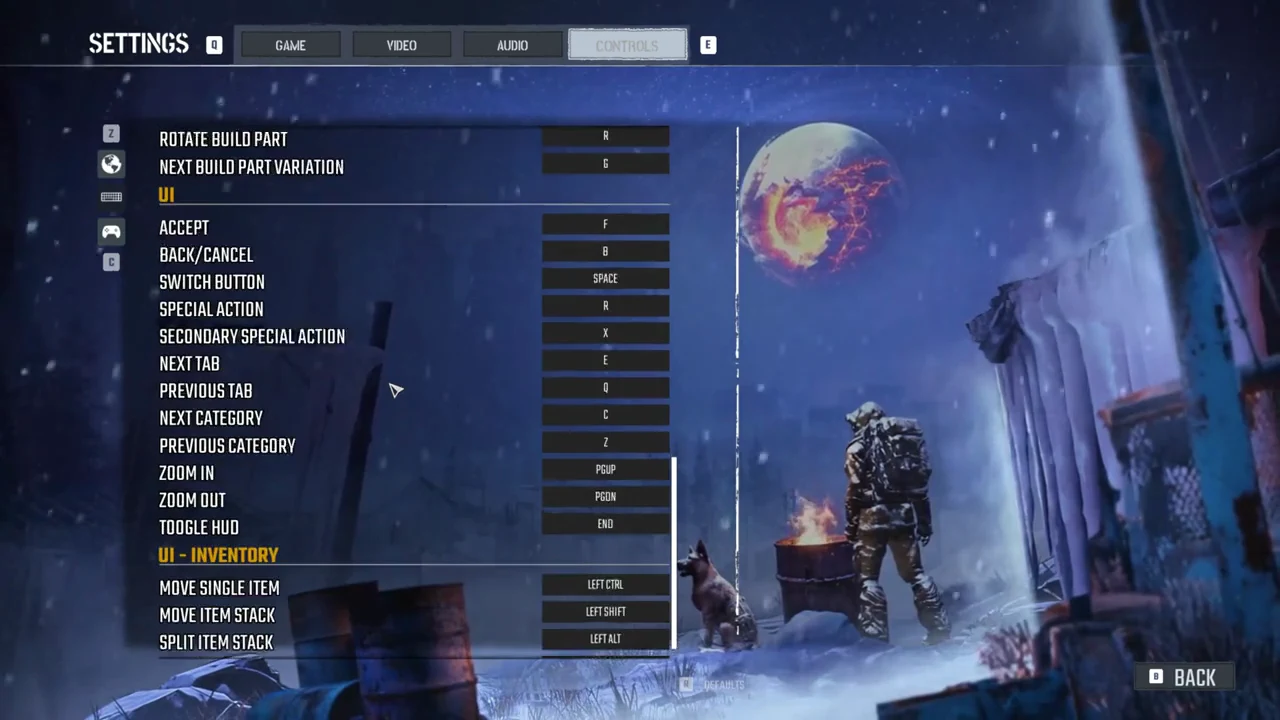
| Inventory action | Key |
|---|---|
| Move single item | Left Ctrl |
| Move item stack | Left Shift |
| Split item stack | Left Alt |
| Show item actions menu | / |
How the keys appear while you play
In the world, the prompts for picking up, opening, and using all use the same wording. A loose item shows “Rock Shard, Press F to pick up”, while a Campfire that’s been placed shows “Campfire, Press F Open”. When a prompt says “Press F”, F performs the action.
Some keys also have a second function. Tab opens the inventory and plays a radio message that’s waiting. J opens the Journal and serves as Follow Quest; when a new quest appears, its name is centered on screen with “J TO CHECK”. During play, B brings out or puts away the Building Tool, and in menus it serves as Back.
Some screens provide their own control hints at the bottom, separate from the main binding list. In the inventory, right mouse button opens the item action menu; hold Left Shift while clicking with the left mouse button to move a stack, or Left Alt with the left mouse button to split one. Space toggles tooltips. On the map, zoom with the mouse wheel and recenter with Space. In the blueprints screen, hold the left mouse button to allocate points and press Space to mark all as read. In the journal, Space hides completed quests. The bottom-right cutscene prompt reads “SKIP SPACE”.
Building: how to open the build menu
Building runs through the Building Tool. Press B to take it out, then press the right mouse button (Aim / Build menu) to open the building menu. The left mouse button (Use held item) places the piece you have selected. R rotates the current build part, and G cycles to the next variation of the same piece.
A dedicated box for the Building Tool sits at the far right of the quick slot bar. It falls outside the eight numbered positions, so choosing it leaves every slot free.
Controller default bindings
The controller page uses a standard Xbox-style layout for the face and shoulder buttons. The two stick presses handle sprinting and the camera shoulder.
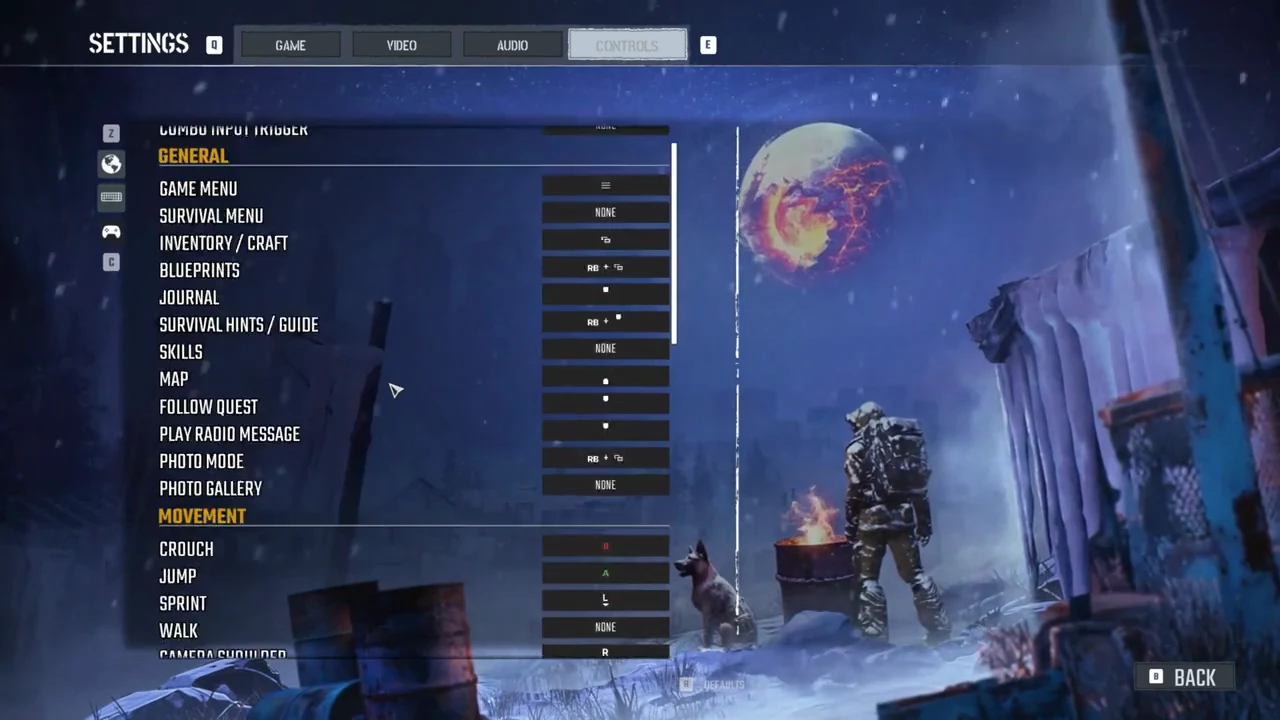
| Action | Button |
|---|---|
| Jump | A |
| Crouch | B |
| Interaction | X |
| Reload | Y |
| Use held item | RT |
| Aim / Build menu | LT |
| Radial menu | LB |
| Flashlight | RB |
| Sprint | Left stick press |
| Camera shoulder | Right stick press |
In menus, the controller follows the same pattern: A accepts, B cancels, Y is the switch button, X is the special action, and the right stick press is the secondary special action. RB and LB move between tabs, RT and LT switch categories, and the triggers also handle zoom.
In the inventory, LT moves a single item, RT moves a stack, the left stick press shows the item actions menu, and Split item stack has no button assigned by default.
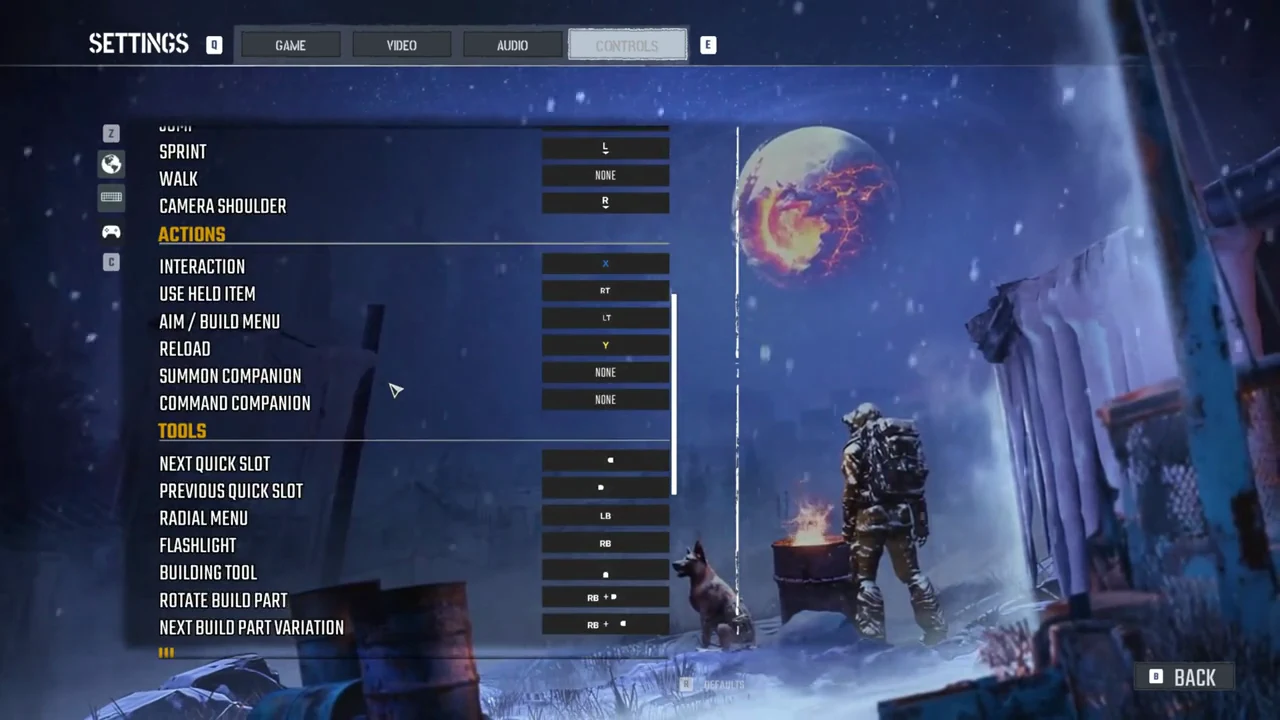
Use RB with another button for Blueprints, Survival hints / Guide, Photo mode, Rotate build part, and Next build part variation. Combo input trigger defaults to None.
A handful of actions are unbound on controller out of the box: Survival menu, Skills, Photo gallery, Walk, Summon companion, Command companion and Toggle HUD all read None. Journal, Map, Follow quest, Play radio message, the two quick slot actions and the Building Tool are drawn as small D-pad and system-button icons in the list.
Changing a binding and resetting to defaults
To rebind a control, select its key box in the list. The row highlights in orange. If you want to undo your changes and return to the layout above, press R for Defaults on the Controls tab.
Default-control mistakes that trip players up
- Pressing E at a pickup or door does nothing useful. E commands the dog; F is what interacts.
- No key is assigned initially for moving between quick slots. Next quick slot and Previous quick slot remain unbound until you assign them.
- Press Esc to close an in-game menu. On the main menu’s world-list screens, use B or the BACK button to return.
With the layout memorized, the rest comes down to muscle memory. F for nearly everything in the world, Tab for your gear, B then right-click to build, / to call the dog and E to give it orders. If a key ever feels wrong, press Esc, open Settings and the Controls page, and press R for Defaults.