


PS Remote Play v9.0.0.2120 crashes almost the moment it opens on Windows, throwing a 0xc0000005 access violation and vanishing before you can do anything. Reinstalling the app, repairing .NET, or updating your GPU driver does nothing, because the fault is inside Sony’s own v9 code, not your PC. The reliable fix uses v9 only to capture your login, then swaps in the older, stable 8.5 build.
Quick answer: Install v9, sign in to PSN so your session saves locally, uninstall v9, install PS Remote Play 8.5 without opening it, run the version patcher as administrator, then launch 8.5. It reads your saved login and no longer crashes.
What causes the 0xc0000005 crash in PS Remote Play 9.0
The crash comes from a bug in Sony’s v9 binaries. When the app starts, it tries to access memory it shouldn’t, and Windows shuts it down with a 0xc0000005 access violation. Open Event Viewer after a crash and you’ll see it logged as a .NET Runtime error tied to Framework v4.0.30319.
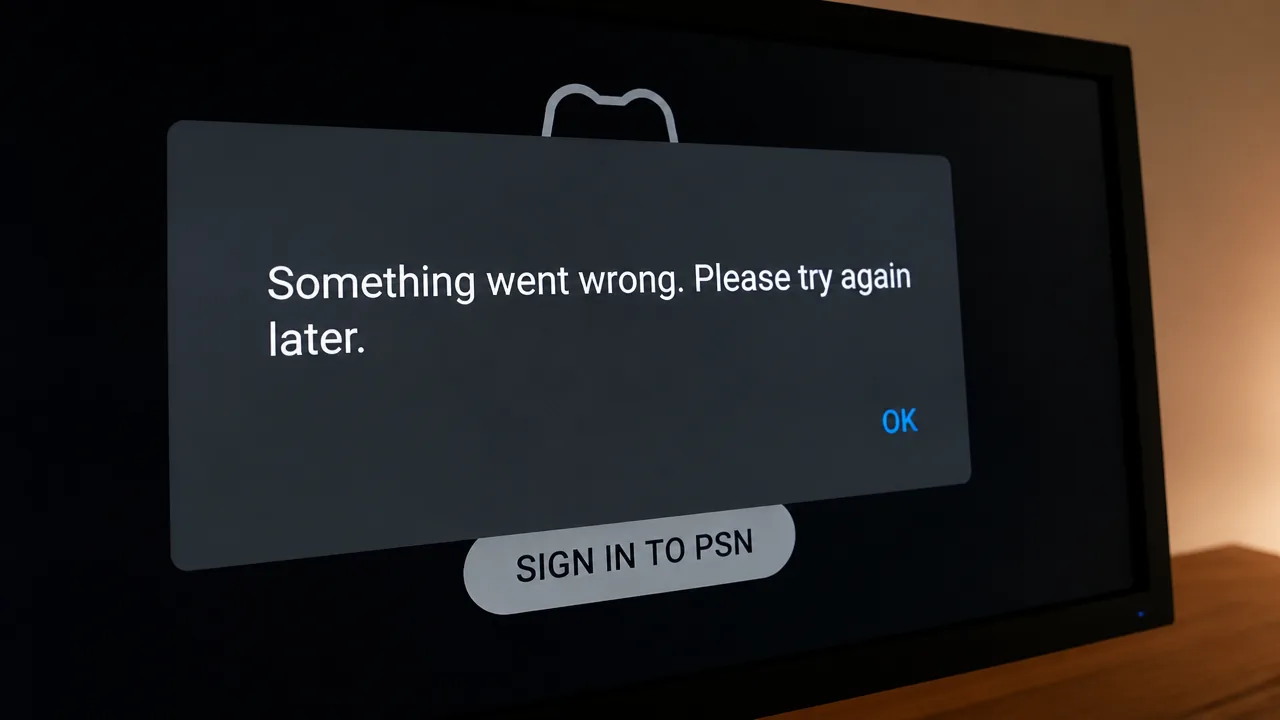
Nothing on your machine is broken, so the usual troubleshooting steps miss the mark entirely. As of August 2026, Sony has not publicly acknowledged the issue or shipped a patch for v9. The console-to-console Remote Play and the PS Portal are unaffected, so this is strictly a Windows app problem.
The working solution came from the Remote Play community rather than Sony, and it centers on a small version patcher that keeps Sony’s servers from forcing you back onto v9.
Check your hosts file before you start
If you ever added remoteplay.dl.playstation.net to your Windows hosts file to block automatic updates, remove that line first. Left in place, it stops v9 from reaching Sony’s servers to log you in, and the whole process fails at the sign-in step. With that line gone, you can move on.
How to fix the crash with the version patcher
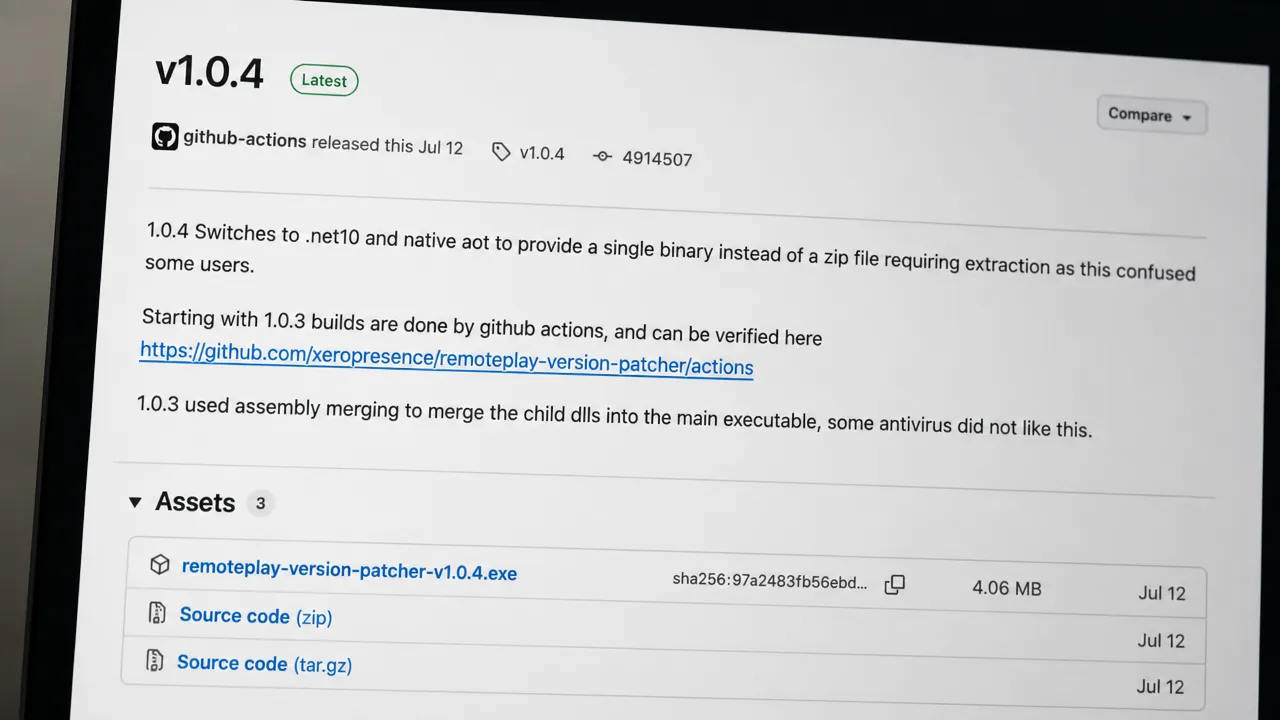
Grab the patcher from its GitHub releases page. Run it against the already-installed 8.5 app, not the installer file. The order matters here.
How to confirm the fix worked
You know it worked when 8.5 launches, connects to your console, and keeps running past the point where v9 died. No sign-in prompt appears, and no forced update kicks in on later launches. That combination confirms both halves of the workaround are in place.
The reason it holds up is that v9 writes your PSN login to a folder on your PC, and 8.5 reads from the same folder. That lets you authenticate through v9 once and run 8.5 afterward without it. The patcher removes the only remaining obstacle, since without it the server would spot 8.5 and force the broken v9 back on your next launch.
If it still won’t connect: full clean wipe
When something is still off after every step, clear out the cached data and start over. Uninstall PS Remote Play completely, then go to %localappdata%\Sony Corporation\PS Remote Play and delete that entire folder. That removes any corrupted cache or stale credentials that could be interfering.
Once the folder is gone, run the whole process again from Step 1. In most cases the clean start is what finally gets it connecting.
Common questions
Is the version patcher safe?
The patcher only changes the version number that PS Remote Play reports to Sony’s servers. It has been widely tested in the community and is currently the only dependable way around the v9 crash.
What if Sony fixes v9 later?
If Sony ships a working update, uninstall 8.5 and update normally through the official installer. This is a temporary fix, not a permanent replacement, and no official next patch date is currently confirmed.
Until Sony patches v9 or ships something that works, capturing your login through v9 and running the patched 8.5 build remains the most reliable way to stream your PS5 to a Windows PC.