The Roblox Player on Windows 11 has a frustrating failure mode where it does almost nothing. You click to play, the loading screen flashes for a moment, and then the whole thing closes. Sometimes it lingers as a background process in Task Manager before disappearing. Roblox Studio usually keeps working fine, which makes the problem feel random, but the launch path for the Player is what breaks.
Quick answer: Launch Roblox from the installed desktop app rather than the installer, fully delete the AppData\Local\Roblox folder, run sfc /scannow as administrator, and make sure Windows is updated. If you are on a Windows 11 Insider Preview build, the anti-cheat layer can block the Player from opening at all.
Why Roblox fails to launch on Windows 11
Several distinct things produce the same symptom, so it helps to know which one you are dealing with before you start deleting files.
| Cause | What you see | Most reliable fix |
|---|---|---|
| Windows 11 Insider Preview build (e.g. 23H2 Insider) | Loading screen opens, then closes; nothing launches | Leave the Insider channel or move to a stable Windows build |
| Corrupt system files | Installer finishes but the Player never starts | sfc /scannow |
| Leftover or corrupt Roblox files | Reinstalling alone does not help | Delete the AppData Roblox folder, then reinstall |
| Running the installer instead of the app | It updates but never opens the game | Open the desktop app, not the installer |
| Microsoft Store version broken | Store app crashes instantly on open | Re-register the Store, or use the website client |
The Insider build case is the most important one to rule out. Roblox uses an anti-cheat component (referred to as Hyperion, formerly Byfron) that inspects the system at launch. On certain Windows 11 Insider Preview versions, that check sees something it does not trust and shuts the Player down before it ever opens. Reinstalling, clearing the cache, and factory resets do nothing in this scenario because the operating system build is the trigger. Moving off the Insider channel resolves it.
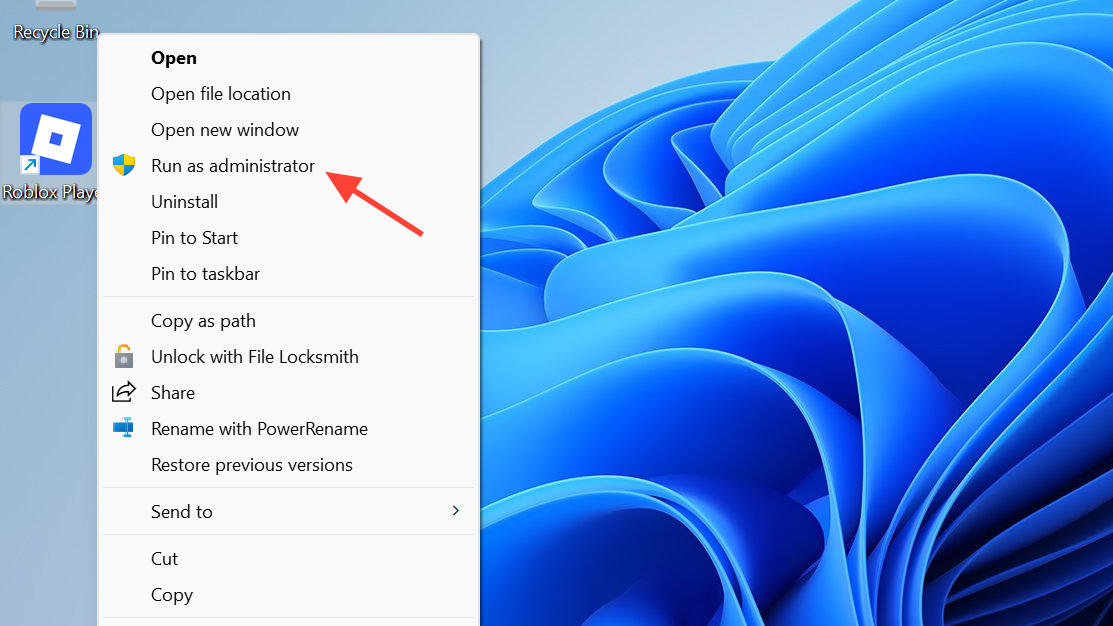
Open the app, not the installer
This sounds obvious, but it catches a lot of people. The Roblox installer downloads and updates the client. It is not the thing you play from. If you keep launching the installer, it will keep updating without ever starting a game.
If the game opens and loads into an experience, you are done. You will know it worked when you reach a full game world instead of a loading screen that closes on its own.
Delete the Roblox AppData folder and reinstall
A plain reinstall often fails because the broken files live in your user profile, not in Program Files, and the uninstaller leaves them behind. Clearing them by hand is what actually gives you a clean slate.
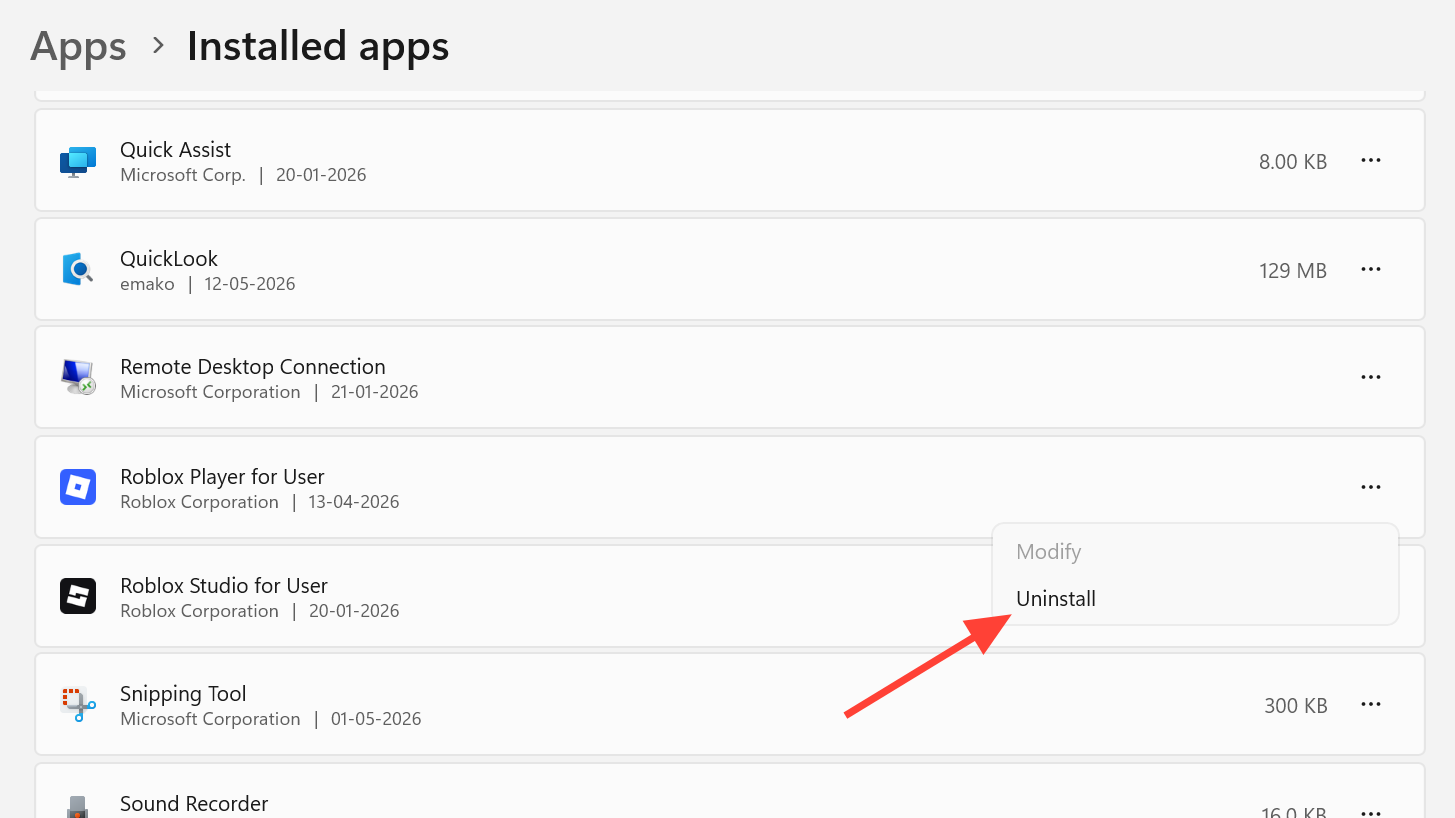
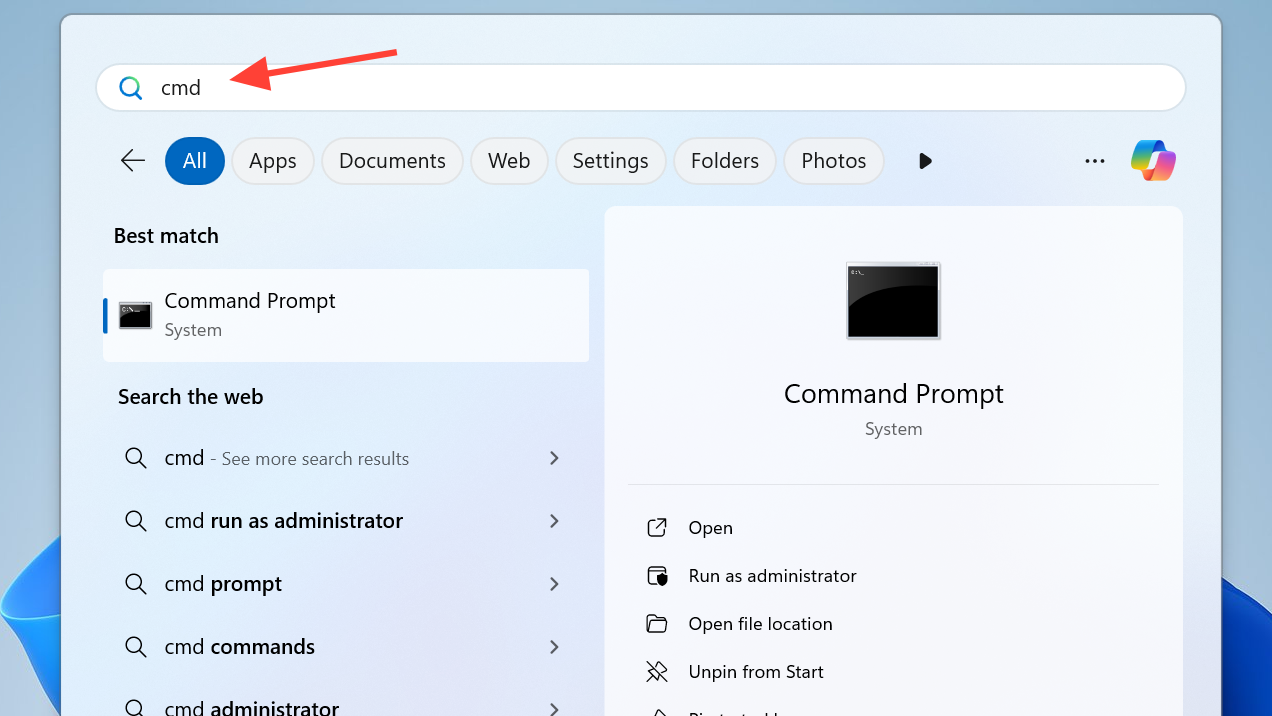
cd AppData\Local
rmdir /s Roblox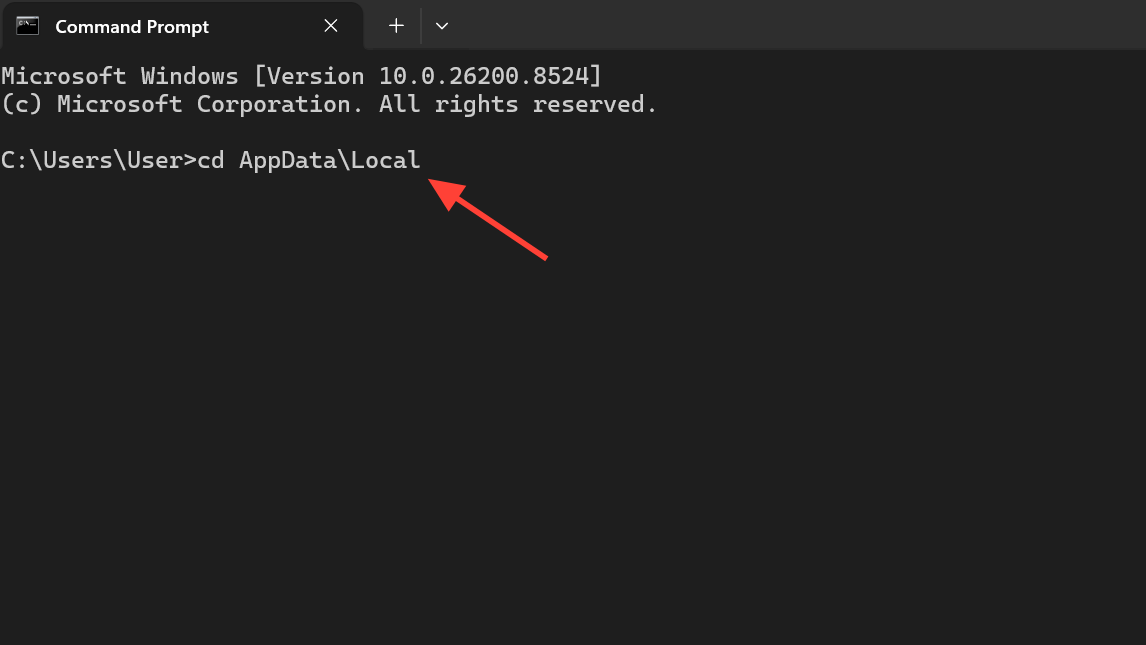
C:\Users\[YourUsername]\AppData\Local\Roblox before the fresh copy goes in.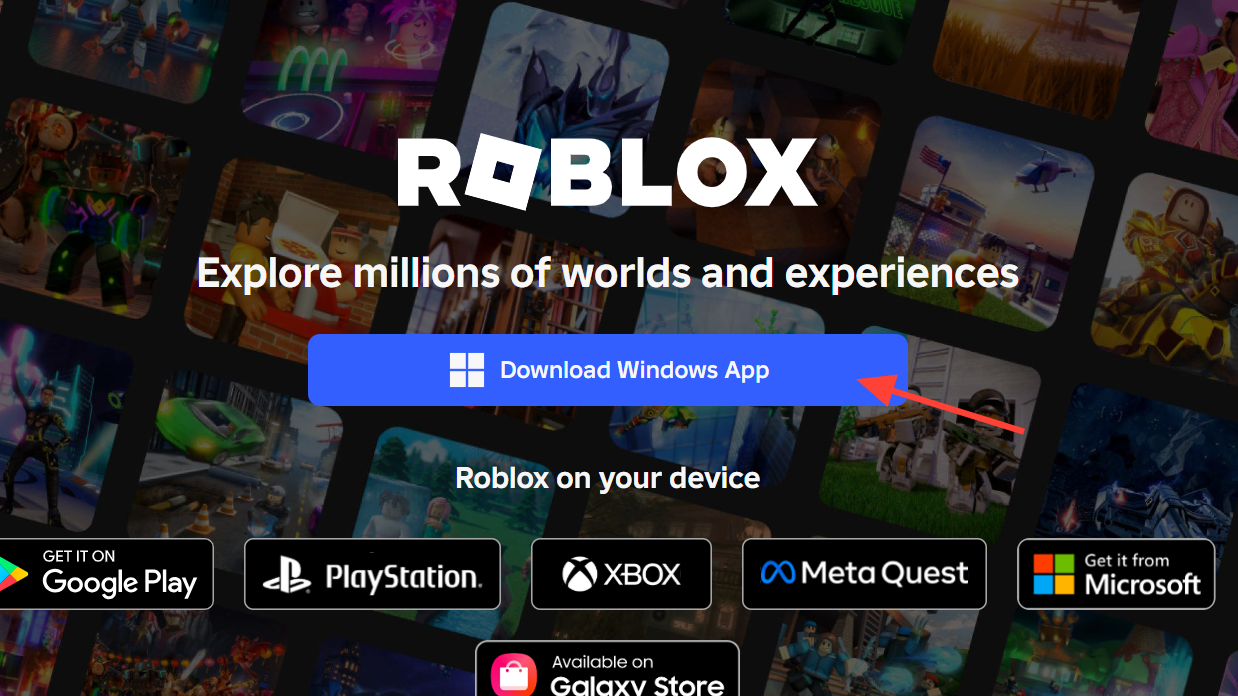
Run sfc /scannow to repair system files
On brand-new PCs where the installer log ends with a critical line about failing to start the client App, the problem is frequently damaged Windows system files rather than Roblox itself. The System File Checker repairs them, and it has fixed launch failures that survived full reinstalls.
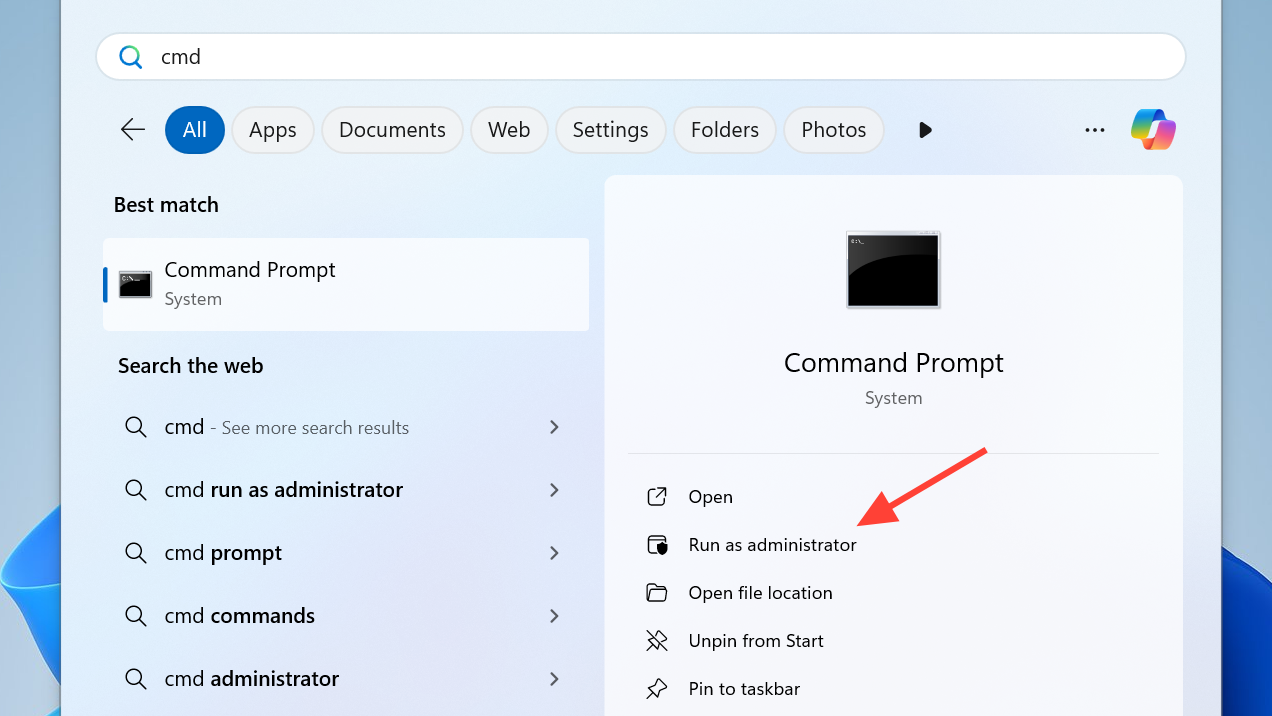
sfc /scannow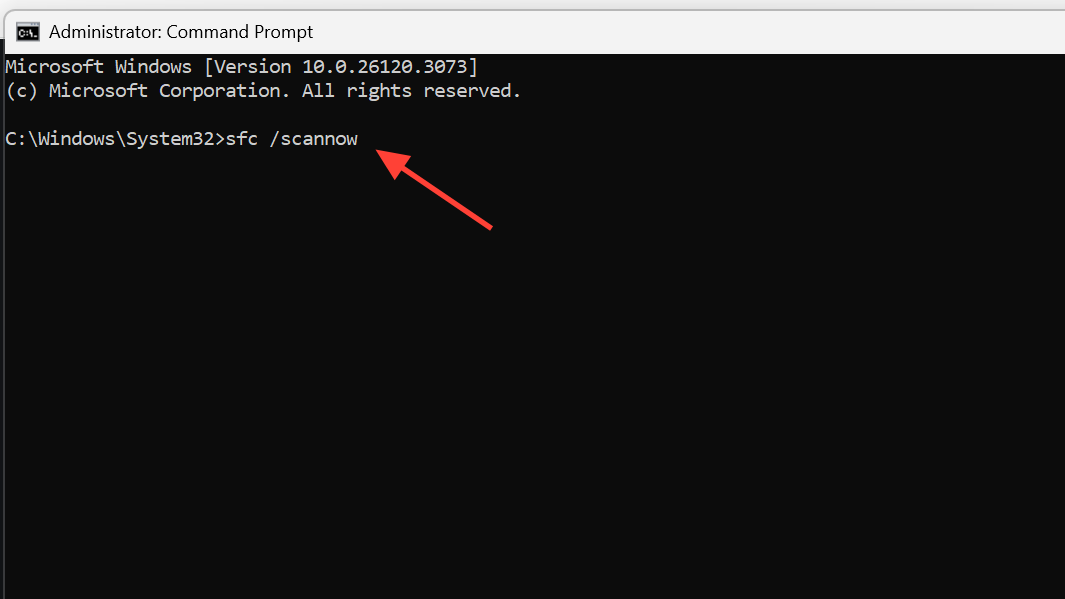
Fix the Microsoft Store version
If the Store version of Roblox crashes the instant you open it, the Store app itself may be in a bad state. Re-registering it can restore the install path so the client launches normally.
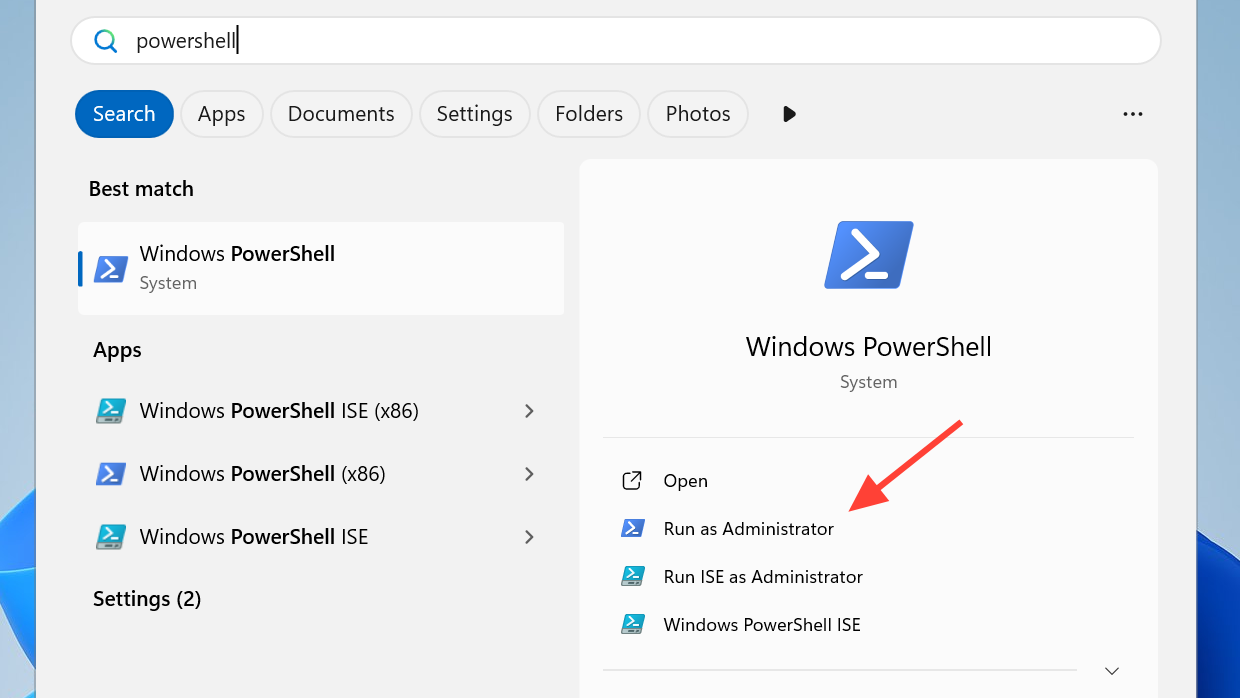
Get-AppxPackage -allusers *WindowsStore* | Foreach {Add-AppxPackage -DisableDevelopmentMode -Register "$($_.InstallLocation)\AppXManifest.xml"}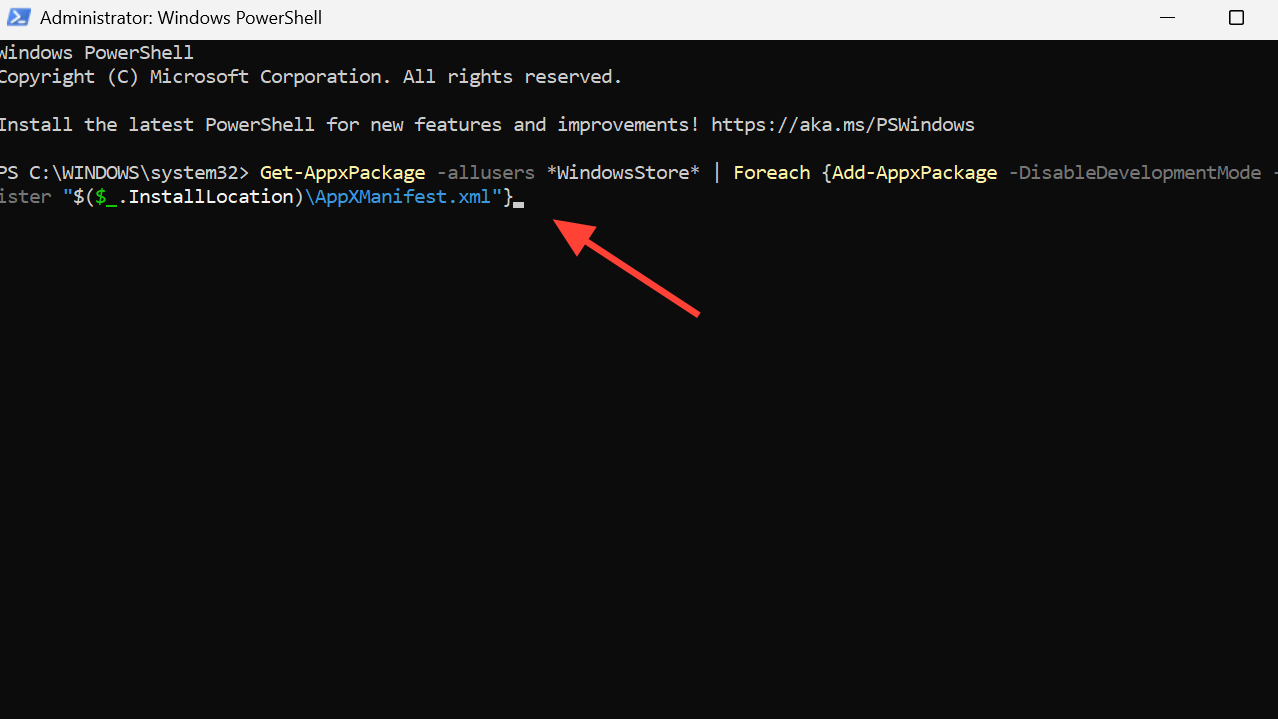
Update Windows and your graphics driver
An outdated Windows build or display driver can stop the client from rendering and starting a game. Keeping both current removes a common blocker, and in some cases a pending Windows update was the missing piece that let Roblox open again.
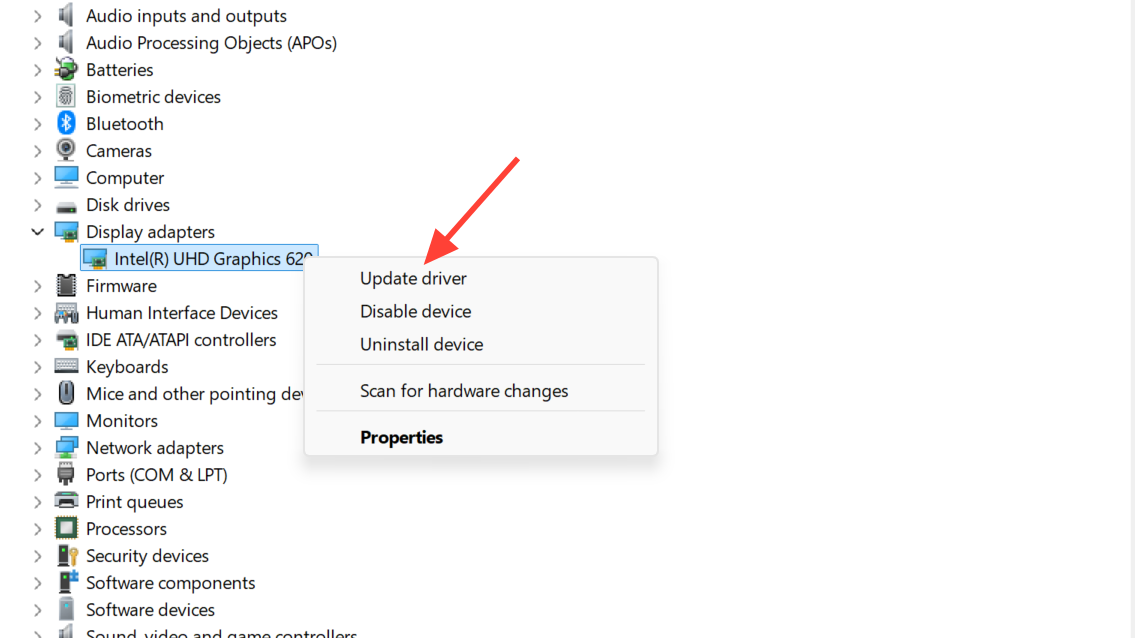
Go to Settings > Windows Update, then check for and install any available updates. For graphics, open Device Manager, expand Display adapters, right-click your GPU, and choose Update driver. You can also pull the latest driver directly from your card maker. After updating, restart and launch Roblox to confirm the change took effect.
If Roblox opens but crashes when joining a game
A second pattern shows the Player launching successfully, only to crash the moment you try to enter an experience. Sometimes the first game after launch crashes while later ones load fine once a session is established. This is closer to a stability problem than a launch block.
Work through the same checklist first. Confirm you are not on an Insider build, run sfc /scannow, clear the AppData folder, and update Windows and your GPU driver. Lowering the in-game graphics level can also help. In Roblox, open the menu during a session, switch Graphics Mode from Automatic to Manual, and reduce the quality level. The image will look rougher, but it lowers the load on the client while it stabilizes.
If none of these steps restore a clean launch, the safest path is to stay on a stable Windows 11 release, keep the client installed through the official download, and contact Roblox support rather than relying on third-party launchers or VPN workarounds, which tend to introduce new failures of their own.