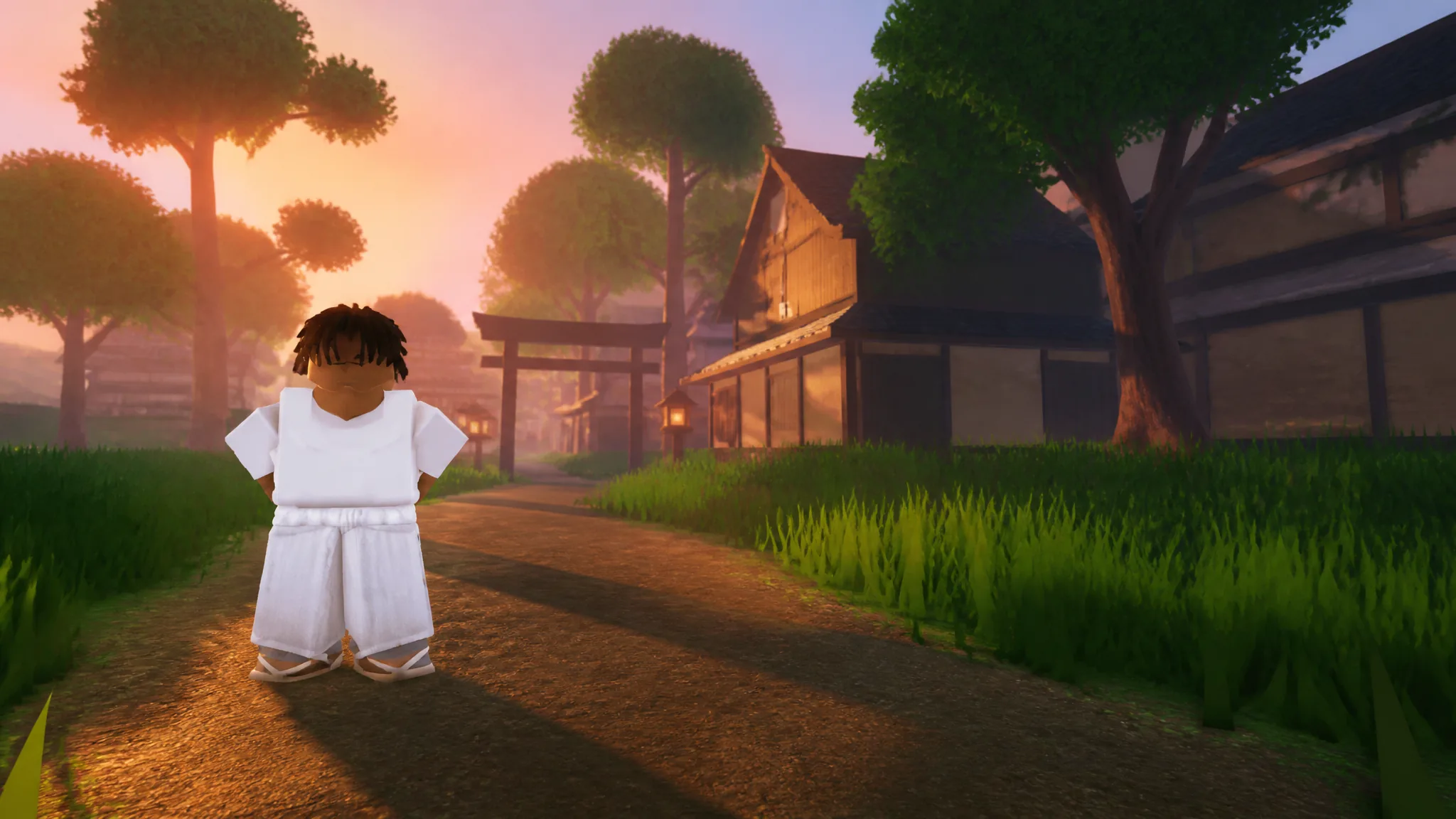
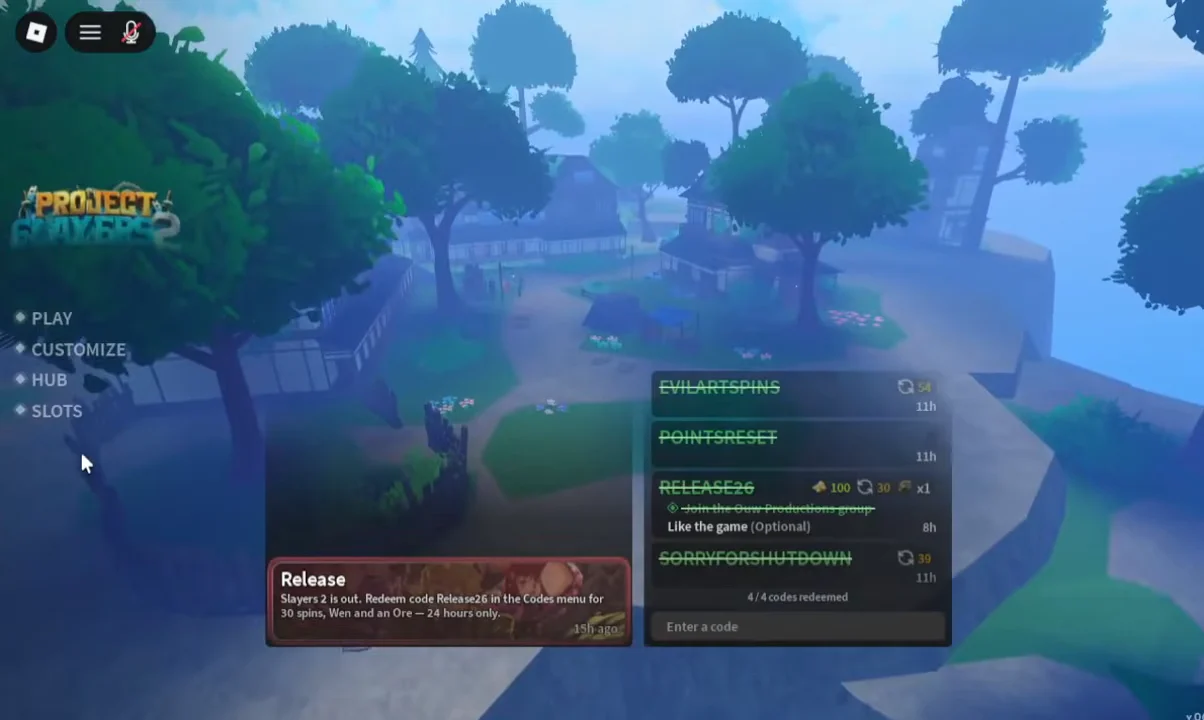
Character slots in Slayers 2 sit behind the SLOTS button on the main menu, next to Play, Customize, and Hub. Every account starts with one usable character and two locked ones, and the same screen holds the reset button that wipes a character back to zero. Both actions live two clicks apart, which is exactly why it pays to know what each one does before you tap.
Quick answer: Open SLOTS from the main menu. Click a locked slot to buy Extra Slots for 1,050 Robux, or click Reset under a slot and confirm to erase that character permanently.
What the three Slayers 2 character slots are
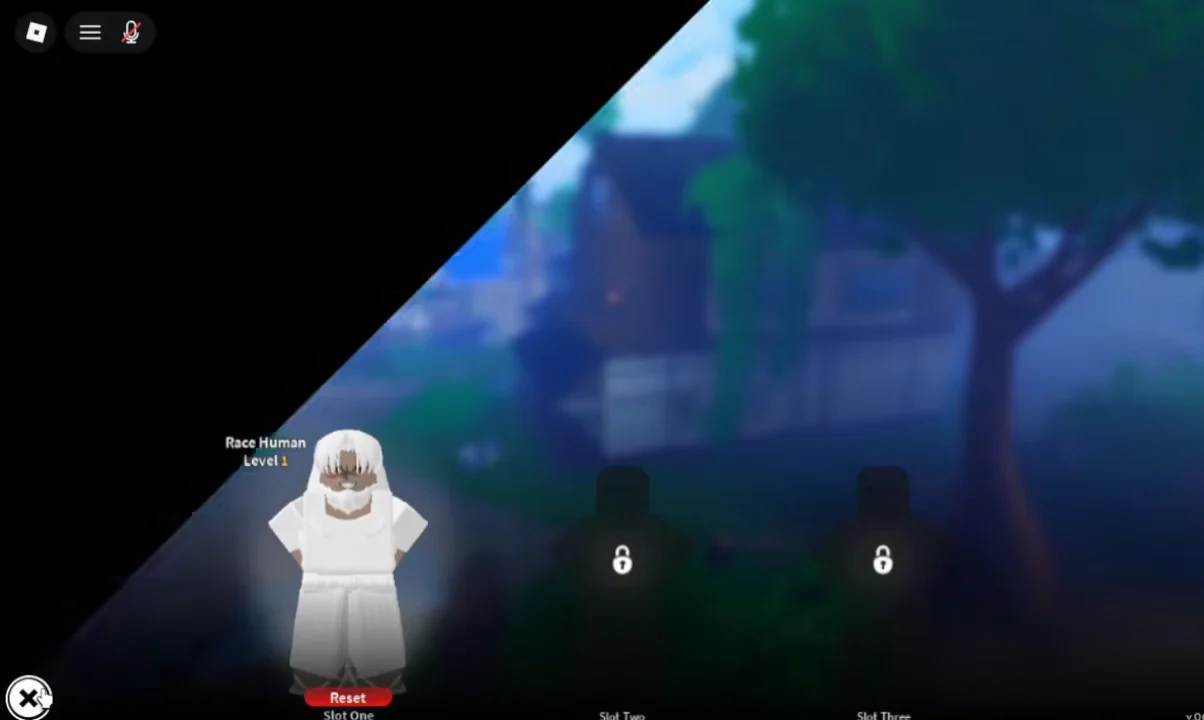
The slot screen lists three entries: Slot One, Slot Two, and Slot Three. Slot One is available from the start and shows your character’s race and level directly on the card, such as Race Human at Level 1. The other two display a LOCKED state until they are purchased.
| Slot | Status | Cost to unlock |
|---|---|---|
| Slot One | Unlocked by default | Free |
| Slot Two | Locked | 1,050 Robux |
| Slot Three | Locked | 1,050 Robux |
Each locked slot opens a standard Roblox purchase window for the product named Extra Slots. Because the prompt runs through Roblox’s own checkout, the price you see is the one charged to your account balance, and the confirmation is handled by Roblox rather than the game itself.
How to buy an extra character slot
This is a Robux purchase with no in-game currency alternative, so an empty Robux balance routes you into Roblox’s top-up options instead of the game.
How to reset a character slot
Resetting is useful when you want a different clan, race, or build without paying for a second slot. It is also destructive, so treat it as a one-way door.
What a slot reset deletes
A reset does not trim your character or refund anything. Everything tied to that slot goes away at once.
- All levels earned on that character
- Every item held in that character’s inventory
- All quest and story progress attached to the slot
- The character itself, replaced by a blank starting character
There is no undo. If the only thing you want to change is your skill allocation, look at a skill point reset instead of wiping the slot, since codes and shop options cover respecs without touching your gear or level.
How to confirm the change worked
For a purchase, the slot card that previously read LOCKED becomes selectable and lets you start a new character in it. For a reset, the slot card shows a fresh character with its level back at the starting value and no gear carried over.
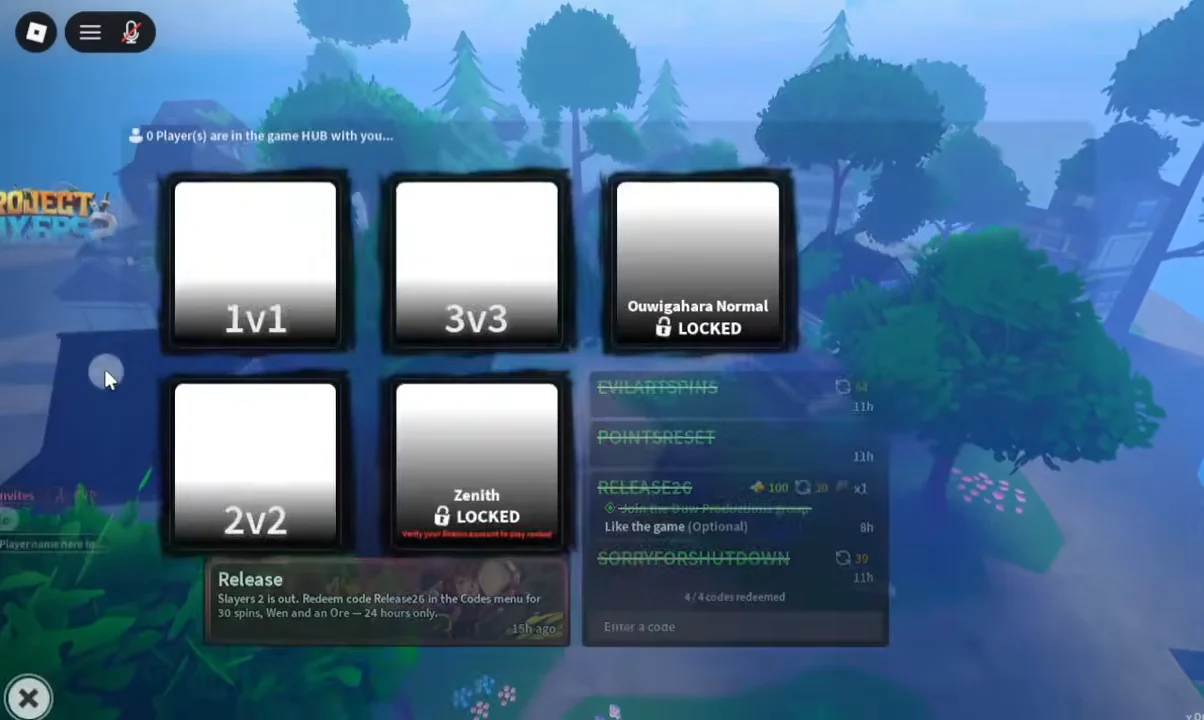
To check in practice, back out to the main menu and open HUB, which lists the modes 1v1, 2v2, 3v3, Ouwigahara Normal, and Zenith. Joining a lobby from there drops you in with whichever slot is currently selected, so you can verify the character loaded is the one you expected before committing to a longer session.
Slots are the one part of the Slayers 2 menu where a misclick costs real progress rather than a few minutes of backtracking. Buying a second or third slot keeps a Slayer run and a Demon run separate on the same account, and the reset button exists for when you would rather start that character over than pay for another one.