Where Winds Meet connection errors: Why you can’t log in and what to do
How to tell if it’s a server-side outage or a problem on your PC or network when Where Winds Meet refuses to connect.
How to tell if it’s a server-side outage or a problem on your PC or network when Where Winds Meet refuses to connect.
by Pallav Pathak
Where Winds Meet is always-online, so when it cannot reach its servers, you are locked out completely. Players regularly run into messages like “Unable connect server,” “Can’t connect to server; please try again later,” or “Failed to connect to the update server, please check your connection,” sometimes right after an update or while already in-game.
These errors fall into two broad categories: server-side issues that no local fix will solve, and local problems with your PC, network, or security software. Sorting out which one you are seeing saves a lot of wasted troubleshooting.
When the problem is on Where Winds Meet’s side
Connection errors often spike around patches and scheduled maintenance. Players report being kicked mid-session with “unable connect server” and then being unable to log back in for an hour or more. Others see login failures immediately after a game update finishes.
There are a few typical patterns:
Maintenance windows. Community posts mention maintenance blocks with fixed hours, during which no one can log in. The launcher keeps showing connection errors until the servers reopen.
Patch rollouts and hotfixes. After a patch (or a small “66 MB” update) the game may refuse to connect to the update server while the backend is still being updated.
Widespread simultaneous failures. Many players on different platforms (PC and PS5) and regions suddenly cannot log in, even though their local internet is fine. Once the servers come back, the error “fixes itself” with no change on their end.
When you see any of these signs, local tweaks will not help until the servers are back online.
Try logging in again after a few minutes. Short disconnects can happen when servers restart or briefly hiccup. If you get back in quickly with no changes, it was transient server-side or routing instability.
Check whether friends can log in. If multiple people across different ISPs and locations see the same error at the same time, that strongly suggests a server issue.
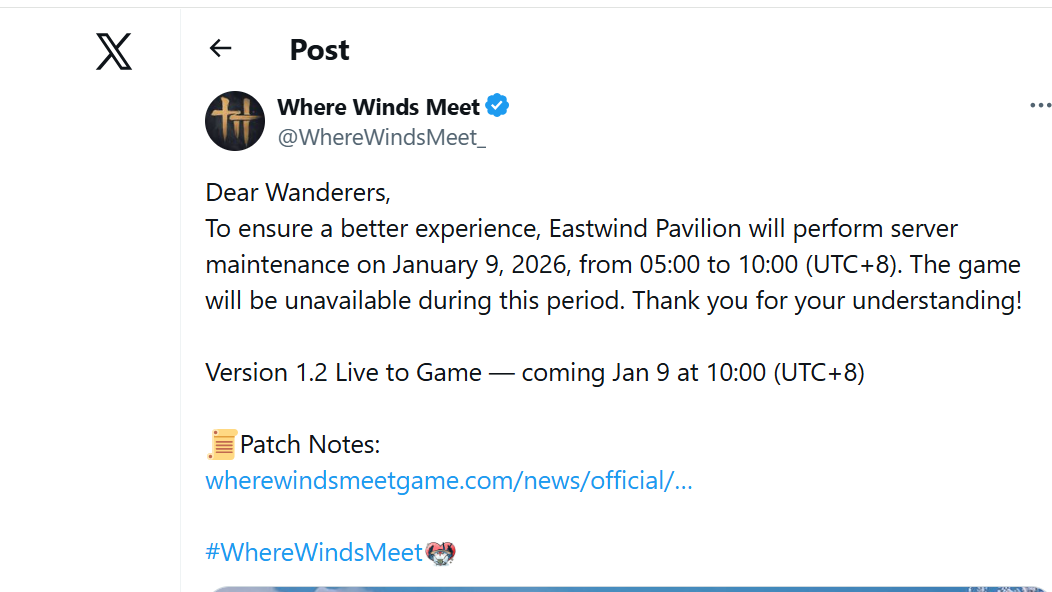
Look for maintenance announcements or patch notes in the official launcher or social channels. Maintenance windows and patch times are often listed there.
Note when you were disconnected. Many players report being kicked around specific times during planned work, then regaining access when the window ends.
If all signs point to server-side trouble, the only realistic action is to wait until the servers are open again. Attempting aggressive fixes on your own system during a true outage will not change the outcome.
Look for maintenance announcements or patch notes in the official launcher or social channels | Image credit: NetEase (via X)
When only your connection is failing
Some players see connection errors for days, while others play normally. There are several recurring local causes:
Security software blocking the game. ESET and other antivirus tools sometimes flag WWM.exe or the launcher as a threat and block it from reaching the internet.
Windows Defender Firewall rules. If the executable is not allowed through the firewall, the game cannot reach the update or login servers.
Network profile and adapter quirks. Some players can launch only on Wi-Fi and not Ethernet, or only after changing their network profile type.
DNS and TCP/IP issues. Corrupted DNS cache or misconfigured DNS servers can prevent your PC from resolving the game’s servers.
Incorrect system time or region. Wrong date, time, or time zone can break secure connections and authentication.
Damaged local game files. The launcher may fail to fetch a small patch if key files are corrupted.
The sections below walk through concrete fixes that target these points on Windows PC.
Fix Where Winds Meet being blocked by antivirus or firewall (Windows)
Security software silently blocking the executable is one of the most common reasons Where Winds Meet cannot connect.
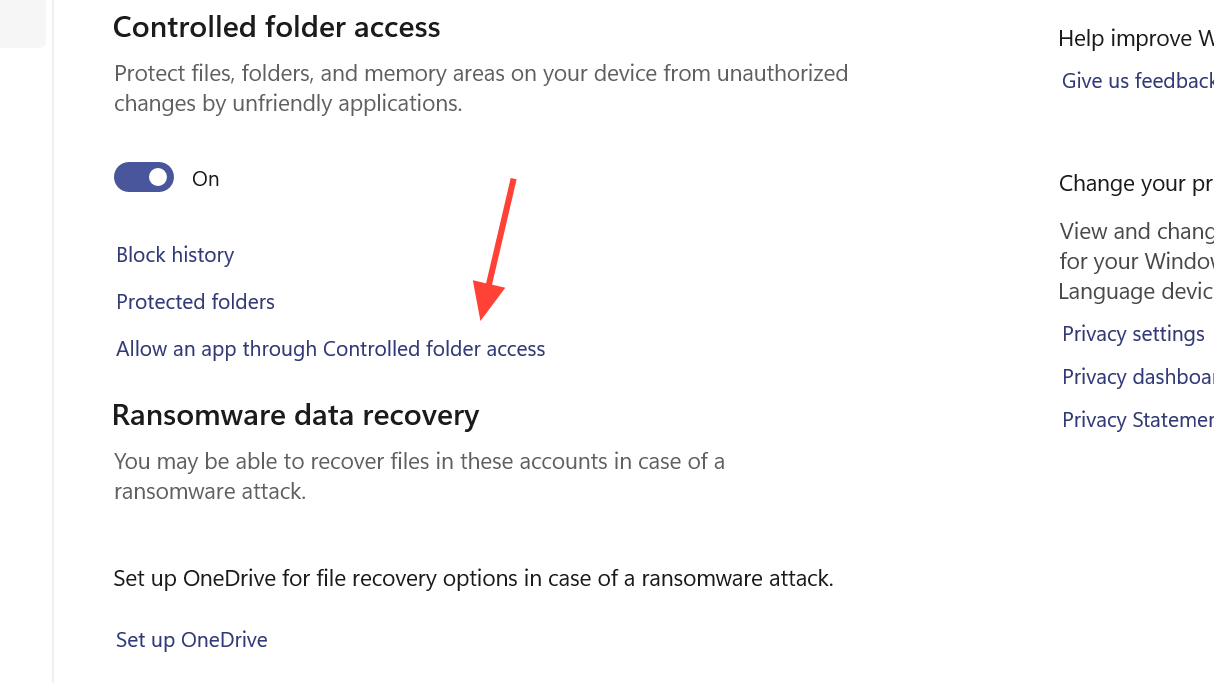
Allow the game in Windows Security (Microsoft Defender). Open Windows Settings, go to Privacy & Security, then Windows Security, then Virus & threat protection. Scroll down, open Ransomware protection, choose to allow an app through controlled folder access, and add the Where Winds Meet .exe from its installation folder.
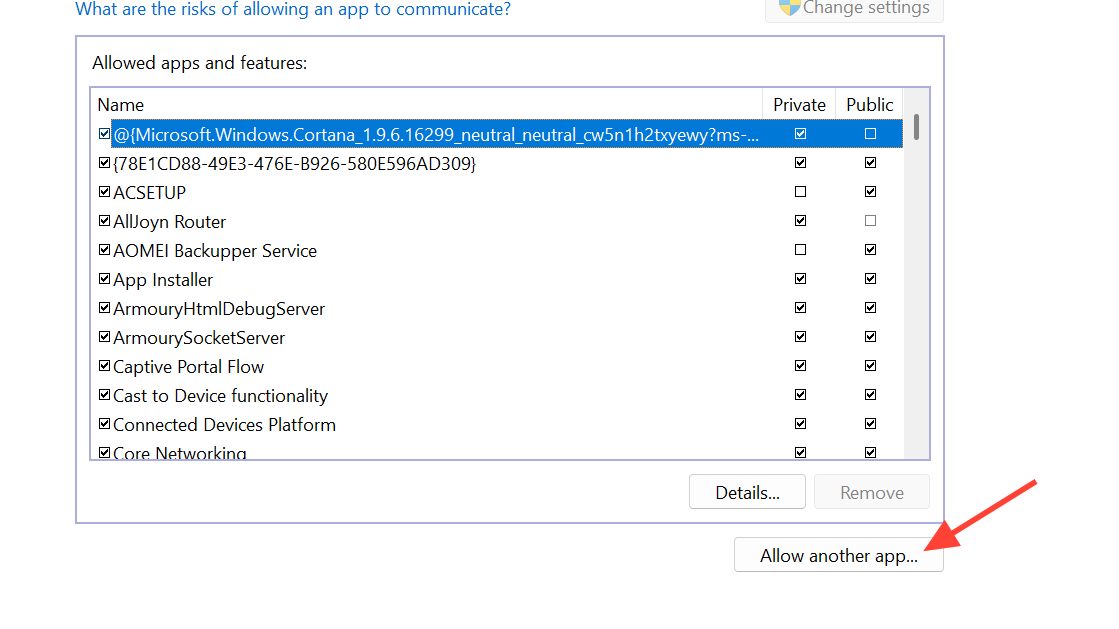
Add the executable to Windows Defender Firewall. Open the classic Control Panel, go to System and Security, then Windows Defender Firewall, then “Allow an app or feature through Windows Defender Firewall.” Use “Allow another app” and browse to the same executable so it appears in the list with network access.
Configure any third‑party antivirus. In tools like Avast, Bitdefender, McAfee, or ESET, add the full Where Winds Meet installation folder and the game executable to the exclusion/whitelist list, so the program does not scan or block it. Save the exclusions.
Close extra anticheat or security layers. If you run additional tools (for example, separate anticheat drivers or internet security suites) shut them down temporarily and try launching the game again to see if one of them is interfering.
Note: ESET users report the program actively quarantining or blocking WWM.exe. In that case, restoring the file and explicitly excluding it is essential before further troubleshooting.
Fix Where Winds Meet connection issues by changing network, DNS, and IP
When your security tools are not the problem, the next likely culprit is your network path to the servers.
Disconnect and reconnect your current connection. Turn Wi‑Fi off and back on, or unplug and replug your Ethernet cable, then try launching the game again.
Swap between Ethernet and Wi‑Fi if possible. Some players can only connect on Wi‑Fi and not on wired LAN, or the other way around. If your PC has both options, try the alternate adapter.
Try a different network entirely. Share your phone’s mobile data via hotspot, connect your PC to it, and see if Where Winds Meet can log in over that route. If it works there but not on your home line, the issue is likely your router or ISP’s route to the game servers.
Adjust your network profile type on Windows. In the adapter’s settings, switching the profile (for example, between Private and Public) has resolved connection errors for some users. After changing, relaunch the game.
Method 2: Use public DNS servers
Custom or broken DNS resolution can stop your PC from finding the game’s servers even when the rest of the internet works.
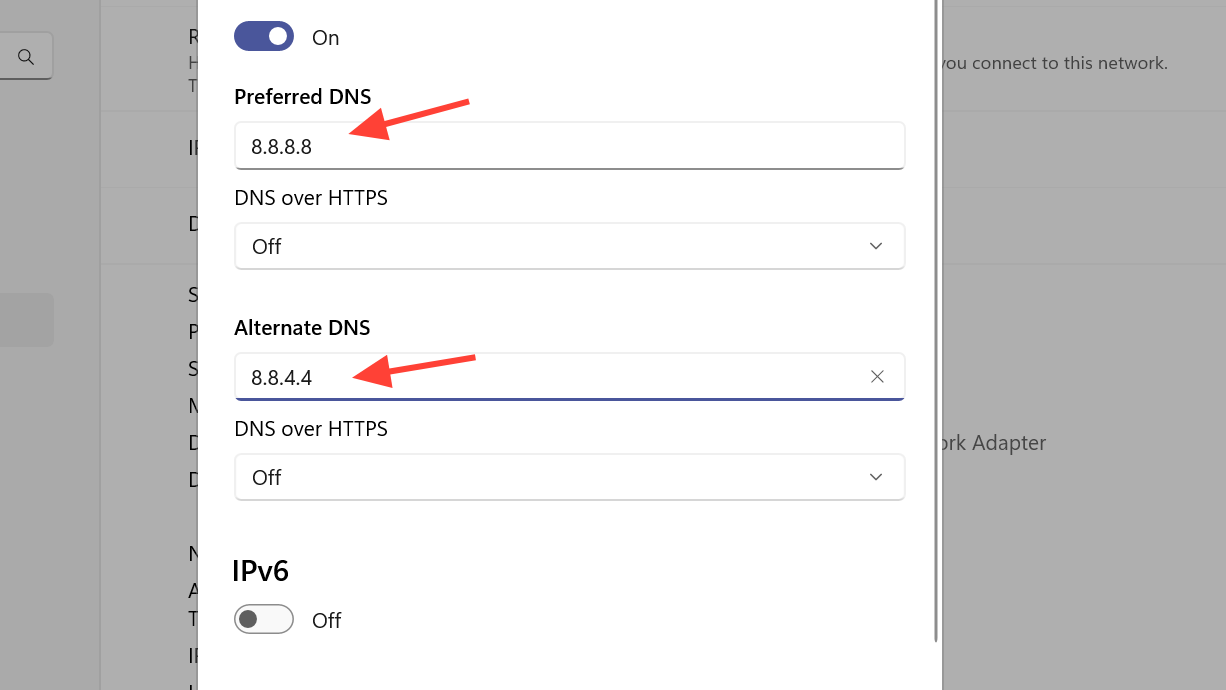
Set Google DNS. Open Control Panel, go to Network and Internet, then Network and Sharing Center. Double‑click your active network, open Properties, select “Internet Protocol Version 4 (TCP/IPv4),” and open its Properties. Choose “Use the following DNS server addresses” and enter 8.8.8.8 as Preferred DNS and 8.4.4.8 as Alternate DNS. Confirm with OK and close all dialogs.
Test Cloudflare DNS if needed. In the same IPv4 Properties window, you can instead set Preferred DNS to 1.1.1.1 and Alternate DNS to 1.0.0.1, then apply and test the game again.
If you were already on manual DNS, try reverting to automatic. Still in IPv4 Properties, switch to “Obtain DNS server address automatically,” apply, and retry the connection.
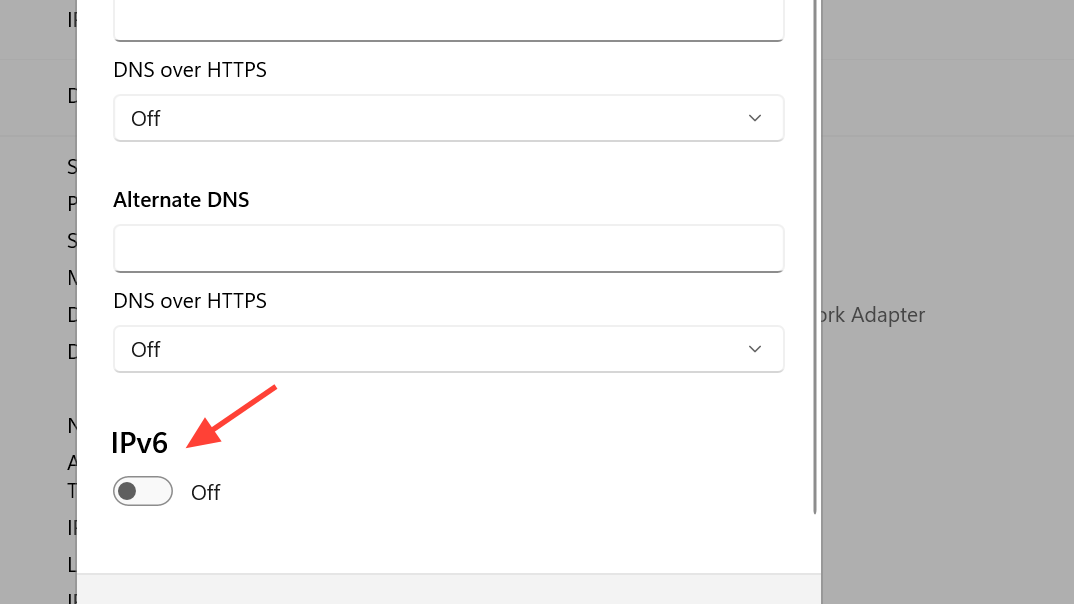
Optionally disable IPv6 temporarily. In your network adapter’s Properties, uncheck “Internet Protocol Version 6 (TCP/IPv6),” apply, and try launching the game. If that helps, you can re‑enable IPv6 after playing.
Method 3: Reset IP configuration and DNS cache
Windows networking can accumulate stale entries that interfere with specific services. Resetting them often clears stubborn connection errors.
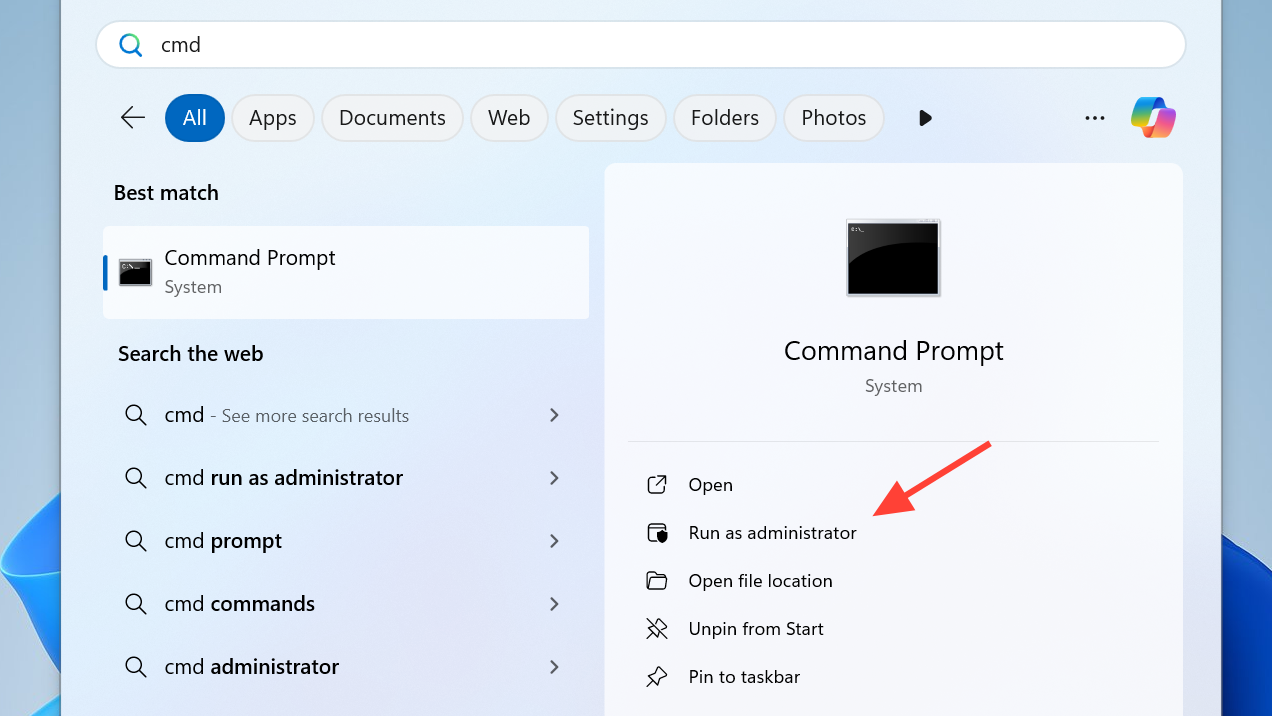
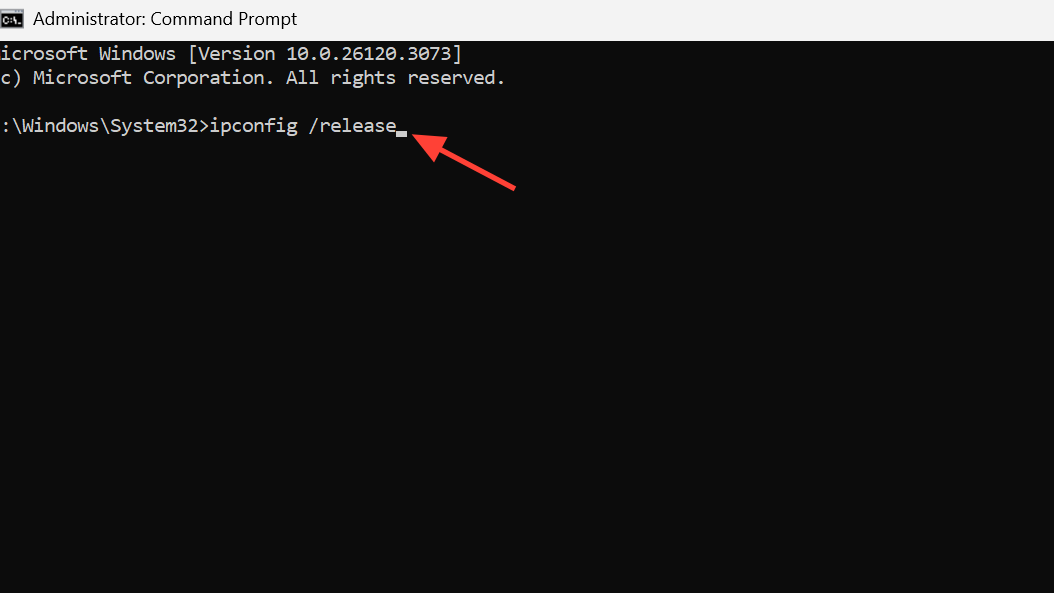
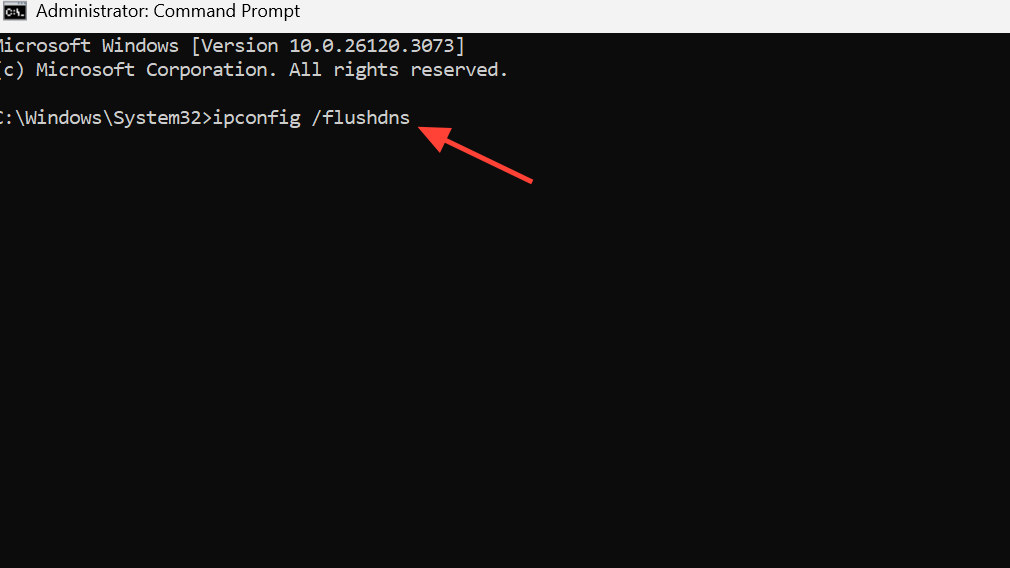
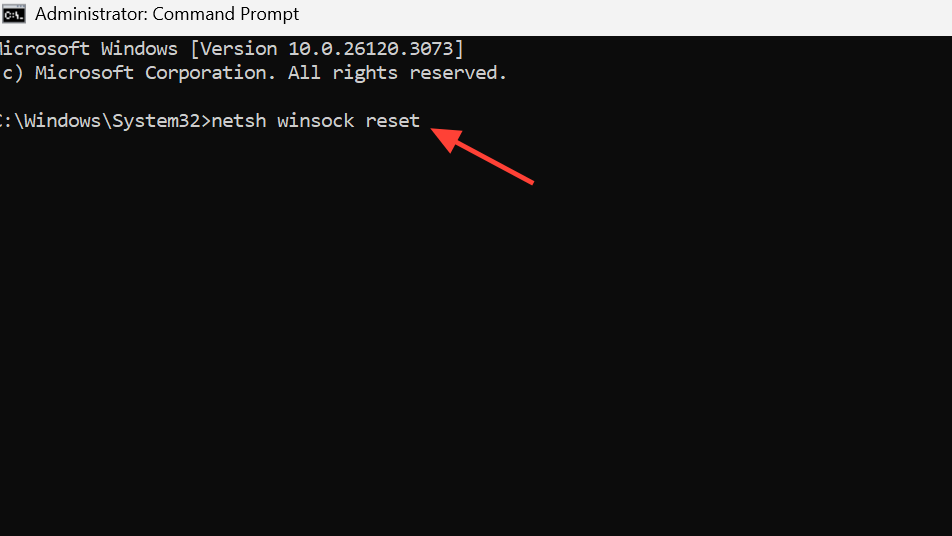
Open Command Prompt as administrator. Search for cmd in the Start menu, right‑click Command Prompt, and choose “Run as administrator,” then approve the prompt.
Reset Windows network settings. Open Windows Settings, go to Network & internet, then Advanced network settings, then Network reset. Start the reset and confirm. Windows will remove and reinstall adapters and restart networking after a reboot.
Power‑cycle your hardware. Shut down your PC, then turn off your modem and router and unplug their power for at least 30 seconds. Plug them back in, wait until they are fully online, then turn your PC back on and test the game.
Fix Where Winds Meet connection issues with VPN changes
Where Winds Meet’s servers can behave differently depending on your route and region. VPNs can either solve or cause problems.
If you are currently using a VPN, turn it off. Close the VPN client completely, ensure your traffic is no longer routed through it, and then try launching the game. Many login issues vanish once the VPN is removed.
If you are not using a VPN and nothing else works, experiment with one. Some players resolve persistent “Failed to connect to update server” errors by connecting through a VPN endpoint in another country and then launching the game. This suggests their regular route or region is temporarily problematic.
Treat VPN success as a diagnostic hint, not a permanent solution. If the game only works via VPN, the root cause is likely regional routing or filtering. It may improve over time without needing the VPN long‑term.
Fix launcher and account issues (Steam, PC)
Sometimes the problem is not the network itself but how the launcher or files are set up.
Restart Steam completely. Exit Steam so it fully closes, then reopen it and make sure you are signed in properly. One player only restored connectivity after Steam re‑authenticated their account.
Run Steam as administrator. Right‑click the Steam shortcut, choose “Run as administrator,” then launch Where Winds Meet from there. This can help if permissions are blocking the game’s network calls or patching.
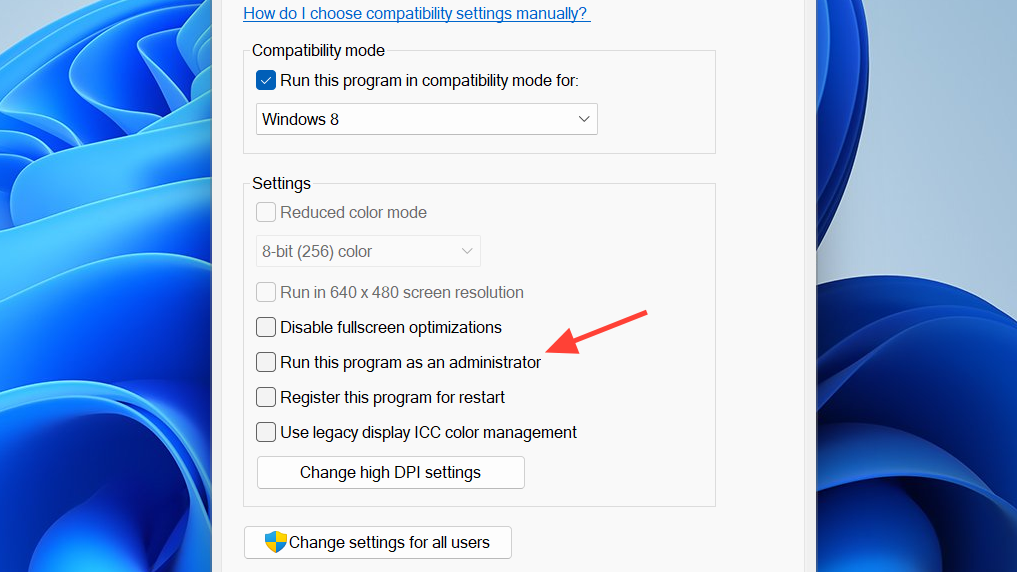
Run the game executable directly as administrator. In Steam’s properties for Where Winds Meet, open the local files folder, locate the main executable (for example under Engine\Binaries\Win64), right‑click it, and choose “Run as administrator.”
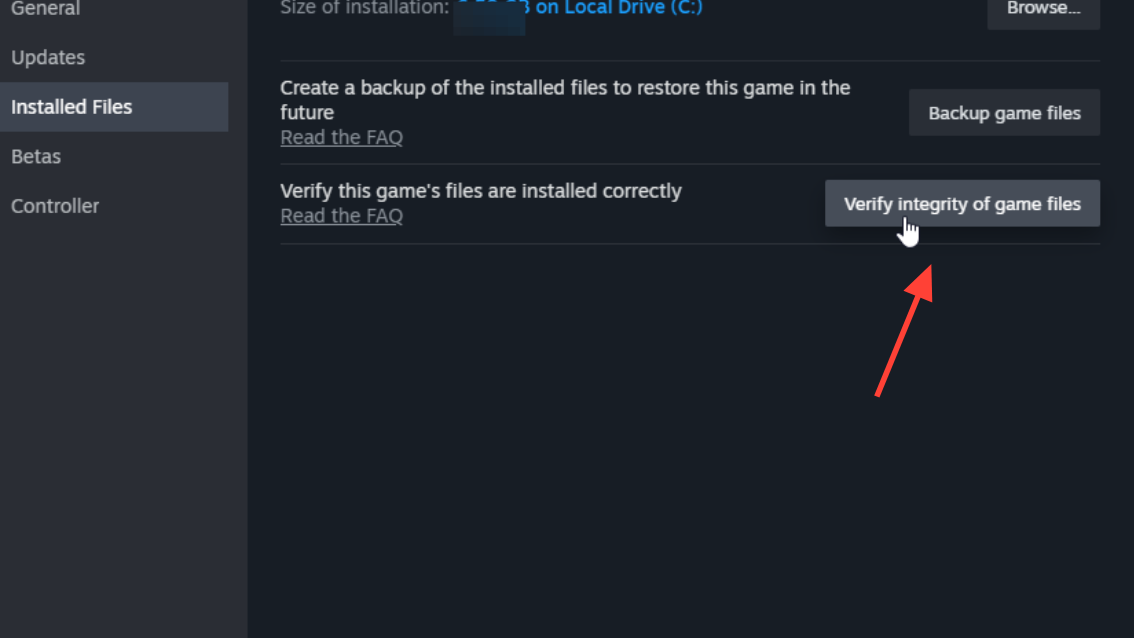
Verify game file integrity. In Steam, right‑click Where Winds Meet, open Properties, go to Installed Files, and use the option to verify the integrity of game files. After the verification completes, try launching again, especially if the error appears while downloading a small update.
Fix time, date, and region mismatches
Misaligned system time or region can break secure connections and cause mysterious login failures.
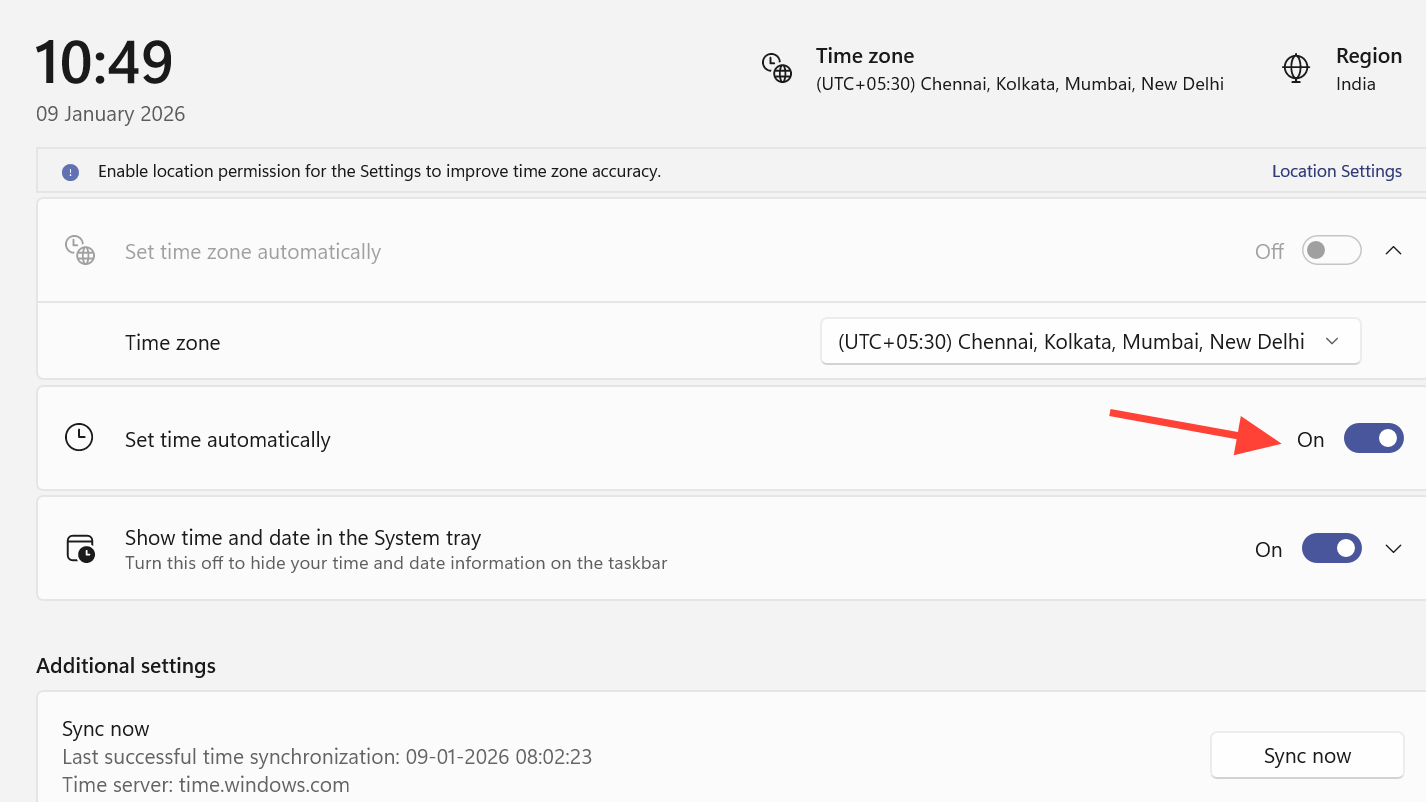
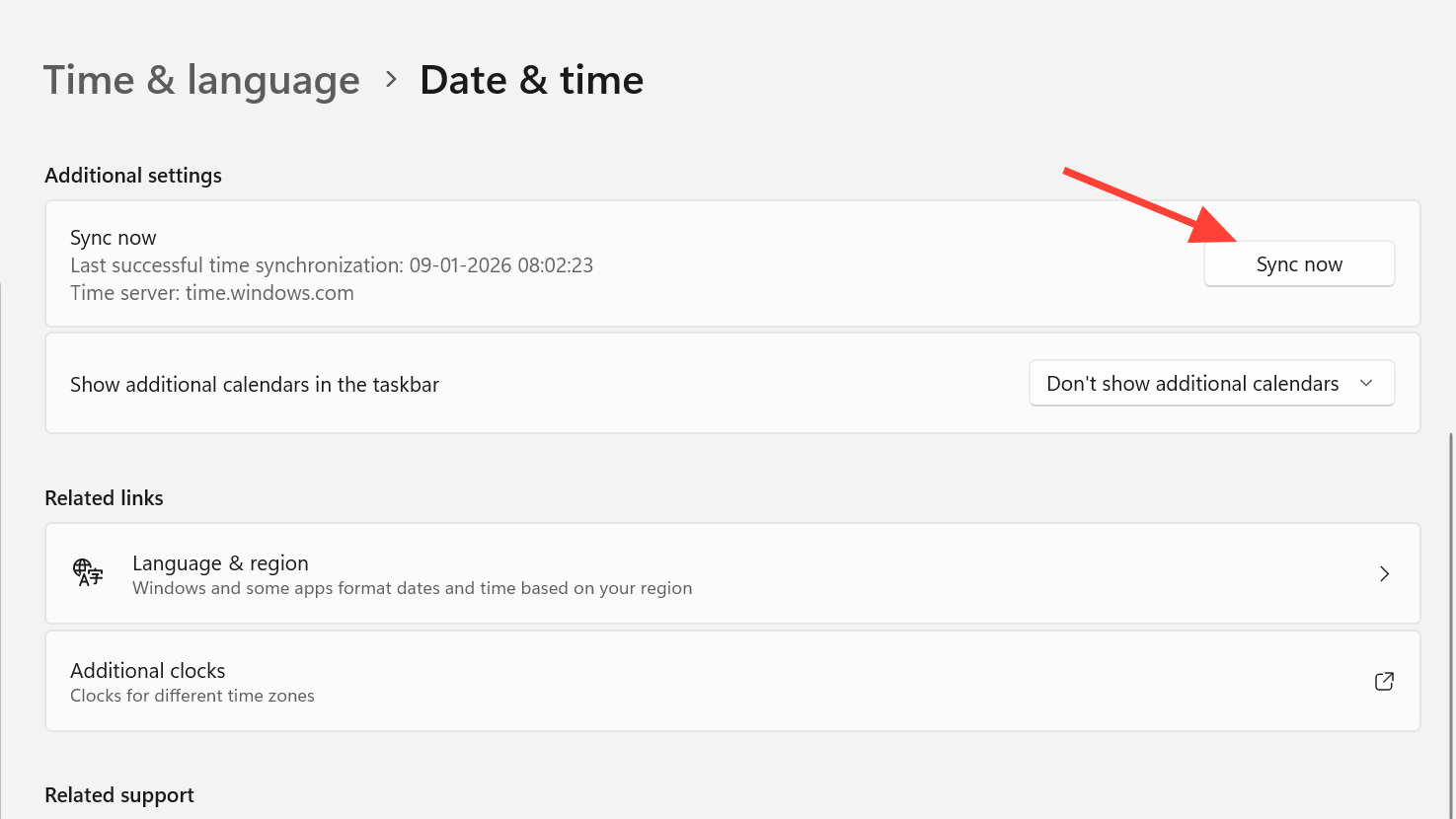
Check your system clock. At the bottom right of Windows, click the time, then choose to adjust date and time. Turn on “Set time automatically” and “Set time zone automatically” if they are off.
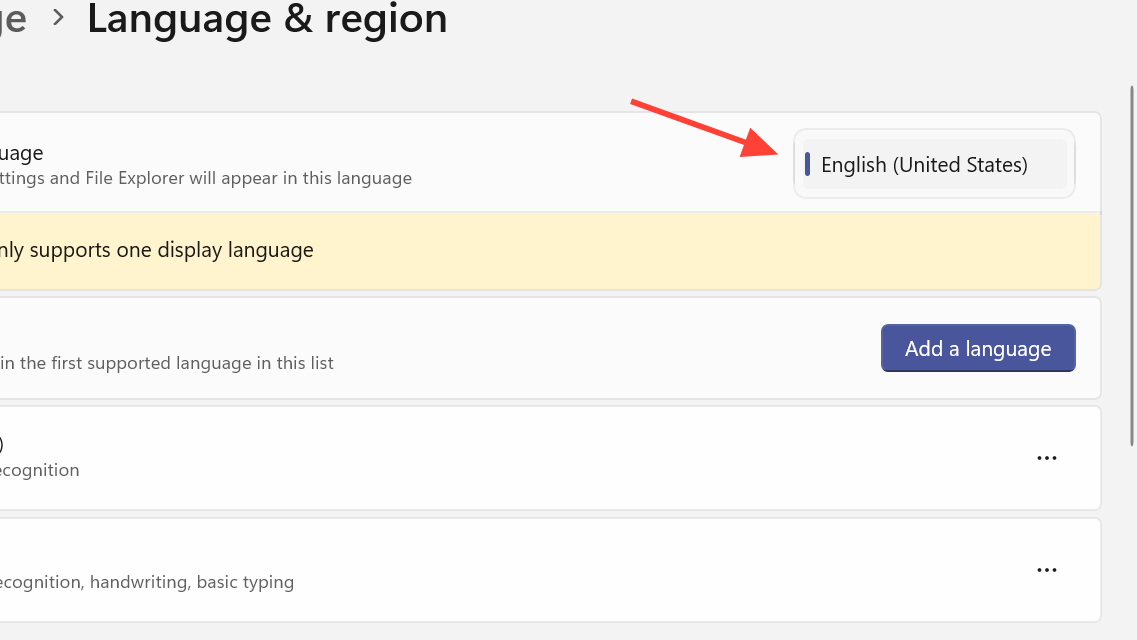
Confirm your region. In Windows Settings under Time & language, open Language & region and make sure your actual country or region is selected.
Once your system time and region line up correctly, restart the game and test the connection again.
When only workarounds like phone tethering or VPN help
A few players can connect only by routing traffic through a mobile hotspot, VPN, or a specific type of connection (for example, Wi‑Fi but not Ethernet). That pattern usually points to one of three things: an ISP path issue, router or modem firmware quirks, or regional routing decisions by the game’s backend.
In these edge cases:
Using phone tethering or Wi‑Fi instead of Ethernet is a valid short‑term workaround when you want to play now.
Long term, it is worth checking with your ISP if specific ports or routes are being filtered or shaped, especially if other online games work fine on the same line.
If the error only appears around big patches and then disappears, the cause is likely temporary congestion or backend changes and may not justify deeper local changes.
If Where Winds Meet suddenly reports “Unable connect server” while lots of players are complaining at the same time, the most effective response is patience while maintenance or server issues clear. When the problem is limited to your own setup, working through firewall rules, network adapters, DNS, IP reset, launcher permissions, and system time covers the main real‑world causes that keep the game from reaching its servers.