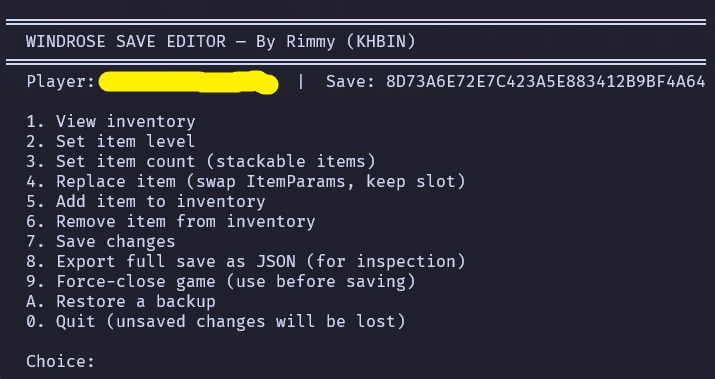
Windrose stores everything about your character and world inside an opaque RocksDB database tucked under your local AppData folder, which has historically made tweaking inventories or stack sizes a non-starter for most players. KHBIN’s Windrose Save Editor (WIP), released on Nexus Mods on April 23, 2026, is the first community tool that pokes at those files directly. It is a small Python script with an HTML item list bolted on, and right now it does one thing reliably: overwrite items in your inventory.
What the editor actually does
The mod is a Python script that reads a Windrose world save, lets you swap inventory entries for any item ID from the bundled HTML reference, and writes the changes back. Stack size is editable alongside the item ID itself. Anything beyond overwriting items, like adding fresh stacks to empty slots, spawning world objects, or editing structures, is not in a tested state in version 1.0c.
Author KHBIN describes the project as “heavily vibecoded” and built with help from Claude, and is upfront that the included _Guide.txt is bare. World editing is on the wishlist if there’s enough demand, but the current release is scoped tightly around the inventory use case players have been asking about most.
Version history
| Version | Change |
|---|---|
| 1.0 | Initial release. Overwriting items confirmed working. |
| 1.0b | Replaced an outdated item ID HTML that shipped without proper parsing. |
| 1.0c | HTML now pre-places a leading “/” on itemparam and adds a validation check on itemparam as a safeguard. |
If you grabbed an earlier build, update to 1.0c. The 1.0b note explicitly calls out that the original 1.0 item list was shipped without working parsing.
Where Windrose keeps your save
The editor operates on the same RocksDB world folder the game itself loads. On Steam and Epic, that path lives under your Windows user profile:
C:\Users\{UserName}\AppData\Local\R5\Saved\SaveProfiles\{YourProfile}\RocksDB\{GameVersion}\Worlds\{WorldID}
Local world save path (Steam/Epic)
For the Stove client, the profile folder is named StoveDefault instead of a numeric Steam ID. Dedicated servers use Default as the profile name and live under the server’s own R5 directory rather than your AppData.
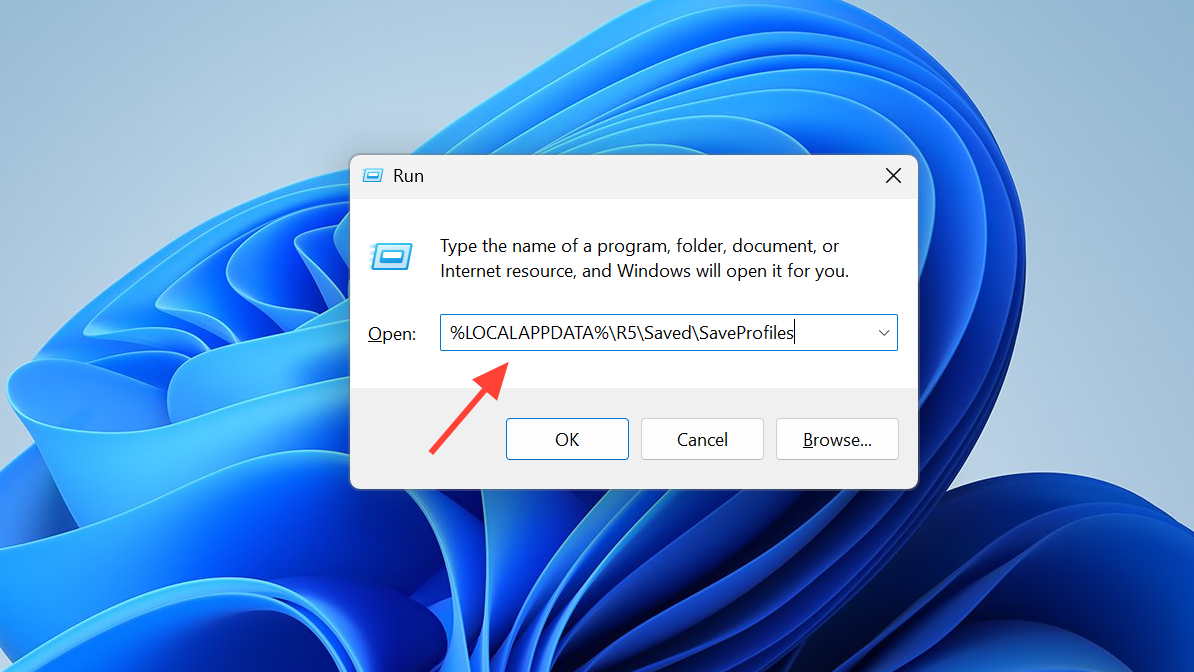
The fastest way to reach your local saves is to press Win + R and paste %LOCALAPPDATA%\R5\Saved\SaveProfiles. From there, drill into your profile, then RocksDB, then the version subfolder (something like 0.10.0), and finally Worlds. Each subfolder under Worlds is a single world, named by its WorldID. Sort by date modified to find the one you’ve been playing.
Back up first, every time
RocksDB is a binary database, not a text file. You cannot open it in Notepad, and a half-written change can leave a world in a broken state that the game refuses to load. There are two safety nets worth using before you run the editor:
- Manual full-folder copy. Close Windrose, then copy the entire
R5folder at%USERPROFILE%\AppData\Local\R5to a second location. Copying individual world subfolders alone is not reliable because the loader depends on the surrounding directory structure. - Built-in rolling backups. Hotfix 0.10.0.3.104 (April 19, 2026) added an automatic backup that runs every time the game launches, keeping the last 30 saves. These can be restored from the in-game recovery flow. They cover accidental corruption but not long-term archival, so a manual copy is still useful before destructive edits.
Steam Cloud is a separate system that only syncs on game exit. If you edit a save while the cloud version is newer, the next launch may prompt you to choose Local or Cloud. Pick Local to keep your edited world.
Running the editor
RocksDB\{GameVersion}\Worlds\{WorldID}. Use the bundled HTML to pick the item ID you want, set the stack size, and overwrite an existing inventory entry.
Known limits
Only the overwrite path has been properly tested in 1.0c. Adding entirely new stacks, editing world objects, placing structures, or modifying NPCs are not supported. KHBIN has flagged a save file containing every item in the game as a future to-do, and world editing as a stretch goal contingent on community interest.
Two practical caveats are worth keeping in mind. The {GameVersion} folder corresponds to the patch the world was created on, so after a Windrose update your active world may sit under a new version path. And if you also play on a dedicated server, do not rename the world folder when moving it around. The database depends on those IDs, and WorldIslandId in ServerDescription.json must match the folder name exactly.
Trainers vs. save editing
If you only want runtime cheats like max health, free build, unlimited talent points, or game speed control, a trainer such as WeMod handles those without touching the save file at all. The save editor is the right tool when you want a specific item or quantity to persist in your inventory between sessions, or when you need to recover from a bad drop or lost stack. The two approaches do not conflict, but they solve different problems.
For a Windrose project on day one of its life on Nexus, the editor is narrow but honest about what it can and can’t do. Stick to the overwrite use case, keep a clean backup of your R5 folder, and the worst case is rolling back to where you started.