
Meccha Chameleon runs its multiplayer entirely through an in-game server browser, so playing with friends means one person hosts a server and everyone else searches for it. There is no party or group-invite system that drags everyone into a match automatically. The setup is simple once you know which fields matter and where friends go to find the room.
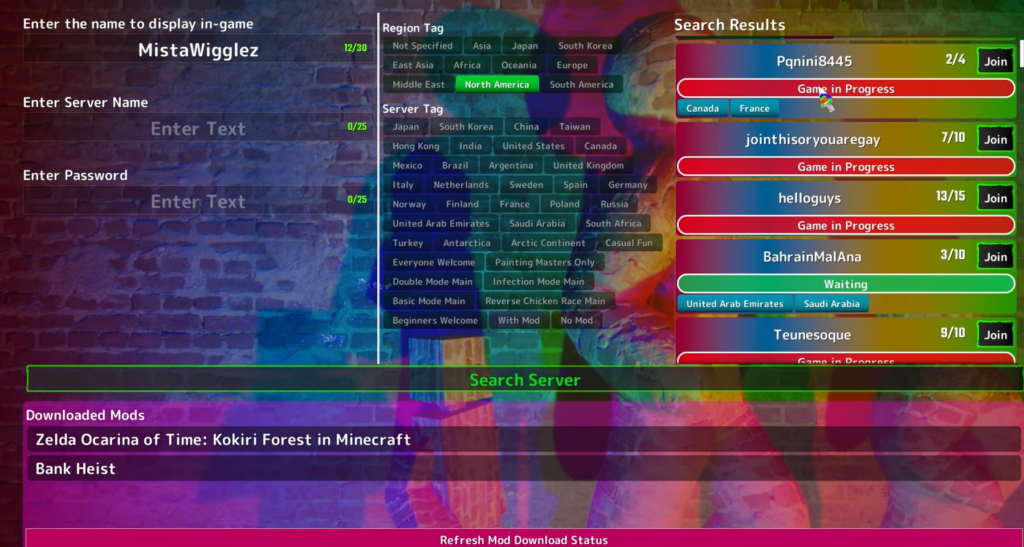
Quick answer: Have one person click Create Server, set a server name and password, then share that exact name and password with the group. Friends open Find Server, choose Find Private Server, and enter the same name, region, and password to join before the match starts.
What every player needs before joining
Every person in the lobby needs their own copy on Steam. There is no free guest slot and no split-screen, so multiplayer only works online through the server browser. Version mismatches are the most common reason a friend can’t see a room, so let Steam finish any pending update before the host creates the server.
| Requirement | Detail |
|---|---|
| Copy of the game | One Steam license per player (App ID 4704690) |
| Platform | Windows PC or Steam Deck (same Steam library) |
| Game version | Everyone must be on the same build after any patch |
| Microphone | Optional, but useful for proximity voice |
| Workshop maps | All players must subscribe to the same custom map |
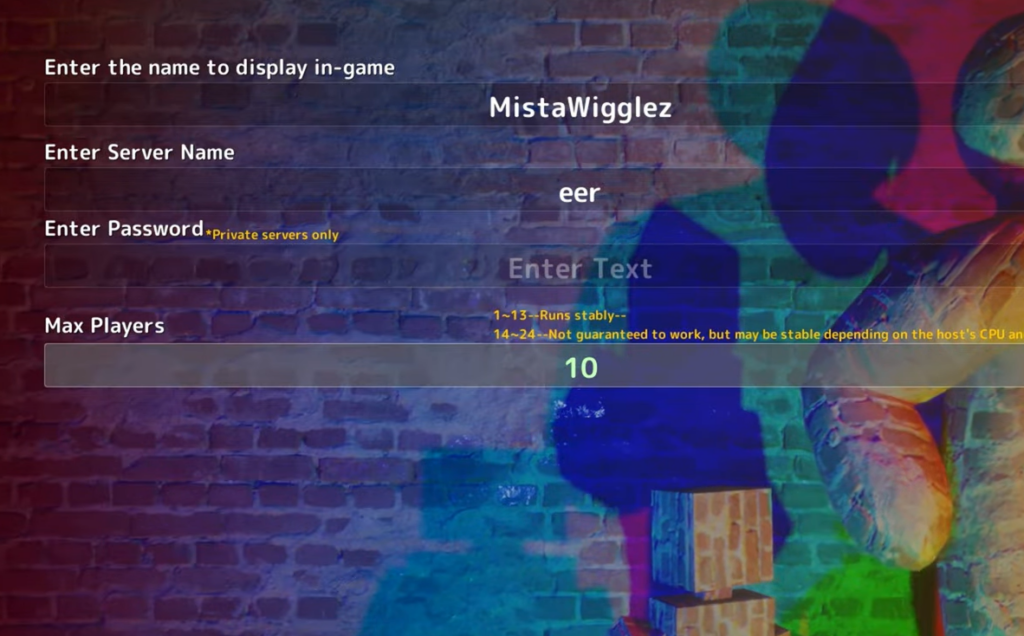
How to host a server for friends

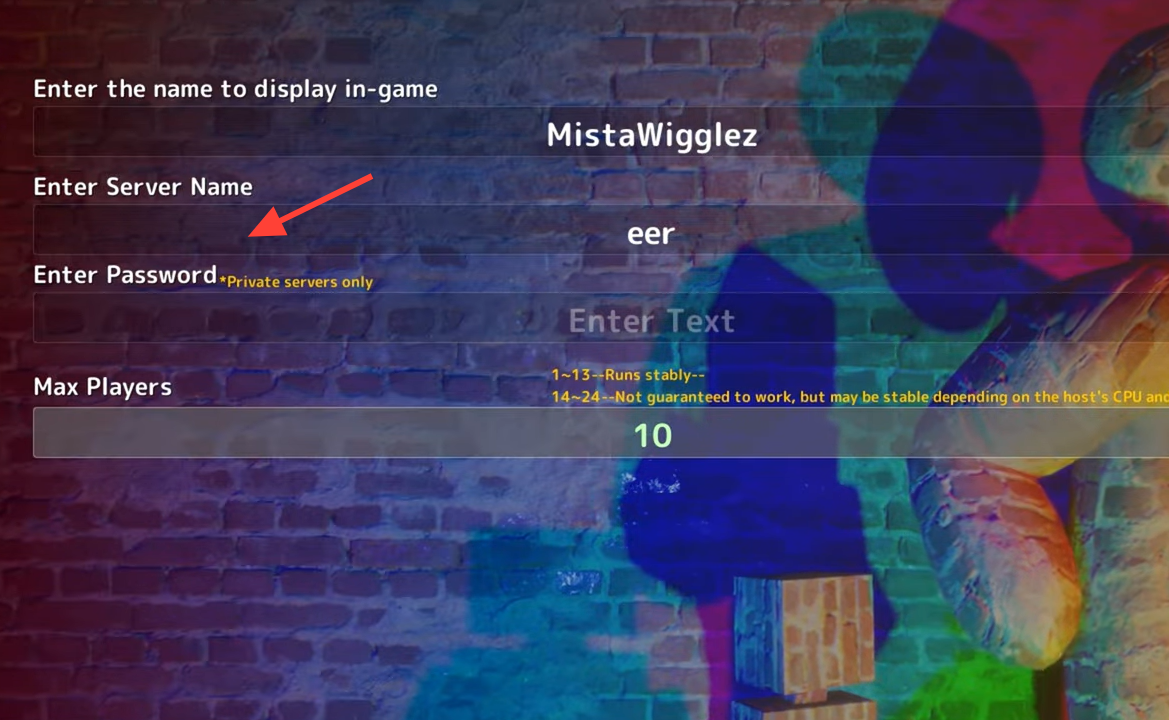
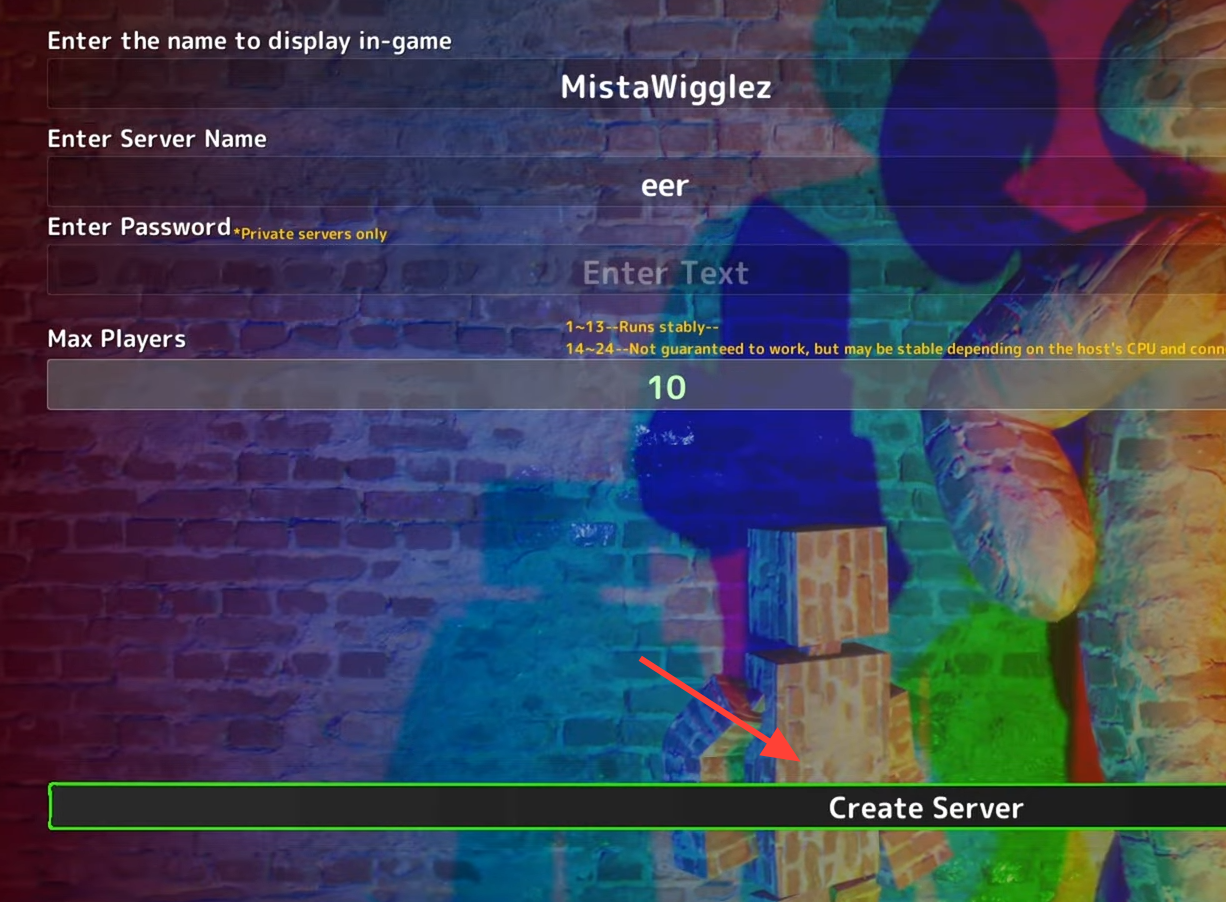
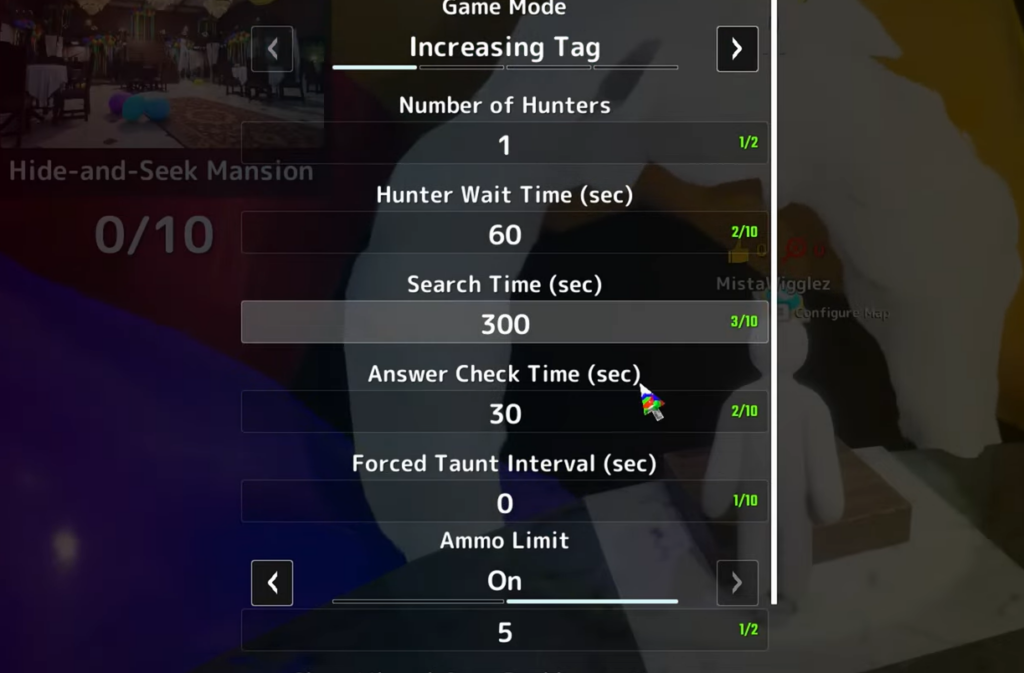
Server tags and game modes you can set
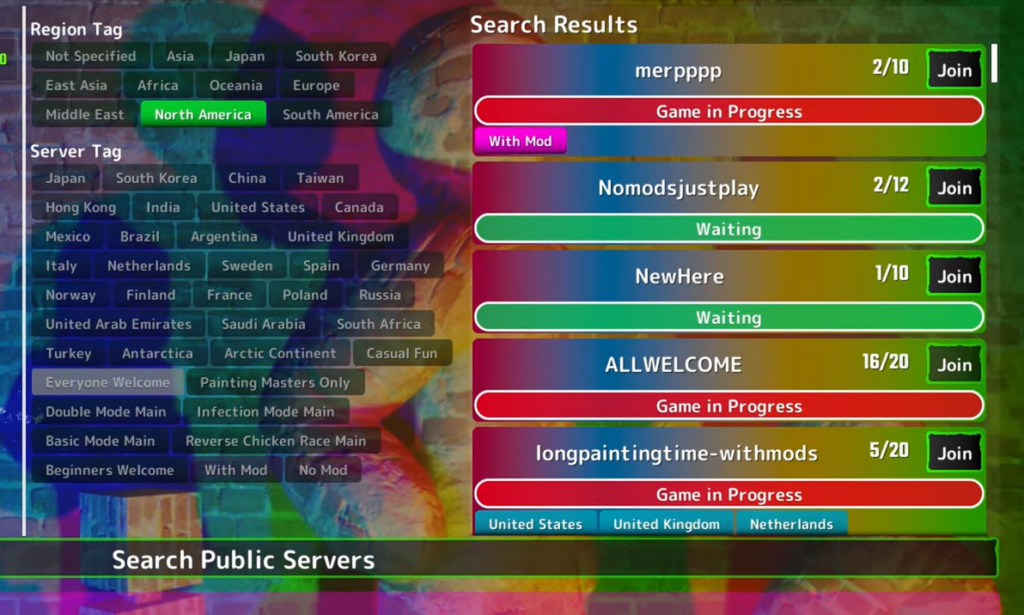
Tags help friends filter the browser and signal what kind of match you are running. Region tags cover areas like North America, Europe, Japan, South Korea, East Asia, Oceania, South America, the Middle East, and Africa. Server tags describe the room’s style and rules.
| Setting | Options |
|---|---|
| Server tags | Everyone Welcome, Beginners Welcome, Painting Masters Only, With Mod, No Mod, plus mode-focused tags |
| Mode-focused tags | Basic Mode Main, Double Mode Main, Infection Mode Main, Reverse Chicken Race Main |
| Filters | Monochrome, Horror, Mosaic |
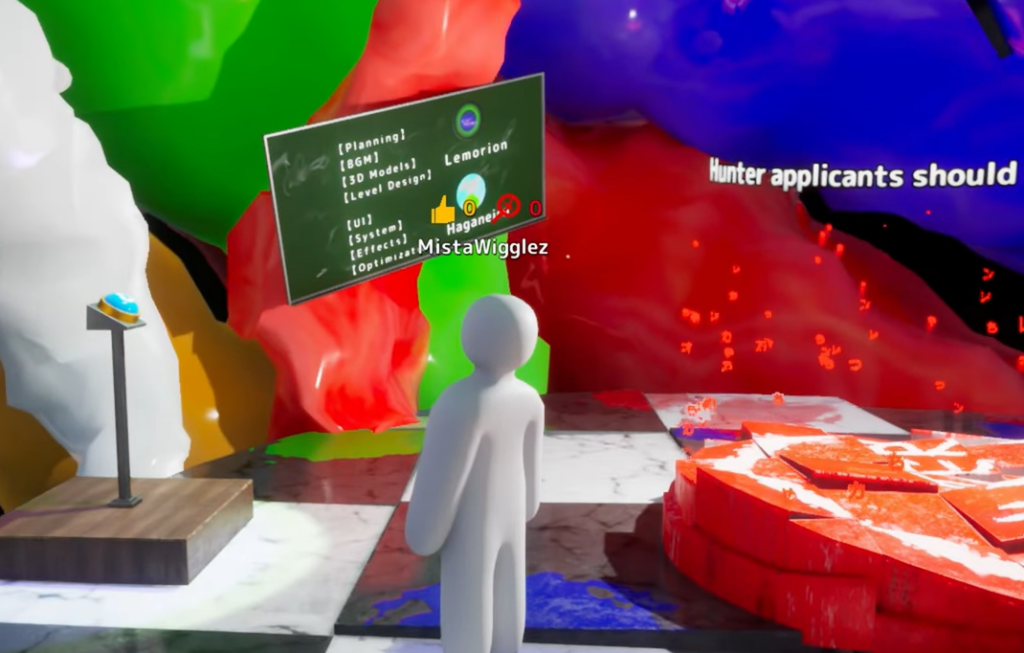
Infection Mode, also labeled Increasing Oni in some menus, turns caught players into Seekers, so the round gets faster and eliminated players stay in the game. That makes it a strong pick for larger groups. Basic Mode is the cleanest starting point for new players.
How friends join your server
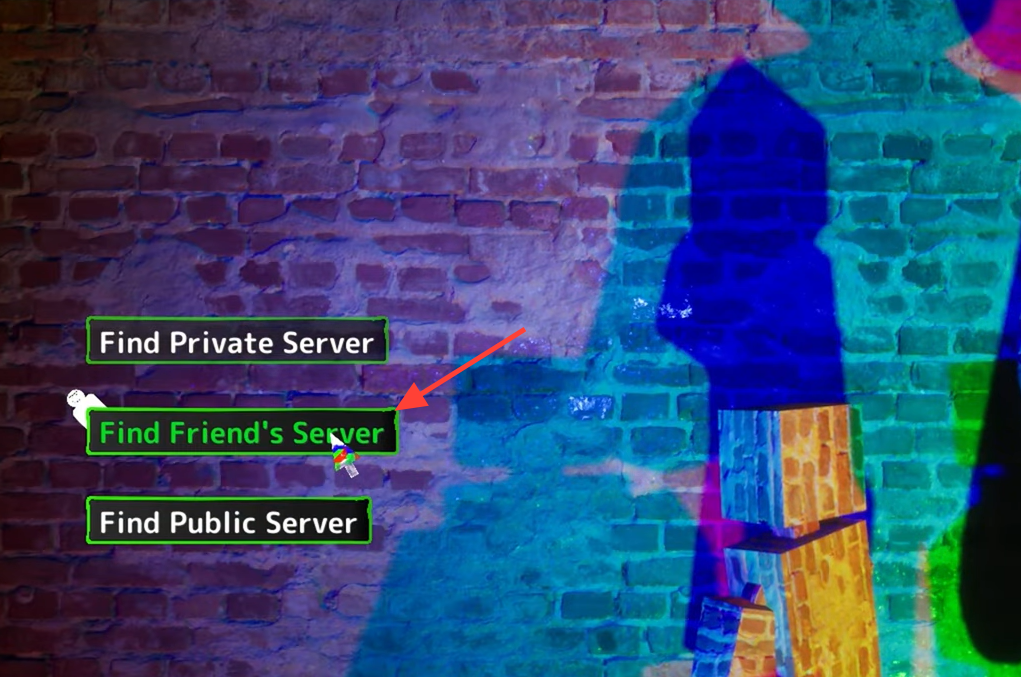
There are three ways into a room, all reached through Find Server on the main menu. Manual search by name is the most reliable, especially right after an update.
| Method | How it works |
|---|---|
| Find Friend’s Server | Joins a Steam friend who is currently in a session. Fastest, but can be unreliable after a patch. |
| Find Private Server | Searches by the exact server name and password. The most dependable route for friend groups. |
| Find Public Server | Browses open lobbies that require no password. Use Search Public Servers to populate the list. |
How many players a lobby supports
A server can hold up to 24 players in theory, but stability depends heavily on the host’s CPU and network. The recommended range is 2 to 10 players, and keeping the count at 13 or fewer gives the smoothest experience. Assign the strongest PC with a wired connection as the host for bigger rooms, because if the host disconnects, the match ends for everyone.
| Players | What to expect |
|---|---|
| 2–10 | Recommended, stable, best overall experience |
| 11–13 | Usually stable with minor lag possible |
| 14–24 | Supported but chaotic and heavily host-dependent |
Fix a room that won’t show up
When a friend can’t find your server, it is almost always a setup mismatch rather than an outage. The backend runs on Epic Online Services, so aggressive firewalls or antivirus tools can also block the browser from populating.
- Confirm everyone is on the same game version and let Steam finish updating.
- Match the region and tag exactly, or clear filters and search again.
- Re-check the server name spelling and case, and re-enter the password carefully.
- Make sure the host is still in the lobby and has not started the match early.
- Restart Steam to refresh the backend session and confirm the host is shown as online, not invisible.
- Check that a firewall or network filter is not blocking Epic Online Services traffic.
If nothing appears, have the host recreate the room with a more specific name and a fresh set of details, then search again. As a last resort, both parties can join the same empty public server and wait for each other there.
Crossplay and platform limits
There is no crossplay. The game runs only on Windows PC through Steam, with no PlayStation, Xbox, Nintendo Switch, iOS, or Android version. Steam Deck works because it runs the same Steam copy, but that is portable PC play, not cross-platform. Cross-region servers can still appear in the browser, so a host in one region and a friend in another can connect as long as both own the Steam version and match on name, password, region, and tag.
Once the whole group is inside the pre-match lobby, the host picks the map and presses Start Game. A short countdown runs before roles are assigned, so late joiners may need to wait for the next round. Keep your server name and password pinned somewhere in chat, and everyone can rejoin quickly the next time you play.