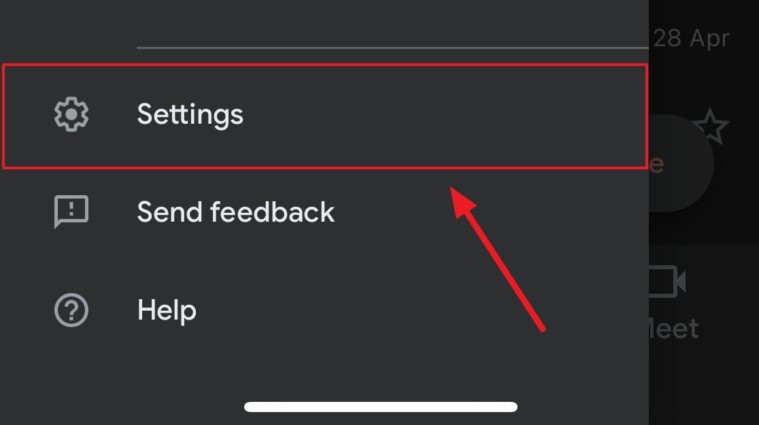
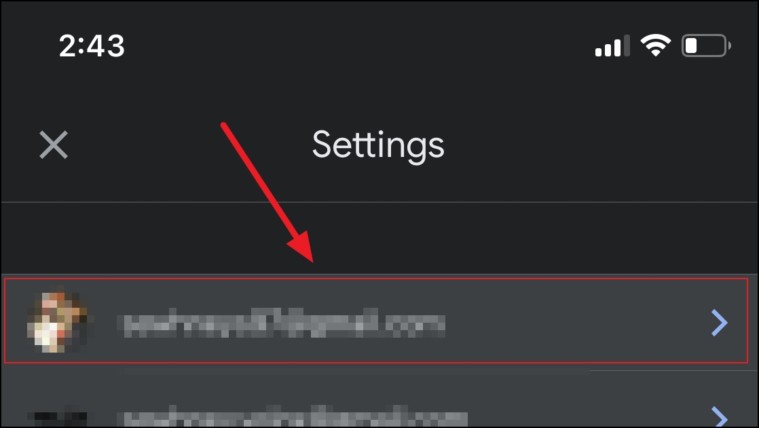
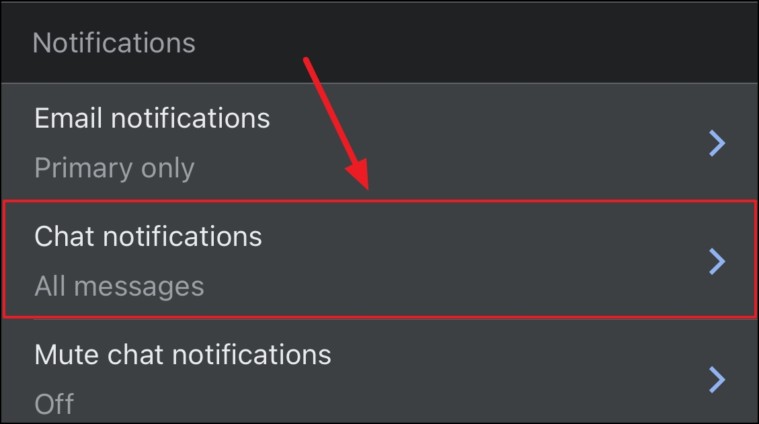
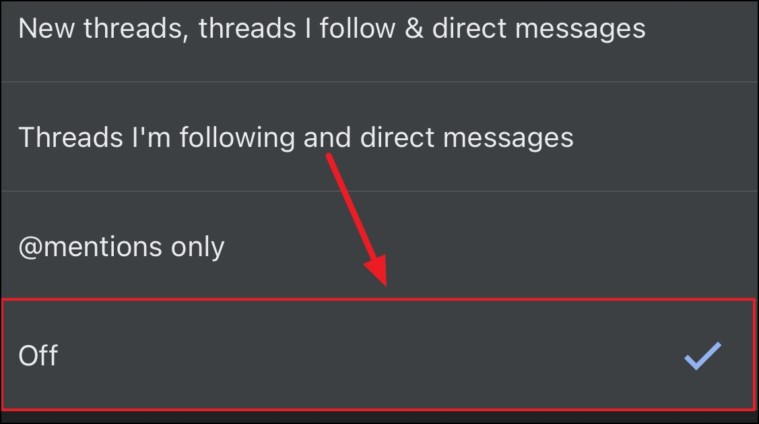
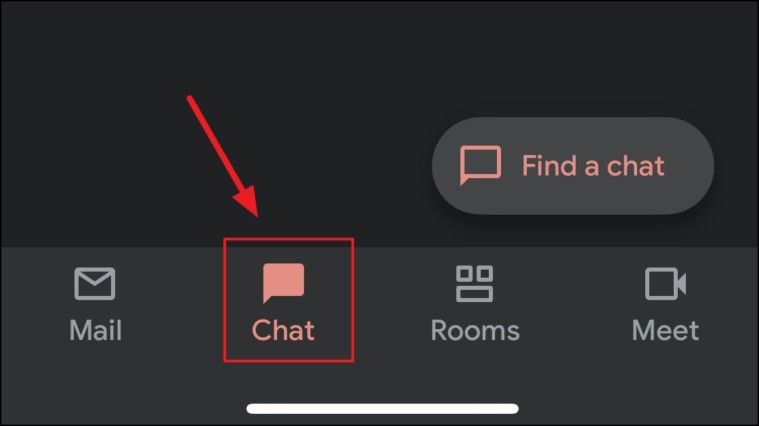
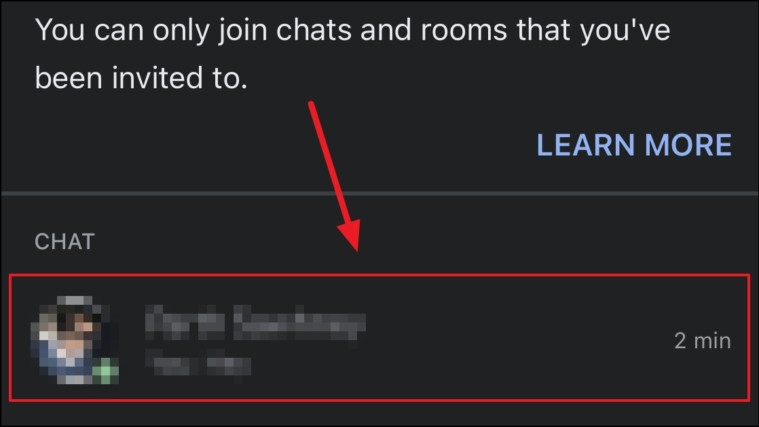
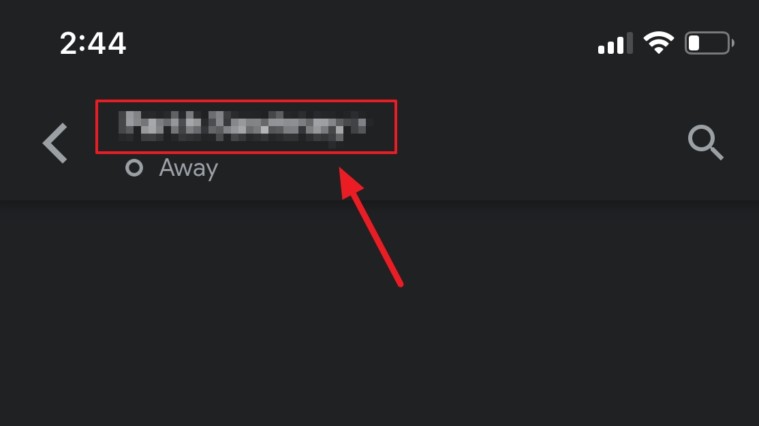
Learn how to quickly disable Google Chat notifications in Gmail and never be hassled with those pesky notifications again!
Learn how to quickly disable Google Chat notifications in Gmail and never be hassled with those pesky notifications again!
by Parth Sawhney
Continuous notifications from Google Chat integrated within Gmail can be distracting and interrupt your workflow. Disabling these notifications allows you to focus on your tasks without constant interruptions.
Disable Notifications for Specific Chats or Rooms
If you want to silence notifications from a particular chat or room without disabling all Google Chat notifications, you can easily do so in Gmail on your desktop.
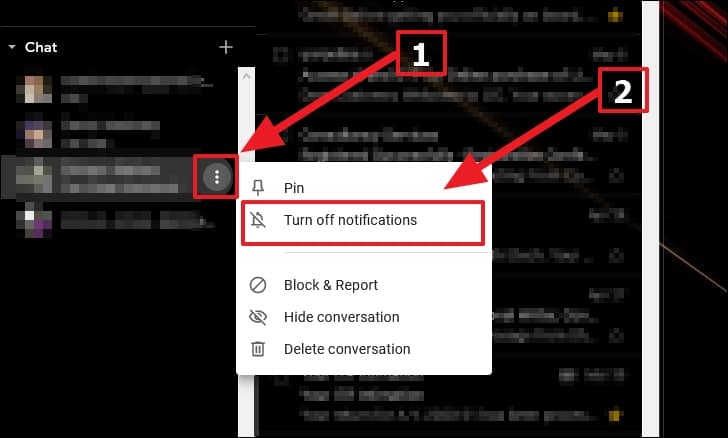
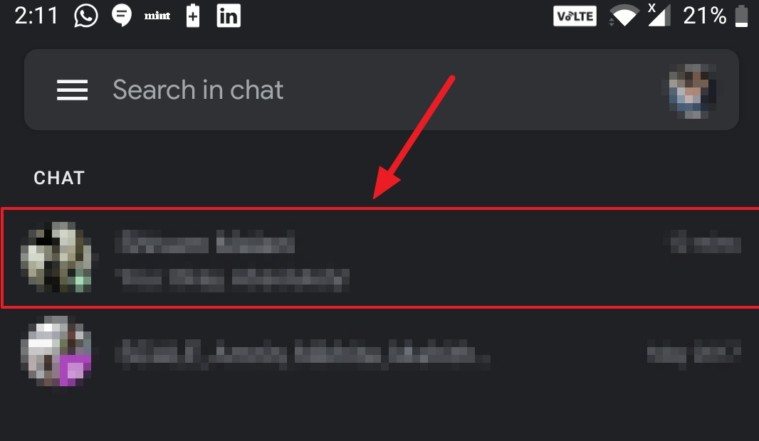
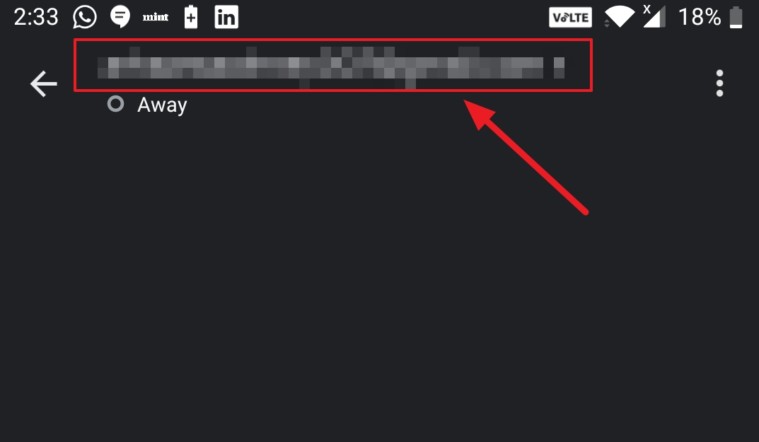
Navigate to the chat or room you wish to mute in the sidebar. Hover over the chat or room name, and click on the three vertical dots (kebab menu) that appear.
From the dropdown menu, select Turn off notifications to mute notifications for that specific chat or room.
Now, you will no longer receive notifications from that chat or room, allowing you to focus on your work without interruptions from less critical conversations.
Disable Google Chat Notifications on Desktop
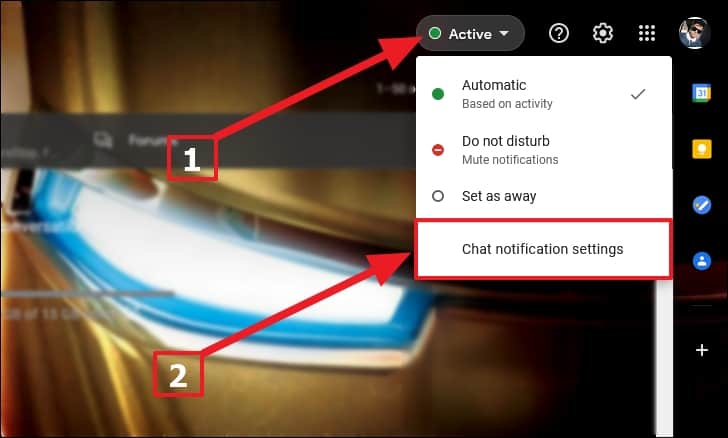
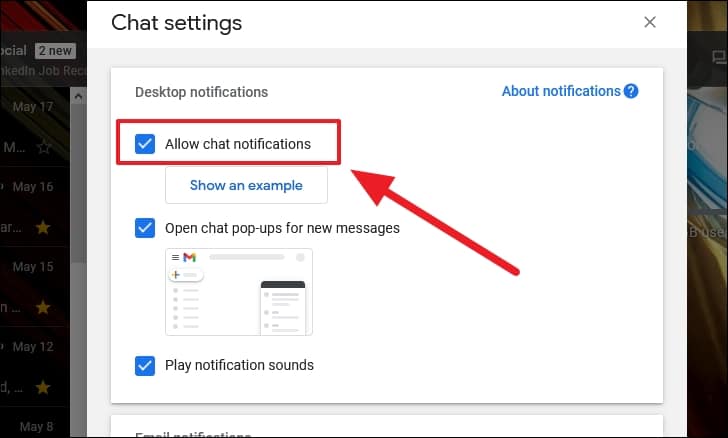
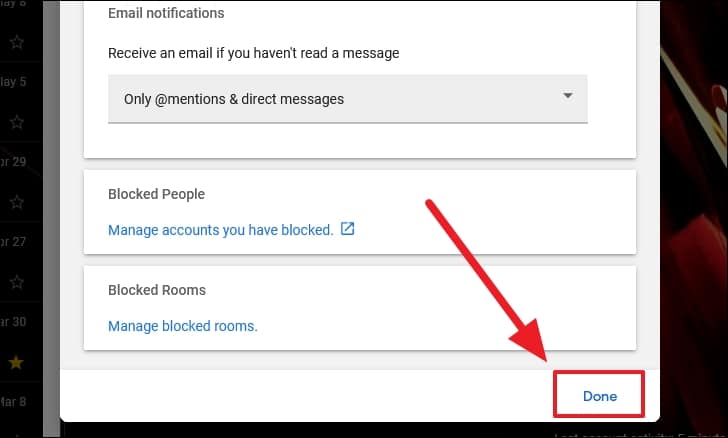
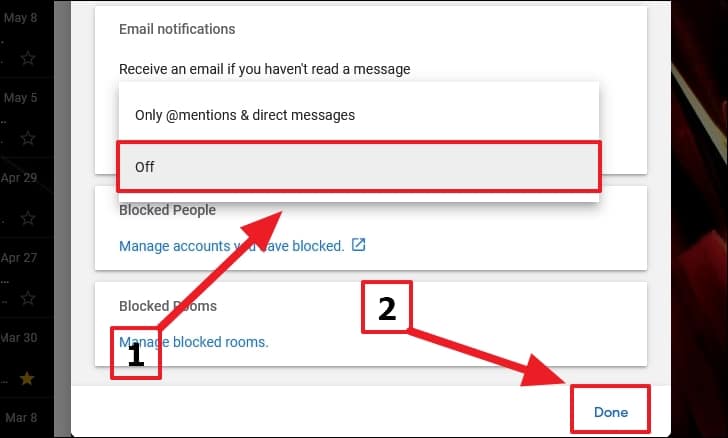
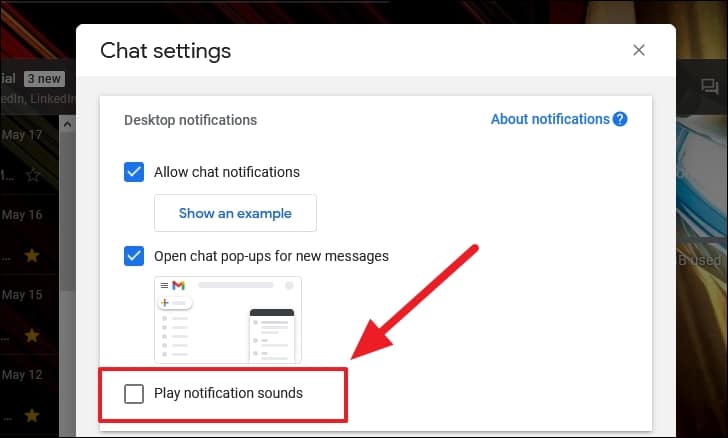
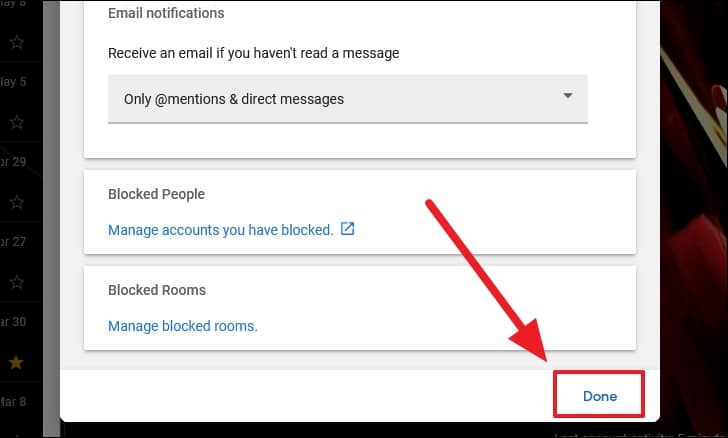
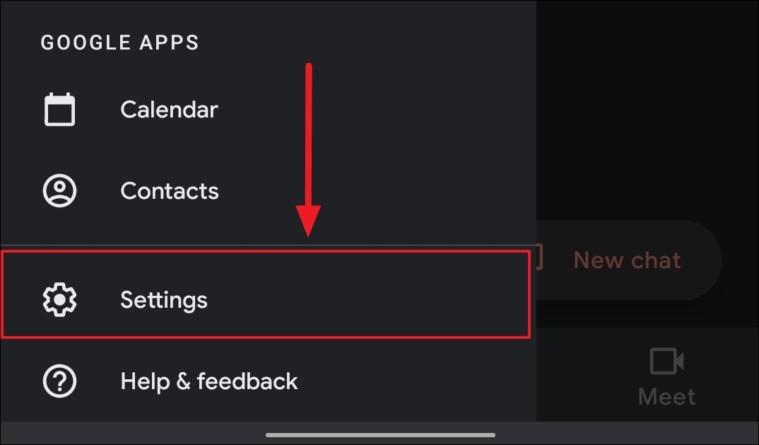
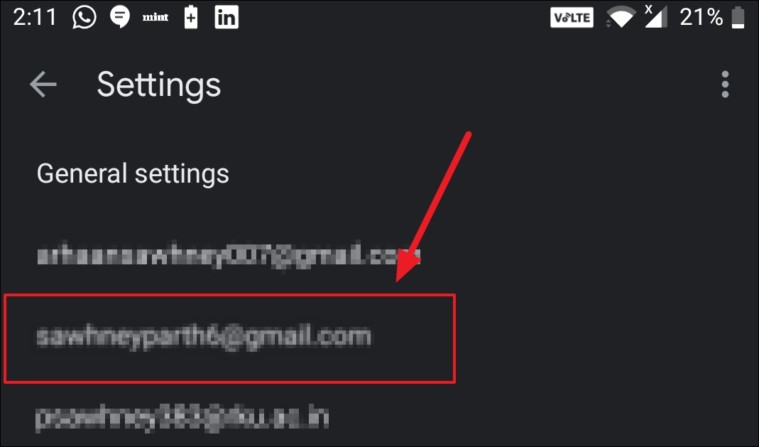
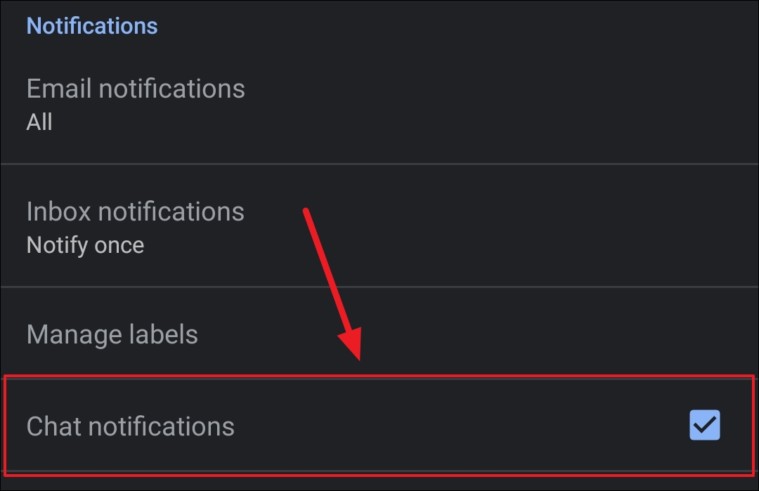
If you prefer to disable all Google Chat notifications in Gmail on your desktop, you can adjust your settings accordingly.
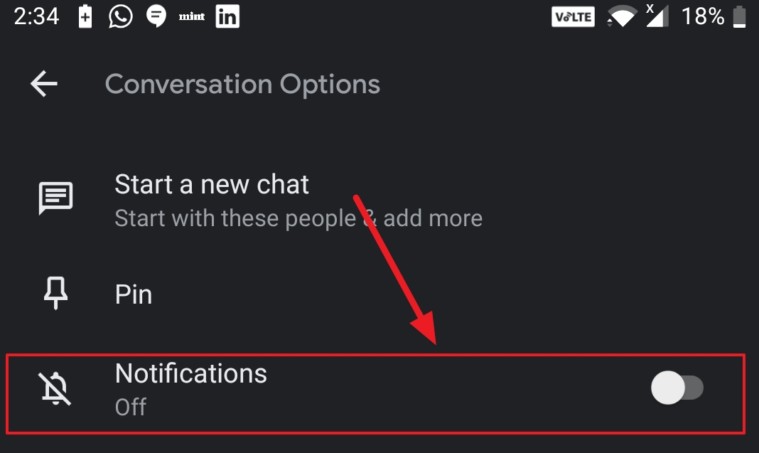
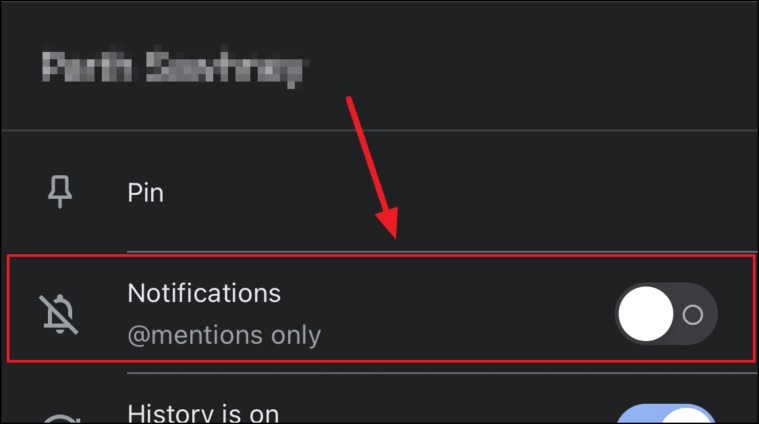
In the chat details, toggle off the switch next to Notifications.
By adjusting these settings, you can control which Google Chat notifications you receive in Gmail, helping you minimize distractions and stay focused on what matters most.