Continuous notifications from Google Chat can be disruptive and interfere with your focus, especially when you’re trying to concentrate. Knowing how to mute these notifications can significantly enhance your productivity.
Mute Google Chat notifications on mobile
Muting notifications in the Google Chat app on your mobile device is a quick and simple process. Below are the steps for both Android and iOS devices.
On Android devices
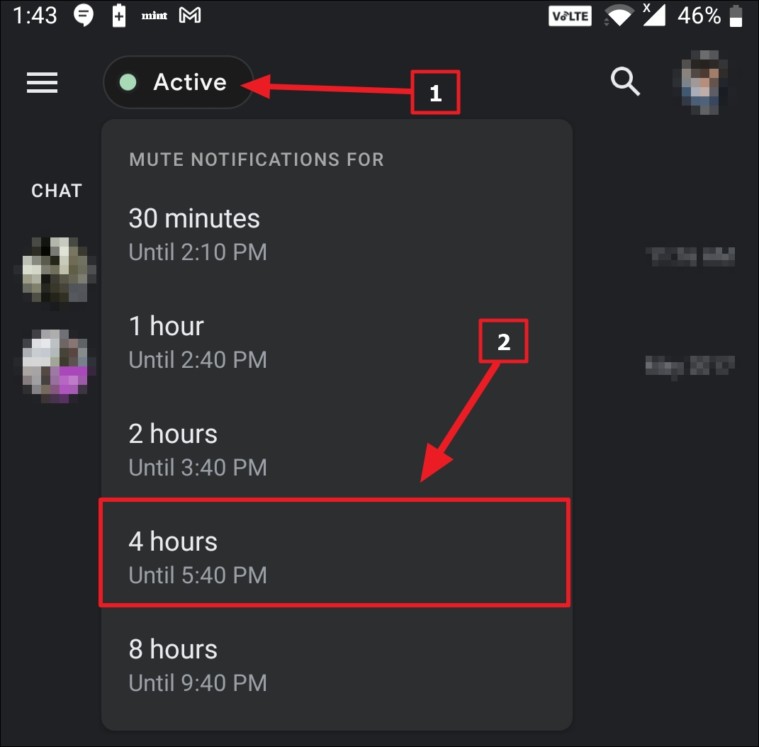
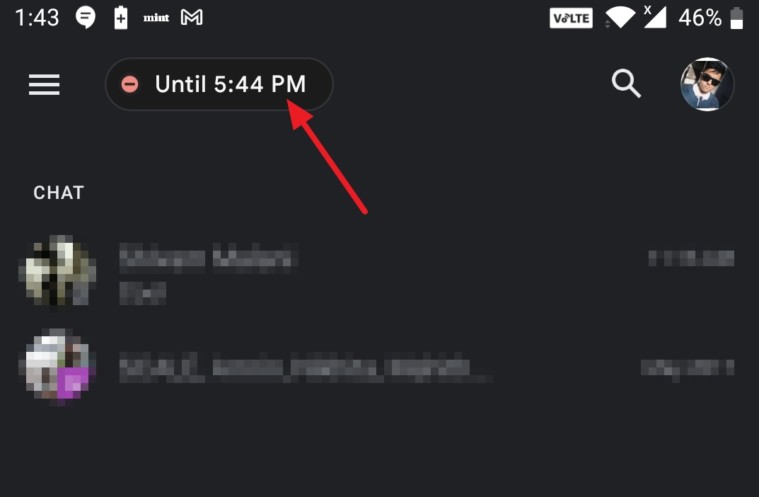
After selecting the duration, you’ll see the time until which notifications are muted displayed in the same area.
On iOS devices
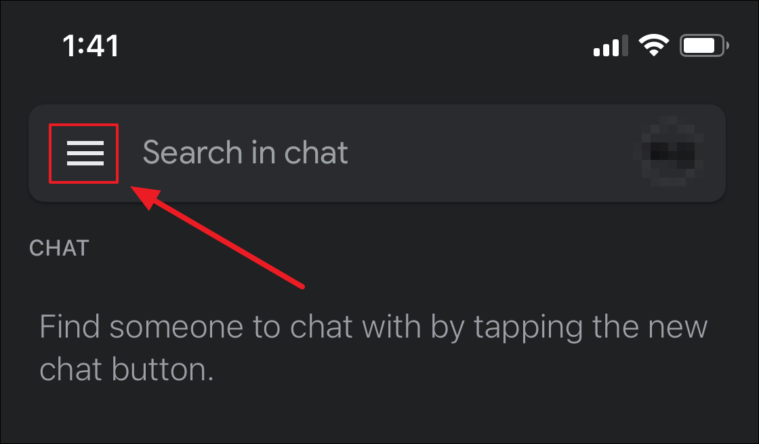
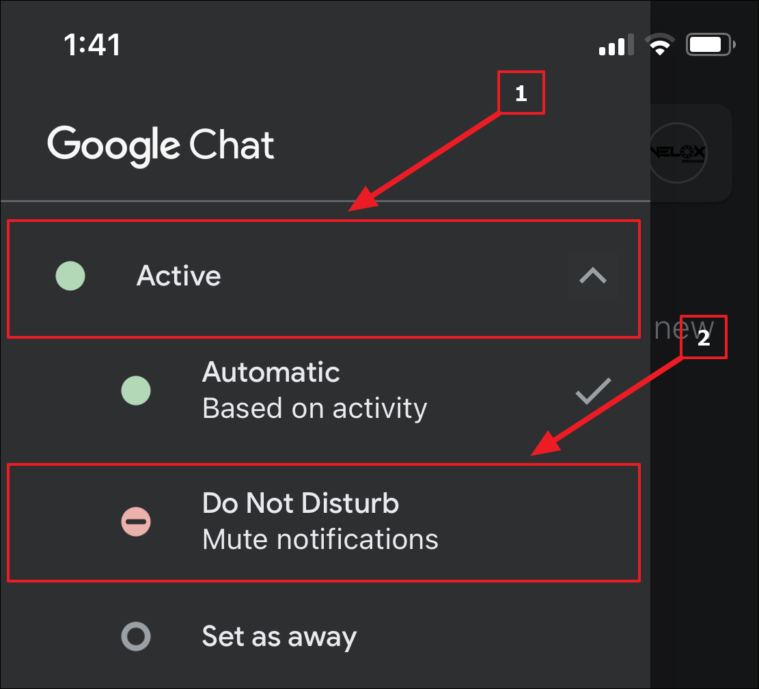
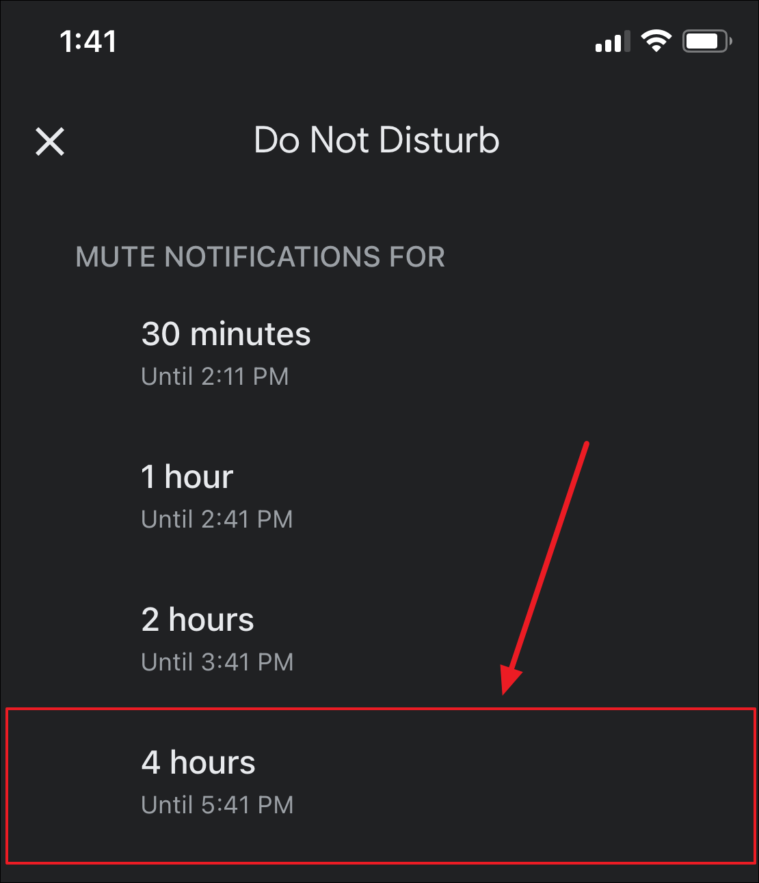
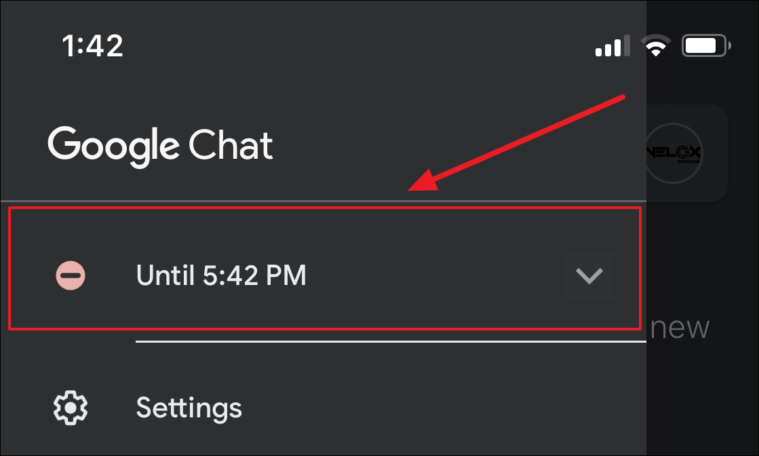
After selecting the duration, you can verify the mute status and the time until notifications are disabled by tapping the menu icon again.
Mute Google Chat notifications on desktop
Controlling notifications on the desktop version of Google Chat is equally straightforward.
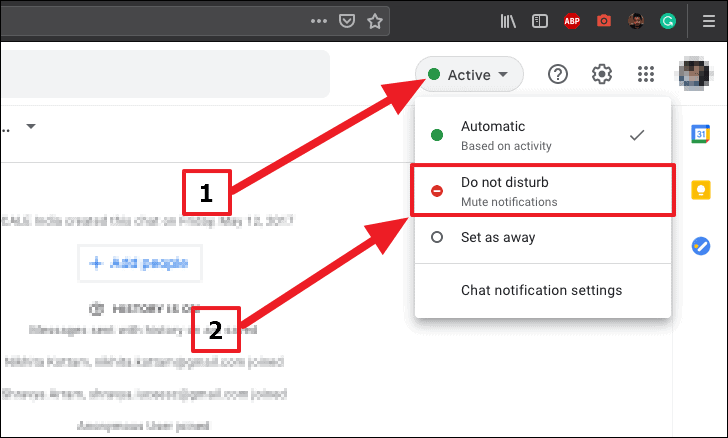
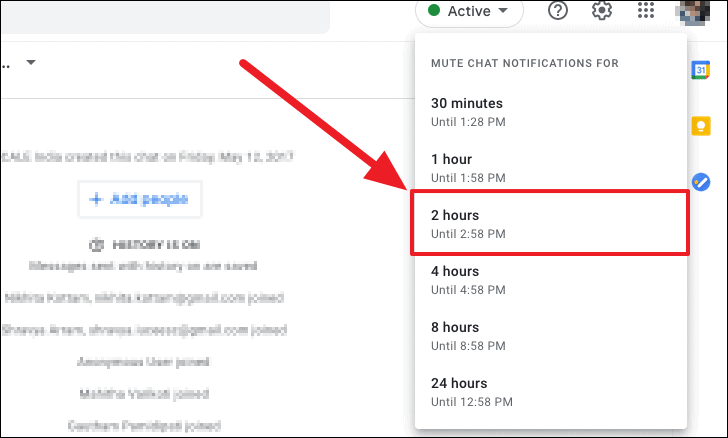
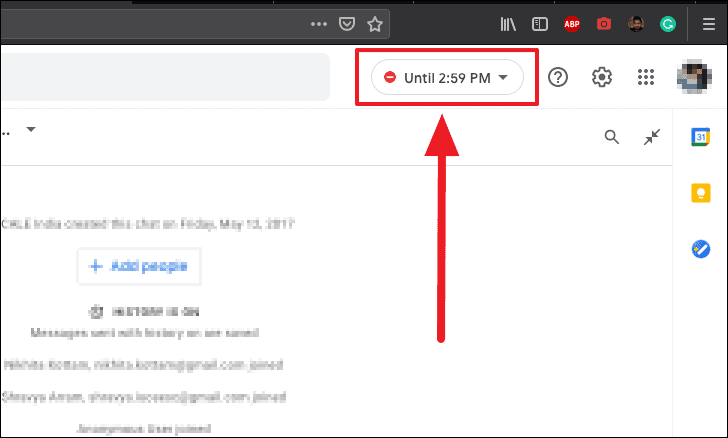
After setting up, you can see the time until which notifications are muted by checking your status at the same location.
Reduce notifications for group chats
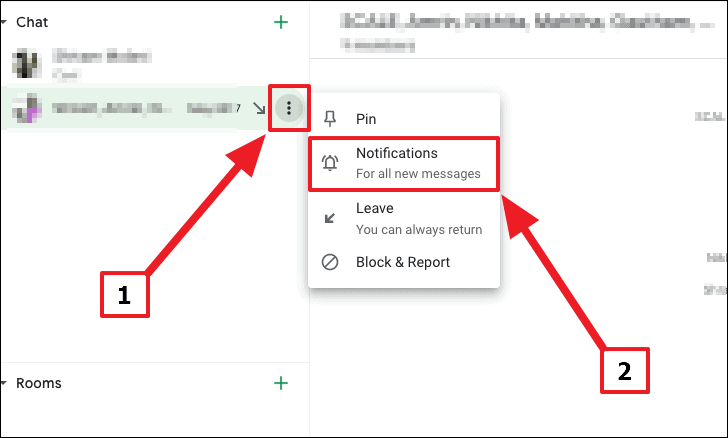
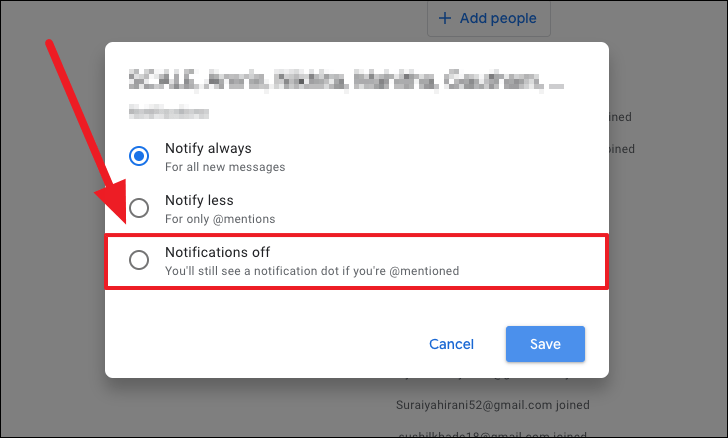
Group chats can sometimes overwhelm you with constant notifications. To minimize distractions, you can adjust the settings to receive notifications only when you’re mentioned.
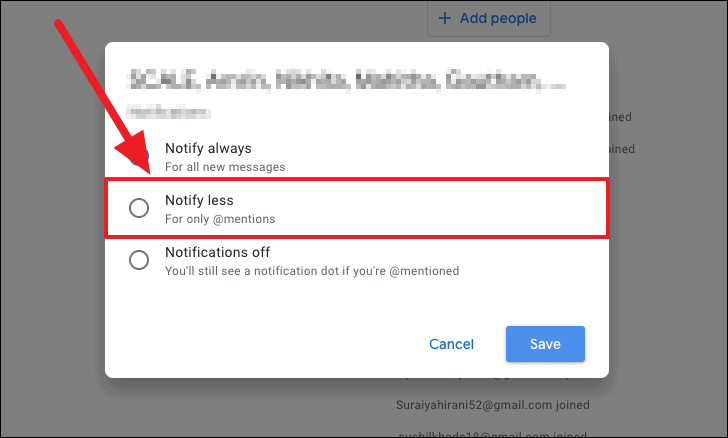
If you prefer not to receive any notifications from the group chat, select Notifications off. Please note that you’ll still see a notification dot if someone mentions you in the group.
By following these steps, you can control your Google Chat notifications and maintain your focus without unnecessary interruptions.