Microsoft’s Windows Package Manager, known as winget, is a powerful tool that streamlines installing, upgrading, and configuring applications on Windows 10 and Windows 11. This command-line utility simplifies software management for developers and IT professionals, enhancing productivity and efficiency.
The winget CLI is included in the latest Windows builds as part of the App Installer from the Microsoft Store. To check if it’s already installed on your system, open Command Prompt or PowerShell and run:
winget --versionIf a version number appears (for example, v1.4.11071), winget is installed on your PC. If not, you can download and install it manually by following the steps below.
Download App Installer (with winget) from GitHub
You can obtain the latest version of winget directly from GitHub without enrolling in the Windows Insider program.
.appxbundle file and the source code for the release.Microsoft.DesktopAppInstaller_*.appxbundle link to download the App Installer that includes the winget feature. This version is consistent with the one provided in the latest Windows updates.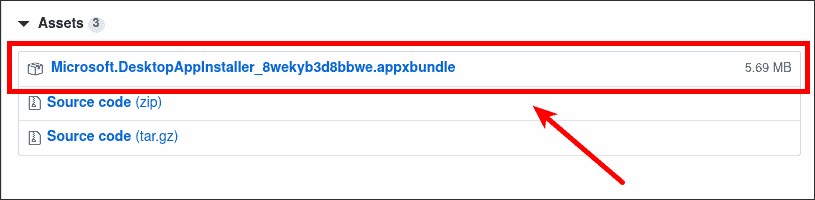
Install App Installer (with winget)
Microsoft.DesktopAppInstaller_*.appxbundle file to begin the installation. This action will install the App Installer along with the winget CLI tool.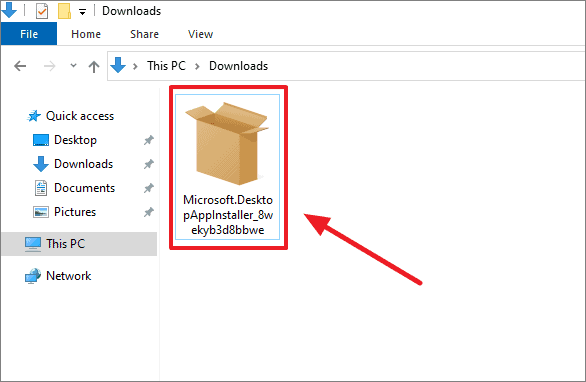
winget feature.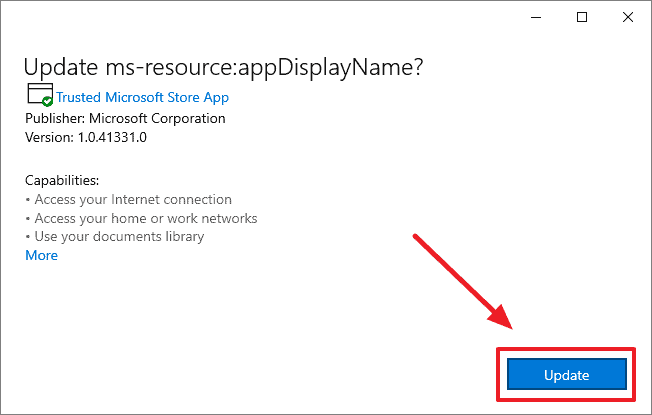
After the update completes, the winget CLI will be available on your computer.
Verify the Installation
winget --versionYou should see an output displaying the installed version of winget, such as v1.4.11071.
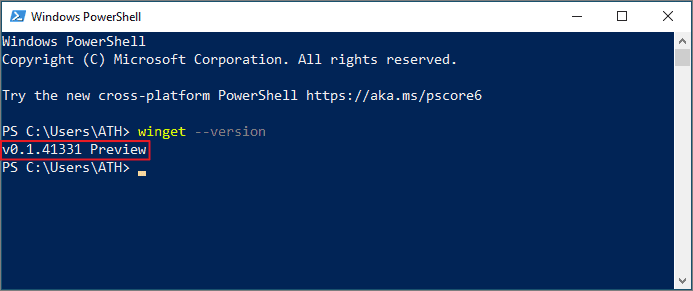
Since you manually installed winget, it might not receive automatic updates. To stay up-to-date with the latest features and improvements, periodically check the winget releases page on GitHub to download and install newer versions of the App Installer.