Extended Security Updates (ESU) for Windows 10 keep your system receiving critical security patches after October 14, 2025, but some eligible PCs never show the “Enroll now” option in Windows Update. This usually comes down to how Windows flags your device in the registry or how the ESU feature is toggled internally, not to a hardware fault.
Check basic ESU requirements before applying fixes
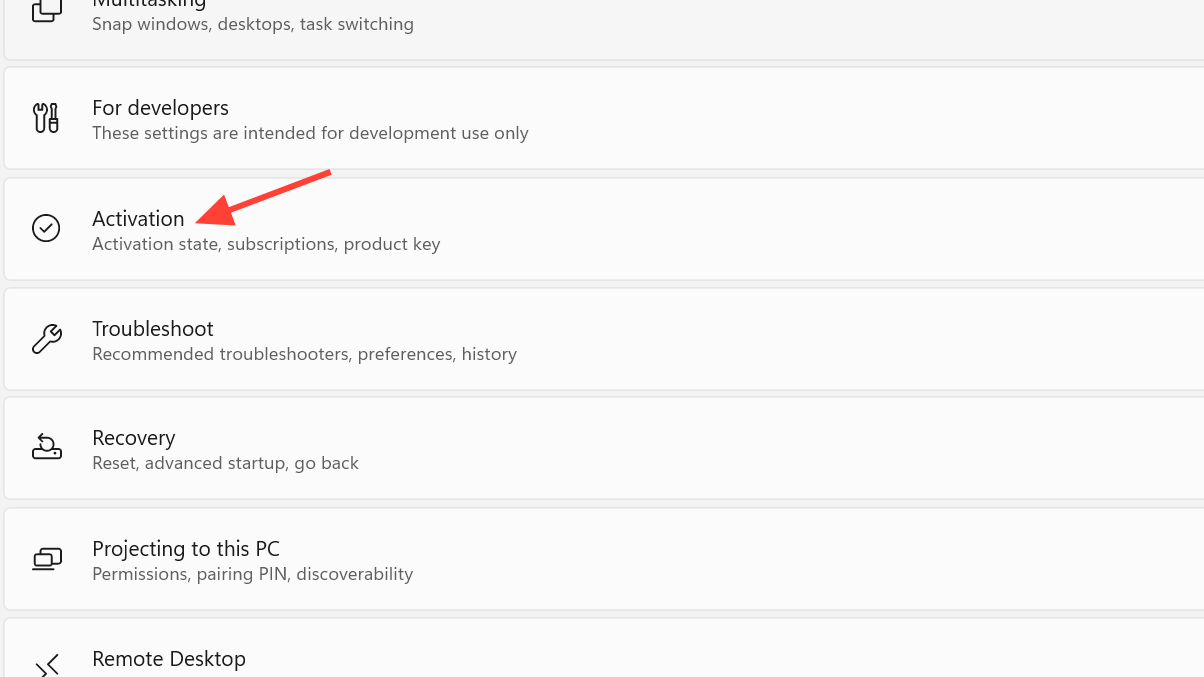
Before changing anything, confirm that your device is allowed to use the free Windows 10 ESU offer. That avoids wasting time on a machine that will never show the button.
| Requirement | What to check |
|---|---|
| Windows edition. | Must be Windows 10 Home or Pro, not Enterprise or Education. |
| Activation. | Windows must be activated with a valid license. |
| Version and build. | Windows 10 version 22H2 with current cumulative updates. |
| Account type. | Consumer device, not managed by an organization policy. |
| Region rollout. | ESU consumer feature must be available in your country. |
Windows + R, type winver, and press Enter to confirm you are on Windows 10 version 22H2 (build 19045.xxxx or later). If not, install all pending updates via Settings > Update & Security > Windows Update.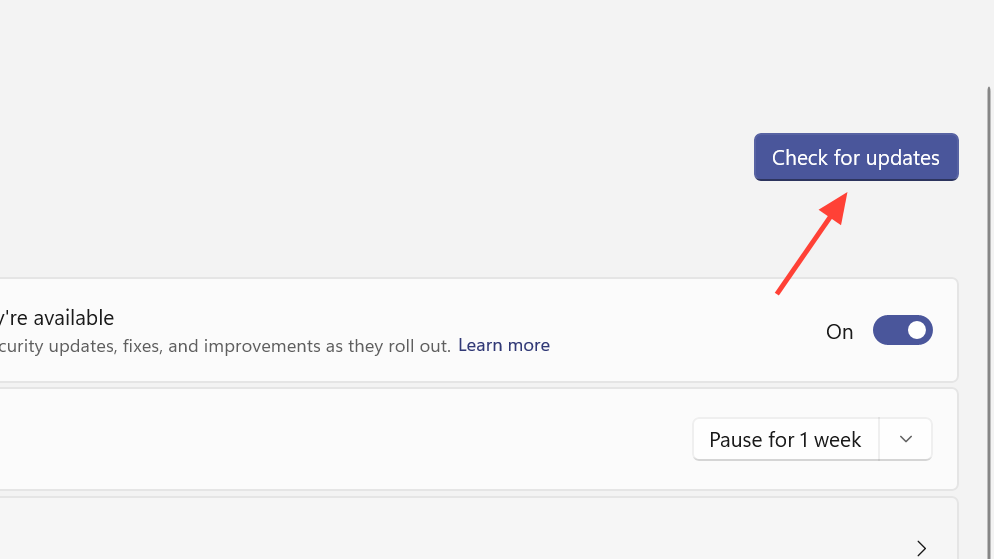
Method 1 – Create the ConsumerESU registry keys (fastest fix)
This method tells Windows Update that the current user’s device is eligible and successfully evaluated for Consumer ESU. After a reboot, Windows Update usually displays the Extended Security Updates section with the “Enroll now” button.
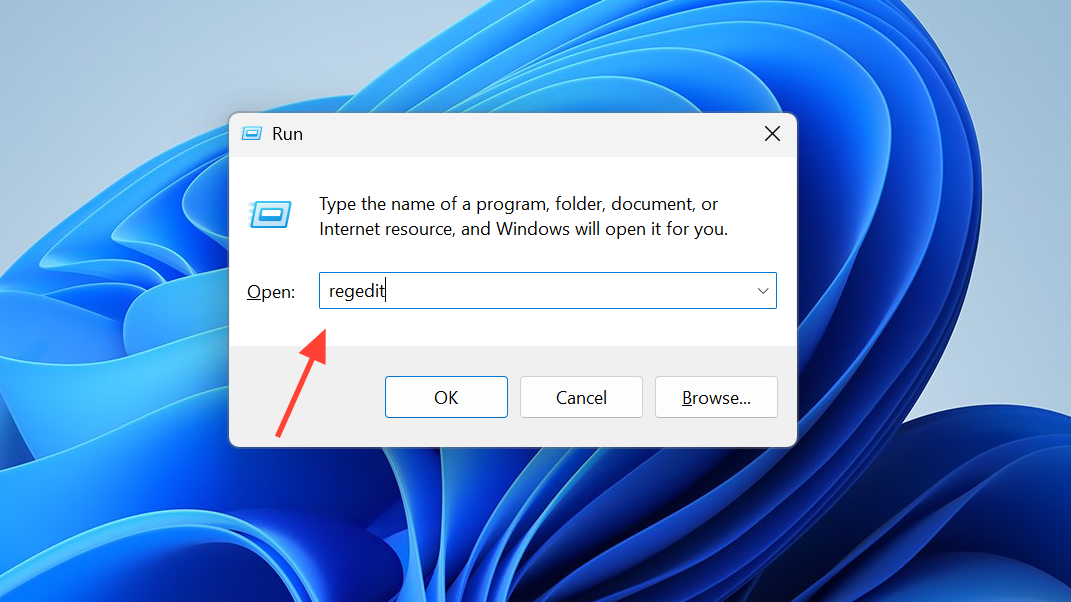
1. Open Registry Editor
2. Go to the Windows key for the current user
HKEY_CURRENT_USER\SOFTWARE\Microsoft\Windows NT\CurrentVersion\WindowsHKEY_CURRENT_USER → SOFTWARE → Microsoft → Windows NT → CurrentVersion → Windows.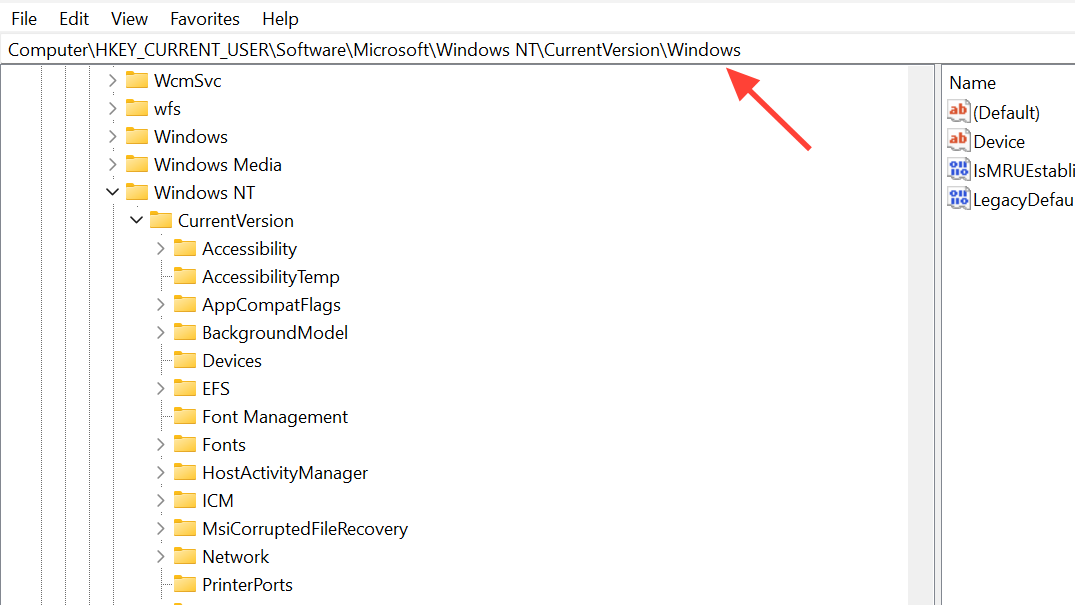
3. Create the ConsumerESU key
ConsumerESU (without quotes) and press Enter. The spacing and spelling must match.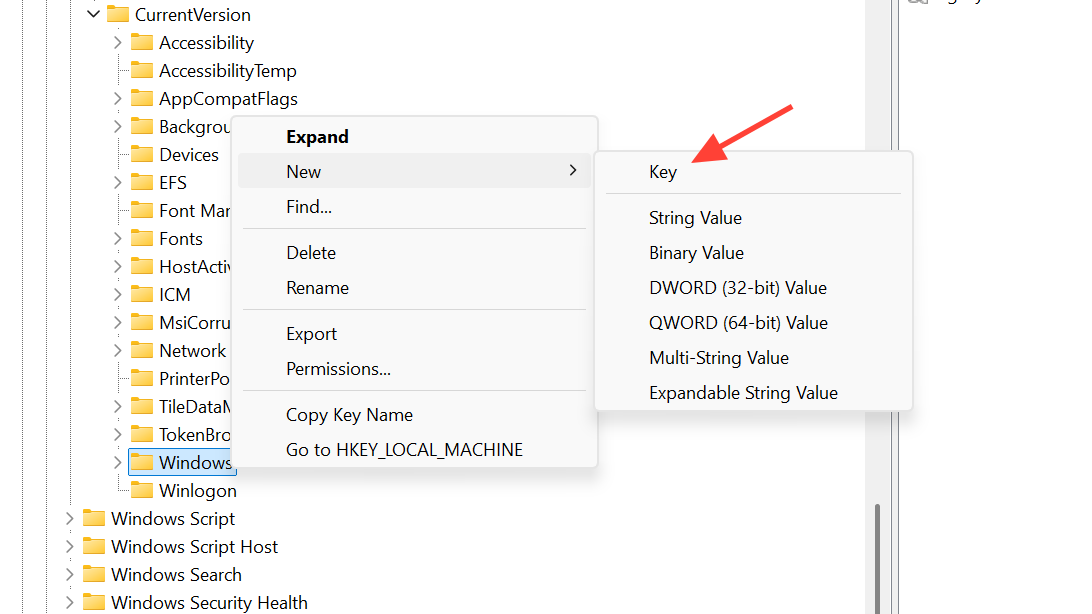
4. Add ESUEligibility value
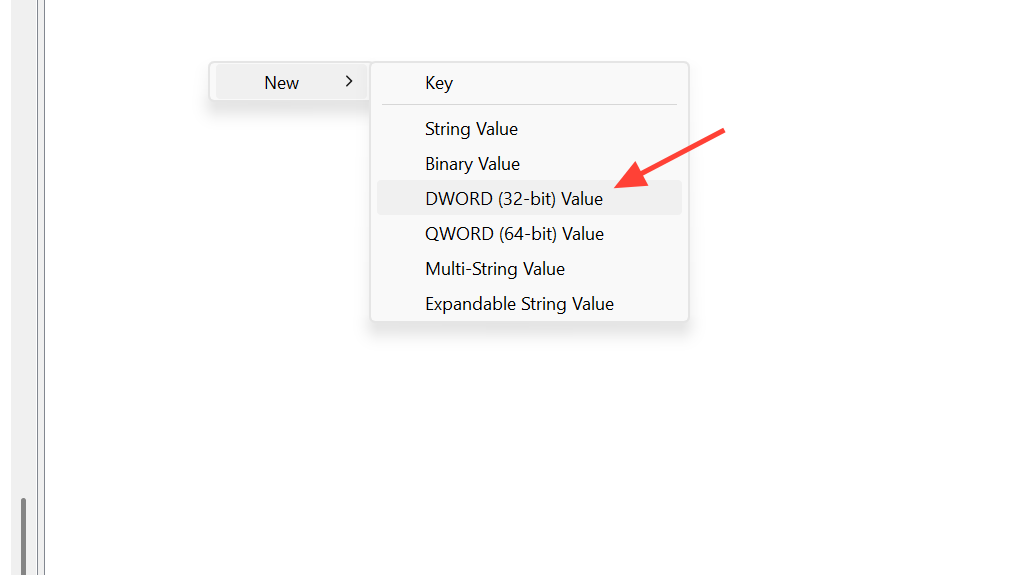
ESUEligibility, set “Base” to “Decimal”, and type 2 in “Value data” to indicate the device is eligible.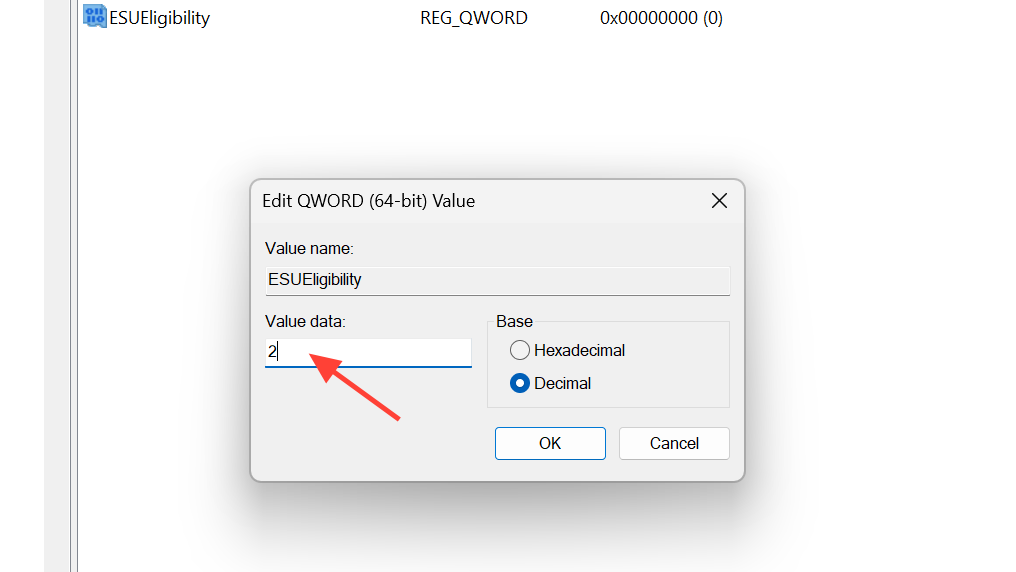
5. Add ESUEligibilityResult value
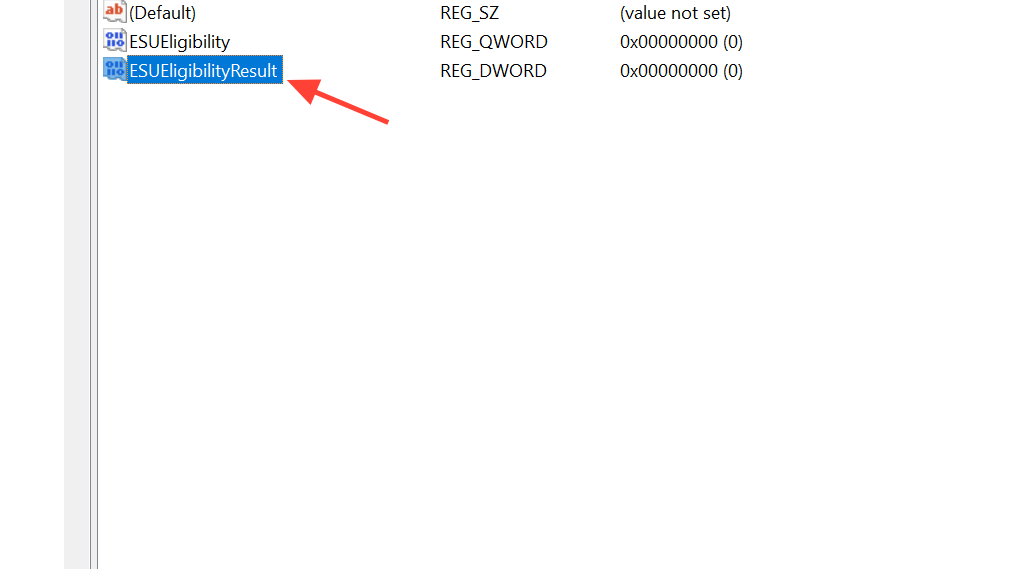
ESUEligibilityResult, set “Base” to “Decimal”, and type 1 in “Value data” to record a successful eligibility check.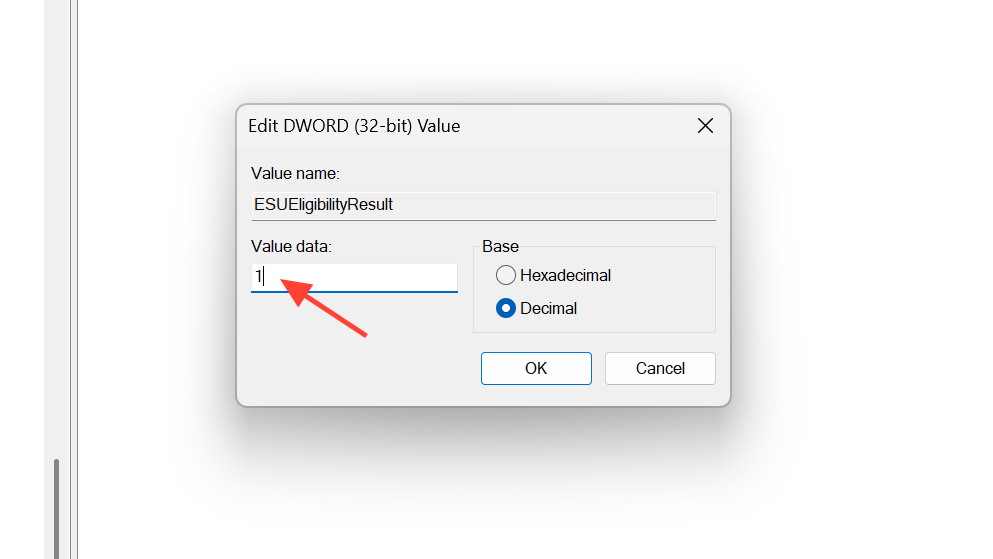
6. Restart and check Windows Update
Method 2 – Turn on Consumer ESU using commands (Quick Method)
Some PCs do not respond to the simple ConsumerESU key alone because the internal Consumer ESU feature flag is off. This method uses built‑in command‑line tools to toggle the feature and evaluate eligibility.
1. Make sure the telemetry service is enabled
Windows, type cmd, right‑click “Command Prompt”, and select “Run as administrator”. Confirm the UAC prompt.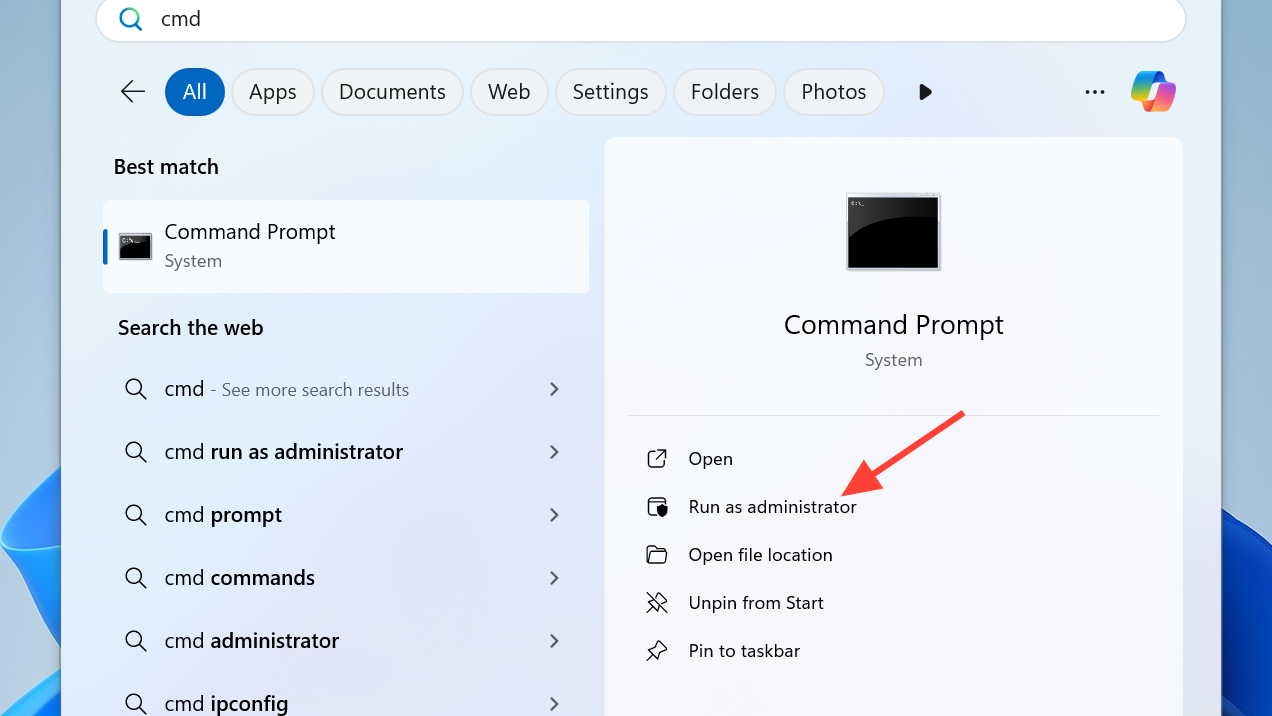
sc.exe config DiagTrack start= auto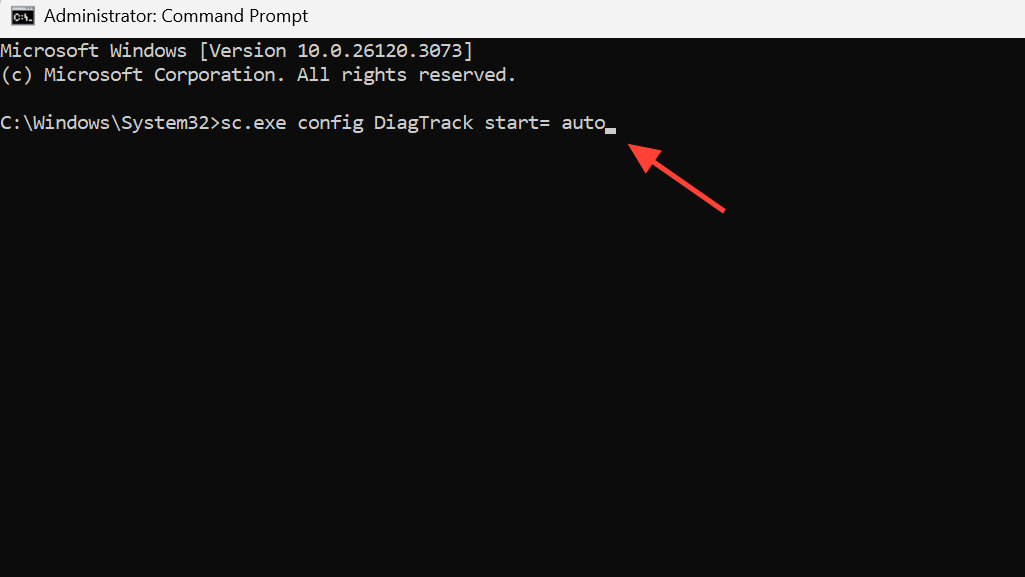
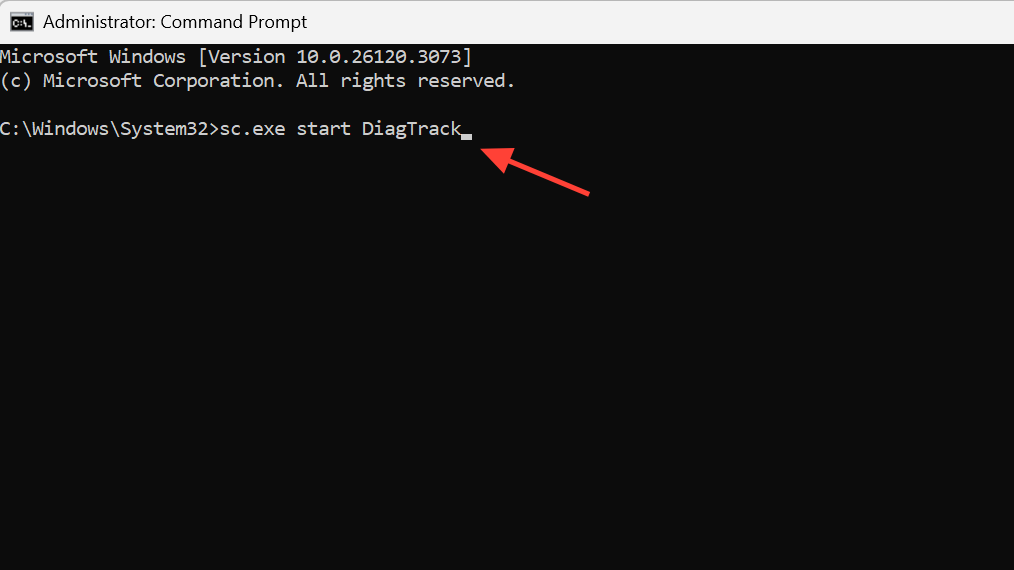
sc.exe start DiagTrackTelemetry must be active because Consumer ESU relies on it for feature configuration and eligibility evaluation.
2. Add the Consumer ESU feature override
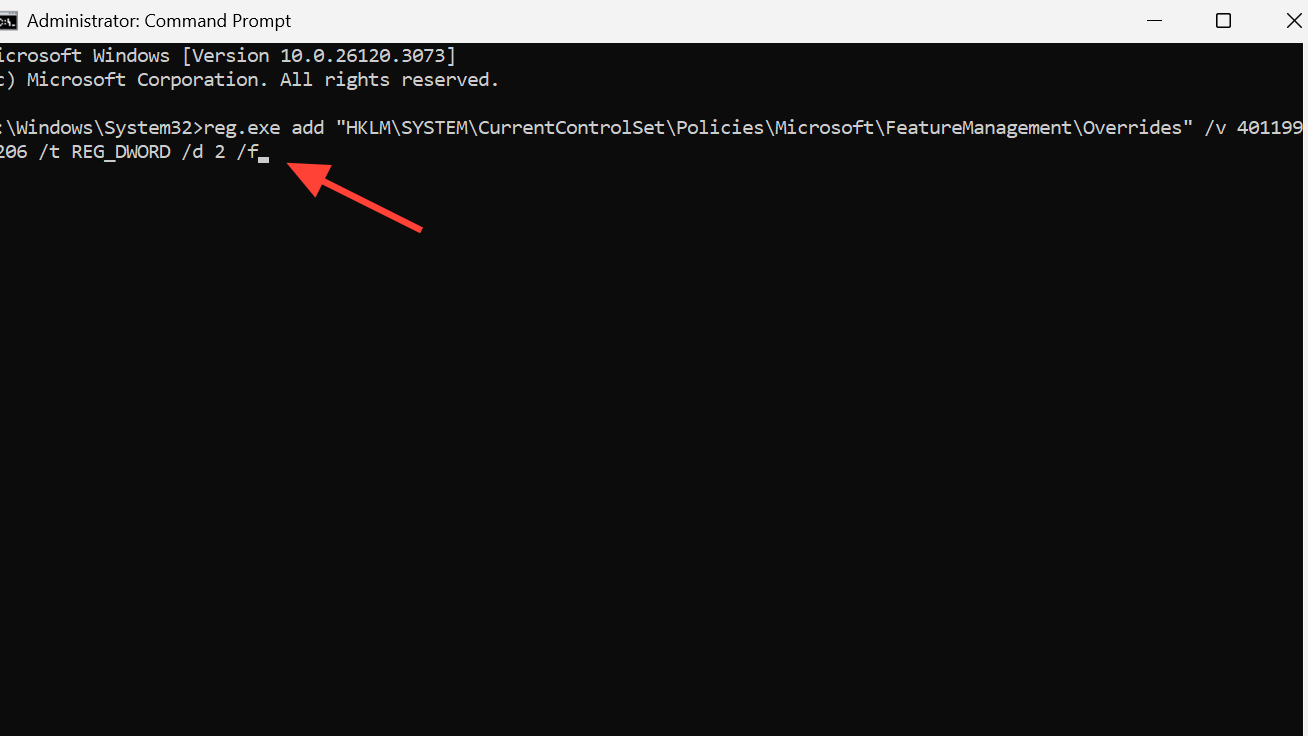
reg.exe add "HKLM\SYSTEM\CurrentControlSet\Policies\Microsoft\FeatureManagement\Overrides" /v 4011992206 /t REG_DWORD /d 2 /fThis value toggles the Consumer ESU feature on for the system so that eligibility can be evaluated.
3. Restart and check eligibility
cmd /c ClipESUConsumer.exe -evaluateEligibility reg.exe query "HKCU\SOFTWARE\Microsoft\Windows NT\CurrentVersion\Windows\ConsumerESU"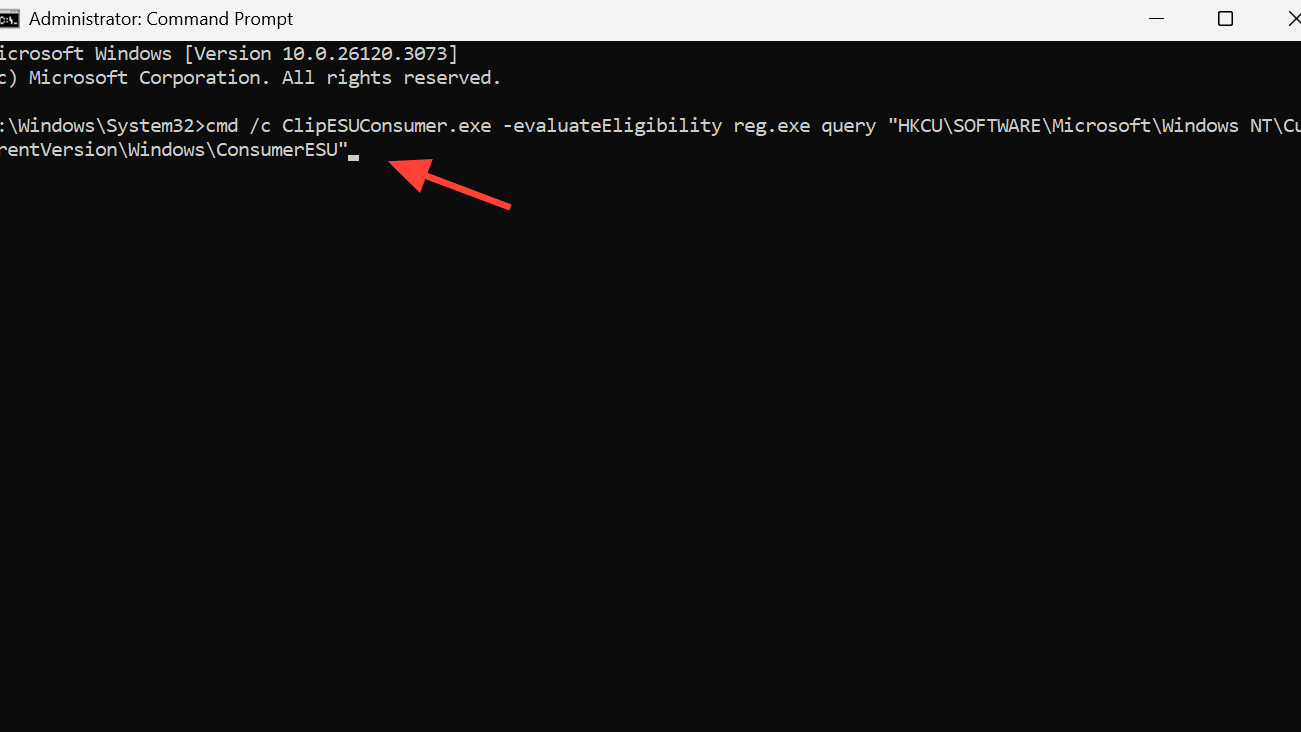
ConsumerESU are non‑zero, Consumer ESU is enabled for the current user and the feature is active. A zero value or missing key means you should move to Method 3 (Full Method).Method 3 – Full Method with scheduled tasks (when the Quick Method fails)
On some systems, toggling the override and telemetry is not enough. In that case, running two internal scheduled tasks forces Windows to reconcile and refresh feature configuration, which often finally exposes the ESU enrollment UI.
1. Re‑add the override value (if needed)
reg.exe add "HKLM\SYSTEM\CurrentControlSet\Policies\Microsoft\FeatureManagement\Overrides" /v 4011992206 /t REG_DWORD /d 2 /f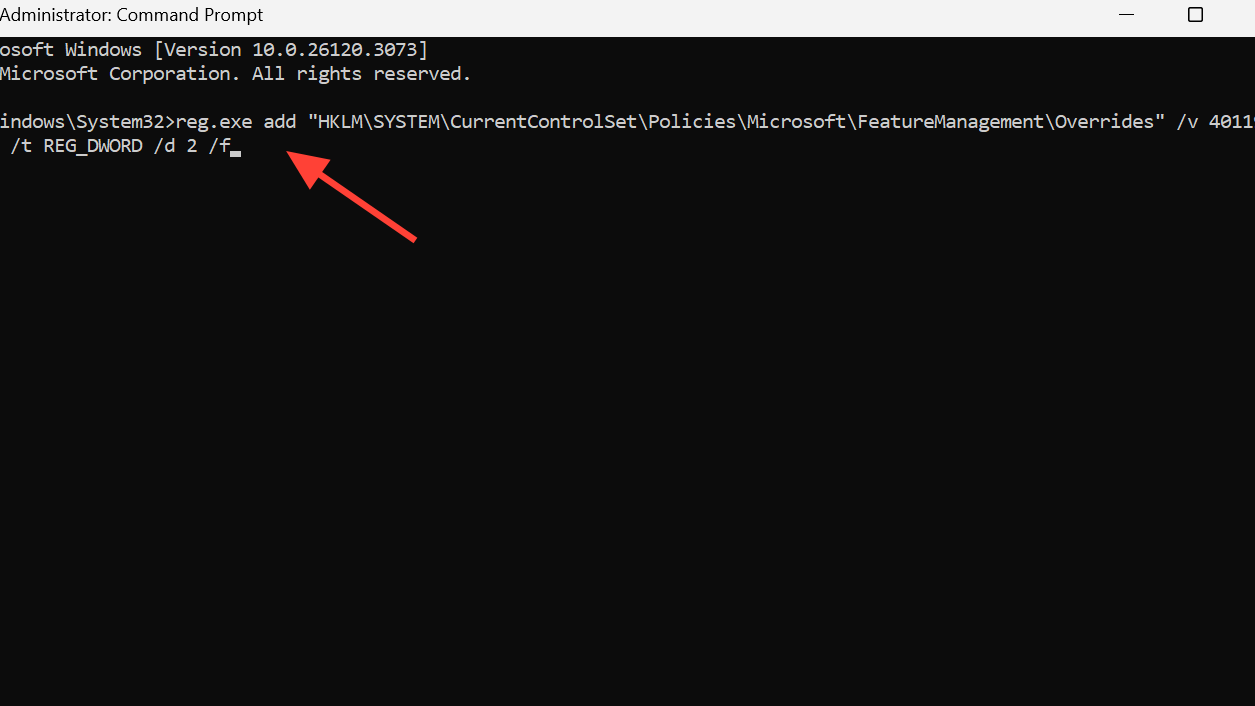
2. Run the ReconcileFeatures scheduled task
PowerShell, right‑click, choose “Run as administrator”, then confirm).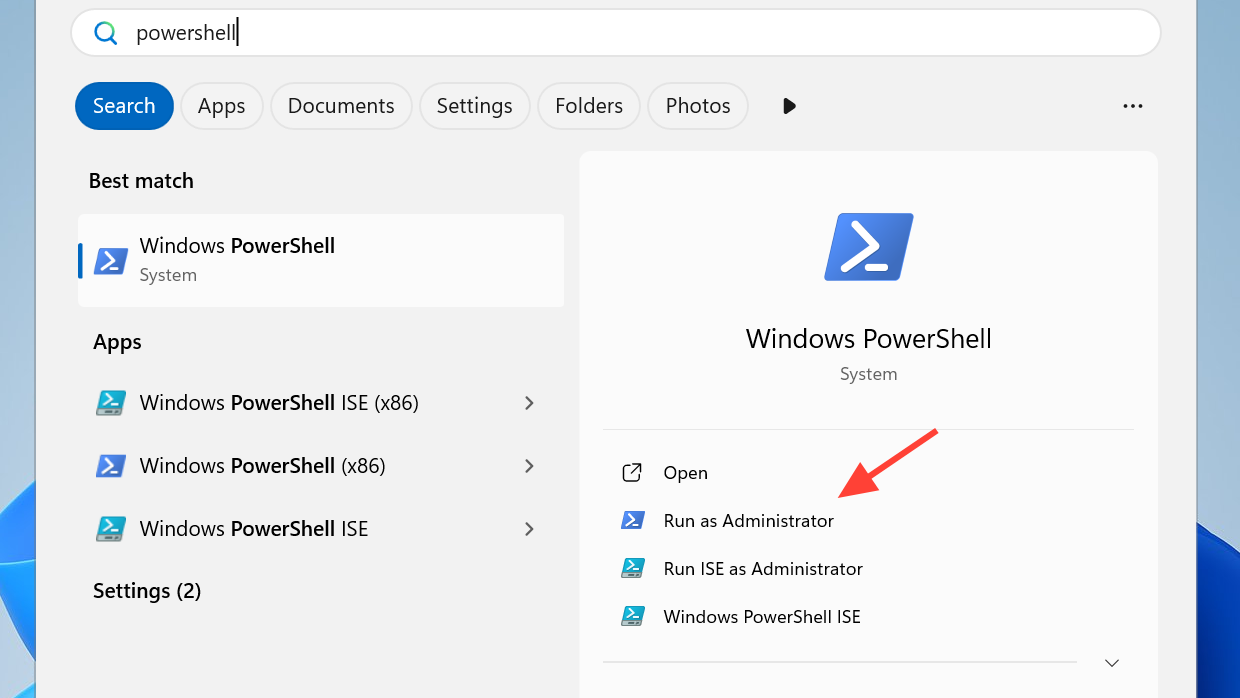
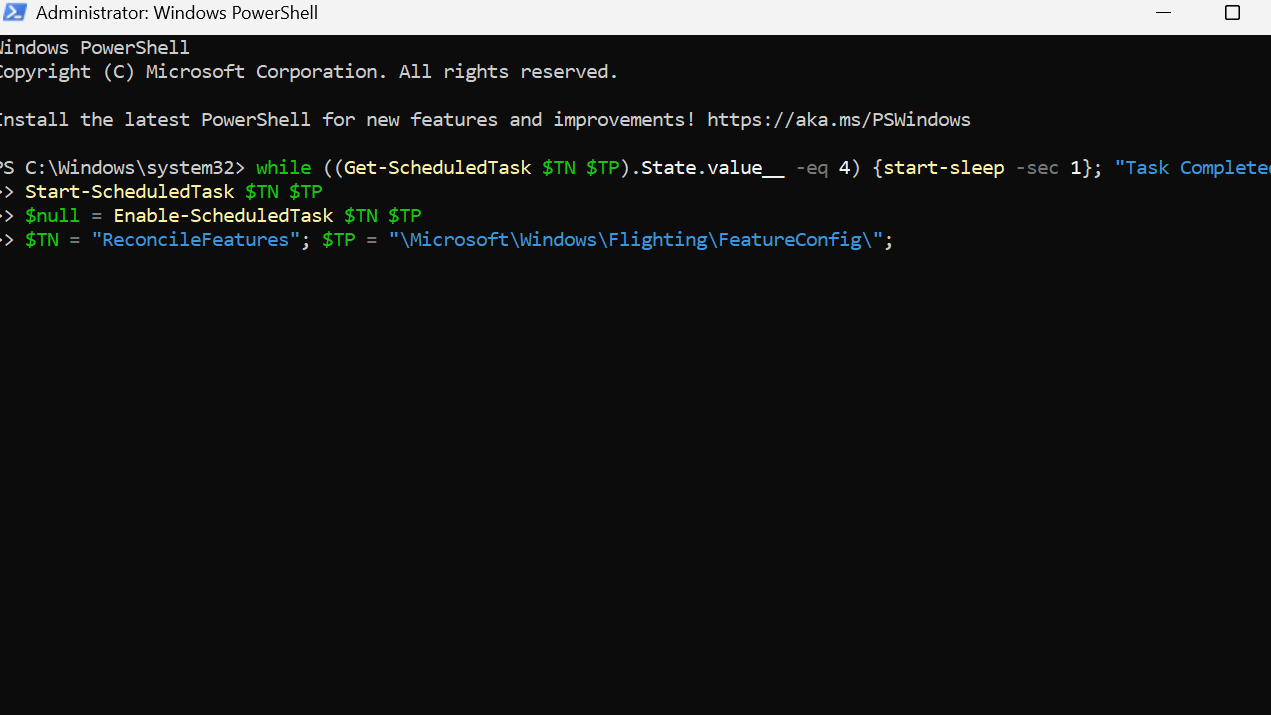
$TN = "ReconcileFeatures"; $TP = "\Microsoft\Windows\Flighting\FeatureConfig\";
$null = Enable-ScheduledTask $TN $TP
Start-ScheduledTask $TN $TP
while ((Get-ScheduledTask $TN $TP).State.value__ -eq 4) {start-sleep -sec 1}; "Task Completed"
This task updates feature configuration for the device, including Consumer ESU, based on current policies and Telemetry data.
3. Run the UsageDataFlushing scheduled task
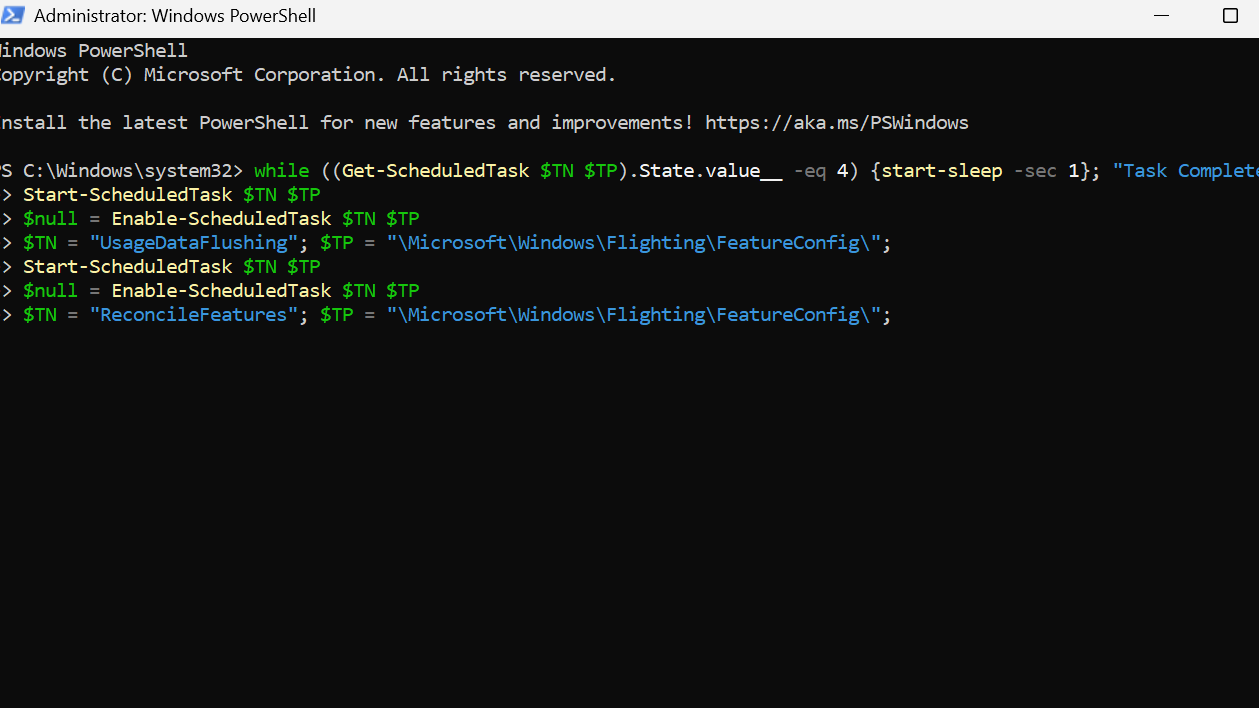
$TN = "UsageDataFlushing"; $TP = "\Microsoft\Windows\Flighting\FeatureConfig\";
$null = Enable-ScheduledTask $TN $TP
Start-ScheduledTask $TN $TP
while ((Get-ScheduledTask $TN $TP).State.value__ -eq 4) {start-sleep -sec 1}; "Task Completed"
This task flushes and refreshes usage data linked to feature configuration, which can unblock ESU enrollment visibility.
4. Restart and recheck ESU eligibility
cmd /c ClipESUConsumer.exe -evaluateEligibility
reg.exe query "HKCU\SOFTWARE\Microsoft\Windows NT\CurrentVersion\Windows\ConsumerESU"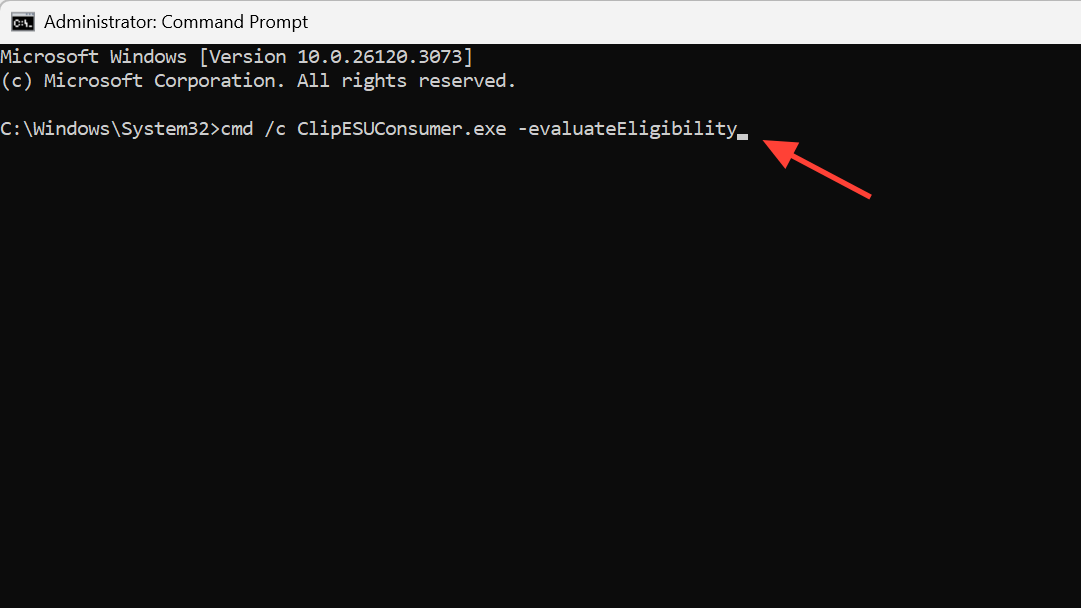
ESUEligibility and ESUEligibilityResult values are non‑zero, Consumer ESU is active for this user. Even if Windows Update does not immediately show a prompt, security updates are delivered once ESU packages roll out.Method 4 – Fix devices incorrectly tagged as commercial
Some home PCs are incorrectly classified as “Commercial device” in ESU eligibility, which blocks the consumer ESU flow. Adjusting a single registry value can switch them back to retail/consumer classification.
1. Change DeviceRetail flag to consumer
HKEY_LOCAL_MACHINE\SOFTWARE\Microsoft\Windows NT\CurrentVersion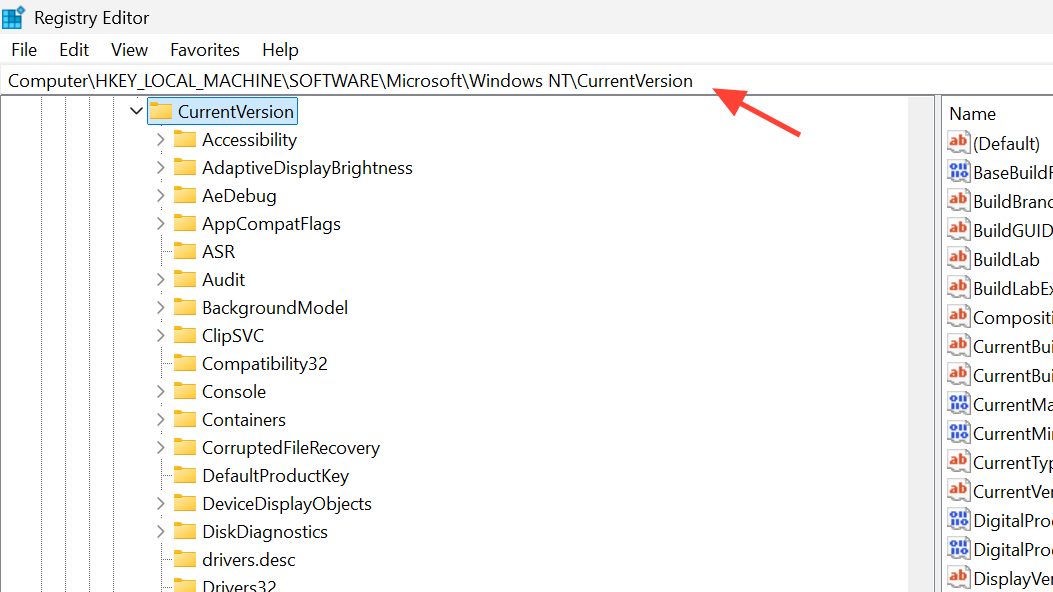
DeviceRetail. If it does not exist, you can create it as a DWORD (32‑bit) value.DeviceRetail and set “Base” to “Decimal”, then enter 1 in “Value data” to mark the device as a retail/consumer machine.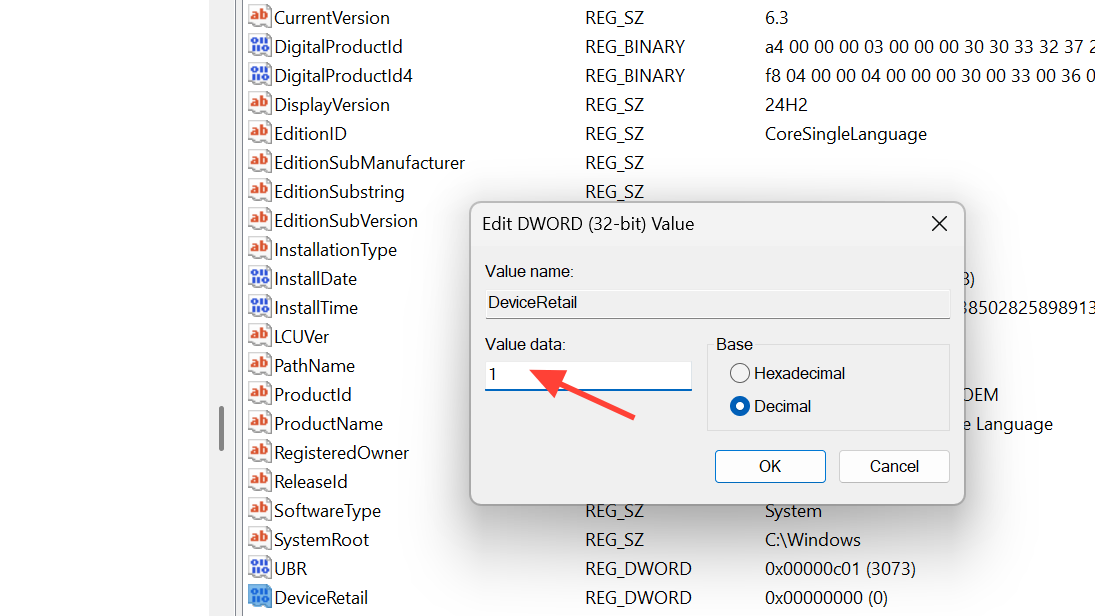
Method 5 – Refresh Windows Update services when the button still does not show
Sometimes the eligibility values are correct, but Windows Update has not refreshed its view. Restarting update services and triggering detection can resolve this last hurdle.
1. Restart Windows Update and BITS
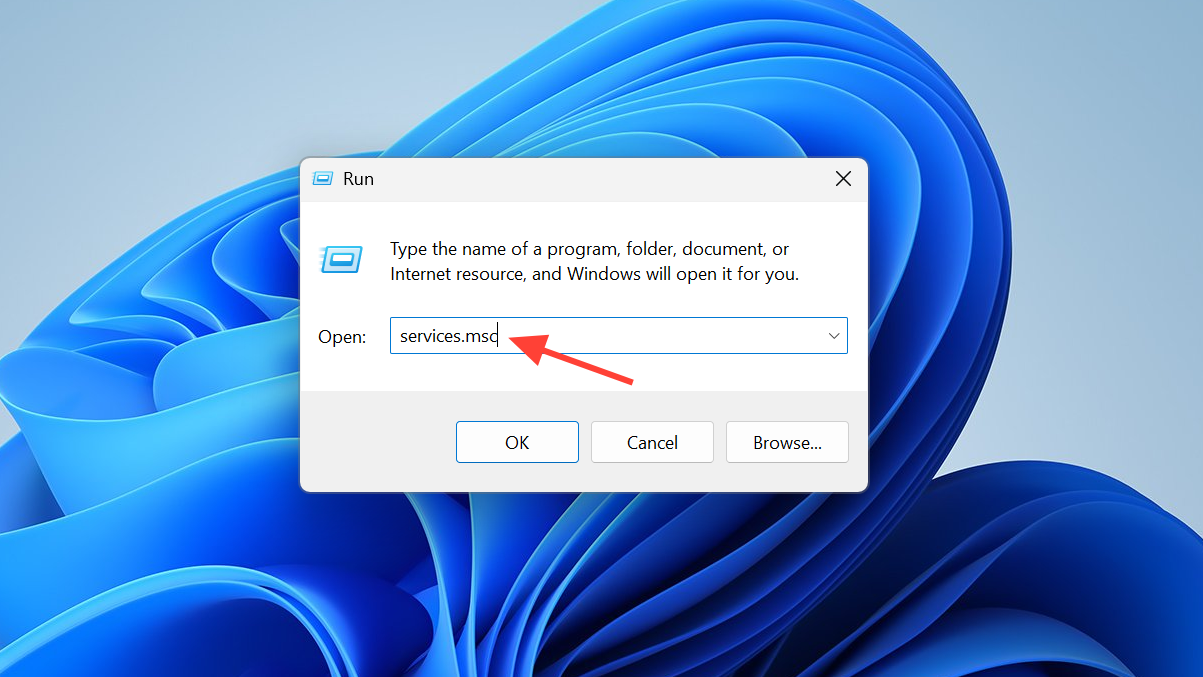
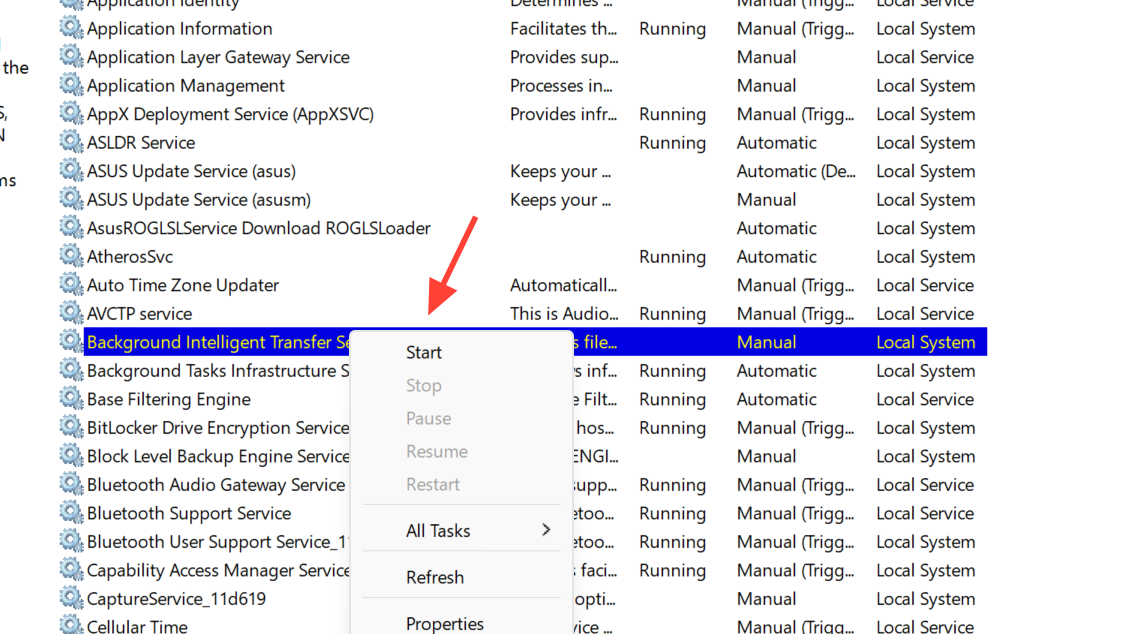
2. Force Windows Update to check again
wuauclt /detectnow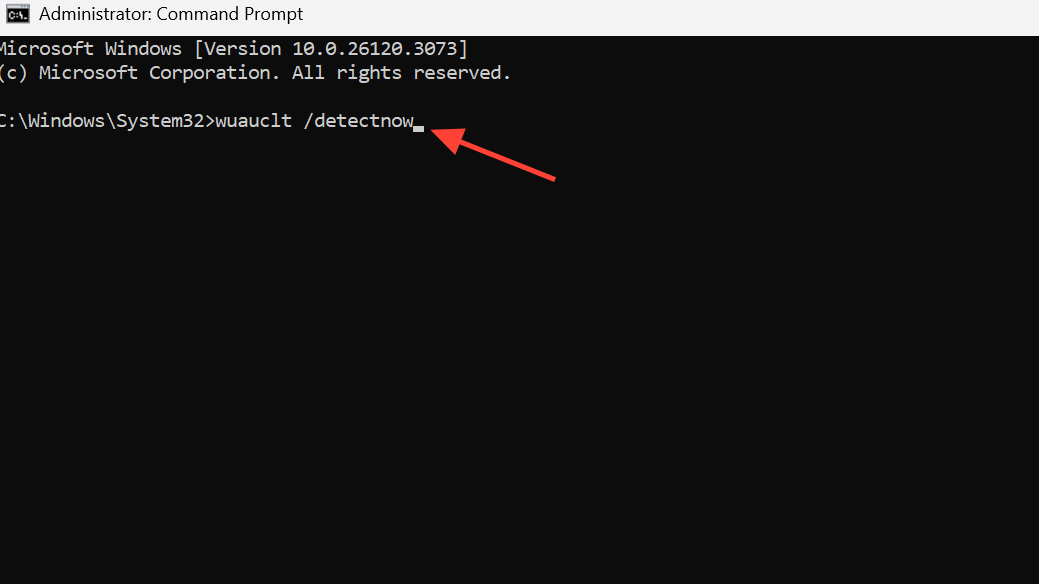
wuauclt /updatenow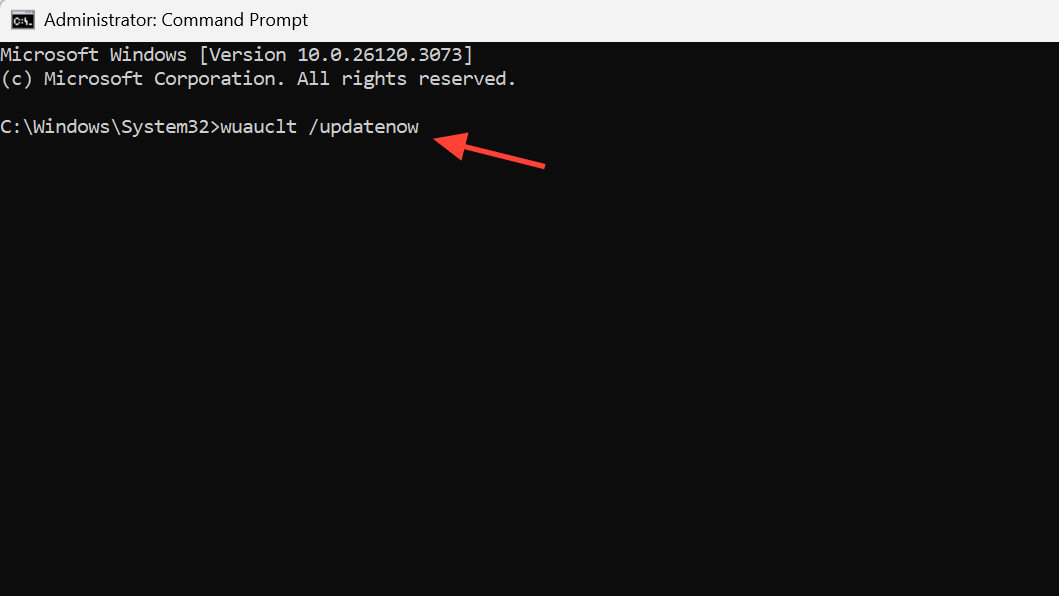
What to do after you successfully enroll in ESU
Once the “Enroll now” button appears and the wizard completes, Windows records your device in the ESU program and continues to deliver monthly security patches through October 13, 2026.
Once the missing “Enroll now” option is fixed and ESU is active, your Windows 10 PC goes back to quietly receiving important security updates while you decide when to upgrade.