Zoom has become a staple for virtual meetings, classes, and social gatherings, offering a range of features that enhance online communication. Among these features, the polling function stands out as a valuable tool for engaging participants, whether for quizzes, surveys, or opinion polls.
The Zoom Polling feature is only available if the Meeting Host is using a licensed (paid) account.
How to enable polling in Zoom
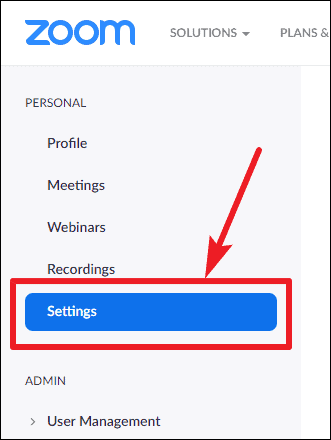
To start using the polling feature in Zoom meetings, you first need to enable it in your Zoom account settings. Visit the Zoom web portal and sign in to your account. From the navigation menu on the left side, select Settings.
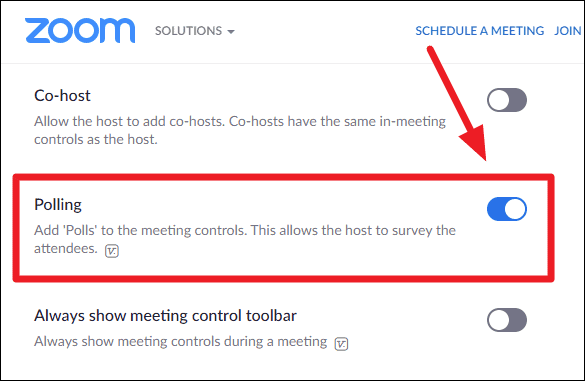
In the meeting settings page, scroll down to the In Meeting (Basic) section and look for the Polling option. You can quickly find it by pressing Ctrl + F and searching for “Polling.”
Once you’ve located the Polling option, toggle it on to enable polling for your Zoom meetings.
If you’re using a Zoom account provided by your organization and the option is grayed out, it means polling has been disabled by your Zoom administrator. You’ll need to contact them to enable this feature.
How to create polls for a Zoom meeting
Polls for a meeting can only be created through the Zoom web portal, not the desktop client. To create a poll:
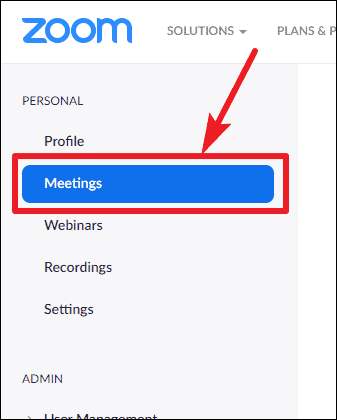
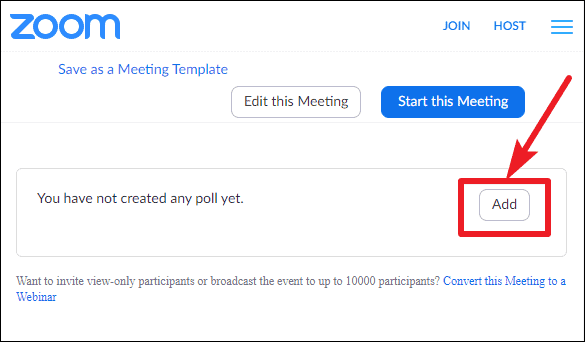
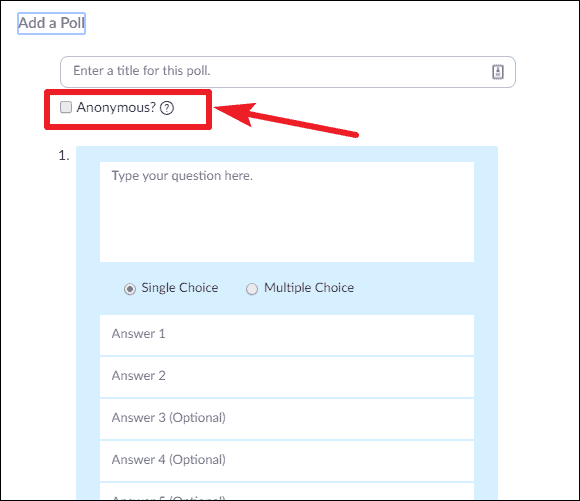
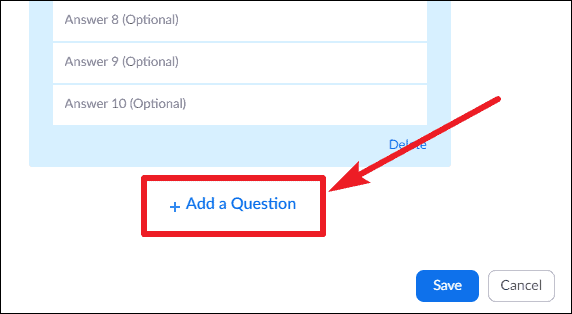
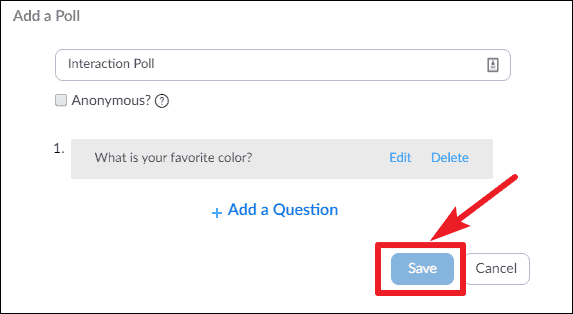
You can create multiple polls for a single meeting by repeating these steps.
How to launch polls in a Zoom meeting
Polls can be launched during a live meeting. Here’s how to start a poll:
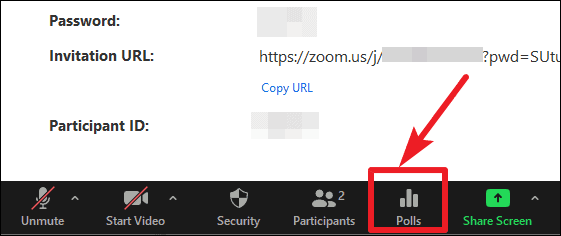
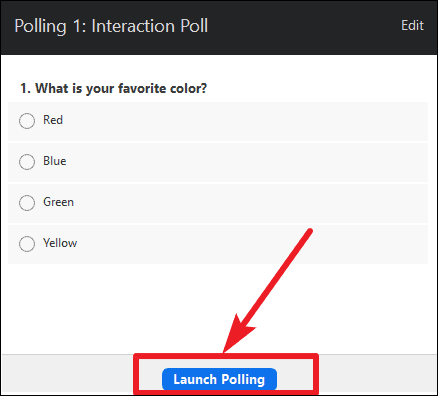
Participants will now see the poll and can submit their responses. As the host, you’ll be able to see the results in real time, including the percentage of participants who chose each option, but individual responses remain anonymous during the meeting. There’s also a timer showing how long the poll has been active.
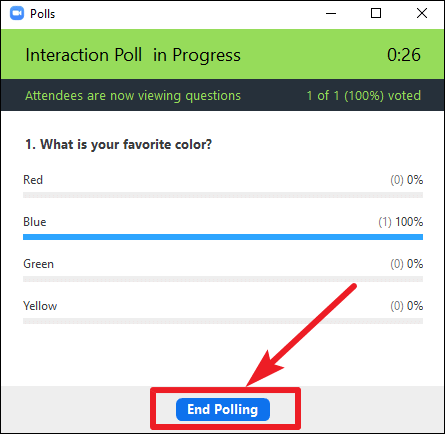
Using the polling feature in Zoom meetings is an effective way to enhance participant engagement, whether for interactive quizzes, surveys, or gathering feedback during your sessions.