

Repeatedly seeing a “Too Many Requests” error when trying to sign into Outlook can abruptly block access to your email, disrupt work, and prevent you from retrieving important messages. This error often appears after multiple login attempts in a short period or due to network-related triggers, but several user-tested methods can restore account access quickly.
Switch to a Different Network or Internet Connection
Many users have reported immediate success by changing their internet connection. This method addresses situations where Outlook or Microsoft servers temporarily block your IP address due to perceived suspicious activity or repeated login attempts.
This method works because Microsoft may temporarily block login attempts from specific IP addresses, especially after multiple failed logins or unusual activity. Changing your network gives you a different IP, bypassing the restriction.
Refresh the “Too Many Requests” Page Repeatedly
If switching networks is not possible or does not resolve the issue, repeatedly refreshing the error page has proven effective for many users, especially when accessing Outlook via a web browser.
This approach works because Outlook’s login system may temporarily lift the block after repeated attempts, especially when the system recognizes the persistence as legitimate user behavior rather than automated attacks.
Clear Browser Cache and Cookies, Then Use Private Browsing
Cached login data and cookies can sometimes contribute to repeated login errors. Clearing them can reset your session and reduce the likelihood of the error persisting.
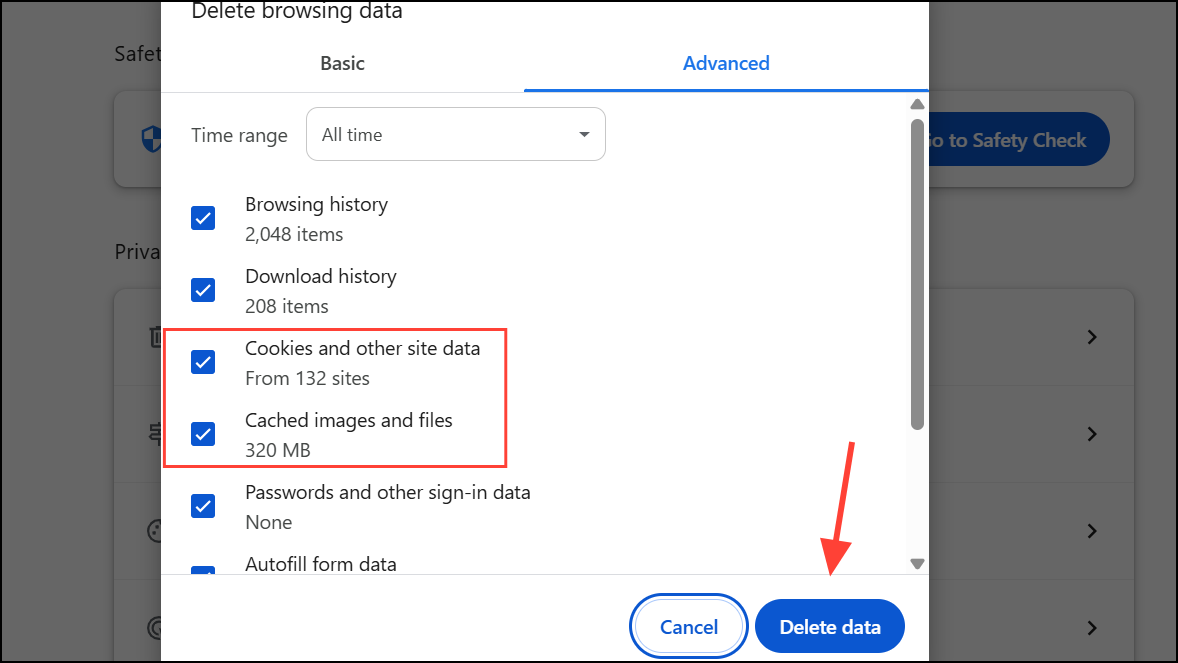
This method can resolve issues caused by corrupted session data or persistent cookies that the Outlook login system interprets as repeated login attempts.
Disable VPN and Proxy Services
Outlook may block logins from VPNs or proxy servers due to security policies that flag shared or anonymized IP addresses as suspicious.
Microsoft’s systems often restrict access from VPNs to prevent abuse or automated attacks. Disabling these services returns you to a unique IP address, reducing the chance of being blocked.
Wait for the Temporary Block to Expire
Outlook’s security system sometimes locks accounts or IPs for a set period after too many login attempts. Waiting is a built-in safeguard and often resolves the issue without further action.
This approach allows Microsoft’s automated systems to reset your login attempt counter, lifting the block and restoring normal access.
Contact Microsoft Support or Use Account Recovery Tools
If none of the above methods work and you remain locked out, Microsoft provides official recovery and support channels.
Microsoft support agents can check your account status, reset blocks, and provide further instructions if your account is locked due to suspected security threats or ongoing technical issues.
Additional Tips and Preventive Measures
- Sign out of Outlook on all devices after regaining access, especially if you use shared or public computers.
- Add a secondary email alias and enable Microsoft Authenticator for stronger account security and easier recovery.
- Scan your devices for malware if you suspect unauthorized login attempts.
- If you frequently encounter this error on a specific browser, try using a different browser or update to the latest version.
Resolving the “Too Many Requests” error in Outlook often requires a mix of network changes, refreshing techniques, and patience. By following these steps, you can restore access and reduce the likelihood of future login disruptions.





