Learn various methods to bypass or disable YouTube’s AdBlock prevention popups and restore uninterrupted video playback.
Learn various methods to bypass or disable YouTube’s AdBlock prevention popups and restore uninterrupted video playback.
by Pallav Pathak
YouTube’s aggressive adblock prevention measures now interrupt video playback with persistent popups, sometimes even when no ad blocker is installed. This disruption can block access to videos, restrict site functionality, and leave users searching for reliable workarounds. The following methods provide effective solutions to turn off AdBlock prevention on YouTube, restore normal viewing, and address related browser issues.
Use Updated or Specialized Ad Blockers and Extensions
Switch to a robust ad blocker such as uBlock Origin or AdGuard, which are frequently updated to counter YouTube’s latest detection techniques. Regularly check for rule updates within the extension’s dashboard to ensure you’re using the most current filters.
If standard ad blockers fail, try browser extensions designed to bypass anti-adblock scripts. For example, extensions like Undetectable AdBlocker or Adblock Detector Bypass (available in the Chrome Web Store) can mask the presence of ad blockers. Install the extension and configure it to include YouTube in its protection scope.
For advanced users, consider using a script manager such as Tampermonkey or Violentmonkey. Install user scripts like RemoveAdblockThing from trusted repositories (e.g., GitHub) to block or remove YouTube’s anti-adblock overlays. Always review the script code and repository activity to avoid security risks.
These tools work by hiding or neutralizing the scripts and popups YouTube uses to detect and block ad blockers, allowing uninterrupted video playback and site navigation.
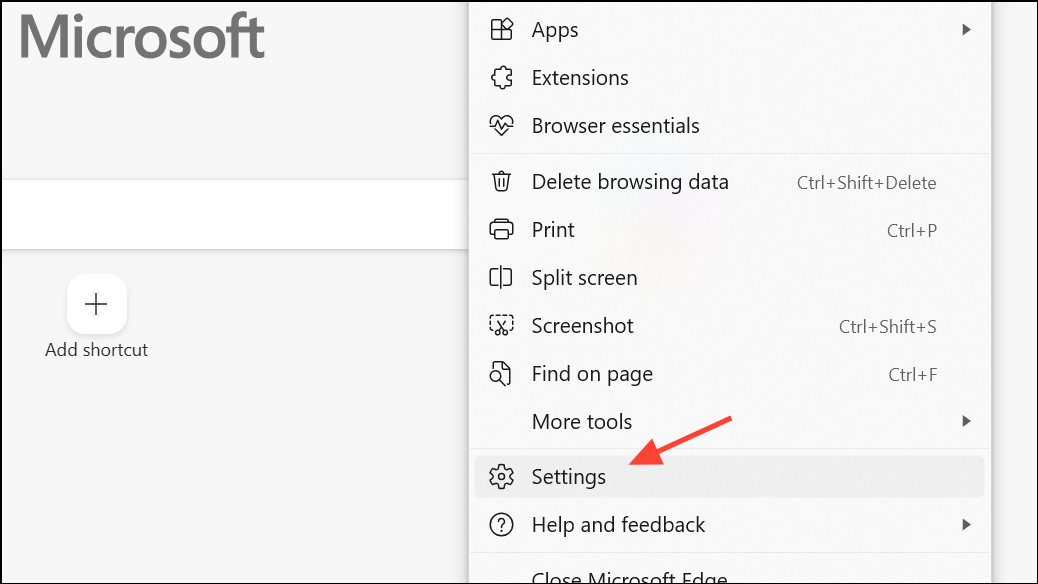
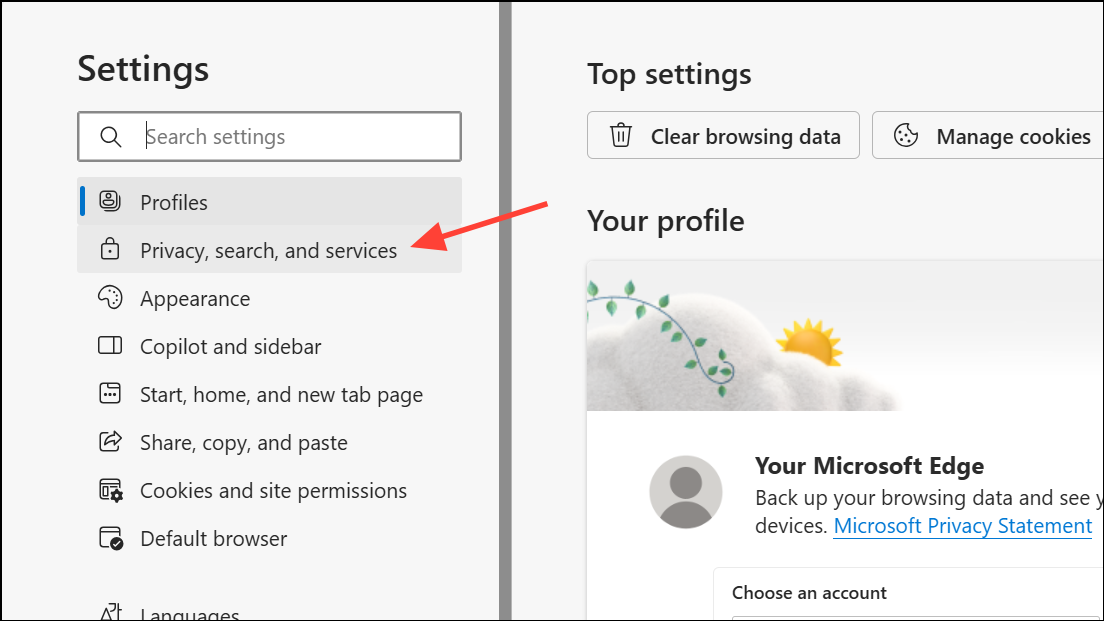
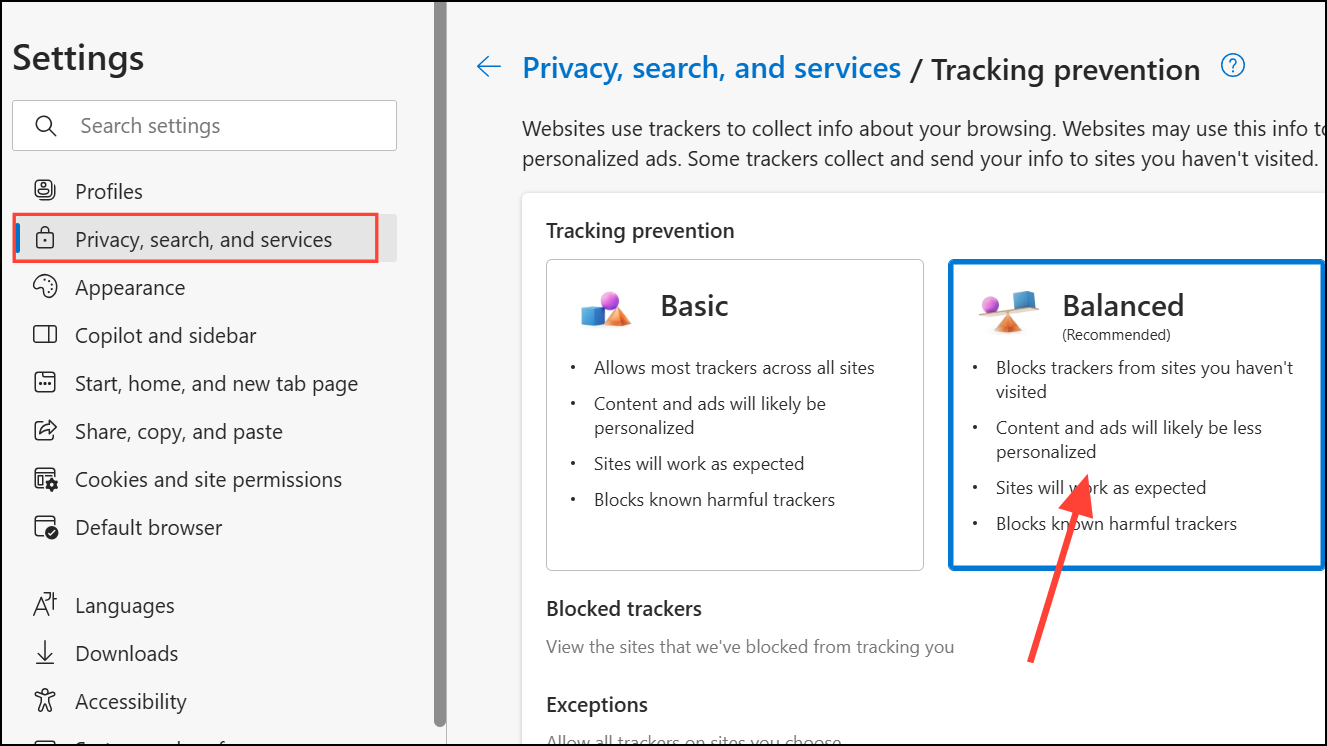
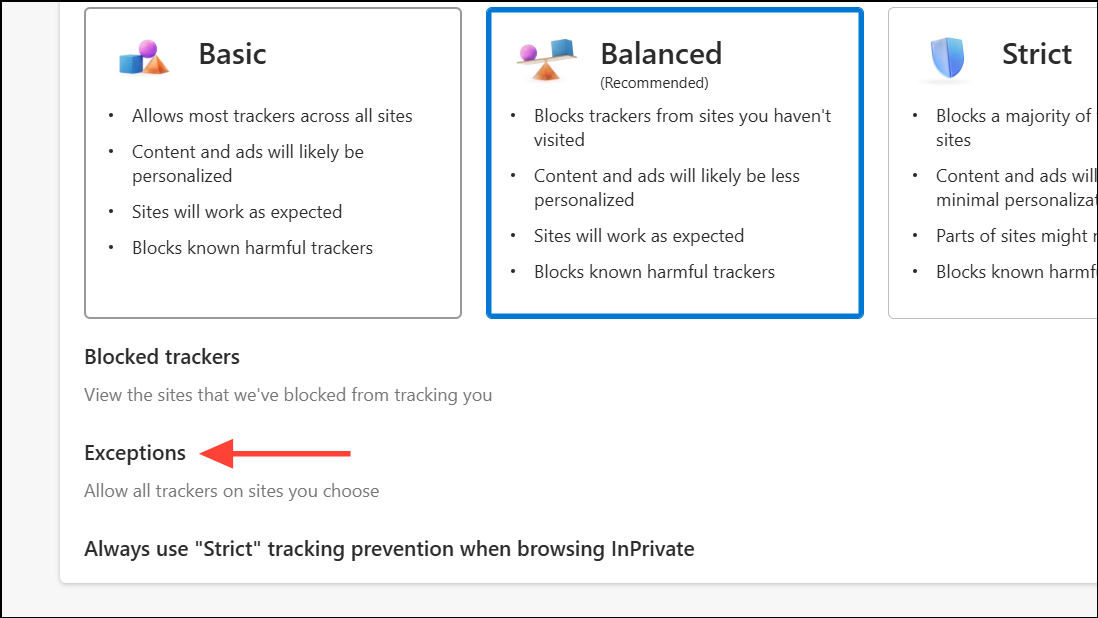
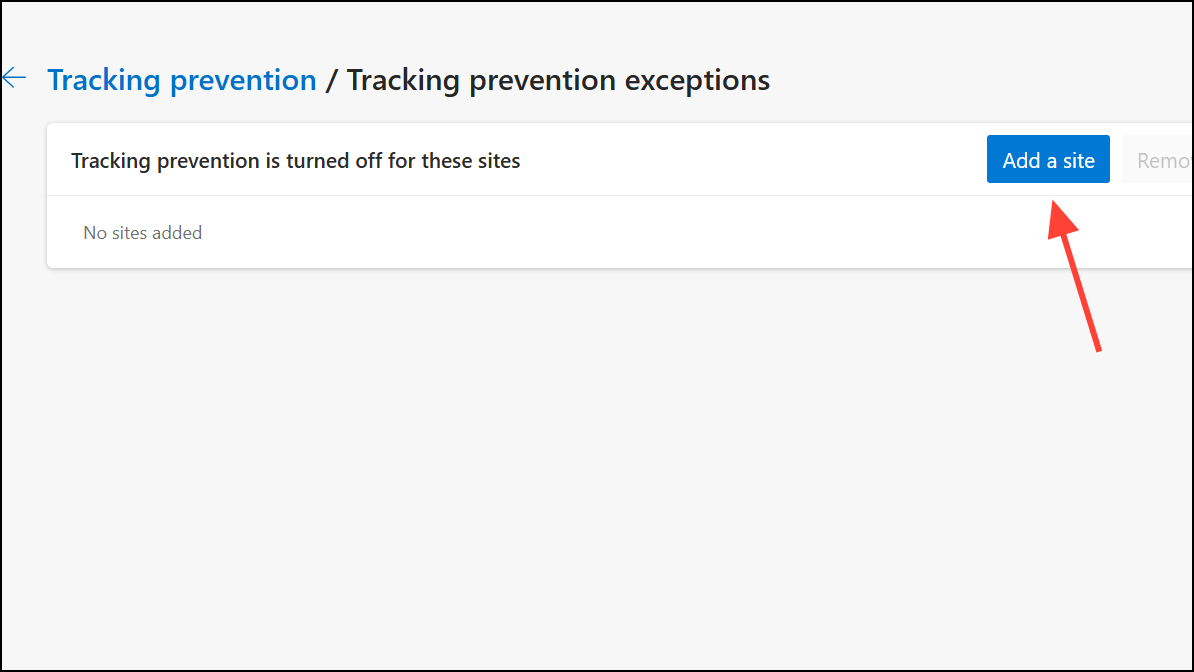
In Microsoft Edge, strict tracking prevention can trigger YouTube’s adblock warnings even if no ad blocker is present. Open Edge, click the three dots on the top right, and then select Settings in the dropdown menu.
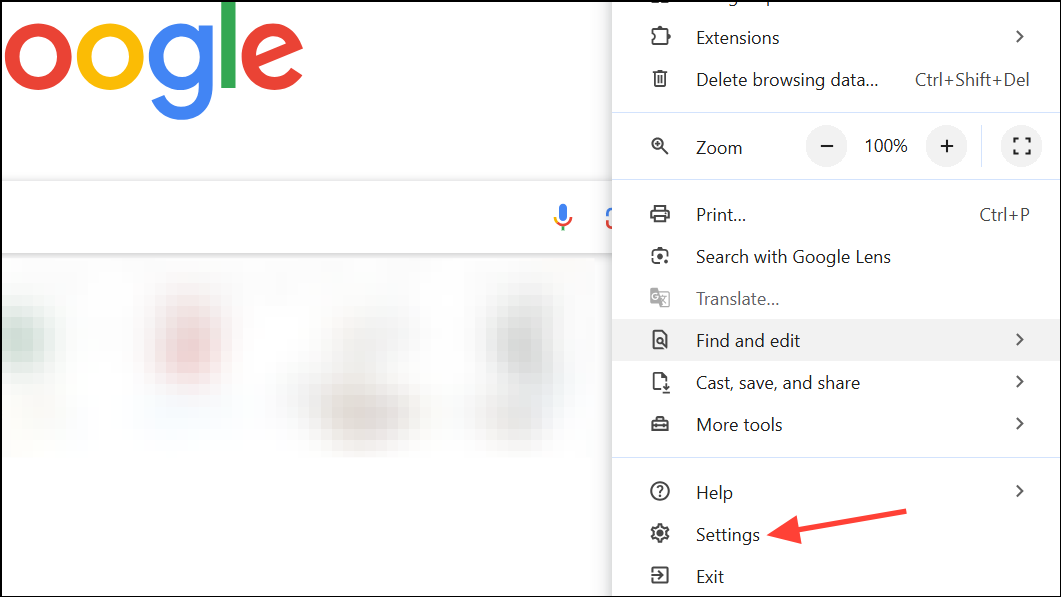
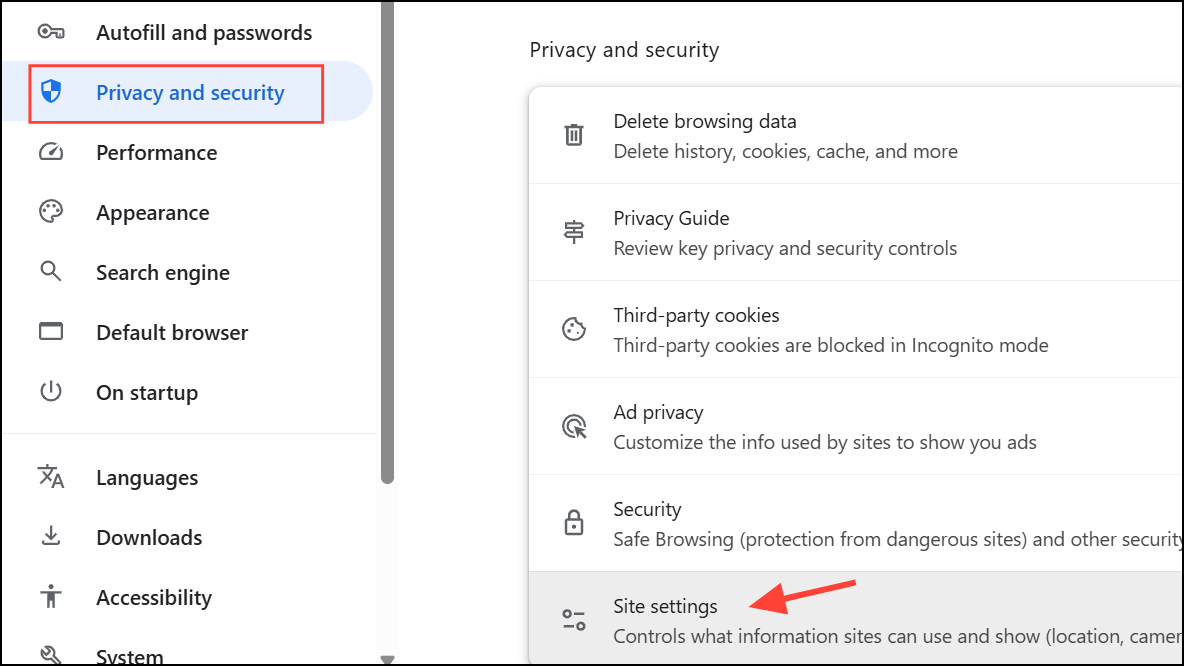
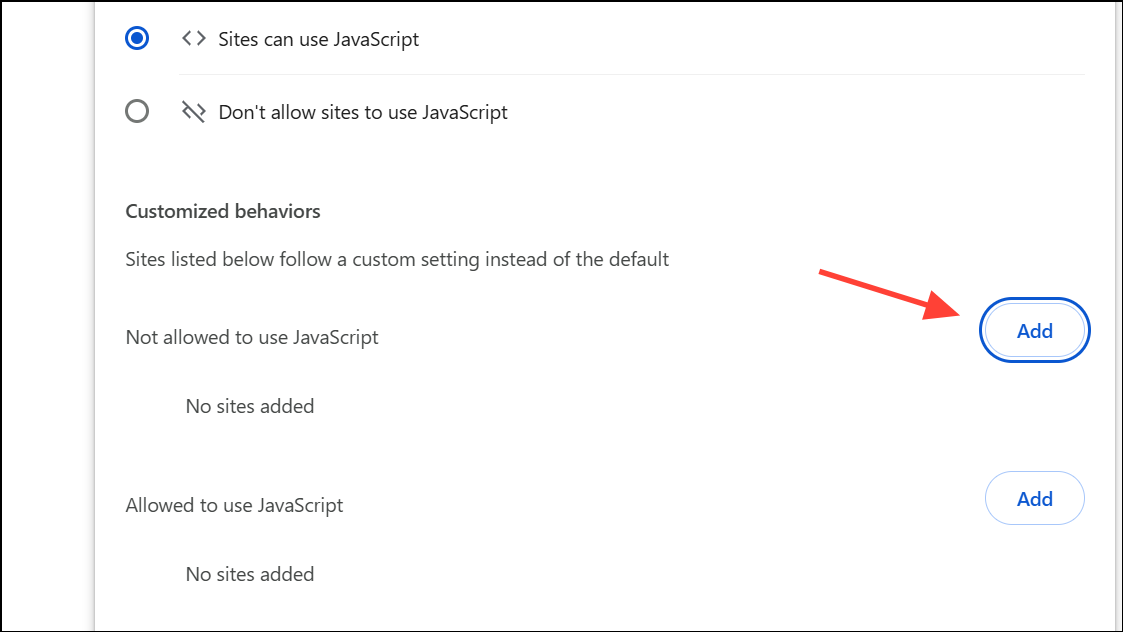
Open your browser’s settings and navigate to the site-specific JavaScript permissions. For Chrome, click the three dots on the top right and select Settings from the dropdown menu.
Reload YouTube. The adblock popup should disappear, but be aware that disabling JavaScript will also break many site features, including comments, recommendations, and some video playback controls.
This method is best for users who only need to watch videos and can tolerate limited interactivity on the site.
Download and install a browser with built-in ad blocking, such as Brave or Opera GX. These browsers integrate ad-blocking at the core, making it harder for YouTube to detect and block ad blockers. Import your bookmarks and settings from your previous browser to streamline the transition.
Test YouTube playback in the new browser. Many users report that Brave, in particular, blocks YouTube ads and pop-ups more effectively than Chrome or Edge. However, be aware that YouTube’s countermeasures may eventually target these browsers as well.
On mobile devices, consider using third-party YouTube clients like NewPipe (Android) or SmartTubeNext (Android TV). These apps provide ad-free playback by default, though they may lack some official features and require installation from outside standard app stores.
Switching browsers or using alternative apps often restores ad-free viewing without complex configuration.
Clear Browser Data, Cookies, and Update Extensions
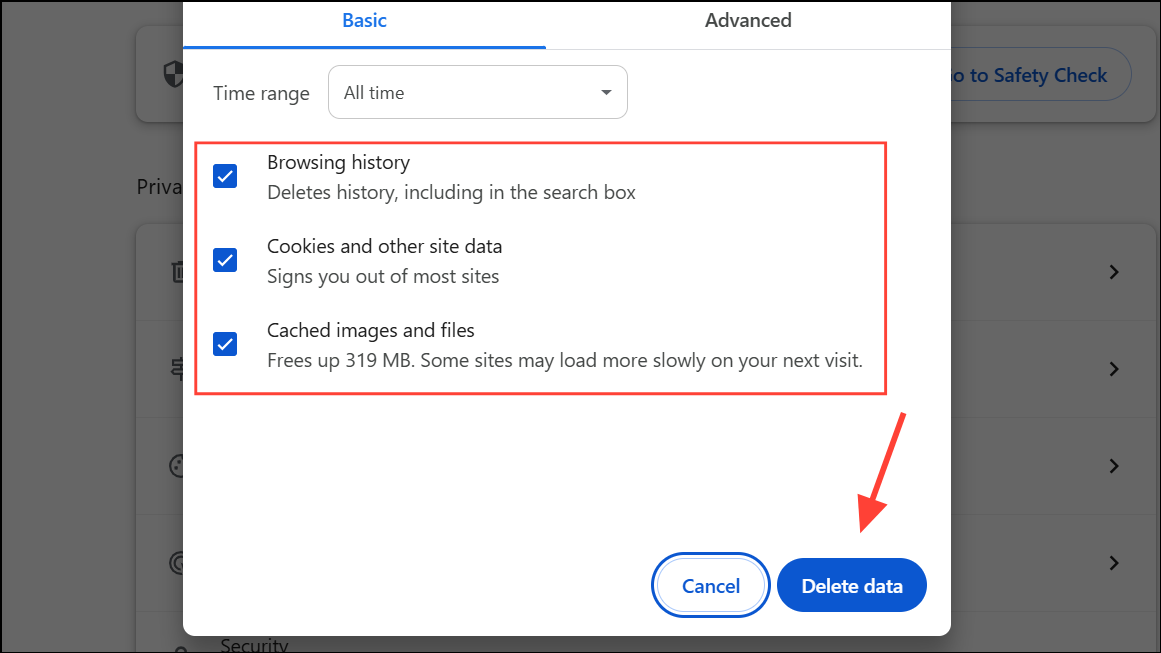
Open your browser’s settings and clear cookies and site data for youtube.com and google.com. This removes old flags that may persistently trigger AdBlock warnings even after disabling extensions.
Update all ad-blocking extensions to the latest version. Outdated filter lists or extension code can cause YouTube to detect your ad blocker more easily.
Open your browser’s extensions or add-ons menu. Locate your ad blocker (such as AdBlock, AdBlock Plus, or uBlock Origin) and toggle it off or remove it completely.
Refresh YouTube and check if the adblock prevention message disappears. If it does not, ensure no other privacy or security extensions are running, as some can trigger similar detection.
If you need to keep your ad blocker for other sites, use the extension’s settings to whitelist YouTube only, allowing ads on YouTube while blocking them elsewhere.
This method is a last resort for users willing to tolerate ads or who want to support creators directly through ad views.
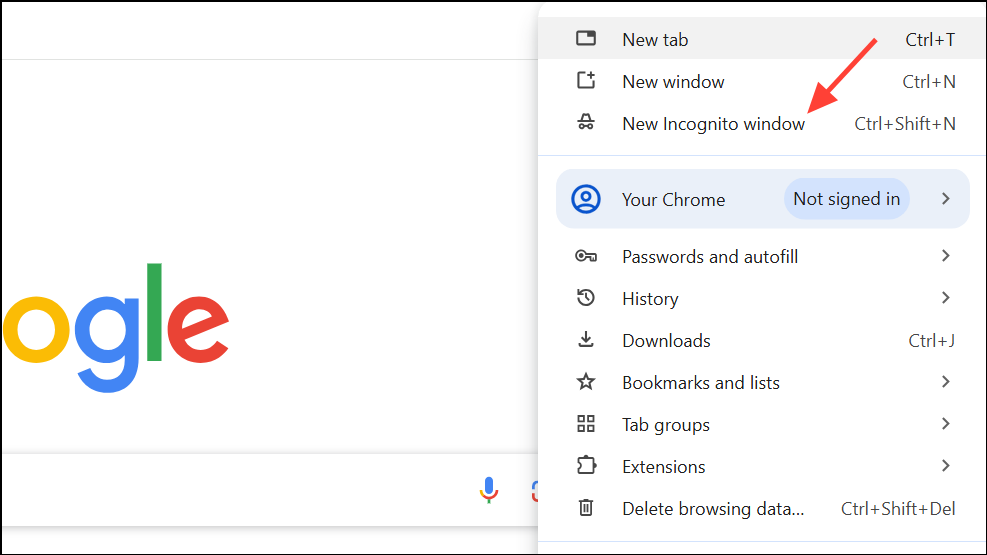
Open an incognito or private window in your browser. Extensions are often disabled by default in this mode, and cookies are not retained between sessions.
Navigate to YouTube and attempt to play a video. If the AdBlock pop-up is gone, the issue likely stems from an extension or cached data in your main browsing session.
If none of the above solutions are sustainable, consider subscribing to YouTube Premium. This paid service removes all ads, enables background play, and allows offline downloads on official apps and browsers.
Sign up via the YouTube website or app. Family and student plans are available for discounted rates, and new users often receive a free trial period.
YouTube Premium is the only method guaranteed to provide uninterrupted, ad-free viewing without risk of future detection or site breakage.
YouTube’s adblock prevention tactics continue to evolve, but updating your tools, tweaking privacy settings, or switching browsers can restore normal access. Periodically check for new workarounds as the situation changes.