With the rise of remote work and online education, Google Meet has become an essential tool for virtual communication. Sometimes, simply talking isn’t enough—you might need to share presentations, demonstrate software, or collaborate on documents. Fortunately, Google Meet allows you to share your screen effortlessly, enhancing the effectiveness of your meetings.
How to present during a meeting
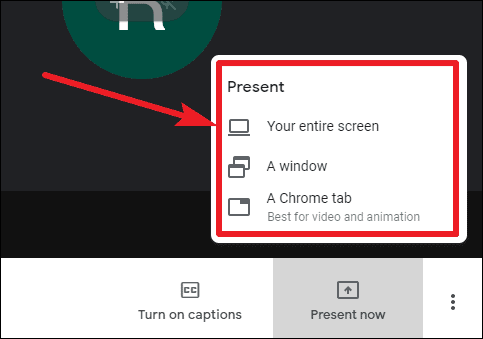
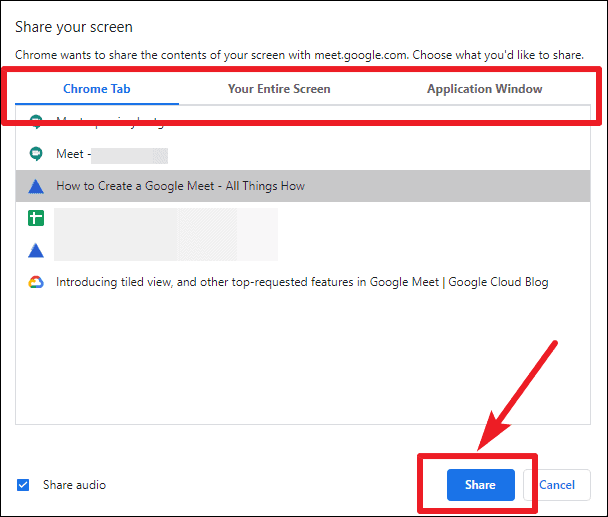
To prevent the unintentional sharing of sensitive information, it’s advisable to select ‘A window’ or ‘A Chrome tab’ if you don’t need to share your entire screen.
- A window: Displays a list of your open application windows.
- A Chrome tab: Shows all your open Chrome tabs.
- Your entire screen: Presents your entire screen for sharing.
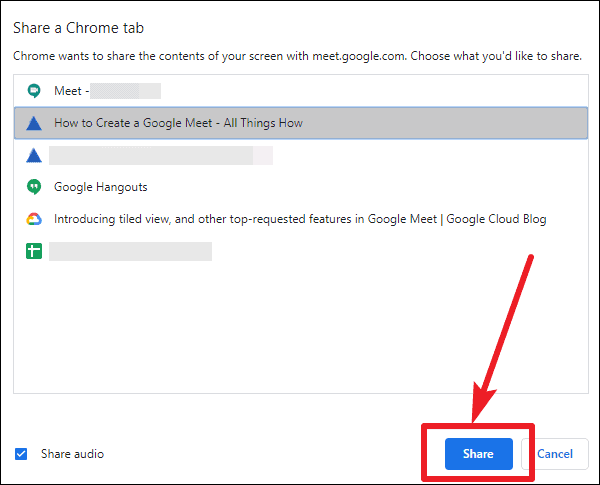
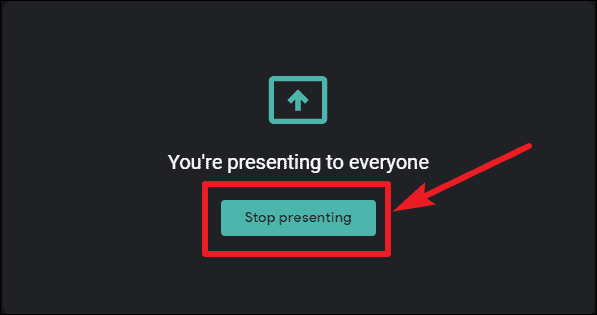
The participants will now see what you’ve chosen to share. When you’re finished presenting, click on the ‘Stop presenting’ button in Google Meet to end the screen-sharing session.
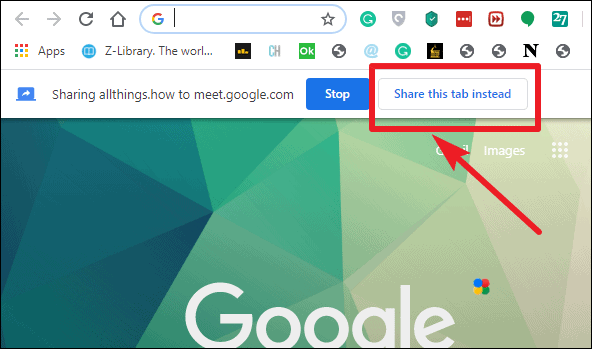
If you’re sharing a Chrome tab, you’ll notice a message at the top of the tab saying ‘Sharing this tab to meet.google.com’, indicating which tab is currently being shared.
To switch tabs while presenting: Navigate to the Chrome tab you want to share next and click on the ‘Share this tab instead’ button below the address bar.
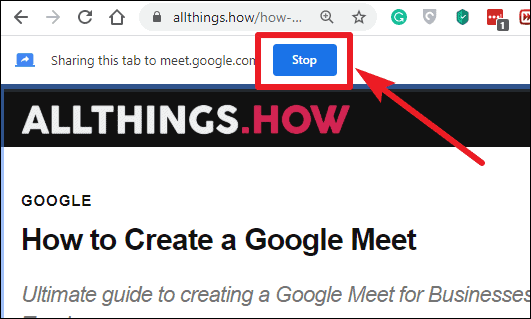
You can also stop sharing directly from the Chrome tab by clicking the ‘Stop’ button on the notification, without returning to the Google Meet window.
How to join a meeting only to present?
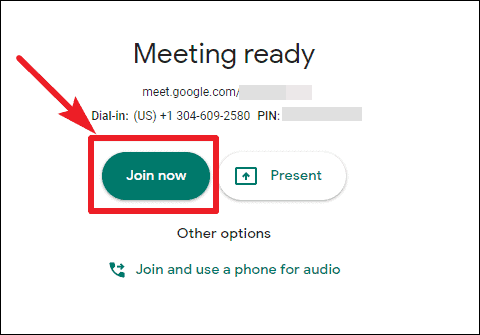
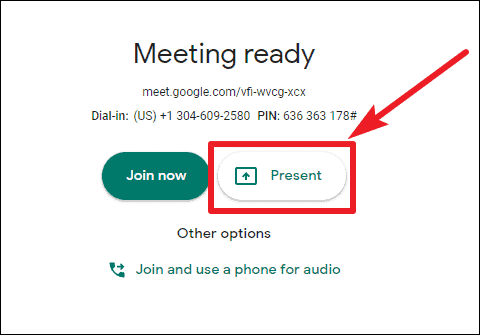
You have the option to join a meeting solely to share your screen without sending or receiving any audio or video. This is useful when you need to present but don’t need to participate in the discussion.
What if someone is already presenting?
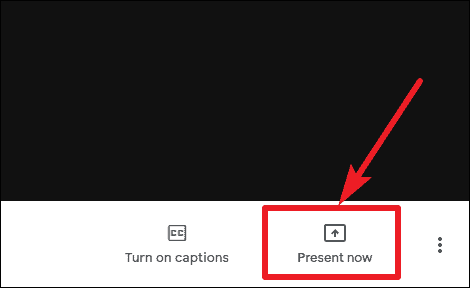
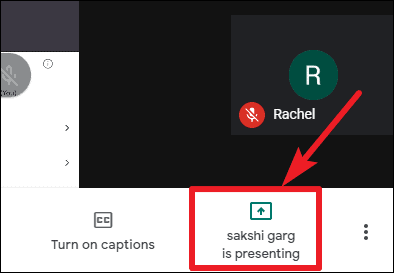
If another participant is currently sharing their screen, you can take over the presentation if needed. When someone else is presenting, the ‘Present now’ button will display ‘[Participant’s Name] is presenting’. Click on it to proceed.
After selecting what you want to share and clicking ‘Share’, a prompt will appear informing you that this action will let you take over from the current presenter. Click ‘Share now’ to begin presenting, or ‘Cancel’ if you prefer to wait.
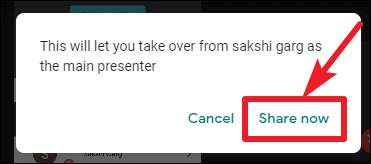
Once you click ‘Share now’, the previous presenter will be notified that someone else has taken over the screen sharing.
By utilizing the screen-sharing features in Google Meet, you can enhance your virtual meetings, presentations, and collaborative sessions. Whether you’re instructing a class, hosting a meeting, or presenting a project, sharing your screen can make your interactions more effective and engaging.