Meeting Notes in Microsoft Teams offers a seamless way to capture and share important information during meetings. This feature allows participants to jot down agendas, key discussion points, and follow-up tasks, all within the Teams app. In this guide, we’ll explore how to effectively use Meeting Notes before, during, and after your meetings.
Important Points to Consider:
- Only individuals within your organization can start or access Meeting Notes; guests do not have this capability.
- Meeting Notes are unavailable in meetings with more than 20 participants.
- You can access notes only if you were invited to the meeting before the notes were created.
For recurring meetings, the notes carry over, and each session creates a new section within the Meeting Notes.
Taking Notes During a Meeting
More options (three dots) icon in the meeting controls.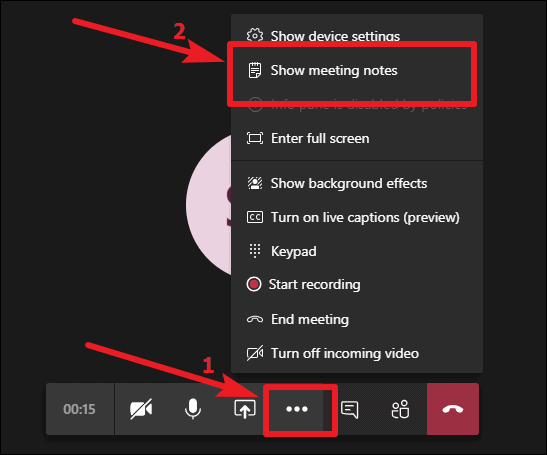
Show meeting notes. This will open the Meeting Notes pane on the right side of the meeting window.Take notes to begin capturing your meeting notes.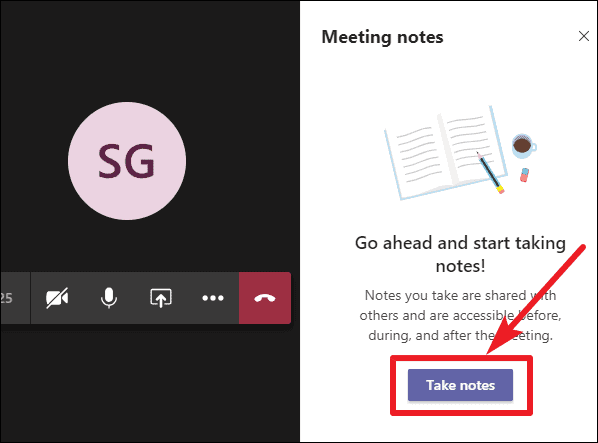
@ symbol to mention other participants or add specific notes for them.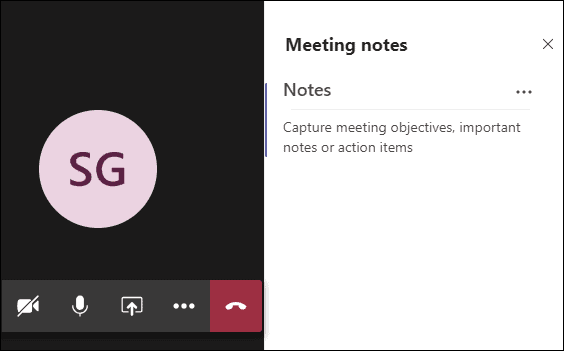
+ icon to create a new section within the notes.Taking Notes Before a Meeting
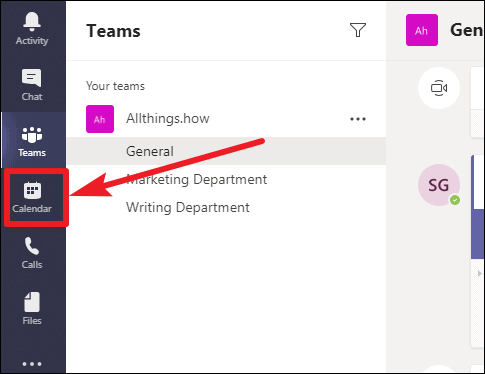
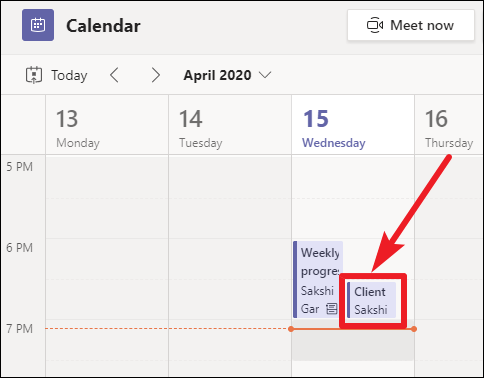
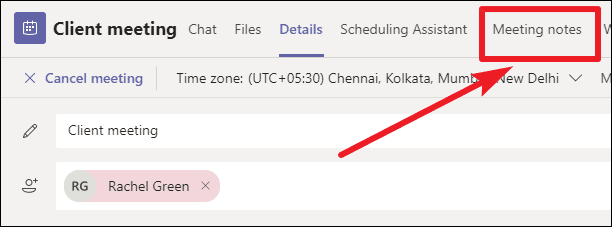
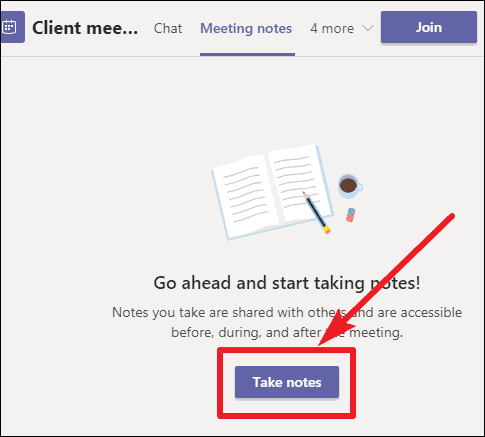
@ symbol to mention specific participants.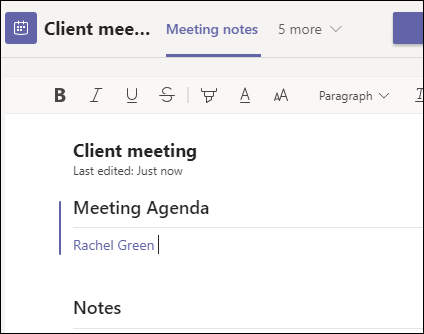
Currently, notes can be accessed beforehand only for meetings that do not take place within a channel.
Accessing and Adding Notes After a Meeting
For Channel Meetings:
Teams tab on the left navigation bar, and select the channel where the meeting occurred.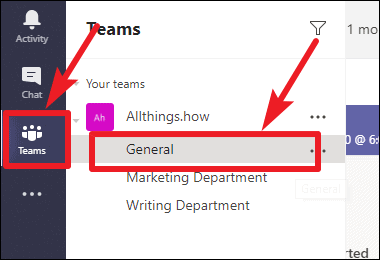
Show notes in full screen to view and edit the notes.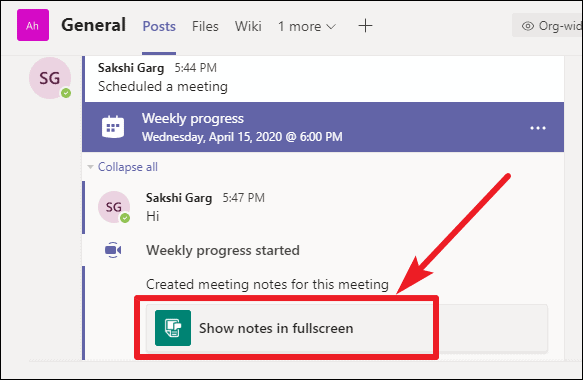
For Private Meetings:
Chat tab from the left navigation bar, and locate the meeting chat in your list of conversations.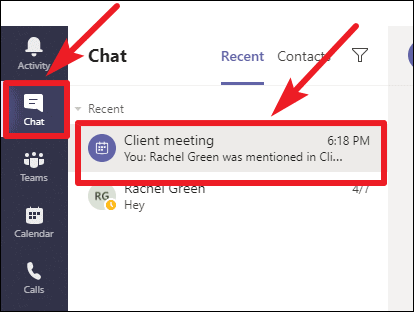
Meeting notes tab at the top to access the notes from that meeting.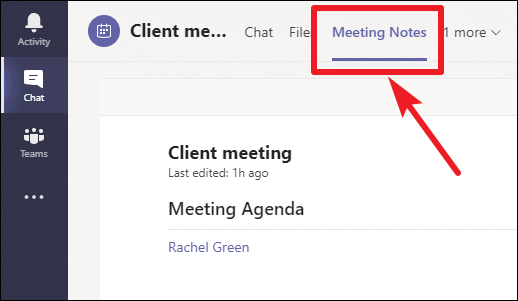
Utilizing Meeting Notes in Microsoft Teams streamlines the process of capturing and sharing important information. By keeping all notes centralized within the app, you enhance collaboration and ensure that all team members have access to the meeting’s key points and action items.