If you’re aiming for precise cursor movements in Windows 10, especially during tasks like gaming or graphic design, mouse acceleration can sometimes be a hindrance. This feature increases cursor speed based on how quickly you move the mouse, which can affect accuracy. Fortunately, you can disable mouse acceleration for more consistent control. Here’s how to do it.
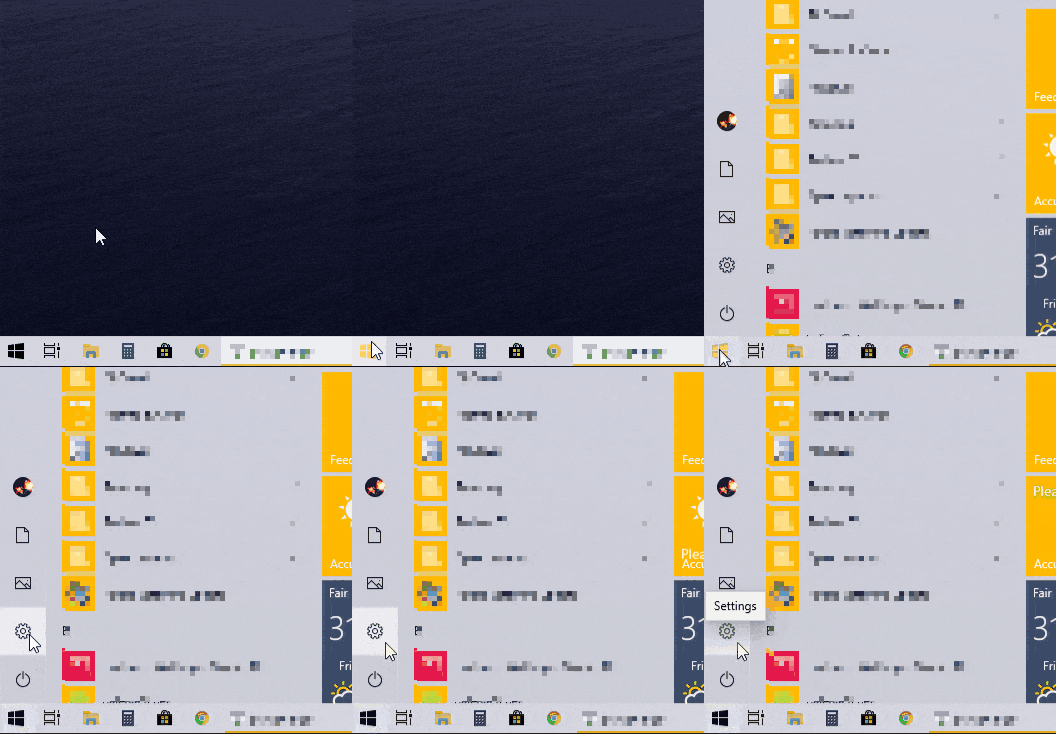
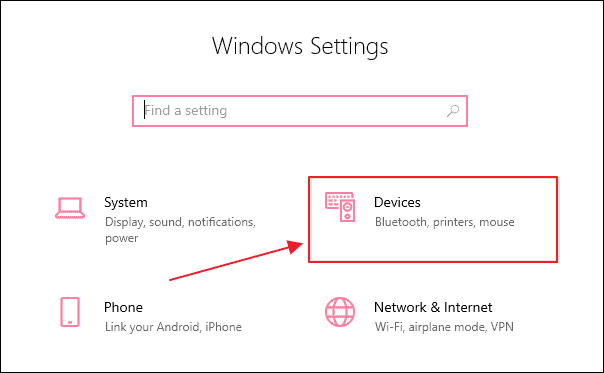
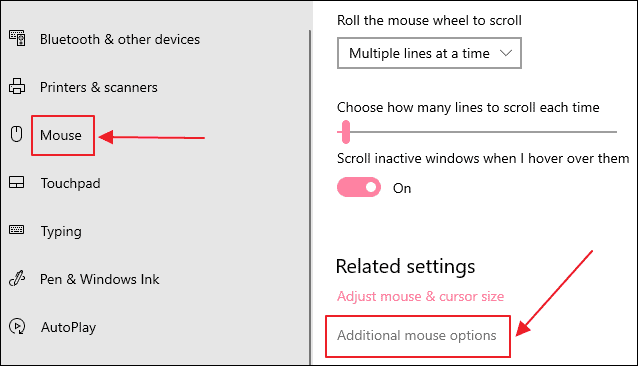
From the left-hand menu, click on Mouse. Then, on the right side, click on Additional mouse options under the Related settings section.
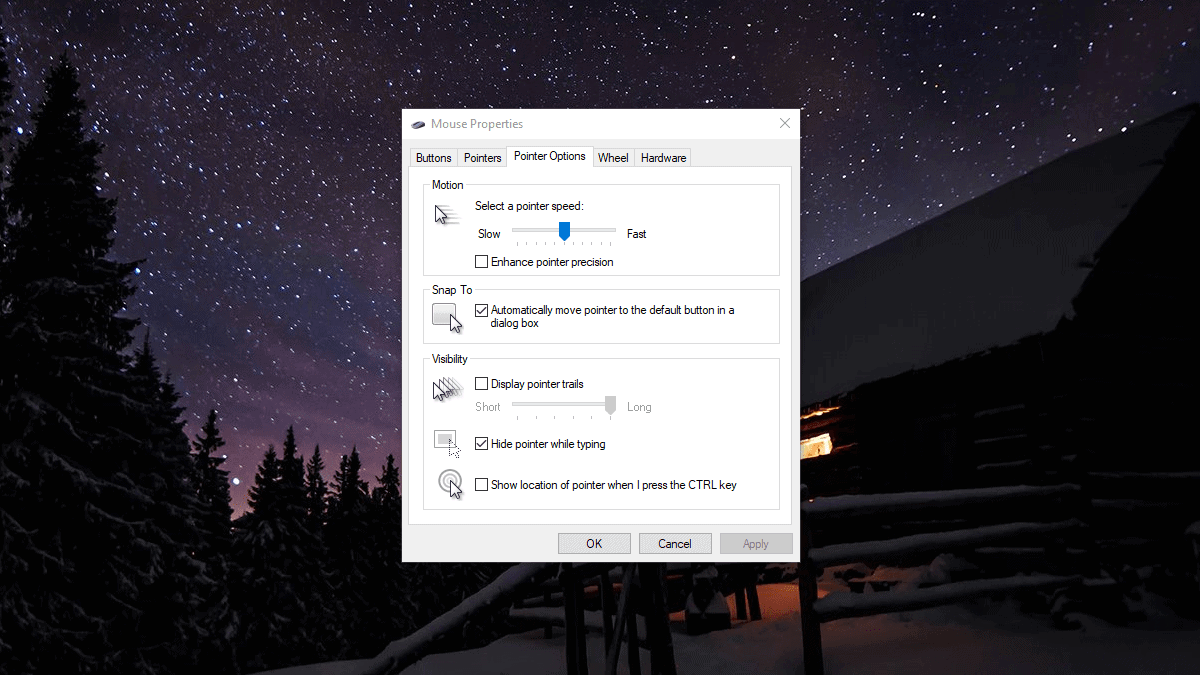
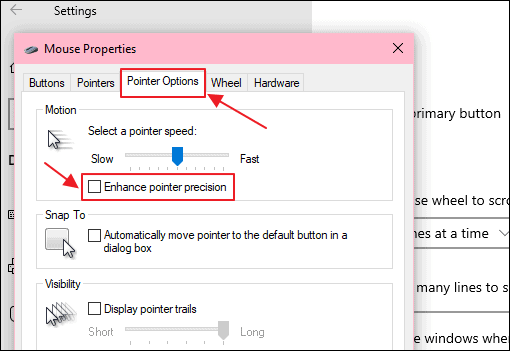
In the Mouse Properties window that appears, navigate to the Pointer Options tab. Under the Motion section, uncheck the box next to Enhance pointer precision to disable mouse acceleration.
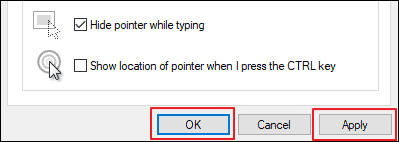
With these changes, your mouse movements should now be more precise, providing better control in applications where accuracy is crucial.