Illegal Soccer hands you a full soccer moveset and a pile of gadgets, then asks you to use both while people are shooting at you. Nine actions sit on the keyboard by default, and several of them share keys, so remapping is less about comfort than about not firing a rocket punch when you meant to lob. Every control lives in one menu, and it takes about thirty seconds to fix.
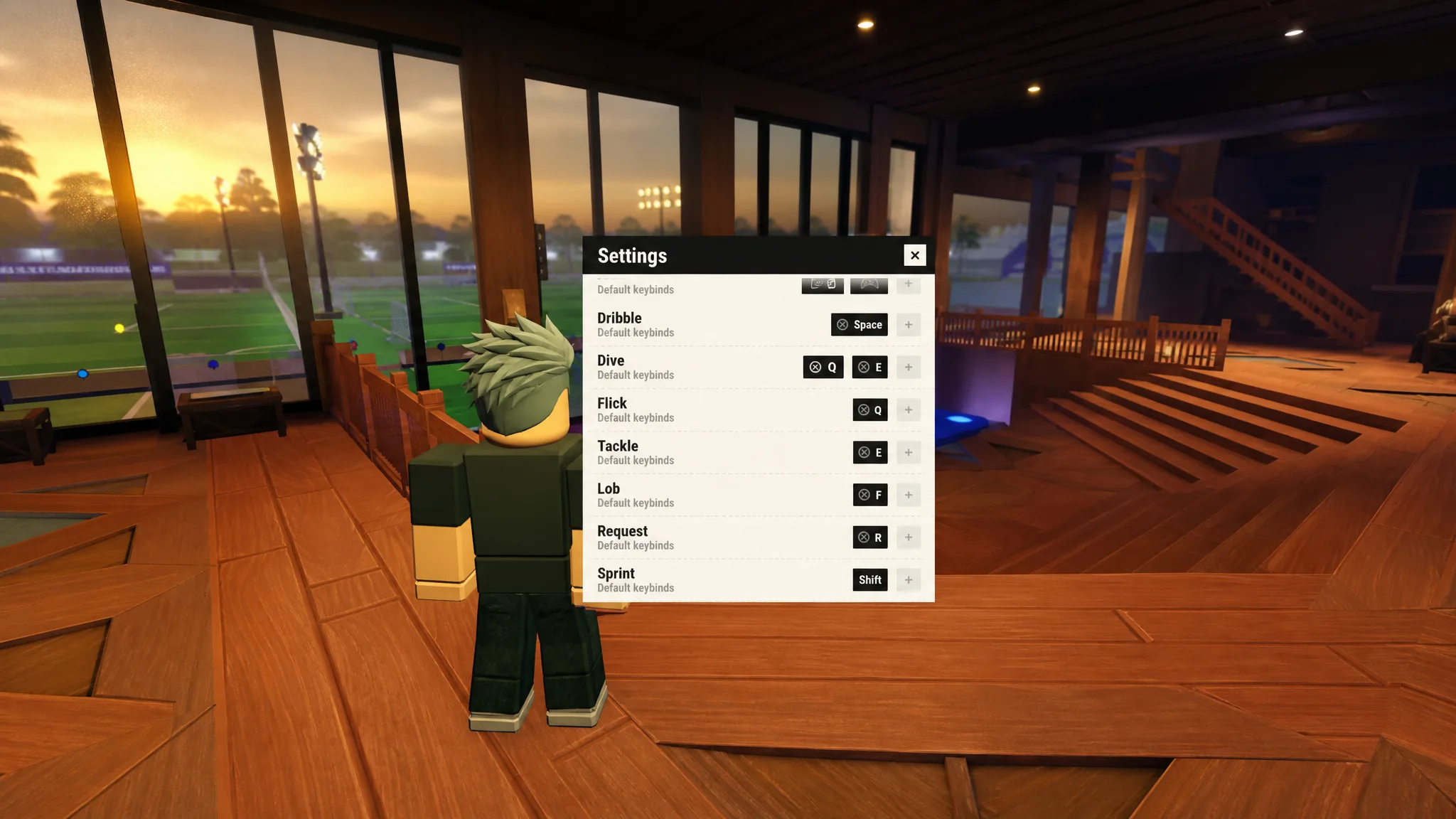
Quick answer: Click the gear icon in the top-left corner of the screen, scroll down to the Keybinds section, click the box next to the action you want to change, then press the new key. The box updates to show the key you pressed.
How to remap a keybind in Illegal Soccer
Do this from the lobby before you queue. The menu is reachable in a match too, but you do not want to be scrolling a settings list while the other team is on a counterattack.
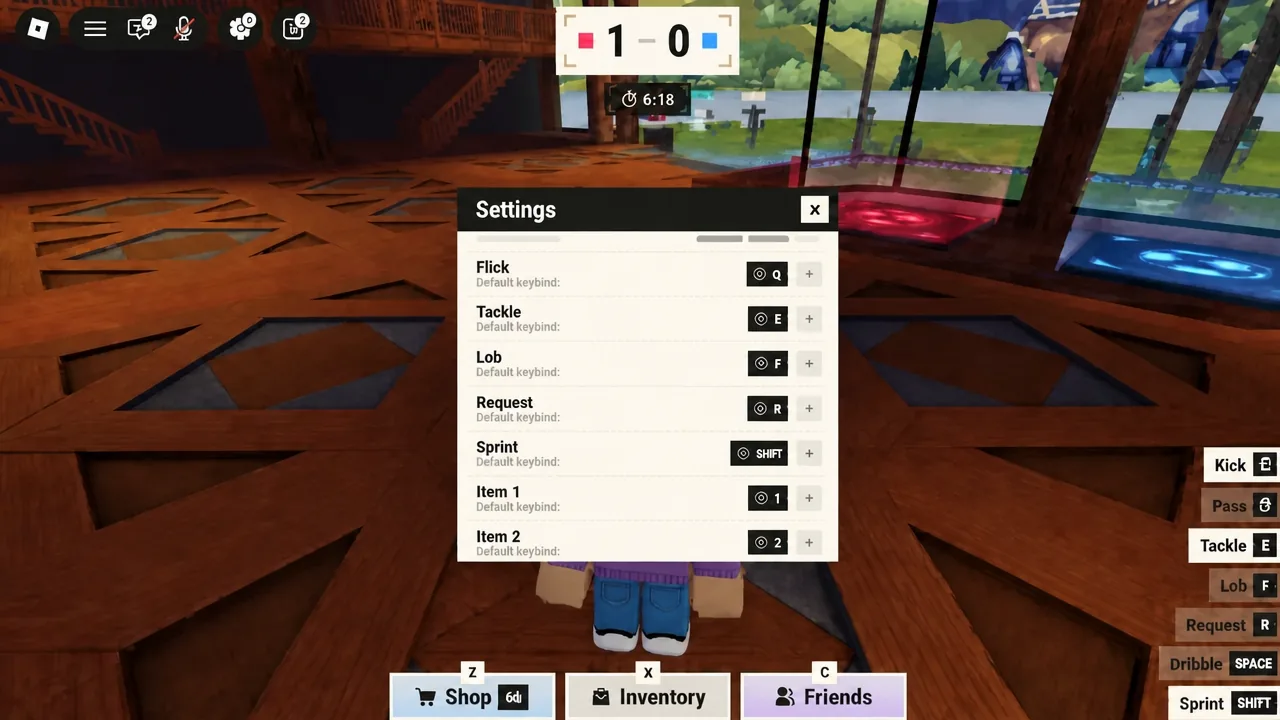
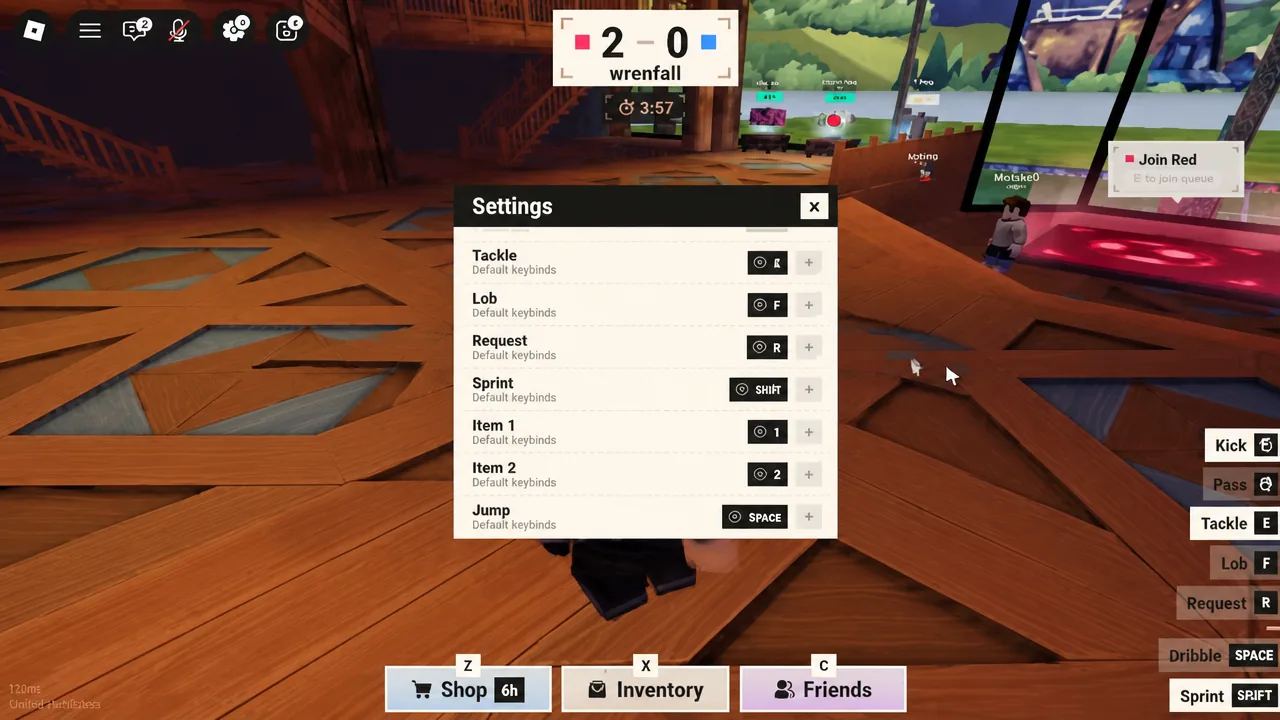
Default keybinds list
These are the keys the Keybinds section ships with. Several actions are doubled up on purpose, which is why remapping matters — Q and E cover both Dive and Flick, and F appears on Pass and Lob.
| Action | Default key(s) |
|---|---|
| Kick | G, T |
| Pass | F, Y |
| Dribble | Space |
| Dive | Q, E |
| Flick | Q, E |
| Tackle | E, R |
| Lob | F, R |
| Request | R, T |
| Sprint | Shift |
| Item 1 | 1 |
| Item 2 | 2 |
| Jump | Space |
Movement stays on standard WASD and is not part of the remappable list. In live matches, kicking also sits on the left mouse button — held down, it charges a power shot — and passing sits on the right mouse button, so the keyboard entries above act as alternates rather than your only option. Shift-lock, usually Left Control on PC, is a Roblox-level toggle and does not appear in this menu.
Fixing the “Unbound actions” warning
If you clear a slot or a key ends up assigned somewhere else, that row turns red and shows a + button instead of a key. The game then puts Unbound actions - Fix in Settings on screen until you fill it back in. Reopen the gear menu, scroll to the red row, click the +, and press a key that is not already doing another job.
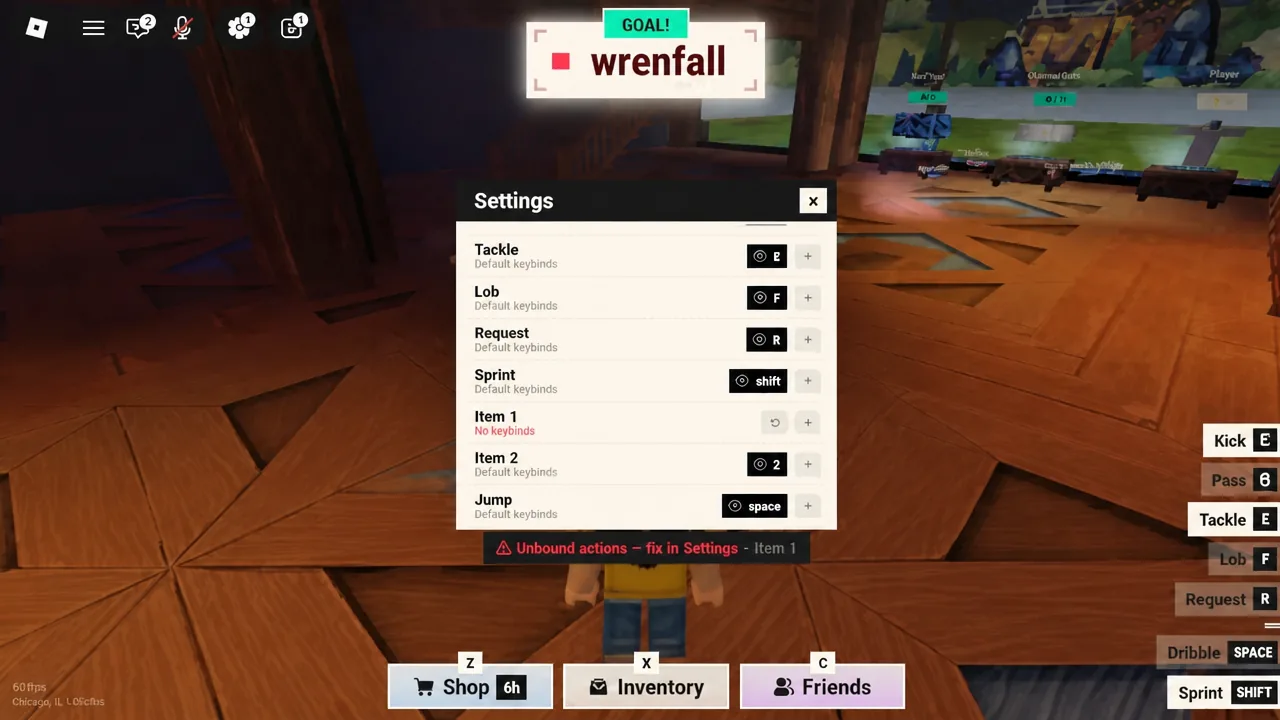
Note: Item 1 and Item 2 are the two gadget slots — guns, grappling hooks, jetpacks, oil. Leaving either unbound means you carry the gadget and cannot fire it, which is the single most common reason a loadout feels dead in a match.
The gameplay and audio settings worth changing
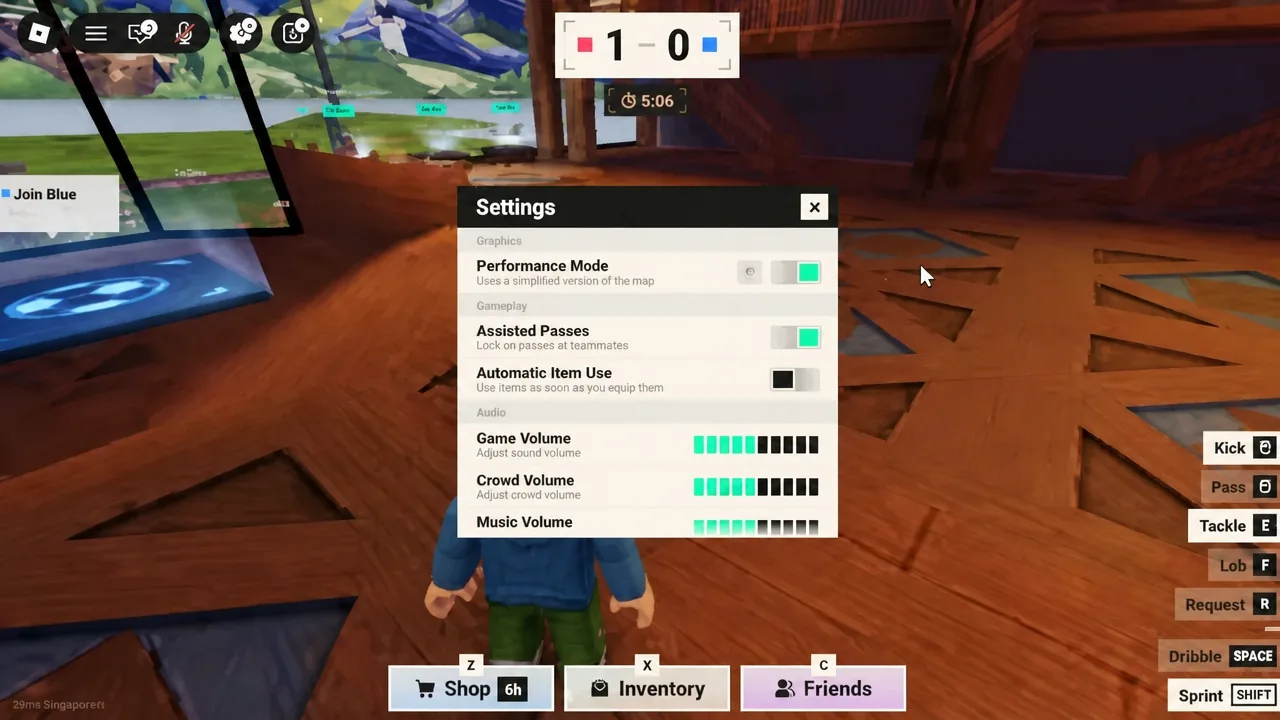
The top half of the same panel holds the toggles and sliders. Two of them change how the game plays rather than how it looks or sounds.
| Setting | What it does |
|---|---|
| Performance Mode | Trims visual load for weaker machines and lower frame rates |
| Assisted Passes | Helps direct the ball toward a teammate; worth leaving on while you learn the pitch |
| Automatic Item Use | Fires gadgets for you; better off if you want to choose the moment |
| Screen Shake | Camera shake during hits and shots |
| Game Volume | Master level for gameplay sound |
| Crowd Volume | Stadium crowd noise |
| Music Volume | Background music |
Automatic Item Use is the one to think about hardest. A jetpack or rocket punch spent automatically at midfield is a jetpack you do not have when someone is clean through on your goal, so most players who care about defending turn it off and eat the extra button press.
Mobile and console controls
Key remapping is a PC feature. Mobile runs the Roblox touch template — a virtual thumbstick, action buttons, and two gadget buttons that mirror slots 1 and 2 — and plays best in landscape. If auto-sprint is emptying your stamina pips before you reach the box, turn it off.
Console uses the standard Roblox gamepad mapping. If the default layout buries your gadgets behind a hold input, move them onto the bumpers so slot 1 and slot 2 are a single press.
Check your binds before you hit PLAY
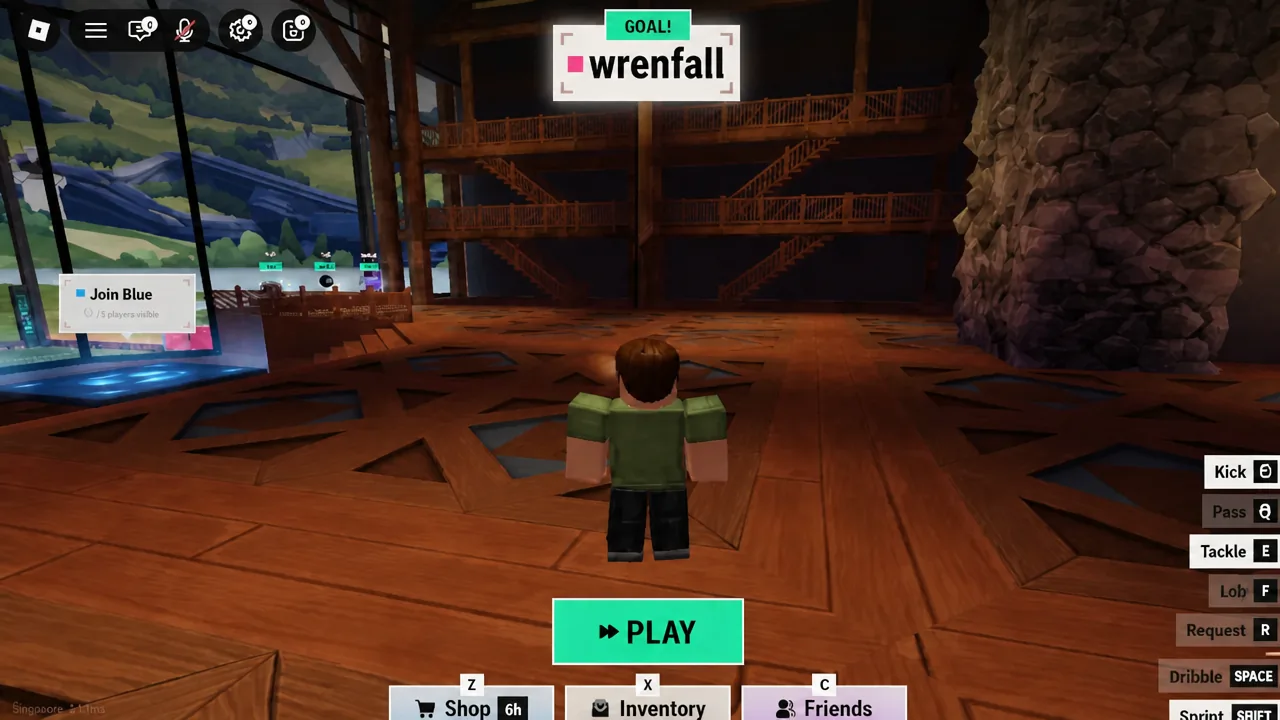
Close the gear menu and test the layout in the lobby. Swap between Item 1 and Item 2 without moving your other hand, hold sprint until the green pips run out so you learn the timing, and make sure Tackle and Flick are not fighting over the same finger. The inventory menu, opened with C or its lobby button, holds Jerseys, Balls, Emotes, and Goal Effects — cosmetics only, so nothing there affects your controls.
Once a layout feels natural, leave it alone. Rebinding after every conceded goal costs you more than the keys ever did.