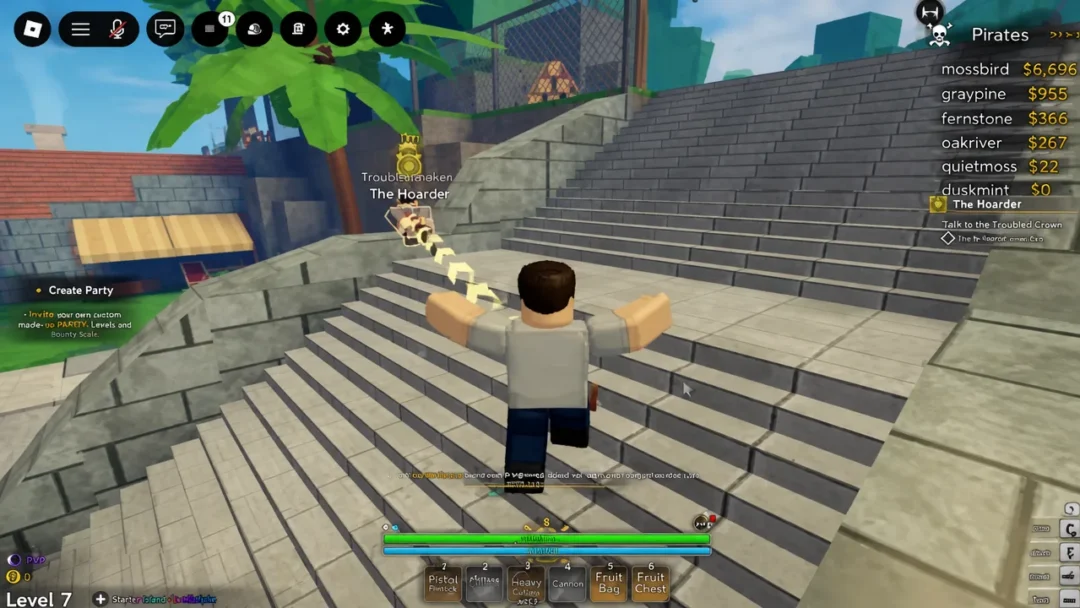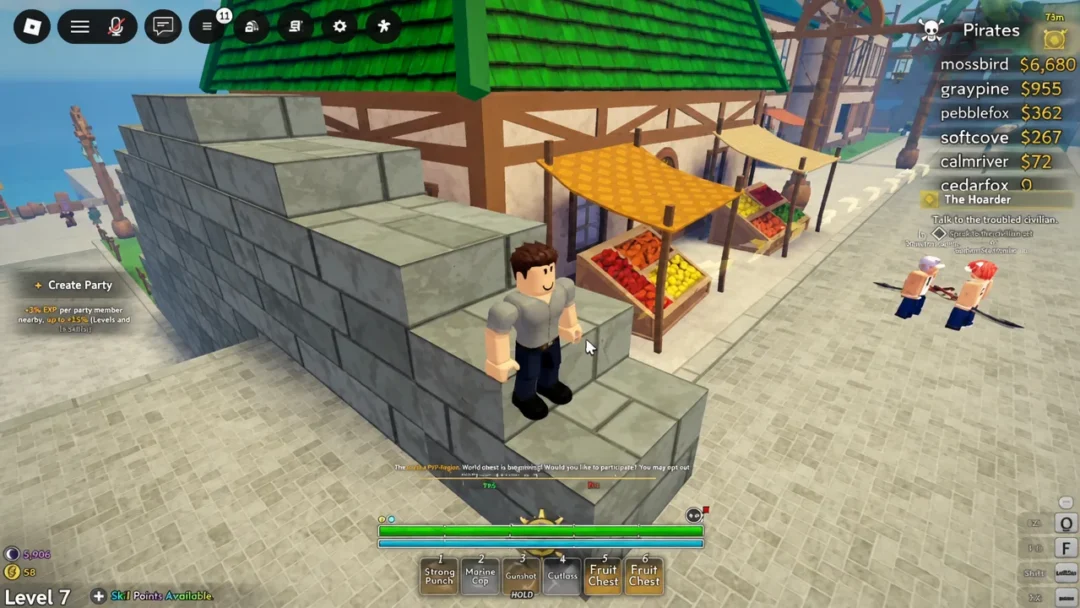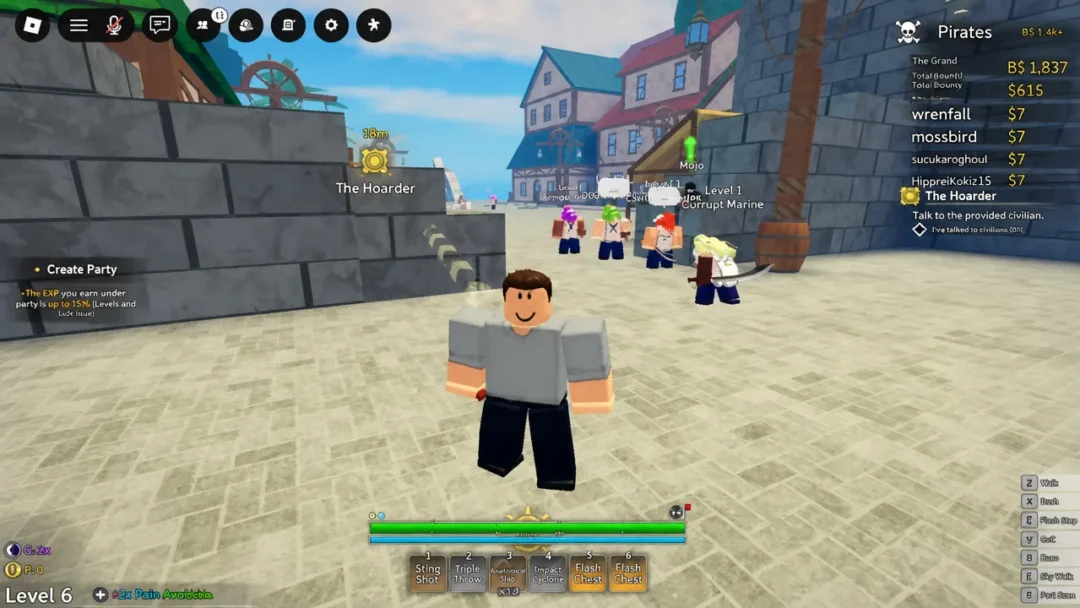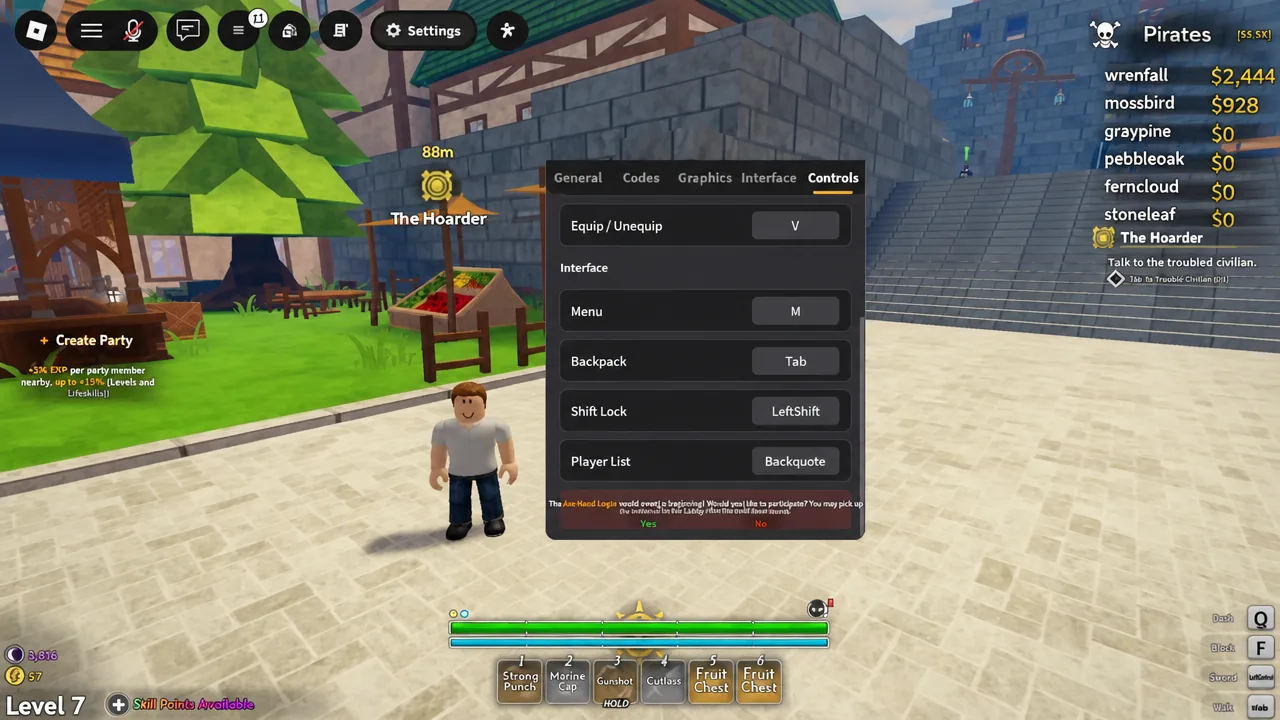
Grand Blue ships with a keyboard layout that borrows from every other Roblox pirate game, and it does not suit everyone. Q for dash and F for block are fine until you play with a claw grip, or until Left Control fights with something your mouse software already uses. The game has a proper rebinding screen, so you do not have to live with the defaults.
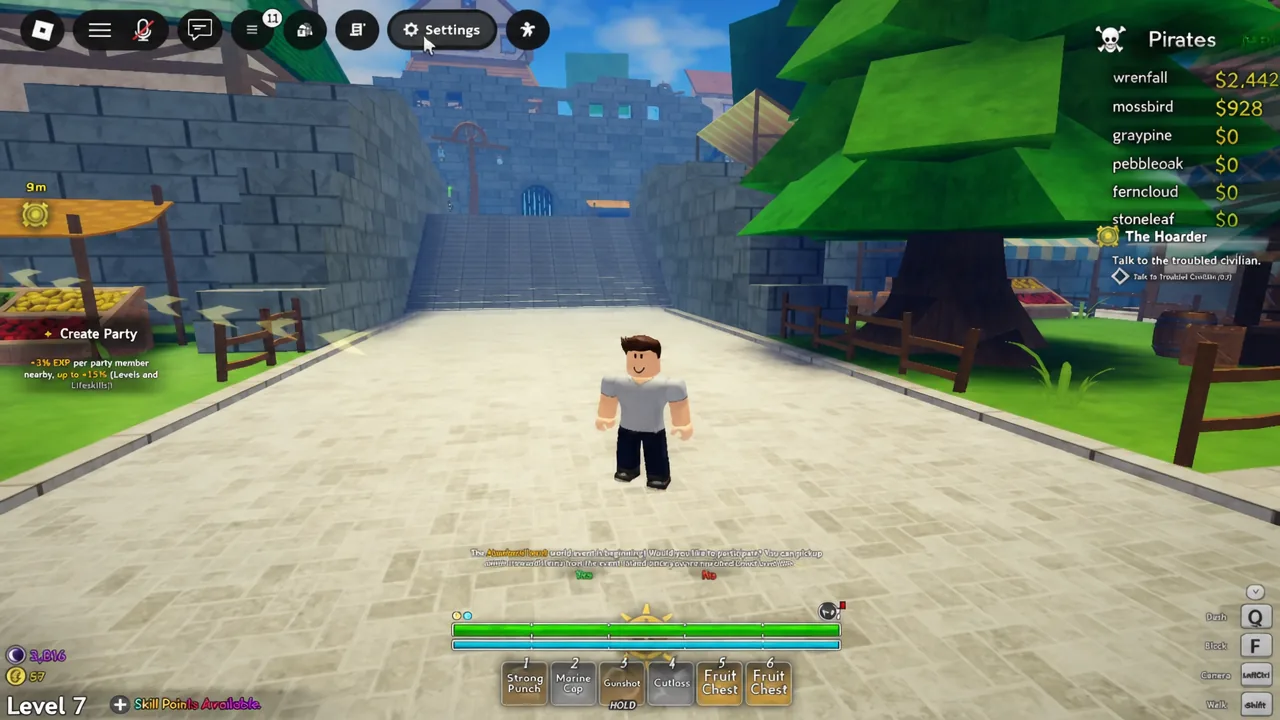
Quick answer: Click the gear icon in the top-left corner to open Settings, switch to the Controls tab, click the action you want to change, then press the new key. The binding updates immediately, and Reset to defaults undoes everything.
Rebind a key from the Controls tab
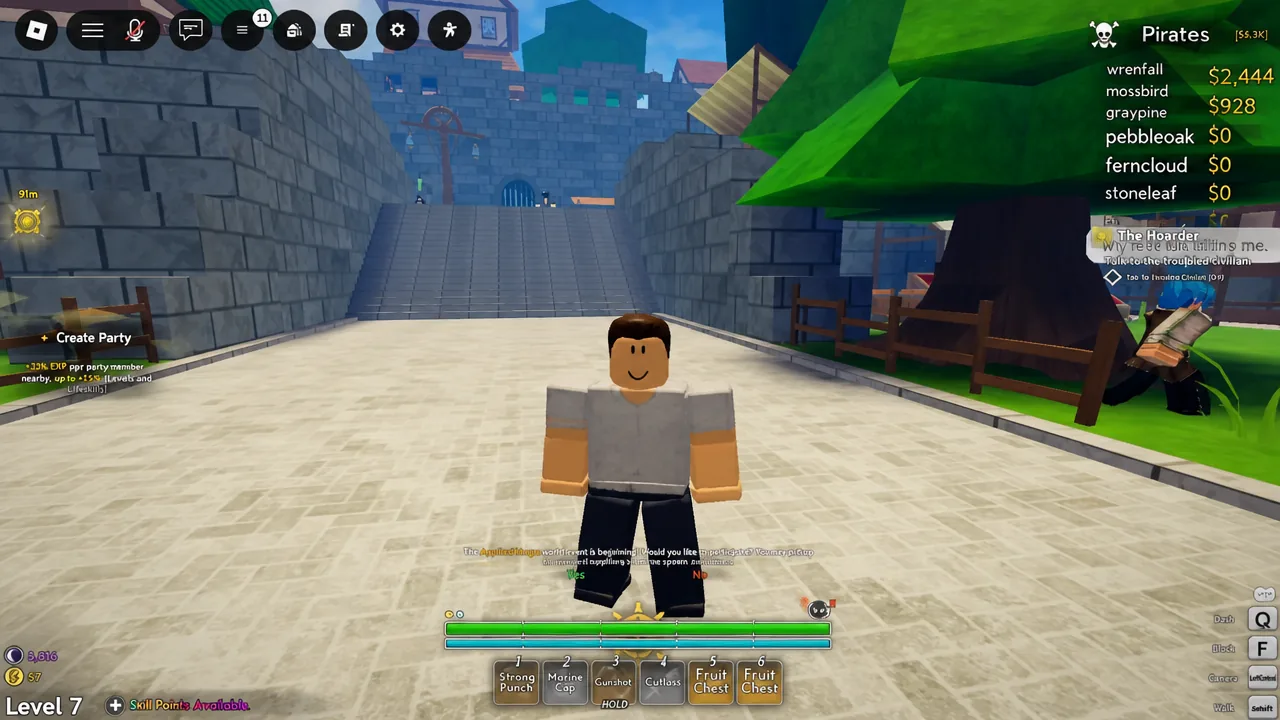
Grand Blue default keybinds
Before you start moving keys around, it helps to know what you are moving. These are the defaults the Controls tab starts with, plus the standard movement and attack inputs.
| Action | Default key |
|---|---|
| Move | W, A, S, D |
| Interact | E |
| Light attack | Mouse button 1 |
| Heavy attack | Mouse button 2 |
| Skills | 1, 2, 3, 4, 5 |
| Dash | Q |
| Block | F |
| Run | LeftControl |
| Equip / Unequip | V |
| Menu | M |
| Backpack | Tab |
| Shift Lock | LeftShift |
| Player List | Backquote |
Note: Grand Blue is in Early Access, so a patch can move an action or add a new one. The list inside the Controls tab is always the current truth, not any layout you memorized last week.
Reset to defaults if a bind breaks
At the bottom of the Controls tab there is a Reset to defaults button. It wipes every custom bind at once and puts the original layout back, which is the fastest fix if you double-assigned a key or cannot remember what you changed.
It is all or nothing. There is no per-action undo, so if you only want one key back to normal, rebind that single row by hand instead of hitting the reset button.
Find the default controls in the Logbook
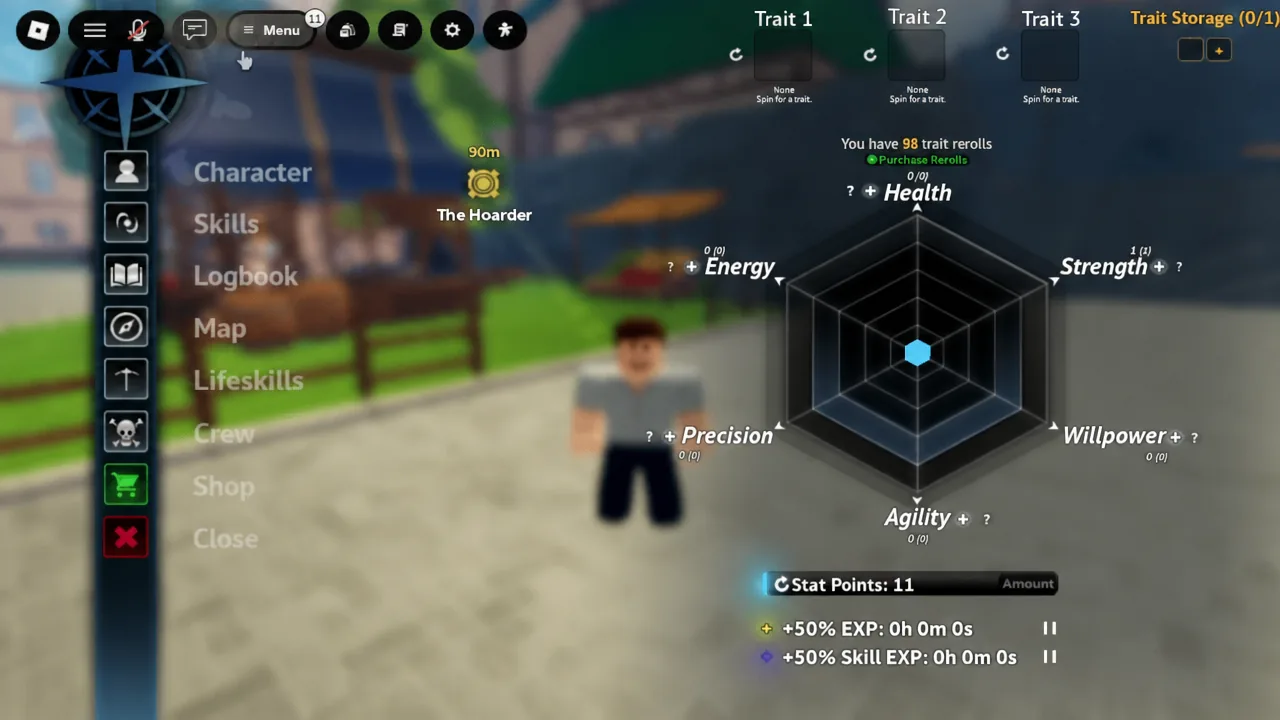
There is a second place to read the control list, and it is useful when you have changed enough keys that you no longer trust your memory. Press M to open the Menu. That panel is also where your character screens live, including trait slots and reroll controls.
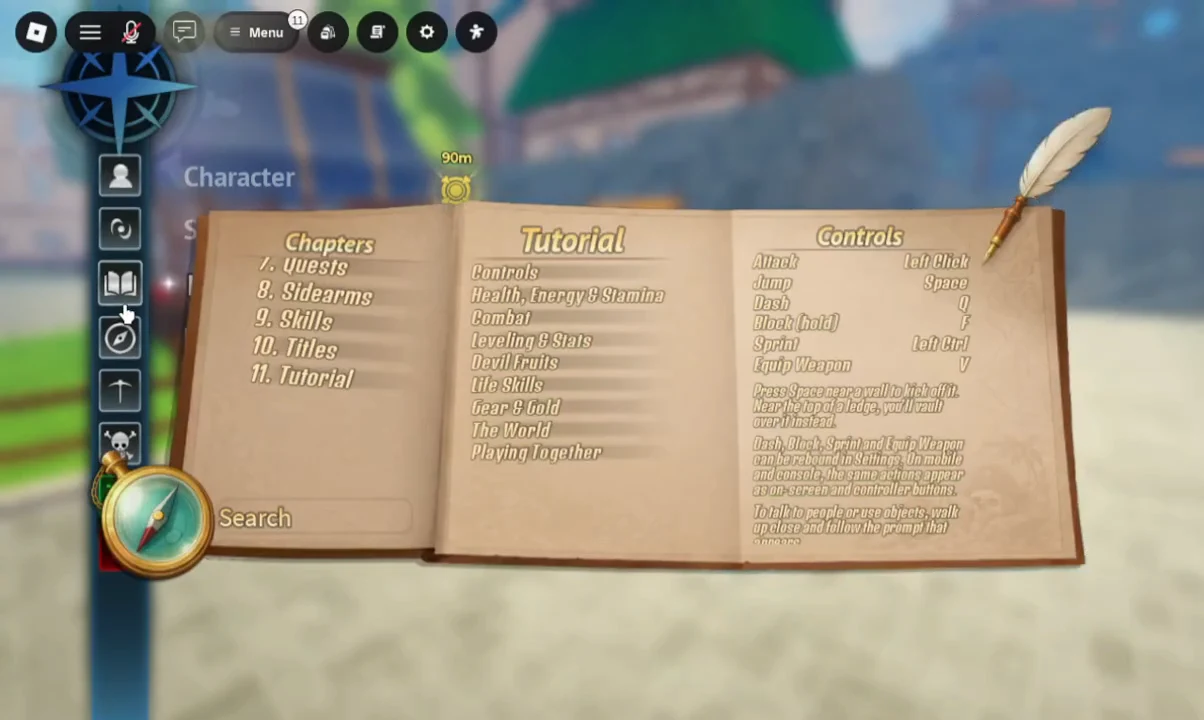
From the Menu, open the Logbook and select Tutorial. The Tutorial book has a chapter list and a search field, and the Controls entry inside it spells out the standard layout.
When a rebound key does not work
Most “broken bind” reports are not binds at all. Run through these before you touch the Controls tab again.
- Chat or a text field has focus. Press Escape or click away, then try the key again.
- You are locked in an animation. Nothing registers until the current move finishes.
- No weapon or style is equipped, so attack inputs do nothing. Equip it and close the menu.
- A skill was learned but never assigned to a slot, or it is still on cooldown.
- Two actions share the same key. Open Controls and check the list for a duplicate.
Interaction is its own case. The interact key only fires on whatever prompt is currently highlighted, so at a busy dock or in a crowded plaza you may need to shift position until the right NPC or object is selected. Read the objective text before you confirm anything that spends currency or rerolls.
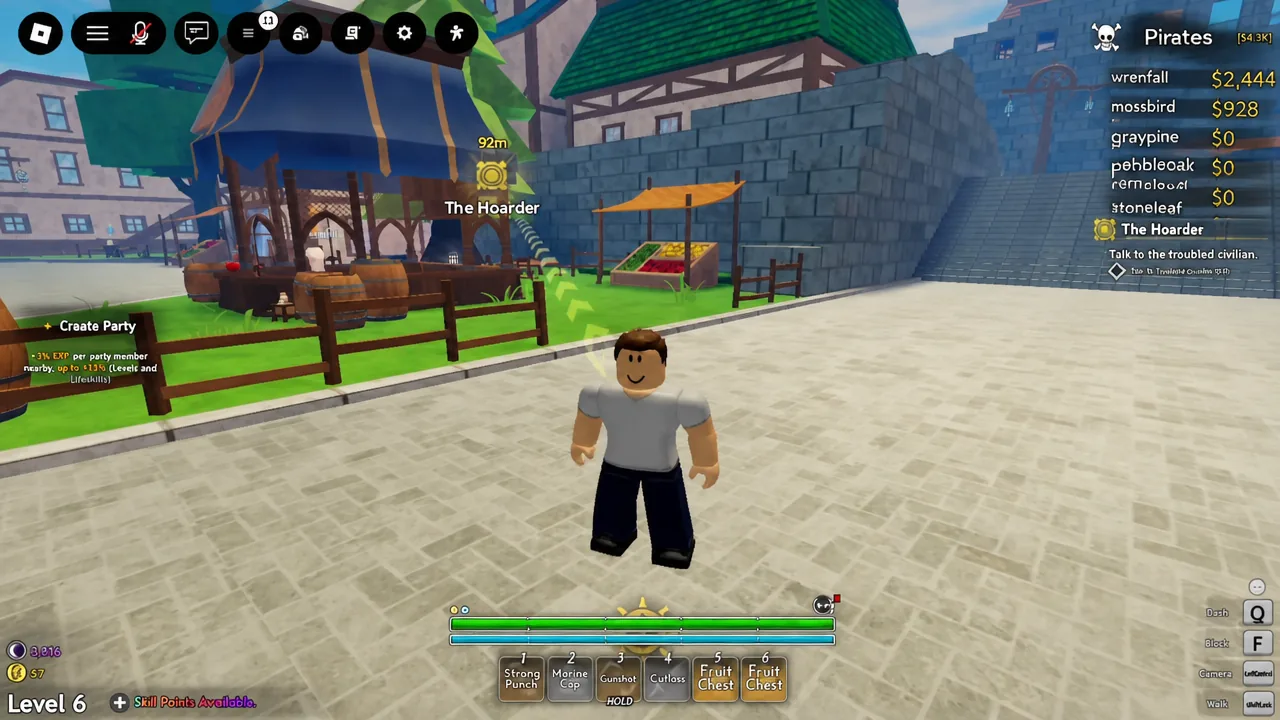
On mobile, the game uses on-screen touch buttons rather than the Controls tab, and there is no confirmed controller layout at the moment. Whatever the platform, the fastest sanity check after a rebind is the same one: walk into an empty patch of ground, press each key you changed once, and watch what the character does. If dash, block, and sprint all fire, the layout took.