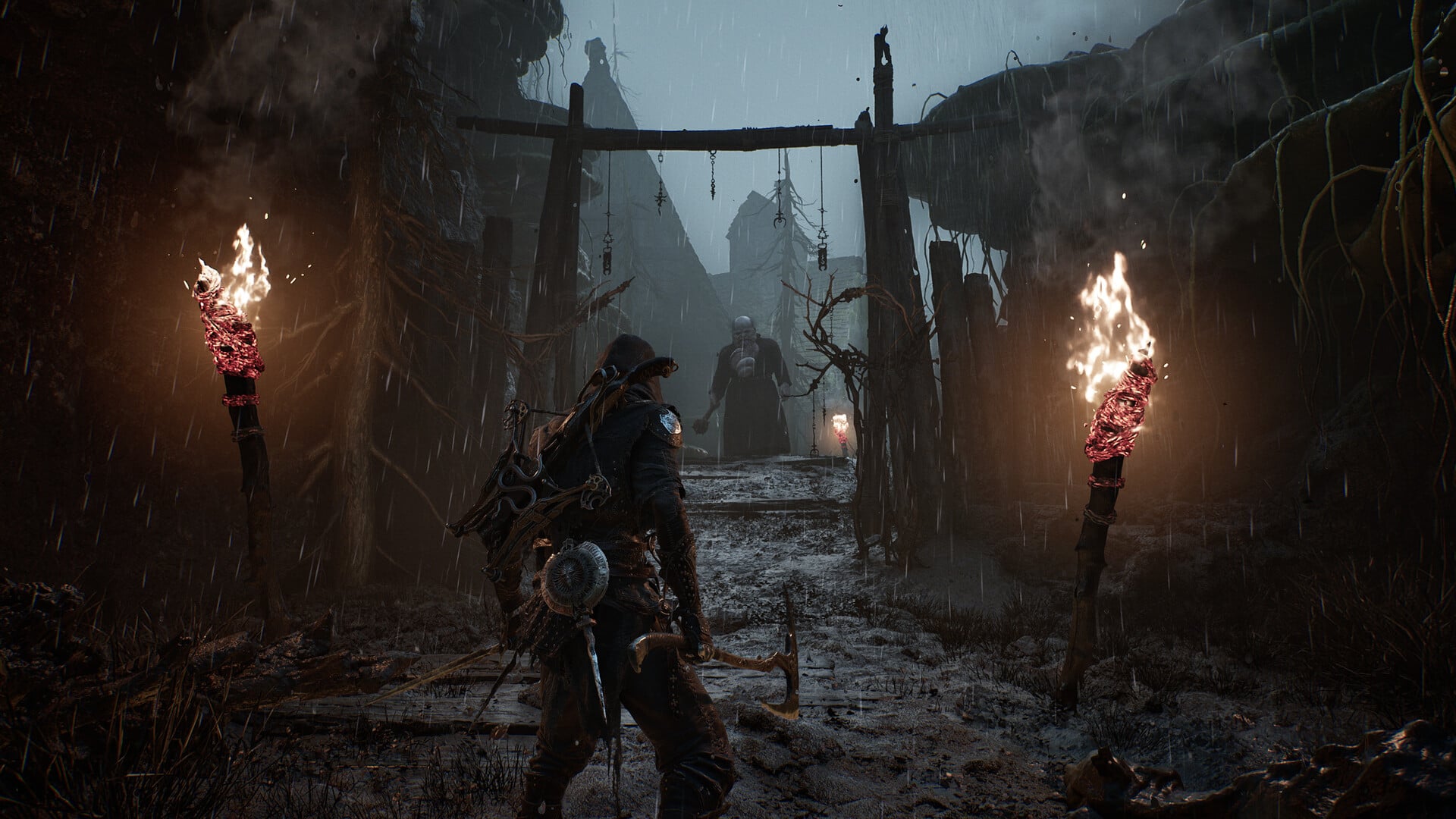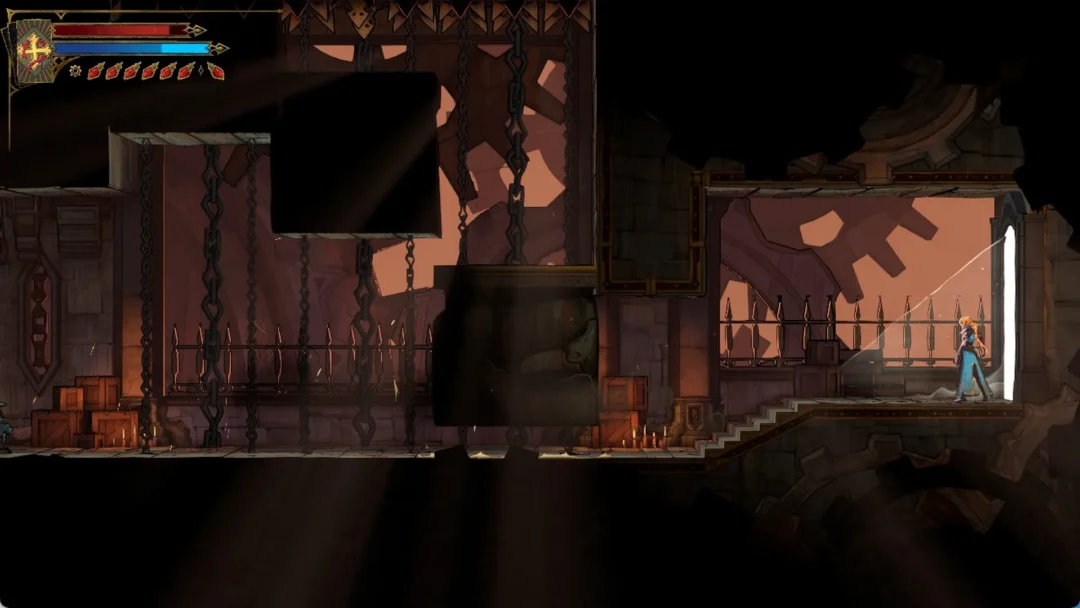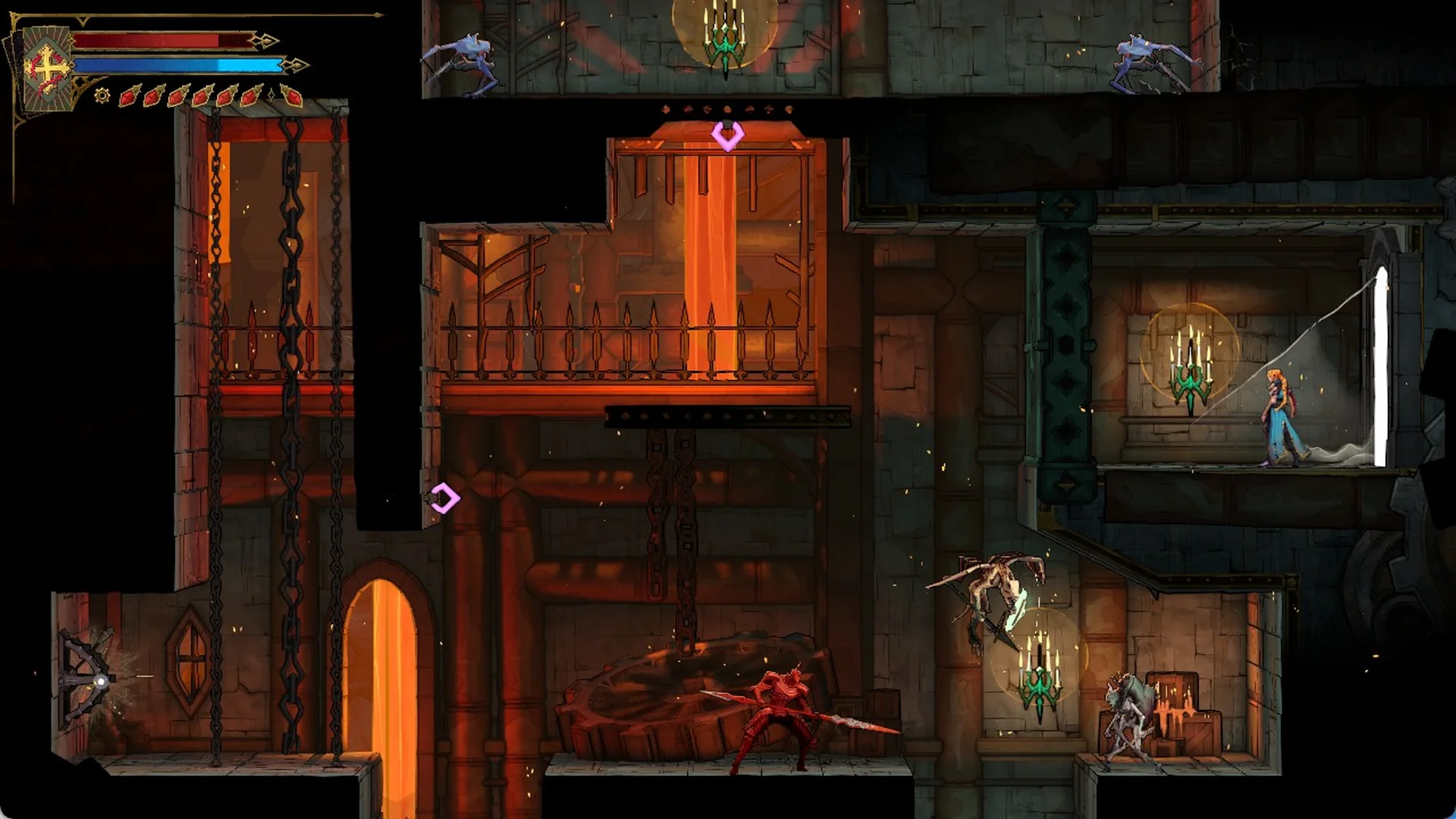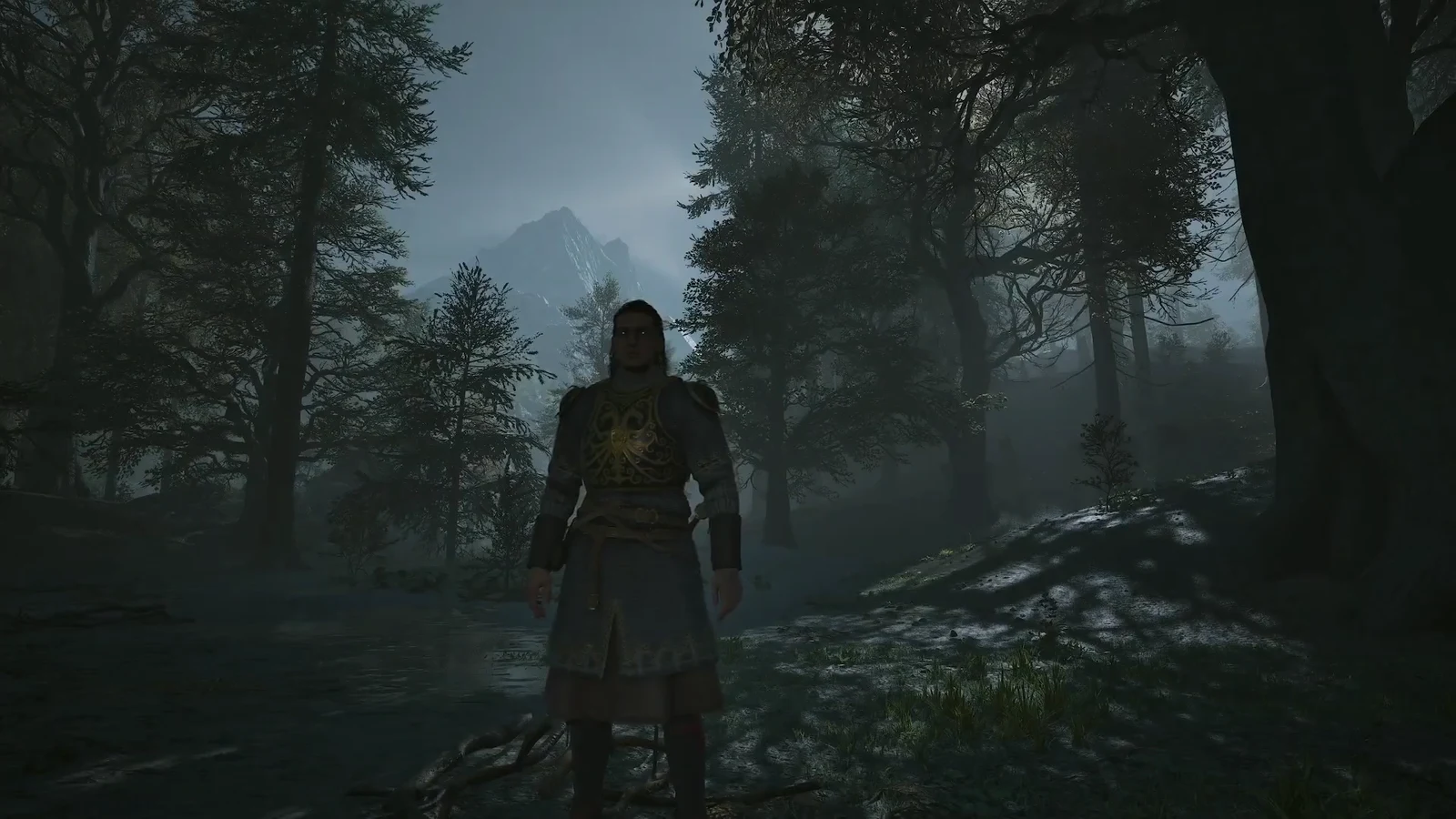
A blank screen with no health bar, no quest tracker, and no interaction prompts in The Blood of Dawnwalker almost always means the interface has been switched off rather than broken. The game ships with a photo-mode-style UI toggle bound to a single key, and it is easy to hit by accident while moving or fighting. Turning it back on takes about two seconds once you know where the control lives.
Quick answer: Open the pause menu, then press and hold the TOGGLE UI VISIBILITY key shown at the bottom of the screen — U on PC, or the button prompt displayed there on console — until the interface returns.
Why the UI disappears in The Blood of Dawnwalker
The game includes a dedicated command that hides every on-screen element at once, which is useful for screenshots and clean video capture. It is a hold-to-activate input, not a menu checkbox, so nothing warns you before the HUD vanishes. Nothing else about your save is affected — quests keep tracking, timers keep running, and the pause menu itself still works normally.
The clearest sign that this is what happened is the pause menu. If Resume, Save Game, Load Game, Settings, and the rest of the list all appear correctly when you pause, but gameplay is bare, the interface has been toggled off rather than lost to a crash or a corrupted file.
Restore the UI on PC (hold U)
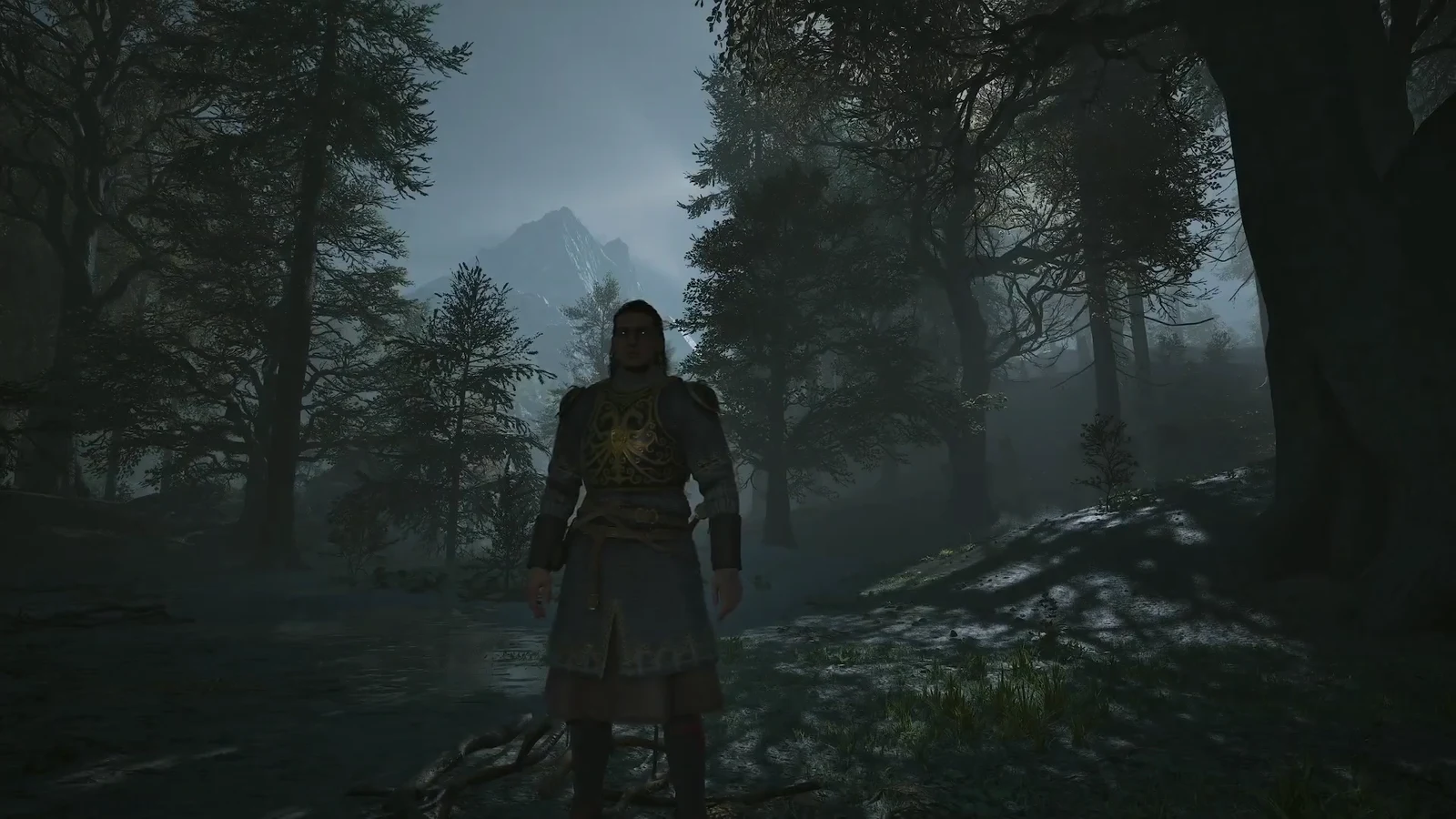
TOGGLE UI VISIBILITY prompt sits there with its assigned input next to it, alongside the game version number.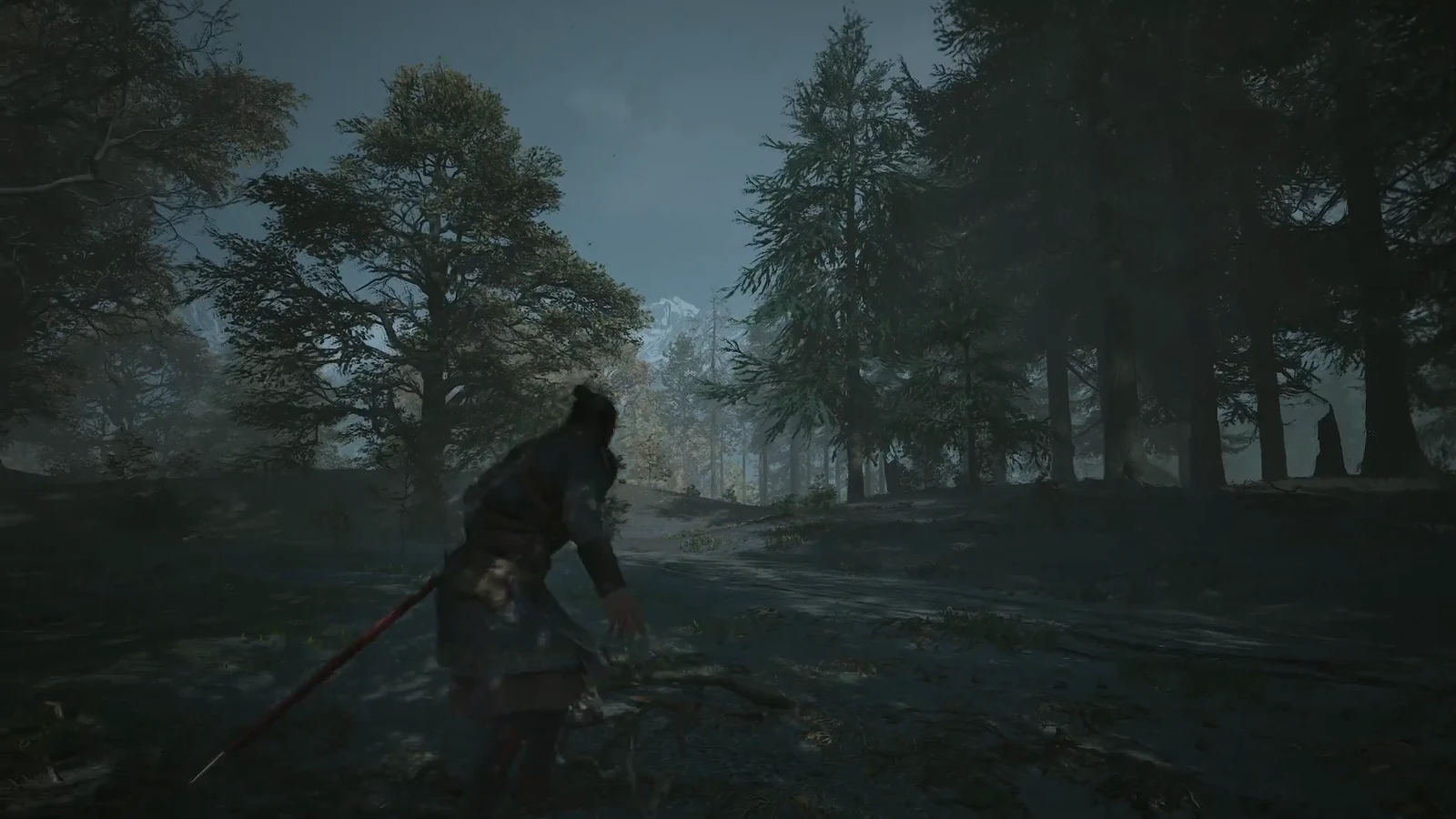
U. A quick tap will not register — keep the key down until the prompt registers the input.Resume. The health bar, quest tracker, minimap, and interaction prompts should all be back on screen.Restore the UI on console
The process is identical on console, only the input changes. The pause menu displays the correct controller button for your platform, so you do not need to guess a binding.
TOGGLE UI VISIBILITY prompt at the bottom of the screen and note the button icon shown beside it.| Platform | Input to hold |
|---|---|
| PC (keyboard) | U |
| Console / controller | The button icon shown next to the TOGGLE UI VISIBILITY prompt |
How to confirm the UI is fully back
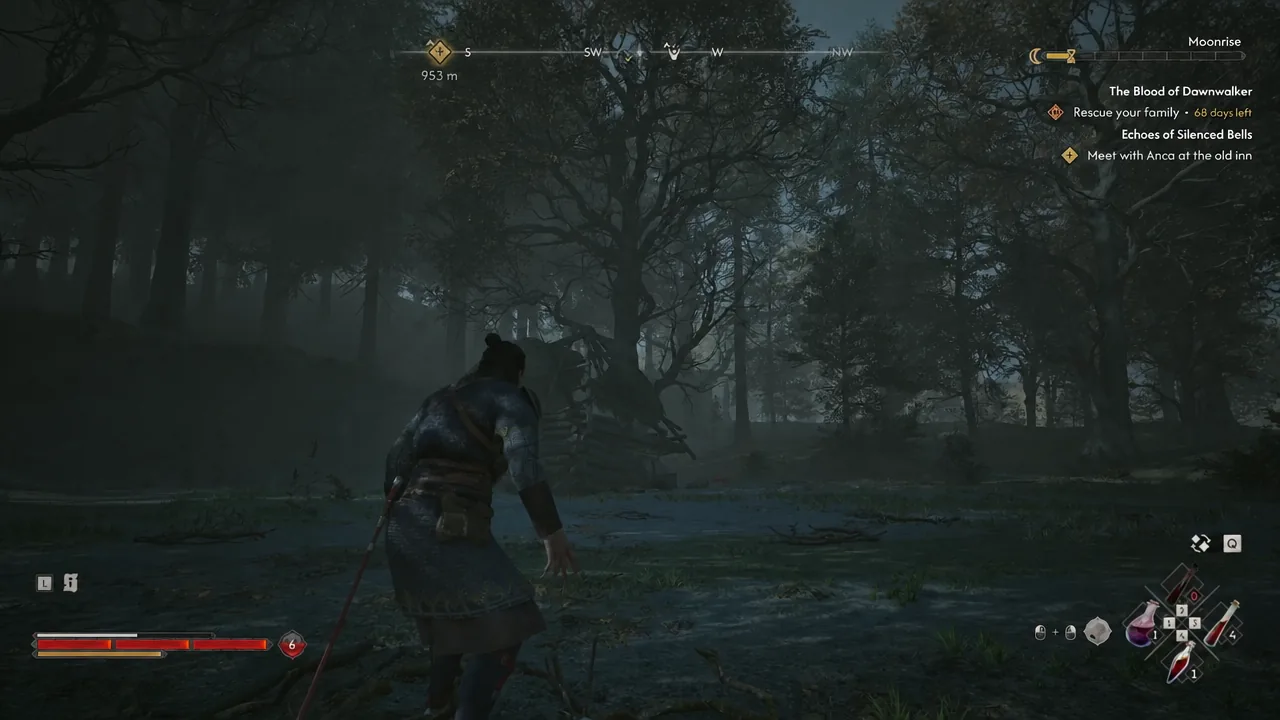
Once you resume, the day counter and active objective should reappear in the corner — for example, a tracked line such as Meet with Ania at the old inn under its quest name. Interaction prompts on world objects, like picking up a Green-Gilled Mushroom, are another fast check while you run around.
For a second confirmation, open the tab menu and cycle through CHARACTER, INVENTORY, MAP, and JOURNAL. If those screens draw normally and the map fills in as expected, the interface is working as intended.
Note: If the toggle does not seem to do anything, you are probably tapping the key instead of holding it. Hold it down for a full second before releasing.
If the UI is visible but too small to read
A separate complaint is worth separating from the toggle. Interface text and subtitles render quite small, and the game does not currently include a scaling slider for either, so there is no in-game setting that makes them larger. That is a legibility limitation rather than a bug the toggle can solve.
Ultrawide users also see letterboxed cutscenes, since dialogue and cinematic cameras are locked to a 16:9 frame. That black bar behavior is unrelated to the UI toggle and does not indicate a missing interface. Rebel Wolves has publicly tracked several early PC issues, including windowed and borderless stuttering, shader compilation crashes, and controller mapping gaps on PS5 pads.
The UI toggle itself is present in the 1.0.3 (057386) build and behaves the same across platforms, so this is not something a patch removed or relocated. If your interface vanished mid-session, treat the pause menu prompt as the first and usually only thing you need before assuming a deeper problem with the install.